
README file from
GithubIntegrated Task Manager for Obsidian
Keep your tasks alongside the notes that give them context. Integrated Task Manager brings checklists from across your vault into one place, with lists, calendars, Kanban boards, and project timelines. Complete or edit a task in any view, and the change is saved in its original note.
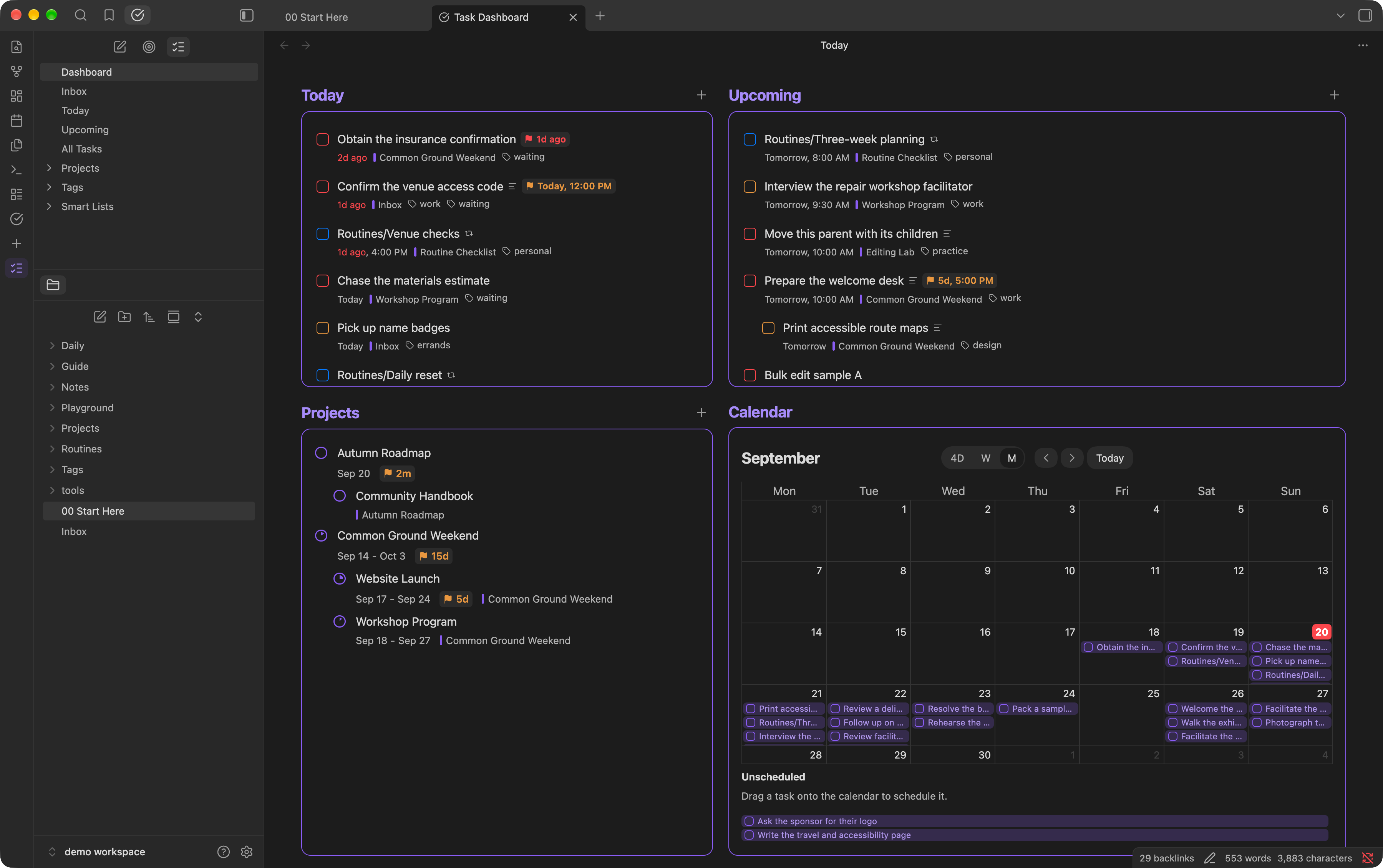
Start your day with a dashboard of today's work, upcoming tasks, projects, and your calendar.
Works on desktop and mobile, with Obsidian 1.7.2 or newer. Your tasks stay in your vault; the plugin does not upload your notes or task data to an external service.
Get started
Once the plugin is enabled, click Open task manager in Obsidian's ribbon to open the task sidebar.
- Open Inbox and choose Add task.
- Type something like
Call the venue tomorrow at 9am. - Add a deadline, priority, or other details if you need them, then save.
- Open Today, Upcoming, or Dashboard to see your plan.
Quick-created tasks go to Inbox.md by default. You can choose another inbox note in settings. Checklists already in your notes appear in All Tasks.
Find what needs your attention
| View | Use it to… |
|---|---|
| Dashboard | Get an overview of your day and projects. |
| Inbox | Capture tasks and sort them out later. |
| Today | Focus on today's tasks and catch overdue work. |
| Upcoming | Look ahead at future tasks, organized by date. |
| All Tasks | See tasks from across your vault, including those without dates. |
| Projects | Review project progress and open a project's tasks. |
| Tags | Bring related tasks together across different notes. |
| Smart Lists | Return to your own saved views of the work. |
| Weekly Review | Step through what needs attention once a week. |
Today and Upcoming consider both the scheduled date and the deadline, using whichever comes first. Tasks without either date remain available in All Tasks and their source notes.
The Dashboard's Today card shows how your day is going: a progress circle of tasks done against tasks planned, the time you've planned, how many tasks are overdue, and your next timed task with a countdown.
Press Cmd/Ctrl+K in a task view, or run Quick switch to view, project, tag, or task, to jump anywhere by typing: a view, a project, a tag, a smart list, or an open task by its title.
Open View options with the filter button at the top of a task view to sort, group, and filter. Each property has a quick list: pick several statuses, priorities, tags, or notes at once, or choose a date range such as Overdue, Today, or Next 7 days. Date ranges stay relative, so a smart list for “Next 7 days” always means the coming week. More conditions… opens the full editor for anything else, such as “is not”, a range between two dates, or several conditions joined with AND and OR. Views list the projects they match among their tasks, each with its progress in place of a checkbox (turn this off with Projects under Show): Today lists projects starting or due today (or overdue), Upcoming those starting or due later, All Tasks every active project, a tag's view the projects tagged with it, and a project's page its subprojects; filters apply to their dates, priority and tags. Click one to open it, or right-click it for its actions. The calendar shows each project on its start date (or its deadline, without one); drag it to another day to move its dates, the end date keeping its distance from the start. The button shows how many filters are active, and Clear all starts over.
For a view you'll use again, choose Create new smart list. Save a list such as “Quick wins,” “Waiting on others,” or “High-priority work.” Smart lists update as your tasks change. The … beside a smart list's title renames it, updates it with the filters, sorting and grouping you've since set in its view, or deletes it (after asking). Deleting a smart list leaves its tasks intact.
Capture the task and its details
Write dates naturally—such as “tomorrow,” “next Friday,” or “at noon”—or use the task editor's individual fields.
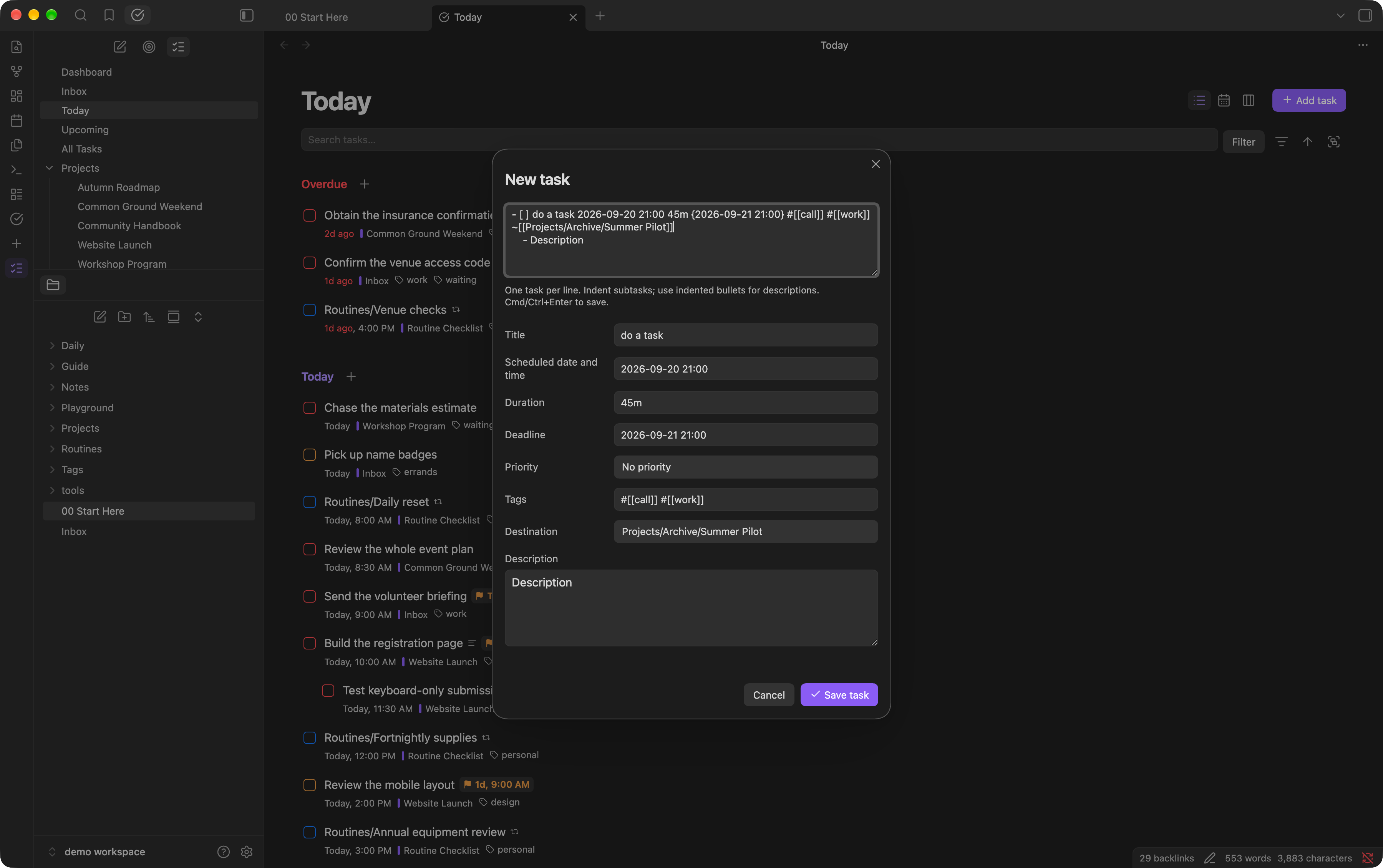
A task can include:
- A scheduled date and time for when you plan to work on it.
- A deadline, with its own optional time, for when it needs to be finished.
- A duration to help you make room for it.
- A priority, tags, and a description.
- A destination note or heading, so it lands in the right place.
Tags go at the end of a task. Tag format in settings chooses how they're written, and only that form counts as a task tag: Obsidian's own #tag (the default; a space in a tag name becomes a hyphen, as in #open-house), or #[[tag]], which links to a note named after the tag. Switching doesn't change your notes; Convert notes beside the setting, or the Convert task tags to the tag format command, rewrites the tags on your tasks into the chosen form after asking, as one change you can undo.
Run Create new task (or click + in the ribbon, or New task in the task sidebar) to add a task where you are: in a tag's view the task starts with that tag, in Today with today's date, in Upcoming with tomorrow's, and in a project with the project, shown on its buttons, so you only type the title. It works the same from a project's or tag's note; elsewhere the task goes to your Inbox. A group's + button also starts the task with that group's value, such as its date or priority. In the Things style, these (and a list's + button) add a blank card right in the list, in its group, as Things does; close it without typing anything and the task is removed again.
New and existing tasks edit the same way, as a task card does: the field holds just the title (empty for a new task), the task's properties sit on the buttons below it—When, Deadline, Priority, Project, Tags, Repeat and Status—each opening a picker, and a property typed into the title (such as p1 or "tomorrow 3pm") sets it; a picker's choice replaces one typed for the same property. A date written in words counts when it ends the title, with only properties after it, in any order ("Call Sam tomorrow p1 3pm"); in the middle of a sentence ("Call Sam tomorrow about dinner") it stays part of the title, as do words like "sun" in "Buy sun cream". Saving puts the task's properties in order. The text stays plain text: whatever it will set is highlighted as you type, here and in a task card's title—dates, times and durations in blue, the deadline in red, a priority in its colour, tags in grey and the project in green. In the Things style, an open card's properties follow what you type into its title straight away.
Break larger tasks into subtasks. A new task can also be typed or pasted with more lines: indented tasks become its subtasks and indented bullets its notes. Press Enter for another line and Cmd/Ctrl+Enter to save.
Choose a layout
List: work through the details
Click a checkbox to complete a task, or click its title to edit it. Drag tasks to reorder them or move them between sections and notes; while dragging, move right to make a task a subtask of the one above, or left to outdent it. Headings make way as tasks do: over a heading's top half a task goes to the end of the group above, over its bottom half to the start of the heading's group. Subtasks and descriptions travel with their parent. You can also drop tasks, from any list, board or calendar, on a list in the task sidebar, as in Things: drop them on Inbox, a project, or a note in the sidebar's file tree to move them there, on Today to schedule them for today, or on a tag to add that tag. The list lights up while a task is over it, and dragging a selection changes every selected task.
Use the + beside a group or heading to add a task there. Click a task's source label to return to the note it came from.
Everything you can do by dragging also works from the keyboard. Long lists show their first tasks straight away and load the rest as you scroll.
| Key | Action |
|---|---|
| ↑ / ↓, Home / End | Move between tasks |
| Tab | Reach the focused task's checkbox, title, and details |
| Enter or Space | Open the task |
| Shift + ↑ / ↓ | Select a range |
| Alt + ↑ / ↓ | Move the task up or down among its siblings |
| Alt + → / ← | Make it a subtask of the task above, or move it out of its parent |
| M | Move to another section, column, or note |
| Cmd/Ctrl + Z | Undo the last task change |
| Cmd/Ctrl + Shift + Z (or Ctrl + Y) | Redo the last undone change |
| Cmd/Ctrl + K | Jump to a view, project, tag, smart list, or task |
With tasks selected, these keys change all of them; the lists open just below the task:
| Key | Action |
|---|---|
| E | Open the task's actions (the right-click menu) |
| Shift + T | Schedule for today |
| D | Date, time and duration |
| Shift + D | Deadline |
| P | Priority (press P again to move through the priorities, Enter to set one) |
| T | Tags |
| G | Project |
| R | Repeat |
| S | Status (press S again to move through the statuses, Enter to set one) |
| Shift + S | Snooze |
| C | Complete (or reopen, when all are complete) |
| Cmd/Ctrl + C | Copy them as Markdown, with their notes and subtasks |
| Cmd/Ctrl + V | Paste copied tasks after the last selected task (or, with none selected, where a new task in this view goes) |
| Cmd/Ctrl + D | Duplicate them |
| Delete or Backspace | Delete them, with their subtasks (Cmd/Ctrl + Z brings them back) |
Calendar: make time for your work
See your schedule across four days, a week, or a month. Day and year views are also available from the command palette.
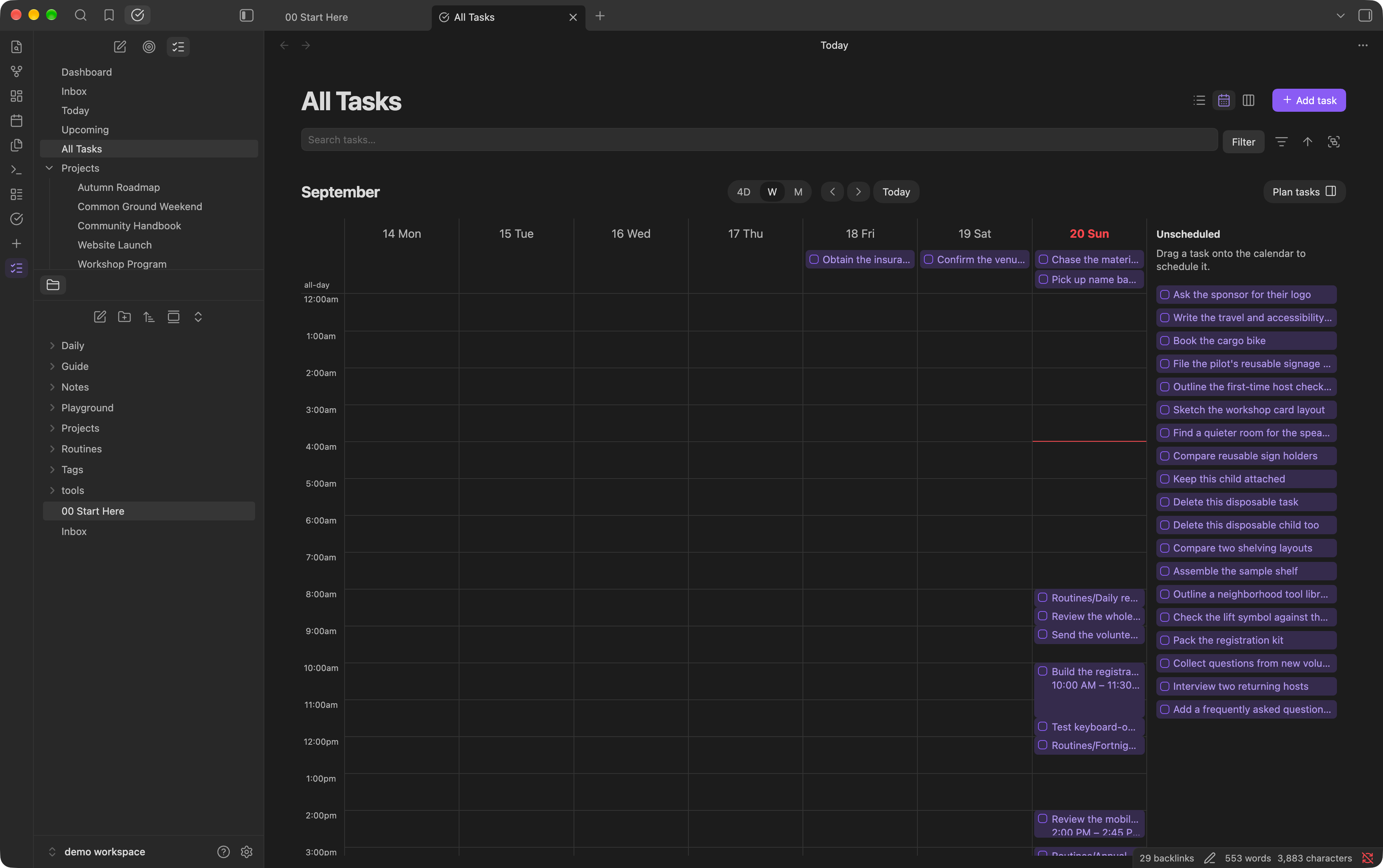
Drag tasks to a new date or time to reschedule them. In the daily and weekly layouts, drag across empty time slots to create a task, or resize a timed task to change how much time it takes.
Turn on Plan tasks to see unscheduled tasks beside the calendar, then drag them into your schedule. Tasks without a time stay in a separate area above the time slots.
The calendar places a task on its scheduled date, or on its deadline if it has no scheduled date.
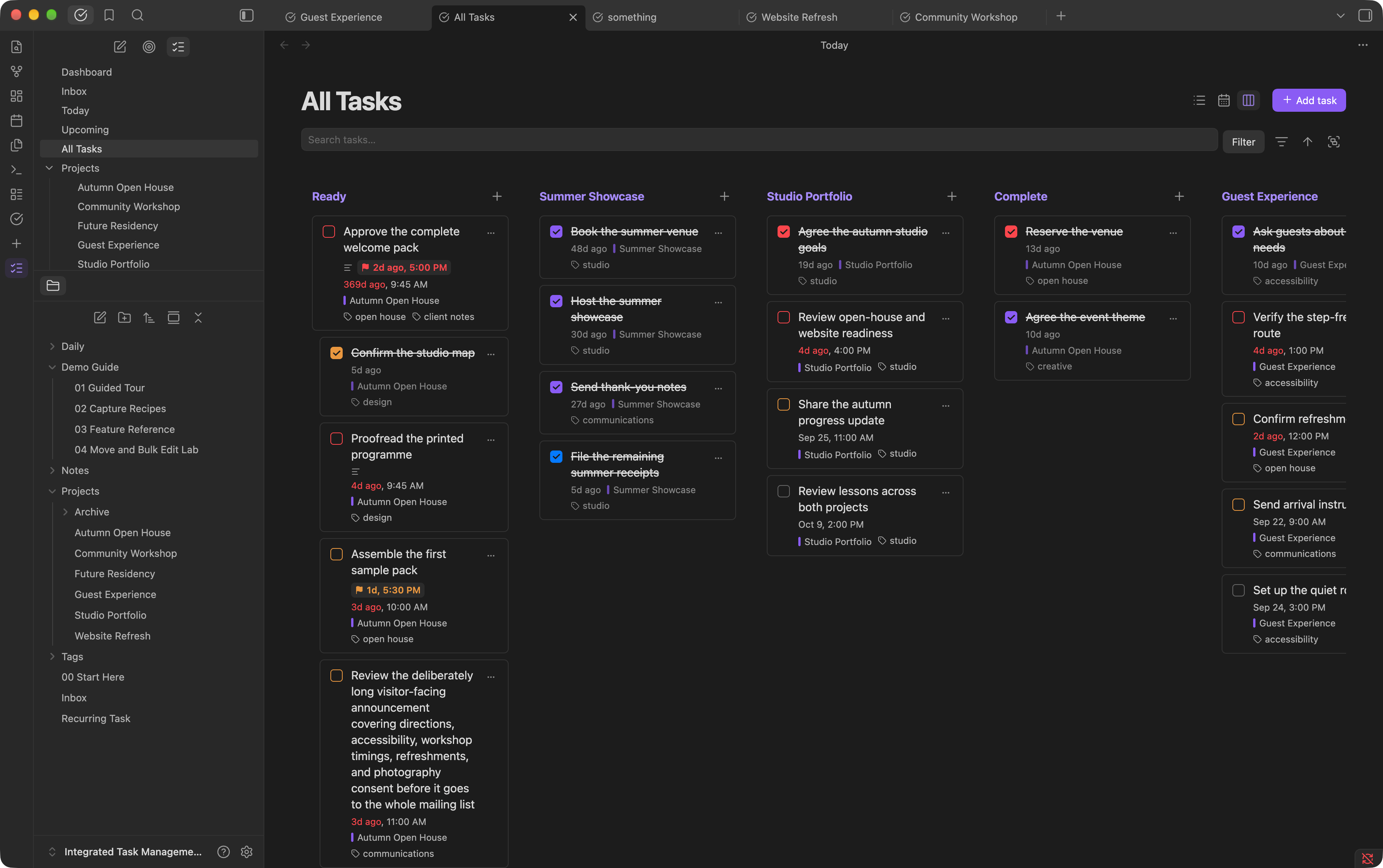
Kanban: organize work into columns
A board's columns follow the view's grouping, as a list's groups do: by default a project's sections, Today's overdue and today, Upcoming's dates, All Tasks' notes, or one column elsewhere; or group by a property such as priority or status. Drag between supported columns to update the task's section or property. Grouping by Status gives you To do, In progress, Waiting, Done, and Cancelled columns; drop a task on a column to give it that status. As in a list, completed and cancelled tasks are hidden until a status filter includes them.
Turn notes into projects
Create a project with + in the Projects view, or open an existing note and run Convert to project from the command palette. When you move a task to a project, you can also type a name that isn't a project yet and choose Create project to make it on the spot. Use headings to divide its tasks into sections, and give the project dates, a deadline, and a priority.
The … button beside a project's title (or a right-click on it in the Projects list, or Open project actions) opens the project's actions: its priority at once; its start date, end date and deadline, parent, tags, colour and name, each in a popover beside the menu; Archive, Open note and Delete project, which asks first and moves the note, with its tasks, to the trash. Clicking a project's date, deadline or parent where it shows opens the same popover.
Projects show completion progress, including subtasks. Assign a parent project to organize related projects together.
Give a project a colour from its … menu, or with a color property such as color: blue or color: "#3b82f6". Its tasks' source label takes the colour in mixed lists, board cards get a coloured stripe, and its bar in the Gantt chart uses the colour. Subprojects without their own colour use their parent's.
Task mode opens project notes as task views. Opening a project from the Projects list enables it automatically. Use Task mode in the task sidebar, or run Toggle task mode, to turn it off whenever you want to return to the regular note view.
Add the archived tag to a project note to hide it from the default Projects list. Show archived projects brings it back; its tasks remain available in other task views.
A project whose tasks are all done (100%) is completed, as in Things: it leaves the sidebar, the dashboard, the weekly review and the lists you move tasks to, and the Projects list and Gantt chart show it under Completed. In task views that show projects among tasks, it appears only with completed tasks shown. A project with no tasks yet, or with a subproject still in progress, stays active, and adding an open task makes a completed project active again.
See the bigger picture with Gantt
Switch Projects to Gantt to see your projects on a timeline. Choose month, quarter, year, or five-year views to plan at different scales.
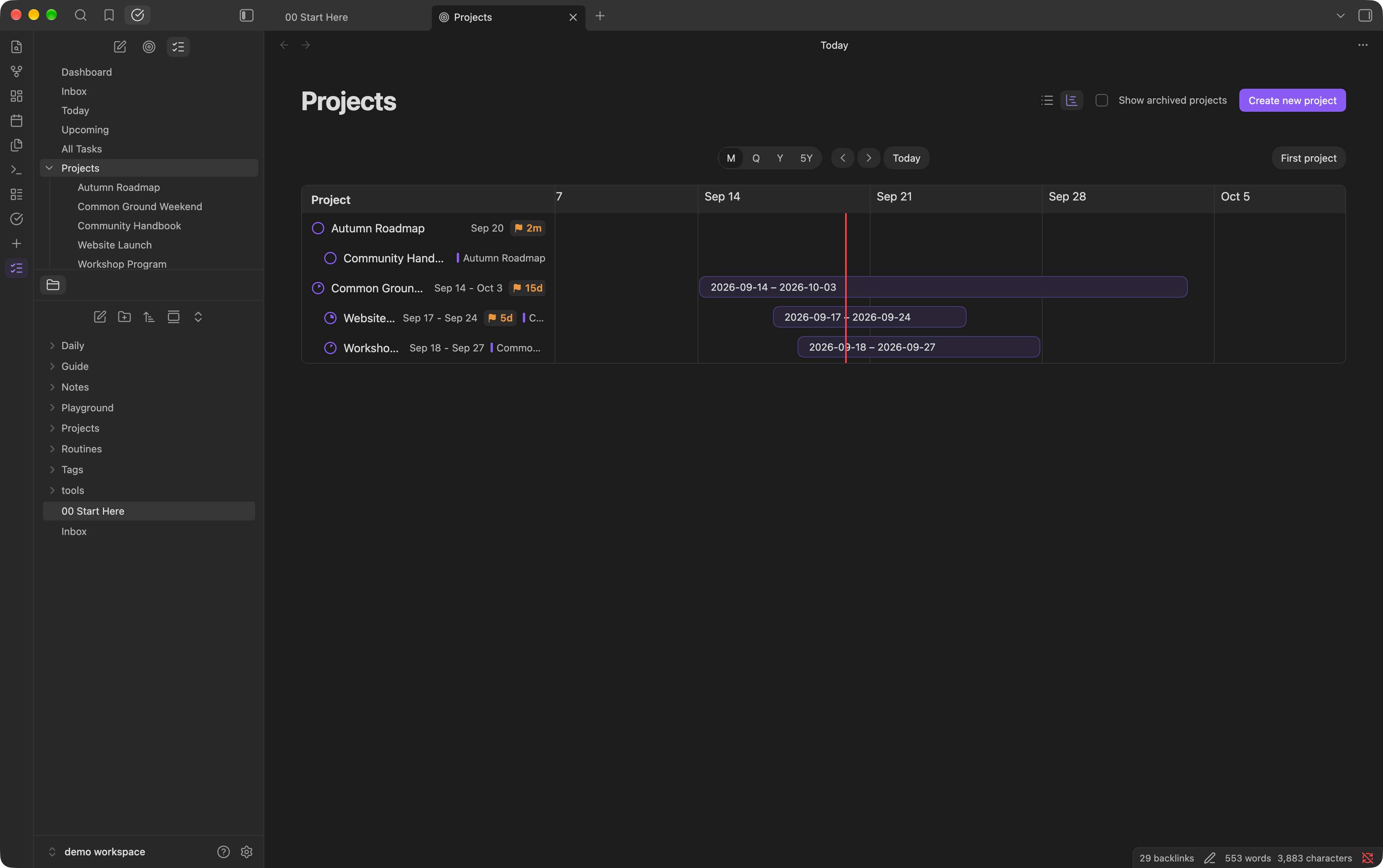
Drag a bar's edges to adjust a project's start and end dates. For a project without a date range, drag across its row to plan one. Changes are saved back to the project note.
Keep working in your notes
You can continue writing and checking off tasks directly in your notes. In Live Preview and Reading view, a task's dates, deadline, priority and other properties stay as you wrote them, highlighted in the colour of what they set (as in a task card's title); tags keep Obsidian's own look, and the checkbox takes the priority's colour.
Cmd/Ctrl-click a checkbox to open the task editor. On mobile, press and hold the checkbox.
With Task mode off, you can end a checklist item with a natural date, such as “Call the venue tomorrow.” When you press Enter or move off a line you edited, the recognized date becomes a saved schedule. Lines you only move through, completed tasks, and words in the middle of a title are left as you wrote them. Links to notes, such as [[Friday]], stay links; only links in your date format count as dates.
Tags connect related work across your vault. Open a tag from the sidebar to see its tasks; a task created in that view inherits the tag. When a tag has a linked note, Task mode can show that note as a tag task view too.
Show tasks inside any note
Add a task-query code block to a note, such as a daily note, a project hub, or a meeting note, to show a live list of tasks there. Run Insert task query to start one:
```task-query
title: This week
deadline: before in 7 days
tags: work
sort: priority
```
The list updates as your tasks change. Check tasks off, click a title to edit it, or click a date or tag to change it, right from the note. It works in Reading view and Live Preview.
Write one option per line:
| Option | Examples |
|---|---|
view |
today, upcoming, inbox, all, overdue |
smart list |
Quick wins (uses that list's filters, sort, and grouping) |
project |
[[Website Refresh]], or this for the note the block is in |
note |
this, [[Inbox]] (tasks written in that note) |
| Any property | priority: 1, 2 · tags: work or home · status: in progress, waiting · repeat: has · hidden until: someday · task title: contains report |
| Dates | deadline: before next friday · scheduled: between today and in 7 days · completed: after 7 days ago · deadline: missing |
search |
words in the title, description, or tags |
sort, group |
sort: priority desc · group: source |
limit |
how many tasks to show (50 by default), with Show all for views and smart lists |
title |
a heading for the list |
show completed |
yes to include completed tasks |
Dates such as today or next friday are worked out each time the list is shown, so the list stays current. If an option isn't understood, the block says which line and why. The Tasks plugin's tasks blocks are left alone, so both plugins can be used side by side.
Update several tasks at once
Select tasks to change their dates, priorities, tags, or other details together.
| Action | Gesture |
|---|---|
| Select a task | Click, or right-click to open its menu too |
| Select a range | Shift + click |
| Add to your selection | Cmd/Ctrl + click |
| Select a range from the keyboard | Shift + ↑ / ↓ |
| Select every task in the view | Cmd/Ctrl + A |
| Clear your selection | Click outside the selected tasks, or press Escape while a selected task is focused |
Right-click a task, or run Open task menu, for its menu; with several tasks selected it changes them all:
- Complete (or Reopen)
- Date: Today, Tomorrow, Next week, or pick any date, time and duration
- Priority: P1–P3; choosing a task's own priority takes it off
- Project, Deadline, Tags, Repeat, Snooze and Status, each in a list beside the menu
- Duplicate, which copies each task with its notes and subtasks right below it, and Delete
While the menu is open, each row's letter opens it: D for a date, P for priority, G for the project, Shift+D for the deadline, T for tags, R for repeat, Shift+S to snooze, S for the status and C to complete. A task's tags list checks the tags every selected task has and marks those only some have with a dash. Clicking a tag toggles it on every task, and typing adds new ones (separate several with commas).
You can also drag a selection to move tasks together, drop it onto the calendar to reschedule it, or delete selected tasks along with their subtasks.
Review your week
Open Weekly Review from the sidebar, the quick switcher, or the command palette. It walks through what needs your attention, one section at a time:
- Completed this week, when completion dates are turned on
- Overdue tasks to reschedule, finish, or let go of
- Waiting tasks to follow up on
- Routines behind their date
- Deadlines in the next 7 days
- Untouched for a month: undated tasks in notes nobody has edited for 30 days
- Projects without a next action
- Someday tasks, to schedule or delete
Work on tasks right in the review, with the same checkboxes, keys, and swipes as other views. Tick Reviewed on each section as you finish it; it folds away, and your progress is kept until the week ends. Start over clears it.
Use it on your phone
Swipe a task to the right to select or deselect it, or to the left to open its actions. Double-tap a task to open it. To move a task, press and hold it until it lifts, then drag it.
On phones, the task editor opens as a sheet from the top of the screen; drag its handle up to close it. The project editor opens from the bottom; drag its handle down. Popovers and menus open at the top of the screen.
Undo and redo a change
Press Cmd/Ctrl+Z in a task view or run Undo last task change from the command palette to undo a change you made from a task view (completing, moving, editing, snoozing or deleting tasks). Turn on Show undo notices in settings for a notice after each change, with an Undo button. The last 20 changes can be undone.
Undo puts your notes back exactly as they were, so it only runs if those notes haven't changed since; otherwise it tells you which note changed.
Changed your mind? Press Cmd/Ctrl+Shift+Z (or Ctrl+Y on Windows and Linux) in a task view, click Redo on the notice that confirms an undo, or run Redo last undone task change to apply the change again. Redo follows the same rule, running only if the notes are still as the undo left them. Making a new change clears what you can redo.
Track progress with statuses
A task's status is the character in its checkbox:
| Markdown | Status |
|---|---|
- [ ] |
To do |
- [/] |
In progress |
- [?] |
Waiting |
- [x] |
Done |
- [-] |
Cancelled |
Change a status by pressing S on selected tasks (or C to complete them), from a task's right-click menu, by dragging it to another column of a board grouped by status, or with the status menu in the task editor or when editing several tasks. You can also type the character in a note. Other characters, such as [!], are not treated as tasks.
In task views, in-progress checkboxes are half filled, waiting ones are dashed with a dot, and cancelled tasks are muted and struck through. Notes show the same marks, unless your theme styles these checkboxes itself.
Cancelled tasks are hidden with completed ones and count toward neither side of a project's progress. In task views, clicking the checkbox of an in-progress or waiting task completes it, and clicking a cancelled task's checkbox reopens it. Completing a repeating task from any status advances it to its next occurrence as to do; marking it as cancelled skips that occurrence. In the Things style, a repeating task shows a repeat icon in place of its checkbox; click it to complete the task, as you would the checkbox.
In a note, a click on an in-progress or waiting checkbox is usually handled by Obsidian itself, which resets it to [ ] instead of completing it (repeating tasks are completed as usual). To complete it, type x in the checkbox or use a task view.
The Today summary shows how many of today's tasks are in progress, and smart lists and task-query blocks can filter, sort, and group by status. Older smart lists that filter on Open or Completed keep working: Open means to do, in progress, or waiting.
Snooze tasks you can't act on yet
End a task with > and a date to hide it from Inbox, Today, and Upcoming until that day, such as - [ ] Renew passport >Oct 1, 2026. Use >someday to set a task aside with no date. Snoozed tasks still appear in All Tasks, projects, and tags, labelled Hidden until, and come back on their own when the date arrives.
In a task view, press Shift+S on selected tasks, or right-click them and choose Snooze. In a note, you can type a natural date such as >tomorrow; it becomes a date when you move off the line.
Build recurring routines
For a simple repeat, end the task with a rule such as every week, every 2 weeks, every month, or every monday:
- [ ] Water plants Sep 28, 2026 every week
Completing it moves its date to the next occurrence instead of checking it off; a deadline moves by the same number of days. A repeat with only a deadline repeats from the deadline. A task can have several rules, such as every monday every friday; it moves to whichever occurrence comes first. In the repeat picker, type them apart or with commas (monday, friday). Note that a title ending in a rule, such as “Clean every day”, becomes a repeating task.
For habits you want a history of, use a routine note instead:
- Create a note for the routine, such as Weekly review.
- In that note's properties, add the tag
recurring-taskand a text property namedrepeat, with a value such asevery friday. - In any checklist, link to that note and give the task a scheduled date.
Check off the recurring task (- [x]) to record its completion and advance it to the next occurrence (a deadline moves by the same number of days), or cancel it (- [-], or Cancelled from its status menu) to record that this occurrence didn't happen and move on all the same. Either way the task stays open for next time, in the checklist where you closed it, and its routine note keeps the history: COMPLETED: Sep 19, 2026 in green and CANCELED: Sep 26, 2026 in red. A simple repeat moves on when cancelled too, with no history.
Repeat rules include every day, every week, every other week, every month, every year, and named weekdays. Overdue routines advance one occurrence at a time. Monthly and yearly routines remember the day they started on, so a routine on the 31st returns to the 31st after a shorter month. (Simple repeats don't: they follow the shorter month from then on.) If a task has both a routine note and a rule, the routine note wins.
Record when tasks were done
Turn on Record completion dates in the settings to stamp each task with the day you complete it, such as - [x] Pay rent ✓Sep 27, 2026. Reopening or cancelling the task removes the date, and cancelling never adds one. Completed tasks then show a Done label, the weekly review lists what you finished this week, and smart lists can filter and sort by Completed date. Dates written by the Tasks plugin, such as ✅ 2026-09-27, are read too.
Make it fit your workflow
In the plugin settings, you can choose your inbox, decide whether new tasks go at the top or bottom, and select which heading level organizes project sections. Show subtasks as their own rows, and choose Comfortable or Compact density to fit more tasks on screen.
Turn on Show files in sidebar to keep your vault's files and folders in the task sidebar, below projects and tags, so one sidebar does both jobs. Click a note to open it (hold Ctrl or Cmd for a new tab), and click a folder to open or close it; the sidebar remembers which folders are open. With files shown, the sidebar's toolbar adds New folder and Change sort order to its New task, New note, and Task mode buttons; sort files by name, modified time, or created time, as in the file explorer. New note puts the note where Obsidian puts new notes. Drag files as you would in the file explorer: into a note to link them, onto a tab to open them, or onto a folder (or the Files heading, for the top of the vault) to move them there; folders and files dragged from the file explorer can be dropped on its folders too. Drop a task on a note to move the task into that note. Right-click a file or folder to open it in a new tab or to the right, make a note or folder inside it, rename it in place, or delete it. Other plugins' file menu items appear there too.
To keep some checklists out of the plugin, list them under Ignored folders and notes, such as Templates/ or Journal/Private.md: a folder covers everything inside it. Under Ignored tags, list tags such as template or someday: notes with one of them in their properties are left out entirely, and single tasks tagged with one (as #someday or #[[someday]]) are hidden along with their subtasks. Ignoring a tag also ignores its nested tags, such as archive/2025. Ignored tasks stay in your notes; they just don't appear in task views, query blocks, counts, or the weekly review, and an ignored note isn't treated as a project. Changes apply straight away.
Choose your preferred date format and whether dates link to notes. These choices apply to new edits; use Update dates to apply them to existing tasks and recurring-task history.
The plugin remembers the tasks it found in each note, on this device, so it starts quickly even in large vaults: only notes that changed since last time are read again. If task lists ever look out of date, run Rebuild task index.
Search for Integrated Task Manager in Obsidian's command palette to open views, create tasks, switch layouts, and access other actions. Assign hotkeys to your favorites in Obsidian's Hotkeys settings.
Coming from the Tasks plugin
Run Import tasks from the Tasks plugin from the command palette, or choose Import… in the plugin settings. It converts tasks written with the Tasks plugin's emoji or fields, in all notes or just the current one:
| Tasks plugin | Becomes |
|---|---|
| 📅 due date | {deadline} |
| ⏳ scheduled date | scheduled date |
| 🛫 start date | > hidden until |
| ✅ done date | ✓ completion date |
| 🔁 every week | every week |
| 🔺 ⏫ / 🔼 / 🔽 ⏬ | p1 / p2 / p3 |
#tag |
a task tag at the end of the task, in your Tag format, if you choose to convert tags |
[/], [?], [-] |
kept, as in progress, waiting, and cancelled |
Dataview-style fields such as [due:: 2026-10-01] are converted too, * [ ] and + [ ] checklists become - [ ], and your Tasks global filter (such as #task) is removed. You see how many tasks will change, with examples, before anything is written. Other custom statuses (such as [!] or [>]), dependencies, and repeat rules this plugin doesn't support are left as they are and listed in the preview; ❌ cancelled dates stay as text. Tasks query blocks are not touched. The whole import is one change you can undo.
Manual installation
- Place
main.js,manifest.json, andstyles.cssin your vault's.obsidian/plugins/integrated-task-manager/folder. - Reload Obsidian.
- Enable Integrated Task Manager under Settings → Community plugins.