
README file from
GithubPixkit for Obsidian
Optimize images inside your vault. Resize, crop, rotate, compress and convert formats, without leaving Obsidian and without uploading anything anywhere.
Powered by safi-image, a TypeScript image library written for this plugin. No native binaries, and nothing is fetched at runtime: every codec ships inside main.js, and no image ever leaves your machine. Every format is decoded in plain TypeScript except WebP, which uses a small WebAssembly codec, inlined rather than downloaded. This is the Obsidian port of the VS Code extension.
By Abdulkader Safi.
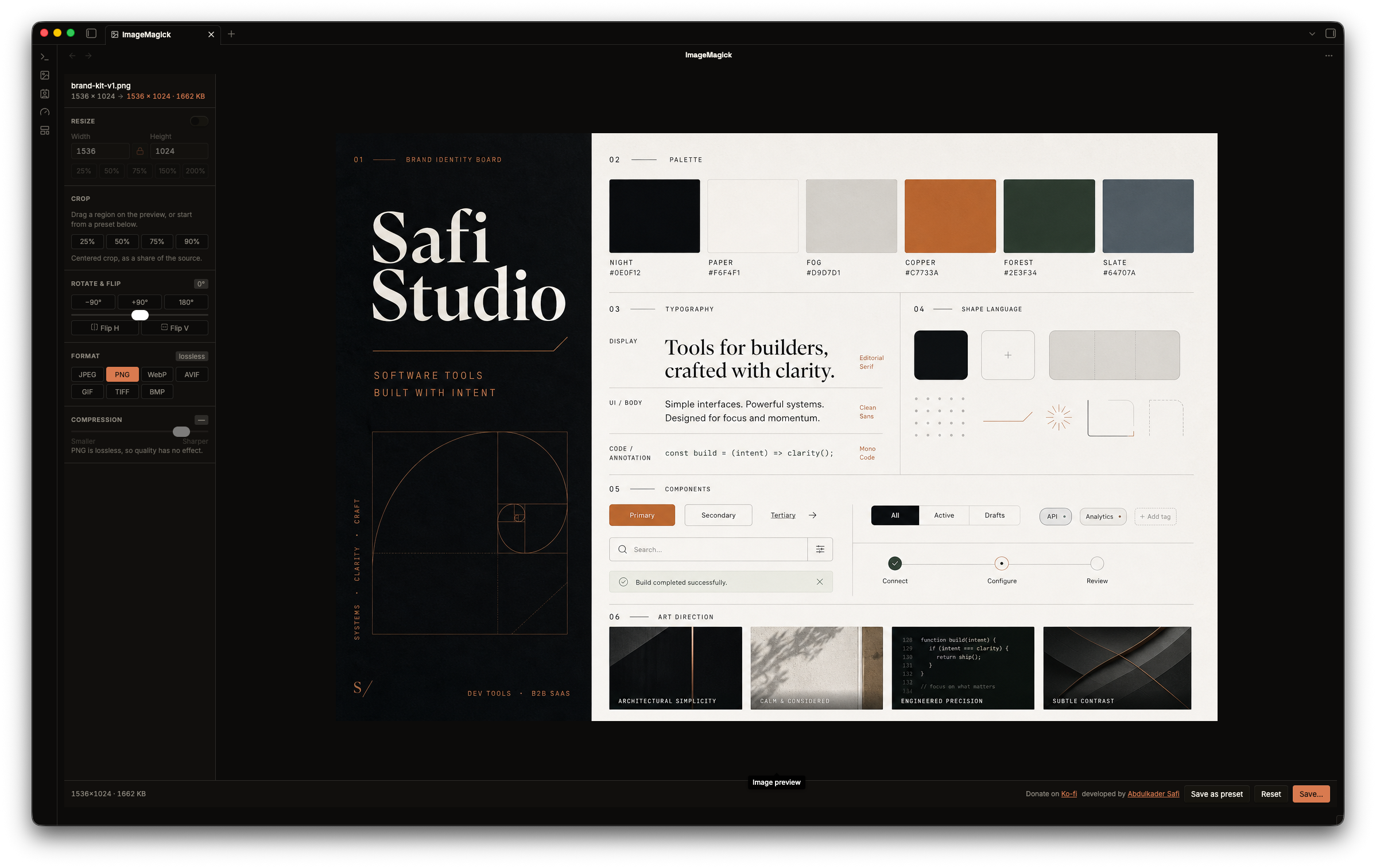
Features
- Resize: width and height inputs, lock aspect ratio, quick percentage presets.
- Crop: drag a region on the preview, or type exact coordinates.
- Rotate and flip: 90° presets, a free-angle slider, horizontal and vertical flip.
- Compress: quality slider (1-100) for lossy formats.
- Change format: JPEG, PNG, WebP, GIF, TIFF and BMP.
- Live preview with an output size estimate.
- Save to any vault path, with a smart default (
photo.optimized.webp) that never overwrites your source. - Presets: right-click an image (or a multi-selection) and pick Optimize with preset to write optimized output straight into the vault, no editor. A preset holds a format, quality, max size, and metadata-strip choice. Edit them in the plugin settings, or use Save as preset in the editor.
- Bulk edit: select several images, tune the pipeline on one, and Save all applies it to every file.
Usage
- From the file explorer: right-click an image, a selection of images, or a folder (every image inside it, subfolders included), then Optimize image or Optimize with preset.
- From a note: right-click an embedded image, in live preview or reading view. Saving swaps the new file into the note. To do every image in a note at once, open the note's menu (right-click it in the file explorer, or its tab) and pick Optimize image or Optimize with preset.
- From the command palette: Pixkit: Open image and Optimize with preset use the image open in the current tab, or let you pick one. Optimize images in current note and Optimize images in current note with preset cover every image the open note embeds.
- Drag and drop: open the view, then drag an image in from outside Obsidian.
Keeping notes in sync
Two settings decide what happens to your notes after an optimize:
- Update links in every note switches every note that shows the image to the new file, wherever you optimized it from, including the file explorer and folders. With it off, only the note you optimized from changes.
- Delete the original after updating links moves the old image to the trash once the notes point at the new file. An image that something still links to is always kept.
Supported formats
Reads and writes JPEG, PNG, WebP, GIF, TIFF and BMP. The plugin asks the library which encoders are available and only offers formats it can actually produce.
EXIF orientation is applied on open, so a photo shot upright arrives upright. Metadata (EXIF, GPS, colour profiles) is never carried into the output.
Some things the library does not decode: AVIF and HEIC, both patent-encumbered; progressive JPEG; animated GIF and multi-page TIFF, which read as their first frame.
Development
npm install
npm run dev     # rebuild main.js on save
npm run build   # typecheck, then production bundle
npm test        # runs real images through the edit pipeline
npm run lint
The UI is Svelte 5 mounted into an Obsidian ItemView. Styling is plain CSS in styles.css, written against Obsidian's own CSS variables, so the editor follows the active theme and light/dark mode with no rebuild. There is no CSS build step.
Running on mobile
The manifest is not desktop-only, and the plugin has no node dependency at runtime. safi-image's PNG codec imports node:zlib, which Obsidian mobile does not have, so the build swaps it for src/zlib-shim.ts (fflate) via scripts/node-shims.mjs. Any other node: import is a build error rather than a silent stub, because it would only fail on mobile and nowhere else.
License
MIT