
README file from
GithubMaps of the Ideaverse
 The Ideaverse map turning through Nick Milo's own vault of 14,617 notes.
Visualize your notes across a suite of insanely cool interactive maps—Emergence, Ideaverse, Starfield, and many more. There is even an improved Obsidian graph, which is WAY faster. The implications of this are up to your imagination. Oh, and also, it works in Bases, which will be extremely useful for anyone, especially researchers, who use targeted datasets. Data visualization has become reborn.
Every note in your vault gets a place on the map, based on what kind of note it is and how it's linked. Unlinked notes sit at the bottom, and your maps of maps and home notes sit at the top. Press play and you can watch your vault grow, month by month. Then try it another dozen ways: as rings, as galaxies, as a graph, as a bookshelf, or as a wall of movie posters.
Made by Nick Milo of Linking Your Thinking, for anyone with an Obsidian vault (an "ideaverse"). It's free and open source, and it never changes your notes.
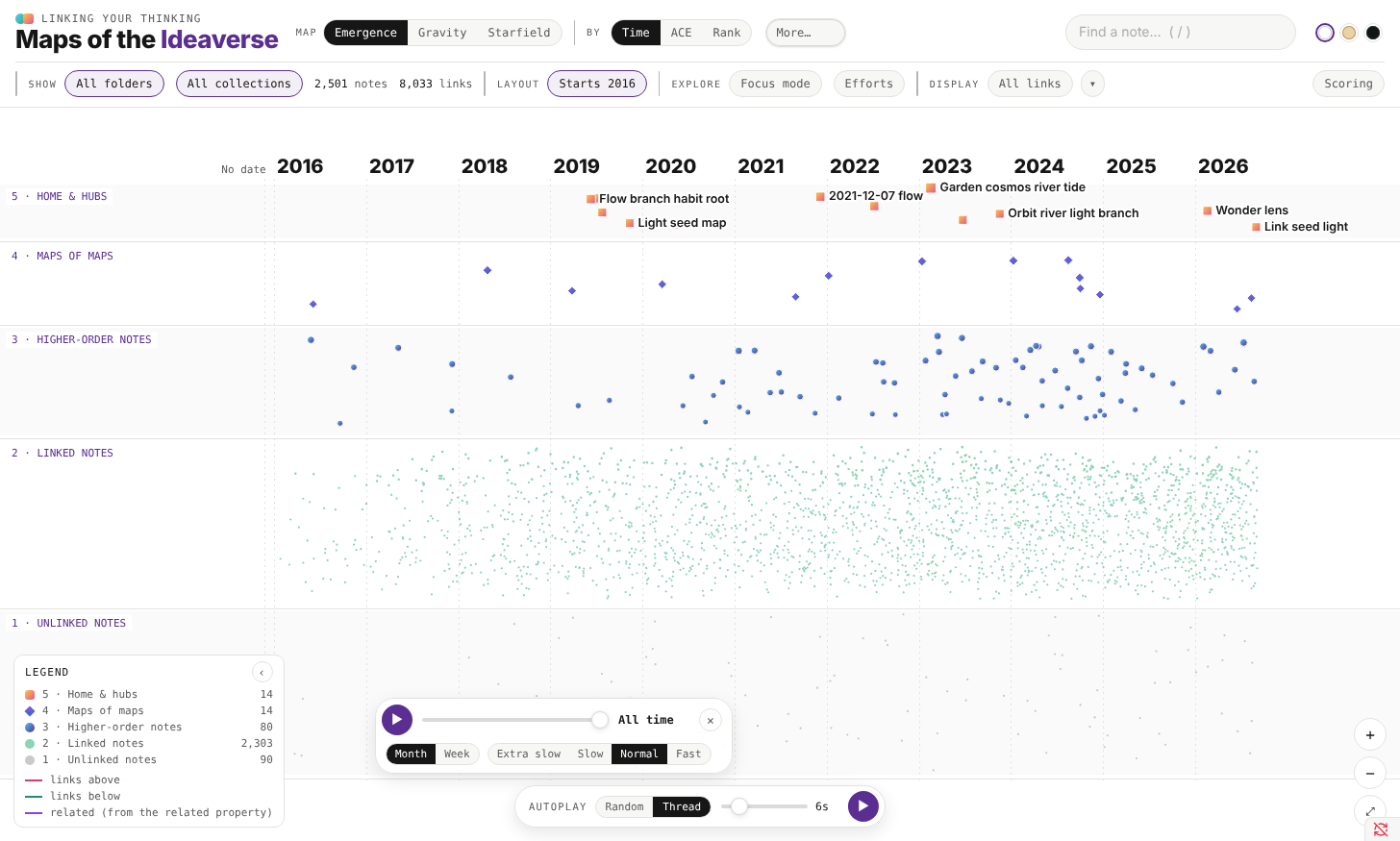 Emergence in the LYT Mode theme. The selected map of content links up to the maps and hubs above it and down to the notes it gathers. The other screenshots use a made-up vault of 2,500 notes and 160 made-up films.
Gallery
Eighteen views of one real vault, Nick's own, across the three themes (Play, Soft Paper and LYT Mode).
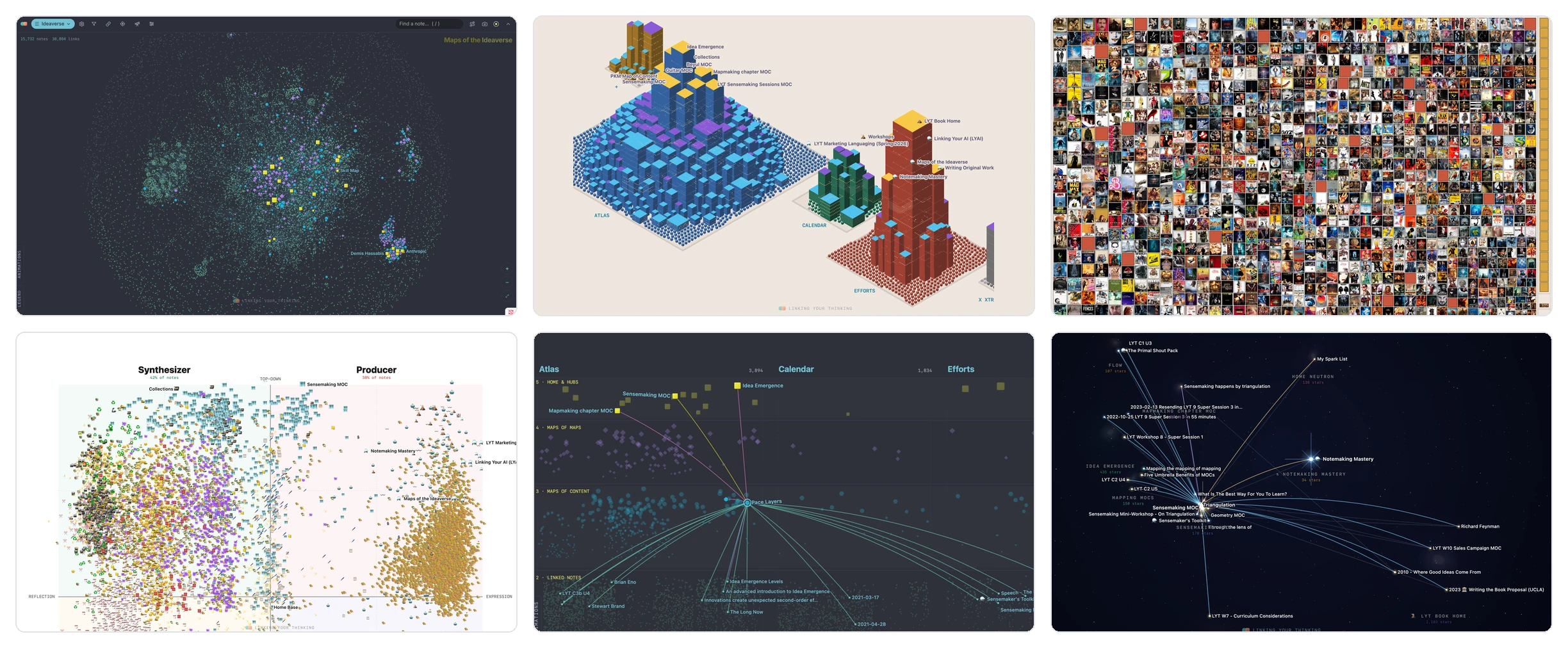
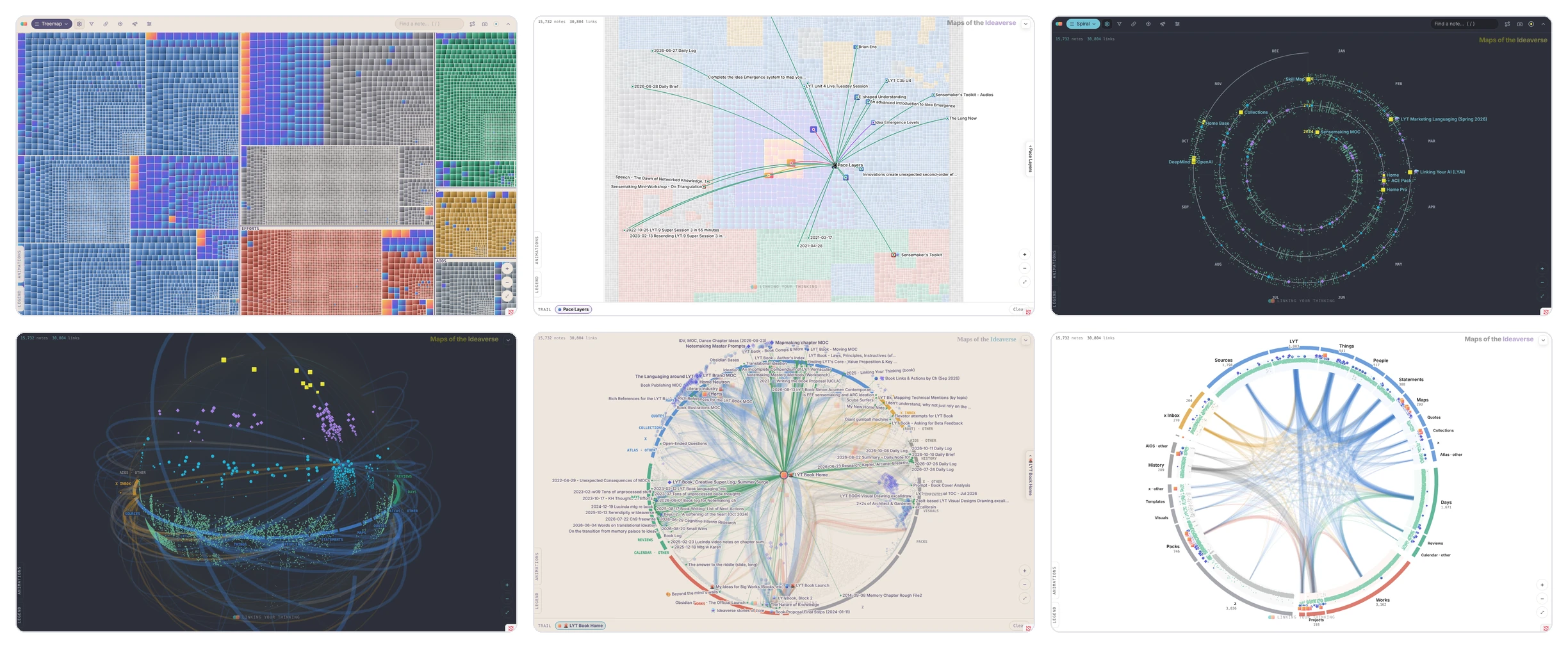
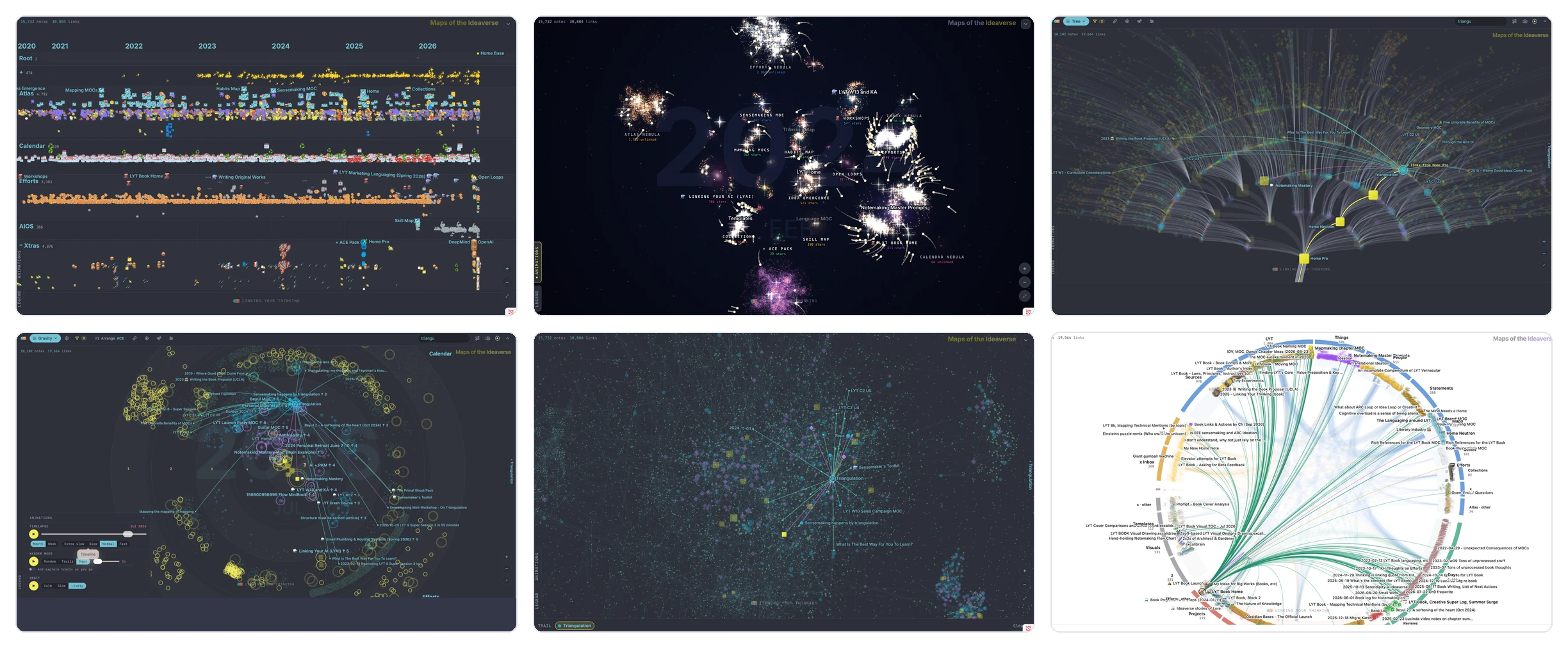
The maps
The toolbar starts with one button: ☰ and the name of the map you're on. Click it for the maps menu: every map with a small icon, the four main ones first (Emergence, Ideaverse, Starfield and Sensemakers). It stays open as you pick, so you can hop from map to map; click anywhere else to close it. The gear right after it opens the current map's own settings (its variants and options), on maps that have any. Quick keys along the top row of the keyboard jump to the maps in the list: 1–4 the main maps, 5 Gravity, 6 Obsidian, 7 Treemap, 8 Mosaic, 9 Bookshelf, - Tesla, = Corona and [ Chord; Linear Calendar is always 0 and Base Builder always \, wherever they sit in the list; each one's key shows at the end of its row. Letter keys work the map itself: O starts and stops Orbit, and J, K and L pick its three speeds (Earth, Mercury and LYT Speed on a globe; Calm, Slow and Lively on a flat map) and start it; A shows or tucks the Animations; W starts and stops Wander Mode; T the Timelapse; S turns Sync with the editor on or off; F opens Filter; N turns Focus on or off; V opens Saved views. Press ? (or Display → Keyboard shortcuts) for a card of every key, and each button's hover hint ends with its key. Turn on Display → Show more maps in the header to list eight more of them by name in small type next to the button, whenever the row has room (Find shrinks to its magnifying glass first).
Emergence
Emergence stacks your notes in five bands, one for each Idea Emergence level. From left to right, notes are placed by the date they were created, or by your top folders if you prefer.
You can narrow the map to certain years in Filter → Years shown. Drag either end of the slider to keep, say, only 2022 to 2024. The setting applies to every map of your whole vault. Notes from other years, and notes with no date, wait in strips at the edges of the map. If you'd rather not see them at all, turn off Show notes outside the date range.
Click any note to light up its links. You'll see the maps above it and the notes it gathers below it. The Emergence menu also has two variants. Space-Time gives each of your top folders its own row, and Planetarium puts you inside the map, with Level 5 overhead. Turn on Show emojis in the same menu to put each note's emoji in place of its dot on Main and Space-Time, the same way Linear Calendar does (see below).
Ideaverse
The Ideaverse map shows your whole vault as a ball of notes in 3D. Every note pushes the others away, and its links pull it toward its neighbors. Notes are drawn with the emergence symbols, so your hubs and maps stand out. Drag to turn the ball and scroll to fly into it. If you turn on Orbit in the Animations panel, it spins slowly on its own. The animation at the top of this page is the Ideaverse map.
Gravity (in the ☰ menu)
Gravity draws the same five levels as rings. Home notes and hubs sit at the center, and unlinked notes sit out on the rim. Time or folders run around the circle, or a number: Arrange can put notes around it by Link score, the score that sets each note's level, among others.
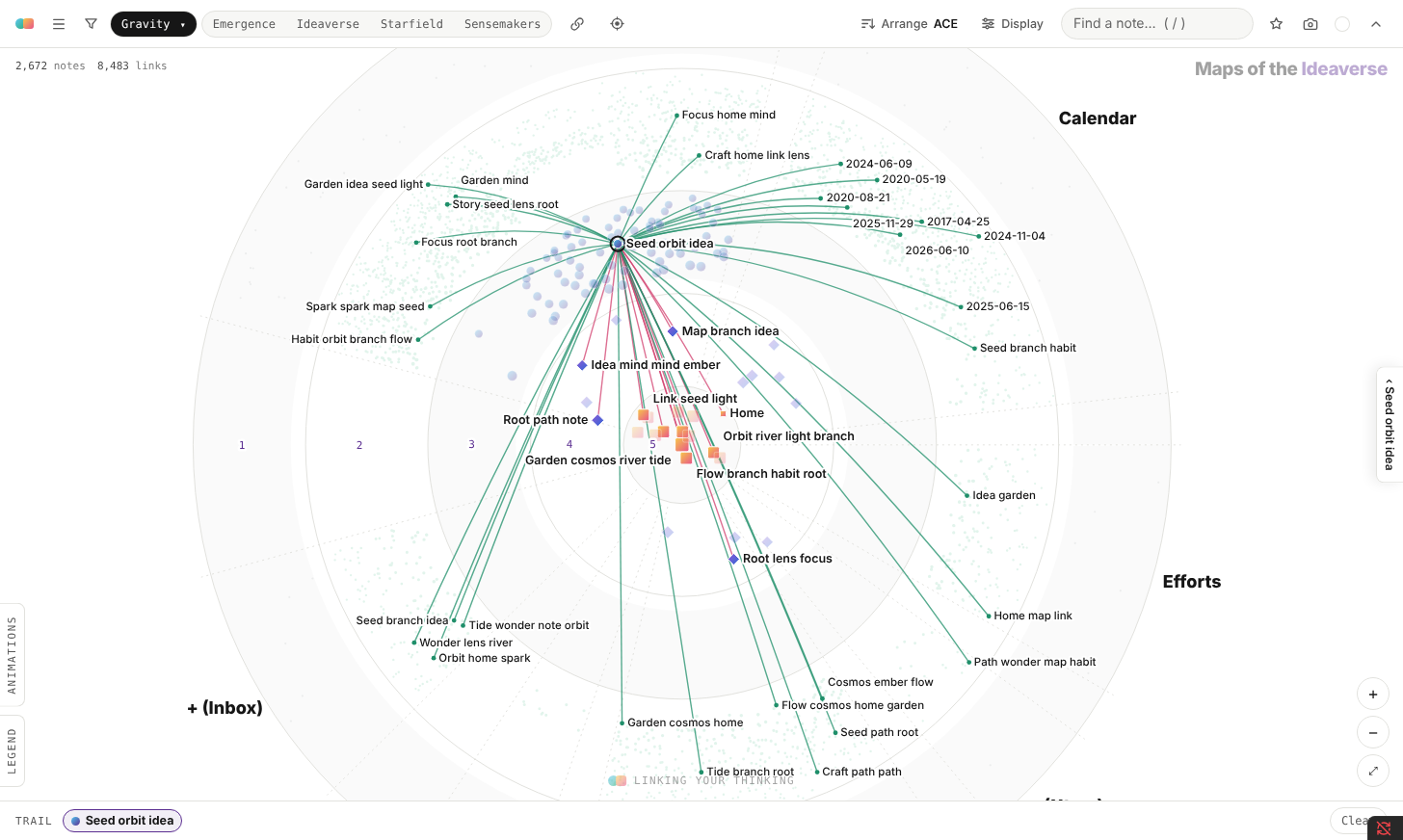 Gravity by ACE folders in the Play theme. A Level 3 map is selected, and its links run from the hubs at the center to notes out on the rim.
Starfield
In Starfield, your biggest hubs become the cores of galaxies. Every note joins the hub it can reach in the fewest links. Maps gather near the center of their galaxy, linked notes trail out along its arms, and unlinked notes drift in clouds, one for each folder. Click a galaxy's name to fly into it. Turn on the overview map for a small picture of the whole sky in the bottom right, showing where you are; click it to move there.
Starfield's menu lets you switch to 3D, set how strongly the galaxies glow (Clear turns their light off so every note reads as a crisp dot), add a rare twinkle, and make the galaxies turn slowly. During the Timelapse, each new note flares as it appears.
Star Chart, a switch that works in 2D or 3D, lays a navigator's chart over the galaxies. Rings around the note you're on show its links by kind and a dial of time, and signposts on the outer ring point toward the hubs it links to. Click a signpost to go there. Press Z (or the square zoom button) to switch between Normal and Close-Up, which frames the note you're on with its hub. Four switches under it add lines between your hubs, a small readout beside each ringed hub, a glow in each galaxy's folder color, and slowly turning orbits.
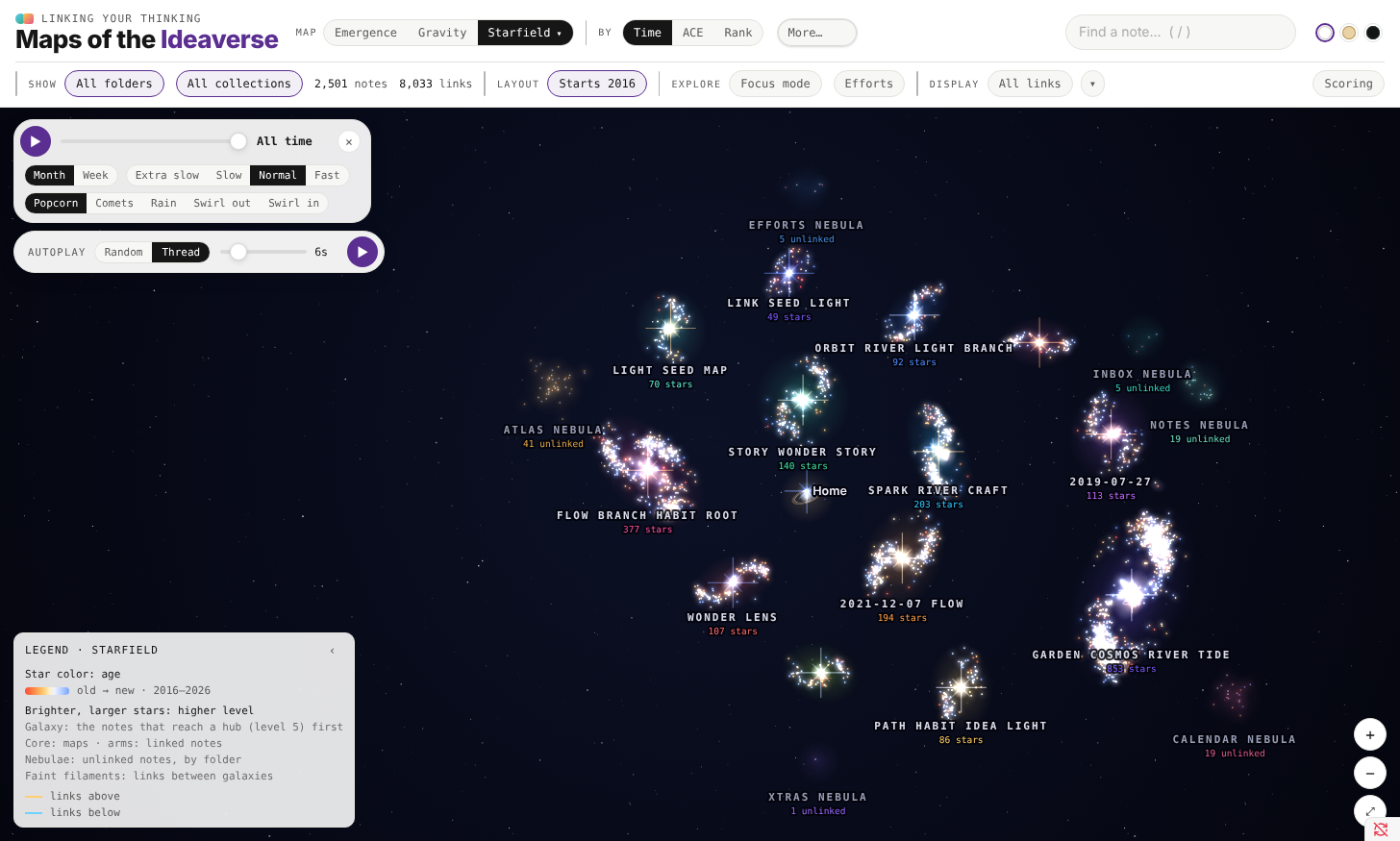 Starfield in 3D, LYT Mode. Each galaxy is a hub plus the notes that reach it first.
Sensemakers
Sensemakers sorts your notes into four ways of working with ideas. A Synthesizer reflects from the top down, a Producer expresses from the top down, an Inner Guide reflects from the bottom up, and a Creative expresses from the bottom up. Each note is placed by simple rules about where it lives and how it's written, such as its folder, its headings and lists, its checkboxes and due dates, and whether it's written in the first person. No AI is involved. Click a note to see exactly which clues placed it. Show emojis in its gear puts each note's emoji in place of its dot, as on Linear Calendar.
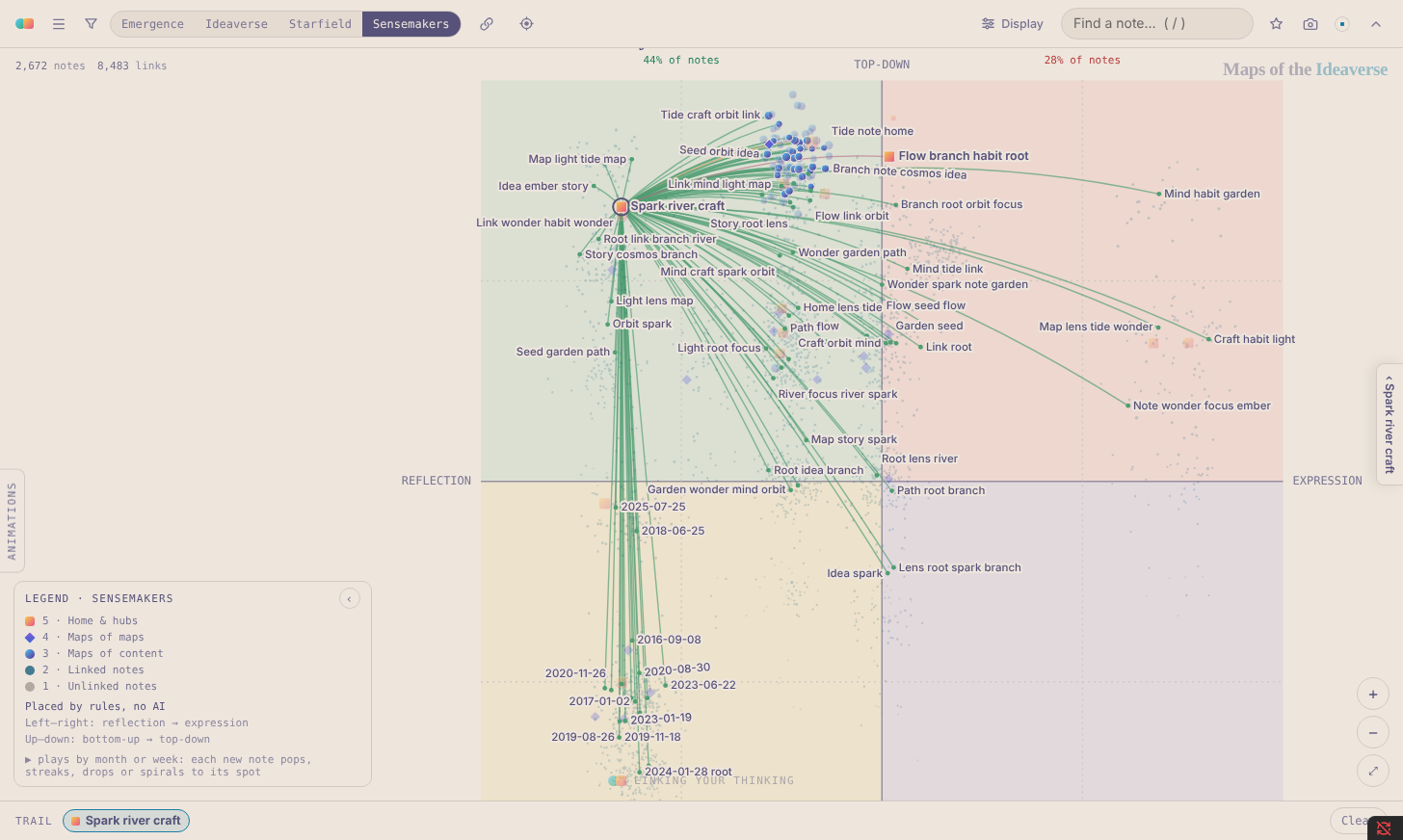 Sensemakers in the Soft Paper theme. The panel explains why this note counts as a Synthesizer.
More maps
These maps live in the ☰ menu.
Obsidian
This is our take on Obsidian's graph view. Every note pushes the others away while its links pull it toward its neighbors, and you can watch the graph settle into shape. Drag a note and its links tug the rest along with it. Hubs and maps are drawn with the emergence symbols so they stand out, and everything the other maps offer works here too, including the Timelapse, Wander Mode, Focus mode and filters.
The map's menu has the same forces as Obsidian's graph settings. Gravity is the pull toward the middle, so lowering it lets a big graph spread out. Repel sets how hard notes push each other away, and Link length sets how far apart linked notes like to sit. The graph moves as you drag the sliders.
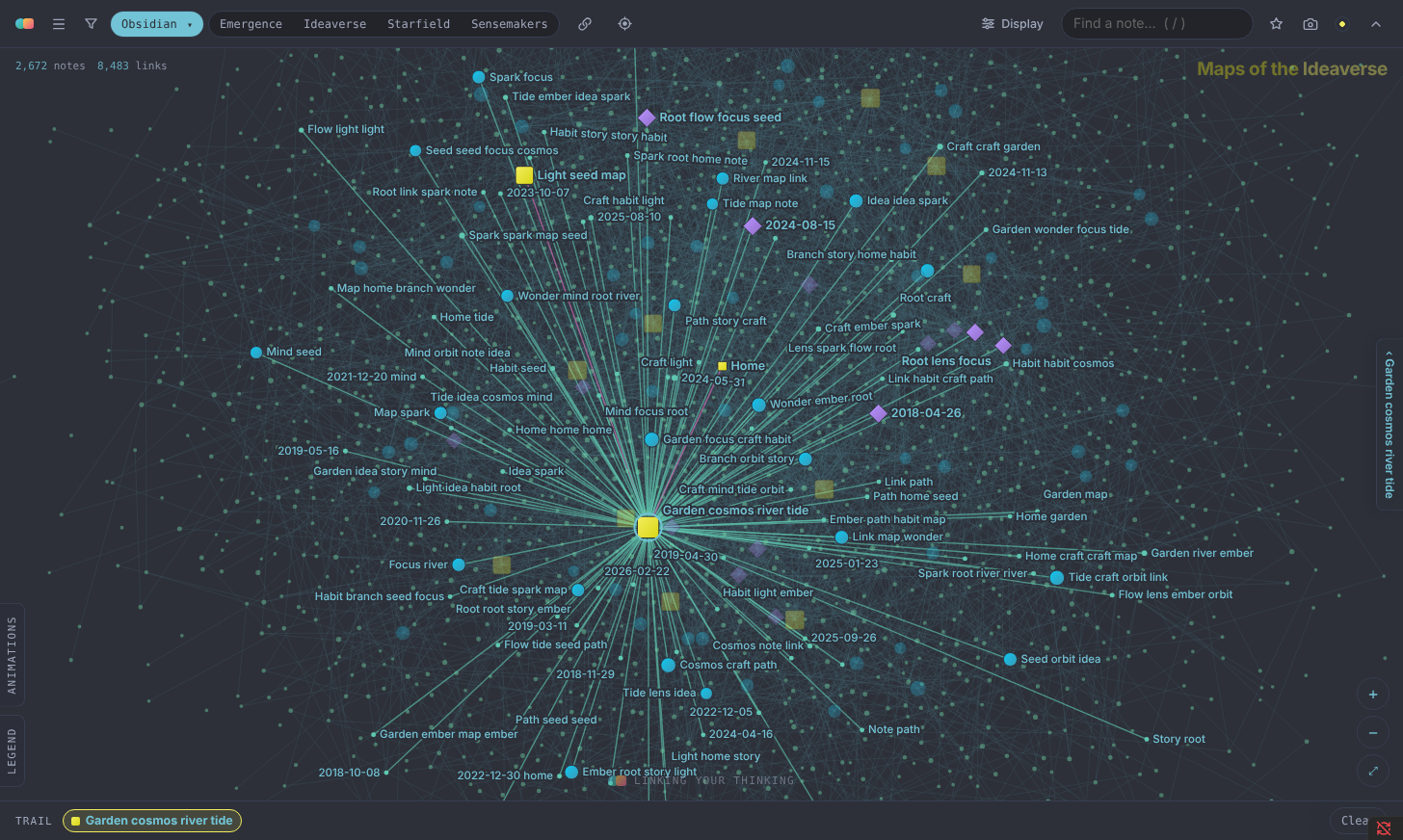 The Obsidian map in LYT Mode, zoomed in on a hub and its links.
Chord, Corona and Tesla
Chord arranges every note around a ring, grouped into arcs by folder, by year, or by tag. When grouped by tag, Show nested tags gives each nested tag its own arc, shaded in its family's color. The links between groups cross the middle of the ring as bands, and the bands thicken as your vault grows. Hover over an arc to see where its links go. Corona wraps the ring around a globe, with the links arcing over its surface. Tesla does the same with a glass globe, so the links pass through the inside.
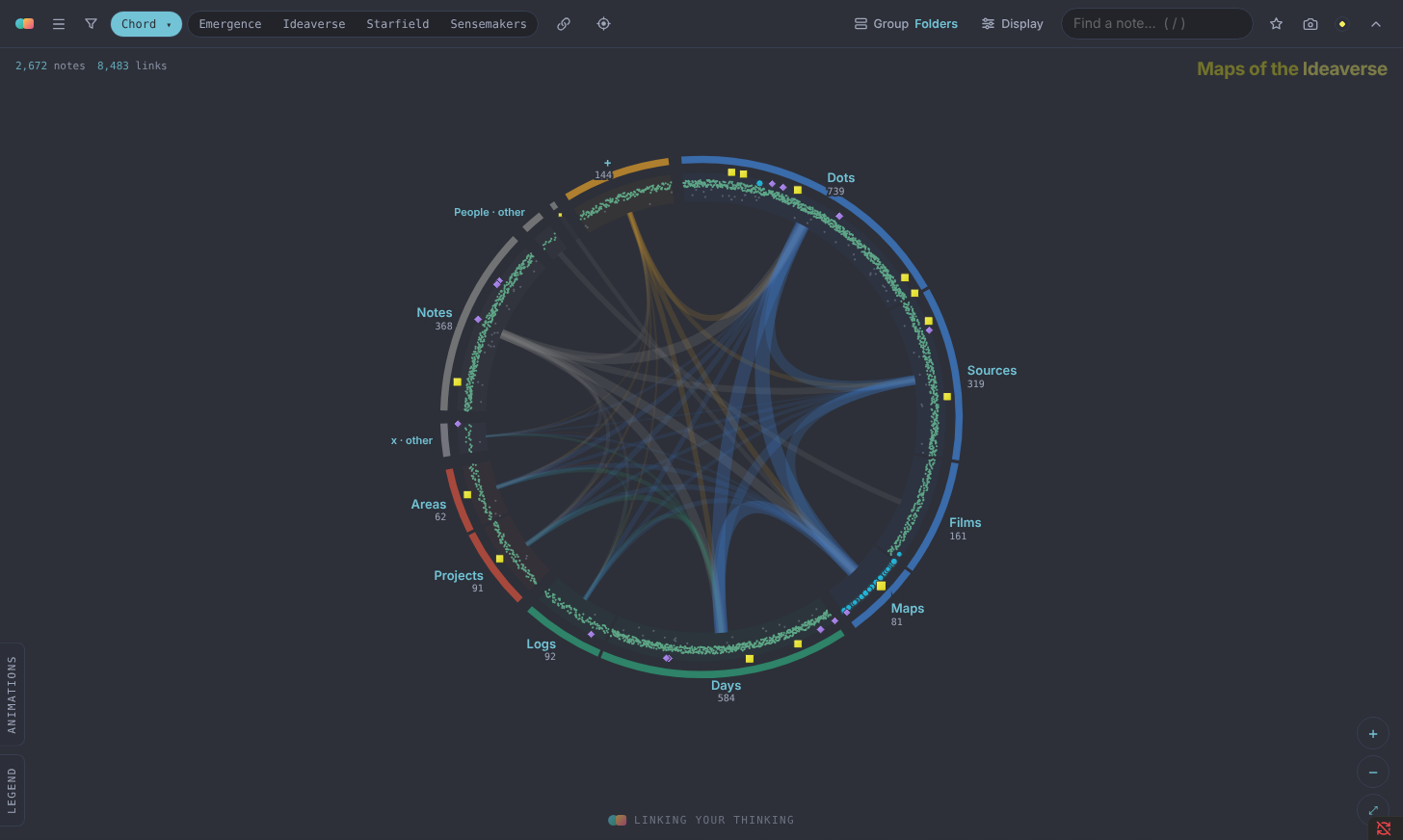 Chord in LYT Mode. Each arc is a folder, and each band is the links between two folders.
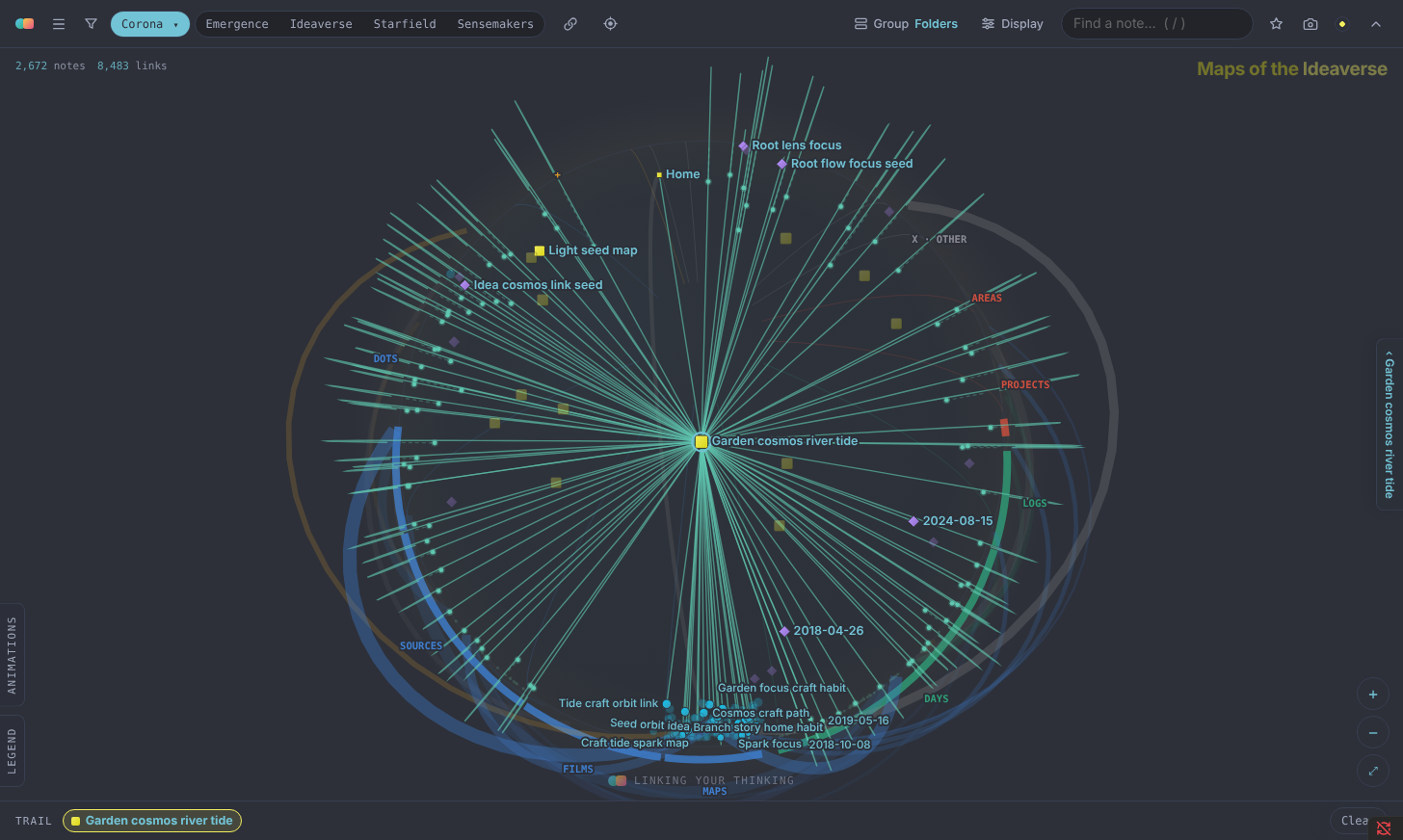 Corona in LYT Mode, with one hub's links arcing over the globe.
Treemap
Treemap draws every folder and note as a rectangle, sized by how well-linked the note is. You can outline and name subfolders too. If you use tags, set ⚙ → Boxes by to Tags and the boxes follow your tags instead, with a box for each top-level tag. Turn on Show nested tags in the map's menu to get smaller boxes inside for nested tags. Each tag has a chip you can click to hide it or show it again, so you could keep only your #garden notes and see how they're laid out.
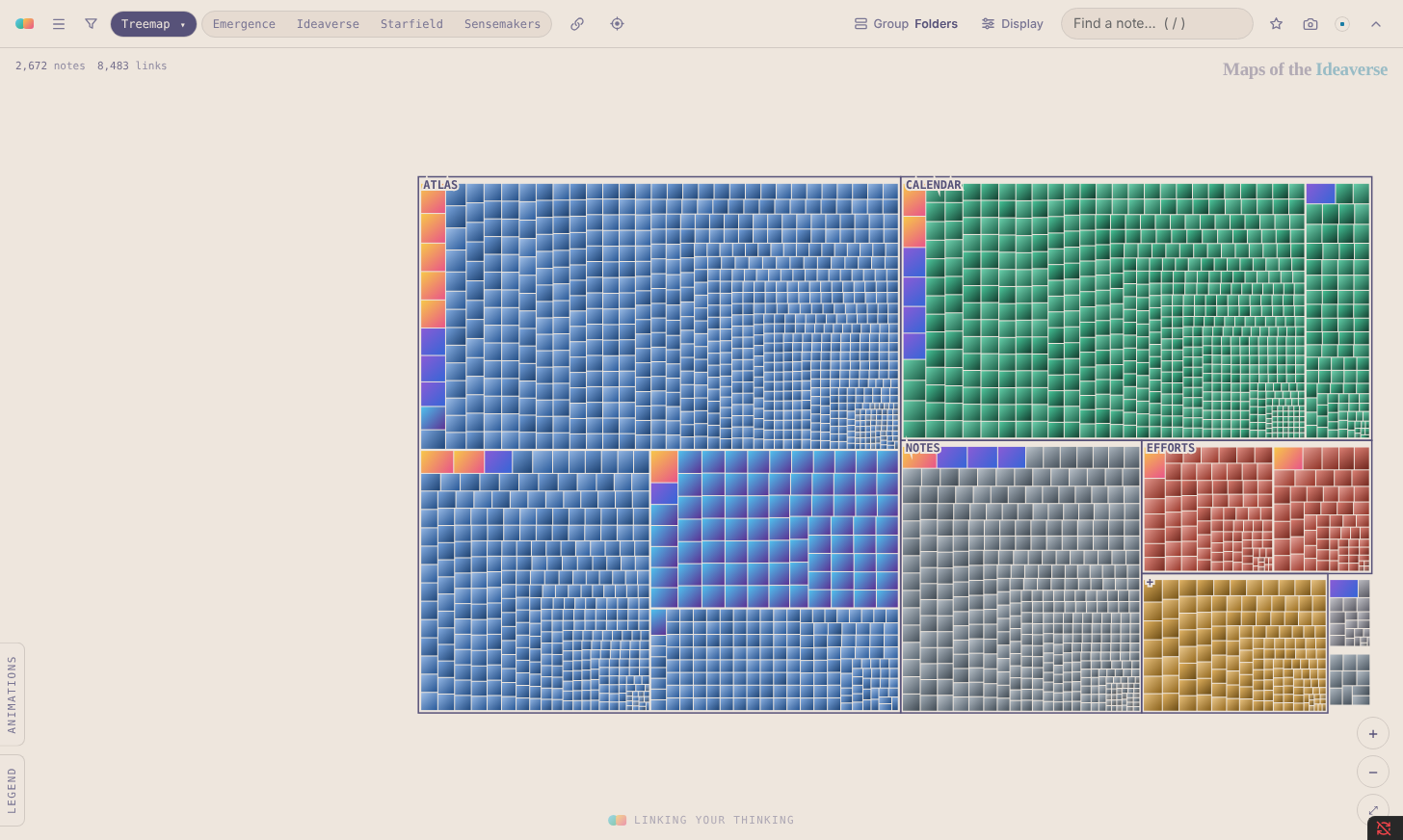 Treemap in the Soft Paper theme.
Mosaic
Mosaic sets every note as a tile, like a stone in a mosaic. In the Emergence layout, your Level 5 notes sit at the heart, and each lower level forms a square frame around the one above it, out to the unlinked notes at the edge. Within each frame, a folder's notes sit together as a patch of color. The Scattered layout lays the same tiles out like a brick wall, in no particular order. Bigger tiles mean better-linked notes.
Tree (under Experimental)
Tree treats your home note as the trunk. Every other note hangs from the branch it reaches home by in the fewest links. Click any leaf to light up its way home and see how many links it takes, like degrees of separation for your notes.
Bookshelf
Bookshelf turns every note into a book on a long double shelf. You can shelve the books by call number, title, date, subfolder or tag. The call numbers work like a library's, except they come from your own links.
If you shelve by tag, each top-level tag gets its own bookcase. Turn on Show nested tags and each bookcase splits into labelled sections, one for each nested tag. This is meant for vaults that use tags instead of folders. A note with several tags is shelved under the first one. Treemap, Bookshelf and Chord handle tags the same way. You choose tags under the map's gear (⚙), which also holds the Show nested tags switch and the tag chips. Hiding a tag on one of these maps hides it on the others too.
Turn on Show bookshelf auto-index system (under the gear) for a panel that lists every call number, which you can copy as a Markdown list.
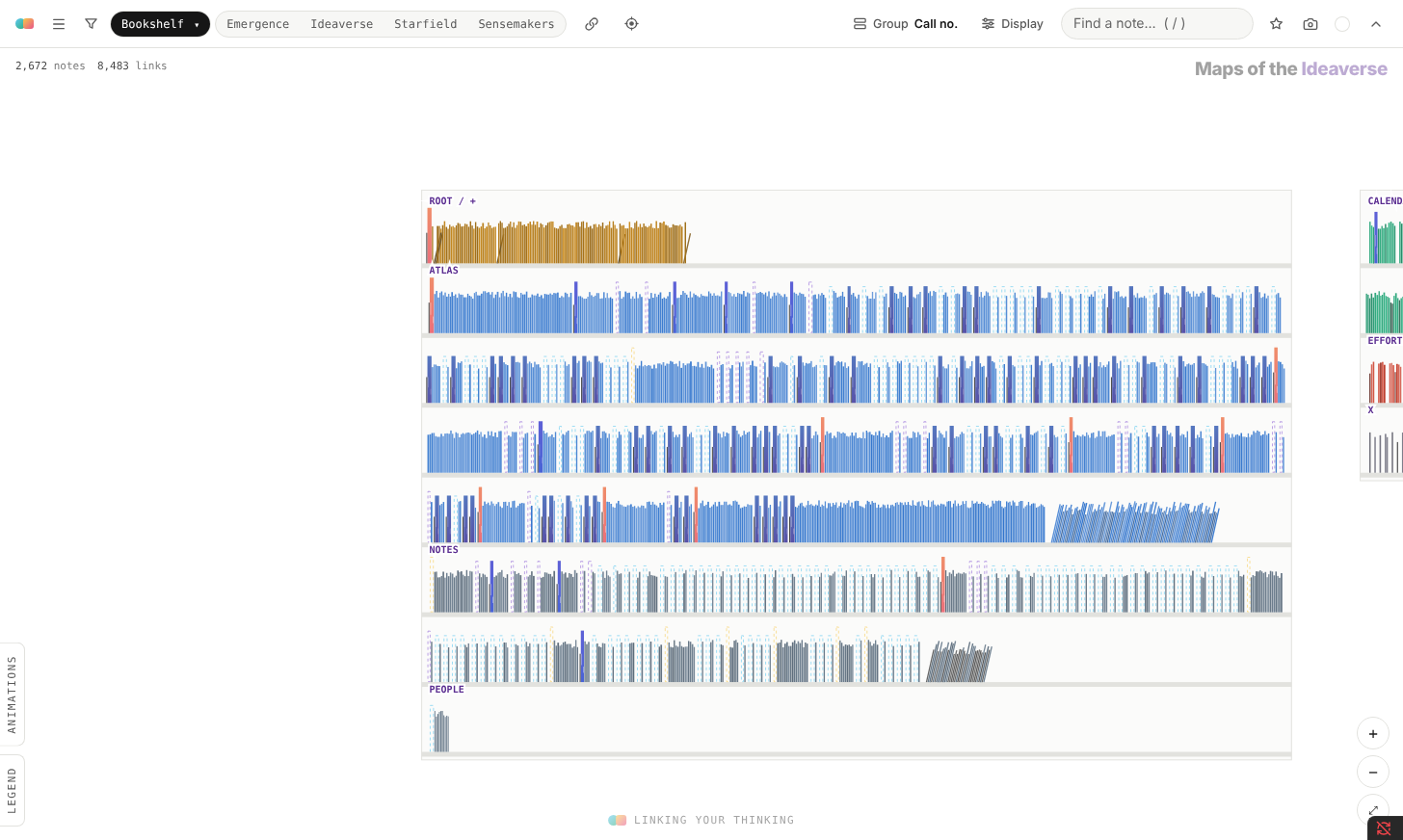 Bookshelf in the Play theme, shelved by call number.
Base Builder
Base Builder is made for Obsidian Bases. It lays out the notes in a base using the columns that base already shows. For example, if your base of films shows a year, a genre and a rating, Base Builder puts the year along the bottom, gives each genre its own row, and sizes each film by its rating. The top of its menu tells you which columns it picked, and you can change any of them. Each column also gets a small slider, so you can keep only part of the range.
Base Builder has five layouts. Rows gives each category its own row. Scatter plots one number against another. Mosaic packs every note together as tiles, grouped by category. Constellation turns the people your notes mention, such as directors, authors or guests, into stars, and connects people who appear in the same notes. Timeline works with spans of years, such as a lifespan written as 1879 – 1955. It draws each note as a thin bar from start to end, so the earliest lives sit at the lower left and the latest at the upper right. If someone is still alive, their bar fades out toward today.
Notes with a picture property show up as cards with their picture. Notes without one show up as dots, colored by their row. When you add a Maps of the Ideaverse view to a base, it opens on Base Builder, and the base remembers your settings.
Edit mode (experimental)
Turn on Display → Edit mode (experimental) and pick a note on the map: it opens as the primary note, on the left, in Obsidian's own editor, with Live Preview, links and properties. Changes save to the note as you type, and the map stays all around you. Its settings, under the same switch, set the editor's theme (Obsidian's, or MOTI: the map's own colors), how much of the map shows through, and small previews of notes in Starfield and Compass. ⌘⌥-click (Ctrl-Alt-click) a note to open it as the support note, on the right. Tabs show as orbs along the top of the map: ⌘-click (Ctrl-click) a note to open it in a new orb, ⌘T for a new, empty tab, ⌘W to close one. The strip under the primary note's name shows its level, its up and related notes (the + under either adds one straight into that property), its links in and out, and its rank. Two commands, Open note in Emergence and Open note in Starfield, open the note you're on as that map's primary note; give them hotkeys in Settings → Hotkeys. Pin the primary note to keep it; what you pick then opens as the support note. Drag an editor's inner edge to resize it, and click its header to tuck it away. Compass puts the note in the editor at the centre of its own map: what it links up to above it, the notes that link up to it below, earlier notes to the left and later ones to the right. Its gear's Relevance switch pulls the notes most related to the centre toward it, like radar, and the closest get small previews. Arena is a ring of 8 to 20 slots you fill with notes: click an empty slot to choose one, Option-click (Alt-click) a slot to empty it, and the links between them cross the middle as in Chord. The pinned primary note, or the one you picked, sits at the centre.
Linear Calendar
Linear Calendar shows a year as twelve rows, one for each month, with every day as a box and the weeks lined up down the page. The notes you made on a day fill its box, and each one sits at its own spot so the names of neighboring days don't run into each other. Drag the Years slider in its menu to show one year or several, stacked one above the other, and use ‹ › to move a year at a time. It opens in Half months, where each month takes two rows, the 1st to the 15th and then the 16th to the end, so the calendar fits a narrow pane. Switch to Whole months for one row a month with the weeks lined up; the map remembers your choice.
Turn on Show emojis under the gear and each note's emoji takes the place of its dot, bigger the higher its level (a note with no emoji keeps its dot). The same switch is in the gear of Emergence, Sensemakers, Gravity, Starfield, Obsidian, Ideaverse, Chord and Tesla (one switch for both), Spiral, Lifeline and Tree; each map remembers its own. Give your folders their emojis in Display → Assign emojis: pick one for a folder and every note in it gets it, and a subfolder's emoji wins over its folder's. They're kept with your saved views, in the views file. A note whose folders have none can still take one from a column of one of your bases: by default, the first column of a base called Recents. Choose another base or column in Settings → Emoji labels, and Copy emojis from a base column (at the bottom of Assign emojis) turns that column into folder emojis.
Posters (under Experimental → Specialized)
Posters is for a smaller, focused set of notes, such as your movies, your books or a learning pack. It can be a collection, a folder or a base. Each note becomes a card, and if the note has an image property, like a movie poster or a book cover, the card shows that picture. Click the Posters tab to open its menu:
- Layout offers three choices. Rows gives each value of a category, like genre or status, its own row. Scatter puts one number along the bottom and another up the side. Mosaic packs every card together as tiles, in a block for each category.
- You choose what goes Left to right (a date or number), what the Rows are (a category) or what goes Bottom to top (a second number), and what sets the Card size (a number). A short line under each one explains what it takes.
- Each choice has a small slider that shows how its values are spread out. Drag its two handles to keep only the notes in between, like just the '90s, or only your four-star films. Rows get chips instead, one for each value with its count. Click a chip to hide that row, or ⌥/⌘-click it to show only that row.
Posters picks sensible starting choices from the properties your notes have in common. Inside a base, it follows the base's own Sort and Group settings.
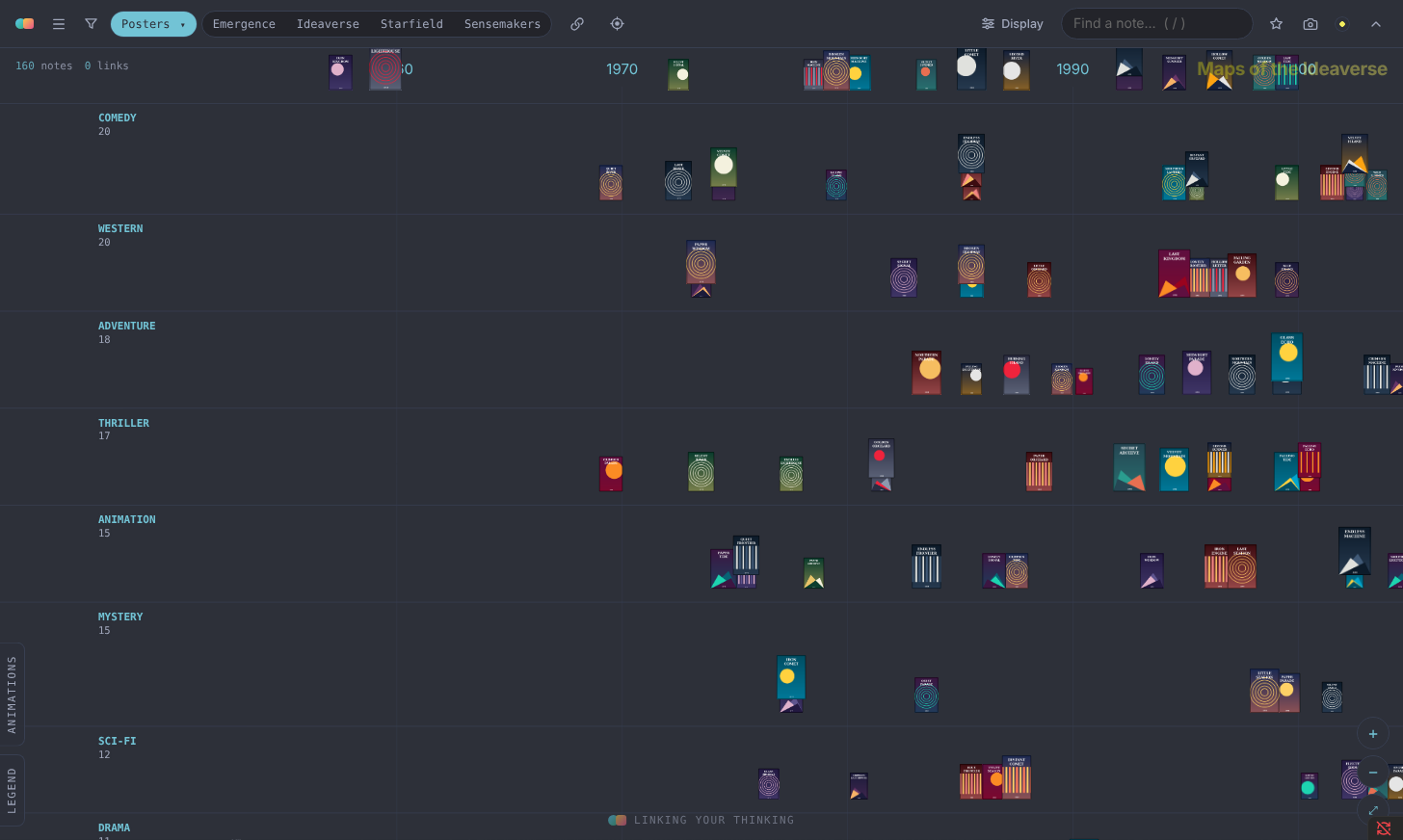 Posters in LYT Mode. Made-up films by release year, with a row for each genre, sized by rating.
In Scatter, when both numbers measure the same kind of thing, like two ratings or two years, a line shows where they agree. The notes furthest from the line get a ring. Plot your own rating against the crowd's, and your hidden gems stand out above the line.
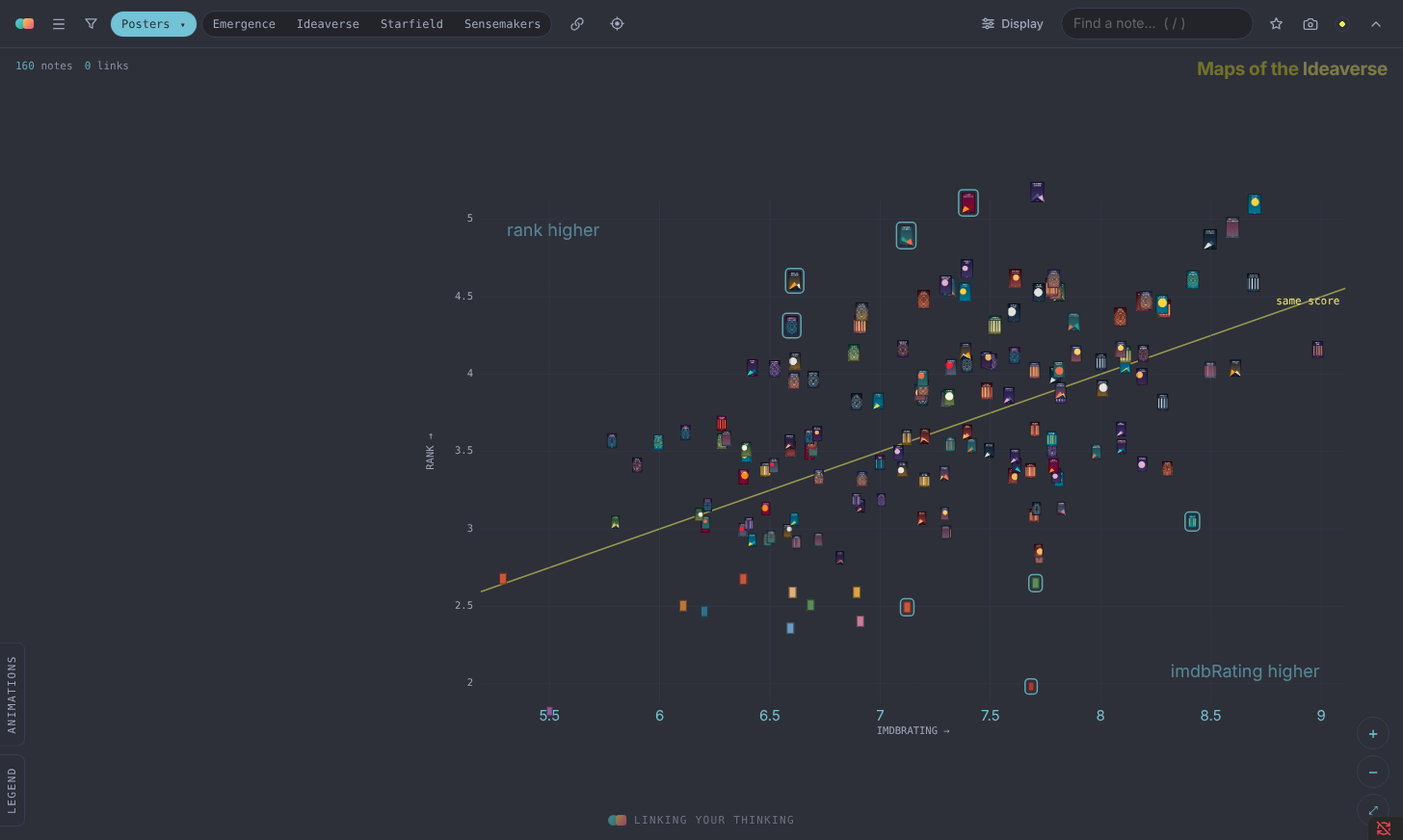 Scatter with the IMDb rating along the bottom, your own rating up the side, and the line where the two agree.
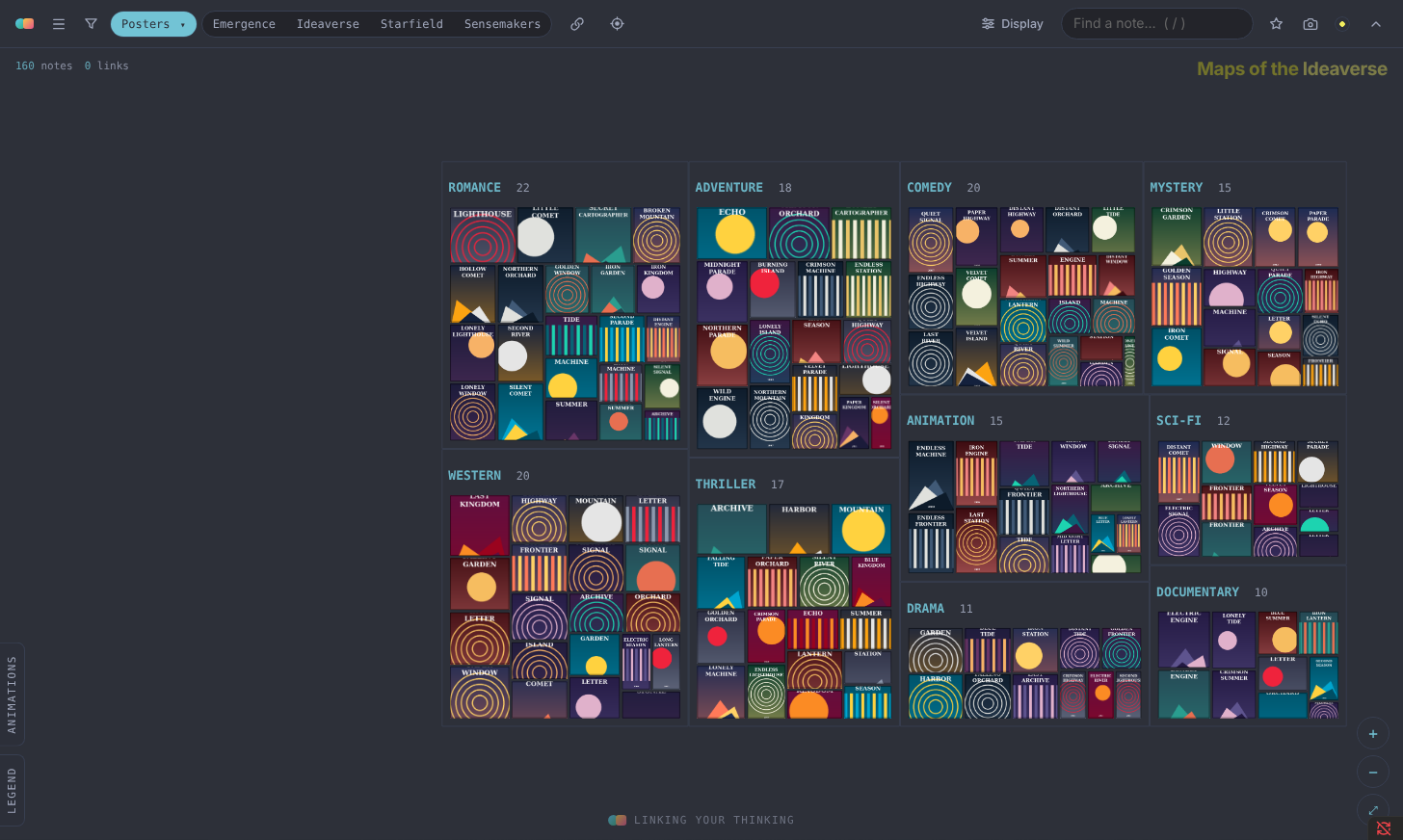 Mosaic, with every film as a tile, a block for each genre, and each tile sized by your rating.
People (under Experimental → Specialized)
People turns the people your notes mention, in properties like director, actors, author or guests, into stars. The more notes mention someone, the bigger their star. Lines connect people who appear in the same notes, such as a director and the actors they keep casting, and the line gets brighter the more notes they share. Each note circles its main person. Zoom in to see pictures.
A person doesn't need a note of their own to appear. If they do have one, it sits at the center of their star. Click any star to light up that person's notes and the people they share them with. Click the People tab to choose which properties count and how many people to show.
Experimental
These maps are still taking shape. Geometric places your top 25 notes in patterns built from triangles. Linear includes a spiral and a single long timeline. Planet puts your notes on the PKM Planet map. Unfinished holds Tree and Skyline.
The time-lapse
Open Animations in the bottom left, choose Timelapse, and press ▶ to replay your vault month by month or week by week. You'll see new notes arrive, and you'll see notes climb to higher levels as they gain links. You can click a note at any point to pause and look around, then press Resume to carry on.
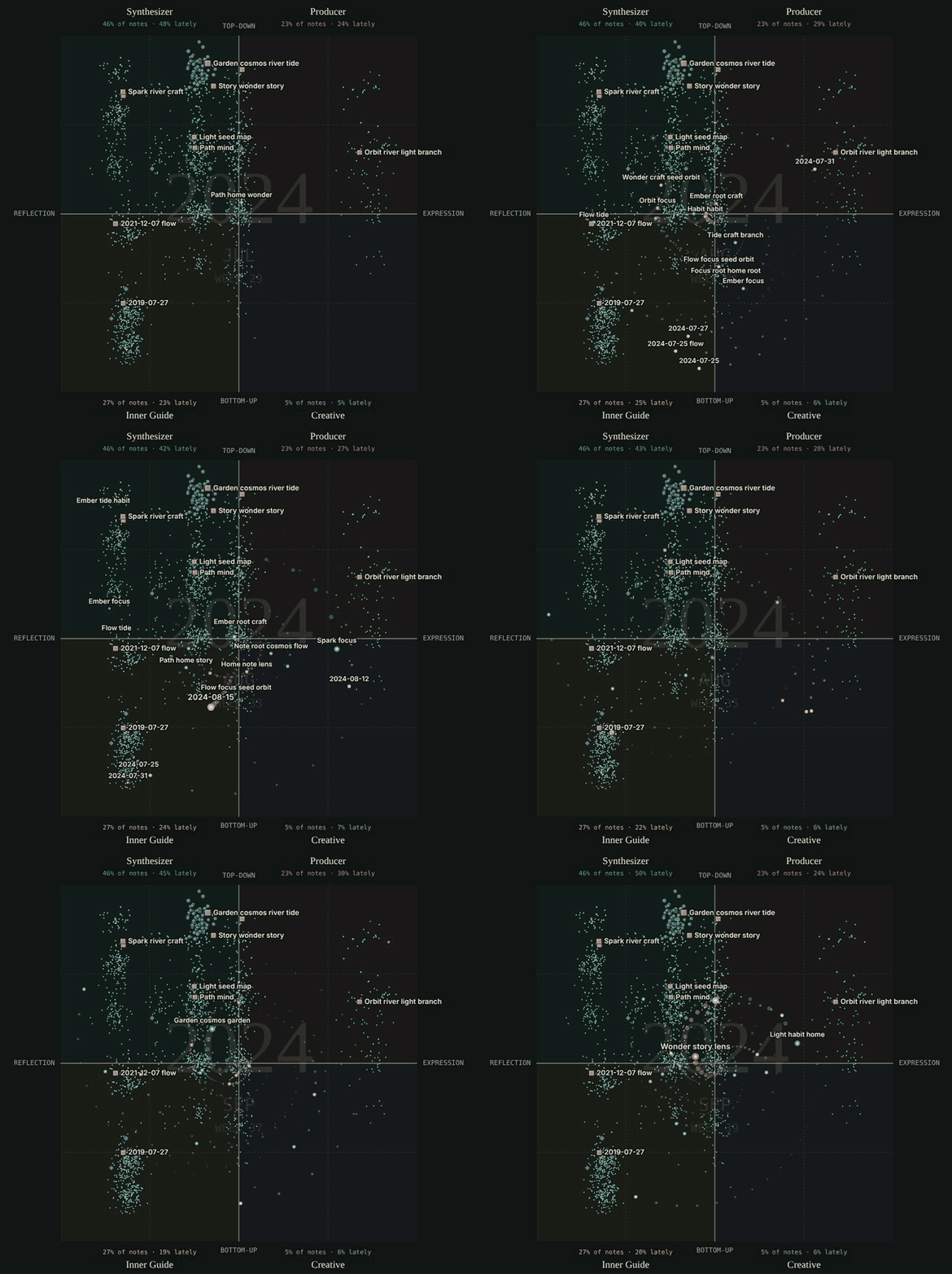 The time-lapse on Sensemakers, with each week's new notes spiralling out to where they belong.
How notes get their level
| Level | Name | A note lands here if… |
|---|---|---|
| 5 | Home & hubs | it's a home note, or among the top-scoring notes |
| 4 | Maps of maps | it's a map linking 3+ other maps, or it scores high |
| 3 | Maps of content | it's a map (in a Maps folder, "MOC" in its title, in a Maps collection, or mostly links), or it scores well |
| 2 | Linked notes | it has any link in or out |
| 1 | Unlinked notes | no links yet |
A note's score counts the links coming in, the links going out, links that go both ways, and uplinks. Every link counts, whether it's in the note's text or in a property: up, related, or any other, such as topics or source. A note that links another twice (in its text and in up, say) counts once. Uplinks, links from another note's up or related property, add a little extra on top. Each extra link counts a little less than the one before it. Open Scoring on the map to change the weights and watch notes move. For an ideaverse under 2,000 notes, turn on Balance levels by vault size: Levels 4 and 3 then start at the top 2% and 5% of linked notes, so all five levels fill. Click any note to see exactly why it sits at its level.
Using it
- Open the map from the orbit icon in the ribbon, or with the command Maps of the Ideaverse: Open map.
- Click a note to see its links. Open note opens it beside the map. Cmd-click a note (Ctrl-click on Windows and Linux), on the map or on Open note, and it opens in a new tab in the left sidebar, so the map stays where it is.
- The toolbar runs along the top. On the left are the maps button (☰ and the current map's name), which opens every map, the gear (⚙) for this map's own settings, including how it groups notes on Bookshelf, Chord, Corona, Tesla and Treemap, Filter (the funnel), which narrows the map by years, folders, collections, MOCs, properties or bases, then Arrange, which sets how notes are placed, Sync active note with Obsidian editor, Focus on active note, Saved (the telescope), and Display (the sliders) with the drawing options. On the right are Find, Tours and Capture. The toolbar stays on one row as long as it can: on a narrow pane Find shrinks to a magnifying glass first. In Filter, a row of switches at the top, Years, Folders, Collections, MOCs, Properties and Bases, always in the same place, shows or folds each list. A small dot before a list's name means it's narrowing the map right now.
- Filter → MOCs lists every map note (Level 3 and up), the biggest first. Check one or several and the map keeps just those maps and the notes linked to or from them, with each map's links drawn. Switch 1 step to 2 steps to take in the notes linked to those too. It's a quick way to see everything you've gathered around a topic.
- Filter → Properties lists every property your notes share, each opening to its values with how many notes have each. Check values to keep only those notes: any of the values you check within a property, and every property you've picked. Say your notes have a
themesproperty: check grief and watch those notes fill Emergence's timeline. - Filter → Years → Organize by most recently modified dates every note by when its file was last changed, instead of its Date property, on every map that uses dates. While it's on, the years slider gives way to Last Day · Week · Month · Year · All, counted back from right now. Pick one and the map keeps just the notes changed in that window. On Emergence (by time) and Space-Time the timeline stretches across it, marked by the hour, day, week or month. Each day shows at most 30 changed notes: when many notes change within a couple of minutes (one edit to a map can touch every note that links to it), that burst counts as one change and keeps just its biggest note, and then the day keeps its 30 most recent. A small "+N more" under each day says how many it let go.
- Filter → Bases lists every base in your vault, A to Z. Open one to see its views, and check a view to keep only the notes it holds; check several and you get the notes in any of them. The map reads each base's filters itself, so it works without opening the base. A view whose filter depends on the note it sits in (one that uses
this) follows the note you pick on the map. If a filter uses something the map can't read yet, that view is marked "can't read" instead of showing the wrong notes. - Show area and projects selector, in Display, opens a panel of your areas and projects. Pick any of them to light up their notes.
- Show the way home is in Display. When it's on, the note you're looking at lights up the shortest chain of links back to your home note, names every note along the way, and counts the steps, like six degrees of Kevin Bacon. To aim at a different note, click the destination's name and search for any note, or click a note on the map and choose Use this note. Default sends it back to your home note, and you can change which note that is in Settings. A small switch bends the straight lines into gentle curves if you prefer.
- Clicking a note leaves your zoom alone and drifts the note a little toward the middle. Names that would collide make room for each other: maps and hubs are named first and can tilt slightly to fit, and only a handful of smaller notes are named until you zoom in.
- Press
/to search. Drag to move around, and scroll to zoom. Focus shows one note and its neighbors. You can turn it on with the target icon in the toolbar or with Focus on its links in a note's panel. - Animations, in the bottom left, holds the Timelapse, Wander Mode and Orbit. Wander Mode walks from note to linked note, or hops between maps. Orbit drifts slowly across flat maps and spins the globe maps.
- Sync active note with Obsidian editor makes the map follow whichever note you're editing, like a local graph. It works both ways. If you pick a note on the map, it opens in your editor. Put the map in a split pane or the sidebar and it keeps up as you move through your notes.
- 🔭 Saved holds saved views. Make your own groups for views with + Group (an Annual Review set, say, or your Daily Drivers): each group folds open and shut. Drag a view onto a group's name to move it in, or between other views to reorder; drag a group's name to reorder groups (on a phone, where dragging doesn't work, tap Edit for ↑ ↓ and a group menu under each view). Double-clicking a group's name renames it; to rename a view, point at it and click Rename (on a phone, tap Edit first). The first time you open it, there's a group called Base with two views, Emergence and its Space-Time version, to show how it works; change or delete them as you like. A view remembers the map, its settings, every filter (years, Organize by most recently modified and its window, folders, collections, MOCs, properties, bases), Show emojis, Base Builder's layout (Rows, Scatter, Mosaic, Constellation or Timeline) and what it reads, the zoom and the selected note, so you can come back to it later. To make a tour, choose Record a tour, click through some notes, then stop and name it. You can play it back step by step or let it run. Before your first save, you'll be asked which folder to keep them in. They live in a plain file there,
Maps of the Ideaverse - saved views.json, which you own. Your other devices find that file on their own once it has synced, and pick up changes to it as they arrive. - Tours (the route icon, left of Capture): choose Record a tour, click through some notes, then stop and name it. Play it back step by step or let it run. Tours are kept in the same file as your saved views.
- Inside a base (Obsidian 1.10 or later), add a view and choose Maps of the Ideaverse. The map shows only the notes the base returns, such as one project, one book or everything tagged for a course, and it updates when you change the base's filters. Levels still come from your whole vault, so a hub stays a hub. Each base remembers its own map settings inside its
.basefile. - Capture, the camera button in the toolbar, saves a picture or a short clip of the map into your vault's attachments folder. A clip can record the map orbiting, or your whole Timelapse playing from start to finish. You can hide every note title first if you'd rather keep your notes private, and a small credit can go in the corner. You can keep the map's own shape, or frame it as a square for Instagram or a tall 9:16 for TikTok, Reels and Stories; while the menu is open, the map dims outside the frame so you can see what will be kept. Clips record at 30 frames a second, or 60 if you want the motion smoother. Share my ideaverse does it all in one click: ten seconds of your Ideaverse globe turning, in the shape you picked, with the credit on. Afterwards, a card lets you copy the picture, copy a ready-made caption, start a post on X, or open Instagram or TikTok with the caption already copied.
- When notes change, the map offers to rescan. Only the notes that changed are read again.
- There are four themes: Play, Soft Paper, LYT Mode, and one that matches your current Obsidian theme. The circle in the toolbar shows the one you are on; click it to switch.
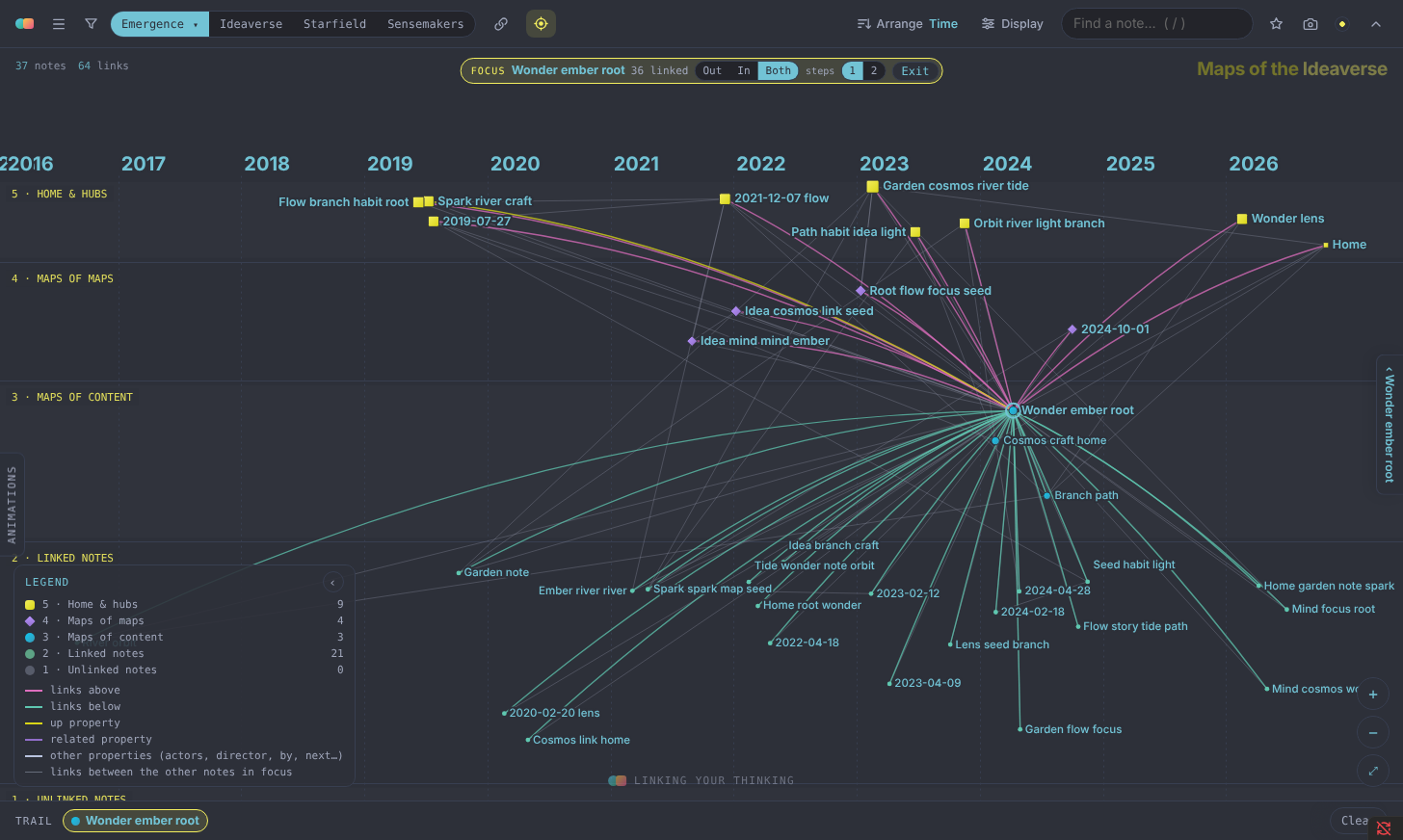 Focus mode on Emergence in LYT Mode. One map is shown with the 36 notes it links to, and the links among them are drawn faintly.
Settings
The first time it runs, the plugin looks for home notes named Home, Home Base or Home Pro, and for folders named Maps. In Settings → Maps of the Ideaverse, you can also leave folders out, mark an archive folder to show as its own layer, keep a folder hidden until you pick it, and choose how many notes reach Level 5.
Notes are dated by their created property. Capitalization doesn't matter, and similar names like createdAt, date created and date work too. You can add your own property names or reorder them in Settings → Date property, and the first one a note has wins. If a note has no date property, its date comes from a date in the file name, or else from when the file was made. A month or year on its own, like 2024-05 or 2024, counts as the first day of that month or year. If your file dates come from git or a sync service, turn off Dates from files and use your own property instead.
If your vault uses different property names, such as collection instead of collections or parent instead of up, you can set them in Settings → Property names. Up, Related, Collections and Rank each accept a list of names separated by commas.
The map reads [[wikilinks]]. If your vault also has markdown links to notes, like [text](folder/Note.md), turn on Settings → Markdown links.
Privacy
Everything runs on your computer. The plugin lists and reads the notes in your vault to draw the map, and never changes them. The only files it writes are your saved-views file, in the folder you choose, and the pictures and clips you make with Capture, saved to your attachments folder. It also keeps a scan cache in your device's own app storage, not in the vault, which stores each note's links and counts (never its text) so later scans only read what changed. Because it isn't a file in the vault, sync services never have to carry it. It sends nothing anywhere, with one exception. In the Posters map, if a note's image property is a web address, such as a movie poster URL, the map loads that picture from the web, the same way Obsidian does when it shows the picture in a note. Pictures stored in your vault load locally.
Two buttons on the Capture card open a website, and only when you press them: Post on X opens x.com with your caption ready to post, and Instagram opens www.instagram.com in your browser. Nothing is uploaded for you; you post it yourself. The Copy buttons (a caption, a picture, Bookshelf's index of call numbers) put text or an image on your clipboard; the plugin never reads what's already there.
Notes
- It works on desktop, tablets and phones. On a phone, the toolbar fits in two short rows, the legend and Animations panel start tucked away, and tapping a note opens its panel from the bottom. Large vaults of 10,000 or more notes take a while to scan the first time. After that, only changed notes are read.
- Folders give most maps their structure. If you use tags instead, Bookshelf, Chord and Treemap can group by tags.
License
Copyright (C) 2026 Nick Milo. Licensed under the GNU General Public License, version 3 (GPL-3.0); see LICENSE.