
README file from
GithubBetter Icons
A custom fork of gfxholo/iconic by Christian Lempa. It uses the existing community plugin ID iconic-custom so Obsidian can associate releases with the correct plugin.
A plugin for iconophiles, designed to blend seamlessly with your vault.
New in this fork: Expanded icon support beyond Lucide + Emojis, including:
- Simple Icons (brand/product logos)
- Devicon (technology & dev tool logos)
Click almost any icon on a tab, sidebar, ribbon, or the title bar to swap in one of the 1,700+ Lucide icons included in the app, or one of the 1,900+ emojis that your device supports.
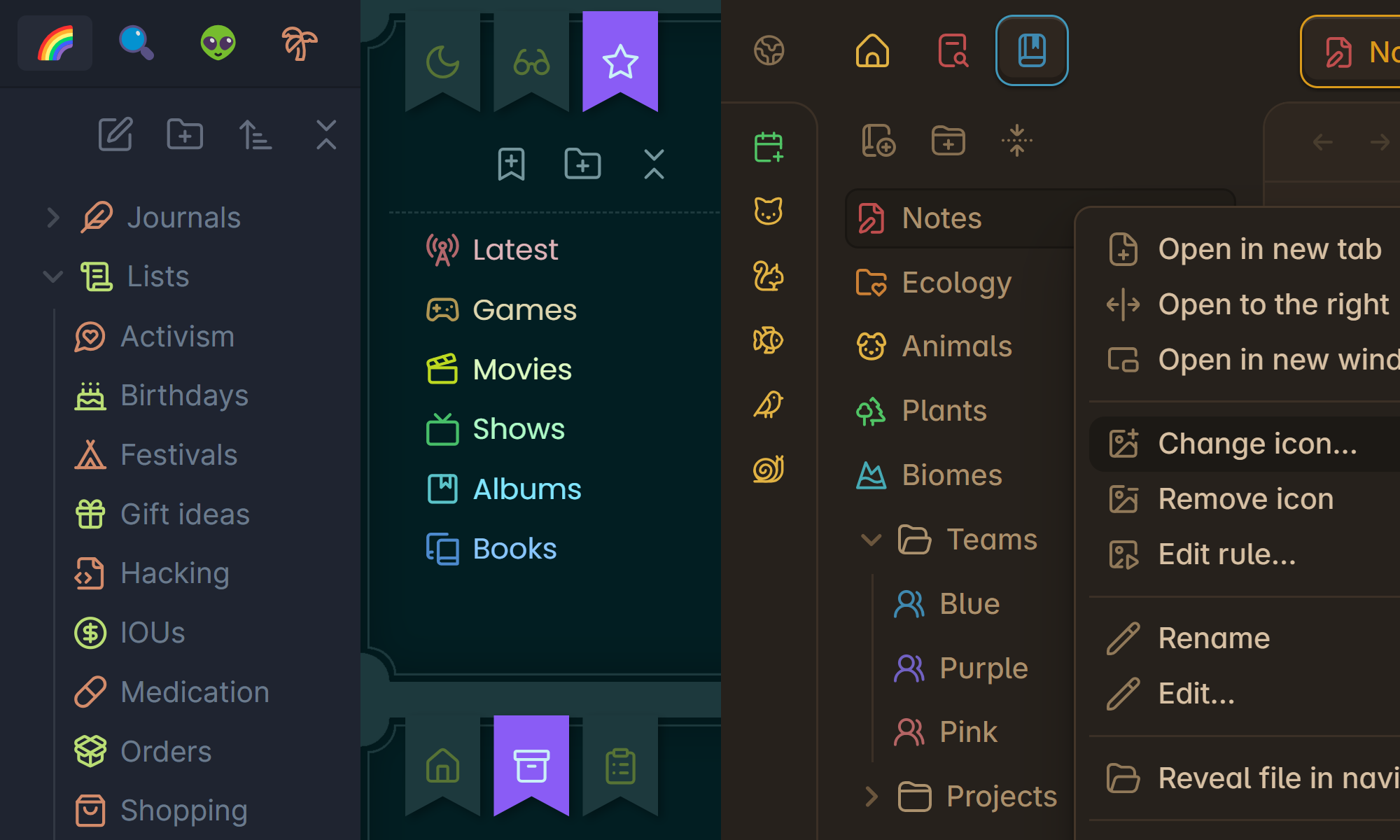
⤿ Themes: Ayu Light & Mirage / Fancy-a-Story / Primary
Includes language support for English, Arabic, German, Spanish, French, Indonesian, Japanese, Russian, Ukrainian, and Simplified Chinese. Most of these languages are currently machine-translated, but if you can supply more accurate translations, absolutely send a message or a pull request :)
Supported icon libraries
Better Icons currently supports:
- Lucide — built-in app icons
- Emojis — device-supported emoji glyphs
- Simple Icons — popular brand and product logos
- Devicon — popular technology logos (programming languages, frameworks, tools, cloud providers, etc.; wordmark variants are omitted to keep the plugin bundle sync-friendly)
The Simple Icons and Devicon sets are compressed and bundled into main.js; there are no separate icon-library files to upload to your vault.
Note: This is an early release. Icon sets will be expanded iteratively.
Supported items
- Tabs 📑
- Files & Folders 📝📂
- Bookmarks & Groups 🔖📂
- Tags 🏷️
- Properties 📦
- Ribbon commands 🎀
- Minimize/Maximize/Close buttons 🪟
- Sidebar toggles ◀️▶️
- Help/Settings buttons ❔⚙️
- Pin buttons (on tablets) 📌
How to use
Changing an icon
Secondary-click an item whose icon you want to change, then click Change icon from the menu. You can open menus on mobile by pressing & holding an item. Certain lists like Files, Bookmarks, and Properties let you hold Alt or ⇧ Shift to select multiple items at once.
Every icon is searchable by name. You can filter between icons and/or emojis by clicking the bottom two toggles. When you find an icon that sings for you, click it to confirm.
You can also choose one of nine optional colors per icon. These colors follow the CSS theme of your vault, so they adjust automatically when it changes. If you prefer a specific RGB color, secondary-click the bubble to open the full color picker.
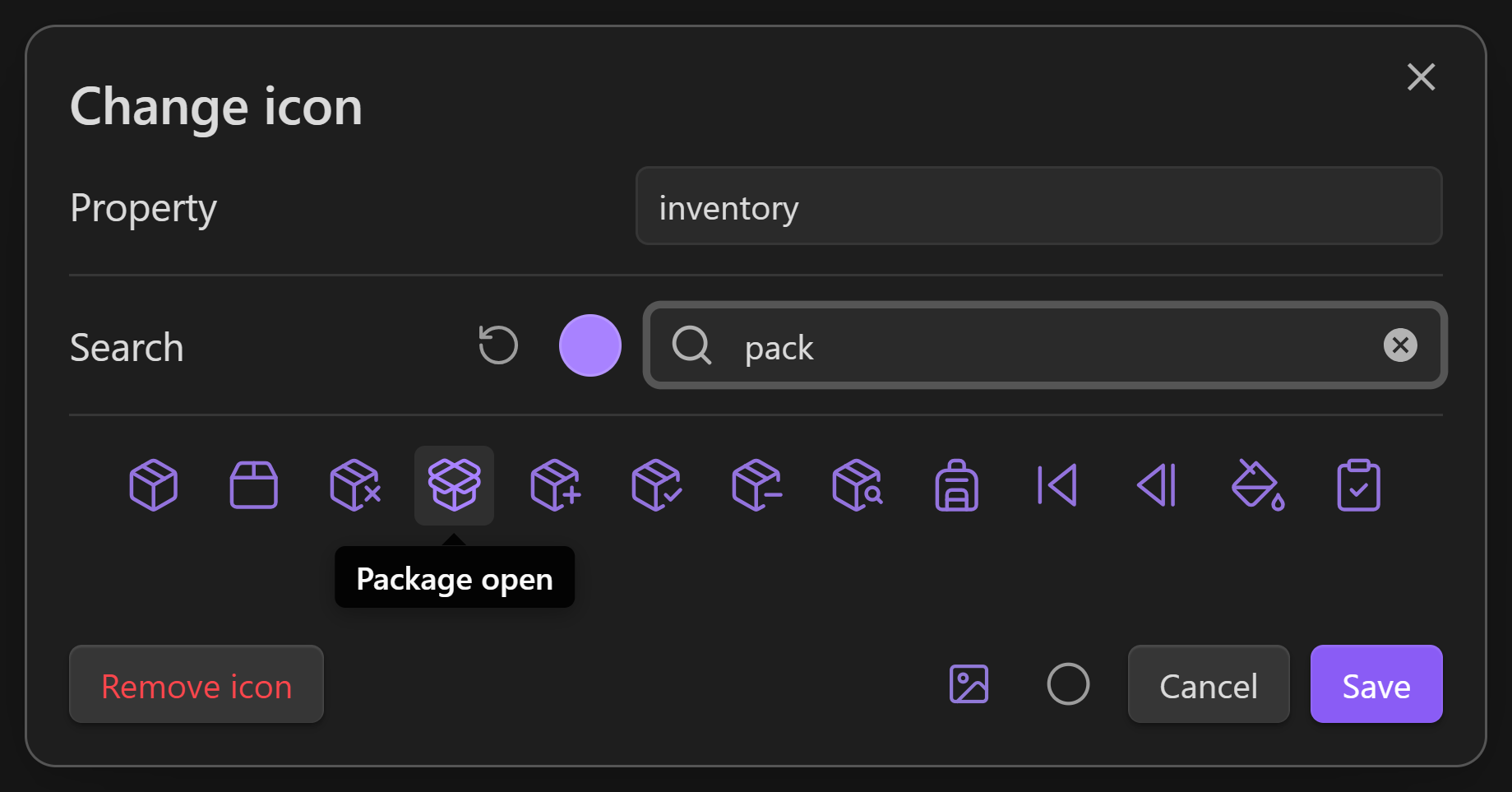
The icon picker will also display a warning if a rule in your rulebook is overruling its icon. To learn about that feature, see below.
Setting up rules
You can set up a rulebook to automate your file & folder icons based on a variety of conditions, like their name, their extension, their parent folder, their tags, their property values, the date you've created or modified them, and even the current time of day. Automated icons never remove your custom icons — only replace them visually — so you can be as experimental as you want.
Open the rulebook from the ribbon, from the plugin settings, or by using the Open rulebook command. There are currently two pages in the rulebook: File rules and Folder rules, which affect files and folders respectively.
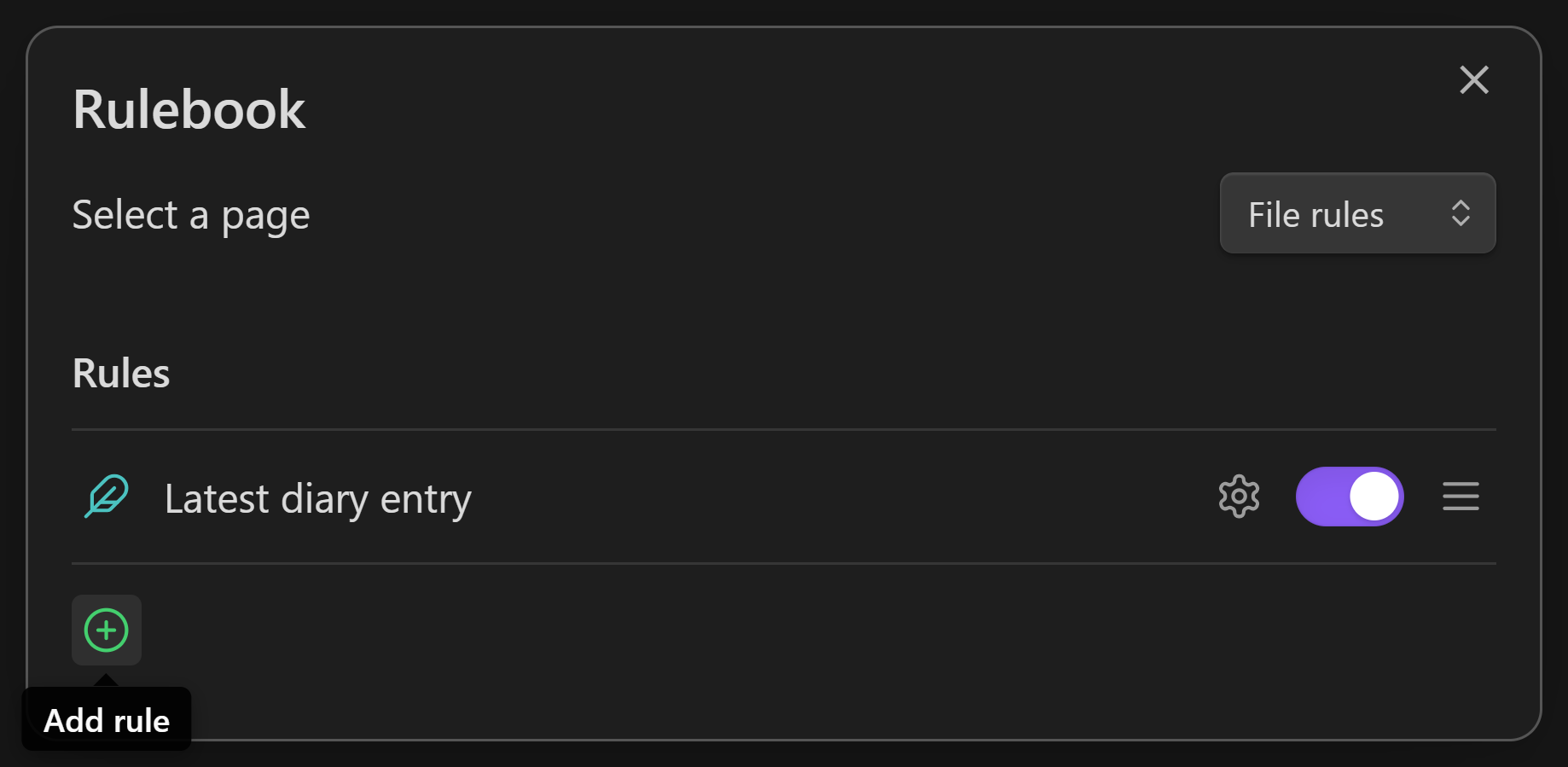
Click the green (+) to add a new rule, or right-click an existing rule to see more actions.
Every rule has a name, and an icon, which will overrule the icon of anything that it matches. You can enable and disable a rule using its toggle. Rules at the top of the list have the highest priority, so drag them around as needed!
Editing a rule
To start editing a rule, click the ⚙️ beside it.
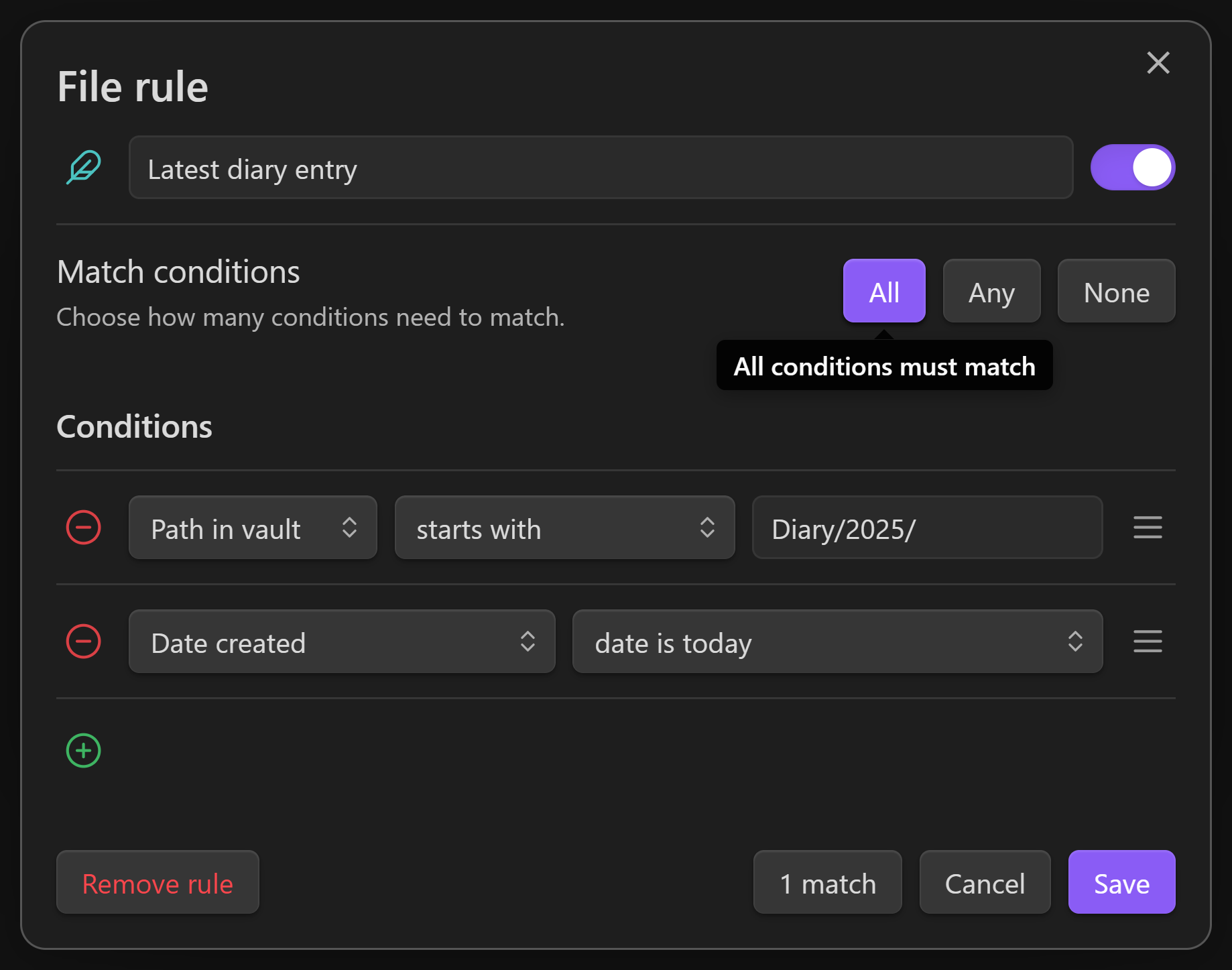
You can edit the rule's conditions in this window. A condition is a true or false test — it either matches, or it doesn't, and you can add any number of conditions to a rule. Rules interpret their conditions based on their All / Any / None setting. For example, if you want a rule to match when any of its conditions match, click the Any button. You can always see what your rule is matching by clicking the Matches button at the bottom.
When you're using Obsidian, if your rule is overruling an icon, you can secondary-click that icon and choose Edit rule to return to this window quickly.
There are several types of conditions you can add to a rule:
Iconchecks the icon set to a file/folderColorchecks the color set to a file/folderNamechecks the simple name of aFile/FolderFilenamechecks the full name of aFile.mdExtensionchecks the file extension, likemd,canvas,jpg, etc.Folder treechecks the initialPath/Leading/To/Your/filePath in vaultchecks the entirePath/Leading/To/Your/File.mdHeadingschecks for# Headingsinside a noteLinkschecks for[[Links]]inside a noteEmbedschecks for![[Embeds]]inside a noteTagschecks for tags inside a note, including#hashtagsand thetagspropertyProperties...checks the value of a specific property inside a noteDate createdchecks the date & time a file was createdDate modifiedchecks the date & time a file was modifiedSystem clockchecks the date & time on your device
Date & time conditions are checked once every minute, so you can use them to modify your icons in real time.
Privacy and vault access
Better Icons runs locally and does not make network requests. It enumerates vault files and folders so custom icons and rule conditions can be matched against paths, names, tags, links, headings, properties, and timestamps.
What makes this plugin different from Iconize?
Iconic and Iconize can both change the icons & colors of files & folders, and automate icons based on their filepath. But Iconic can also:
- Change icons by clicking them directly
- Change icons & colors from the same dialog
- Dynamically shift colors to match your theme
- Automate icons using a conditional rule system
- Change icons of plugin tabs, tags, properties, ribbon commands, and window buttons
Can I use both plugins together?
Sort of, just expect a few visual bugs! They currently do some fighting over control of tab icons and the Bookmarks pane.
License
This plugin is released under an MIT No Attribution license (same as the original), which means you're free to modify and share its source code without crediting the authors of this repository. It also protects those authors from liability for damages, so I recommend using a similar license if you republish this code.
Attribution & Fork Notice
- Original Iconic plugin: gfxholo/iconic by Holo
- This is a custom fork by Christian Lempa focused on additional icon libraries (Simple Icons and Devicon).
Installation
Community plugins
After approval, install from Obsidian's Community Plugins browser.
Manual installation
Download the latest release and copy these files into:
<vault>/.obsidian/plugins/iconic-custom/
Required files:
main.js
manifest.json
styles.css
Then enable Better Icons in Obsidian settings.
Development
npm ci
npm run build
npm run ci
Release
- Update
manifest.json,package.json,versions.json, andCHANGELOG.md. - Run
npm run ci. - Create and push a matching SemVer tag without a leading
v, for example:
git tag <version>
git push origin <version>
The release workflow publishes the Obsidian-supported assets:
main.jsmanifest.jsonstyles.css
The plugin ID is
iconic-customto match the existing community plugin listing.