
README file from
Github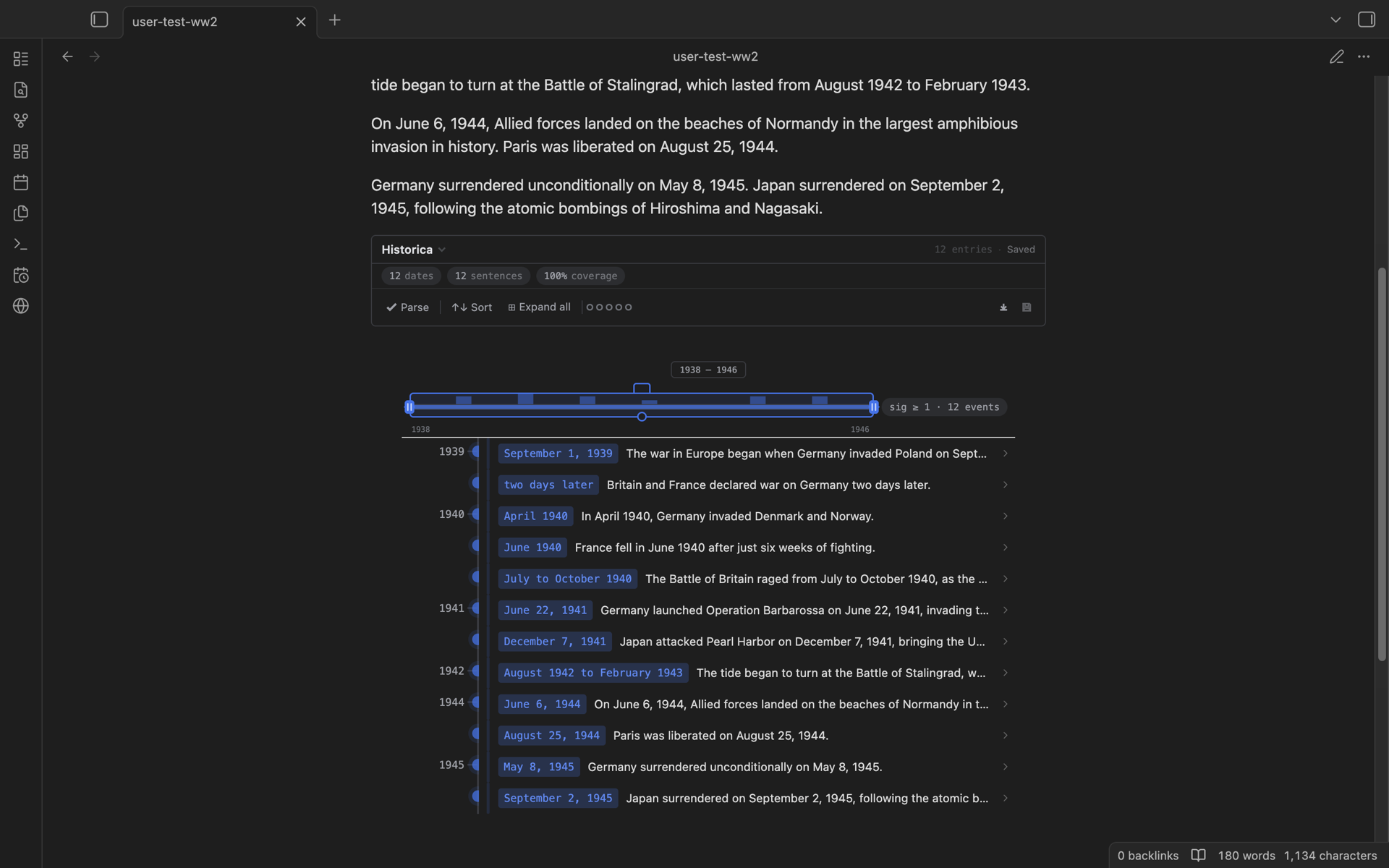
[!note] These docs cover the redesigned UI shipped in 0.3; the current release is 0.4.x. Desktop only - mobile support was dropped in 0.3.
- User documentation: historica.pages.dev
- API documentation: obsidian-historica-code-doc.pages.dev
Quick start
Create a historica block in any note:
```historica
```
That is it. The block reads the prose of the current file (code blocks are ignored), splits it into sentences, and every sentence containing a string that parses as a date or time becomes a timeline entry.
Languages
Historica is English-first, but it also parses several other languages. By default the language setting is auto: it detects the language of each note and picks the matching parser. Besides English it currently handles German, French, Japanese, Chinese, Dutch, and Vietnamese (English has the richest coverage; the others focus on absolute dates, months, centuries, and eras). You can also pin a language explicitly instead of auto.
Parsing is tested against real annotated corpora - WikiWarsDE, WikiWars-NL, French FTiB, and hand-curated Japanese and Chinese sets. The suites live in __tests__/.
Editing
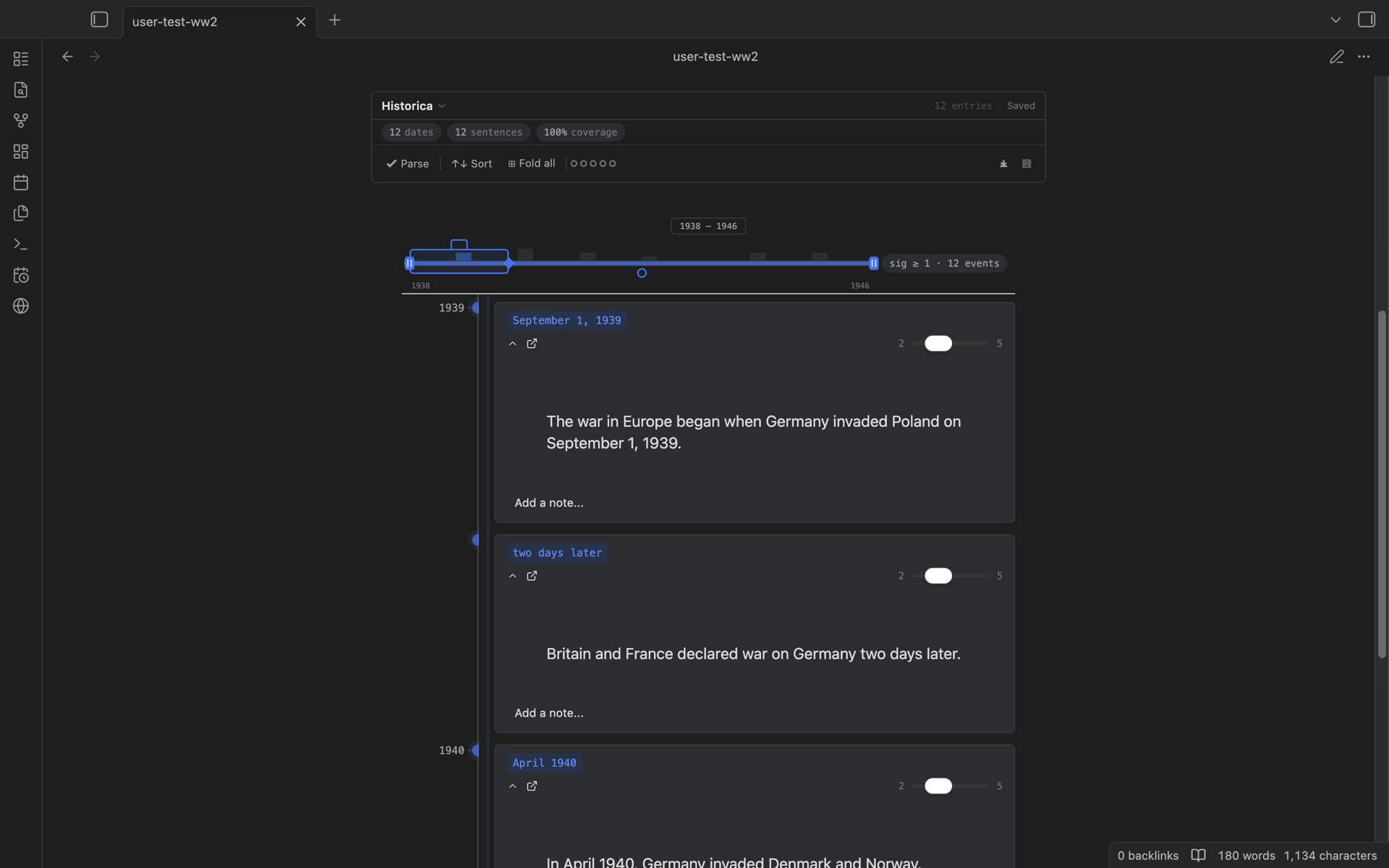
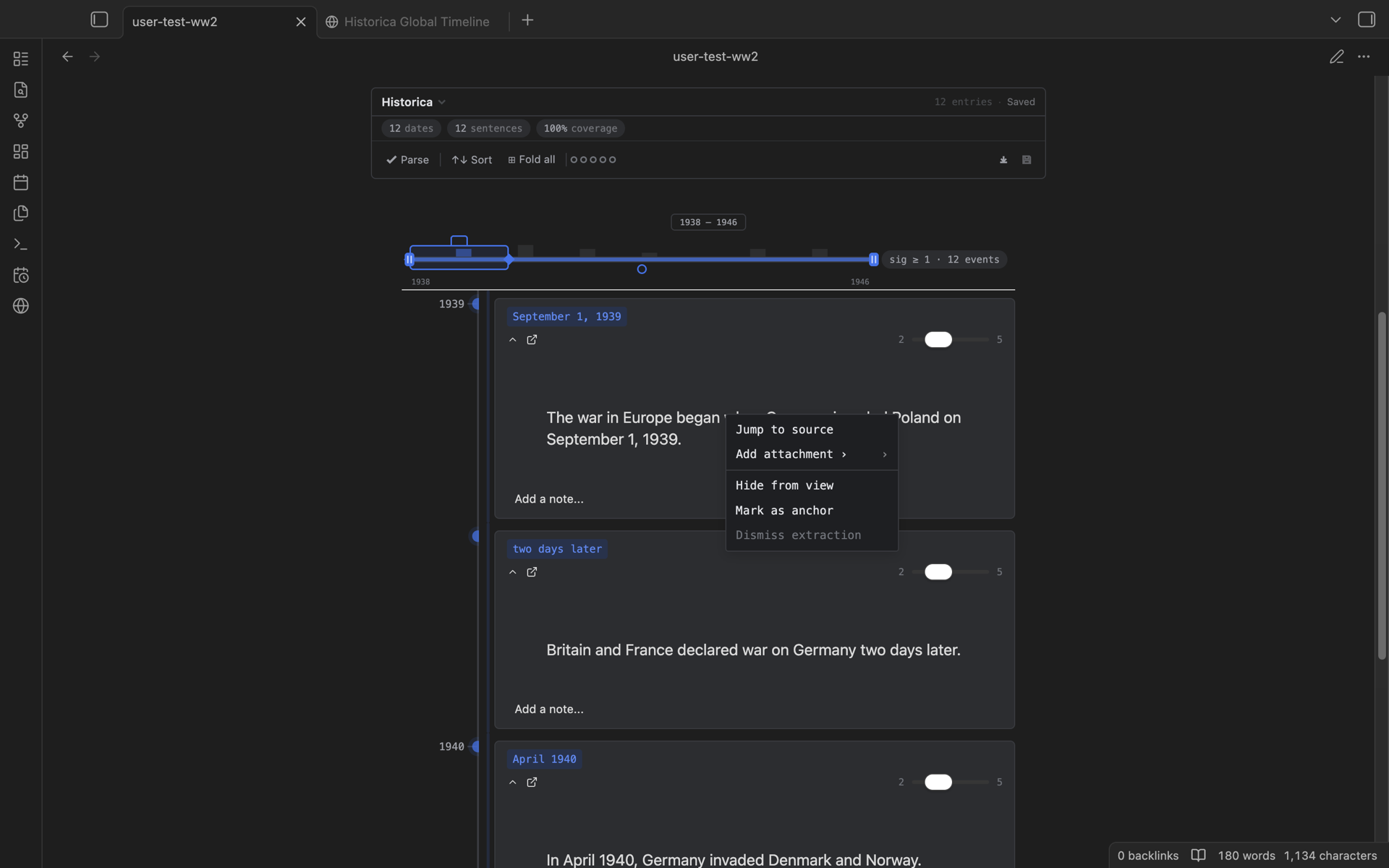
Every entry expands into a card with a significance slider (1-5), a free-text note, and attachments picked from your vault. Right-clicking gives you two menus:
- On the timeline: sort, expand or fold all entries, re-parse the note, and export (PNG, HTML, Markdown, JSON, plain text).
- On an expanded card: jump to the source sentence, add an attachment, hide the entry, mark it as an anchor, or dismiss a bad extraction.
To reword an entry or fix its date, edit the source sentence and re-parse - or hand-edit the saved timeline file, which is plain Markdown (see below).
Save your plot
A fresh empty historica block is bound to the hidden blockId -1, and blocks with blockId -1 do not auto-save: re-render the block and your customizations are gone. So save the plot:
- Click the save button at the right end of the toolbar (the status beside it reads
Not saved yet). The data is written tohistorica-data/xxxx.mdand the generated id is stamped into the block. From then on every change auto-saves. - Or give the block an id yourself when you create it:
```historica
{
"blockId":"It-is-so-kute-and-I-know-it"
}
```
Now the block auto-saves to historica-data/It-is-so-kute-and-I-know-it.md.
Saved timelines are plain Markdown in the HMD format - YAML frontmatter for settings, one ## heading per entry, inline fields for date and significance. Obsidian can open and even render them directly; you can read, diff, grep, and hand-edit them. The format spec is in docs/hmd-spec.md. Saved blocks are also indexed into the vault-wide Global Timeline view (command palette: Historica: Open Global Timeline).
Install
- Obsidian: Settings, Community plugins, search for
Historica. - Manual: grab
main.js,manifest.json, andstyles.cssfrom the latest release and drop them into.obsidian/plugins/historica/.
License
MIT