
README file from
GithubGTD Brain for Obsidian — Getting Things Done in your vault
How do you do GTD in Obsidian? Install this community plugin, sign in with your email, and your vault gets a GTD Brain folder with the five Getting Things Done lists as plain Markdown, one note per item — Inbox, Next Actions grouped by context, Projects, Waiting For, Someday Maybe — plus a Weekly Review checklist. Capture is a new note in Inbox. Clarifying is moving the note to another folder and setting a property. Every note syncs both ways with a GTD Brain board that is also on the web, on your phone, and in ChatGPT and Claude. Syncing your changes needs a paid GTD Brain membership (the yearly plan starts with one month free; details).
Install it from Settings → Community plugins → Browse → “GTD Brain”, or from its page in the Obsidian directory. The full walkthrough with screenshots is How to set up GTD in Obsidian.
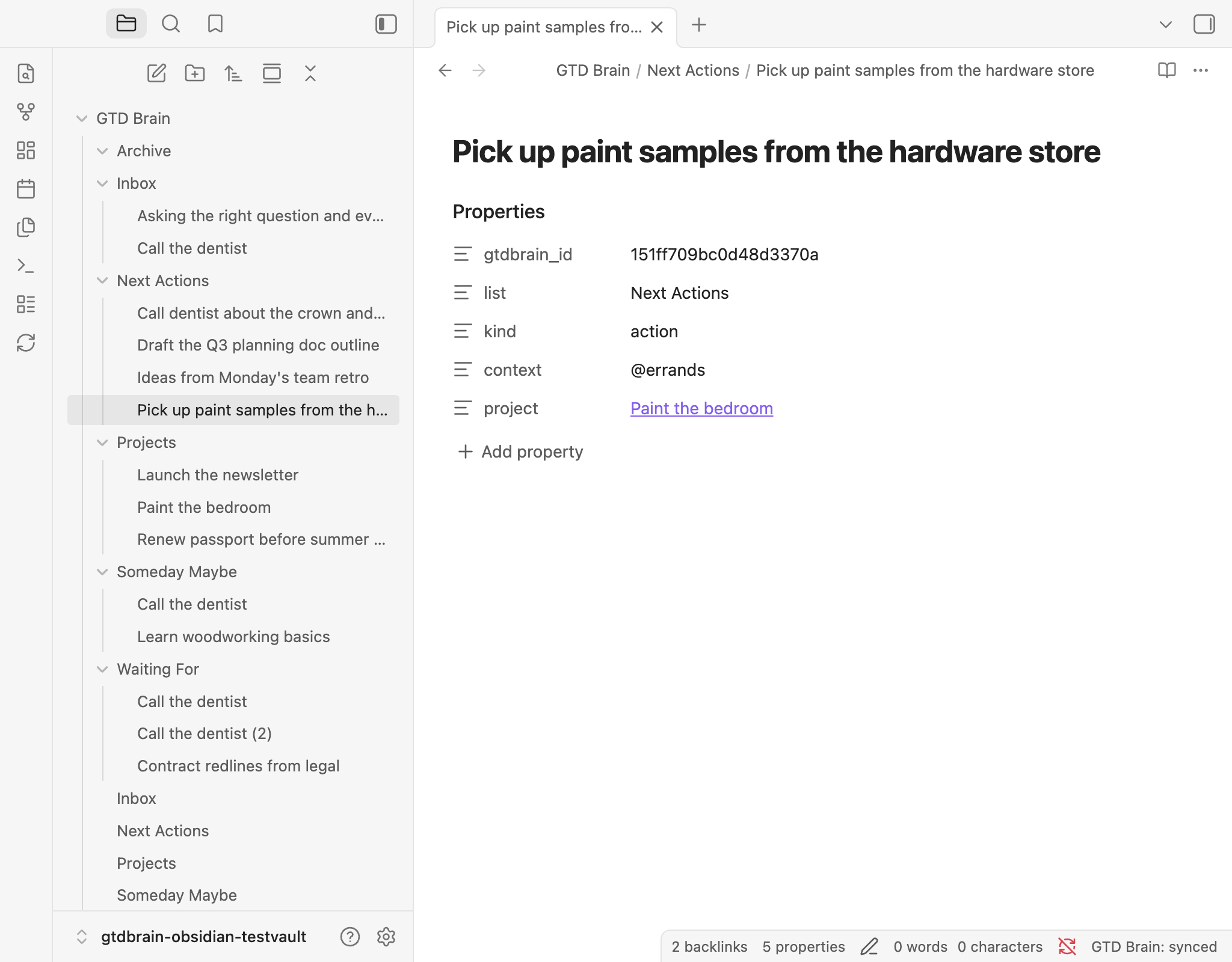
GTD in Obsidian, step by step
- Capture — run GTD Brain: Capture to Inbox (or select the ribbon's inbox icon), type the item, press Enter: it is on top of your board's Inbox at once and a note in
Inbox/. Select text in any note and run Capture selection to Inbox (also in the right-click menu) to capture it with a link back to where it came from. Give either command a hotkey in Settings → Hotkeys. Or just make a note inInbox/: the title is the item, the body is the notes, and it is on your board on the next sync. - Clarify — move the note into
Next Actions/and setcontext:(@calls,@computer,@errands, …); intoProjects/if it takes more than one step; intoWaiting For/withwho:andsince:if you handed it off; intoSomeday Maybe/if not now. - Organize — link an action to its project with
project: "[[Project name]]". The generatedProjects.mdlists every project with its next actions underneath and flags the ones with none. - Reflect — open
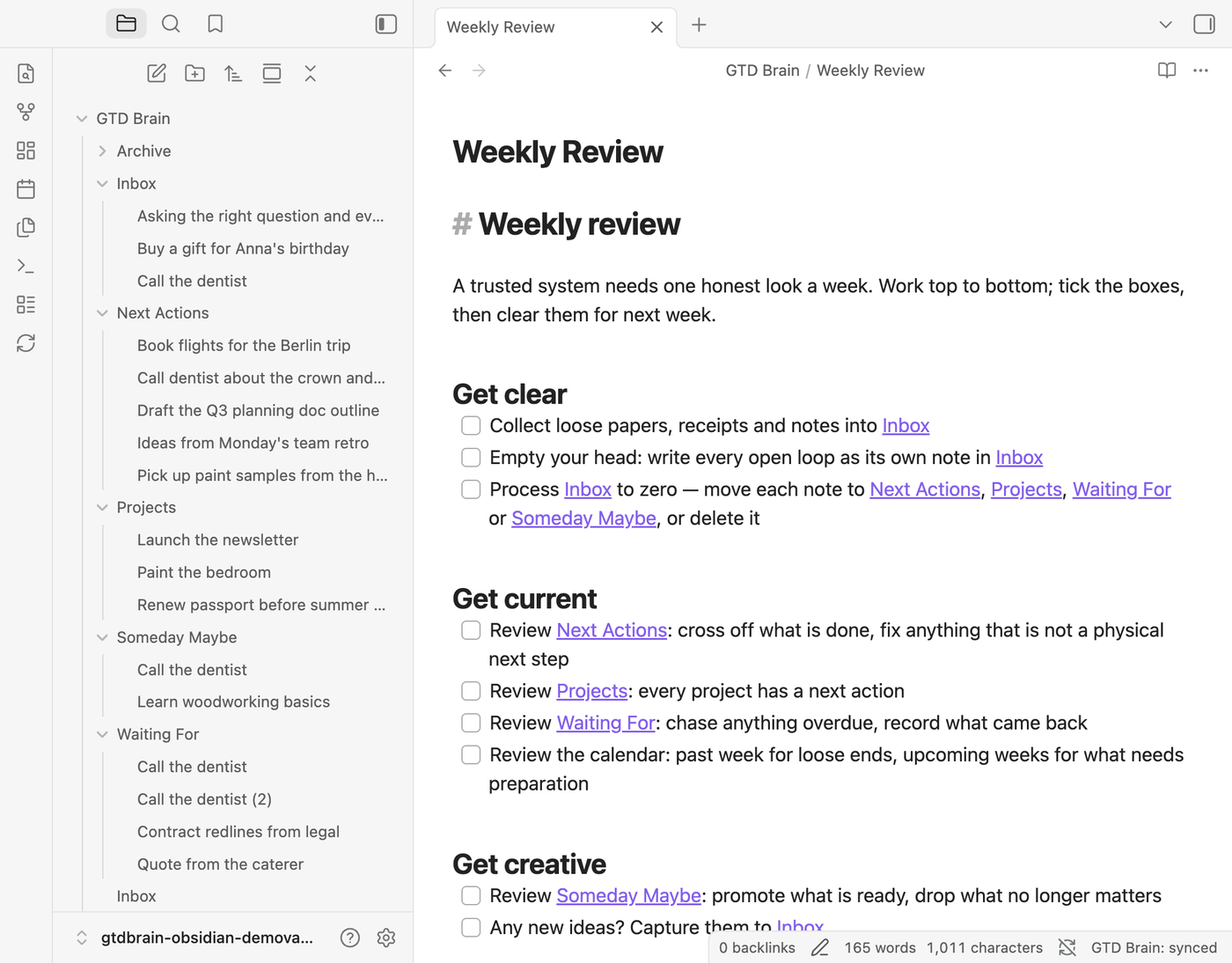
Weekly Review.mdand work down the checklist (get clear, get current, get creative). Each line links to the list it refers to. - Engage — open
Next Actions.md: your actions grouped by context, regenerated on every sync. Pick the context you are in and do the next thing.
Everything stays plain Markdown, so Dataview, Bases, backlinks, daily notes and every other plugin work on it.
The GTD vault structure
GTD Brain/
├── Inbox/                 one note per item — capture here
├── Next Actions/          actions; `context:` picks the @context
├── Projects/              outcomes; actions link to them with `project: "[[…]]"`
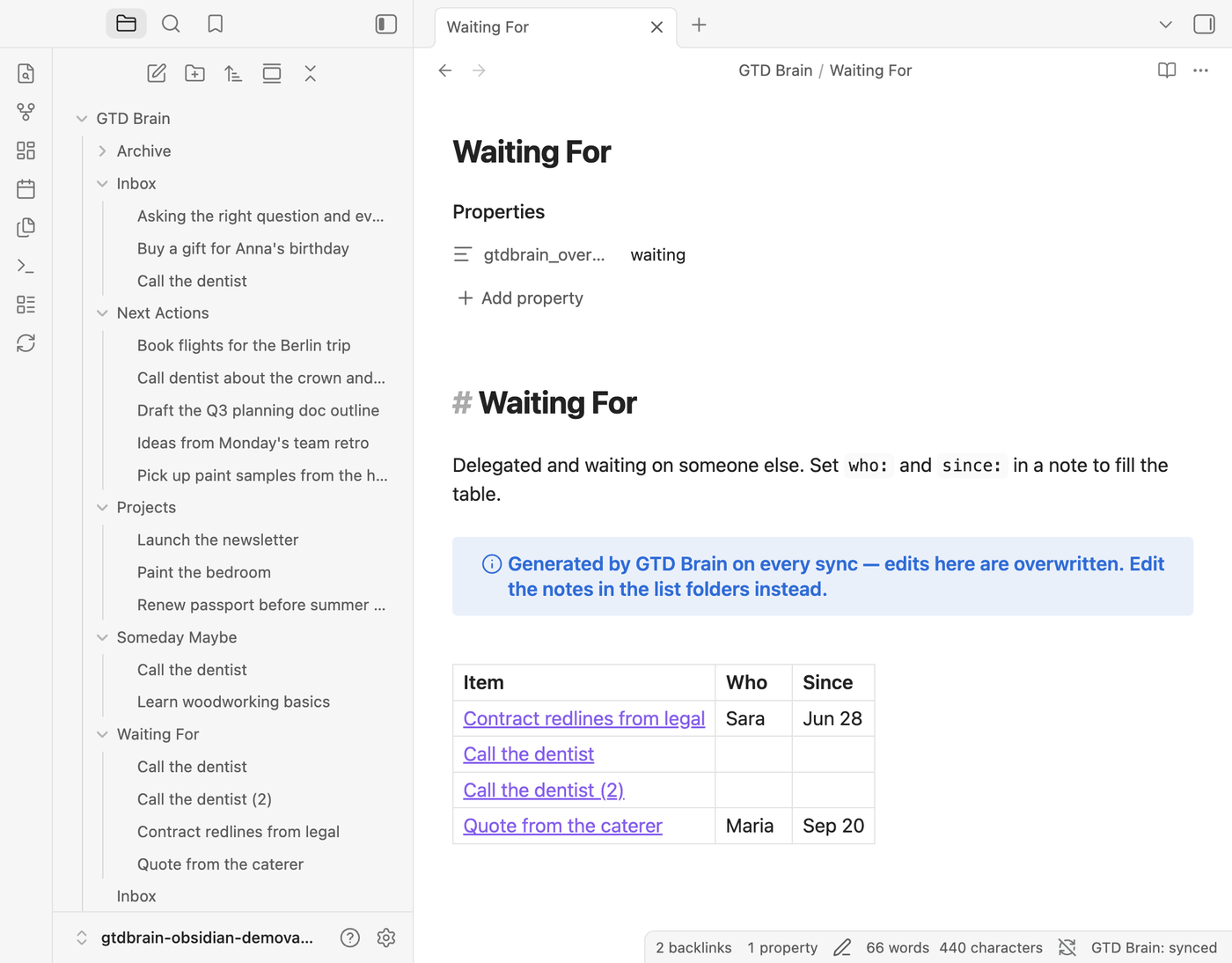
├── Waiting For/           delegated items; `who:` and `since:`
├── Someday Maybe/         incubating
├── Archive/               notes of archived cards
├── Inbox.md               generated list overviews (read-only)
├── Next Actions.md        …grouped by context
├── Projects.md            …with each project's next actions, flags projects without one
├── Waiting For.md         …as a table of item / who / since
├── Someday Maybe.md
└── Weekly Review.md       your checklist — created once, never overwritten
Every card note carries a small frontmatter block the sync reads and writes:
---
gtdbrain_id: "1b2c…"        # the card on the board
list: "Next Actions"        # informational mirror of the folder
kind: "action"              # card | action | project
context: "@errands"         # id or label, both work
project: "[[Paint the bedroom]]"
who: "Bob"                  # Waiting For
since: "2026-09-01"
---
The note body is the card's notes.
Any other property you add is yours and stays untouched.
Capture: a note in Inbox
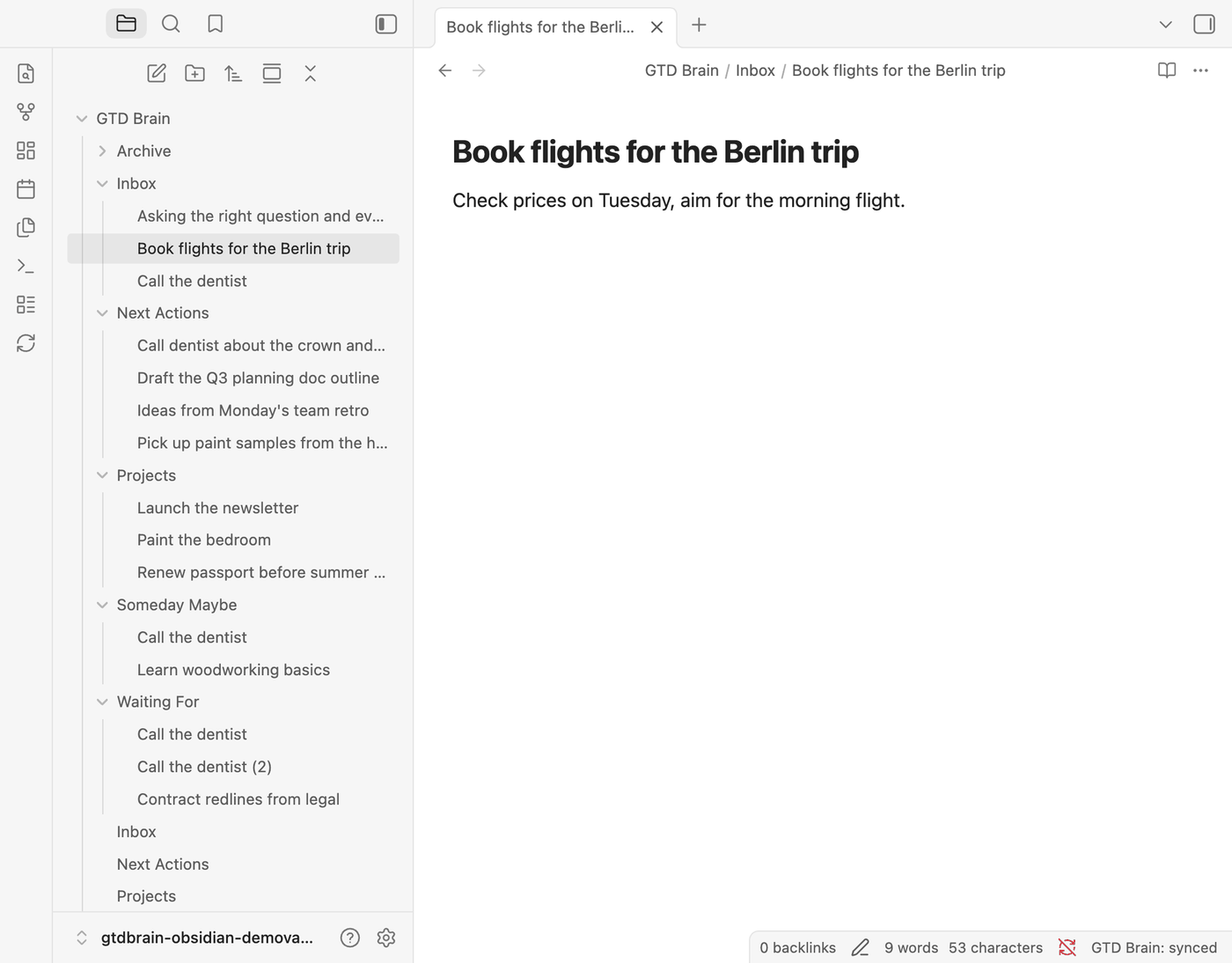
Next actions by context
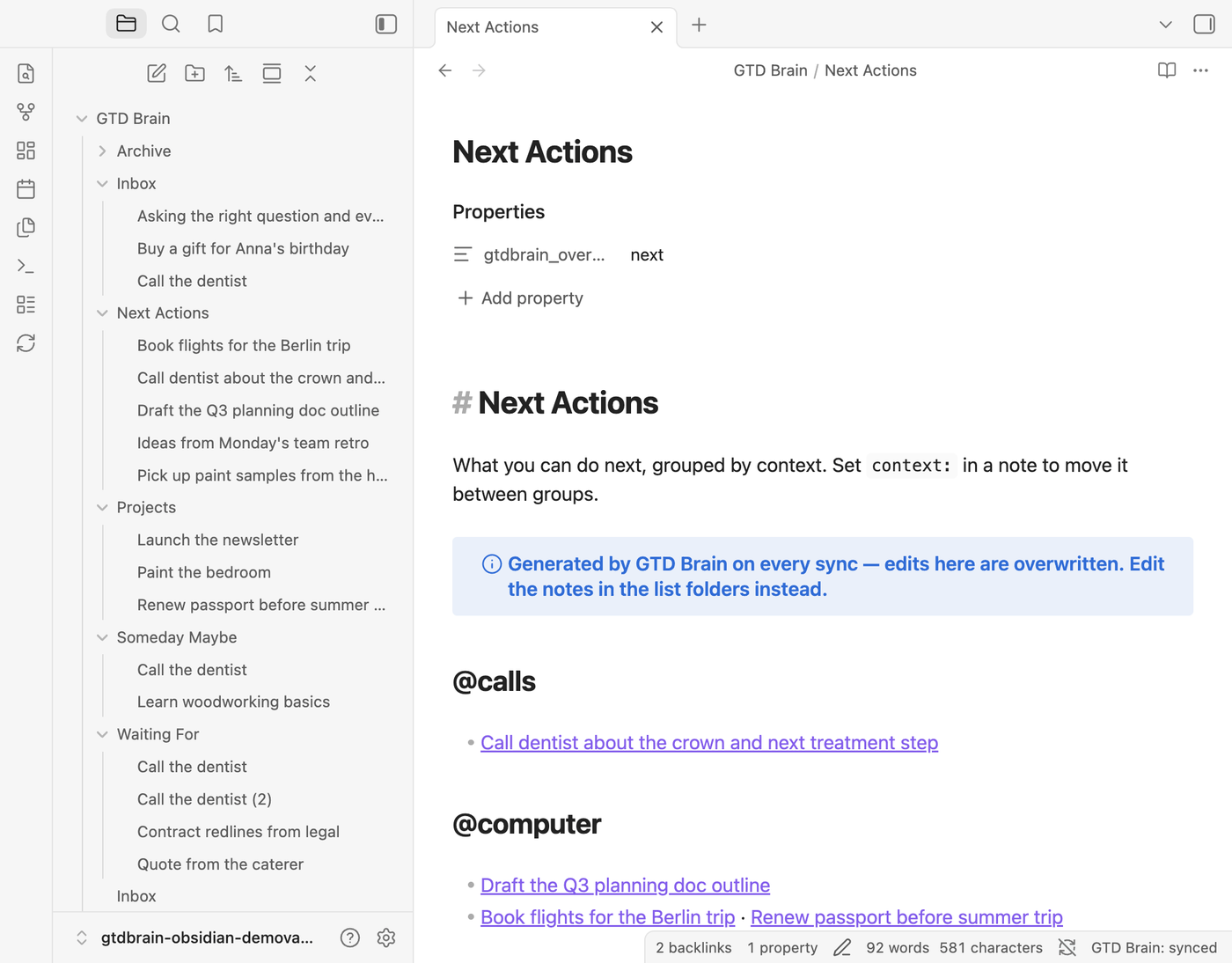
Projects and their next actions
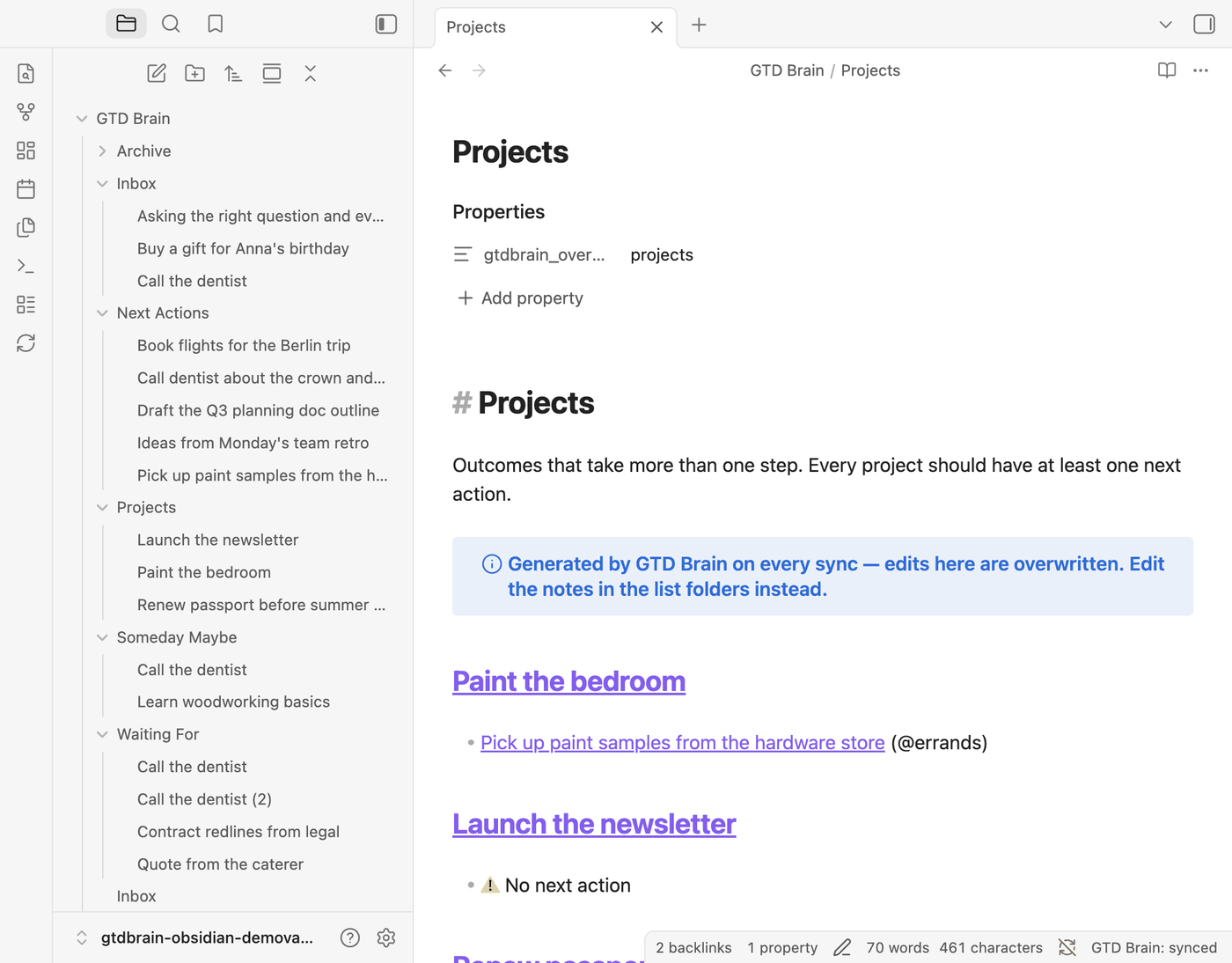
Waiting For: who and since when
The weekly review in Obsidian
Install the Obsidian GTD plugin
- Install — Settings → Community plugins (turn off Restricted mode if it is on) → Browse → search “GTD Brain” → Install → Enable. Or open the plugin's directory page and press Add to Obsidian.
- Sign in — run the command GTD Brain: Sign in (or open the plugin settings). Enter your email, type the code we send you. No password, no API key. A new email creates a GTD Brain account with a starter board; an email you already use for GTD Brain connects the vault to that board. If the account has no membership yet, a dialog offers to start one (what that means).
- Done — the moment the code is accepted the plugin creates the folders, the overview notes and the Weekly Review checklist, and pulls every card on the board into the vault as a note. GTD Brain: Set up GTD folders recreates anything you delete.
Sync runs on startup, every 5 minutes (configurable), and on GTD Brain: Sync now (ribbon icon or command). The status bar shows the state. Works on desktop and mobile.
Manual install, for a vault that cannot reach the directory: download main.js, manifest.json and styles.css from the latest release into <your vault>/.obsidian/plugins/gtd-brain/, reload Obsidian and enable the plugin. BRAT works too: add minosin/gtdbrain-obsidian.
GTD Brain: the same board on the web, your phone, and in ChatGPT and Claude
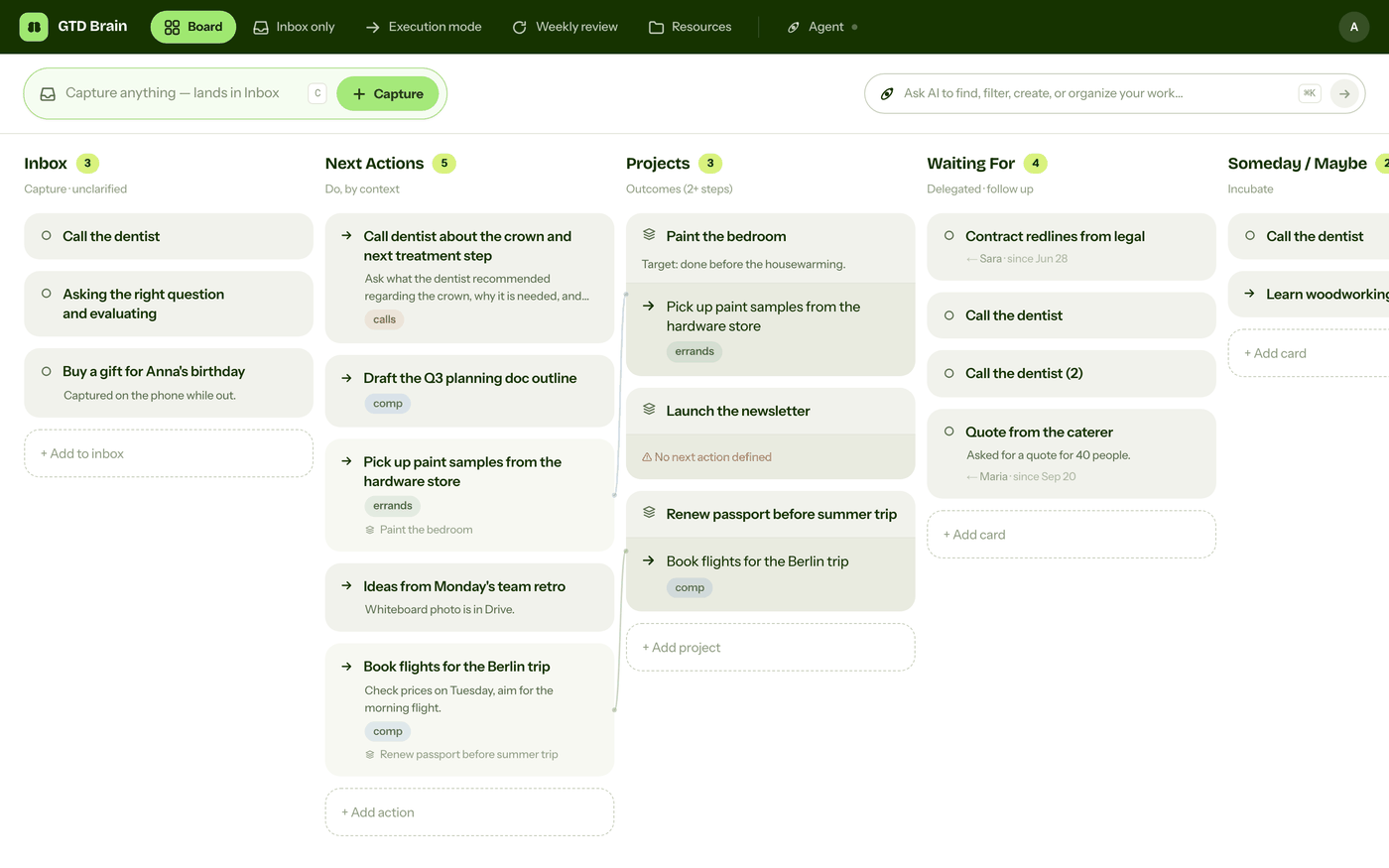
GTD Brain is the GTD app ChatGPT and Claude can run for you. The vault mirrors one board, and that board exists outside Obsidian:
- Web — dashboard.gtdbrain.com: the same lists as columns, with the project links and the who/since you set in frontmatter.
- Android and iPhone — Google Play · App Store. Capture on the phone, clarify at the desk: the note is in your vault on the next sync.
- ChatGPT, Claude, Claude Code, Cursor, Gemini CLI and other assistants — GTD Brain is an MCP server, so an assistant can read and change the same board: “what are my next actions at the computer?” answers from the cards you clarified in Obsidian that morning. See the connect guides.
- Telegram — message the GTD Brain bot, typed or as a voice note, and it lands in
Inbox/.
Membership: what is free and what is not
Payment is required for full access. The plugin is free to install and open source under MIT, but syncing the vault with your board, in either direction, needs a paid GTD Brain membership. It is one membership for everything — web, iOS, Android, every assistant and this plugin — and the yearly plan starts with one month free: cancel before it ends and you pay nothing. Plans and prices: gtdbrain.com/pricing.
Without a membership nothing syncs:
- Your board does not come into the vault, and nothing is sent from it. The status bar says membership needed.
- Notes you write or capture stay in the vault, and the first sync after your membership starts sends them.
- Right after you sign in, the plugin shows one dialog about this. It shows again only when you run Sync now while changes are waiting — never during background syncs. Its button opens checkout in your browser; the plugin never handles payment details. The settings tab has the same button, and selecting the status bar item opens the dialog.
How the two-way sync decides
- The plugin remembers what each note looked like after the last sync. On the next sync it pushes only the fields you changed (title, body, context, project, who, since, folder) to the board, then pulls the board's state into the vault.
- If the same field changed in both places since the last sync, your note wins for that field and the board wins for everything else.
- Deleting a note, or moving it out of the GTD folder, archives its card on the next sync — nothing is ever deleted on the board. Cards archived on the board move to
Archive/(or are trashed, if you turn off Keep archived cards). Unarchive on the web app and the note comes back. - Only the notes inside the GTD folder's list folders are read or written. The rest of your vault is never touched.
Network use, account and privacy
- An account is required. The plugin is a client for GTD Brain; it does nothing until you sign in. Signing in with a new email creates an account; syncing with the board needs a paid membership (details).
- Network requests go to
https://api.minosin.com(GTD Brain's backend, operated by Minosin AB) and nowhere else: to send you the sign-in code, to exchange it for a session token, and to read and write your board during a sync. Requests are made with Obsidian'srequestUrland only when you sign in, run a command, or on the sync interval you configure. - What is sent: your email at sign-in; for each card note in the GTD folder, its title (file name), body, and the frontmatter fields listed above; for a capture, the text you typed or selected, a link to the note you selected it in, and which capture command you used. Apart from what you capture, nothing outside the GTD folder is read or sent: no other properties, no vault metadata.
- Server-side logging: like every GTD Brain client, requests are logged on the backend (endpoint, timestamp, a random per-install id the plugin generates, the plugin version, your account). There is no client-side telemetry or analytics in the plugin. How that data is handled: gtdbrain.com/privacy · terms.
- Where the token lives: the session token is stored in the plugin's
data.jsoninside your vault's.obsidianfolder, like any sync plugin. Sign out removes it. Do not share that file.
Commands and settings
| Command | What it does |
|---|---|
| Capture to Inbox | Quick-capture box; the item goes to the top of your board's Inbox and into Inbox/ |
| Capture selection to Inbox | Captures the selected text, with a link back to its note (also in the editor's right-click menu) |
| Sync now | Push note changes to the board, pull the board into the vault |
| Set up GTD folders | Create the list folders, overview notes and the weekly review checklist |
| Sign in / Sign out | Email-code sign-in; sign-out keeps your notes |
| Open the web app | Opens dashboard.gtdbrain.com |
Settings: GTD folder (default GTD Brain) · Sync every N minutes (0 = off) · Sync on startup · Keep archived cards · API address (advanced).
Develop
npm install
npm run dev      # watch build → main.js
npm test         # vitest: sync engine against an in-memory vault + fake backend
npm run lint     # eslint with eslint-plugin-obsidianmd
npm run build    # type-check + production bundle
Copy main.js, manifest.json, styles.css into <vault>/.obsidian/plugins/gtd-brain/ to test locally. The backend API this plugin uses is documented in the connect guide for Obsidian.
Support
- Setup guide: https://gtdbrain.com/connect/obsidian?source=obsidian-readme
- Issues: https://github.com/minosin/gtdbrain-obsidian/issues
- Email: [email protected]
License
MIT © Minosin AB. Not affiliated with Obsidian.