
README file from
GithubGraph Files Highlight Sync
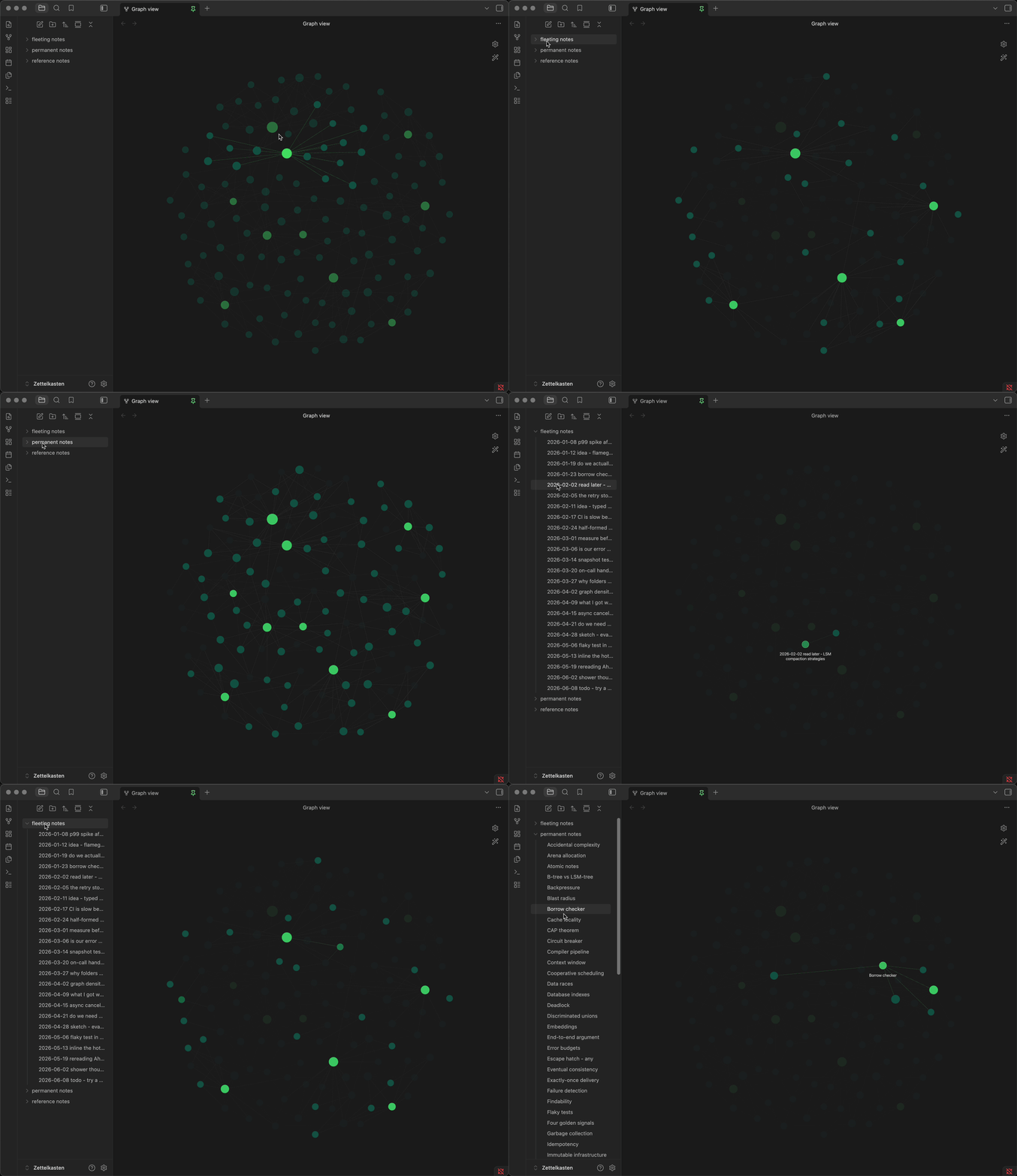
An Obsidian plugin that connects the file explorer with the Graph view: hover a note in the sidebar and its node lights up in the graph, hover a folder and every note inside it lights up at once — everything else fades back. It mirrors the native "hover a graph node" effect, but triggered from the file list.
Features
- File hover — hovering a note in the explorer highlights its node and its direct neighbours, dimming the rest of the graph. The node also gets Obsidian's own highlight ring, the same one you see when hovering the node directly.
- Folder hover — hovering a folder highlights every note inside it, including notes in its subfolders. Hovering the vault root highlights everything. Useful for seeing at a glance whether a folder forms a cluster or is scattered across the graph.
- Tag nodes — on folder hover, the tags used by that folder's notes can be highlighted too, so you see which topics the folder actually covers.
- Attachments — links to and from attachments are always followed, in both directions: attachments used by the folder's notes, and notes that use the folder's attachments.
- Every open graph — works with Graph view and Local graph, including several open at once. The highlight only appears for nodes actually present in the current graph, so files hidden by graph filters stay hidden.
Settings
Under Settings → Community plugins → Graph Files Highlight Sync.
Highlighting
- Enable file-hover highlight — highlight a note's node and its direct neighbours when you hover the note in the file explorer. (default: on)
- Enable folder-hover highlight — highlight all notes inside a folder when you hover the folder. (default: on)
- Highlight tags on folder hover — also highlight the tag nodes used by that folder's notes. Requires Tags to be enabled in the graph view's own settings. (default: on)
Appearance
- Show note names on folder hover — force the names of a folder's notes to stay visible while the folder is highlighted. Obsidian only draws labels when the graph is zoomed in far enough, so at a wide zoom the names may still not appear. (default: off)
- Fade amount — opacity of the dimmed, non-highlighted nodes, from 0.1 to 0.9. Lower means a stronger spotlight. (default: 0.1)
Changing any setting takes effect immediately, including while a highlight is already on screen.
Why
Obsidian lets you hover a node in the graph to spotlight it, and hover a file in the sidebar to preview it — but there's no built-in way to hover a file in the sidebar and see where it sits in the graph. This plugin adds exactly that. It's a long-standing community feature request with no native solution.
Folder hover goes a step further than the request, and turns out to be the more useful half in a large vault: it answers "is this folder a real cluster, or just a drawer?"
Usage
- Open a Graph view (or Local graph) next to your file explorer.
- Hover any file in the sidebar → its node and neighbours light up, the rest dim.
- Hover a folder → every note inside it lights up instead.
- Move the pointer away → the highlight clears.
Meaningful on desktop, where hovering exists. On mobile (touch) there's no hover, so the plugin simply does nothing.
How it works
When your pointer enters a file or folder in the explorer, the plugin reads its path, works out which graph nodes belong to it, and re-styles every other node and link to the configured fade amount. Moving off clears it.
Both modes work by wrapping each node's and link's render method, so the styling is
re-applied after Obsidian draws — the same "render proxy" technique the
Graph Style Customizer
plugin uses. File mode additionally sets renderer.highlightNode to get the native ring.
The graph view has no public API, so this relies on Obsidian's internal renderer
fields (renderer.nodeLookup, renderer.links, renderer.highlightNode,
renderer.changed()) — the same approach the
Graph Search Sync plugin
takes. These are undocumented and could change in a future Obsidian release; if a version
ever breaks the highlight, that's the first thing to check. All proxies are removed when
the plugin unloads.
Installation
From the community plugin browser
Once the plugin is accepted into the community plugin directory: Settings → Community plugins → Browse, search for "Graph Files Highlight Sync", install and enable it.
Manual
- Download
main.jsandmanifest.jsonfrom the latest release. - Copy both into your vault at
<vault>/.obsidian/plugins/graph-files-highlight-sync/. - Reload Obsidian → Settings → Community plugins → enable Graph Files Highlight Sync.
Building from source
npm install
npm run dev     # watch mode (rebuilds main.js on save)
npm run build   # production build + type check
Author
Made by jakdab. Bug reports and feature requests are welcome via GitHub Issues.
License
GPL-3.0-or-later. Copyright (C) 2026 jakdab.