
README file from
Github ██████ ██████ ██ ██ ██████
██ ██ ██ ██ ██ ██ ██ ██
██ ███ ██ ████ ██ █████ ██ ██
██ ██ ██ ██ ██ ██ ██ ██ ██
██████ ██████ ██ ██ ██████
Goko
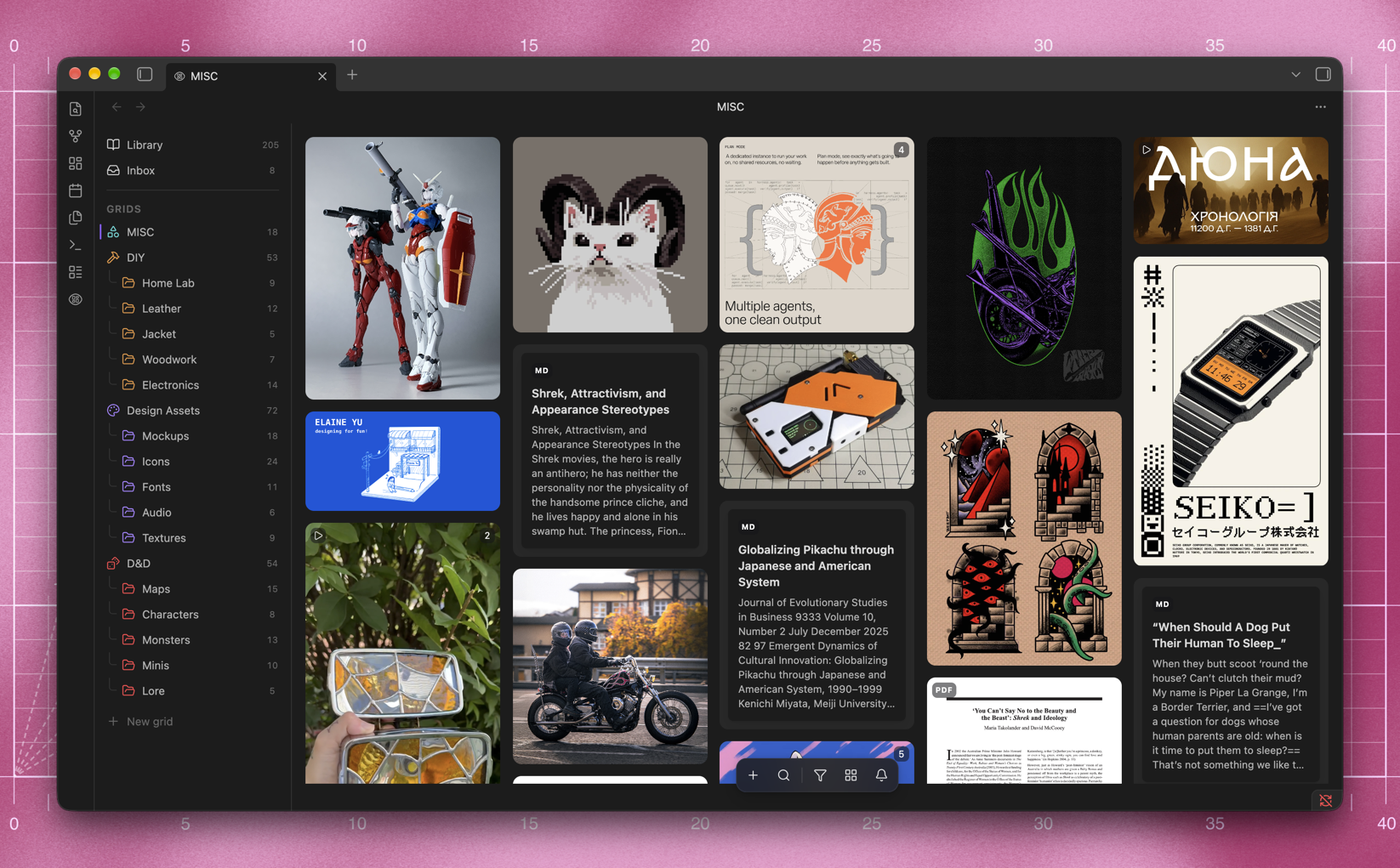
Your links, images, videos and PDFs, on one wall you can see
Collect from any app, sort into grids and folders, and find anything again. It all stays in your Obsidian vault as plain files, with its media on your own disk.
goko is how some Ukrainian dialects say око, “eye”. You save links, images, videos and documents, and Goko lets you see them instead of reading a list of names.









Why
Bookmarks keep the title. Goko keeps the picture.
Links rot, posts get deleted, and a folder of clippings is a list of names. Goko puts everything you save on one wall, as the pictures and video you saved it for, and copies them into your vault so they outlive the page.
- ✂️ Clip from anywhere. Paste a link, drop a file, or share from any app on your phone. Posts from Instagram, X, Threads, Pinterest and YouTube arrive with their pictures and video.
- 💾 Keep it for good. Every picture and video is downloaded into your vault, so a deleted post or a dead link does not take the clipping with it.
- 🍱 See it all at once. A bento wall at each picture's own proportions, sorted into grids and folders, filtered by any property, and searchable by the words inside an article or a PDF.
- 📝 Own every file. Each clipping is a plain Markdown note in the vault you already have. Goko writes its body once and after that edits only its frontmatter.
Free and open source, for Obsidian on desktop and on your phone.
Contents
- ⬇ Install
- ✂️ Clip anything
- 🍱 The bento wall
- 🗂️ Grids and folders
- 🔍 Search
- 🤖 AI, if you want it
- 🛠️ Optional tools
- 🔒 Privacy
Install
In Obsidian, open Settings → Community plugins → Browse, search for Goko, then choose Install and Enable. It needs Obsidian 1.13 or newer, on desktop or mobile.
With BRAT, updates arrive on their own. Add Goko as a beta plugin:
Settings → BRAT → Add beta plugin
artem-levchenko-2/obsidian-goko
By hand, download main.js, manifest.json and styles.css from the
latest release
and put them in:
<your vault>/.obsidian/plugins/goko/
Then turn it on under Settings → Community plugins → Goko.
Clip anything
Paste a link anywhere on the wall, or run Clip from clipboard from the command palette. Goko reads the page, downloads what it finds, and writes a note into your clippings folder.
| You paste | You get |
|---|---|
| An article or product page | Its preview image, title, author and date, plus the article's own text |
| An image, video or PDF | The file itself, as its own clipping. A PDF shows page one and gives its text to search |
| An Instagram post | Every picture of a carousel, full size, from the post's own embed |
| An X or Threads post | The post's media |
| A Pinterest pin | Its picture or video, from Pinterest itself |
| A YouTube video | Its cover and a button to watch it on YouTube. Shorts, and videos under the length you set, download with yt-dlp |
| A link with no picture | A card of the clipping's own words, with the site's mark |
| Something already clipped | The note you already have, raised on the wall |
Goko answers obsidian://goko?url=…, so an iOS Shortcut can put a clip button
in every app's share sheet. Build one that:
- Receives URLs and text from the share sheet
- Runs Get URLs from Input
- URL-encodes the result
- Opens
obsidian://goko?url=followed by the encoded text
Share anything from Safari, Instagram or X and it lands on the wall. Text around the link is fine. Share sheets send captions, and Goko finds the URL in them.
Its notes appear on the wall as they are. Goko reads the frontmatter the
clipper writes (title, source, author, created, description,
tags) and, on its own, downloads the remote images those notes point at, so
a library clipped over years stops depending on other people's servers.
The notes themselves are not rewritten. The command Download all clipping media fetches the images for every note at once.
The bento wall
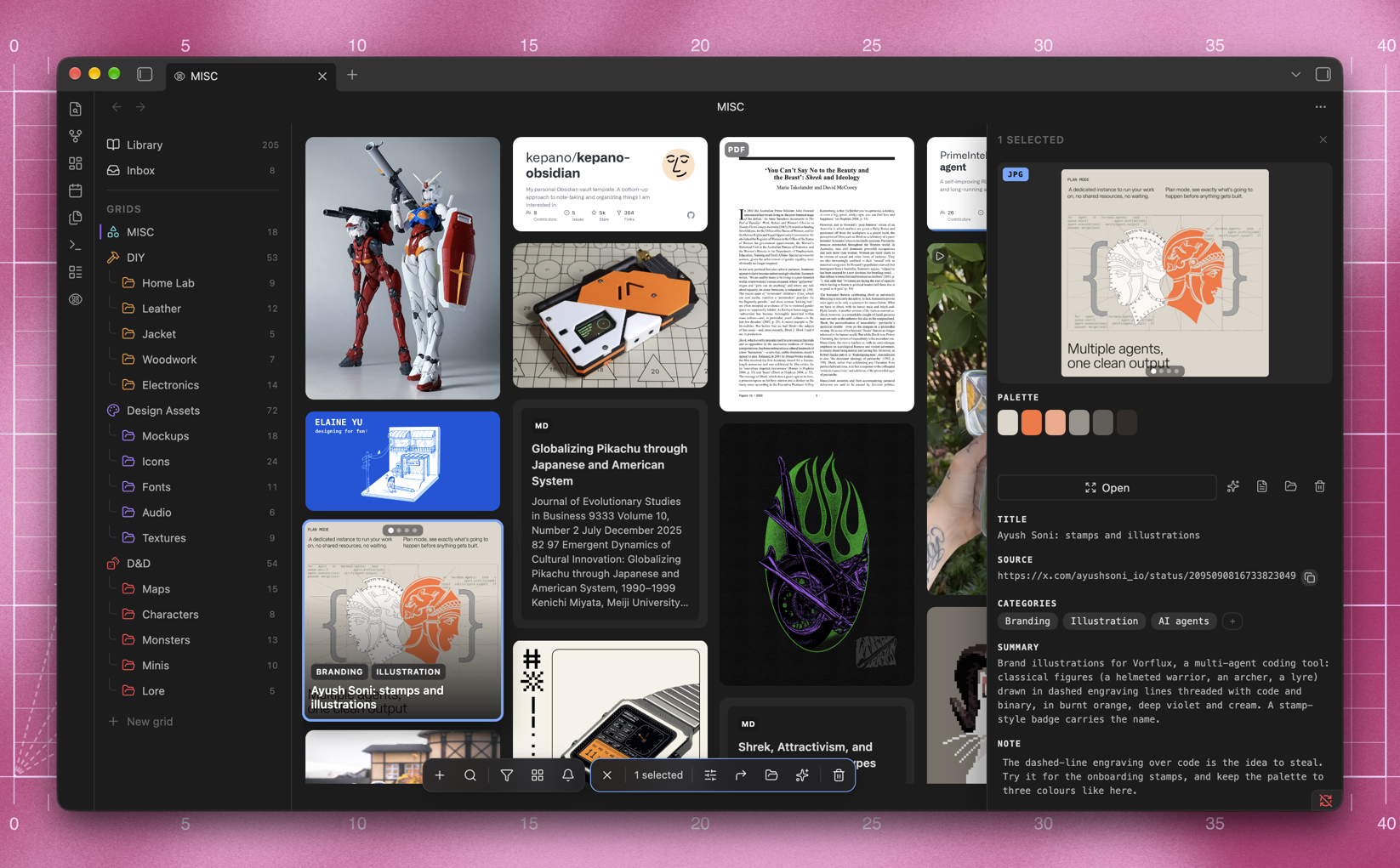
Goko fills one screen with three parts. The rail on the left holds your library, your inbox, and every grid with its folders and how much each holds. The wall in the middle shows each clipping as its own picture, at its own proportions. The panel on the right opens for the card you pick: the picture and its palette, where it came from, its categories, the summary and your own note, all editable in place.
Hover a card for its name and tags, or sweep across one with several pictures to flip through them. Video plays in the panel with a timeline, and any frame can become the card's cover. Right-click a card, or the picture in full screen, to copy the image itself.
Prefer the picture large? Set Card details to Sheet, and a click opens the card in a sheet that slides up over the wall, the picture beside its details, with a band of the wall still in sight above it.
Walking through cards full screen with the arrows, press Space or Select
on any you want. They are still picked on the wall when you close it, for the
selection bar to act on.
Select several cards with a drag, or with a long press on a phone, and a bar rises beside the dock to retag, move, describe or delete them all at once.
On a phone the same wall fits under a thumb, and the panel slides up from the bottom.
⌘V |
Clip the link, picture or file on the clipboard |
⌘Z ⌘⇧Z |
Undo and redo a move, an edit, a grid change |
⌘1 to ⌘9 |
Switch grids in their stored order |
← → ↑ ↓ |
Move between tiles |
Space |
In full screen, pick the card or put it back |
⌘C |
In full screen, copy the picture |
Esc |
Close whatever is open |
Use Ctrl in place of ⌘ on Windows and Linux. These work over the wall and nowhere else. Goko registers no hotkeys of its own, so it takes none of the ones you have already bound. Every command is in Obsidian's palette, and Settings → Hotkeys is where you give one a chord if you want it.
Grids and folders
Grids are boards. A clipping belongs to one through a single grid property,
the library shows everything there is, and smart views collect clippings by
rule. The list of grids travels between your devices in one small note, so a
board made on a desktop is on your phone after a sync.
A rail down the left lists them with their folders and their counts. Drag cards onto a row to file them, and drag the rows themselves to reorder them. Right-click a row for everything else: rename it in place, pick its icon or write its description in a panel beside it, give it a colour, or delete it, with a box to take its clippings too. Folders are piles inside a grid. Gather some tiles into one card to make a folder, a collage of what is inside, and drag its corner to set it to one, two or three columns wide.
A board can change shape as it grows. Drag a folder out between the grids and it becomes a grid of its own, in its old grid's icon and colour. Drop a grid onto another, or between its folders, and it becomes one of them. Make it a grid and Make it a folder in the menus do the same, and undo takes either back.
Turn on Grids follow folders and the wall files by path instead of by frontmatter:
Clippings/                     the inbox
Clippings/Payments/            a grid
Clippings/Payments/Checkout/   a folder on that grid
Moving a card moves the note, and moving the note in Obsidian's file explorer moves the card.
The setting is off by default, and turning it on moves nothing by itself. A
command does the moving, and the grid property keeps working either way.
The inbox can lay itself out by where each clipping probably belongs, read from its categories, its domain, and rules you write yourself:
dribbble.com        categories: inspiration
*.behance.net       categories: portfolio, categories: branding
github.com          categories: code
Accept or correct a whole island in one gesture. Nothing moves until you say so.
Search
The search button in the bar grows into a field. As you type, the wall keeps only the cards that match, from the whole library and from inside folders, each labelled with where it is filed. The rail counts the matches on every grid and folder and dims the ones that have none.
Click a grid or a folder in the rail to search only there. The count in the field switches between the whole library and the place you narrowed to.
A match opens as any card does, and the arrows step through the matches. The
search stays until you clear it with × or Esc, and clearing it takes you
back to where you were.
Every word has to match. A word of four letters or fewer counts only at the
start of a word, so cat does not find modification. A longer one counts
anywhere, so tattoo finds #darktattoo. The search reads the title, the tags,
the description, your note, the summary, the site's name, and the text of an
article or a PDF. It does not read the names of grids and folders.
AI, if you want it
It is off by default and does nothing until you turn it on. Then Goko can look at a clipping and write a summary and categories into its frontmatter, as ordinary properties you can edit or delete.
Select a pile of cards and describe them in one go. Goko works through them several at a time, up to ten as Descriptions at once allows, shows the count at the top of the wall with a Stop button, and stops by itself when the provider says its limit is reached.
| Provider | What it needs |
|---|---|
| Anthropic | Your own API key |
| OpenAI | Your own API key |
| Claude Code | The CLI already on your machine, with no key and no second subscription |
A key you supply is kept in Obsidian's keychain on that device. It is not written into your notes or the plugin's settings, and does not sync with the vault.
Other models and agents work too, by a route Goko does not build in. Goko
reads summary and categories from a clipping's frontmatter, so a local
model, a coding agent such as Codex, Antigravity or Hermes, or any script that
can write to your vault, directly or through the Obsidian CLI, can fill them
in, and the wall shows the result.
Optional tools
Everything above works with nothing installed. Two command-line programs make
Goko better at the media a browser cannot reach on its own, if you already
have them or care to install them. They are for the desktop only. Goko finds
them on PATH and in the usual install locations, and Settings → Video
tools takes an explicit path. On a Mac or on Windows, Install in the same
place runs Homebrew or winget for you.
| Tool | Without it | With it |
|---|---|---|
| yt-dlp | A clipped reel or post keeps its poster image | The video file itself, downloaded into your vault |
| ffmpeg | A video in a format Obsidian cannot play has no tile | A still pulled from it, so the card has a picture |
# macOS
brew install yt-dlp ffmpeg

# Windows
winget install yt-dlp.yt-dlp
winget install Gyan.FFmpeg

# Linux
sudo apt install yt-dlp ffmpeg
Some video can only be fetched on a desktop, and a phone has no yt-dlp.
A clip made on your phone gets its poster right away and says so. The next time a desktop opens the same vault, it notices what is missing and downloads it. Once that syncs back, the phone adopts the file and the tile plays, with nothing lost in between and nothing to clip again.
Privacy
Goko has no server, analytics, telemetry or third-party SDKs. Everything it keeps is written into your own vault.
It fetches the pages you clip. The one request that does not go straight to
the site is for a post on X. X publishes the address of a post's video only to
its own player, so Goko asks the community mirror api.fxtwitter.com, and you
can switch that off in the settings.
The full policy is in PRIVACY.md.
License
Goko is free software under the GNU General Public License v3.0. See LICENSE for the full terms, and NOTICE for the copyright notices and the statement of what this program is a modified version of.
Found a bug or missing something? Open an issue · Start a discussion