
README file from
GithubGitFacil - Obsidian Plugin
GitFacil is an ultra-lightweight and simple Git backup plugin for Obsidian. / GitFacil es un plugin ultraliviano y sencillo para Obsidian que te permite respaldar y sincronizar tus notas con Git en un solo clic, sin complicaciones ni configuraciones complejas.
📖 Manual completo / Full manual: MANUAL.md.
Why GitFacil? / ¿Por qué GitFacil?
| GitFacil | Git CLI |
|---|---|
| One-click backup | ✅ |
| Setup wizard, no terminal needed | ✅ |
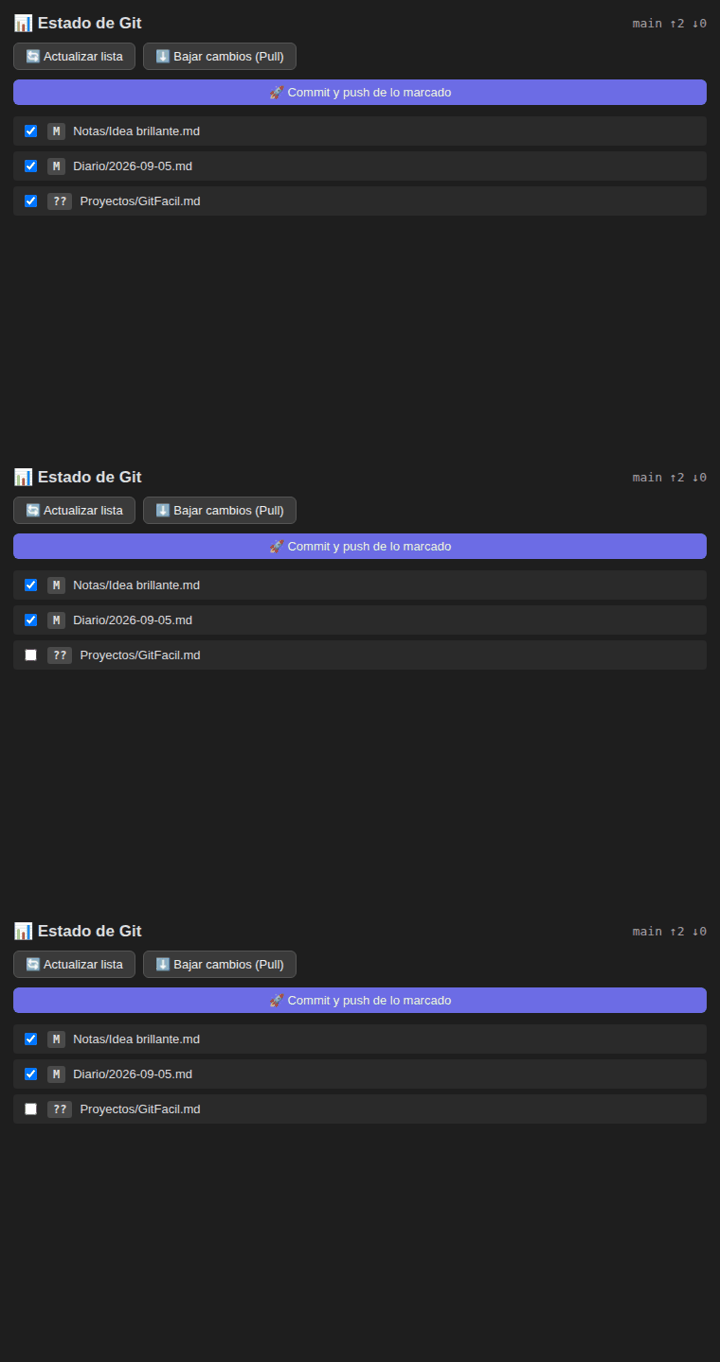
| Status panel with file selection | ✅ |
| Auto backup every N minutes | ✅ |
| Advanced Git operations | ❌ |
| Mobile support | ❌ |
| Real-time sync | ❌ |
Limitations: desktop only (needs system Git), no diff viewer, no history browser, no conflict editor — on push conflicts use the guided sync button.
📋 Prerequisites / Requisitos
- Git installed / Tener Git instalado: Download from git-scm.com.
- Git repository initialized / Repositorio inicializado: Run
git initin your vault root folder. - Remote repository configured / Repositorio remoto: Connect your vault to GitHub with
git remote add originusing your repository URL — or skip the terminal entirely with the Setup Wizard below.
Installation / Instalación
Option 1: Community Plugin Directory (Recommended)
- Open Obsidian Settings -> Community plugins.
- Search for GitFacil and click Install.
- Enable the plugin.
Option 2: Via BRAT (Beta Tester)
- Install Obsidian BRAT from community plugins.
- Open BRAT settings -> Add Beta plugin.
- Enter
https://github.com/Alecwce/obsidian-git-facil. - Click Add Plugin and enable GitFacil.
Option 3: Manual Installation
- Download
main.js,manifest.json, andstyles.cssfrom Releases. - Inside your vault folder, create the folder
.obsidian/plugins/git-facil/. - Copy the downloaded files into that folder and reload plugins.
Usage / Modo de Uso
⚡ Pulsa
Ctrl+P(oCmd+P), escribe GitFacil y verás todo: commit, panel y asistente.
- 🚀 One-click Ribbon Icon: Click the rocket icon 🚀 in the left ribbon to commit and push changes immediately.
- 📊 Git Status Side Panel: Open the side panel (icon
git-compare) to view modified files, select checkboxes, pull changes, or commit selected files. - 🪄 Setup Wizard: Click
🪄 Configurar mi bóvedain plugin settings for a 3-step zero-terminal guided setup. - 🔄 Auto-sync: Enable Auto-sync in settings to backup your vault automatically every N minutes.
- Command Palette: Search
GitFacil: Commit y PushusingCtrl+P/Cmd+P.
Settings / Ajustes
- Commit Message Template / Plantilla: Custom message template; the plugin automatically inserts the current date and time (a default message looks like: 📝 notas 2026-08-04 17:45).
- Auto-sync Toggle & Interval: Enable automatic background backups every N minutes.
Network use / Uso de red
GitFacil runs git (and optionally your own gh CLI) locally. It calls api.github.com only when you verify a manual token in the setup wizard, and gh talks to GitHub only when you create a repository from the wizard. There is no telemetry and no GitFacil server.
Troubleshooting / Solución de Problemas
| Error Notice | Cause / Causa | Solution / Solución |
|---|---|---|
❌ No se encontró Git |
Git not found in PATH | Install Git from git-scm.com |
❌ Tu bóveda no es un repositorio Git |
Vault not initialized | Run git init or use Setup Wizard |
❌ No hay remote |
No remote repository | Connect it with the Setup Wizard or run git remote add origin with your repository URL |
License
MIT License - Created by Alex Lazo.