
README file from
GithubTurn any folder into a timeline
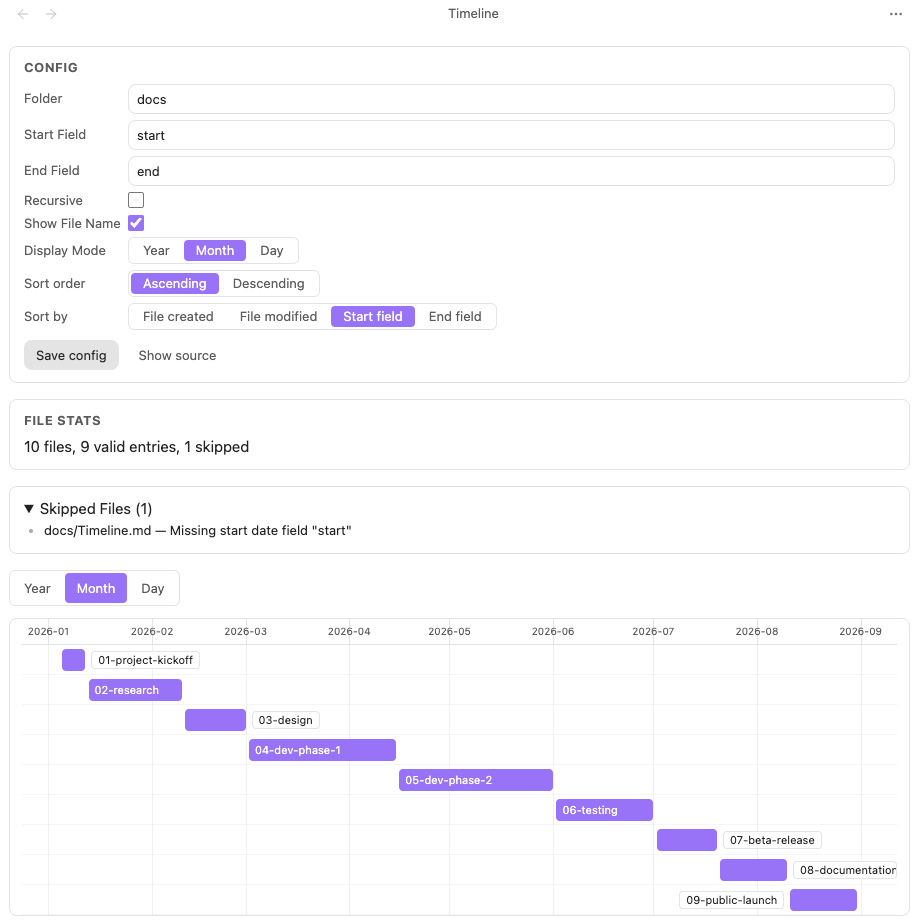
Usage
Folder Mode — treat a folder as a timeline:
- Click the timeline icon in the left ribbon, or right-click a folder in the file explorer.
- The plugin creates a view config file and opens the timeline.
- Add
start/endfields to any note's frontmatter to put it on the axis.
Base Mode — embed a timeline inside any Obsidian Base:
- Open a
.basefile → Layout → + Add View → Timeline. - In the view options, pick your Start date property and End date property.
- The timeline renders instantly. Filtering, sorting, and grouping are all handled by Base — you only configure the time fields.
View config file
A view config file is any regular Markdown file. When its frontmatter contains timeline: true, it is recognized as a view config file. You can edit and save it through the in-view form, or edit the file directly.
---
timeline: true
folder: ""
recursive: false
startField: "start"
endField: "end"
showFileName: true
displayMode: "month"
sortBy: "start"
sortOrder: "asc"
---
| Field | Type | Required | Default | Description |
|---|---|---|---|---|
timeline |
boolean | yes | - | The file is treated as a view config file only when this is true. |
folder |
string | yes | - | Folder to display, a path relative to the vault root; empty string means the vault root. |
recursive |
boolean | no | false |
Whether to scan all subfolders under folder recursively. |
startField |
string | yes | - | Start-time field name; read from each file's frontmatter. |
endField |
string | yes | - | End-time field name. |
showFileName |
boolean | no | true |
Whether to show the file name on the bar. |
displayMode |
"year" | "month" | "day" |
no | "month" |
Timeline scale granularity. |
sortBy |
"created" | "modified" | "start" | "end" |
no | "start" |
Sort key for bars (top to bottom). |
sortOrder |
"asc" | "desc" |
no | "asc" |
Sort direction: ascending / descending. |
Time value formats: common Obsidian frontmatter formats are supported, such as 2026-08-06, 2026-08-06T20:30:00, 2026-08-06 20:30, etc. A note with a start but no end renders as a single-point event (a circular marker); a start later than the end is treated as an invalid item and summarized in the view.
Features
- Obsidian Base integration — add Timeline as a native Base view type alongside Table, Board, Calendar, and Gallery. Use Base's built-in filters, sorts, and grouping; the timeline just renders your data.
- Hand-drawn timeline (zero third-party Gantt/Timeline dependencies): year / month / day scales; range auto-covers all items; bars correctly cross year and month boundaries.
- Bar interaction: hover feedback; click / Enter (keyboard-focusable) opens the note in Obsidian; optional file name on the bar when space permits.
- Performance: viewport rendering keeps hundreds to thousands of files scrolling at 60 fps.
- In-view config editing (folder mode): edit the form to write back to the config file's frontmatter and refresh instantly.
- Edge-case friendly: broken config, missing folder, empty folder, notes without time fields, start after end — all show a clear message instead of crashing.
- Local-first: no network requests, no telemetry, no remote code execution.
Installation
From Obsidian Community Plugins (recommended)
- Open Obsidian → Settings → Community plugins → Browse
- Search for "Folder Timeline" and click Install
- Enable the plugin
Manual
- Download the latest Release
- Extract and copy the folder to
<your-vault>/.obsidian/plugins/ - Restart Obsidian and enable the plugin in Settings
Development
pnpm install   # install dependencies (package manager is pinned to pnpm)
pnpm dev   # build in watch mode
pnpm build # production build, outputs main.js
pnpm lint  # run ESLint
License
MIT