
README file from
GithubFluent OneNote
A beautiful, ultra-fast 2-pane navigation plugin for Obsidian notes, inspired by Microsoft OneNote and Fluent Design principles.
[!NOTE] If you are looking for a local alternative to Microsoft OneNote, Evernote, UpNote, Bear, or Joplin directly inside your Obsidian vault, Fluent OneNote brings a familiar, high-performance 2-pane navigation system across Notebooks, Sections, and Pages.
Quick Setup & Recommended Workflow
1. Assign a Global Hotkey (Highly Recommended)
Fluent OneNote is designed around an instant, distraction-free popup workflow.
- Open Obsidian Settings -> Hotkeys.
- Search for
Fluent OneNote: Open navigation popup. - Assign your preferred shortcut (e.g.
Ctrl + Shift + O,Alt + O, orCtrl + Shift + A).
Whenever you need to switch notes or capture a thought, press your hotkey, browse or search across sections, and press Enter to jump right into the note without leaving your typing flow.
Key Features
1. 2-Pane Navigation Architecture
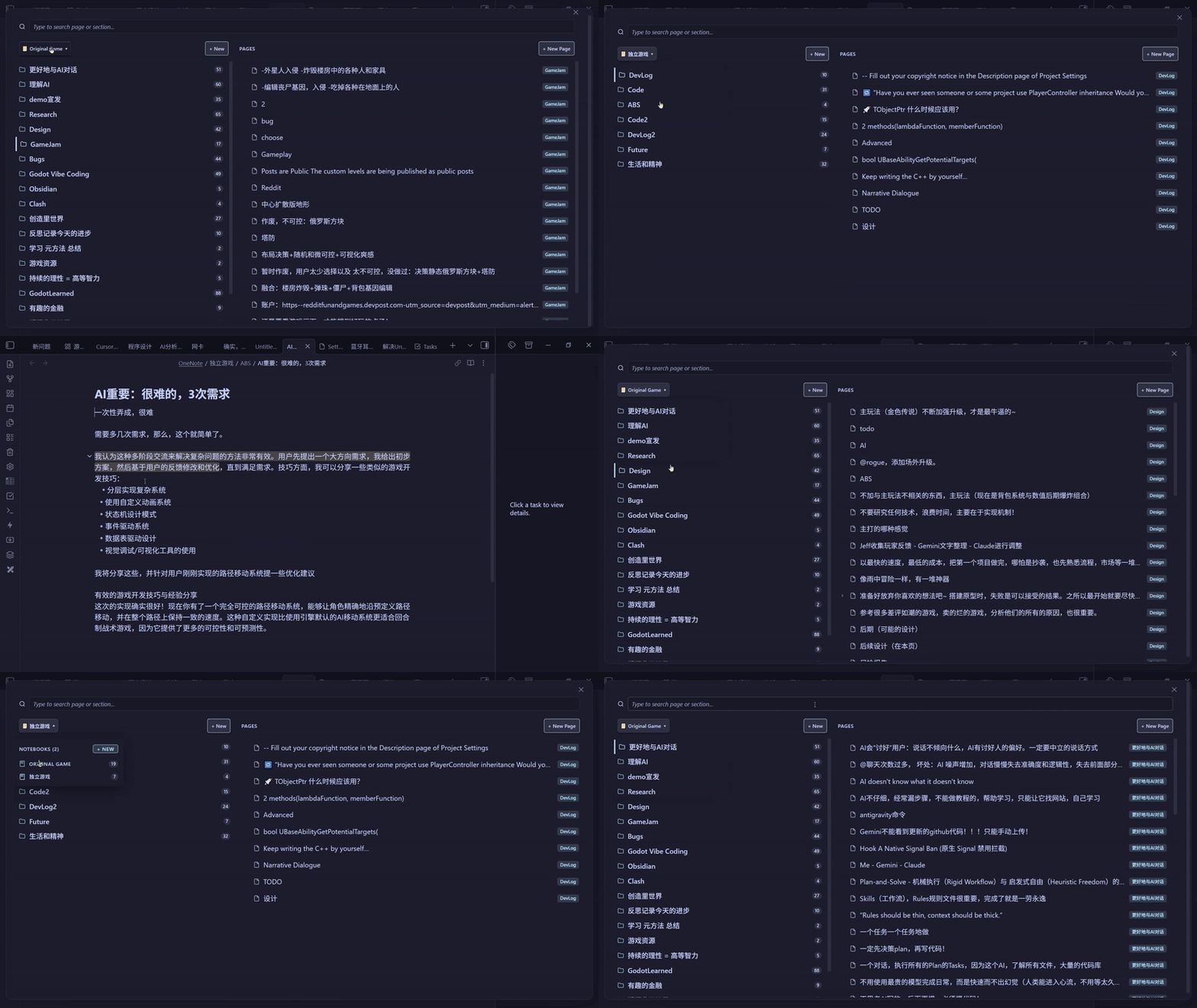
- Sections Column (Left): Displays section folders under the active Notebook as clean cards with note counters. The header features a sleek OneNote-style Notebook Selector dropdown.
- Pages Column (Right): Displays all notes and nested sub-pages belonging to the selected section.
- Cross-Pane Focus: Seamlessly jump focus between sections and pages with arrow keys or mouse clicks.
2. Floating Popup & Fast Keyboard Navigation
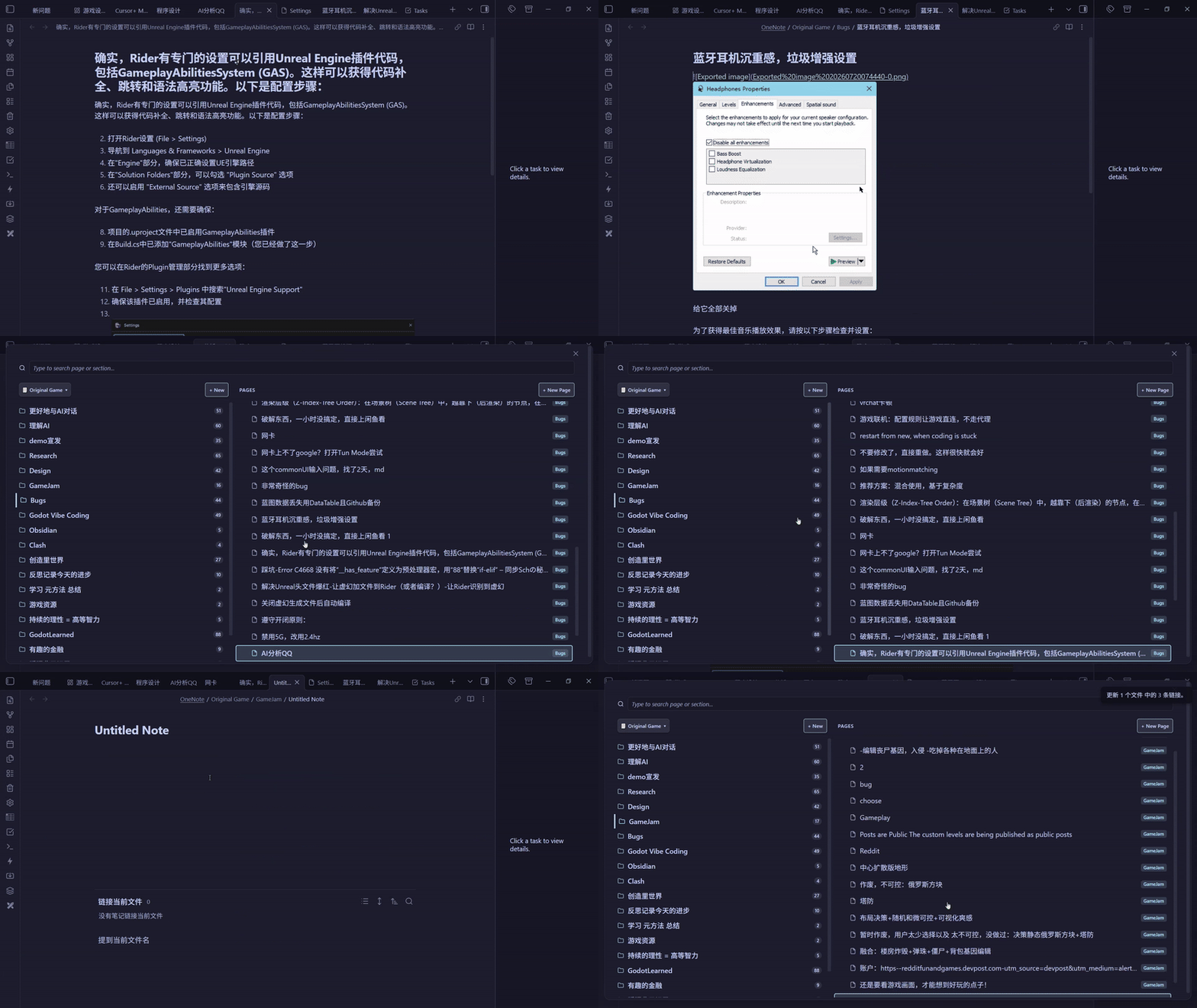
- Access your entire notebook hierarchy from anywhere in Obsidian.
- Instant keyboard navigation with arrow keys, quick selection, and background tab opening.
3. Instant Search-as-you-Type with Full IME Support & Global Scope Toggle
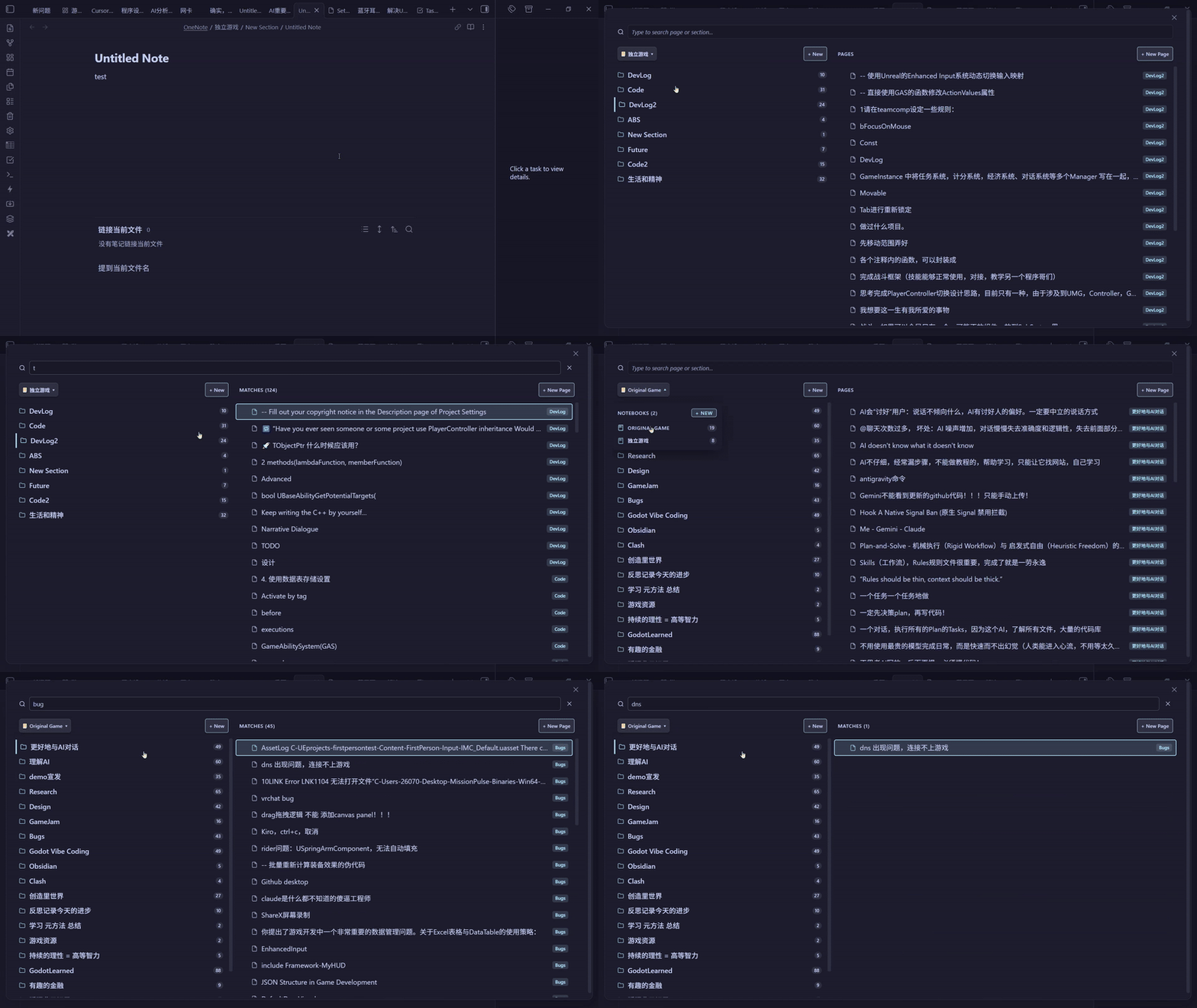
- Instant Focus & Zero Lag: The search input receives instant focus on modal open.
- Full IME Compatibility: Complete support for Chinese, Japanese, and Korean IMEs (e.g., WeChat Keyboard / 微信输入法, Microsoft Pinyin, Sogou Pinyin) from the very first keystroke without dropped composition or popup delays.
- Global vs Scoped Search Scope Toggle:
- Single Notebook Search (
📓 Current): Default search strictly scoped to the active notebook with dynamic placeholder (Search in "<Notebook>"...), showing section badges. - Global Vault Search (
🌐 All): Instant one-click toggle in the search bar header to search across all notebooks and recursive sub-page hierarchies simultaneously, displaying full path badges (Notebook / Section).
- Single Notebook Search (
- In-Box Navigation: Navigate search results with
ArrowUp/ArrowDownwhile remaining in the search box; pressEnterto open.
4. Physics Drag & Drop & Uniform rAF Auto-Scroll
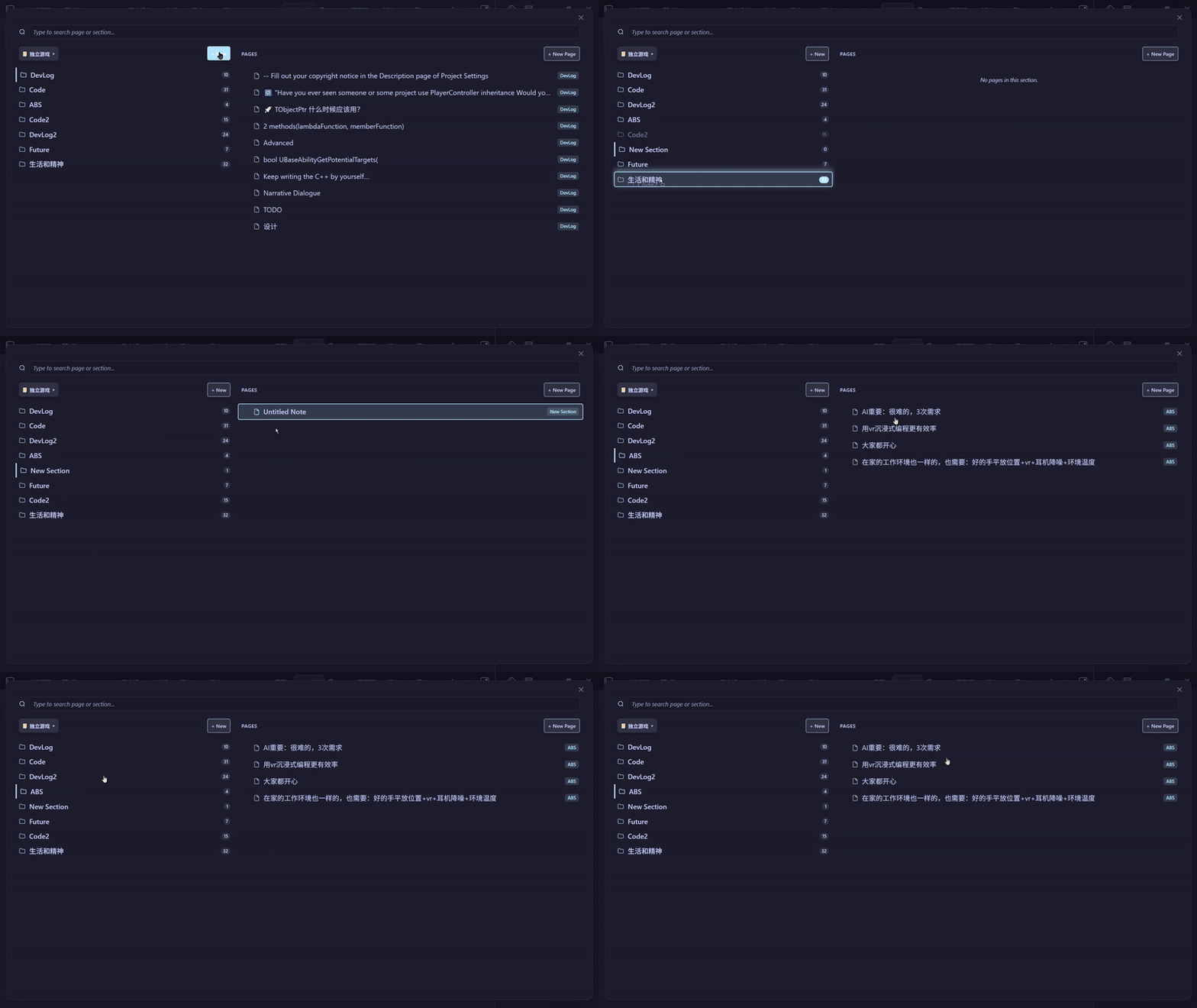
- High-Performance Physics Engine: Reorder Notebooks, Sections, and Pages with 0ms visual latency and zero reactivity lag.
- Uniform rAF Auto-Scroll: Generous 60px linear-damping edge auto-scroller allows smooth list scrolling while dragging items.
- Anti-Flicker Protection: Child elements are shielded during drag to eliminate mouse coordinate jitter and indicator ghosts.
- Cross-Pane Moves: Drag any Page onto a Section or Notebook folder card to move the note into that directory.
5. Custom Order Management (Export, Import & Reset)
- Export Order: Export your custom drag-and-drop notebook, section, and page arrangement to a standalone
.jsonfile via the native file save dialog. - Import Order: Import a previously exported
.jsonconfiguration to restore custom orderings across devices. - Clear Order: Reset all custom orderings back to default alphabetical order with a confirmation warning dialog.
6. Folder-Note Sub-Page Hierarchy
- Supports multi-level nested sub-pages with collapsible chevrons (
> / ∨). - When a folder and a markdown note share the same name within a section, they automatically fuse into a parent "Folder-Note".
- Safe deletion un-nests child notes to the parent section, protecting nested notes from accidental data loss.
7. Recent Pages Quick Switcher
- Dedicated command (
Fluent OneNote: Open recent pages list) to quickly access your most recently opened notes with timestamps.
8. Customizable Dimensions & Theme Accent Colors
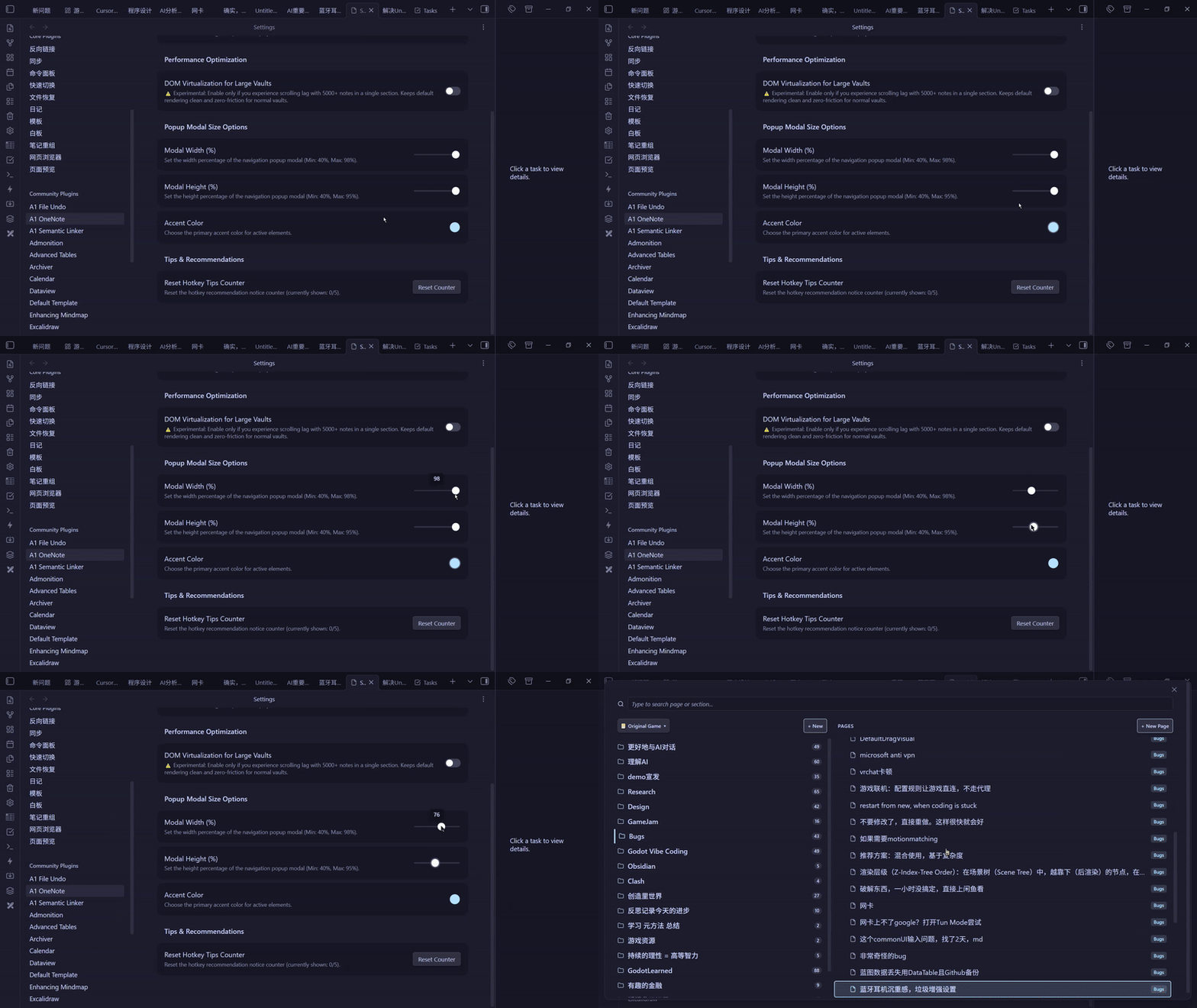
- Customize the popup modal width (40%–98%) and height (40%–95%) to fit your screen size.
- Pick a custom accent color to harmonize with your Obsidian theme.
9. Dual Display Modes
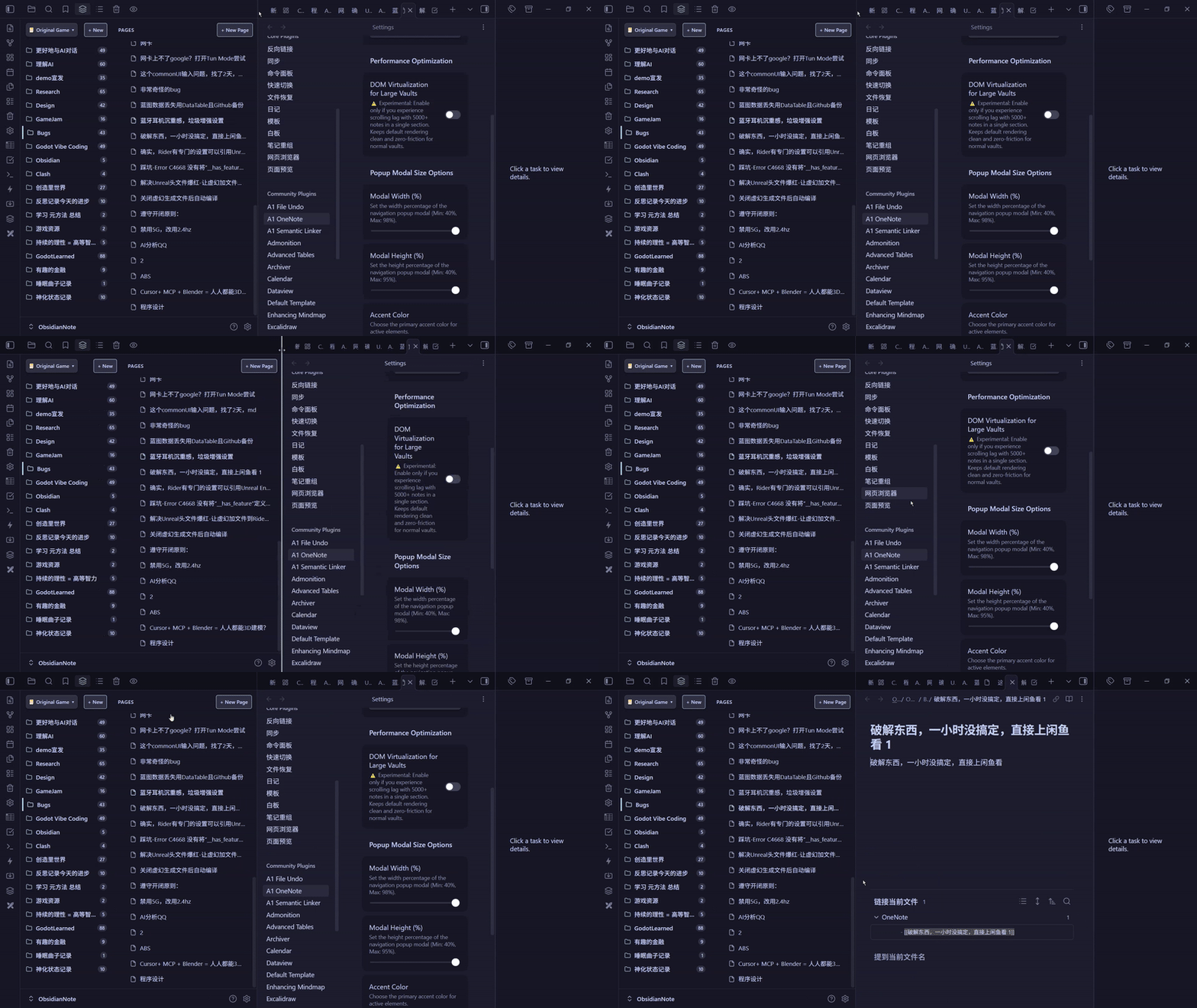
- Choose between Floating popup only or Both (sidebar + floating popup) in plugin settings depending on your layout preference.
Keyboard Controls Cheatsheet
| Action | Shortcut / Interaction | Description |
|---|---|---|
| Open Navigation Popup | Custom Hotkey (Ctrl+Shift+O) |
Open floating 2-pane navigation modal |
| Open Sidebar View | Command: Open navigation sidebar |
Open persistent sidebar tab view |
| Open Recent Pages | Command: Open recent pages list |
Open recent notes fuzzy switcher |
| Navigate Items | ArrowUp / ArrowDown |
Move selection vertically in active pane |
| Jump to Pages Pane | ArrowRight (on Section) |
Shift active focus into the Pages column |
| Return to Section Pane | ArrowLeft (on Page) |
Shift active focus back to the Section row |
| Toggle Sub-pages / Expand | ArrowRight / ArrowLeft |
Expand or collapse nested sub-pages |
| Open Note & Dismiss | Enter / Space |
Open note in active editor and close popup |
| Open in Background Tab | Middle-Click / Ctrl+Click / Ctrl+Enter |
Open in new tab without closing popup |
| Open Feature Guide | Click (?) button in header |
Open full interactive features & shortcuts guide |
| Create New Note | Ctrl + N (or + New Page button) |
Create a new note inside active section |
| Search Notes | Type any key | Search across all notes with instant IME support |
| Clear Search / Close | Escape |
First press clears query; second press closes modal |
| Delete Note Safely | Delete / Backspace (on Page) |
Move note to trash with sub-page protection |
| Inline Rename | F2 (hover/focus) / Right-Click -> Rename |
Edit notebook, section, or note name inline |
| Context Menu | Right-Click on any item |
Native actions (Rename, Delete, Create Section/Note) |
Configuration Options
Go to Obsidian Settings -> Community Plugins -> Fluent OneNote:
- Root Folder Path: The base directory scanned for OneNote-style notebooks (default:
OneNote). Folders within act as Notebooks, sub-folders as Sections. Leave empty (or/) to scan your entire vault as notebooks. - Display Mode: Toggle between
Floating popup onlyandBoth (sidebar + floating popup). - Global Search by Default: Toggle whether the search popup defaults to searching across all notebooks or only the current notebook.
- DOM Virtualization: Optional viewport optimization for sections containing large numbers of notes.
- Popup Modal Width / Height: Adjust the width (40%–98%) and height (40%–95%) of the popup modal.
- Accent Color: Pick a custom accent color for focus highlights and active badges.
- Custom Order Management:
- Export Custom Order: Save custom ordering to a
.jsonfile. - Import Custom Order: Restore ordering from a
.jsonfile. - Clear Custom Order: Revert all orderings to alphabetical sort (includes confirmation dialog).
- Export Custom Order: Save custom ordering to a
- Reset Hotkey Tips Counter: Reset the recommendation notice counter.
License
This project is licensed under the MIT License.
Keywords
onenote onenote alternative evernote upnote bear joplin notebook navigation 2-pane view sections and pages subpages fluent design quick switcher hotkey navigation physics drag and drop