
README file from
GithubFloaty Toolbar
A sleek, lightweight floating toolbar for Obsidian that appears whenever you select text. Format your notes instantly without leaving the keyboard or hunting through menus.
Screenshots
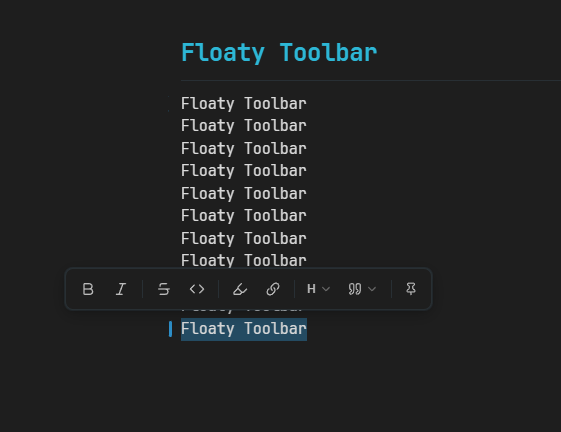
Floating mode
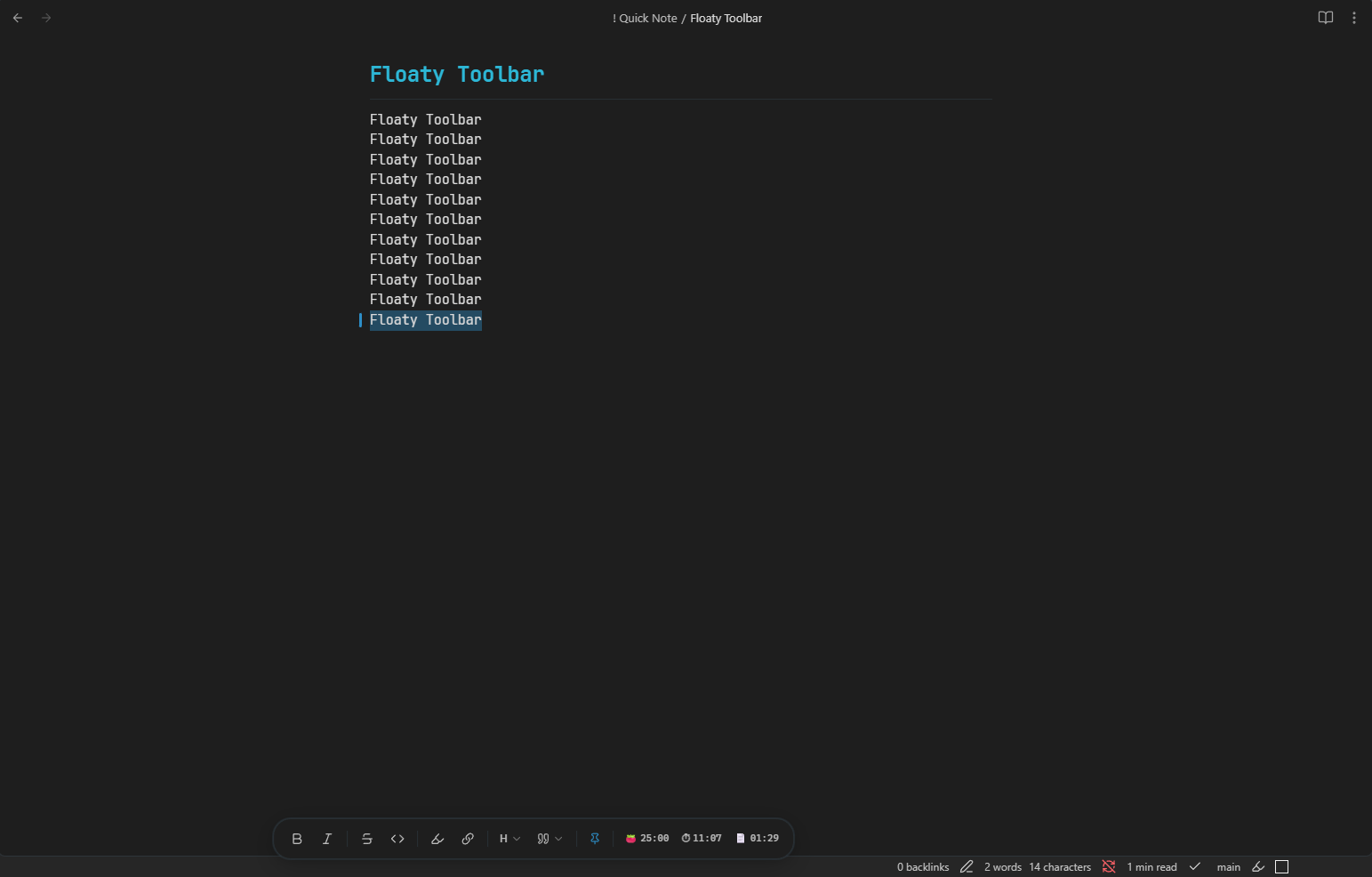
Dock mode
Features
- Floating selection toolbar — pops up above your selection the moment you highlight text
- Dock mode — pin the toolbar to the bottom of the screen as a persistent pill
- Pomodoro HUD — includes a focus timer in the status bar or dock HUD, depending on the current mode
- Configurable pomodoro lengths — set custom work and break minutes in plugin settings
- Session and file timers — track total session time and time spent on the current note
- Custom button order — drag to reorder toolbar buttons in settings or long-press in the toolbar
- Smart URL detection — when inserting a link, optionally use a detected URL from the clipboard
- Toggle formatting — clicking a format button a second time removes the formatting
- Keyboard accessible — navigate with
Tab/Shift+Tab, activate withEnterorSpace, dismiss withEscape - Theme compatible — uses Obsidian CSS variables throughout, works with any community theme
Actions
| Button | Action |
|---|---|
| B | Bold (**text**) |
| I | Italic (*text*) |
Strikethrough (~~text~~) |
|
<> |
Inline code (`text`) |
| Highlight | Highlight (==text==) |
| Link | Insert link ([text](url)) |
| H | Heading (H1–H4, or remove heading) |
| Quote | Callout (Note, Tip, Warning, Important, Caution) |
| Pin | Toggle between floating and dock mode |
Settings
Pomodoro
Set custom work and break durations in Settings → Floaty Toolbar. The same values are used by both the status bar HUD and the dock HUD, so they always stay in sync.
Dock mode
Pins the toolbar to the bottom centre of the screen. Toggle between modes using the pin icon inside the toolbar — no restart needed.
Toolbar button order
Reorder toolbar buttons by dragging them in settings. You can also long-press a toolbar button and drag it directly inside the toolbar.
Smart URL detection
When enabled, the link action can automatically use a URL detected from your clipboard.
Installation
Community plugins
Submission to the Obsidian community plugin registry is in progress. Once approved:
- Open Obsidian Settings → Community plugins
- Disable Safe Mode if prompted
- Click Browse and search for
Floaty Toolbar - Click Install, then Enable
Manual
- Download
main.js,styles.css, andmanifest.jsonfrom the latest release - Copy them into
<vault>/.obsidian/plugins/floaty-toolbar/ - Reload Obsidian and enable the plugin in Settings → Community plugins
Commands & Hotkeys
All formatting actions are available as Obsidian commands (searchable via Ctrl/Cmd+P). Custom hotkeys can be assigned to any of them via Settings → Hotkeys.
Contributing
Bug reports, feature requests, and pull requests are welcome. Please open an issue to discuss significant changes before submitting a PR.
License
MIT
Created by 0png