
README file from
Github⚡ Flash Navigator
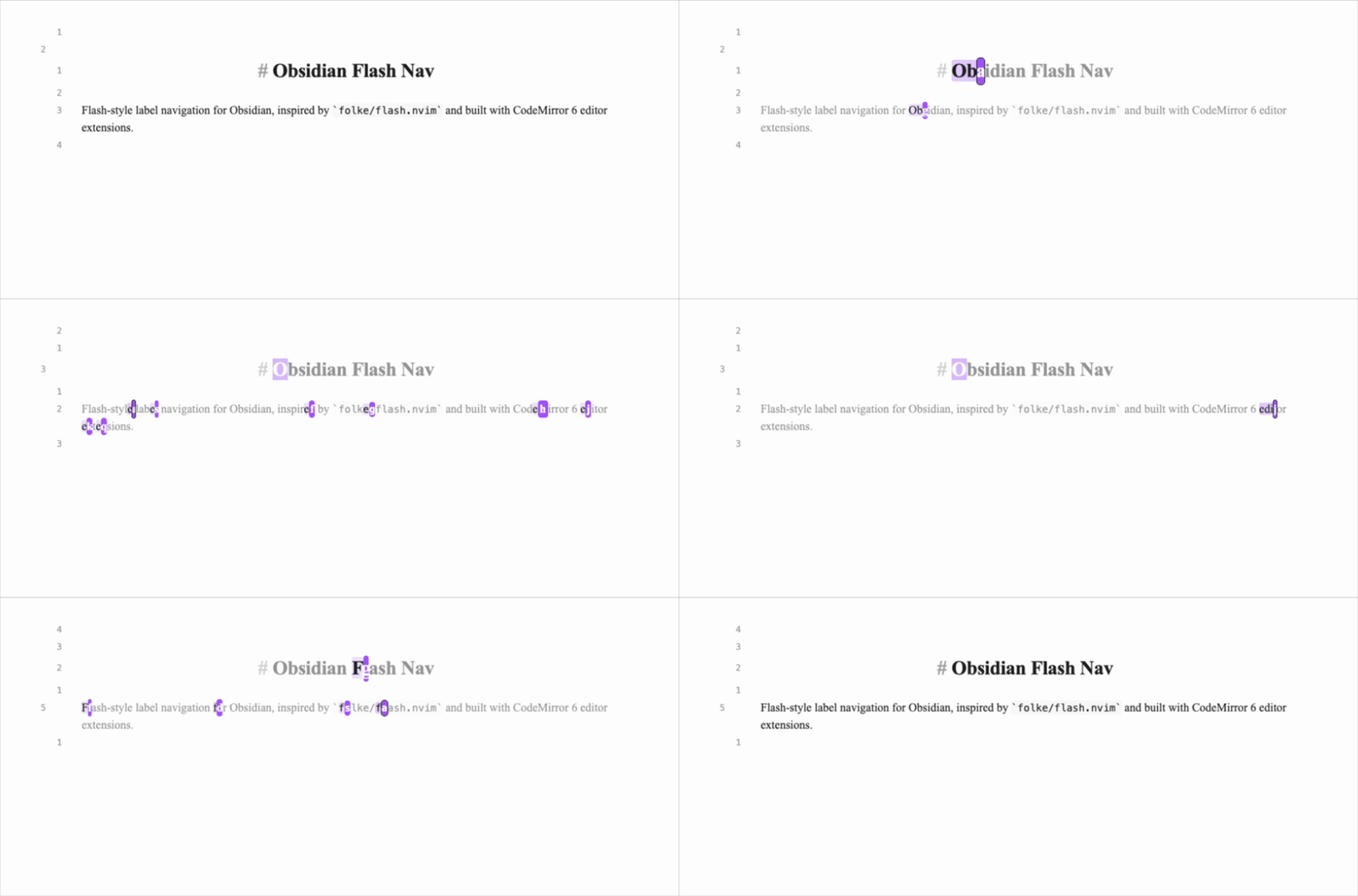
flash.nvim-inspired label navigation for Obsidian Vim users. Type a search pattern, choose a label, and jump in normal or visual mode.
Install Flash Navigator from Obsidian Community Plugins
✨ Features
- Vim navigation: jump by label in normal mode, or extend characterwise, linewise, and blockwise visual selections from their original anchor.
- Focused search: search the viewport, current line, or whole note, with closest, forward, or backward targets.
- Custom labels: choose label characters, reuse behavior, and regular/current label colors.
- Flexible shortcuts: use Vimrc mappings, the command palette, or an Obsidian hotkey.
Install and set up Vim
- Open Settings → Community plugins, find Flash Navigator, install it, and enable it.
- Turn on Vim key bindings in Settings → Editor.
- Install and enable Vimrc Support from Community plugins.
- Add these mappings to
.obsidian.vimrcin your vault root, alongside any existing configuration:
exmap flash obcommand flash-navigator:flash-nav-start
nmap s :flash<CR>
vmap s :flash<CR>
- Restart Obsidian or reload Vimrc Support to load the mappings.
These mappings override Vim's usual s substitute behavior. To choose another key, replace s on the left of both mappings. For example, use F6 instead:
nmap <F6> :flash<CR>
vmap <F6> :flash<CR>
Keep the exmap flash line and <CR> endings. Choose a key that does not conflict with your other Vim mappings or Obsidian hotkeys, then reload the configuration.
🎯 Jump with labels
- Press
sin normal or visual mode. - Type a search pattern to reveal matching targets and labels.
- Press a label to jump. In visual mode, the jump extends your selection from its anchor, preserving characterwise, linewise, or blockwise mode.
| Key | Action |
|---|---|
| Target label | Jump to that match |
| Enter | Jump to the current target |
| Backspace | Edit the search pattern |
| Esc | Cancel Flash |
You can also run Flash Navigator: Start jump from the command palette or assign it an Obsidian hotkey under Settings → Hotkeys. This works without Vimrc Support.
⚙️ Settings
Open Settings → Flash Navigator to configure the plugin. Defaults are shown below.
| Setting | Default | What it controls |
|---|---|---|
| Search scope | Viewport | Search the viewport, current line, or whole note. |
| Search direction | Closest | Choose closest targets or limit matches to forward/backward of the cursor. |
| Case sensitive | Off | Match the exact letter case of the search pattern. |
| Smart case | On | A–Z in the pattern enables exact-case matching when Case sensitive is off. |
| Label alphabet | asdfghjklqwertyuiopzxcvbnm |
Assign label characters in this order. |
| Label reuse mode | Lowercase | Reuse labels while refining a search: None, Lowercase, or All. |
| Label current match | On | Show a label on the primary match. Enter can always jump to it. |
| Label color | #3b82f6 |
Background color for regular jump labels. |
| Current label color | #ef4444 |
Background color for the current label, selected with Enter. |
| Auto jump single match | Off | Jump automatically when only one match remains. |
| Backdrop dim opacity | 52% | Dim non-matching text while Flash is active; adjustable from 0–90%. |
The color Reset buttons use your current Obsidian accent color.
Feedback and development
Report a bug with your Obsidian version, editor mode, Vim mappings, and steps to reproduce.
For development setup and checks, see Development. See also Contributing and the release process.
Released under the MIT License.