
README file from
GithubFiglet Generator









Generate and display ASCII art text using Figlet fonts in Obsidian: 326 bundled fonts, solid colors, gradients, and sizing options, from a code block or an insert dialog.
Author: saltyfireball
Features
Code blocks that render as ASCII art
Write options on top, a --- line, then your text. The block re-renders as you edit it.
```sfb-figlet
font: Big
color: rainbow
---
Hi there
```
326 fonts
Every font from the Figlet font library ships inside the plugin, so nothing extra needs installing. Font names ignore case: font: ansi shadow works.
Solid colors, gradients and rainbow
One color, a list of colors for a gradient, or rainbow for the palette in settings.
```sfb-figlet
font: Big
colors: #FF0000 #FFFF00 #00FF00
---
Gradient
```
Size, opacity and alignment
multi-center: true centers each line on its own; without it the lines keep their left edges and the block is centered as a whole.
Insert dialog
Run Insert figlet ASCII art from the command palette to type text, pick a color and font, watch the preview, and insert either an sfb-figlet code block or plain HTML.
Light themes
Colors come from your code block; everything else follows the theme.
Cross-plugin API
Other plugins can generate ASCII art through window.figletAPI.
const ascii = await window.figletAPI.generateText('Hello', 'Banner');
const html = window.figletAPI.createHtml(ascii, { color: '#FF0000' });
Installation
Obsidian Community Plugin (pending)
This plugin has been submitted for review to the Obsidian community plugin directory. Once approved, you will be able to install it directly from Settings > Community plugins > Browse by searching for "Figlet Generator".
Using BRAT
You can install this plugin right now using the BRAT plugin:
-
Install BRAT from Settings > Community plugins > Browse (search for "BRAT" by TfTHacker)
-
Open the BRAT settings
-
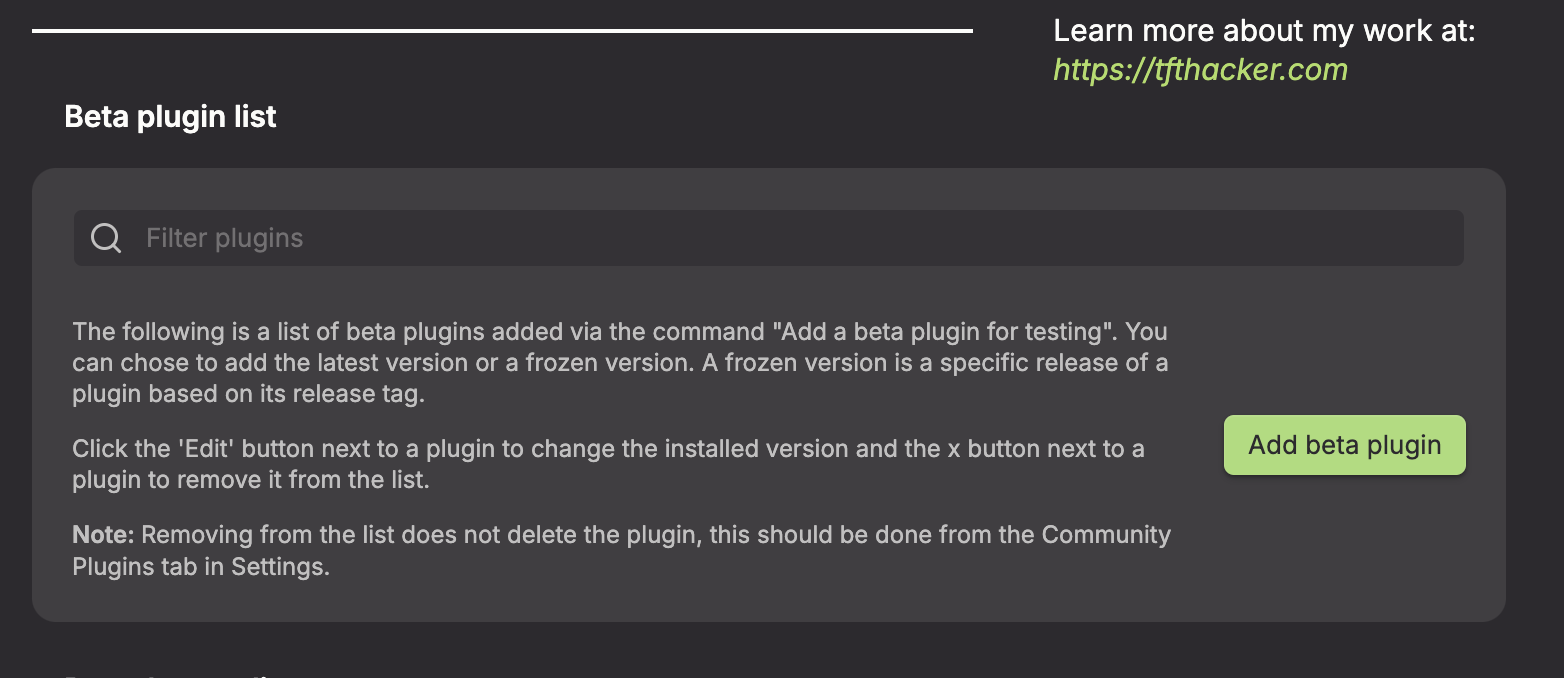
Under the Beta plugins section, click Add beta plugin
-
In the overlay, enter this plugin's repository:
https://github.com/saltyfireball/obsidian-figlet-generator(or justsaltyfireball/obsidian-figlet-generator)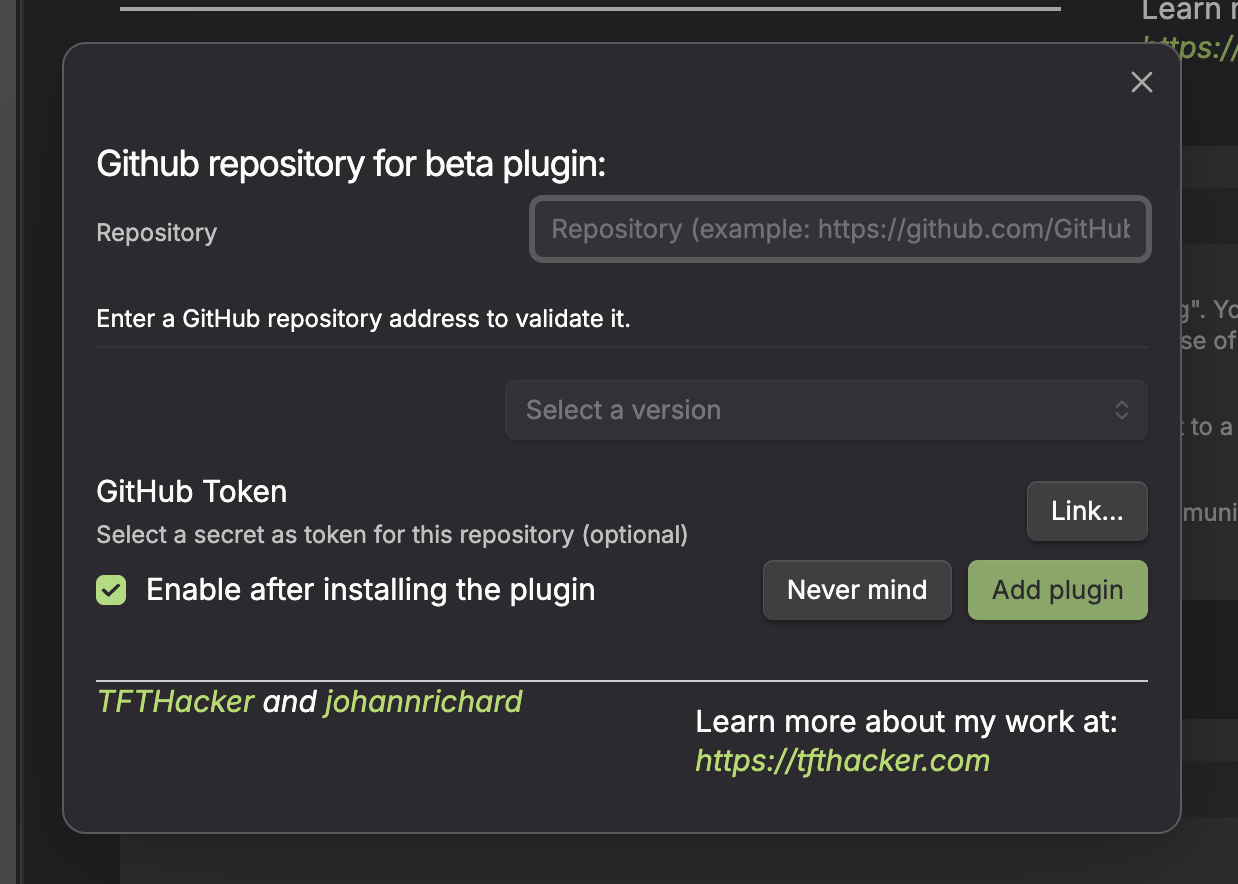
-
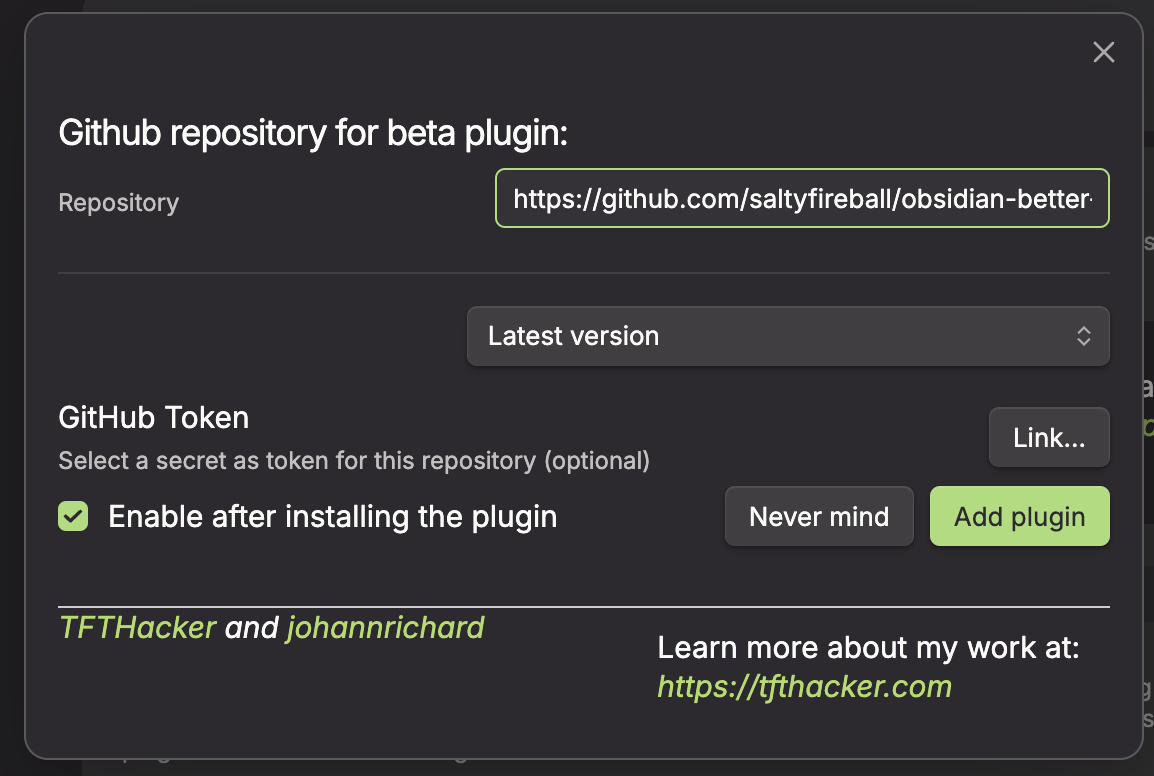
Leave the version set to latest
-
Click Add plugin
Manual
- Download the latest release from the Releases page
- Copy
main.js,manifest.json, andstyles.cssinto your vault's.obsidian/plugins/figlet-generator/directory - Enable the plugin in Settings > Community plugins
Usage
Insert dialog
- Open the command palette (Ctrl/Cmd + P)
- Search for "Insert figlet ASCII art"
- Enter your text
- Optionally set a color (hex, CSS name, or
rainbow) and pick a font - Choose Code block or HTML output
- Click Insert
Code blocks
Create a code block with language ID sfb-figlet (configurable in settings). Options go above the --- line, text below it:
```sfb-figlet
font: Big
color: #FF6B6B
font-size: 12
line-height: 1.2
centered: true
opacity: 0.8
---
Your Text Here
```
Code block options
| Option | Type | Default | Description |
|---|---|---|---|
font |
string | Standard | Name of the Figlet font to use (case does not matter) |
color |
string | inherit | A single color, several space/comma-separated colors, or rainbow/gradient for the palette in settings |
colors |
string | - | Same as color; the two are interchangeable |
font-size |
number | settings value (10) | Font size in pixels |
line-height |
number | settings value (1) | Line height multiplier |
centered |
boolean | settings value (true) | Center the output |
opacity |
number | 1 | Opacity from 0 to 1 (figlet-opacity is an alias) |
multi-center |
boolean | false | Center each line independently |
load_text |
string | - | frontmatter fills {{frontmatter:key}} placeholders in the text from the note's frontmatter |
With load_text: frontmatter, each {{frontmatter:key}} in the text is replaced by that frontmatter value of the note (a string, number or boolean; anything else, or a missing key, becomes empty):
```sfb-figlet
font: Big
load_text: frontmatter
---
{{frontmatter:title}}
```
color and colors accept the same values:
| Example | Result |
|---|---|
color: #5C7CFA |
Single color |
color: #FF0000 #FFFF00 #00FF00 |
3-color gradient |
color: rainbow or color: gradient |
Palette from settings |
Gradients blend smoothly between hex and rgb()/rgba() stops, with channels as numbers (rgb(255, 0, 0)) or percentages (rgb(100%, 0%, 0%)), comma or space separated (rgb(255 0 0 / 50%)). Negative, out-of-range and exponent values (rgb(-10 0 2.55e2)) clamp to 0-255, and the space form takes none for 0. A malformed rgb() stop, including one that mixes numbers and percentages, renders as transparent. With any other stop (a named color, a CSS variable, hsl()), each part of the text takes its nearest stop instead, in bands.
Examples
```sfb-figlet
font: Banner
color: #5C7CFA
---
My Notes
```
```sfb-figlet
font: Lean
color: #4CAF50
font-size: 11
---
Introduction
```
```sfb-figlet
font: Slant
color: #FF6188 #FC9867 #FFD866 #A9DC76 #78DCE8
---
Inline Multi-Color
```
```sfb-figlet
font: Standard
multi-center: true
---
Centered
Lines
```
Cross-plugin API
generateText(text: string, font?: string): Promise<string>
Returns the ASCII art as plain text.
const ascii = await window.figletAPI.generateText('Hello', 'Banner');
createHtml(figletText: string, options?: FigletStyleOptions): string
Wraps ASCII art from generateText in styled HTML. The font is chosen in generateText; createHtml only styles it. Unlike code blocks, it does not read the plugin's settings: options left out use the fixed defaults (font size 10, line height 1, centered).
const ascii = await window.figletAPI.generateText("Hello", "Standard");
const html = window.figletAPI.createHtml(ascii, {
    color: "#FF0000",
    fontSize: 12,
    lineHeight: 1.2,
    centered: true,
    opacity: 0.8,
});
defaultGradientColors
The plugin's default gradient palette.
console.log(window.figletAPI.defaultGradientColors);
// ['#FF6188', '#FC9867', '#FFD866', '#A9DC76', '#78DCE8', '#5C7CFA', '#AB9DF2']
openModal(app: App, plugin: unknown, editor: Editor): void
Opens the insert dialog for an editor, as the Insert figlet ASCII art command does. The dialog inserts at the editor's cursor or replaces its selection. It always uses Figlet Generator's own settings: app and plugin are accepted for compatibility and ignored.
window.figletAPI.openModal(this.app, this, editor);
FigletStyleOptions
interface FigletStyleOptions {
    color?: string;
    colors?: string[]; // two or more for a gradient
    fontSize?: number;
    lineHeight?: number;
    centered?: boolean;
    opacity?: number; // 0 to 1
}
Settings
Requires Obsidian 1.13 or later. Every setting here also shows up in Obsidian's settings search.
- Code block language ID - The language identifier for code blocks (default:
sfb-figlet; reload the plugin after changing it) - Font size - Default font size in pixels (default: 10)
- Line height - Default line height multiplier (default: 1)
- Center output - Center output by default (default: on)
- Gradient colors - The palette for
rainbowandgradient - Favorite fonts - Fonts listed first in the insert dialog
Troubleshooting
Code block not rendering
- Check that the language ID matches your settings (default:
sfb-figlet) - Put your text after the
---line
Font not found
- Check the spelling against the font list in the insert dialog or settings
- Use
Standardif unsure
API not available
- Make sure Figlet Generator is installed and enabled
- Check the developer console for errors
Limitations
- Very large text may be slow to render
- Some fonts do not include every character
About the font data in main.js
Most of main.js (about 1.5 MB) is font data, not code. At build time, scripts/figlet-fonts-plugin.mjs reads each font listed in src/font-list.json from the figlet package's fonts/ folder, gzips it and embeds it as a base64 string, because the community directory installs only main.js, manifest.json and styles.css. Each string decodes back to the original .flf text file when a font is first used, and the tests check that every one matches its source file byte for byte. Nothing in it is executable code.
Making the README media
The screenshots and GIFs in assets/media/ are captured from the Obsidian app with the plugin installed, by the author's obsidian-plugin-showcase tool (a separate, private repository, not part of this plugin). Build this plugin first (npm run build) in a checkout next to the showcase checkout, then run node src/run.mjs plugins/figlet/scenes.mjs from the showcase checkout and copy its output into assets/media/.