
README file from
GithubMark as Read
See each note's status right in the file list — without opening anything.
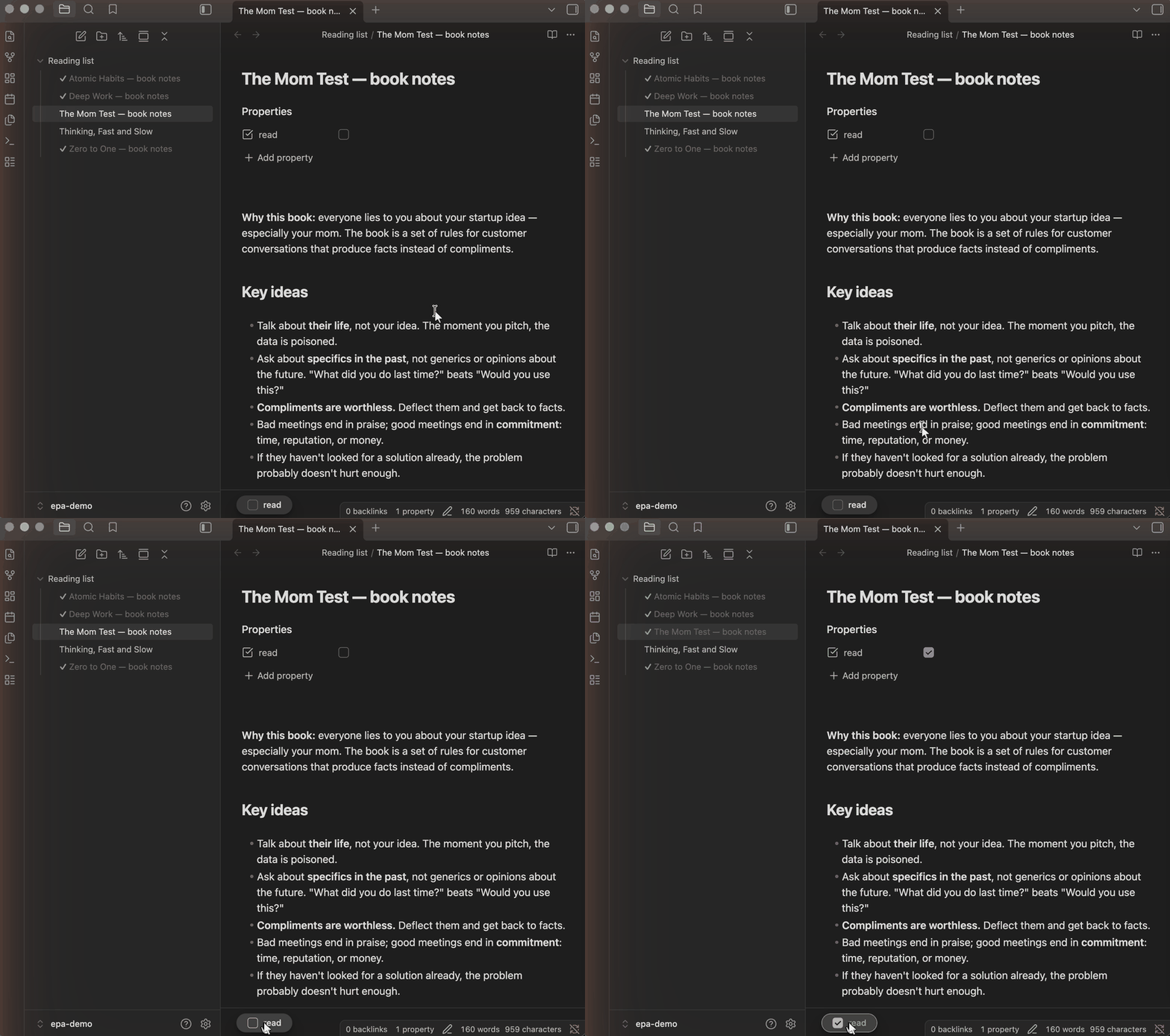
Your notes already know their status — it lives in their properties (read: true, status: done, priority: high) — but the file explorer hides it. This plugin shows it right there: gray out finished notes, add a checkmark, a color, an emoji. And marking is one click too: an optional footer bar pins the checkbox to the bottom of the note, so you never scroll back to the properties panel.
Quick start: a reading tracker (the GIF above)
No configuration needed — install, enable, and:
- Give any one note a
readcheckbox property. (done,finished,complete,archivedandпрочитаноwork too; the list is editable in settings.) - That's it — for the whole vault:
- every note now has a checkbox bar pinned to the bottom of its pane (the first click creates the property in that note);
- while the property is true, the note is grayed out with a green ✓ in the file explorer;
- finish reading, click, done — the explorer restyles instantly.
Custom styling with CSS snippets
Every frontmatter property is also exposed as a data-link-<name> attribute on the note's file-explorer item, so any styling beyond the built-in graying is one CSS snippet away (Settings → Appearance → CSS snippets):
/* Paint high-priority notes red and prefix them with 🔥 */
.nav-file-title-content[data-link-priority="high"] {
  color: var(--color-red);
}

.nav-file-title-content[data-link-priority="high"]::before {
  content: "🔥 ";
}
Any property works, any value type works (list values are joined with spaces), non-ASCII names included. The settings let you choose which properties are exposed and which get footer toggles.
Install
From the community catalog: Settings → Community plugins → Browse → search for Mark as Read, or use this link.
Manually: download main.js, manifest.json and styles.css from the latest release into <vault>/.obsidian/plugins/explorer-property-attributes/ and enable the plugin.
How it works (the technical bit)
CSS alone can't see frontmatter. The plugin exposes the properties you choose as data attributes on file-explorer items — a note with status: done gets data-link-status="done" on its title element — and your CSS snippet does the styling.
The attribute format is identical to Supercharged Links, so CSS snippets written for it keep working unchanged. The difference: Supercharged Links repaints the explorer only when its DOM is rebuilt, so it can show stale values — this plugin updates instantly on every metadata change, and does only this one job. Both can run side by side.
The footer toggles write through Obsidian's own processFrontMatter, so the property is updated exactly as if you edited it in the properties panel. Only markdown files are decorated, and the plugin cleans up after itself when a property is removed from settings or the plugin is disabled.
License
MIT