
README file from
GithubExcalidraw Mind Map
Obsidian plugin that adds XMind-style mind map editing to Excalidraw drawings. Requires the Excalidraw plugin.
Usage
Open a drawing and click New mind map in the floating panel, or run the command "Insert new mind map".
| Key | Action |
|---|---|
| Tab / Insert | Add child |
| Enter | Add sibling below |
| Shift+Enter | Add sibling above |
| Delete / Backspace | Delete the selected topics with their subtopics (the central topic deletes the whole map, if enabled in settings; a central topic with no other topics can always be deleted), or the selected boundary or callout |
| Ctrl+C / Ctrl+X | Copy or cut the selected topics as a Markdown bullet list |
| Ctrl+V | Paste a Markdown outline or text as subtopics of the selected topic |
| Ctrl+D (Cmd+D on Mac) | Duplicate the selected topics with their subtopics (the central topic duplicates the whole map) |
| F2 / Space | Edit the text of the topic, or of the selected boundary's title or callout (Enter too for these two) |
| Arrow keys | Move selection (right/left = child/parent, mirrored on the left side) |
| Alt+Up / Alt+Down | Move the topic, or the selected boundary with its topics, up or down among its siblings. It stays in its boundaries and summaries, and moves past one it isn't in as a whole; drag it to take it in or out |
| Alt+Left / Alt+Right | Promote or demote the topic (toward or away from the central topic, mirrored on the left side) |
| Ctrl+/ (Cmd+/ on Mac) | Collapse or expand the topic |
These are the defaults; all but copy, cut and paste can be changed in the settings, see Keyboard shortcuts.
Key Features
⌨️ Keyboard-first editing
Build a whole map without touching the mouse, with the shortcuts you know from XMind. Add children and siblings, edit text, duplicate and delete branches, move between topics and reorder them. A topic widens with its text as you type, so the text stays on one line. While editing, Enter commits the text and Tab commits it and adds a child. Prefer other keys? Change any of them in the settings.
📐 Automatic layout
The map re-arranges itself after every change, and after every drop: subtopics always follow their topic. The Layout settings button in the panel (in its ⋯ menu on phones and tablets) sets the map's structure and auto-align, and resets the layout or, with Reset all, the whole map.
With Auto-align on, every topic keeps its automatic place, evenly spaced. Dropping a topic moves it among its siblings by the height you drop it at. With it off, a dropped topic stays where you put it, until you reset the layout. Each map has its own; new maps take the default from the settings, and maps made before version 1.2 have it off.
🧭 Structures
Each map has its own structure, chosen from the panel's layout settings or with the command "Change structure of the mind map". It applies to the map of the selected topic; when the drawing has only one map, nothing needs to be selected.
- Balanced: main topics are split evenly between the right and left side, clockwise from the top right, like XMind's balanced map. A boundary or summary of main topics keeps them on one side, even if that leaves the sides a topic or two apart. Drag a main topic across the central topic and it moves to that side, trading places with a topic there to keep the balance.
- Free: each main topic stays on the side you put it on. Drag a main topic across the central topic to move it to the other side; it stays there.
- Right and Left: all main topics on one side.
New maps get the structure set in the settings. Maps made before version 1.2 are free.
🧩 Summaries, boundaries and relationships
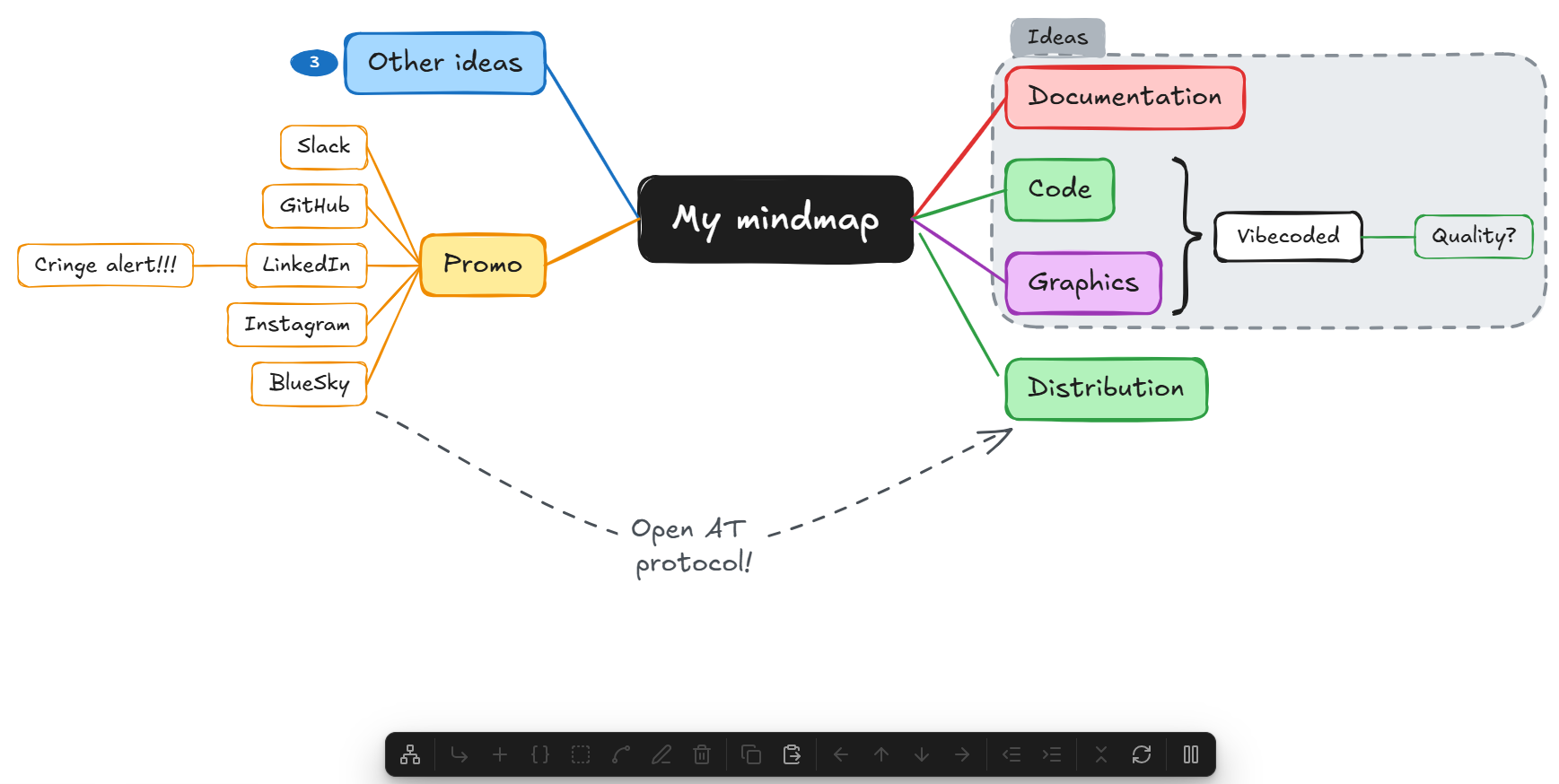
Select sibling topics to add a summary, a topic behind a brace that spans them; drag a topic above or below the brace to take it out, or next to the brace to add it. Or add a boundary, a dashed frame with a title around them; select it and press Space or Enter to edit its title, or Delete to remove it, leaving its topics. Drag a topic out of the frame to take it out of the boundary, or drag a sibling in to add it. The frame and its title are grouped, so clicking either selects both and they move together; move them to move the topics along, even to the other side. To resize the frame alone, double-click into the group and select it: it then takes in exactly the topics inside it. A relationship is a curved, labeled arrow between any two topics or boundaries, even in different maps, and it stays attached when they move. Drag either end onto another topic or boundary to reconnect it.
💬 Callouts
A callout is a short note in a solid-colored bubble right above a topic, with a tail pointing down at it, like XMind's callout. Add one from the panel or with the command "Add callout to selected topic"; it opens for typing right away. Enter finishes it, Shift+Enter starts a new line. The bubble and its tail are grouped, so they are selected together; the callout moves with its topic and the map makes room for it. Select it and press Space or Enter to edit it, or Delete to remove it; a callout edited to no text is removed too. A topic has at most one callout (adding another edits the one it has), summaries have none, and it goes when its topic is deleted. Duplicating a topic copies its callout too.
🖍️ Highlight
Highlight makes topics stand out, like a highlighter pen: they get the theme's highlight background and text color, a thicker border in their branch color, and a soft halo around them. Select one or more topics and click Highlight in the panel, or run the command "Highlight selected topics, or turn their highlight off"; again turns it off. The central topic can't be highlighted. A highlight stays when the map gets another theme or is reset, when its topic moves to another level, and on copies made with Duplicate.
🪗 Collapse and expand
Ctrl+/ collapses a topic with everything below it. A badge shows how many topics are hidden, and clicking it expands the topic again. On the central topic, it collapses or expands all main topics at once.
↔️ Promote and demote
Alt+arrow moves a topic, with its subtopics, one level up or down. A topic that becomes a main topic takes the next branch color, and one that moves under another branch takes that branch's color.
Or drag a topic onto another one to make it a subtopic there, in one move. The topic it lands on is outlined while you drag; drop it near a topic's top or bottom edge instead to place it between topics. Dropped on the central topic, it becomes a main topic on that side. Drop it on a topic of another map to move it into that map; drag a map's central topic onto another map's topic to make the whole map a branch there.
📝 Markdown outlines
Ctrl+C copies the selected topics as a Markdown bullet list, ready to paste into a note; callouts are left out. Ctrl+V pastes bullet lists, numbered lists or headings back as subtopics of the selected topic. A command builds a whole new map from the outline in the clipboard.
🔗 Links to notes
Type [[ in a topic to open Excalidraw's link suggester for notes, headings, blocks and tags. Ctrl+click the topic to open the note. Links are kept when topics are copied as Markdown and pasted back, and when they are duplicated, and they show their display text right away.
🎨 Themes and your colors
Each map has its own theme, picked from the panel's Theme button (in its ⋯ menu on phones and tablets) or with the command "Change theme of the mind map". The built-in ones are Classic, Pastel, Ocean, Sunset, Forest and Monochrome; your own themes follow them. Changing it recolors the whole map at once and keeps its layout. New maps get the theme set in the settings.
Make your own themes on the Themes page of the settings: add one starting from any theme, then pick the colors of its central topic, branches, summaries, boundaries, relationships and callouts. Export all of them as JSON to the clipboard or to a file in the vault, and import them in another vault, from the clipboard or a file. Reset all restyles a map with its theme's colors.
📱 Works on mobile
A floating panel offers every action. On phones and tablets it keeps the buttons that add, edit and delete topics, summaries, boundaries and relationships, and puts the rest, callouts, highlights and themes among them, in its ⋯ menu so it fits the screen. You can build maps without a keyboard.
The panel comes in several styles, chosen in the settings: Default like Obsidian's own toolbars, Accent color, High contrast (dark in a light theme, light in a dark one), Translucent over the drawing, or Colorful icons.
✏️ Still plain Excalidraw
Maps are ordinary Excalidraw elements, so every Excalidraw tool still works on them. Every operation is a single undo step. Pause the plugin from the panel, or with the command "Pause or resume mind map editing", when you want Excalidraw's own shortcuts back.
🤝 Next to other diagram plugins
Other plugins may draw their own kind of diagram in Excalidraw drawings too. Each drawing belongs to one of them, so their panels, keys and double-clicks never get in each other's way. The plugins need not know each other, only conventions they all follow (src/mode.ts):
- The drawing's kind is in its frontmatter:
dzoukr-diagram-kind: mindmapfor a mind map drawing, out of theexcalidraw-keys the Excalidraw plugin keeps for itself. This plugin writes it when it takes a drawing over, and leaves a drawing of another kind alone. - A registry on the window: the map
window.dzoukrDiagramKindsholds, for the kind of each such plugin while it is enabled, the version of these conventions it follows ({ version: 1 }). The conventions only change in ways plugins following an earlier version still work with; a change they would not work with raises the version. - A shared chooser row (
src/chooser.ts): on a drawing nobody's yet, each plugin puts onebutton.dzoukr-diagram-choice(its kind indata-kind) into thediv.dzoukr-diagram-chooserof the view, "Use this drawing for: Mind map · …", made by the first and removed by the last, all styling it alike; its own panel is hidden there. Last in the row, Excalidraw keeps the drawing plain: it writes the kindexcalidraw, which every plugin leaves alone as it does any kind not its own. Whichever plugin offers first adds that button, and takes it out when it leaves.
| Drawing | Mind map plugin alone | With another such plugin |
|---|---|---|
Kind mindmap |
the mind map's: the whole panel | the mind map's: the whole panel |
| Another kind | panel hidden, plugin silent | panel hidden, plugin silent |
| No kind, with mind map topics | the mind map's; the kind is written | the mind map's; the kind is written |
| No kind, anything else (empty included) | the mind map's, as before; nobody's with Ask what a new drawing is for on | nobody's: no panel, a Mind map button in a row shared with the other plugins, keys left to Excalidraw |
- The Mind map button in the row "Use this drawing for", the command "Use this drawing for mind maps", or any mind map command on a drawing nobody's yet takes it over: its kind is written. The command also takes over another plugin's drawing; what that plugin drew stays as plain shapes.
- The command "Keep this drawing plain Excalidraw" does the same as the Excalidraw button, on any drawing, a mind map one included (its topics stay as plain shapes).
- The kind of a drawing with mind map topics and none is written once its first topic is drawn, or when one drawn before kinds is open; only while the drawing has no unsaved changes.
- Silent means: no keys, clipboard, text fitting, drop targets, fold badges, highlights, or following relationships and callouts. Mind map commands are not offered on another plugin's drawing.
- Pause stays as it is, for every drawing, and only matters on the mind map's own.
- With the setting Ask what a new drawing is for on, the plugin asks even when it is alone: a drawing with no kind and no topics shows the row "Use this drawing for: Mind map · Excalidraw" instead of the panel. Drawings with topics or a kind are not affected.
Configuration
All options are in Settings → Excalidraw Mind Map.
| Setting | Default | Description |
|---|---|---|
| Show control panel on desktop | On | Shows the floating panel on desktop. On phones and tablets it is always shown. |
| Control panel position | Bottom | A row at the bottom or top of the drawing, or a column on its left or right side. On phones, Bottom shows it at the top, clear of Excalidraw's own toolbars. |
| Control panel style | Default | How the panel looks: Default, Accent color, High contrast, Translucent or Colorful icons. |
| Allow deleting the central topic | Off | Lets Delete remove the central topic, which deletes the whole map: every topic and connector. A central topic with no other topics can be deleted either way. |
| Ask what a new drawing is for | Off | On a drawing without mind maps that is not yet anybody's, offers mind maps or plain Excalidraw instead of taking it over. With another plugin drawing its own kind of diagram enabled, the plugins always ask. |
| Structure of new maps | Balanced | How main topics are placed around the central topic: balanced, free, right or left. Each map keeps its own. |
| Auto-align new maps | On | Topics keep their automatic places and a drop moves a topic among its siblings, instead of leaving it where it is dropped. Each map keeps its own. |
| Theme of new maps | Custom | The colors of new maps: a built-in theme or one of your own. Each map keeps its own. |
| Arrows instead of lines | Off | Connectors end in an arrowhead pointing to the subtopic. |
Themes are on their own page in the settings. You start with one, Custom, which has the colors you set before themes existed and which maps made before then use. Add a theme starting from a built-in one or one of yours, reorder them, and rename or delete one from its page. Each theme has colors for:
- the central topic: text, border and background
- the topic text of main topics and subtopics
- summaries: text, border and brace, background
- boundaries: dashed line, background, title text, title background
- relationships: line and arrowhead, label text
- callouts: text, background and tail
- highlighted topics: text, background and halo
- branches: line and border, and main topic background. Main topics take the branch colors in turn. Branch colors can be added, removed and reordered, and Reset colors to defaults restores the original palette.
Import and export exports all your themes as JSON, to the clipboard or a file in the vault, and brings themes in from the clipboard or a file. A map whose theme was deleted, or comes from another vault, gets the Classic colors for new topics.
Color and arrow changes apply to topics and connectors created afterwards. To apply them to an existing map, pick its theme again from the panel, or use Reset all from the panel's layout settings or the command palette.
Keyboard shortcuts
The Keyboard shortcuts page of the settings lists the keys of every action in the drawing: adding, editing, deleting, duplicating and collapsing topics, moving the selection, moving topics among their siblings and between levels, and finishing the text being edited. Like Obsidian's own hotkeys, remove a key with its ×, add one with + and press it (Escape cancels), or restore an action's defaults; Restore all defaults brings back the XMind keys. A key given to one action is taken from the action that had it. Ctrl means Cmd on Mac, either one works. Keys that type a character can't finish editing, and they don't add a child while you type. Copy, cut and paste stay on the system's keys, and the commands, such as "Add boundary around selected topics", get hotkeys in Obsidian's own Hotkeys settings.
Development
npm install
npm run dev     # watch build, copies into test-vault/.obsidian/plugins/excalidraw-mindmap
npm run build   # type-check + production build
npm test        # unit tests
npm run lint    # ESLint with Obsidian's plugin rules
To install into a vault manually, copy main.js, manifest.json and styles.css from the latest release into <vault>/.obsidian/plugins/excalidraw-mindmap/.