
README file from
GithubERD Editor
Entity-Relationship Diagram Editor for Obsidian
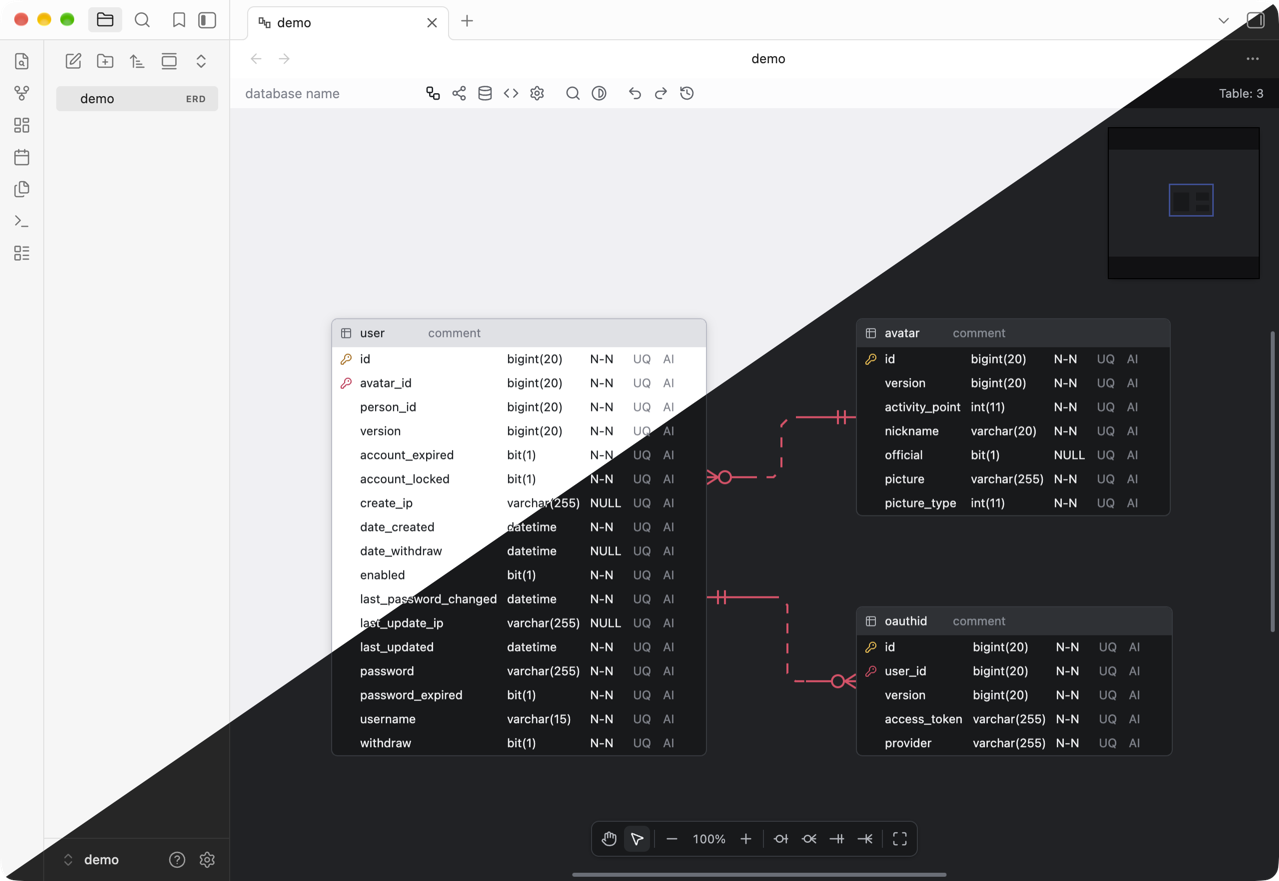
Design a database schema visually, right inside your vault. Diagrams are plain JSON files next to your notes, so they sync, diff and back up like everything else in the vault.
The editor never connects to a database — it reads and writes files only. You bring a schema in
from a .sql dump or a GraphQL SDL file, and take one back out as DDL.
Desktop only.
Installation
Download main.js, manifest.json and styles.css from the
latest release into a
folder named erd-editor under your vault's .obsidian/plugins, then turn on ERD Editor in
Settings → Community plugins.
Getting started
Run ERD Editor: Create new diagram from the command palette, or right-click a folder in the
file explorer and choose New ERD. Either one creates an empty .erd file and opens it in the
diagram view.
On the empty canvas, Alt+N adds a table and Alt+Enter adds a column to it. To start from
a schema you already have, right-click the canvas and choose Import → Schema SQL for a .sql
dump, or Import → GraphQL for a .graphql, .gql or .graphqls file. Either one replaces the
diagram in one undoable step.
Obsidian saves a diagram the way it saves a note: about two seconds after you stop editing, and when you close the tab or quit. Opening a file never rewrites it. Undo and redo are the diagram editor's own history.
Files
.erdfiles show up in the file explorer and open in the diagram view..erd.jsonfiles open in the diagram view from links. Obsidian reads their extension asjson, so the file explorer and the quick switcher leave them out; turn on Settings → Files and links → Detect all file extensions and the file explorer lists them and opens them in the diagram view too.- A file the editor cannot read, such as one left with merge conflict markers or cut off by a sync, opens read-only and is left as it is rather than replaced by an empty diagram.
Features
- Visual schema design — tables, columns, memos, and four relationship cardinalities (zero-one, zero-N, one-only, one-N)
- SQL DDL import — bring in a
.sqldump from any of the vendors below. The parser readsCREATE TABLE,CREATE INDEXandALTER TABLEconstraints and skips what it does not recognize, so an awkward dump imports partially rather than failing outright - GraphQL SDL import — object types become tables, scalars map to the diagram's own dialect, and the fields pointing at another type become the relationships
- DBML and AML import —
.dbmlfiles written for dbdiagram.io or dbdocs.io, and.amlfiles written for Azimutt - SQL DDL export — Databricks, MariaDB, MSSQL, MySQL, Oracle, PostgreSQL, Snowflake, SQLite
- Code generation — TypeScript, GraphQL, C#, Java, JPA, Kotlin, Scala, Go, SQLAlchemy, TypeORM, Sequelize, Drizzle, DBML, AML
- Visualization — a force-directed view of how the tables actually relate
- Export — JSON, SQL and PNG, written into the vault where your attachments go
- Quick search —
Ctrl/Cmd+Kto run any editor command, or to jump to a table after#, a column after@, and a comment or memo after: - Find and replace —
Ctrl/Cmd+Facross table and column names, comments and memos, with match case, whole word and regular expressions; one undo takes back a Replace All - Time travel — replay this editing session's history on the canvas and jump to any point in it
- Undo / redo
- Light and dark — by default the editor follows Obsidian's theme and switches with it; you can also keep it light or dark and pick its gray and accent colors (see Settings)
Split panes
The same diagram can be open in several panes at once, and they stay in sync as you edit in any of them.
Keeping diffs clean
A new diagram leaves the canvas scroll position and zoom level out of the file, so panning around never changes it. An existing file keeps storing whatever it was saved with, and older files store both: turn off Save Scroll Information and Save Zoom Information in the editor's settings to keep changes, and a git history of the vault, limited to the schema, or turn them on for a diagram that should open where you left it. Zooming moves the scroll position too, so with only Save Scroll Information on, zooming still changes the file.
Coding agents
A coding agent such as Claude Code or Codex can edit the diagrams in your vault through the
@dineug/erd-editor-mcp
MCP server. The agent joins the editor like a collaborator: each change shows up on the canvas as it
happens, and the agent's undo reverts only its own edits.
Install the MCP server
The server needs Node.js 22.12 or later. npx downloads it the first time the agent starts it, so
there is nothing else to install.
Claude Code — run in your vault folder:
claude mcp add --transport stdio erd-editor -- npx -y @dineug/erd-editor-mcp
Codex — add to ~/.codex/config.toml, or to .codex/config.toml in a trusted project:
[mcp_servers.erd-editor]
command = "npx"
args = ["-y", "@dineug/erd-editor-mcp"]
Any other MCP client — run npx -y @dineug/erd-editor-mcp as a stdio server. Start it in your
vault folder: it resolves relative document paths against its working directory.
Edit with an agent
- Open the vault in Obsidian with the plugin turned on.
- Start the agent in the vault folder and ask in plain words, for example "Add a reviews table to
schema.erd, related to users and products". Name new diagrams with
.erdso the file explorer lists them; the agent picks.erd.jsonwhen you give no extension. - Watch the change land on the canvas. Obsidian saves it about two seconds later, as it saves your own edits; asking the agent to save writes it at once.
A diagram that is not open yet opens in a background tab on the agent's first edit, without taking focus from what you are working on. With the plugin turned off, the agent edits the file on disk instead.
Settings → ERD Editor → Coding agents turns the connection off for the vault. The agent can still read the diagrams from disk, but it never writes one behind the editor, where the next save would overwrite the change. The MCP documentation lists every tool with its arguments.
Obsidian installed from Flathub runs in a Flatpak sandbox, which the MCP server cannot reach, so there the agent always edits the files on disk. Obsidian picks the change up as it picks up any change made outside it, and an edit of yours it has not saved yet gives way to the agent's. The plugin says so each time the vault opens, until you turn off Coding agents.
Files outside the vault
The plugin makes no network requests and sends no telemetry. The one connection it accepts is local inter-process communication from an MCP server on this computer, through a socket file or named pipe, never a network port. With Coding agents on, which is the default, each vault window lets that server find it through two files in your home folder, outside the vault:
~/.erd-editor/ide/<pid>.json— a lock file, readable by your user account only, naming the vault folder, the diagrams open in the window and a random token the MCP server must present. It is rewritten as diagrams open and close.~/.erd-editor/ide/<pid>.sock— the local socket the MCP server connects to (a named pipe on Windows; in the system temporary folder when the home folder path is too long for a socket).
Both are removed when the window closes or Obsidian quits, and when the plugin is turned off; a reload of the window replaces them. A window that starts also removes the ones windows that have exited left behind, as the ERD Editor extension for VS Code does in the same folder. With Coding agents off, the window keeps only the lock file, with no socket, so an agent still knows not to write the vault's diagrams behind the editor. A window in a Flatpak sandbox writes none of these files and removes none.
Settings
Settings → ERD Editor, kept per vault:
| Setting | Default | Values |
|---|---|---|
| Appearance | Auto | Auto, Light, Dark |
| Gray color | Slate | Gray, Mauve, Slate, Sage, Olive, Sand |
| Accent color | Indigo | 26 Radix accents — Gray, Gold, Bronze, Brown, Yellow, Amber, Orange, Tomato, Red, Ruby, Crimson, Pink, Plum, Purple, Violet, Iris, Indigo, Blue, Cyan, Teal, Jade, Green, Grass, Lime, Mint, Sky |
| Coding agents | on | on, off — lets coding agents edit the diagrams open in this vault live, through the MCP server |
Changing any of the three theme settings re-themes every open diagram immediately. Auto follows Obsidian's light or dark theme and switches with it.
The theme builder in the editor's toolbar changes these same three values and saves them here, so a theme you pick on the canvas persists. While Appearance is Auto, picking a color there, or the appearance Obsidian shows now, keeps Auto; picking the other appearance sets it.
Documentation
- Editing Guide — editing, import and export, relationships, quick search, visualization, code generation, settings
- MCP — installing the MCP server, live and headless editing, every tool
- Documentation
Also available
- Web app — installable PWA with real-time collaboration
- Google Drive app — open and save diagrams in Google Drive
- VS Code extension
- IntelliJ plugin
@dineug/erd-editor— the editor as a custom element for your own app
Issues
Found a bug or want a feature? Open an issue. The
plugin's source lives in the erd-editor monorepo, in
packages/obsidian-plugin.
License
MIT © SeungHwan-Lee