
README file from
GithubEnglish Text Interpreter
Obsidian plugin for contextual interpretation of selected English text, powered by a local LLM via Ollama. No data leaves your machine.
Demo
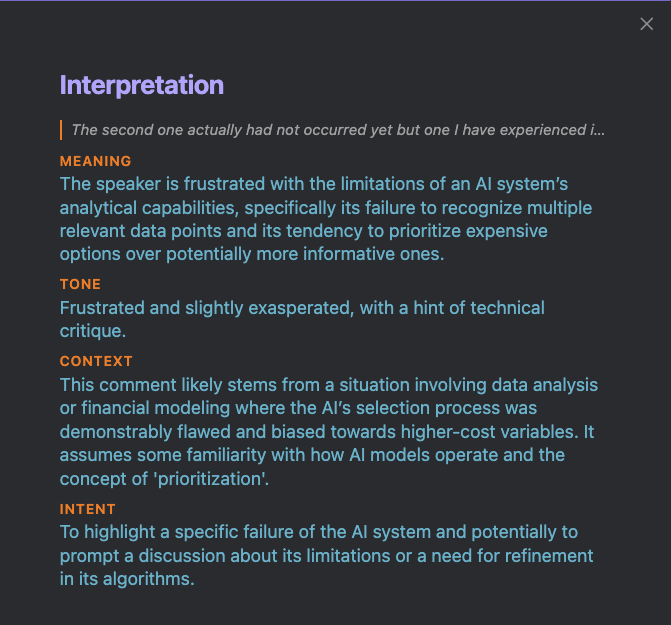

What it does
Select any English text in your notes and run Interpret selected text from the Command Palette. A panel opens with four dimensions:
| Field | Description |
|---|---|
| Meaning | What the text actually means in context — not a literal translation |
| Tone | Emotional register and attitude (formal, sarcastic, polite but firm, etc.) |
| Context | Cultural, idiomatic, or situational background needed to fully understand it |
| Intent | What the writer is trying to achieve (inform, warn, persuade, joke, etc.) |
Output language is configurable (Spanish, English, Portuguese, French, German).
Requirements
- Ollama running locally
- A pulled model (default:
gemma3:4b)
ollama pull gemma3:4b
Installation
From Obsidian Community Plugins (recommended)
- Open Settings → Community plugins → Browse
- Search for English Text Interpreter
- Install and enable
Manual
- Download
main.js,manifest.json, andstyles.cssfrom the latest release - Copy them to
.obsidian/plugins/english-text-interpreter/inside your vault - Enable the plugin in Settings → Community plugins
Settings
| Setting | Default | Description |
|---|---|---|
| Ollama endpoint | http://localhost:11434 |
URL where Ollama is running |
| Model | gemma3:4b |
Any model pulled in Ollama (e.g. gemma3:12b, llama3.2) |
| Interpretation language | Spanish | Language for the interpretation output |
Usage
- Select English text in any note (at least 5 characters)
- Open the Command Palette (
Ctrl/Cmd + P) - Run English Text Interpreter: Interpret selected text
- Read the interpretation panel