
README file from
GithubElton AI
English · Русский · eltonlabs.org/en/elton-ai
A voice and text assistant that works on the notes you already have. It searches your vault, answers from it, creates and edits notes, files them where they belong and puts things on your screen — by voice, by typing, or from your phone through a Telegram bot of your own.
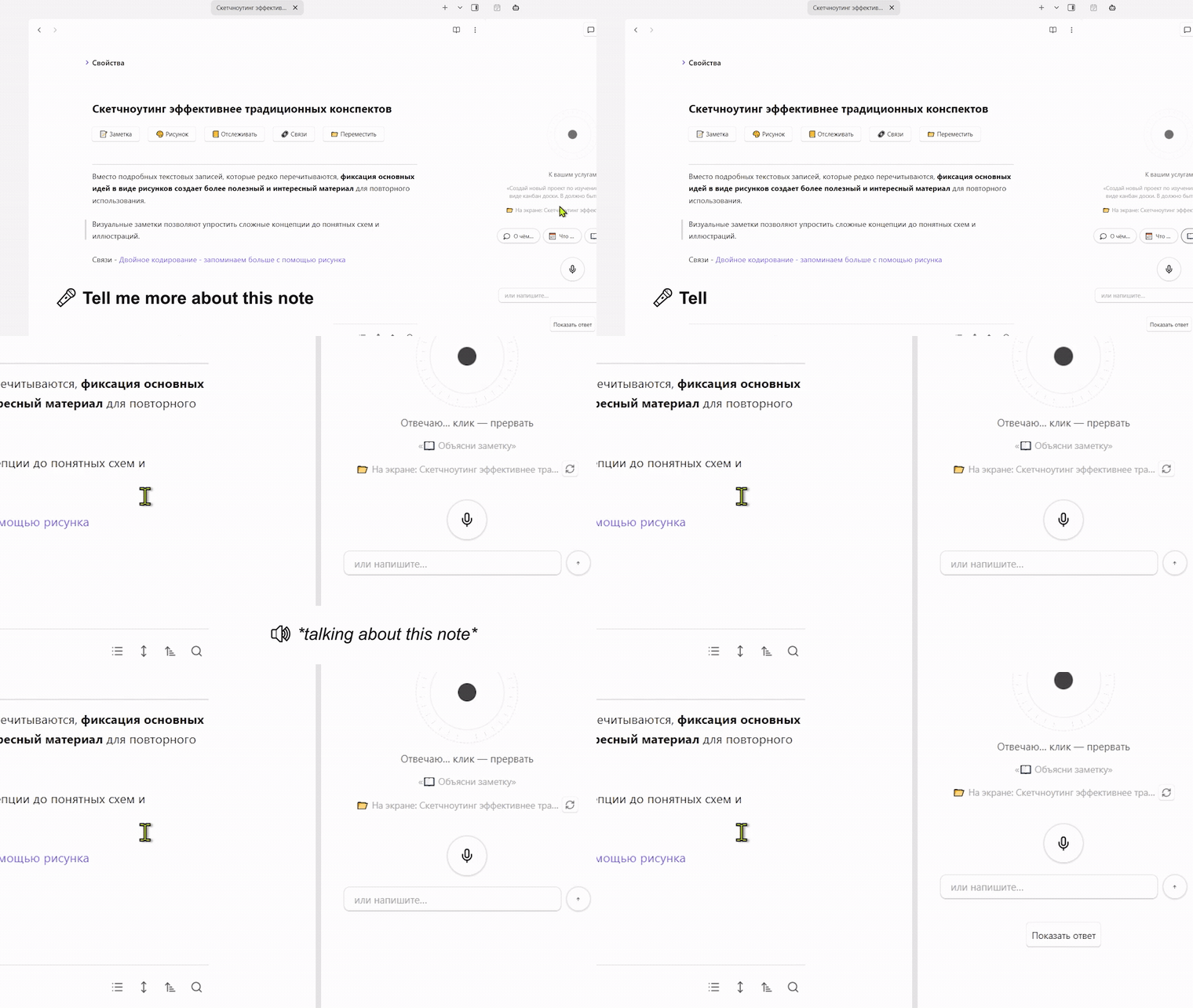
▶ Watch the full two-minute demo
The plugin ships no key of its own: every request goes to the provider you configured. With a local model, nothing leaves your machine at all.
[!IMPORTANT] This plugin sends note text to a remote service, and needs an account somewhere to work at all.
To answer a question it sends the fragments of your notes that the question needs — plus, in voice mode, the recording of what you said — to whichever of these four you pick:
- OpenRouter or OpenAI — your own account and key, paid to them.
- A local model (Ollama or LM Studio) — nothing leaves your machine, and no payment at all.
- Elton AI — a service run by the author of this plugin, at
api.eltonlabs.org, giving access to current models without an account of your own anywhere. It is a paid service, sold separately through a Telegram bot; the address is fixed and cannot be changed in settings. It is the default choice in the setup guide, but the plugin is fully usable without it.No request is made until you have chosen a provider and entered a key. The plugin collects no analytics and sends nothing anywhere else. The exact list of addresses it can contact is in Privacy and external services below.
Two modes
Switched from the button in the panel header, at any time — the conversation survives the switch. Both run on the same engine: the same tools, the same permissions, the same search.
Reactor — the voice mode. An instrument panel rather than a chat: the dial in the middle shows what is happening right now. At rest it is small and quiet; while you talk the core pulses with your voice; while it thinks the rings speed up. Clicking the reactor cuts off an answer that has gone on too long.
Text — the reading mode. An ordinary conversation with bubbles, markdown in the answers, a copy button on hover, and a list of sources: you can see which notes an answer was built from and click through to them. There is a dictation button, so you can speak a question without leaving text mode. Answers are only read aloud on request — if you are typing, you want to read.
Installing
From the community catalogue
Settings → Community plugins → Browse → search for Elton AI → Install → Enable.
With BRAT
- Install BRAT from the community catalogue
- Settings → BRAT → Add Beta Plugin → paste
swayinfo/elton-ai - Enable Elton AI in the community plugins list
By hand
- Download
main.js,manifest.jsonandstyles.cssfrom the releases page - Put them in
<your vault>/.obsidian/plugins/elton-ai/ - Settings → Community plugins → enable Elton AI
The setup guide opens the first time you run it, and can be reopened any time from Settings → Elton AI → Show the setup guide again.
The panel opens from the robot icon in the ribbon, or from the command palette.
Choosing a provider
All four speak the same protocol, so switching between them keeps the rest of your settings.
| Provider | What you need | Who it suits |
|---|---|---|
| Elton AI | a key | Ready to go, nothing to configure |
| OpenRouter | a key | Hundreds of models, pay as you go |
| Local model | Ollama or LM Studio running | Privacy: not one note leaves the machine |
| OpenAI | a key | Straight to the source |
The model has to support tool calling. Without it the assistant can only talk — it cannot search your notes or edit them.
Keys are stored in data.json inside the plugin folder as plain text, the way every Obsidian plugin stores them. Do not keep keys in a vault you share or sync publicly.
Local model
Install Ollama, then in a terminal:
ollama pull qwen2.5:3b
In settings pick "Local model", address http://localhost:11434/v1, model qwen2.5:3b.
Why that one: it answers and calls tools in under a second even on a laptop GPU. Reasoning models like qwen3 spend 15–20 seconds thinking before the first word, which is unusable for a spoken conversation. With a stronger GPU, try qwen2.5:7b — it is noticeably smarter.
What a local setup can and cannot do. A local model answers locally, and Piper reads the answers out locally — so asking in writing and being answered aloud costs nothing and sends nothing. The one thing that has no local option here is the other direction: turning your speech into text. For that, switch on "Cloud fallback for voice" and give it a cloud key; the text of your notes still never leaves the machine, only the few seconds of audio you just spoke.
Voice
Cloud voice — the default
With any cloud provider, voice works immediately with nothing to configure. The main voice is Puck: lively, and good at Russian. If it is unavailable the plugin falls back to an OpenAI voice.
System voice
Nothing to install, works offline and free. It sounds robotic — this is the option for when there is no connection.
Piper — a local, lifelike voice
Piper synthesises speech on the CPU faster than you can listen to it, and sounds far better than the system voice.
It is a separate program, not part of the plugin: the plugin only talks to it over HTTP. Installed once, by hand.
- Download
piper_windows_amd64.zipfrom its releases page and unpack it - Download a voice from huggingface — say
en_US-amy-medium— and put both files (.onnxand.onnx.json) in avoicessubfolder - Download
piper-server.jsfrom this repository, put it next topiper.exeand run it:node piper-server.js 5000 - In settings choose the "Piper" engine, address
http://localhost:5000
The server picks a voice from the language of each phrase, so answers in either language sound right without switching anything.
To have it start with the system, download start-piper.vbs, put it alongside, and drop a shortcut to it in the startup folder (Win+R → shell:startup).
Hold a key and talk
A key combination that works anywhere in Obsidian: hold it, say what you want, let go. The panel opens itself if it was closed, so you can talk without leaving the note you are in.
Set it on the Voice tab: press "Set", then press the combination. You cannot type it, and it is not an ordinary Obsidian hotkey — Obsidian tells a command when a key goes down and never when it comes up, and "hold" cannot be built on that. The physical key is what is remembered, so a keyboard layout never breaks it.
Next to it, in the panel's own header, is the microphone mode: hands-free (it listens until you go quiet) or push-to-talk. That one lives in the panel rather than in settings, because which you want depends on the room you are in.
Answer length
Three options on the "Assistant" tab: short (a few paragraphs), normal (a full explanation, the default) and long (thorough).
It is a budget, not a guillotine. If an answer does hit the ceiling, the plugin asks for the rest and joins it on — a sentence never stops halfway. And you do not wait for it: the finished part goes to the voice immediately while the remainder loads in the background.
Text and voice, side by side
An answer arrives as text long before the voice catches up with it. So by default the text keeps pace with the speech: only what has been spoken is on screen, and the rest opens with a "Show the answer" button.
If you would rather see the whole answer at once, turn on "Show the answer text" on the "Interface" tab, and the button disappears as it is no longer needed.
Interrupting
When enabled, you can start talking over an answer and the assistant falls silent at once and listens. The microphone stays open for the whole conversation.
If background noise keeps cutting it off, raise "Interruption sensitivity". If you find yourself having to raise your voice, lower it.
Scenarios
A scenario is a long brief hiding behind a short phrase. You say "thoughts" and the assistant receives not one word but the whole task: go through the daily notes of the last few days, pull out the ideas and abandoned threads, and turn them into something coherent.
The point is that the phrase is recognised locally, in the plugin, not by the model. There is no extra round trip to work out what you meant: the assistant starts answering on the phrase itself.
How it triggers. A one-word trigger fires only if you said exactly it: "thoughts" runs the scenario, "write down my thoughts about the project" does not. A trigger of two words or more is caught inside a longer sentence too. Whatever you said around the trigger is passed to the assistant as a separate line of detail — which is why "find connections with this note" works the way it sounds.
Out of the box: "What was I thinking about", "What's today" and "Explain this note". Settings adds "Wrap up the day" and "Find connections", and you can write your own: emoji, name, phrases, brief.
Three ways to start one: say the phrase, press the button under the reactor (or in an empty chat), or run "Run a scenario" from the command palette.
How scenarios differ from automations: you start a scenario yourself and listen to the answer; an automation fires on a schedule and writes its answer into a note. Both live on the "Tasks" tab: one line each, edited in a window of its own.
Telegram
Your vault, reachable without holding it. You write to a bot you own — typed or spoken — and the same assistant on your computer answers, with the same access: it searches your notes, reads them, creates and edits them.
Connecting one. Telegram tab → "Set up Telegram". Four steps, saying what you will see at each: what a bot actually is, how to get a token from BotFather, checking the token (the plugin asks Telegram and tells you the bot's name back), and /start. No prior experience with bots is assumed.
It answers exactly one person. The first to send /start becomes the owner; everyone else gets no reply at all.
Commands. Every enabled scenario becomes a command in the bot's menu — "Weekly review" → /weekly_review. Anything typed after the command rides along as a refinement. Plus /help for the list and /new to forget the conversation. The menu updates itself when you edit your scenarios.
Real formatting. Answers go out as Rich Messages: headings, lists, checkboxes, tables, dividers and collapsible blocks — sources arrive folded away rather than stacked under every reply.
While you wait, an animation with a caption that follows the work: "Searching…", "Reading: 06-08-2026", "Writing the answer". You can point it at your own GIF.
Worth knowing up front:
- The bot answers only while Obsidian is open on the computer. Messages sent while it is closed arrive the next time you open the vault — Telegram holds them for a day.
- Set it up on one computer only: Telegram gives each message to whoever asks first, so two would answer half each. On a phone the bridge does not start at all.
- It cannot delete notes. Deletion waits for a key press at the keyboard, and over a chat there is nobody to press it, so it declines and says so.
- The token sits in
data.jsonin plain text, like every other key.
Automations
An automation is an ordinary turn with a saved prompt, fired on a schedule — a morning digest into today's daily note, a weekly summary of your thoughts into a new one.
The timing is forgiving on purpose. Obsidian is not a server and your vault is closed at night, so a task fires once on the first launch after its appointed time on a matching day, rather than being skipped. The date of the last run is what stops it running twice.
What the assistant may do with your notes
Every permission is separate. A permission that is off is not an instruction not to do something — the tool is simply absent, and the model never learns that it exists.
- Read — search by word and by meaning, read a note in full, grep for an exact phrase, look at what you wrote in the last few days, open your daily note for a date.
- Create — notes, folders, and real Kanban boards. A note is built on your own template, with the properties its neighbours carry; a board comes out as a board, not as a note with headings in it.
- Edit — change a line, rewrite a whole note, add under a heading, move or rename (every link to it is updated), undo the last change.
- Your screen — open a note, open several at once, put two side by side, open a web page inside the vault, close what you are done with. And run any command from the palette, which is how it reaches everything your other plugins can do: start a review, open the graph, insert a template.
- Delete — off by default. Even when it is on, every deletion stops and waits for a keypress. The assistant never deletes anything on its own.
You can restrict it to particular folders — "only these" or "all but these". The restriction applies to search as well: notes outside the scope do not even appear in results.
How it learns your vault
A note created blind comes out orphaned: without the properties its neighbours carry, without a link back to its parent MOC, filed wherever. The assistant has no way of knowing how your vault is arranged unless it is told.
The map. The plugin builds one from what Obsidian already knows: top-level and second-level folders with how much is in each, the list of templates, where the daily notes live. It costs nothing, takes no indexing pass, and goes into every request. On the Vault tab you can unfold and read it — exactly what the assistant sees.
Templates. It finds the folder on its own — from the Templates core plugin or Templater — and you can point at one by hand. Before creating a note of a kind that has a template, it reads that template and builds the note on it: same properties, same headings, same links. Kanban boards too: the columns and properties come from your template rather than being invented.
In your own words. Under the map there is a box for whatever folder names cannot say: "projects live in 1. Projects, one note each, always linked from the MOC". One line like that saves a dozen wrong guesses.
The setup guide offers all of this as a step — "Let it learn your vault" — showing what it managed to find.
The context note
You can name a note the assistant reads before every answer — your projects, your goals, the way you phrase things.
⚠️ This note is sent to your AI provider with every single request. Never put passwords, keys, financial or medical records, or anything about other people in it. Keep it to what you would say out loud in a meeting.
Search
By word always works: the index builds itself from your vault in a second, costs nothing and needs no key.
By meaning is switched on separately. It finds notes where the same thought is put in different words.
If an index already exists — built by another script — point the "Index file" field at it (with autocomplete) and it is picked up as it is: no re-indexing, nothing spent. Someone else's index is only ever read, never rewritten, so the script that maintains it keeps working.
If there is no index yet, the build button shows progress and stops whenever you ask it to.
Exact search. Besides searching by topic, the assistant can search literally: by filename pattern (*budget*, Projects/**/*.md) and by text inside notes, with line numbers. Useful when you need a specific tag, property or link rather than "something about this".
Folders in plain language. You can say "in the inbox", "to my inbox" or "in 5. Inbox" and get the same real folder. If it finds nothing it shows the folders that do exist rather than going quiet.
Web access
Off by default. When enabled, the assistant can search the web through OpenRouter's web plugin and cites its sources. It only works with providers that route through OpenRouter (Elton AI and OpenRouter itself); with a direct OpenAI key or a local model the switch is hidden, because the transport cannot carry it.
Searches cost a little on top of the tokens, so leave it off unless you want it.
Languages
English and Russian. The Obsidian interface language is used by default, and can be overridden. The assistant answers in whichever language you spoke to it.
Privacy and external services
Private folders
Answering a question sends parts of your notes to your provider. So there is a list of folders it never touches: Settings → Vault → What it may do → Private folders.
"Never" means: not read, not found by search, not indexed, not sent — and not offered as "the note on screen" even when it is open in front of you. The check runs before every other one and does not depend on the working scope: in "whole vault" mode private folders are still closed. Subfolders are closed with their parent.
This is where medical records, finances, passwords, other people's information and anything under an agreement belong.
It is not the same thing as "where it may work". The scope answers "which part of the vault does it live in day to day" and has three modes that exclude each other — there is no way to say "work everywhere except my medical notes" with it. Private folders answer a different question and apply on top of the scope.
There is also a weaker list, "Left out of the index": those notes can still be opened when you ask for one by name, they are simply never sent away in bulk when the index is built. As useful for a large archive you would rather not pay to embed as for anything delicate.
Where requests go
The plugin never contacts anything except the provider you chose in settings. It carries no key of its own and no hidden addresses; this list is exhaustive.
| Address | When it is used | What is sent |
|---|---|---|
api.eltonlabs.org |
the Elton AI provider | the request, the note fragments found for it, and the audio of what you said, for transcription |
openrouter.ai |
the OpenRouter provider and web search | the same |
api.openai.com |
the OpenAI provider | the same |
localhost:11434 |
a local model (Ollama / LM Studio) | nothing leaves the machine |
localhost:5000 |
the local Piper voice | only the answer text, to be spoken |
api.telegram.org |
only if you connected a bot | your messages to the bot and the assistant's replies |
media.giphy.com |
only the Telegram waiting animation, once | nothing — a picture is downloaded |
api.eltonlabs.org/skills |
only with the Elton AI provider | nothing is sent; short guides to Obsidian's own file formats are fetched, so the assistant writes a Kanban board or a Base that actually renders |
Elton AI is the author's own service, for people who would rather not set up an account and a key somewhere first: one balance, topped up from a Telegram bot, no card details left with a foreign provider and no separate signup. There is a free trial to see whether the whole thing suits you — promo code Gift — and what it costs, which models it covers and how to top it up is on eltonlabs.org/en/elton-ai. Using it is also what pays for this plugin being worked on. Every other provider works without it and the plugin loses nothing.
Two things the catalogue's review flags for any plugin like this, spelled out. The plugin asks Obsidian for the list of files in the vault — that is what makes search possible at all — but a file being listed is not a file being read: contents are only opened when a question needs them, and private folders are excluded from the list itself. And it writes to the system clipboard, for the "copy" buttons under an answer and under an automation's result. It never reads the clipboard.
No telemetry, and no self-updating. The plugin collects nothing about you, keeps no statistics, and sends no analytics anywhere. It does not download code, dependencies or updates of itself — new versions come from the community catalogue or from BRAT, like any other plugin. The guides mentioned above are plain text for the model to read, not code, and the plugin ships with its own copies built in; the service only adds to them.
Requests to a provider are seen by that provider, as with any API — that is true of OpenAI and OpenRouter as much as of Elton AI, which keeps no copies of your notes. If you would rather not rely on someone else's service at all, use your own key or a local model, and the author's service is never contacted.
Your notes stay in your vault. Only the text needed to answer the question at hand is sent: the fragments found, the note on screen, and the context note.
With a local model, nothing goes out at all.
Building
Sources live in src/ and are concatenated into a single main.js:
npm install
npm run build
File order matters: 10-core.js declares what the rest closes over.
Before opening a pull request, run the same checks the community scanner runs:
npm run check # build + eslint-plugin-obsidianmd + tests
main.js is a build artifact and is not kept in the repository — the release workflow builds it from src/.
Licence
MIT.