
README file from
GithubEditor Enhancer
Notion-style editing for Obsidian's Live Preview: drag blocks around, fold sections into toggle lists, and stop fighting the editor.
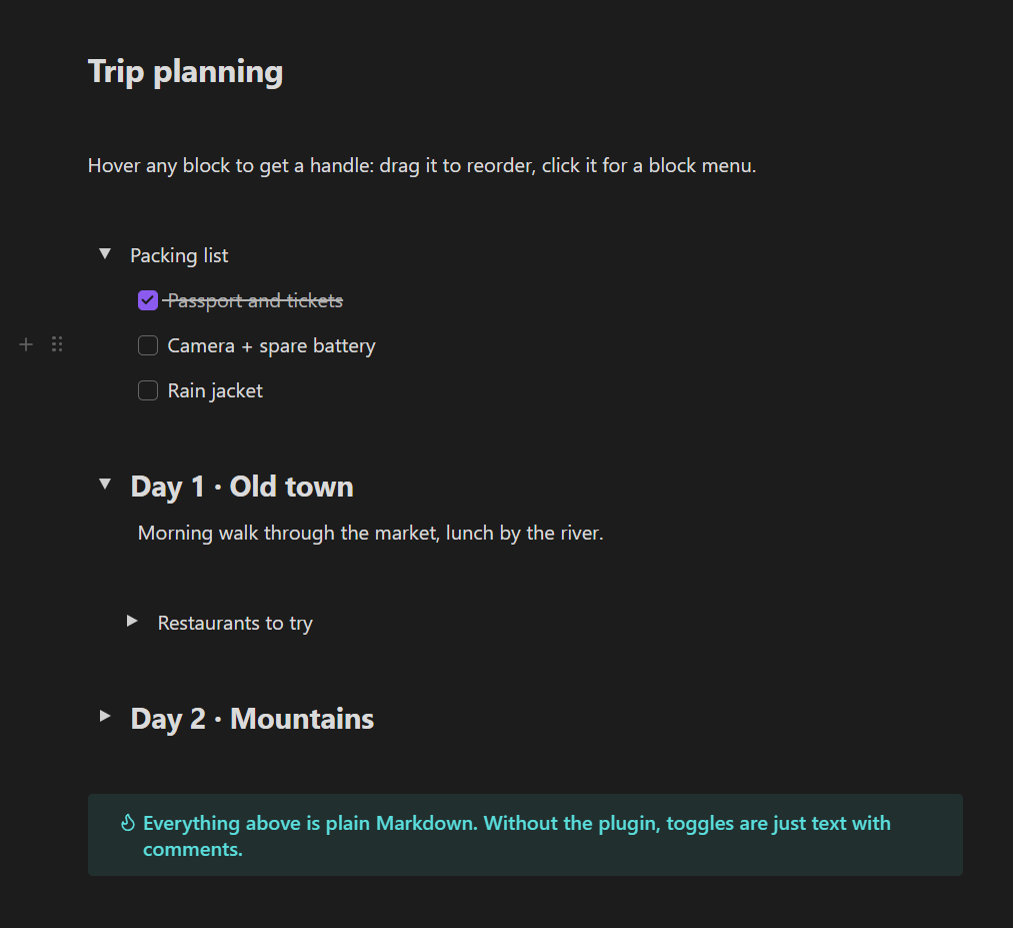
Is this for you?
- You moved from Notion and miss grabbing a paragraph by its ⋮⋮ handle and dropping it somewhere else.
- Your notes get long and you want toggle lists: a title you can click to hide or show everything under it, nested as deep as you like.
- You are tired of cut-and-paste just to move a list item, a callout or an image three lines up.
- You right-click a word and Obsidian selects the whole line. You wish it didn't.
- You jump between notes and lose your scroll position every time.
What you get
| Feature | What it does |
|---|---|
| Block handles | Hover any block (paragraph, heading, list item, callout, code block, image, embed) to see ⋮⋮ and +. Drag ⋮⋮ to move the block; click it for a menu: duplicate, cut, delete, turn into toggle list. + inserts an empty line below. |
| Toggle lists | Click ▸ to fold. Titles can be plain text or headings, toggles can be nested, Enter / Backspace behave like in Notion. |
| List markers as one unit | The -, 1. or - [ ] prefix of a list line acts like one character: the caret never lands inside it and one Backspace removes it. |
| Right-click that behaves | Right-click keeps your cursor where it is; related menu items are grouped together. |
| Scroll memory | Come back to a note and you are where you left off. |
| Tables on mobile | Tap a link inside a table and it opens, instead of starting to edit the cell. |
Every feature group has its own switch in Settings → Editor Enhancer, plus spacing and icon size controls.
Your notes stay plain Markdown
A toggle list is stored as an ordinary line with an invisible comment:
Packing list %% nsb-toggle {"id":"tgl-pack","open":true,"v":2} %%
- Passport
- Camera
%% /nsb-toggle %%
Uninstall the plugin, open the note in another app, or sync it to a phone without the plugin: you still see the title and the list. Nothing is locked in.
Quick start
- Install and enable the plugin.
- Open any note in Live Preview (the default editing mode).
- Move the mouse over a paragraph: drag the ⋮⋮ handle up or down.
- Click ⋮⋮ → Toggle list to turn a line into a foldable title.
Works on
Windows, macOS, Linux, iPhone / iPad and Android. Block dragging is built for a mouse or trackpad. Toggle lists, list markers, scroll memory and table links work the same on phones and tablets.
Works well with
All optional. Each plugin works on its own.
- Expiring Blocks: toggle lists that clean themselves up after a few days.
- Paipa Gallery: image and video galleries you can drag like any block.
- Section Blocks and Web Bookmark join the same block menu.
Notes
- Interface in English and Chinese: follows Obsidian's language by default, or pick one under the plugin's Language setting.
- Reading view is not changed. Everything happens in Live Preview.
Install
Settings → Community plugins → Browse, search Editor Enhancer, then Install and Enable.
License
MIT