
README file from
GithubDue Credit
Export a note to Word, PDF or LaTeX through pandoc, with its links turned into real citations.
Works well with Paper Trail, which writes those links for you from your Zotero library. See Works well with.





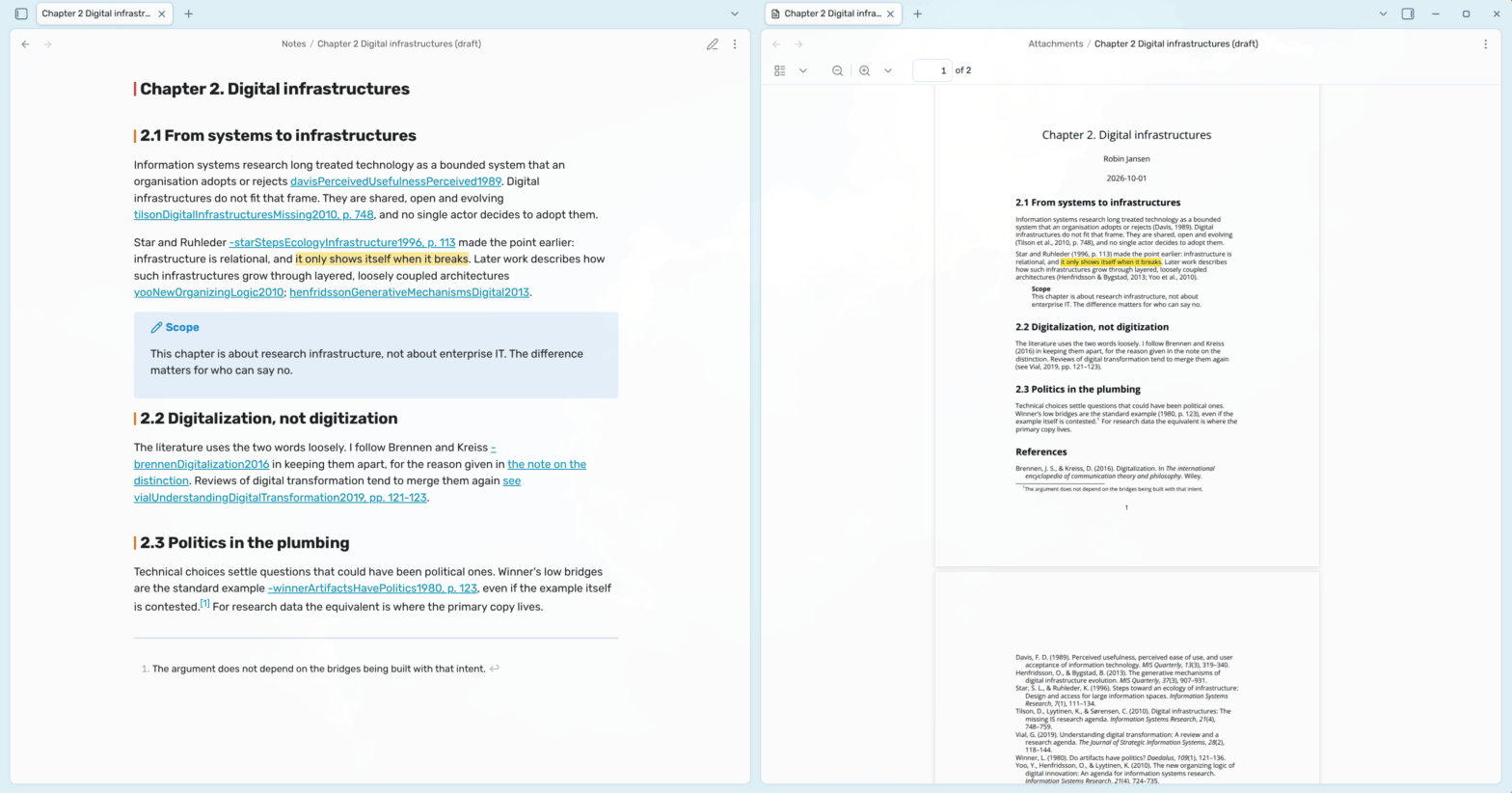
In your vault, a citation can simply be a link: [[marsh2024]]. It opens the
paper, shows a preview when you hover over it, and the paper's backlinks show
everywhere you cited it. But the moment your chapter has to go to your
supervisor as a Word file, that link means nothing. It's a dead link to a note
on your laptop.
Due Credit gets your writing out of the vault with its citations intact. It runs pandoc on the note you have open, turns your links into real citations with a reference list, in the citation style you choose, and leaves out everything that only makes sense in Obsidian, like your comments and tags.
1 Installation
- Install pandoc from pandoc.org. Due Credit is tested with pandoc 3.7.
- For PDF, install a TeX distribution that includes xelatex, such as TeX Live or MiKTeX. You can skip this if you only need Word, Markdown or LaTeX.
- For citations, export a
.bibfile from Zotero with Better BibTeX's auto-export turned on, so it stays up to date as you add papers. Without one, links export as plain text. - Install Due Credit in Obsidian: go to Settings → Community plugins → Browse, search for "Due Credit", then install and enable it. You can also open its page in the plugin directory.
Due Credit needs Obsidian 1.13 or later, on desktop.
2 Getting started
- Point Due Credit at your bibliography. In Settings → Due Credit, set
Bibliography to your
.bibfile. The default isLiterature/library.bibin your vault, and a file outside the vault works too, starting with/or~. - Cite something. In a note, write a link to a paper by its citation key:
As [[marsh2024]] shows, …. - Export it. Run Export to Word, or right-click the note and choose it from the menu. Pick where to save it, and open the file: the link is now "(Marsh 2024)", and there's a reference list at the end.
If a link is about to come out as plain text instead of a citation, Due Credit tells you before it exports. See Before the export.
3 Safety and quality
Due Credit reads your notes and writes nothing in your vault. It only writes the file you pick in the save dialog, and refuses any place inside your vault, so an export can never replace a note. What you wrote for yourself never leaves: comments are stripped, and only a handful of properties, like the author and date, go into the file. Section 11 lists exactly what it reads and writes.
It doesn't connect to the internet itself, and the only program it runs is pandoc.
The health report in Obsidian's plugin directory warns about two things, and both are how the export works. Shell Execution is pandoc: Due Credit starts it directly, without a shell in between, and starts nothing else. Direct Filesystem Access is for what the Obsidian API can't reach: reading your bibliography and citation style wherever you keep them, checking that the files in your settings exist, putting pandoc's filters, the PDF font and the note's properties in a temporary folder, and making sure an export doesn't land in your vault.
Every push is tested, and every release is built in the open with a signed attestation, so you can check that the file you installed is the one that was built. Section 11.5 says how.
Table of contents
- 4 Documentation
- 5 Features
- 6 How it works
- 7 Citations
- 8 Commands
- 9 Settings
- 10 Works well with
- 11 Network and file disclosure
- 12 Questions or issues?
- 13 Support
- 14 License
4 Documentation
If you want to work on the plugin, or use its pandoc filter on its own:
- Architecture - How the code is layered, how pandoc is run, and the order its filters run in.
- Pipeline - Every step from a note to pandoc's input, in order.
- Citations - Every link form that becomes a citation, footnote styles, LaTeX, and the agreement with Paper Trail.
- Settings - How settings are stored, and which pandoc arguments are refused and why.
- Development - Setup, tests, the conformance check, and releases.
5 Features
5.1 Exporting
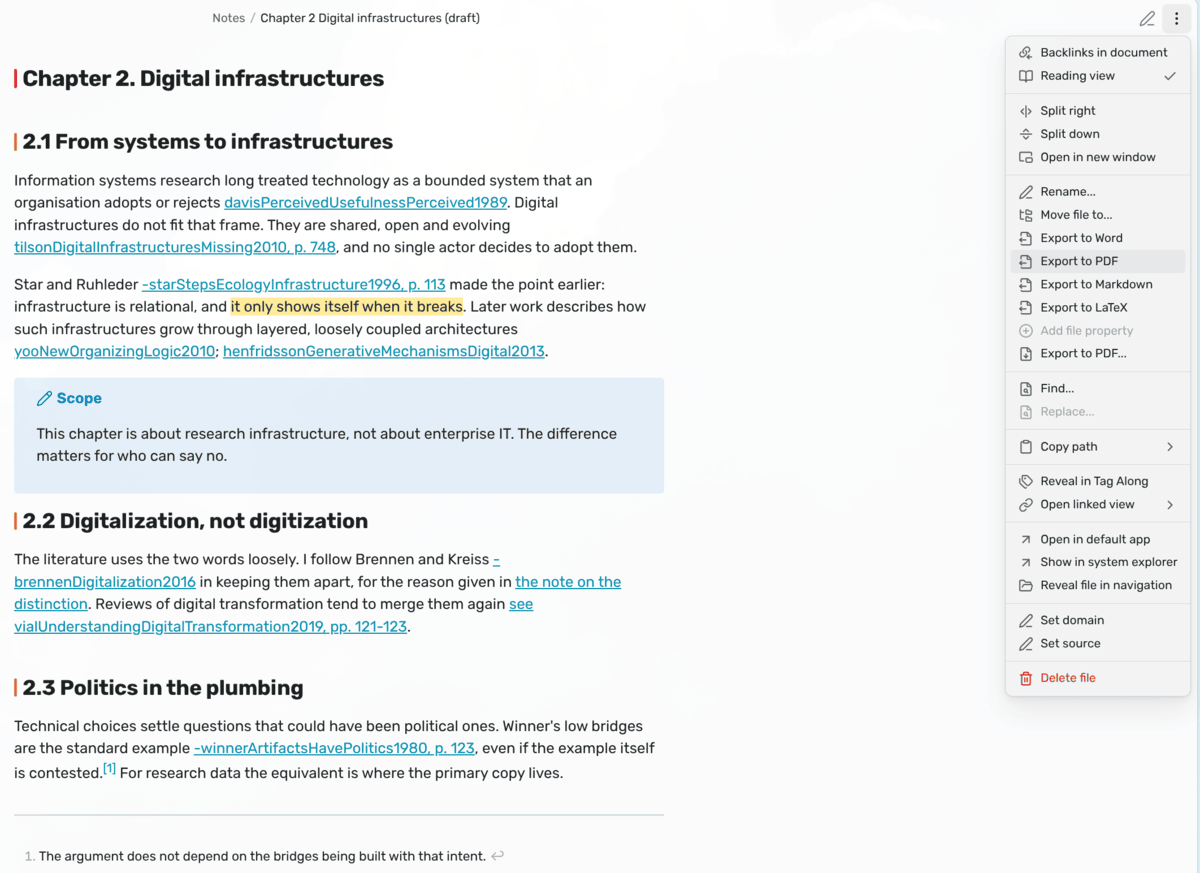
- Four formats - Word, PDF, Markdown and LaTeX, from the command palette or a note's right-click menu.
- Without opening the note - Export any note from the file explorer or its tab.
- A PDF that looks good - Typeset with xelatex on A4, left-aligned, in Open Sans, which comes with the plugin.
- LaTeX for a journal - A body with
\citecommands, ready for a journal's or conference's own class.
5.2 Citations
- Links become citations -
[[marsh2024]]becomes "(Marsh 2024)", with a reference list at the end. - Pages, prefixes and more - Everything pandoc can put in a citation, in the link's label.
- Any citation style - Any style Zotero has installed, such as
apa, or a.cslfile, including footnote styles. - Paper notes under any name - A link to a note with a
citekeyproperty cites that key, even after Better BibTeX changed it. - A check before you export - Links that are about to come out as plain text are listed first, so nothing goes wrong quietly.
5.3 Private stays private
- Comments stay behind -
%%…%%and<!-- … -->never leave the vault. - Only the properties that matter - Tags and the rest of your properties don't travel inside the file.
- No Obsidian leftovers - Block IDs, tags, embedded notes and plugin blocks are left out.
5.4 Your institution's rules
- Word template - Use your university's or journal's styles for fonts, headings and margins.
- Your own pandoc arguments - Add a table of contents, numbered sections, margins, a font, or a filter like pandoc-crossref.
6 How it works
6.1 What happens to your note
Before pandoc runs, Due Credit removes or rewrites everything that only makes sense inside Obsidian:
| In your note | In the export |
|---|---|
%%comment%%, <!-- comment --> |
Left out. They're for you. |
^abc123 block IDs |
Left out. |
| An H1 on the first line | The document's title. Without one, the title property, then the file name. Every other heading moves up a level, unless the note uses H1 for its own sections. |
| Properties | Only author, date, lang, abstract, keywords, subtitle and reference-section-title go along. |
![[figure.png|300]] |
The image, 300 pixels wide. |
| An embedded note, PDF or canvas | Left out. It's for you, not your reader. |
dataview, dataviewjs, tasks, query and base blocks |
Left out. Exported, they'd only be their query. |
> [!note] Title |
A quote with the title in bold. A callout without a title is a plain quote. |
| One newline | A line break, as Obsidian shows it, unless you turned on strict line breaks. |
==highlight== |
Highlighted in Word, PDF and Markdown. Plain text in LaTeX. |
[^1] and ^[inline] footnotes |
Footnotes, read the way Obsidian reads them. |
A line of #tags |
Left out. A tag in a sentence stays as its word: #project/alpha becomes "project/alpha". |
6.2 The reference list
The reference list is headed References, or Bibliography under a style that
cites in footnotes. Set reference-section-title in the note's properties to
call it something else, for a note in another language.
7 Citations
7.1 Writing a citation
A link becomes a citation when your bibliography has an entry with that key. Everything pandoc can put in a citation goes in the link's label, around the key:
| You write | It exports as |
|---|---|
[[marsh2024]] |
(Marsh 2024) |
[[marsh2024|marsh2024, p. 12]] |
(Marsh 2024, 12) |
[[marsh2024|see marsh2024, p. 12]] |
(see Marsh 2024, 12) |
[[marsh2024|Marsh, p. 12]] |
(Marsh 2024, 12) |
[[marsh2024]]; [[okafor2019]] |
(Marsh 2024; Okafor 2019) |
[[My idea|this idea]] |
this idea |
A link to one of your own notes isn't in the bibliography, so it exports as its
words, not as a dead link. Pandoc's own [@marsh2024, p. 12] works too.
Don't put your own parentheses around a citation: the export adds them, so
([[marsh2024]]) would come out as "((Marsh 2024))".
7.2 Naming the author in your sentence
When your sentence already names the author, put a - against the key to
leave the author out of the citation:
| You write | It exports as |
|---|---|
Marsh [[marsh2024|-marsh2024, p. 12]] argues |
Marsh (2024, 12) argues |
As @marsh2024 argues |
As Marsh (2024) argues |
Under a style that cites in footnotes, this works a little differently. See Footnote styles.
7.3 Paper notes
A paper note doesn't have to be named after its key. A link to a note with a
citekey property cites that key, so [[Marsh (2024) The Quiet Archive]] is
(Marsh 2024). And when Better BibTeX changes a key, links made before still cite
the paper, as soon as the note's property has the new key.
Paper Trail writes the
property for you.
7.4 Before the export
Before an export runs, Due Credit lists every link that's about to come out as plain text instead of a citation:
- A link to a paper note whose key isn't in your bibliography. Usually Better BibTeX changed the key, or its auto-export hasn't run since you added the paper.
- A link to no note at all, whose name isn't a key either. For example, a paper you cited before its auto-export ran, or a note you haven't written yet.
You can export anyway, or go and fix them first. A link to a note of your own is never listed.
For more, like footnote styles, LaTeX, and using the filter with pandoc on its own, see Citations in the docs and the FAQ.
8 Commands
None of the commands has a hotkey, so you can choose your own in Settings → Hotkeys. Each one is also on a note's right-click menu, in the file explorer or on its tab, so you can export a note without opening it.
Due Credit: Export to Word- A.docxwith citations and a reference list.Due Credit: Export to PDF- The same, typeset with xelatex.Due Credit: Export to Markdown- Plain Markdown under its title, with citations, for pasting elsewhere.Due Credit: Export to LaTeX- A body with\citecommands, for a journal's or conference's class.
9 Settings
Pandoc
| Setting | Default | |
|---|---|---|
| Pandoc | pandoc |
Its name if it's on your PATH, or its full path. |
| Pandoc arguments | None | Added to every export, such as --toc, --number-sections, -V geometry:margin=2.5cm, -V "mainfont=TeX Gyre Pagella" or --filter pandoc-crossref. Quotes keep a value with spaces together. Arguments that would change where the file goes, what's read or the format are refused. |
| Output folder | ~/Documents |
Where the save dialog opens the first time. After that, it opens where your last export went. |
| Word template | Pandoc's own | A .docx whose styles a Word export uses: fonts, headings and margins, as your university or journal wants them. |
Citations
| Setting | Default | |
|---|---|---|
| Bibliography | Literature/library.bib |
The .bib file that decides which links are citations. A path in your vault, or outside it, starting with / or ~. Leave it empty to export without citations. |
| Papers folder | Literature |
Where your paper notes are, for the check before exporting. |
| Citation key property | citekey |
The property that holds a paper note's citation key. |
| Citation style | Chicago author-date | A style Zotero has installed, such as apa, or the path to a .csl file. |
10 Works well with
These plugins are by the same author. Each does one thing, and Due Credit doesn't need the other, but they fit together nicely.
10.1 Paper Trail
Paper Trail turns your
Zotero library into a reading queue, and writes citations as links: Insert
citation picks a paper and writes [[citekey]], with a page if you want one.
Everything it writes, Due Credit reads, including prefixes, pages and the -
for leaving out the author. It also gives every paper note the citekey
property that keeps your citations working when Better BibTeX changes a key.
Paper Trail helps you write the citations in your chapter, and Due Credit gets the chapter out of your vault.
11 Network and file disclosure
Due Credit runs entirely on your computer. It doesn't connect to the internet itself, and doesn't send anything anywhere.
11.1 What it reads
- Notes: The note you export, and the citation keys of the notes it links to.
- Bibliography: The
.bibfile you set in Bibliography. - Citation style: From Zotero's styles folder (
~/Zotero/styles), or the.cslfile you set. - Word template: The
.docxyou set, if any. - Obsidian's settings: Whether strict line breaks are on, from the vault's
app.json.
11.2 What it writes
Nothing in your notes, and nothing anywhere else in your vault.
- The export: Only the file you pick in the save dialog, never inside your vault.
- Temporary files: For each export, pandoc's filters, the PDF font and the note's properties go in a temporary folder, which is removed afterwards.
11.3 What it stores
- Settings: Its own
data.jsonin the plugin folder, including the folder your last export went to.
11.4 What it runs
- Pandoc: The one you set in Pandoc, and for a PDF, xelatex through pandoc. Nothing else.
Pandoc itself downloads an image your note links to on the web, like
, to put it in the file. That's pandoc's own
behaviour, and it only happens for images that are on the web.
11.5 How releases are built
Every push is built, linted with ESLint and the official Obsidian ESLint plugin, and tested with Vitest on Node 20, 22 and 24. The citation tests run through a real, pinned version of pandoc, so its output can't drift unnoticed. Releases are built by GitHub Actions from the tagged source, with every action pinned to an exact version, and come with a signed build provenance attestation, so you can check that the file you installed is the one that was built:
gh attestation verify main.js --repo jorritvanderheide/obsidian-due-credit
12 Questions or issues?
Have a look at the FAQ first: it covers the most common surprises, like a citation that comes out as plain text. If something still doesn't work, or you have an idea, please open an issue. Found a security problem? Please report it privately, as described in the security policy.
The source lives on Codeberg and is mirrored to GitHub.
13 Support
Due Credit is free. If you find it useful, you can support its development on Liberapay:

14 License
Copyright © 2026 Jorrit van der Heide. Licensed under the EUPL-1.2.
Open Sans, in fonts/, is under the
SIL Open Font License 1.1.