
README file from
GithubObsidian Drum Notation

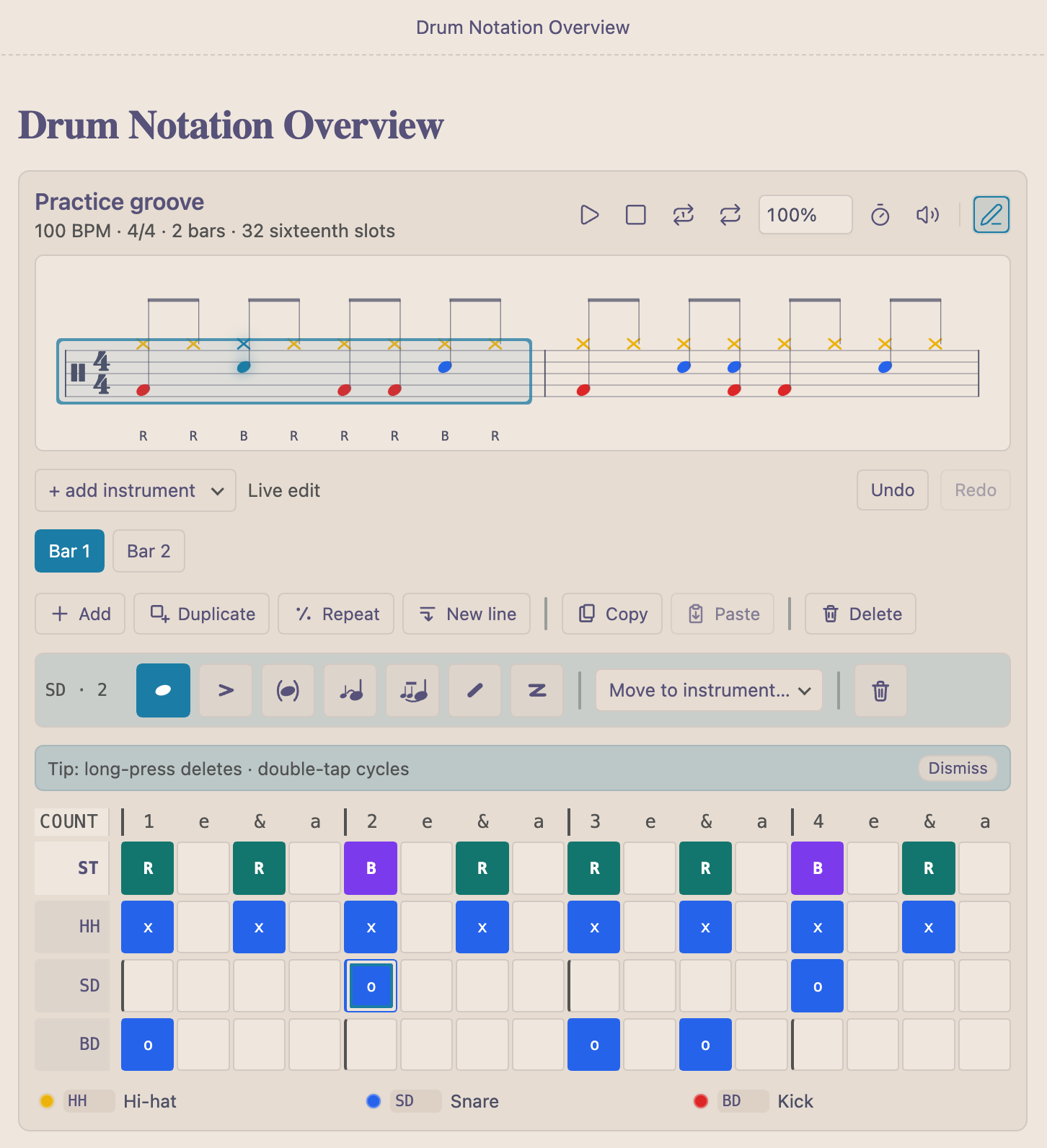
Keep grooves, fills, rudiments, exercises, and song charts beside the rest of your notes. Drum Notation turns compact patterns into clear percussion staff notation that you can hear, loop, slow down, speed up, edit, reuse, and export.
Whether you are learning your first groove, building a lesson notebook, or preparing a mixed-meter setlist, the notation stays readable as Markdown and playable inside your vault.
Try the interactive playground · Start in Obsidian · Import a printed score · Read the notation reference
What You Can Do
- Practise at your pace. Play a groove at 25–150% speed, loop one bar or a complete chart, add a metronome and count-in, mute instruments, and follow the cursor or note highlighting.
- Write simply or go deep. Create standard fixed-grid grooves visually, or use text for sticking, accents, ghost notes, flams, drags, diddles, buzzes, tuplets, mixed meters, split hand/foot voicing, and repeat structures.
- Keep a working drum notebook. Store reusable grooves and fills under headings, add practice comments and tempos, and embed them into lesson notes, practice dashboards, or setlists.
- Prepare and share charts. Organize songs across labelled staff lines, rehearse them with playback, and use Obsidian's PDF export for clean printed reference sheets.
Made For Real Drum Workflows
- Build a daily warm-up with rudiments, tempo targets, grooves, and fills.
- Capture a teacher's sticking, orchestration, and practice instructions after a lesson.
- Keep verse, chorus, bridge, and fill ideas together while writing or learning a song.
- Assemble gig notes and setlists from reusable groove-library headings.
- Turn a clean printed chart into editable, validated notation with the separate importer Agent Plugin.
Start In Three Ways
Create In Obsidian
In an open Markdown editor, run Drum Notation: Insert notation block from
the Command palette. Choose the title, tempo, time signature, and grid, and the
plugin inserts a complete drums block with one empty hi-hat, snare, and kick
bar. Switch to Reading view to play it.
For point-and-click authoring, enable Drum Notation → Enable visual edit
mode in the plugin settings and press Edit on the rendered score. If you
already have an empty drums block, press Create first bar instead. The
setup window starts from your new-notation defaults and shows the calculated
bar length before creating it.
Try The Playground
Open the interactive web playground without installing anything. Explore ready-made grooves, odd meters, tuplets, repeats, articulations, full-kit sounds, and ten core rudiments. Edit an example and use Copy for Obsidian when you are ready to bring it into your vault.
Import A Printed Score
The separately installed Drum Notation Importer Agent Plugin can transcribe a clean printed drum-score image or visually exposed PDF page, validate the result against the same notation parser, and report anything that needs human review. Paste the result into the playground's Verify agent result workspace before saving it to Obsidian.
The importer does not transcribe audio or handwritten notation.
Basic Example
Create a fenced code block with the language drums:
```drums
Title: Basic rock groove
Tempo: 100
Time: 4/4
Count: 1 e & a 2 e & a 3 e & a 4 e & a
HH | x-x-x-x-x-x-x-x-
SD | ----o-------o---
BD | o-------o-o-----
```
In reading view, the plugin renders the block as page-width percussion staff notation and adds Play, Stop, Loop Bar, Loop All, playback-speed, metronome/count-in, instrument-mute, and Edit controls. For training, playback speed supports 25–150% of the written tempo; the toolbar offers compact 10% steps, including above-100% tempos for push-tempo practice. The metronome menu offers Off, With drums, and Metronome only, plus an optional 1 bar count-in before Play, Loop Bar, or Loop All starts. The first metronome/count-in pulse of each bar is accented. Compound meters use grouped pulses, such as two clicks per bar in 6/8 and four in 12/8. The mute menu lists only instruments used in the current notation and mutes each canonical voice independently.
Speed, metronome, count-in, and mute choices are playback-only: they do not change the fenced notation text. Obsidian resets them when the rendered block is recreated; the playground keeps them for the current page session. Changing speed, metronome, or mute controls during playback restarts from the current slot while preserving the active Play/Loop mode and does not replay the count-in. Instrument mutes do not silence the metronome or count-in. Muting affects transport playback only, so clicking a rendered note or previewing an editor cell remains audible.
On mobile, if playback becomes silent after Obsidian was backgrounded or another audio app was used, tap Play again. If sound does not recover, relaunch Obsidian. This can happen when the mobile WebView audio session is interrupted.
Add Cursor: on if you want a blinking cursor to follow playback. Click a rendered note to preview that hit or stacked chord.
Visual Edit Mode
Visual edit mode is opt-in because it writes changes back to your notes. Enable Drum Notation → Enable visual edit mode in the plugin settings first. Then, in Obsidian reading view, press Edit to open a selected-bar grid below the rendered score. Click or tap a rendered bar to choose which bar the grid edits. Empty cells add a normal hit; filled cells select the hit and show the articulation tool strip. Edits apply immediately to the rendered notation and are saved back into the fenced drums block when you close visual edit mode or when Obsidian unloads the rendered block.
The bar toolbar is arranged as Add · Duplicate · Repeat · New line | Copy · Paste | Delete:
- Add inserts an empty bar after the selected bar on the same line.
- Duplicate inserts an editable copy of the selected bar immediately after it.
- Repeat opens a count dialog (1–99, default 1), then inserts
%for one repeat or a compact%xNgroup immediately after the selected normal bar. Unrepeat opens the repeat dialog for both%and%xN, where you can change the count or use Make editable to replace the repeat/group with one editable copy. - New line splits the current line after the selected bar, moving later bars to a new untitled line. If the selected bar is already last, it creates an empty next line.
- Copy stores the selected bar without changing the notation. Paste replaces the selected bar with that copied content.
- Delete removes the selected bar. For compact
%xN, it removes the entire counted repeat group at once; separate%lines remain independent.
Copy/Paste uses a notation-only clipboard shared by visual editors for the
current Obsidian session. Pasting over notes, sticking, or repeat notation asks
for confirmation, and bars with different Time/Grid settings or bar lengths
cannot be pasted together. Copy also mirrors a readable one-bar drums snippet
to the system clipboard when the platform permits it.
Visual edit mode is intentionally limited in v1:
- It is available in reading view only. Live Preview/source-mode visual editing is planned, but remains read-only for now to avoid conflicts with Obsidian's active editor buffer.
- A block containing explicit tuplet syntax is read-only in the visual editor. Edit its fenced notation text directly. This block-level guard prevents the fixed-grid editor from accidentally removing or flattening tuplet regions; bar-level locking and tuplet-aware visual controls can be added later.
- Blocks with effective system-level
Time:orGrouping:changes are rendered and playable but remain text-authored in this release. - It edits only top-level
drumsfences. Blocks nested inside callouts, lists, or indented Markdown are rendered and playable, but visual editing is disabled. - Embedded drums blocks are rendered and playable, but visual editing and first-bar creation are disabled. Open the source note to edit the groove.
- The first visual edit serializes the whole block in the plugin's canonical authoring form. This keeps the model safe and deterministic, but it may normalize spacing, labels, header order, and equivalent hit characters.
- One-bar repeat bars are selectable but their repeated body remains read-only.
Use Unrepeat to open the repeat dialog, resize
%/%xN, or retain one editable copy. - Blocks with section repeat markers keep note, sticking, articulation,
Copy/Paste, Undo, and Redo editing available. Structural bar actions are
disabled until the
[and]markers are removed in the notation text.
Embedding Grooves In Other Notes
Obsidian embeds are useful for building setlists, lesson notes, and practice dashboards from a groove library. Put each reusable groove under its own heading in the source note, then embed that heading wherever you need it:
## Chorus

```drums
Title: Chorus groove
Tempo: 112
HH | x-x-x-x-x-x-x-x-
SD | ----o-------o---
BD | o-------o-o-----
```
# Setlist

![[Groove Library#Chorus]]
![[Groove Library#Bridge Fill]]
Embedded drums blocks render with the normal score, playback controls,
metronome/count-in, mute menu, legend, and parser warnings. Visual editing is
intentionally read-only in embeds so the plugin does not write through an
embedded section of another file. Open the source note, such as
Groove Library, to edit the notation visually.
Settings
Obsidian plugin settings
The Drum Notation settings page keeps visual editing under Editor and groups defaults for newly created notation under New notation: Rhythm, Engraving, and Playback. You can set the initial title, tempo, meter, grouping, grid, voicing, repeat count, cursor, highlighting, rests, and legend without looking up every notation header first. The settings are searchable in Obsidian 1.13 and later.
These are authoring defaults, not hidden rendering preferences. They are used
only by Insert notation block and Create first bar, then represented in
the generated drums text. Title, Tempo, Time, and Grid stay visible in the
new scaffold; other values are emitted when they differ from format defaults.
Existing playable blocks and ordinary text parsing never inherit them. In an
empty or metadata-only scaffold, explicitly written supported headers take
precedence; for example, Cursor: off overrides a vault default of on, and
Grouping: auto clears a configured grouping. Unknown metadata is preserved.
Use Reset authoring defaults to restore the new-notation values without changing visual edit mode or the dismissed first-session tip.
Notation block settings
Put settings at the top of the block:
Title: Groove title
Author: Your name
Comment: Practice slowly, then loop it.
Tempo: 120
Time: 7/8
Grouping: 2+2+3
Voicing: split
Subtitle: Verse
Repeat: 4
Cursor: on
Highlight: on
Rests: on
Legend: off
Grid: 16
Supported settings:
| Setting | Example | Notes |
|---|---|---|
Title: |
Title: Linear fill |
Shown above the rendered score. |
Subtitle: |
Subtitle: Verse |
Labels the current rendered staff line and all inline bars on it. |
Tempo: or BPM: |
Tempo: 96 |
Playback tempo, clamped between 30 and 260 BPM. |
Time:, Meter:, or Time Signature: |
Time: 6/8 |
Drawn on the staff. After Bar, changes that system and following systems. |
Grouping: |
Grouping: 2+2+3 |
Beams /8 or /16 meters in explicit groups that add up to the meter numerator. Use auto to clear inherited grouping. |
Voicing: |
Voicing: split |
Uses separate up-stem hand and down-stem foot voices. Defaults to single. |
Repeat: or Repeats: |
Repeat: 4 |
Plays the whole block this many times when pressing Play. |
Cursor: or Playback Cursor: |
Cursor: on |
Shows or hides the blinking playback cursor. Defaults to off. |
Highlight:, Note Highlight:, or Playback Highlight: |
Highlight: off |
Highlights the note/chord that is currently sounding. Defaults to on. |
Rests: |
Rests: off |
Shows inferred rest symbols by default. Use off to keep their spacing while hiding the symbols. |
Legend:, Instrument Legend:, or Kit Legend: |
Legend: all |
Shows a compact color key. Use on/used for instruments in the current block, all for the full supported kit, or off to hide it. Defaults to off. |
Grid:, Subdivision:, or Resolution: |
Grid: 32 |
Sets one source character to a sixteenth note (16, default) or thirty-second note (32). |
Author: |
Author: Test Author |
Stored as metadata. |
Comment: |
Comment: Test Comment |
Stored as metadata. |
Count: |
Count: 1 e & a 2 e & a |
Useful source-code guide while editing. |
Title: names the complete notation block. Subtitle: is optional and belongs
to one rendered staff line. Put another Subtitle: after a Bar separator to
label the next line. Long subtitles wrap above the staff on narrow screens.
Instrument Rows
Each instrument row is:
LABEL | pattern
The pattern is one character per grid slot. By default one character is a sixteenth note. Use Grid: 32 when one character should be a thirty-second note. Put hits in the same column to stack them, such as kick plus hi-hat foot.
| Labels | Instrument |
|---|---|
BD, KD, Kick |
Kick |
BD2, KD2, Kick2, Bass Drum 2 |
Second kick / second bass drum |
HF, HHF, Foot Hat, Hi-hat Foot |
Hi-hat foot |
HFS, HHFS, Foot Splash, Hi-hat Splash |
Hi-hat foot splash |
SD, SN, Snare |
Snare |
RS, Rim, Cross, Cross-stick |
Rim/cross-stick |
HH, CH, Close, Hat, Hi-hat |
Closed hi-hat |
OH, Open Hat |
Open hi-hat |
HO, HHO, Half-open Hat, Half-open Hi-hat |
Half-open hi-hat |
RD, Ride |
Ride |
RB, Ride Bell, Bell |
Ride bell |
CR, Crash |
Crash |
SP, Splash |
Splash cymbal |
China |
China cymbal |
Stack |
Stack cymbal |
HT, RT, T1, Rack Tom |
High rack tom |
MT, T2 |
Mid rack tom |
LT, T3 |
Low rack tom |
FT, Floor Tom |
Floor tom |
LFT, Low Floor Tom |
Low floor tom |
CB, Cowbell |
Cowbell |
SD uses a fuller synthesized snare sound. RS / cross-stick stays shorter and clickier. BD2 / second kick is for double-bass-pedal notation and renders below the main kick while using the same synthesized kick voice. RD, RB, CR, SP, China, and Stack use separate synthesized cymbal voices so their playback is distinguishable; ride bell is distinct from cowbell and renders as a diamond notehead on the ride line. OH / open hi-hat renders with the standard open-circle mark above the note. HO / half-open hi-hat renders the open circle with a vertical line through it. HFS / hi-hat foot splash renders as a circled x on the foot-hat line.
Sticking
Add a global right/left/both-hands sticking lane with ST, Stick, Sticking,
or Hands. It is slot-aligned with the drum rows and display-only, so it does
not affect playback.
In the playground's rudiment examples, ST identifies the main hand for the
written stroke. The hand used for a grace note remains implicit.
```drums
Title: Sticking example
ST | R-L-B-L-R-L-B-L-
HH | x-x-x-x-x-x-x-x-
SD | ----o-------o---
BD | o-------o-------
```
Color Legend
The legend is hidden by default. Add Legend: on to show a color key for only the instruments used in the block, or Legend: all to show every supported instrument. When the legend is visible, noteheads are colored to match the legend while staff lines, stems, beams, and notation marks keep the notation color scheme. During playback and clicked-note previews, the active instrument symbols in the legend briefly pulse when note highlighting is enabled.
```drums
Title: Full Supported Kit - Separate Sounds Test
Tempo: 80
Time: 4/4
Grid: 16
Legend: all

CR    | x--------------- | ----------------
SP    | -x-------------- | ----------------
China | --x------------- | ----------------
Stack | ---x------------ | ----------------
RD    | ----x----------- | ----------------
RB    | -----x---------- | ----------------
OH    | ------x--------- | ----------------
HO    | -------x-------- | ----------------
HH    | --------x------- | ----------------
HF    | ---------x------ | ----------------
SD    | ----------o----- | ----------------
RS    | -----------x---- | ----------------
HT    | ------------o--- | ----------------
MT    | -------------o-- | ----------------
LT    | --------------o- | ----------------
FT    | ---------------o | ----------------
LFT   | ---------------- | x---------------
CB    | ---------------- | -x--------------
BD    | ---------------- | --o-------------
BD2   | ---------------- | ----o-----------
```
Starting A New Bar
Use | inside an instrument row to split measures. Inline measures stay on the same rendered staff line with a visual bar divider:
```drums
Title: Two-bar groove
Tempo: 104
Time: 4/4
HH | x-x-x-x-x-x-x-x- | x-x-x-x-x-x-x-x-
SD | ----o-------o--- | ----o---o---o---
BD | o-------o-o----- | o-o-----o-------
```
Use Bar: to force a new rendered staff line. This is useful when the next bar uses a different set of instruments.
```drums
Title: Groove then fill
Tempo: 104
Time: 4/4

Subtitle: Main groove
HH | x-x-x-x-x-x-x-x-
SD | ----o-------o---
BD | o-------o-o-----

Bar:
Subtitle: Fill
RD | x-x-x-x---------
HT | --------o-o-----
MT | ------------o-o-
FT | --------------oo
BD | o---o---o---o---
```
Bar:, Bar 2:, Measure:, and New Bar: all work as separators. A
Subtitle: before or among a system's rows labels that complete rendered line,
including multiple inline bars. Normal Play runs through all bars in order.
Loop Bar loops the declared bar containing the current cursor or last
clicked note.
Time: after Bar changes the meter for that entire system and remains active
until another system declares Time:. A changed meter resets explicit beam
grouping to automatic; add a new Grouping: beside it when needed. All inline
bars on one rendered line share the same meter:
Time: 4/4
HH | x-x-x-x-x-x-x-x-

Bar
Time: 3/4
HH | x-x-x-x-x-x-

Bar
HH | x-x-x-x-x-x-

Bar
Time: 7/8
Grouping: 2+2+3
HH | x-x-x-x-x-x-x-
For clarity, place system Time: and Grouping: immediately after Bar.
Late declarations still apply to the complete current system and produce an
advisory parser warning. A one-bar % repeat cannot cross a boundary where the
effective time signature changes.
Subdivisions And Beams
The notation is a literal grid: Grid: 16 means each character is a sixteenth
slot, and Grid: 32 means each character is a thirty-second slot. The renderer
derives note values from the distance to the next hit inside each beat:
| Pattern inside one 4/4 count | Rendered as |
|---|---|
x--- |
Quarter note |
x-x- |
Two eighth notes |
x--x |
Dotted eighth plus sixteenth |
xxxx |
Four sixteenth notes |
xxxxxxxx in Grid: 32 |
Eight thirty-second notes |
Rest tickables keep spacing exact when a gap cannot be represented by one
simple or dotted note value. Their symbols are visible by default; add
Rests: off to hide the symbols without changing timing or spacing. Hyphens
describe silence, but they do not force a separate rest after every hit because
the preceding note duration is inferred from the next hit. In 6/8, 9/8, and
12/8, regular eighth notes are beamed in compound groups of three. For
asymmetric /8 and /16 meters, add a setting such as
Grouping: 2+2+3 to control beam boundaries. Grouping changes engraving only;
it does not change playback timing, metronome/count-in pulses, or create
tuplets. Three hits in a Grid-16 count are not treated as an implicit triplet;
write an explicit tuplet when equal subdivisions must occupy one written beat.
Drum voicing
By default, Voicing: single keeps every instrument in one up-stem voice, as
in earlier releases. Add Voicing: split to engrave hand-played instruments
with stems up and foot-played instruments with stems down:
Voicing: split
HH | x-x-x-x-x-x-x-x-
SD | ----o-------o---
BD | o-------o-o-----
HF | ------------x---
The lower voice contains kick (BD), second kick (BD2), hi-hat foot (HF),
and hi-hat foot splash (HFS). Every other built-in instrument, including all
toms and floor toms, remains in the upper voice. Simultaneous hand and foot
notes align on the same timeline but infer durations and beams independently.
Inferred whole-kit rests are drawn once, in the upper voice when it is present
and otherwise in the lower voice; hidden alignment rests keep both voices at
the full bar duration. Rests: off hides the shared rests without changing
spacing. Voicing affects engraving only, so playback, visual editing, repeats,
and copied bar content remain unchanged.
Explicit tuplets
Use N(...) to divide exactly one written denominator beat into N equal
rhythmic positions:
Title: Triplet fill
Time: 4/4
ST | 3(RLR)3(LRL)3(RLR)3(LRL)
SD | 3(ooo)3(ooo)3(ooo)3(ooo)
N may be 3–12, and the body must contain exactly N hit, rest, or sticking
characters. The token must begin on a written-beat boundary. In 4/4,
3(x-x) is one quarter-note beat divided into three equal positions; in 6/8,
it is one eighth-note beat divided into three. Explicit 4(...) and 8(...)
subdivisions are accepted for structural consistency but use ordinary
power-of-two notation without a tuplet number.
Use B/N(...) to divide B complete written beats into N equal positions.
For example, two 2/3(...) regions fill a 4/4 bar with quarter-note triplets:
Title: Multi-beat tuplets
Tempo: 84
Time: 4/4
ST | 2/3(RLR)2/3(LRL)
HH | 2/3(xxx)2/3(xxx)
SD | 2/3(o--)2/3(o--)
BD | 2/3(-o-)2/3(-o-)
B must be positive, the wrapper must begin on a written-beat boundary, and
the complete region must fit in the bar. 1/N(...) normalizes to N(...).
Forms where B equals N are ordinary subdivisions and should be written on
the plain grid instead.
Use N@D(...) when the tuplet should occupy an explicit note-value duration
instead of one written beat. D may be 2, 4, 8, 16, or 32:
Time: 4/4
HH | 3@8(xxx)--3@8(xxx)--3@8(xxx)--3@8(xxx)--
SD | 3@8(o--)--3@8(---)--3@8(o--)--3@8(---)--
BD | 3@8(---)o-3@8(---)o-3@8(---)o-3@8(---)o-
Here 3@8(xxx) is three equal positions within one eighth note: a
sixteenth-note triplet. Explicit-duration tuplets may begin after any completed
plain-grid position or another tuplet. They may not extend beyond the current
bar. The engraver selects an exact power-of-two note value through 128th notes;
combinations that cannot be represented within that limit produce an advisory
warning.
Every present drum and sticking row in the same inline bar must describe the
same ordered plain/tuplet rhythm structure and the same duration form. For
example, do not mix meter-relative 2/3(...) and absolute 3@2(...) across
rows even though they occupy the same duration in 4/4. Use explicit rest bodies
such as 3(---) on a silent row:
Time: 4/4
HH | x-x-3(x-x)x-x-x-x-
SD | ----3(o--)----o---
BD | o---3(---)o-------
Tuplet bodies support the normal hit and articulation characters. Rests inside
a tuplet remain explicit rhythmic positions and break beams. % and %xN
repeat the resulting timing normally, and playback, metronome, cursor, and
highlight timing follow the expanded quarter-note timeline.
Malformed tuplets, row-structure mismatches, and unsupported forms produce
advisory parser warnings and fall back to plain-grid text so the block remains
renderable. N(...) and B/N(...) remain relative to the written beat if the
meter is changed through the playground controls; N@D(...) retains its
absolute note-value duration. Nested tuplets remain deferred. Adjacent explicit
wrappers remain separate engraving and beam groups.
Hit Characters
| Character | Meaning |
|---|---|
x, o |
Normal hit |
X, O, >, !, # |
Accent |
g |
Ghost note, drawn in parentheses with quieter playback |
f |
Flam, drawn as a small grace note with connector and played as a soft grace hit |
r |
Drag / ruff, drawn as two beamed grace notes with connector and played as two soft grace hits |
d |
Diddle, drawn as a mid-stem slash and played as two hits that divide the inferred note value evenly |
z, Z |
Buzz roll, drawn as a custom line-drawn Z through the note stem and played as an overlapping closed snare-roll texture |
c |
Choked cymbal, drawn with a small plus mark and played with a short muted decay |
-, ., _ |
Rest |
Use c on a cymbal row for a choked cymbal:
```drums
Title: Choked crash
CC | c---------------
BD | o---------------
```
Buzz Rolls
Use z or Z on the snare row for a closed buzz roll / press roll. The rendered note shows a modern drumline-style custom line-drawn Z through the stem. During playback, snare buzz rolls use a continuous noise texture for the rendered note value. A short acoustic release tail overlaps the next buzz stroke, avoiding a silent gap between consecutive notes.
```drums
Title: Buzz roll with release
Tempo: 84
Time: 4/4
SD | z-------z-----o-
BD | o-------o-------
```
For long rolls, write consecutive buzz notes and end with a normal snare release note:
```drums
Title: Two-beat buzz roll
Tempo: 76
Time: 4/4
SD | z---z---o-------
BD | o-------o-------
```
Buzz-roll combinations:
| Source | Result |
|---|---|
| `SD | z---inGrid: 16` |
| `SD | z-z-inGrid: 16` |
| `SD | zzzzzzzzinGrid: 32` |
z stacked with another row in the same column |
Snare plays a buzz texture while the other instrument plays its normal hit. |
z followed by o |
Buzz roll followed by a clean release note. |
z with d, r, g, f, c, or accent in the same snare cell |
Not supported because each instrument row uses one character per slot. Use adjacent slots or written-out Grid: 32 notes when you need more detail. |
Thirty-Second Notes And Diddles
Use Grid: 32 when you want to write every thirty-second-note slot directly:
```drums
Title: Written 32nd fill
Tempo: 96
Time: 4/4
Grid: 32
SD | oooooooo------------------------
HT | --------oooooooo----------------
FT | ----------------oooooooo--------
BD | o---------------o---------------
```
Use d when you want compact drummer-style diddle notation. The two strokes
divide the inferred rendered note value evenly:
```drums
Title: Diddle groove
Tempo: 100
Time: 4/4
Grid: 16
HH | x-x-x-x-x-x-x-x-
SD | d-------d-------
BD | o---o---o---o---
```
Combinations:
| Source | Result |
|---|---|
Grid: 16 + d-d- |
Two visible diddled eighth notes, each played as two evenly spaced sixteenth-note strokes. |
Grid: 16 + d--- |
One visible diddled quarter note, played as two evenly spaced eighth-note strokes. |
Grid: 32 + d |
The two strokes divide that note's inferred Grid-32 duration evenly. |
Grid: 32 + written hits like oooo |
Four explicit thirty-second notes. |
d stacked with another row in the same column |
The diddled instrument plays twice; the other stacked instrument plays once. |
d with X, g, f, r, or c in the same cell |
Not supported because each instrument row uses one character per slot. Use written-out Grid: 32 notes when you need an accented, ghosted, flammed, dragged, or choked double. |
ST marks the hand leading a compact diddle; its second stroke uses the same
hand and is not represented by another sticking character.
Full Kit Example
This example is inspired by the reference image and includes every supported row: cymbals, hi-hats, ride bell, cowbell, snare, cross-stick, ghost/flam/drag/choke strokes, rack toms, floor toms, kick, second kick, foot hi-hat, foot splash, and a stacked kick plus foot-hat hit.
```drums
Title: Full kit notation map
Author: Test Author
Comment: Test Comment
Tempo: 92
Time: 4/4
Count: 1 e & a 2 e & a 3 e & a 4 e & a 5 e & a 6 e & a 7 e & a 8 e & a
HH    | x-------------------------------
OH    | -o------------------------------
HO    | --x-----------------------------
CR    | --->----c-----------------------
SP    | ----x---------------------------
China | -----x--------------------------
Stack | ------x-------------------------
RD    | -------x------------------------
RB    | --------x-----------------------
CB    | ---------x----------------------
SD    | ----------g-----------f---------
RS    | ----------->--------------------
HT    | ------------o-------------------
MT    | -------------o------------------
LT    | --------------o-----------------
FT    | ---------------o----------------
LFT   | ----------------o---------------
BD    | -----------------o-------------X
BD2   | --------------------o-----------
HF    | ------------------x------------X
HFS   | -------------------x------------
```
Because rows share the same grid, the final X on BD and HF creates a kick plus hi-hat-foot stack.
Odd Time Example
```drums
Title: Seven-eight groove
Tempo: 132
Time: 7/8
Grouping: 2+2+3
Count: 1 & 2 & 3 & 4 & 5 & 6 & 7 &
HH | x-x-x-x-x-x-x-
SD | ----o-----o---
BD | o-----o-o-----
```
Each pattern character remains a sixteenth-note slot for spacing and playback.
Grouping: 2+2+3 beams the seven written eighth notes as two, two, and three
without changing their timing.
Rest slots keep the rhythm spaced correctly and inferred rest symbols are
visible by default. Use Rests: off to hide those symbols while retaining the
same timing and spacing. Fully silent bars currently use beat-group rests;
centered whole-measure rests are planned separately.
Repetition And Looping
Use Repeat: to repeat the full block during normal playback:
```drums
Title: Repeated groove
Tempo: 108
Time: 4/4
Repeat: 4
HH | x-x-x-x-x-x-x-x-
SD | ----o-------o---
BD | o-------o-o-----
```
Use % on its own line for a one-bar measure repeat. Add a count suffix such
as %x3 to repeat the previous bar three times. Counted measure repeats support
1–99 copies:
```drums
Title: Repeated bar
HH | x-x-x-x-x-x-x-x-
SD | ----o-------o---
BD | o-------o-o-----
%x3
```
During Play and Loop All, the compact x3 marker shows repeat progress
as 1/3, 2/3, and 3/3, then returns to x3 outside playback. Loop Bar
keeps the static count because it loops only one expanded bar.
Use [ and ] as zero-width bar separators to repeat a complete section
twice. The opening [ may replace the first | after a row label, and ]
both closes the section and separates it from the following bar:
```drums
Title: Two-bar section repeat
HH [ x-x-x-x-x-x-x-x- | x-x-x-x-x-x-x-x- ] x-x-x-x-x-x-x-x-
SD [ ----o-------o--- | ----o-------o--- ] ----o-o-----o---
BD [ o-------o-o----- | o-----o-o------- ] o---------o-----
```
Markers may be written on one recognized instrument/sticking row or aligned on
several rows. Canonical serialization writes them on every row that spans the
boundary. A section may cross Bar system separators and always plays exactly
twice. Its bars remain normal editable source bars; this differs from % and
%xN, whose generated copies are intentionally read-only. Repeat: repeats
the resulting complete playback roadmap, while Loop Bar ignores section
navigation and loops only the selected bar.
Starting playback inside a section completes the remaining first traversal,
then plays the whole second traversal. For a section covering bars 2–4,
starting at bar 3 plays bars 3, 4, 2, 3, 4 before continuing. Starting after
the section never jumps backward. Invalid, conflicting, nested, or unmatched
markers produce an advisory warning; the bars remain rendered and playable in
their normal linear order.
Use Loop Bar in the rendered view to loop the bar containing the current cursor position. Click a note in another bar first, then press Loop Bar to loop that bar.
Recent Changes
1.7.3updates the plugin overview screenshot to demonstrate the selected-note toolbar and sticking lane alongside visual grid editing.1.7.2sharpens the practitioner-focused plugin overview with a higher-resolution visual-editor screenshot.1.7.1introduces a practitioner-first plugin overview with clearer workflows for practice, lessons, song charts, gigs, visual authoring, and printed-score import.
See all GitHub releases for the complete history.
Development
Install dependencies:
npm install
Build once:
npm run build
Watch during development:
npm run dev
To test in Obsidian, copy or symlink this folder into:
<vault>/.obsidian/plugins/drum-notation
Then enable Drum Notation in Obsidian's community plugins settings.
Installation
Install Drum Notation from Obsidian's Community plugins browser.
For a manual or beta install, use the GitHub release with BRAT, or install manually:
- Download
main.js,manifest.json, andstyles.cssfrom a release. - Create this folder in your vault:
<vault>/.obsidian/plugins/drum-notation - Copy those three files into that folder.
- Reload Obsidian and enable Drum Notation.
Privacy
The Obsidian plugin makes no network requests and includes no telemetry. Notes, settings, and generated notation stay in your vault.
When you press Copy in the visual editor, the plugin writes a generated one-bar notation snippet to the system clipboard. It never reads clipboard contents.
The web playground runs entirely in the browser. It uses localStorage to keep
the current playground notation and light/dark preference for the current
browser profile. Its Verify agent result workspace keeps pasted responses,
source images, import reports, and review state only in the current tab. An
explicit save stores normalized notation only. The site does not read the
clipboard, call a model, accept browser API keys, or send notation or images to
a server.
Drum Notation Importer Agent Plugin
The repository also contains the independently versioned
drum-notation-importer Agent Plugin. Version 0.2.1 transcribes clean printed
drum-score images or visually exposed PDF pages into drums blocks, preserves
supported two-pass section-repeat barlines, validates locally against the same
1.6.0 notation core, and reports ambiguities and format workarounds. Audio
transcription and hosted inference are not included.
The importer keeps one shared, self-contained Agent Skill and publishes four
.tar.gz packages from it: a strict Agent Plugins 1.0.0 package plus
compatibility packages for Codex/OpenAI, Claude Code, and Gemini CLI. Release
0.2.1 also includes a separate skills-only OpenAI directory ZIP. The client
adapters only provide packaging metadata; transcription instructions,
references, and the network-free validator remain single-source inside
skills/import-drum-score/.
Importer releases use tags such as agent-plugin-v0.2.1; they do not change
the Obsidian plugin version or release assets.
See the importer website for scope, privacy, terms, and support. The 0.2.1 package is prepared for public ChatGPT/Codex directory review; GitHub marketplace installation remains available independently while review is pending.
Install in ChatGPT desktop or Codex
Add this repository as a plugin marketplace, then install the importer:
codex plugin marketplace add vkamolov/obsidian-drum-notation --ref main
codex plugin add drum-notation-importer@obsidian-drum-notation
Restart ChatGPT desktop or Codex after installation. This repository marketplace is separate from the public ChatGPT plugin directory; it makes the importer available directly from GitHub while directory review is pending.
Install in Claude Code
Add this repository as a Claude plugin marketplace, then install the importer:
claude plugin marketplace add vkamolov/obsidian-drum-notation
claude plugin install drum-notation-importer@obsidian-drum-notation
Start a new Claude Code session, or run /reload-plugins in an existing
session, after installation.
Install in Gemini CLI
Download and extract the Gemini package from the
agent-plugin-v0.2.1 release,
then install the extracted directory:
gh release download agent-plugin-v0.2.1 \
  --repo vkamolov/obsidian-drum-notation \
  --pattern "drum-notation-importer-0.2.1-gemini.tar.gz"
tar -xzf drum-notation-importer-0.2.1-gemini.tar.gz
gemini extensions install ./drum-notation-importer
Restart Gemini CLI after installation. The importer contains no credentials, provider API calls, telemetry, or remote inference; the host agent performs image understanding and the bundled validator runs locally.
License And Third-Party Notices
Drum Notation is released under the MIT License. Production builds include VexFlow 5.0.0 for music engraving, also under the MIT License. See THIRD_PARTY_NOTICES.md for the full VexFlow notice.