
README file from
GithubDocWen Assistant
English · 简体中文 · 繁體中文 · Deutsch · Français · Русский · Português · 日本語 · Español · 한국어 · Tiếng Việt
DocWen Assistant connects Obsidian to the local DocWen desktop application for conversion, proofreading, numbering, and file opening.
DocWen is required. Install a compatible DocWen 0.13.0 or later version from Microsoft Store, or fully extract the portable package from DocWen Releases.
Screenshots
These screenshots show the packaged plugin running in desktop Obsidian with local DocWen.
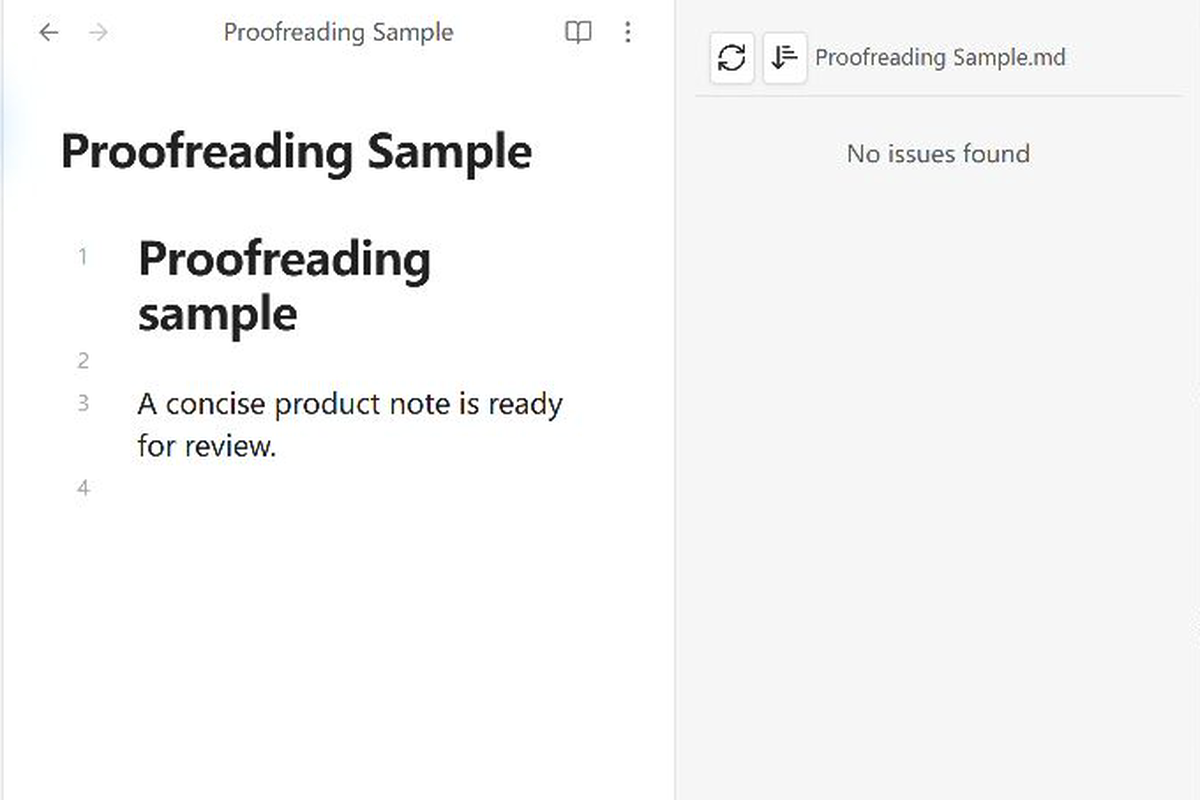
Proofreading sidebar
Review issues by line or rule and jump back to the matching source range without rewriting the note.
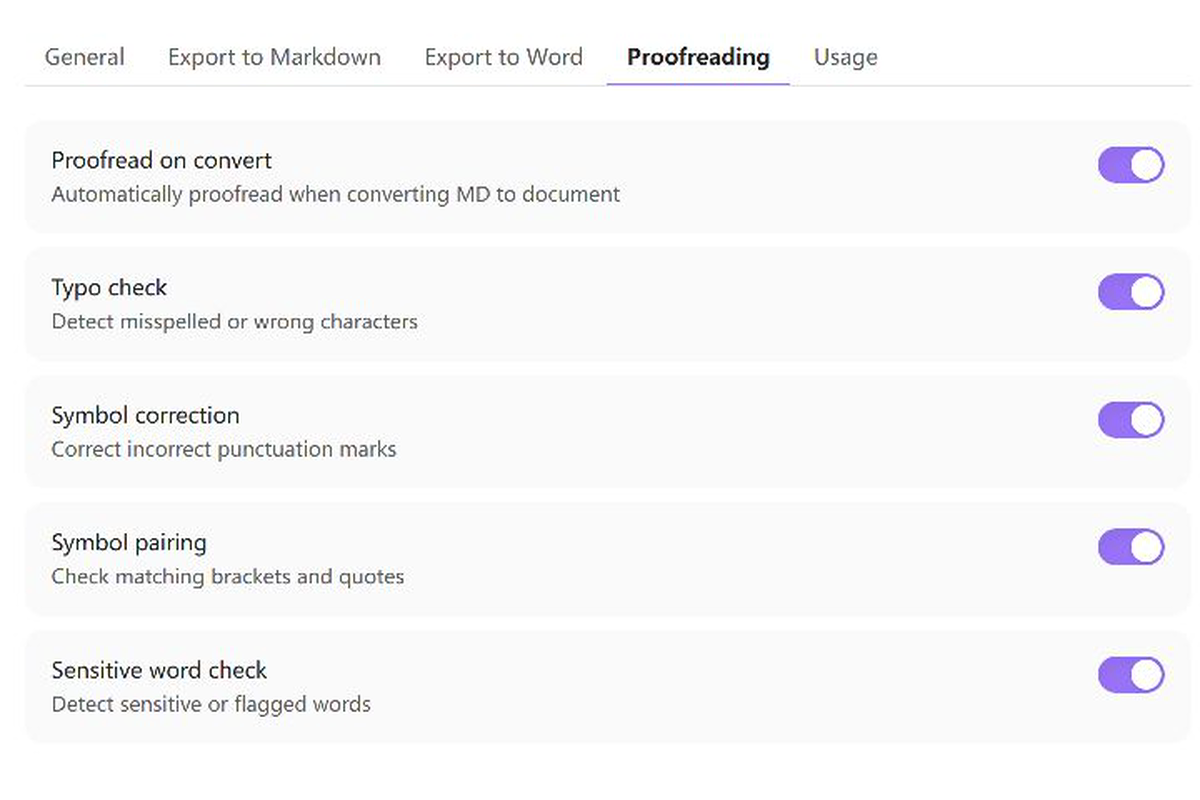
Top-tab settings and DocWen connection
Use the four top tabs and their contextual help cards to connect automatically to the Microsoft Store installation, configure a portable installation when needed, and tune conversion and proofreading.
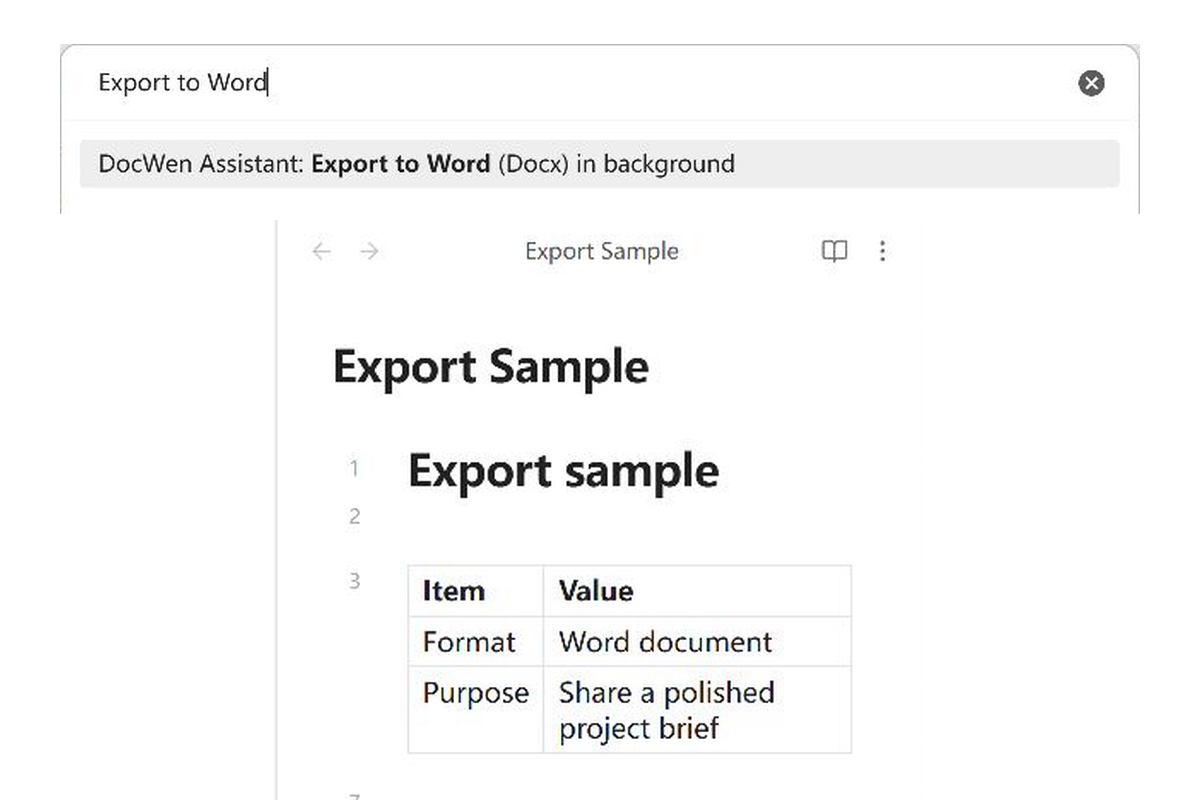
Capability-selected export
Choose an available conversion route and an explicit output location while keeping the source note unchanged.
Features
- Open the active Obsidian file in DocWen or activate the DocWen window.
- Export to Word, Excel, or Markdown with an explicit output location.
- Add or remove Markdown heading numbering.
- Proofread Markdown in an Obsidian sidebar.
- Check the local DocWen connection.
- Use file-explorer context menu actions.
- Use localized UI in 11 languages.
Requirements and compatibility
- Windows or Linux and Obsidian 1.12.7 or later. The plugin is desktop-only.
- On Windows, use a compatible DocWen 0.13.0 or later installation from Microsoft Store or a fully extracted portable package. On Linux, use a compatible fully extracted package and select it manually. Linux result-directory export requires x64 and an atomic no-replace filesystem. The plugin does not download DocWen automatically.
- Background conversion, proofreading, numbering, discovery, and connection checks require
docwen.machine.v2anddocwen.artifact_bundle.v3; incompatible DocWen versions fail validation instead of using a fallback protocol. - Launching/opening the DocWen desktop app uses the public local
gui openCLI control surface, so a Machine negotiation failure does not prevent opening DocWen itself.
If the Windows Store installation does not meet these requirements, use a compatible portable package and select it with Manual installation. Linux always uses Manual installation.
Automatic detection is Windows-only and uses the registered docwen.exe application execution alias, so Microsoft Store updates do not invalidate a saved package path. Manual installation accepts the extracted DocWen folder, DocWen.exe, or DocWenCLI.exe on Windows and the extracted folder, DocWen, or DocWenCLI on Linux. The plugin never scans WindowsApps, recursively searches for executables, exchanges command files, downloads software, or falls back to an older protocol.
Installation
Install DocWen and the plugin
- On Windows, install a compatible DocWen 0.13.0 or later version from Microsoft Store or fully extract the portable Windows package from DocWen Releases. On Linux x64, fully extract a compatible Linux package from the same Releases page.
- Install DocWen Assistant from Obsidian Community Plugins. For manual installation, download
docwen-assistant-x.y.z.zipfrom DocWen Assistant Releases, then copymain.js,manifest.json, andstyles.cssinto<Vault>/.obsidian/plugins/docwen-assistant/. - Reload Community plugins and enable DocWen Assistant.
- On Windows, automatic detection needs no file selection. Portable Windows users and all Linux users should open Settings → DocWen Assistant → General, choose Manual installation, and select the extracted DocWen folder or executable.
Installation safety
The release package contains only main.js, manifest.json, and styles.css; it never contains, replaces, or deletes data.json. Keep data.json and replace only the three runtime files. The fixed manifest.id is docwen-assistant, which fixes the installed-plugin identity and settings-file location. Delete data.json only when you explicitly want to reset all plugin preferences.
Usage
Use the ribbon icon, file-explorer DocWen submenu, or Command Palette:
- Launch DocWen / Launch DocWen with current file
- Export to Word (Docx) in background
- Export to Excel (XLSX) in background
- Export to Markdown (MD) in background
- Add numbering to Markdown headings
- Remove numbering from Markdown headings
- Proofread current Markdown file
- Check DocWen connection
Choose an output folder. Each conversion creates its own result folder, preserving the generated filenames and linked resources. Names include the source name, timestamp and input format. Existing result folders are never overwritten.
Word export produces an independent DOCX inside its result folder. Keep the original Markdown yourself. Reverse conversion reads DOCX content and structures without an original-source companion. Optional Markdown extensions are selected in DocWen settings; identical spelling and whitespace are not guaranteed.
Word export interprets the public Number Suite caption/reference dialect directly from the Markdown source. Installing Number Suite is optional and does not change export semantics; heading/caption numbering for this export is controlled by the explicit Word-export numbering settings.
Settings
- Obsidian 1.12.7 or later uses four horizontally scrollable top tabs: General, Export to Markdown, Export to Word, and Proofreading. Contextual help appears on the relevant tab instead of a separate Usage page.
- Plugin language defaults to Follow Obsidian and can be overridden with any of DocWen Assistant's 11 languages. Resource discovery receives the same resolved locale.
- Connection method defaults to Detect automatically for Windows Microsoft Store installs. Linux users must choose Manual installation; the same manual picker also supports portable Windows packages. The status row checks the product identity, minimum supported version, Machine protocol, Bundle contract, and health without exposing package paths; protocol conflicts show the Assistant request and DocWen-supported versions separately.
- Tabs support arrow keys (including RTL direction), Home/End, visible keyboard focus, 20 px UI text, and coarse-pointer targets. Runtime numbering schemes are queried only when their tab is rendered.
Limitations
- DocWen Assistant supports Windows and Linux desktop hosts and requires a compatible local DocWen installation. Linux result-directory export requires x64; unsupported filesystems fail closed rather than falling back to check-then-rename.
- Windows automatic mode uses only the fixed registered
docwen.exealias. Manual mode accepts the selected DocWen folder/DocWen.exe/DocWenCLI.exeon Windows and folder/DocWen/DocWenCLIon Linux; neither mode searches arbitrary folders. - Background export requires an explicit output folder, and proofreading does not rewrite the source note.
- A command is rejected when the CLI response, source snapshot, editor state, or target cannot be verified safely.
Privacy and security
The plugin takes a snapshot of the current Obsidian editor buffer (including unsaved text) or Vault file and gives DocWen only isolated temporary inputs. It intentionally accesses files outside the Vault only to start the registered DocWen execution alias or the manually selected portable executable, manage isolated temporary inputs and validated artifacts, and write to an output path explicitly chosen by the user; this access is required for local conversion and export. It never opens or stores the versioned Microsoft Store package path. For Markdown-to-DOCX, Obsidian resolves image embeds explicitly present in that note, including cross-folder short Wiki links and filenames with spaces; the plugin authenticates those bytes and supplies them as declared linked-resource inputs beside the isolated Markdown source. It never scans the Vault for matching filenames. Conversion publishes the complete validated result folder inside the selected directory. It preserves the producer's relative paths and identifies the main output separately from its linked resources. Proofreading is read-only. Numbering is produced in an isolated output, then committed once through the current Obsidian editor or Vault API only if the source snapshot still matches. The plugin does not upload documents or enumerate the Vault for DocWen operations.
Content operations use JSON-RPC 2.0 Machine Protocol with canonical Content-Length framing. Every task uses integrity-pinned input handles and a request-owned staging directory; every returned Artifact Bundle is graph-, path-, size-, and SHA-256-validated before the plugin commits outputs atomically. Launch/open is intentionally separate: the plugin runs the fixed local gui open --json control command and validates its bounded CLI protocol-3 success envelope without negotiating Machine first. Both process paths use fixed launch targets, bounded environments, timeouts, output limits, and cleanup.
See Machine integration contract for the exact methods, capabilities, and Bundle rules.
Development
Use Node.js 24.19.0 and npm 11.17.0.
npm ci
npm run check
npm run release
Runtime source is under src/; the DocWen boundary is under src/docwen/; tests are under tests/. Generated dist/ and release/ files are not source.
Stable documents: Product requirements · UX specification · Architecture · Testing strategy
Repository governance: Changelog · Contributing · Security
Support
- Q&A: Usage and configuration questions.
- Ideas: Early feature and workflow ideas.
- Show and tell: Tips, workflows, and reference implementations.
- Use the structured DocWen Assistant issue forms for reproducible Obsidian integration bugs and concrete feature requests.
- DocWen core issues: conversion, OCR, proofreading, or CLI behavior outside Obsidian.
- Report vulnerabilities privately through the repository's security policy.
Remove private document content, file and Vault paths, CLI logs, executable locations, and credentials before posting publicly.
License
MIT © ZhengYX