
README file from
GithubDocShelf
Browse Markdown and HTML documents across your projects.


https://github.com/user-attachments/assets/c36997fb-03c5-4080-876f-6658b897e660
This showreel was made in one shot with Claude Opus 5.5.
Key features
- A shelf across projects. Add files or folders where they live, and view their Markdown and HTML in Obsidian or in the browser. Folders are discovered recursively and update automatically.
- Links to exact passages. Select Markdown source lines and copy a link to that document and line range. Links start with
obsidian://docshelffor Obsidian orhttps://shelf.localhost/for the web app after local setup.
Why DocShelf?
Project notes, design documents, and agent-generated reports belong beside the work they describe. But as they spread across repositories, finding and reading them becomes a chore. DocShelf brings the documents you choose into one shelf, while also providing a way to select the lines, similar to GitHub permalink, to easily discuss the exact content with the agent.
Choose your app
Use either app independently, or point both at the same shelf.
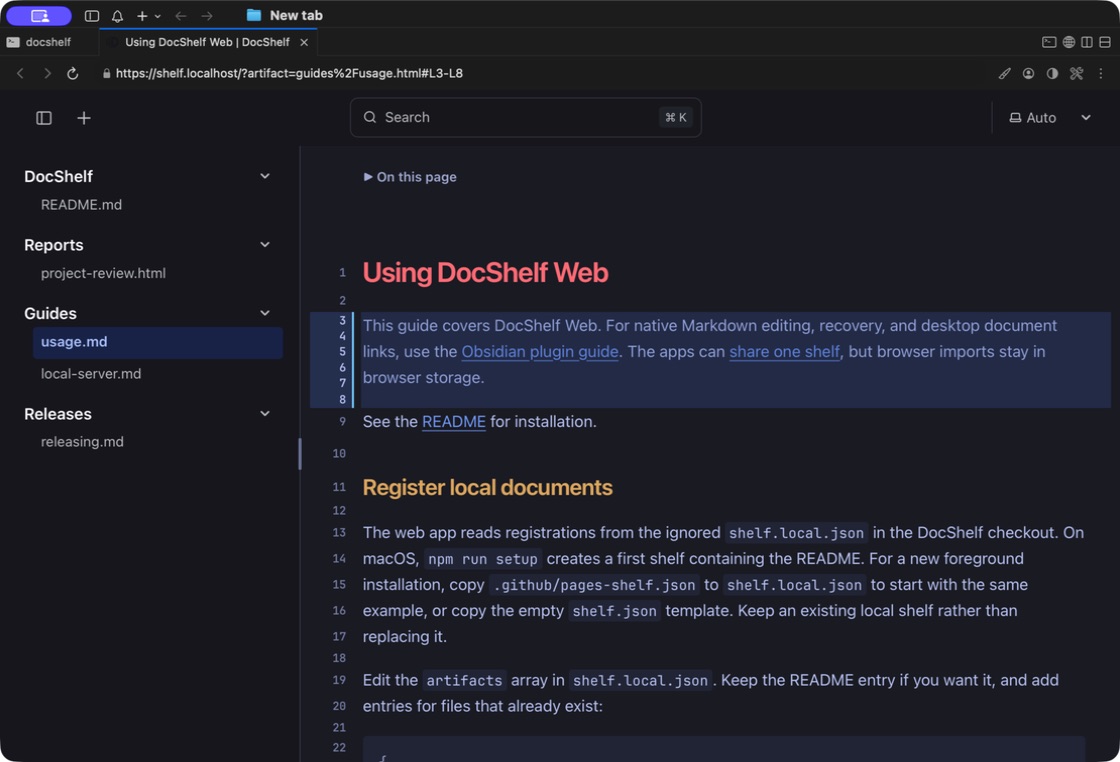
DocShelf Web
Read Markdown, search across your local documents, and link to exact source lines. Runs as a local web app, without opening Obsidian. The web app never edits your originals.
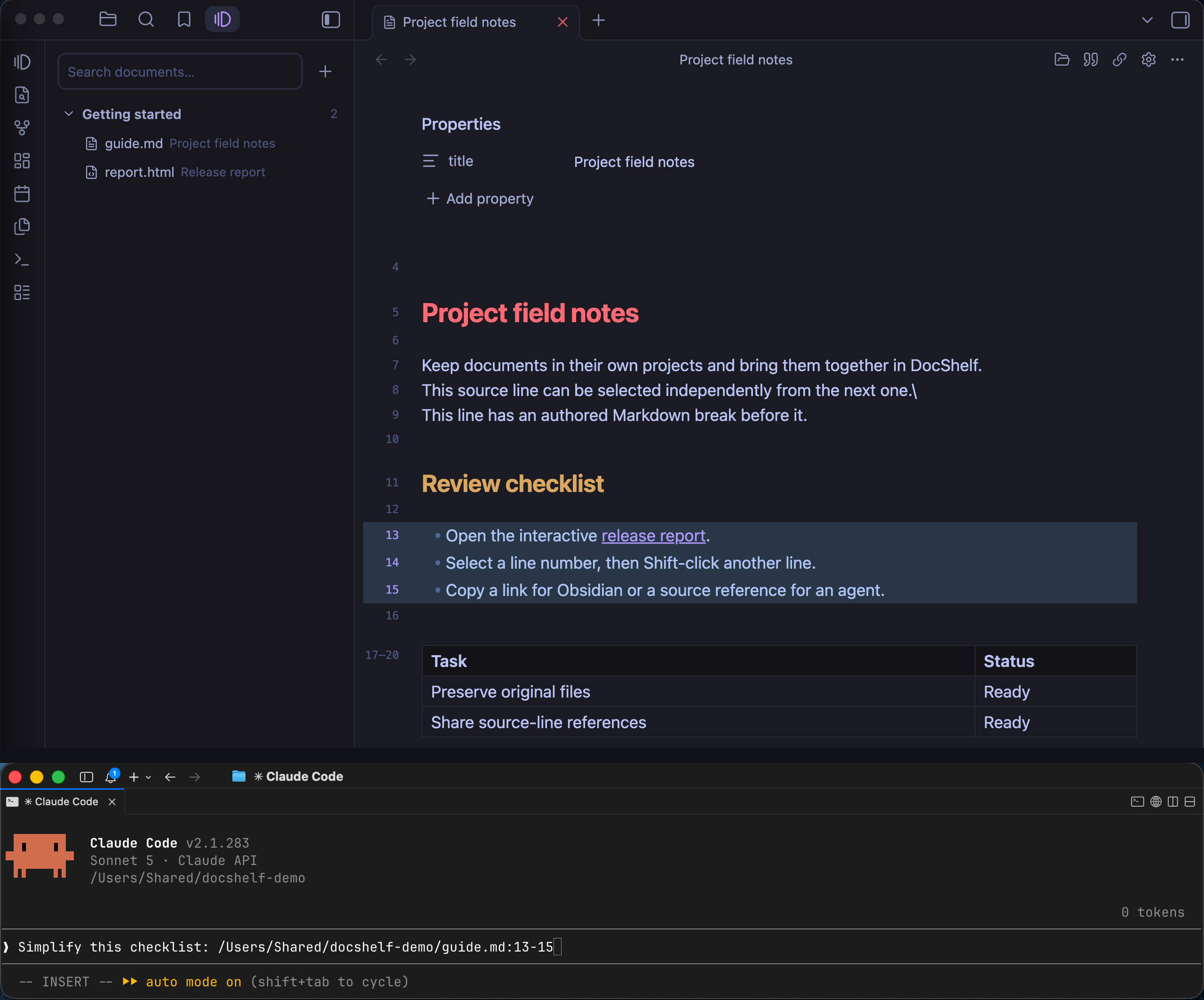
DocShelf for Obsidian
Bring project documents into Obsidian without copying them into your vault. Edit local Markdown in the native editor, with changes saved to the original file, with conflict checks and recovery.
Browse HTML in either app
Open HTML reports alongside your Markdown notes. Reports keep their own layout, styling, and interactive elements; both apps display them without editing the source file.
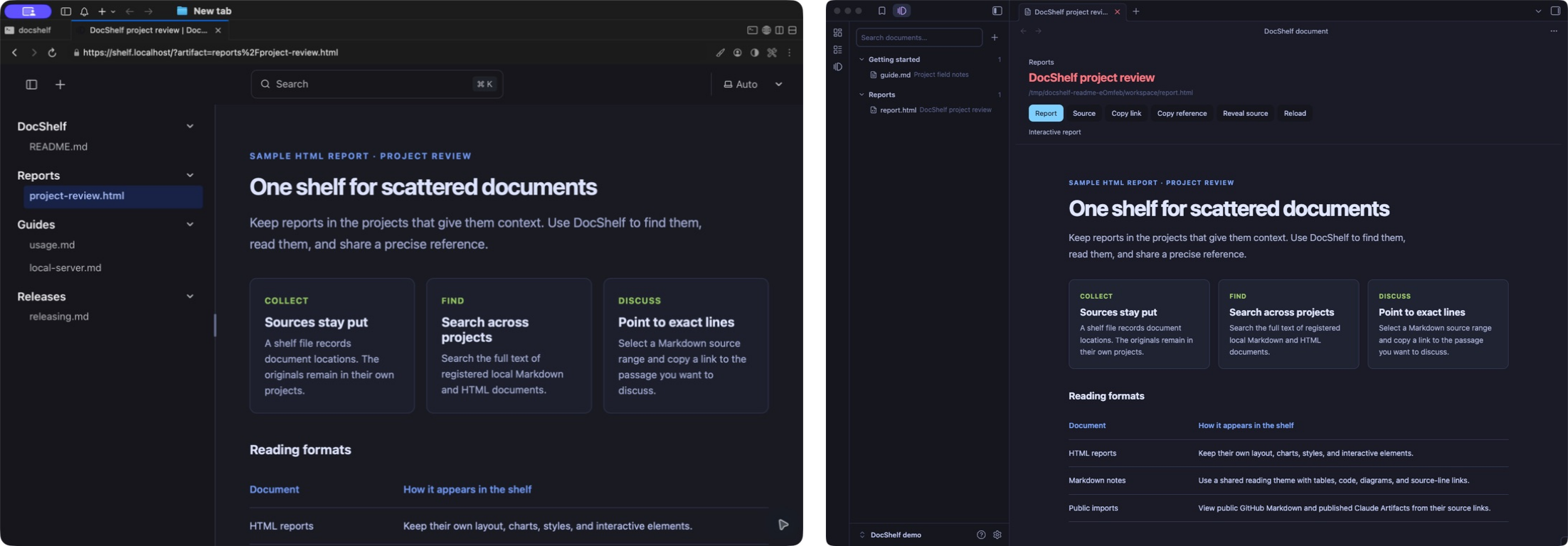
Web screenshot · Obsidian screenshot


Get started
Packaged Obsidian builds install without Git, Node.js, or the web app; see Install the Obsidian plugin. To build from source or run the web app, install Git and Node.js 24 or newer and clone DocShelf beside the projects you want to catalog:
mkdir -p ~/workspace
cd ~/workspace
git clone https://github.com/oliver-im/docshelf.git
cd docshelf
npm ci
Then follow the setup for your app.
Set up the web app
On macOS:
npm run setup
Open https://shelf.localhost/ when setup finishes. Your first shelf includes this README. Choose a document in the sidebar or use search to find a passage. DocShelf starts automatically when you log in; setup asks before administrator access or certificate trust changes.
For a foreground server on other platforms or without automatic startup, use npm run watch. See the web app setup guide for the address, first-shelf setup, and troubleshooting. The web app requires a filesystem with symbolic-link support; Windows is not yet verified.
Install the Obsidian plugin
Requires desktop Obsidian 1.13.7 or later. Open the community listing for the installation link and current review scorecard. Runtime verification of this desktop beta covers macOS with Obsidian 1.13.7; Windows, Linux, and Obsidian 1.14.2 are not yet verified.
Download DocShelf for Obsidian ZIP · Release notes
For manual installation, extract the ZIP and copy its docshelf folder into <vault>/.obsidian/plugins/. Enable DocShelf in Community plugins.
To produce that ZIP from this checkout:
npm run package:obsidian
The ZIP is written to packages/obsidian/dist/release/docshelf-X.Y.Z.zip, using the plugin version. You can also install the folder at packages/obsidian/dist/docshelf/ directly. When updating, disable DocShelf and copy the new files into the existing plugin folder, preserving data.json and recovery/.
Open DocShelf: Open shelf from the command palette and use Add… to choose a project, then files, folders, or a mixture. Right-clicking a project or document uses that project directly. On macOS, click Add in the picker to register the selection immediately. To use an existing shelf, choose it in DocShelf: Configure shelf. See adding files and folders for recursive discovery and the shared shelf format.
DocShelf reads explicitly registered files outside the vault so documents can remain in their project folders. Local Markdown edits save to the originals; settings and private recovery copies stay in the plugin directory. Interactive HTML runs through an isolated viewer and a token-protected loopback server. Reports and Markdown images may load HTTPS resources; GitHub Markdown uses raw.githubusercontent.com, and published Claude Artifacts use claude.ai and resources loaded by that page. There is no telemetry or account requirement. See file access and network disclosure.
Add documents with your agent
Install the very lightweight docshelf skill to add the documents to DocShelf easily:
npx skills add oliver-im/docshelf --skill docshelf -g
After creating a report or note, ask your agent:
Add this report to DocShelf.
The skill registers the original file, preserves existing shelf entries, checks the result, and returns links for your configured apps. It can also return a source-line reference for a specific passage.
When an agent later edits a document for you, it can mark the document unread in both apps. A Claude Code hook does this after every edit Claude makes, and other agents can run the same command. See agent edits and the event log.
To register documents manually, follow the web app registration guide or Obsidian registration guide.
Guides
- DocShelf Web: navigation, line links, and remote imports
- Using both apps with one shelf
- Development and verification
- Contributing
- Releasing DocShelf
- Security and file access
License
MIT. Themes adapt Tokyo Night for Obsidian; the optional HTML theme also includes matcha.css. See the third-party notices.