
README file from
GithubDired
Navigate and manage vault files from a keyboard-driven text buffer, inspired by the Dired mode from Emacs.
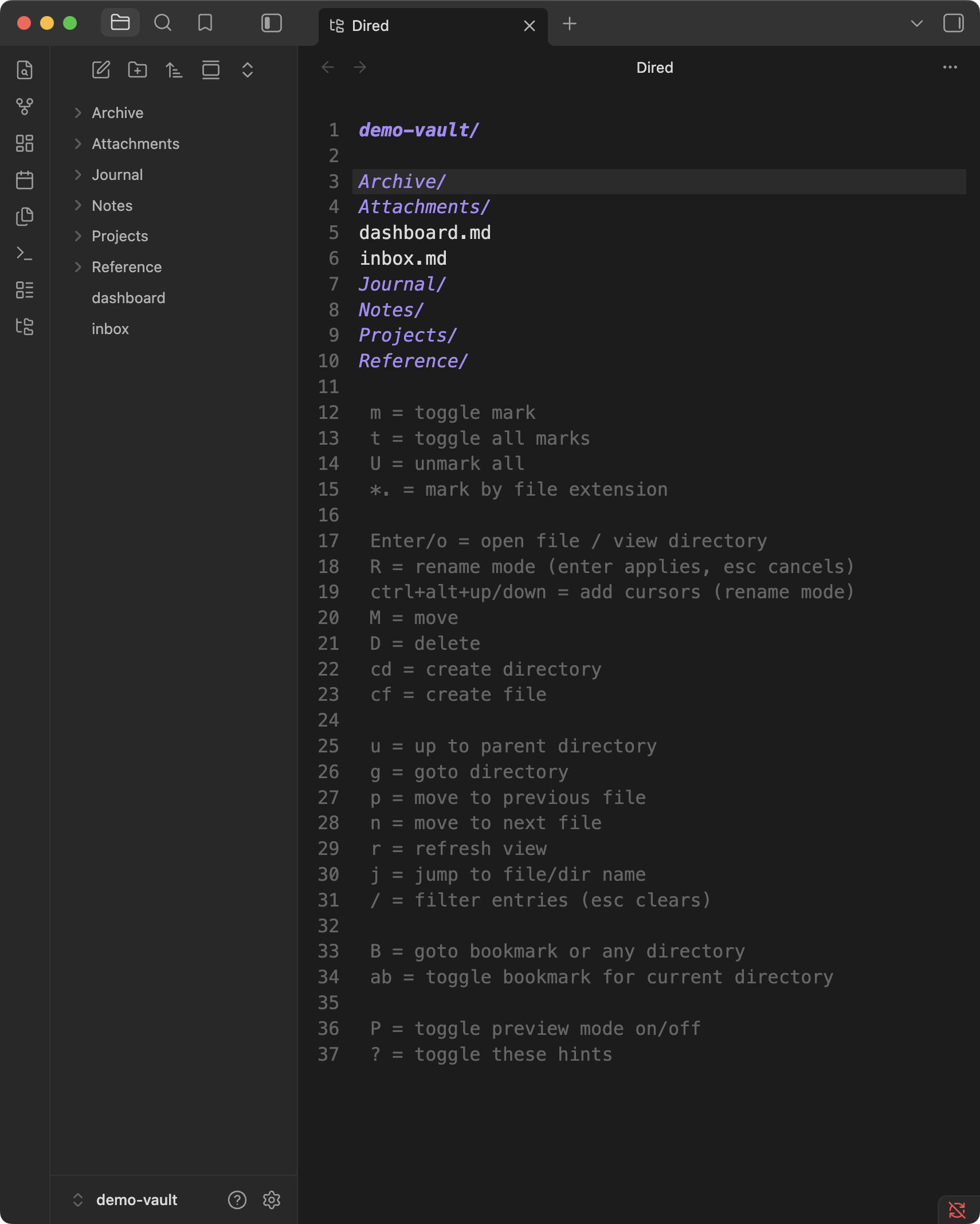
The directory listing is a real CodeMirror buffer: the first line is the current path, folders end with /, and every operation is a single key (or two-key chord) away.
Features
- Text-buffer file manager — navigate with the cursor, no mouse required
- Marks — mark multiple files, then move or delete them in one batch
- Rename mode (wdired-style) — press
R, edit names directly in the buffer, pressEnterto apply.Ctrl+Alt+↑/↓stacks cursors on adjacent lines to edit many names at once. Renames and moves go through Obsidian'sFileManager, so wiki links and embeds are updated automatically - Safe deletes — deletions use Obsidian's native per-file confirmation (respecting your "Confirm file deletion" and "Deleted files" preferences), including the prompt to delete linked attachments
- Bookmarks — bookmark folders and fuzzy-jump to them from anywhere
- Preview mode — automatically open the file at the cursor in a split as you move
- Inline key hints — the bottom of the buffer lists every binding; toggle with
? - Auto-refresh — the listing stays in sync as the vault changes
Key bindings
| Key | Action |
|---|---|
m |
Toggle mark (and advance) |
t |
Toggle all marks |
U |
Unmark all |
*. |
Mark by file extension |
Enter / o |
Open file / view directory |
R |
Rename mode — edit names in the buffer, Enter applies, Esc cancels |
Ctrl+Alt+↑/↓ |
Add cursors above/below for column editing (rename mode only) |
M |
Move marked files (or file at cursor) |
D |
Delete marked files (or file at cursor) to trash |
cd |
Create directory |
cf |
Create file |
u |
Up to parent directory |
g |
Go to directory |
B |
Go to bookmark or any directory |
ab |
Toggle bookmark for current directory |
p / n |
Move to previous / next file |
j |
Jump to file/dir name |
r |
Refresh view |
P |
Toggle preview mode on/off |
? |
Toggle key hints |
Multi-file operations (M, D) apply to marked files, or to the file at the cursor when nothing is marked. In rename mode you can also type a relative path (for example sub/note.md) to move a file into an existing subfolder.
Usage
- Command palette: Dired: Open (starts in the active file's folder) or Dired: Open vault root
- Ribbon: the folder-tree icon
- File explorer: right-click a folder → Open in dired
Customization
The view inherits your theme's monospace font and editor font size. Everything else — fonts, colors, line numbers, spacing — can be overridden with a CSS snippet: see THEME.md for a selector reference, recipes, and a visual showcase snippet.
Notes and limitations
- Vault-scoped: the listing shows what Obsidian indexes, so hidden folders such as
.obsidiando not appear - Marks live per view and are pruned automatically when files disappear
- The buffer is read-only outside rename mode; arrow keys,
Home/End, and selection all work as in a normal editor
Installation
Install from community.obsidian.md
From Obsidian's settings or preferences:
- Community Plugins > Browse
- Search for "Dired"
Manually:
- download the latest release archive
- uncompress the downloaded archive
- move the
diredfolder to/path/to/vault/.obsidian/plugins/ - Settings > Community plugins > reload Installed plugins
- enable plugin
or:
- download
main.js,manifest.json&styles.cssfrom the latest release - create a new folder
/path/to/vault/.obsidian/plugins/dired - move all 3 files to
/path/to/vault/.obsidian/plugins/dired - Settings > Community plugins > reload Installed plugins
- enable plugin
Development
npm install
npm run dev     # esbuild watch
npm run build   # type-check + production build
npm run lint    # eslint (eslint-plugin-obsidianmd)