
README file from
GithubDeer Notes
Keep the passage. Write what it means to you.
Deer Notes brings quick capture, a readable Markdown library, and source-linked excerpts into one Obsidian dashboard. Use it when you want to move from collecting passages to writing your own explanations, connections, and next steps. Your notes remain ordinary Markdown files in your vault.
Current release: 0.3.9. HTML files now open in an isolated interactive preview that supports embedded styles and scripts; switch to text reading to select an excerpt. Note cards use a compact layout for Markdown, HTML, and image files. The dashboard also includes nested folders, Markdown editing, quick capture, reflection prompts, and hide-and-explain. GitHub release availability and Obsidian community review are separate; check the community listing for review status.
Download 0.3.9 · Report an issue
A simple reading-to-understanding workflow
1. Find something worth returning to
Browse existing Markdown files in All notes, or expand a folder and choose a nested folder to see Markdown, HTML, and image files together. Click a folder name to browse its contents, or its arrow to expand or collapse children. Search titles, paths, tags, or document text. Search within a folder stays in that folder. Hidden folders and dot paths are excluded from the displayed lists.
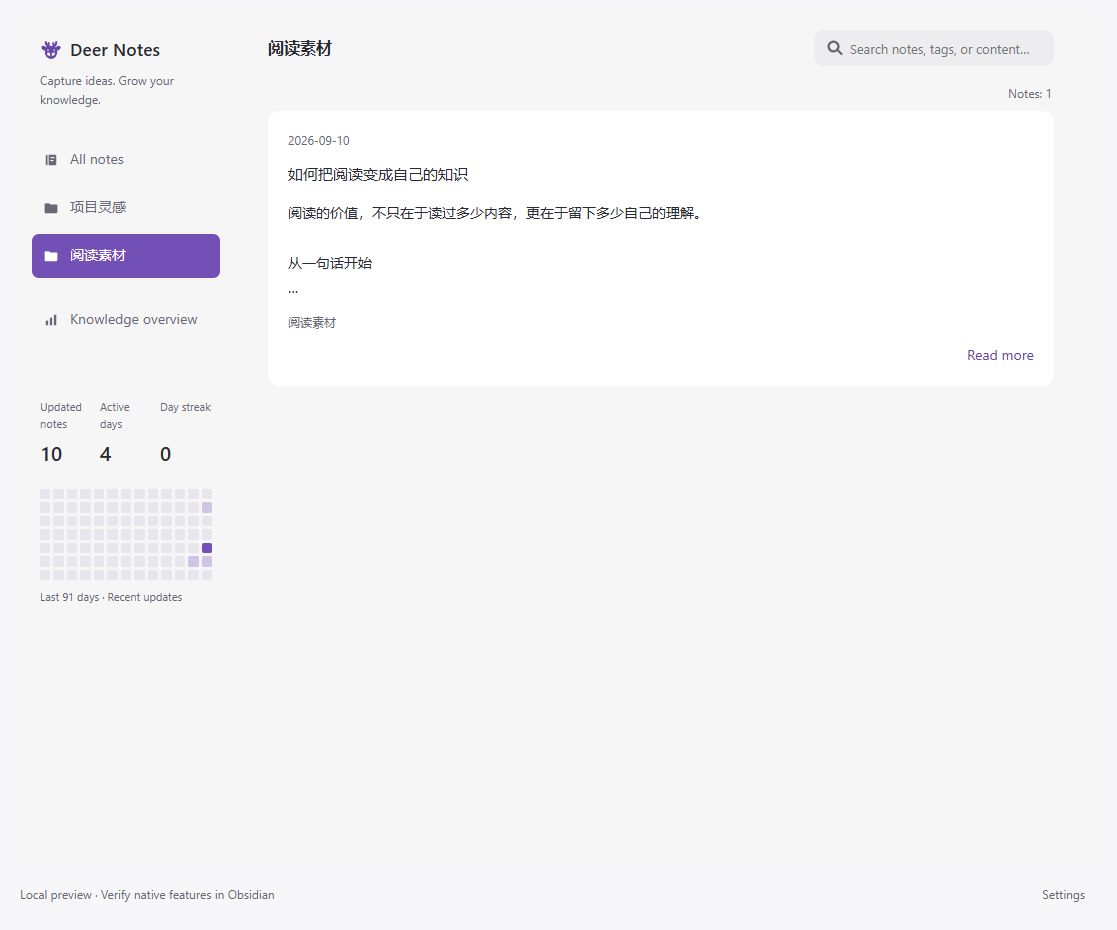
2. Read and keep the source
Open a Markdown card to read. Select a passage and choose Take a note. The excerpt keeps its source link; the original document is not edited. You can also choose Edit source to change the Markdown directly or Open in Obsidian to use native tools. HTML files have a safe reading preview and source editor; image files open in a large preview.
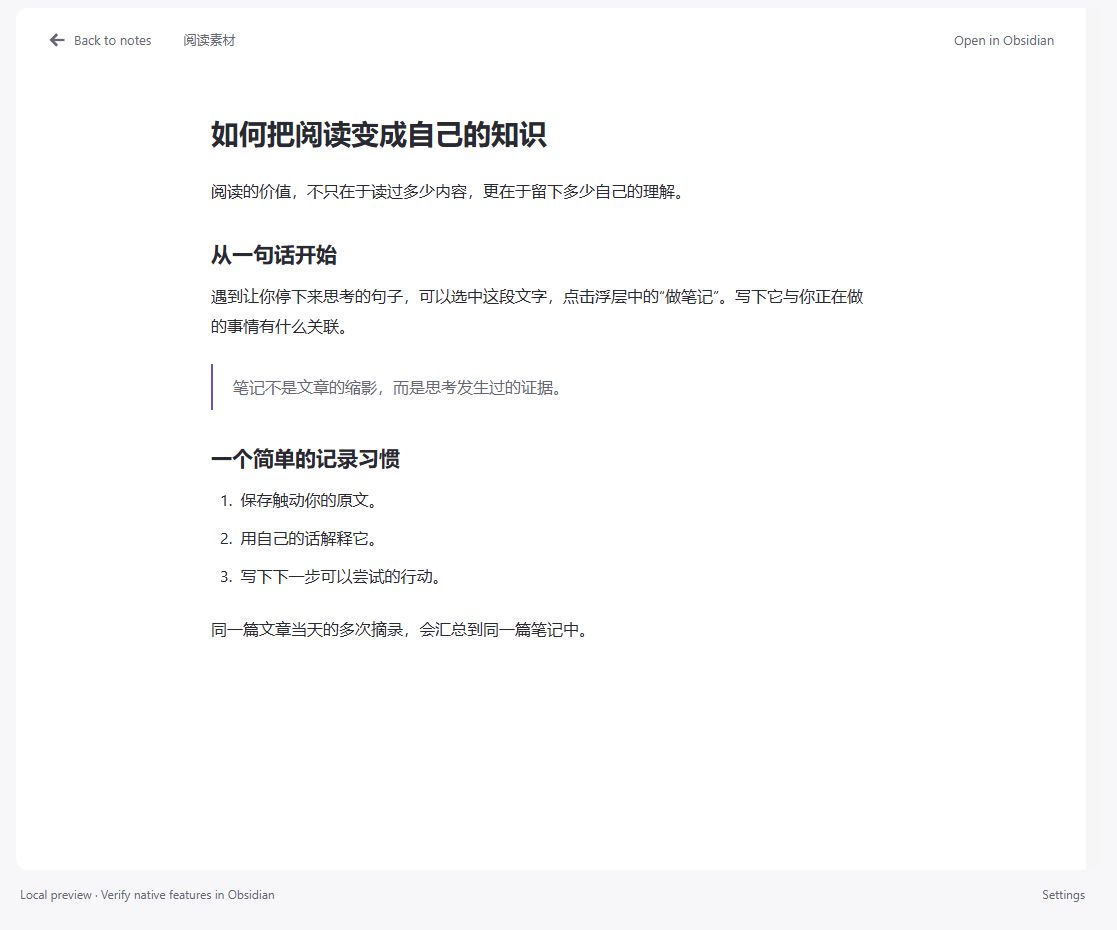
3. Add your own thinking
Write freely, or choose My understanding, Connections, or Try it out. Each prompt inserts a small Markdown heading and asks a concrete question. Reusing a prompt returns to that section without duplicating its heading, including across Chinese and English interface changes.
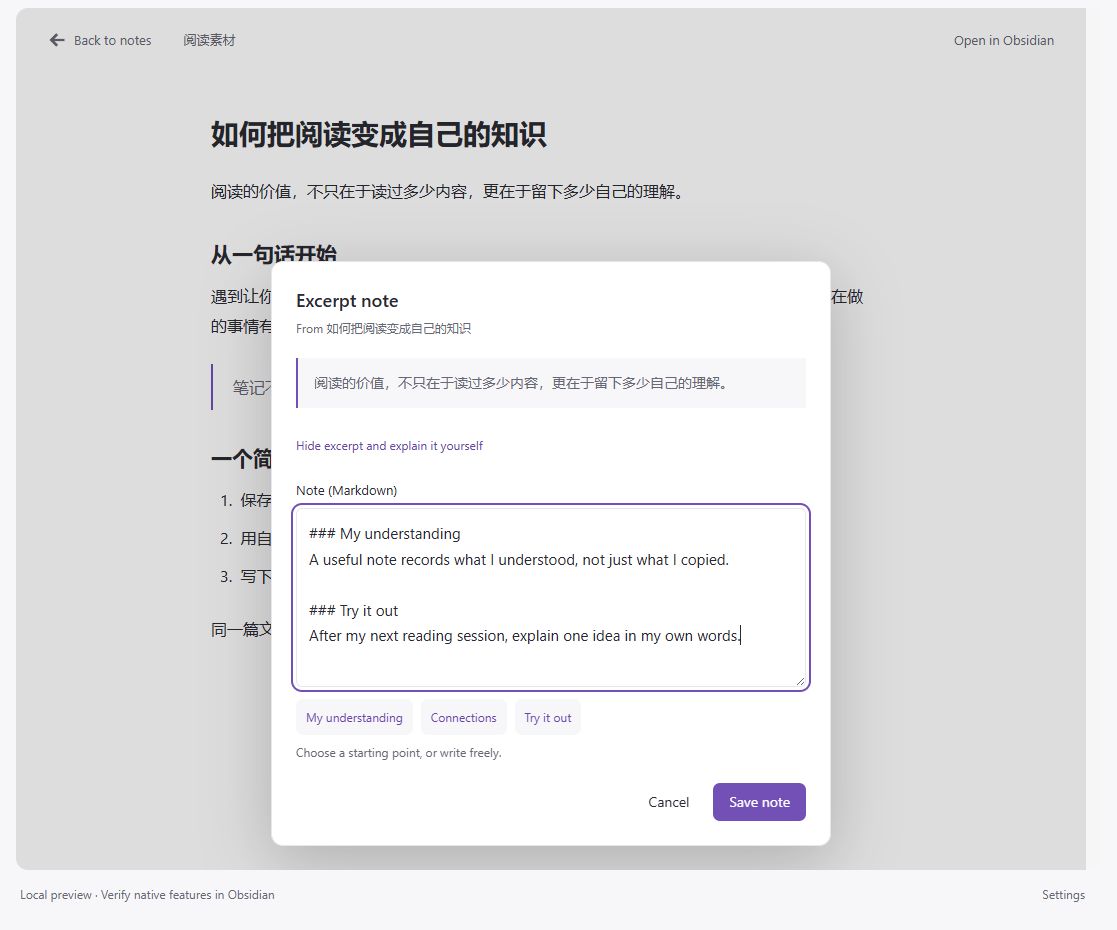
4. Explain first, then check
Choose Hide excerpt and explain it yourself to hide both the excerpt and the background article. Write what you remember, then show the source to check your interpretation. Save with Save note or Ctrl/Cmd+Enter. Failed saves retain the open draft for retry.
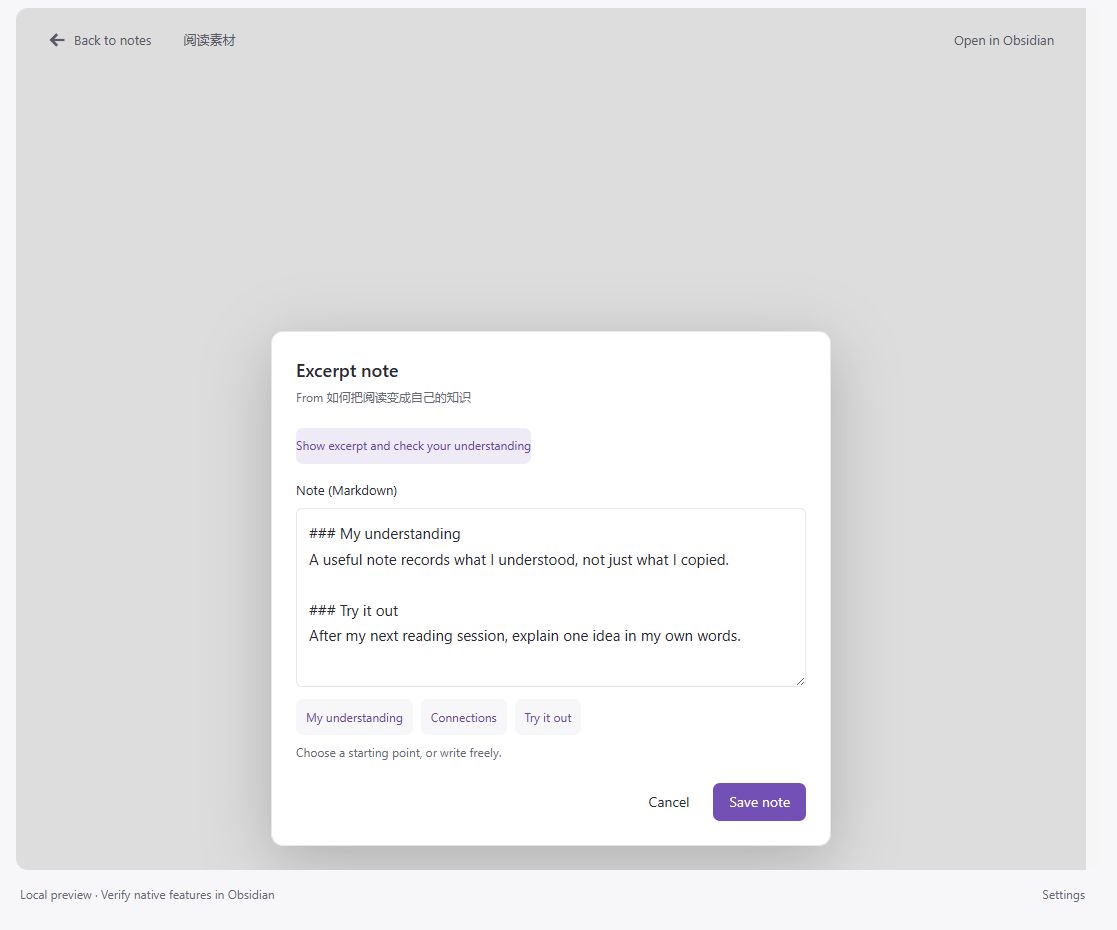
Screenshots use the shared browser preview with demonstration content and English controls. Folder names and note content retain their original language. Native Obsidian themes may look different. The example explanation was written for these screenshots; the plugin does not generate it.
Other everyday tools
- Quick capture: Markdown formatting, tags, and image attachments in All notes.
- Folder files: browse Markdown, HTML, and local images in one place. HTML previews omit scripts and external resources; image files are read-only.
- Knowledge overview: 7/30/90-day growth estimates, folder distribution, and recent documents.
- Visible activity: a 13-week heatmap of recent file modifications. It counts updates, not study sessions or mastery.
- Chinese and English: change Interface language in Settings → Deer Notes. Your notes and folder names stay unchanged.
Install and try it
For manual installation, download main.js, manifest.json, and styles.css from the same release. Copy them into your vault's .obsidian/plugins/deer-notes/ folder and reload Obsidian, then enable Deer Notes in Community plugins. The source-code ZIP is not the installable plugin package.
Open the ribbon icon or run Open Deer Notes from the command palette. The default language is Simplified Chinese; choose Settings → Deer Notes → 界面语言 → English if needed.
For your first session: open a Markdown article → select one useful sentence → Take a note → explain it in your own words → save. Excerpts from the same source on the same day are grouped in one note.
Your files stay yours
New notes default to 小鹿笔记, with images in its 附件 subfolder. Changing the configured folder affects future saves; it does not move existing files. Notes remain readable and editable after disabling the plugin.
The plugin makes no network requests and includes no telemetry. It indexes supported vault file paths and timestamps and reads document content as needed for search, reading, and previews. Hiding a folder is a display preference, not an access restriction. Screenshot images in this README are hosted on GitHub; they are not fetched by the plugin.
Scope and compatibility
Requires Obsidian 1.7.2+. Desktop is the primary testing target; mobile and individual themes require further verification. This is a writing aid, not an AI summarizer, spaced-repetition scheduler, or measure of understanding. Closing an unsaved draft or restarting does not provide persistent draft recovery.
Growth charts use creation dates of existing files; imports, copies, and deletions affect their interpretation.
Development and validation · License
中文介绍:留下原文,也留下自己的理解
小鹿笔记把快速记录、已有知识库浏览、阅读和选文摘录放在同一个界面。适合希望从“收藏一句话”进一步走到“解释它、联系经验、试着应用”的用户。
当前正式发布版本为 0.3.9,市场审核状态请以社区页面为准。 HTML 文件默认使用隔离的交互预览,可显示内嵌样式并运行内嵌脚本;点击“阅读文本”可选中文字做摘录。列表中的 Markdown、HTML 和图片文件采用紧凑卡片;图片显示小缩略图。左侧目录可展开多级子目录,Markdown、HTML 可在阅读页编辑原文。
- 在“全部笔记”中找到已有 Markdown,或在目录中查看 Markdown、HTML 和图片;搜索支持标题、路径、标签及文档正文。
- 打开文章、选中文字,点击“做笔记”;原文与自己的笔记分开保存,并保留来源。
- 自由记录,或选择“我的理解/已有联系/尝试应用”,从一个具体问题开始。
- 隐藏原文后试着复述,再显示原文核对;支持 Ctrl/⌘+Enter 保存,失败后保留当前草稿重试。
笔记仍是知识库中的普通 Markdown 文件,不修改原始文章、不上传内容、不自动生成你的理解。默认中文,可在设置中切换 English。移动端与真实主题仍待验收。