
README file from
GithubDayline
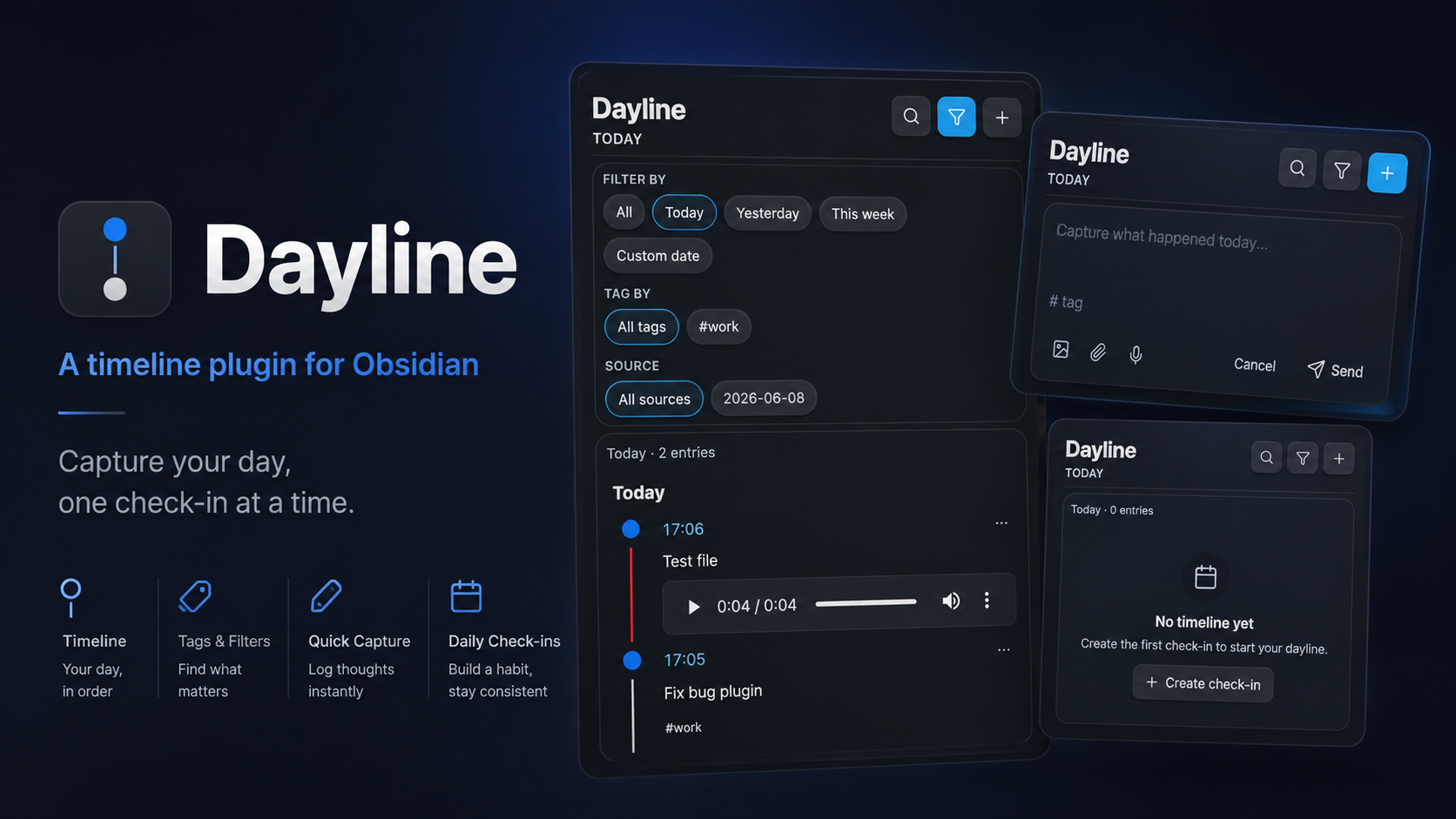
Dayline is an Obsidian plugin for capturing short daily check-ins in a right sidebar timeline. It stores data locally in your vault as markdown-first timeline files, with attachment files saved separately in the vault.
What it does
- Opens a dedicated right sidebar timeline view.
- Creates daily timeline files automatically.
- Saves each entry as a markdown block with hidden JSON metadata.
- Supports text notes, images, files, and audio recordings.
- Lets you search and filter by text, tag, time range, and date preset.
- Supports opening the source entry, editing, duplicating, and deleting entries.
- Creates linked check-ins from the active note, editor selection, or file menu.
- Embeds filtered Dayline timelines in notes with a
daylineMarkdown code block. - Maintains optional day-file properties for Obsidian Properties, Bases, and Daily notes workflows.
Storage model
The plugin is local-first and markdown-first:
- Daily timeline files are stored under
Timeline/YYYY/MM/YYYY-MM-DD.mdby default. - Attachments are stored under
Timeline Attachments/YYYY/MM/. - File-level metadata is stored in frontmatter.
- Entry-level metadata is stored in an HTML comment block inside each entry.
Example entry format:
## 08:15 ^tl-20260520-081500-a3f9

<!-- timeline-entry
{
  "schemaVersion": 1,
  "id": "tl-20260520-081500-a3f9",
  "type": "checkin",
  "date": "2026-05-20",
  "time": "08:15",
  "createdAt": "2026-05-20T08:15:00.000Z",
  "updatedAt": "2026-05-20T08:15:00.000Z",
  "tags": ["health", "morning"],
  "source": "manual",
  "sourceContext": {
    "type": "selection",
    "path": "Projects/App redesign.md",
    "linktext": "Projects/App redesign",
    "subpath": "#Meeting notes",
    "display": "App redesign",
    "capturedAt": "2026-05-20T08:15:00.000Z"
  },
  "attachments": []
}
-->

Context: [[Projects/App redesign#Meeting notes|App redesign]]

Slept a bit less than usual, but energy is still decent.
sourceContext is optional. Older entries without it remain valid. When source context exists, Dayline also writes a normal Obsidian wikilink outside the hidden JSON block so Backlinks, Graph view, Page preview, and Obsidian's link handling can see the relationship.
If Write Dayline tags as Obsidian tags is enabled, Dayline also writes entry tags as a native Markdown tag line outside the hidden JSON block:
Dayline tags: #health #morning
Obsidian indexes these tags on the Dayline day file. Dayline still treats the hidden JSON tags array as the source of truth for entry-level filtering.
Privacy and permissions
Dayline is local-first. It does not send note content, filenames, metadata, attachments, audio, or clipboard data over the network.
Vault access:
- Dayline reads and writes daily timeline files inside the configured timeline folder,
Timeline/by default. - Dayline saves attachment files inside the configured attachment folder,
Timeline Attachments/by default. - Dayline keeps an in-memory index of Markdown files inside the configured timeline folder so the timeline view, filters, embedded timelines, and day-file properties can stay current.
- Linked check-ins store the vault path and link text for the note or file the user explicitly links from the active editor, file menu, or timeline action.
Clipboard access:
- When the user pastes into the composer or quick check-in modal, Dayline inspects the paste event for image items and attaches only pasted images to the draft.
- Dayline does not read the system clipboard in the background.
- The metadata reading-view panel includes Copy JSON buttons that write the displayed entry metadata to the clipboard only after the user selects the button.
Linked check-ins
Linked check-ins connect a Dayline entry back to a note or file in your vault. Use them when a check-in belongs to a project note, meeting note, reading note, or any note you want to revisit later.
Ways to create a linked check-in
- Command palette: Dayline: Create linked check-in
- Requires an active Markdown note.
- Creates a blank check-in linked to the active note.
- Command palette: Dayline: Create linked check-in from selection
- Requires an active Markdown editor.
- Uses the selected text as the initial check-in content.
- Links the entry to the active note and nearest heading when available.
- Editor context menu: Add selection to Dayline
- Right-click in the editor.
- If text is selected, it becomes the initial content.
- If no text is selected, the entry is still linked to the note.
- File context menu: Add file to Dayline
- Right-click a Markdown file in the file explorer.
- Opens a check-in linked to that file.
What gets saved
Linked entries save two things:
sourceContextin the hidden entry JSON metadata.- A visible Obsidian wikilink line in the Markdown body.
Example:
Context: [[Projects/App redesign#Meeting notes|App redesign]]

Followed up on the loading-state issue.
sourceContext values:
| Field | Required | Meaning |
|---|---|---|
type |
Yes | note, selection, or file. |
path |
Yes | Vault path of the linked Markdown file. |
linktext |
Yes | Obsidian link text generated for the source file. |
capturedAt |
Yes | ISO timestamp when the context was captured. |
subpath |
No | Heading or block target, such as #Meeting notes. |
display |
No | Label shown in the timeline source chip. |
How to use linked entries
- Select the source chip on a timeline entry to open the linked source.
- Open the entry menu and select Open linked source.
- Use the timeline filter panel and choose Current note under Source to show entries linked to the active note.
source: current in embedded dayline blocks only matches entries whose sourceContext.path is the note containing the block. It does not mean "entries stored in this timeline file."
All linked check-ins stay local to the vault. Dayline does not send note content, filenames, or metadata over the network.
Embedded timelines
Add a fenced dayline code block to any note to render a compact timeline in Reading view:
```dayline
source: current
tag: work
date: this-week
limit: 10
attachments: any
```
All keys are optional. If you omit every key, Dayline shows the latest entries from the current timeline index, up to the default limit.
Query keys
| Key | Required | Allowed values | Default | Notes |
|---|---|---|---|---|
source |
No | current, a vault path, a link text, or a wikilink target |
All sources | current means entries linked to the note containing the code block. |
tag |
No | One tag, with or without # |
All tags | Only one tag is supported in MVP. |
date |
No | all, today, yesterday, this-week, YYYY-MM-DD, YYYY-MM-DD..YYYY-MM-DD |
all |
Date ranges are inclusive. |
limit |
No | Positive integer | 20 |
Values are clamped between 1 and 100. |
attachments |
No | any, none, image, audio, file |
any |
Filters by attachment type. |
Unsupported keys are ignored with a compact warning. The query format is plain key/value text and never executes JavaScript.
Examples
Show recent entries from this week:
```dayline
date: this-week
limit: 10
```
Show work-tagged entries from today:
```dayline
tag: work
date: today
limit: 20
```
Show entries linked to the note containing this block:
```dayline
source: current
date: all
limit: 10
```
Show entries linked to a specific note path:
```dayline
source: Projects/App redesign.md
date: all
limit: 10
```
Show entries linked to a wikilink target:
```dayline
source: [[Projects/App redesign]]
tag: work
limit: 10
```
Show image entries from a date range:
```dayline
date: 2026-06-01..2026-06-07
attachments: image
limit: 30
```
Show text-only entries:
```dayline
attachments: none
limit: 20
```
Common no-result cases
source: currentreturns nothing if the matching entries were not created as linked check-ins.source: currentin a Dayline daily file does not match normal entries in that file unless those entries are linked to that file.tag: workmatches only entries with metadata tagwork; plain text#workin content is not enough unless it was saved as an entry tag.date: this-weekuses the current week at render time.
Day-file properties
Dayline day files are normal Markdown files with frontmatter. Dayline manages a small set of keys so Obsidian Properties and Bases can query daily timeline data.
Required managed keys
These keys are always used by Dayline day files:
typedatetimeline_versionentry_countcreated_atupdated_at
Example:
---
type: timeline-day
date: 2026-06-07
timeline_version: 1
entry_count: 4
created_at: 2026-06-07T08:00:00.000Z
updated_at: 2026-06-07T17:30:00.000Z
---
Optional aggregate keys
When Add Dayline properties is enabled, Dayline also maintains these aggregate keys:
dayline_tagsdayline_sourcesdayline_attachment_countdayline_image_countdayline_audio_countdayline_file_countdayline_last_entry_at
Example:
dayline_tags:
  - "work"
  - "idea"
dayline_sources:
  - "[[Projects/App redesign]]"
dayline_attachment_count: 2
dayline_image_count: 1
dayline_audio_count: 0
dayline_file_count: 1
dayline_last_entry_at: 2026-06-07T17:30:00.000Z
If Daily notes alignment is set to link mode, Dayline writes a configurable Daily note property, defaulting to daily_note.
Example:
daily_note: [[2026-06-07]]
Dayline only updates its managed keys. Custom frontmatter keys are preserved.
Bases examples
Use these properties in an Obsidian Base to inspect Dayline day files:
- Filter by
typeequalstimeline-day. - Sort by
datedescending. - Show
entry_count,dayline_tags,dayline_sources, anddayline_last_entry_at. - Filter
dayline_tagscontainsworkto find active work days.
Install for local development
- Place this plugin folder under your vault at:
<Vault>/.obsidian/plugins/dayline/ - Install dependencies:
npm install - Build once:
npm run build - Reload Obsidian.
- Enable Dayline in Settings → Community plugins.
Development
npm run dev: watch modenpm run build: production buildnpm run lint: lint the project
Current capabilities
- Right sidebar timeline view
- Quick composer for text entries
- Image, file, and audio attachments
- Search and filters
- Edit, duplicate, delete
- Source jumping to block IDs
- Linked source chips and current-note filtering
- Embedded
daylinequery blocks - Bases-friendly day-file properties
- Broken metadata warning banner for malformed entries
Settings
| Setting | Required | Default | Meaning |
|---|---|---|---|
Timeline folder |
Yes | Timeline |
Folder for daily Dayline Markdown files. |
Attachment folder |
Yes | Timeline Attachments |
Folder for copied images, audio, and files. |
File organization |
Yes | Year / month |
Controls daily file path layout. |
Default view |
Yes | Today |
Initial date range for the sidebar timeline. |
Time format |
Yes | 24-hour |
Display format for entry times. |
Render content as Markdown |
No | Off | Uses Obsidian Markdown rendering in timeline entries. |
Show linked source preview |
No | Off | Shows a short preview of linked Markdown files in timeline entries. |
Write Dayline tags as Obsidian tags |
No | Off | Writes entry tags as native Markdown tags in Dayline day files. |
Show timeline metadata in reading view |
No | On | Shows hidden entry metadata in Dayline files. |
Metadata reading view mode |
No | Summary |
Controls how metadata is shown in Reading view. |
Add Dayline properties |
No | On | Maintains optional dayline_* aggregate properties. |
Daily notes alignment |
No | Off | Adds a Daily note link property when set to link mode. |
Daily note property |
No | daily_note |
Property name used for the Daily note link. |
Notes
- The plugin does not automatically delete attachment files when an entry is deleted.
- Mobile support has not been fully verified yet.
- If a timeline entry contains invalid metadata JSON, the plugin skips it and shows a warning banner instead of crashing.