
README file from
GithubDaybook
Plan your year, write your day, review your trips: tasks, goals and a diary in one calendar.
Features
- A calendar and four zoom levels. A calendar in the right sidebar opens any day, week, month or year. Each has its own page, and you can step forward and back with ‹ Today ›.
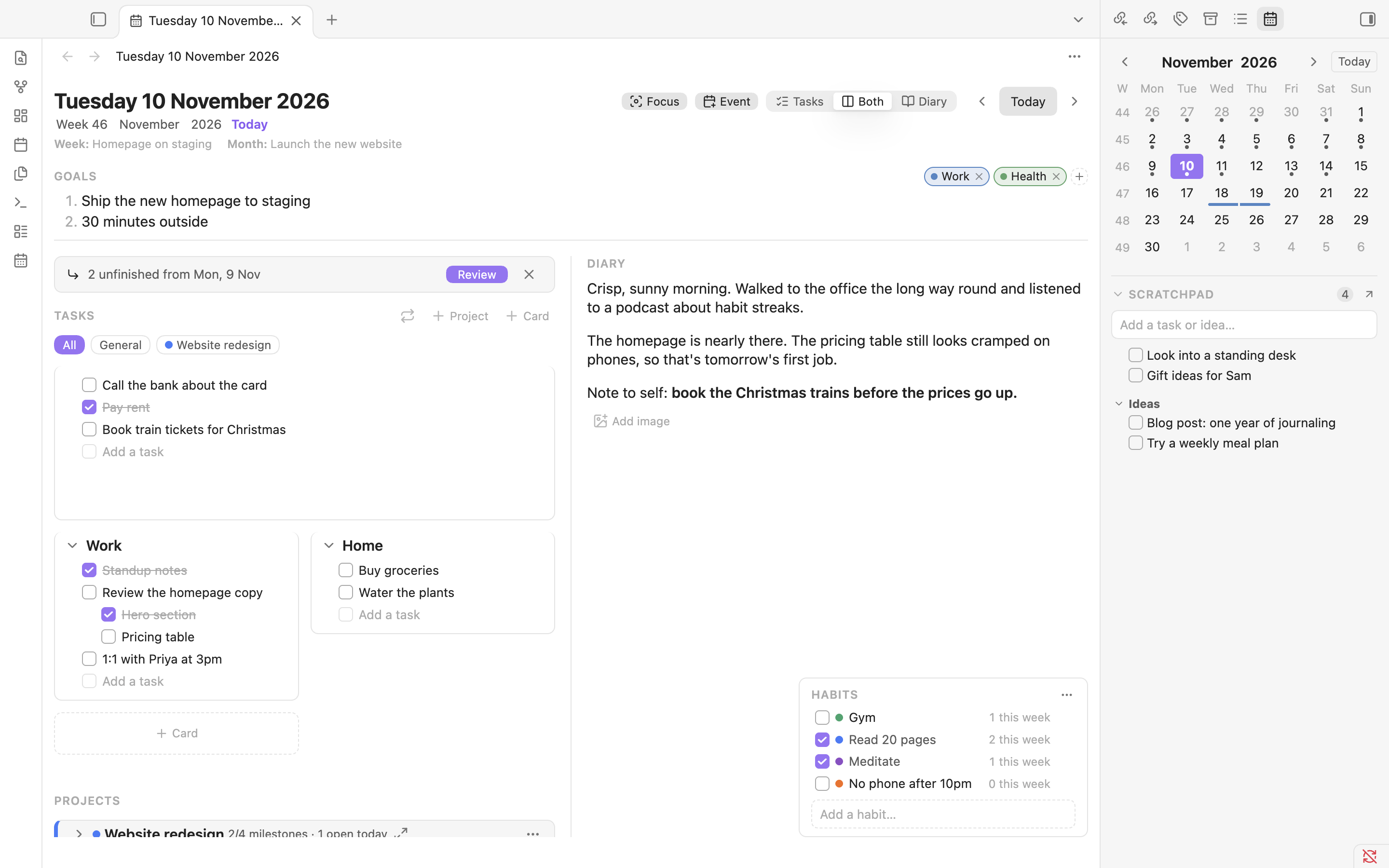
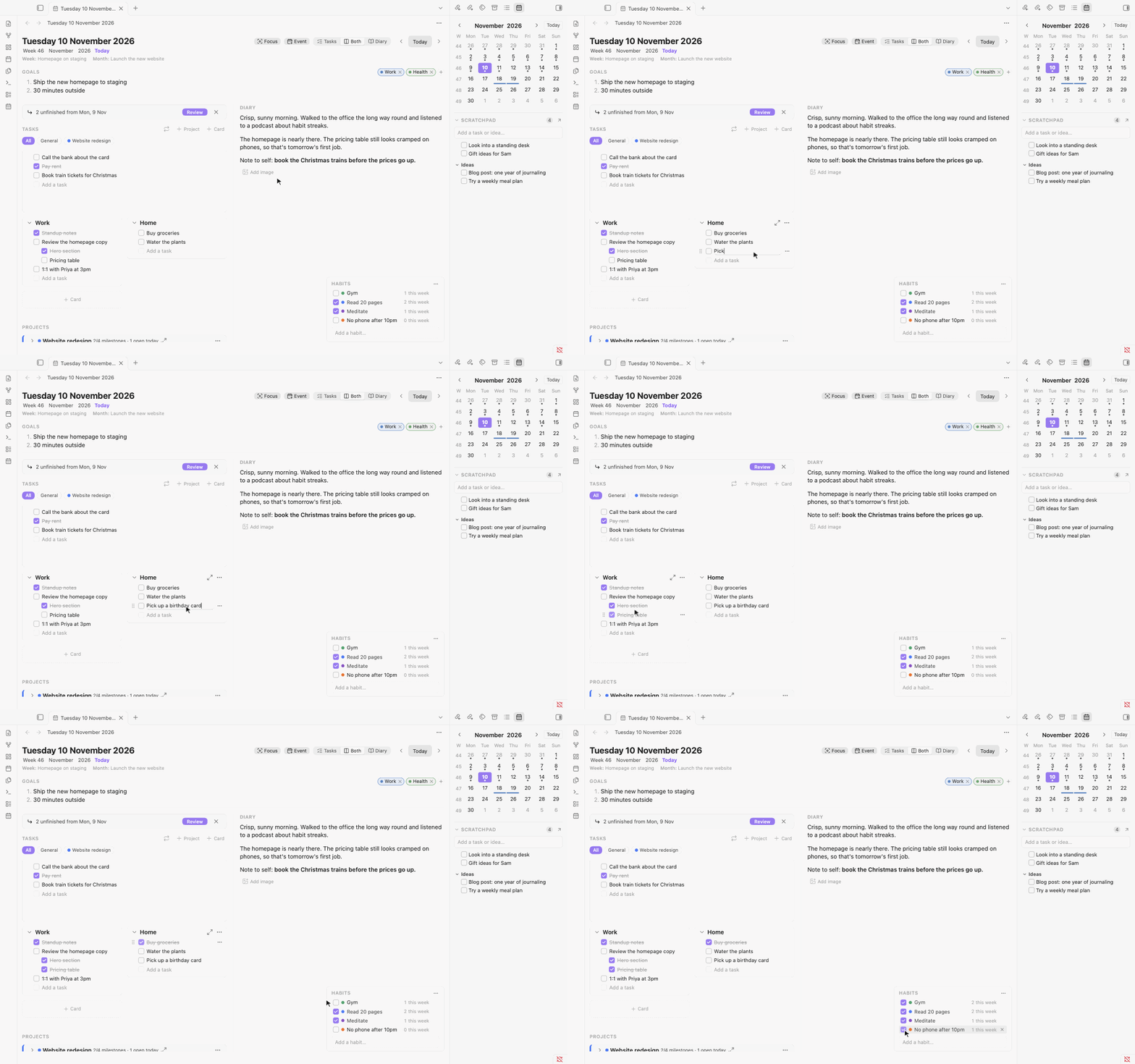
- A day page for tasks, goals, tags and a diary. Goals at the top, task cards on the left, the diary on the right, and a Notes box under the tasks for quick notes about the day. Switch between Tasks, Both and Diary, and paste or drop images into the diary.
- Task cards. Group tasks into cards like "Work" or "Home", nest them with Tab, drag them between cards, and expand one card to fill the page.
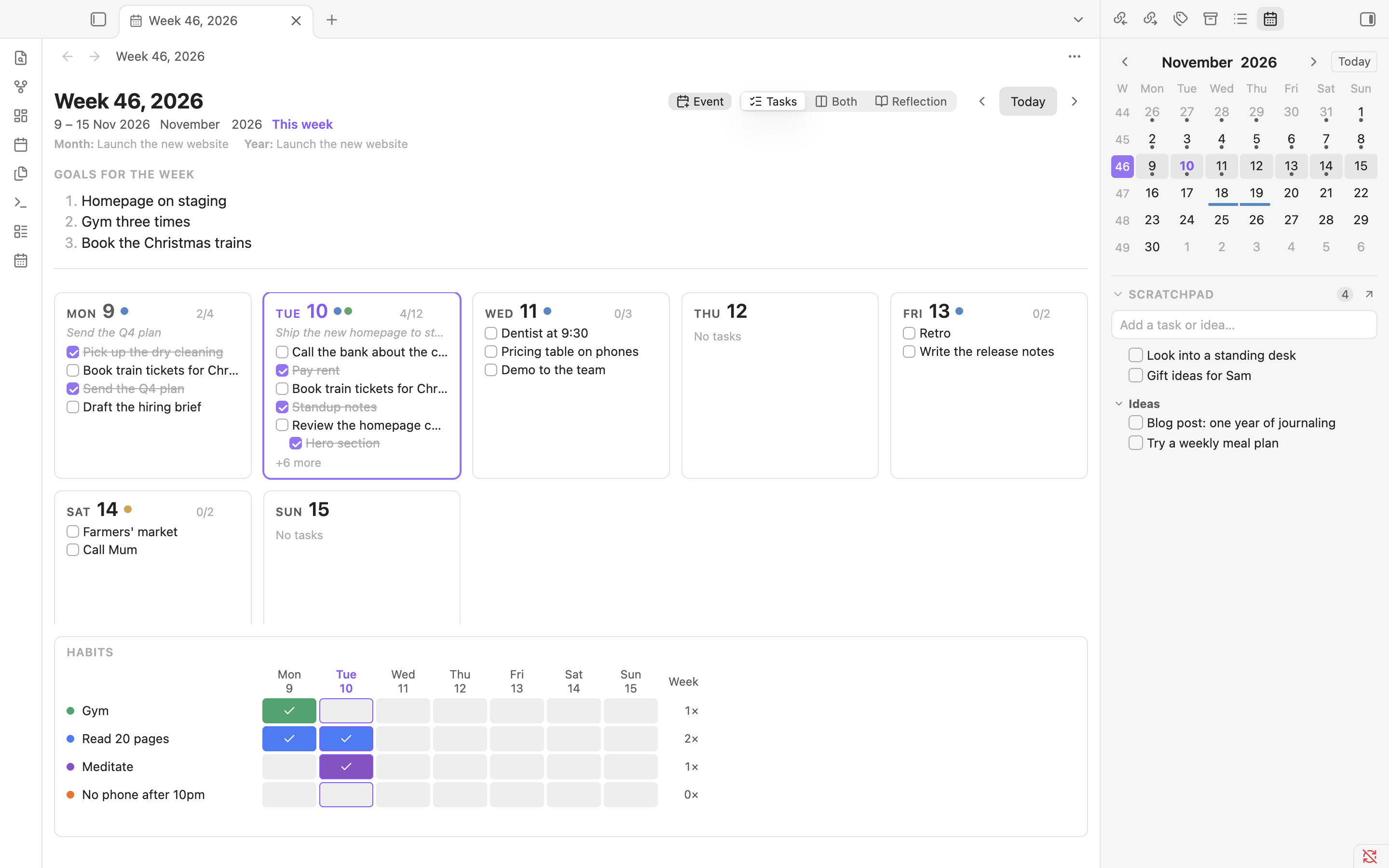
- Week and month overviews you can edit in place. Each day is a small card with its first tasks. Click one to add or tick tasks without leaving the overview. Weeks, months and years have their own goals and a reflection box.
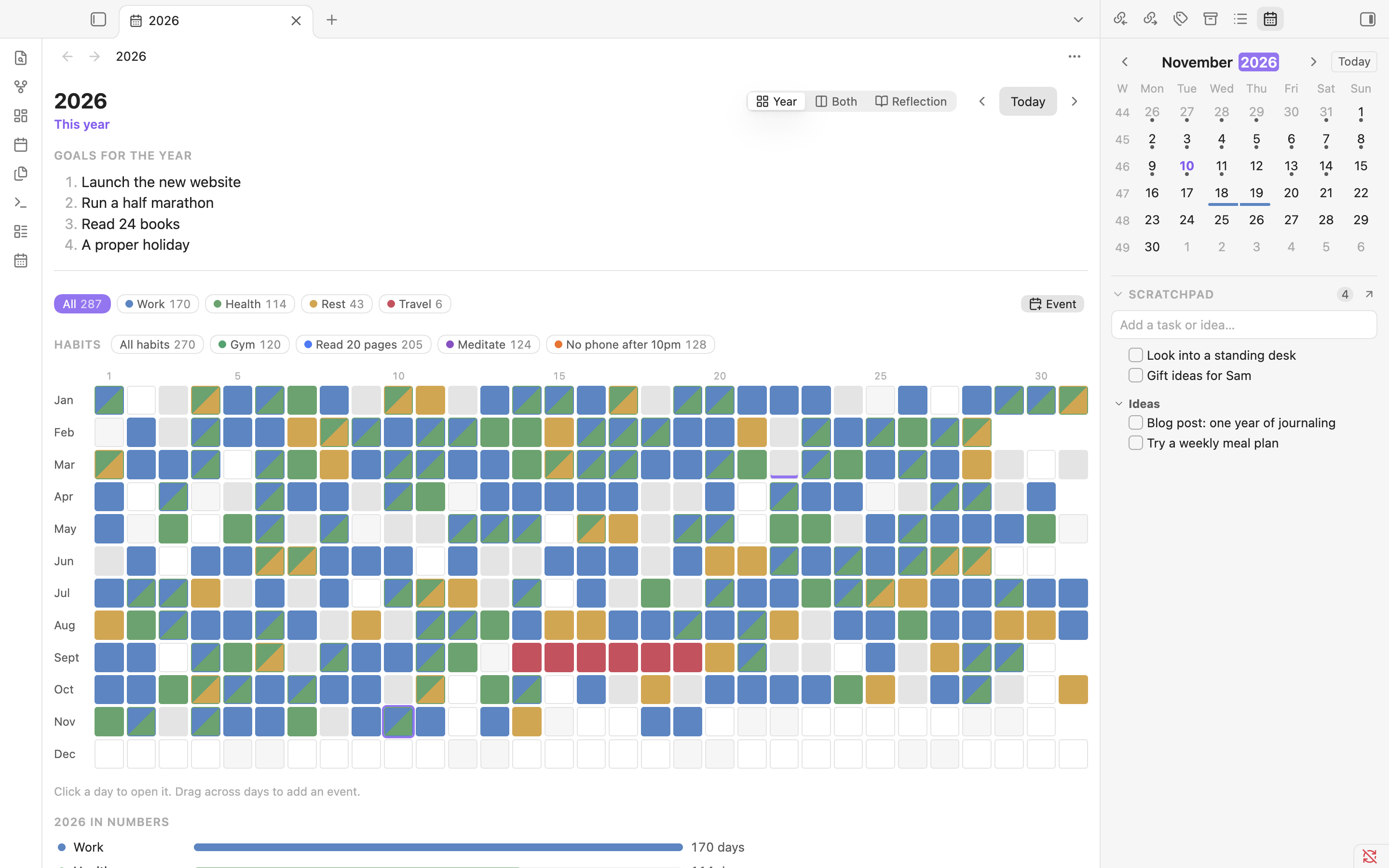
- A year at a glance. Every day as a box, coloured by category (Work, Health, Travel or your own), with a legend to highlight one category.
- Multi-day and repeating events. Drag across days to add a trip or a conference. Events can repeat every week, month or year, and show in every view.
- Recurring tasks. "Pay rent, every month on the 1st." They appear on the days they're due, can end on a date, and can be paused or stopped from the task itself. A day that a month doesn't have (the 31st, 29 February) falls on its last day.
- Carry-over and move to date. Review yesterday's unfinished tasks and bring the ones you want into today, or move any task to another date. The old day shows where it went.
- Projects with milestones. A project stays on your day pages until it's finished, with a milestone checklist, a progress bar and its own task cards. A milestone can tick itself when its card is done.
- A Scratchpad. Tasks and ideas that don't belong to a day yet, under the calendar or on their own page. Move them onto a day when you're ready, by dragging onto the calendar or with "Move to date…". A day's Notes box belongs to that day; the Scratchpad belongs to no day.
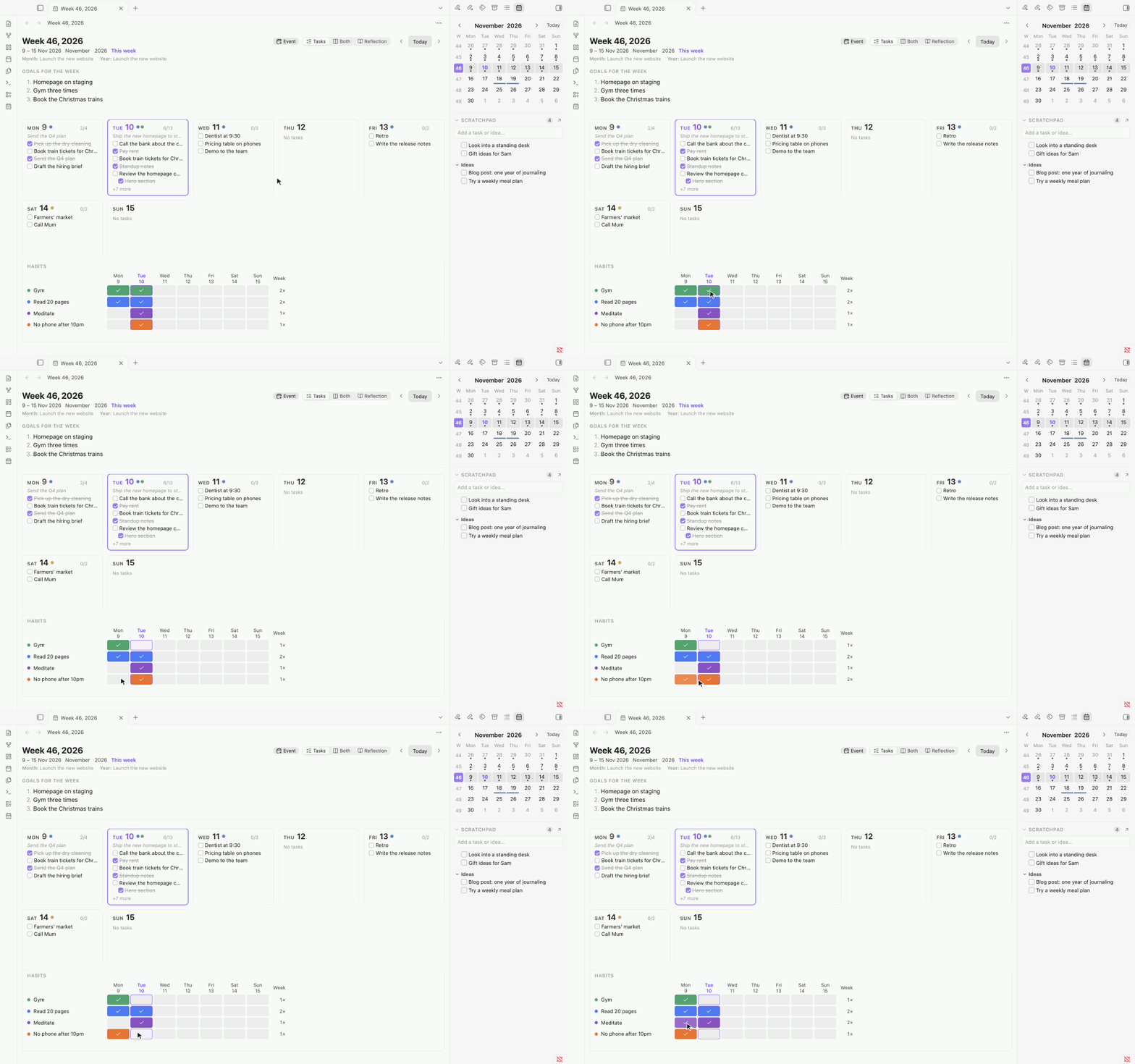
- Habits. Tick your habits in the box at the bottom right of each day, and add one in a couple of keystrokes, for every day or just for today. There are no due days: the week page shows a table of your habits against the days (click a cell to tick it) with how many times you did each, the month page a small square per day, and the year page shades the days you did a habit and shows your days, times a week and longest run.
- Focus mode. One day, only your open tasks and the diary, with no sidebars.
Screenshots
Week: day cards you can edit in place, goals for the week, and your habits against the days.
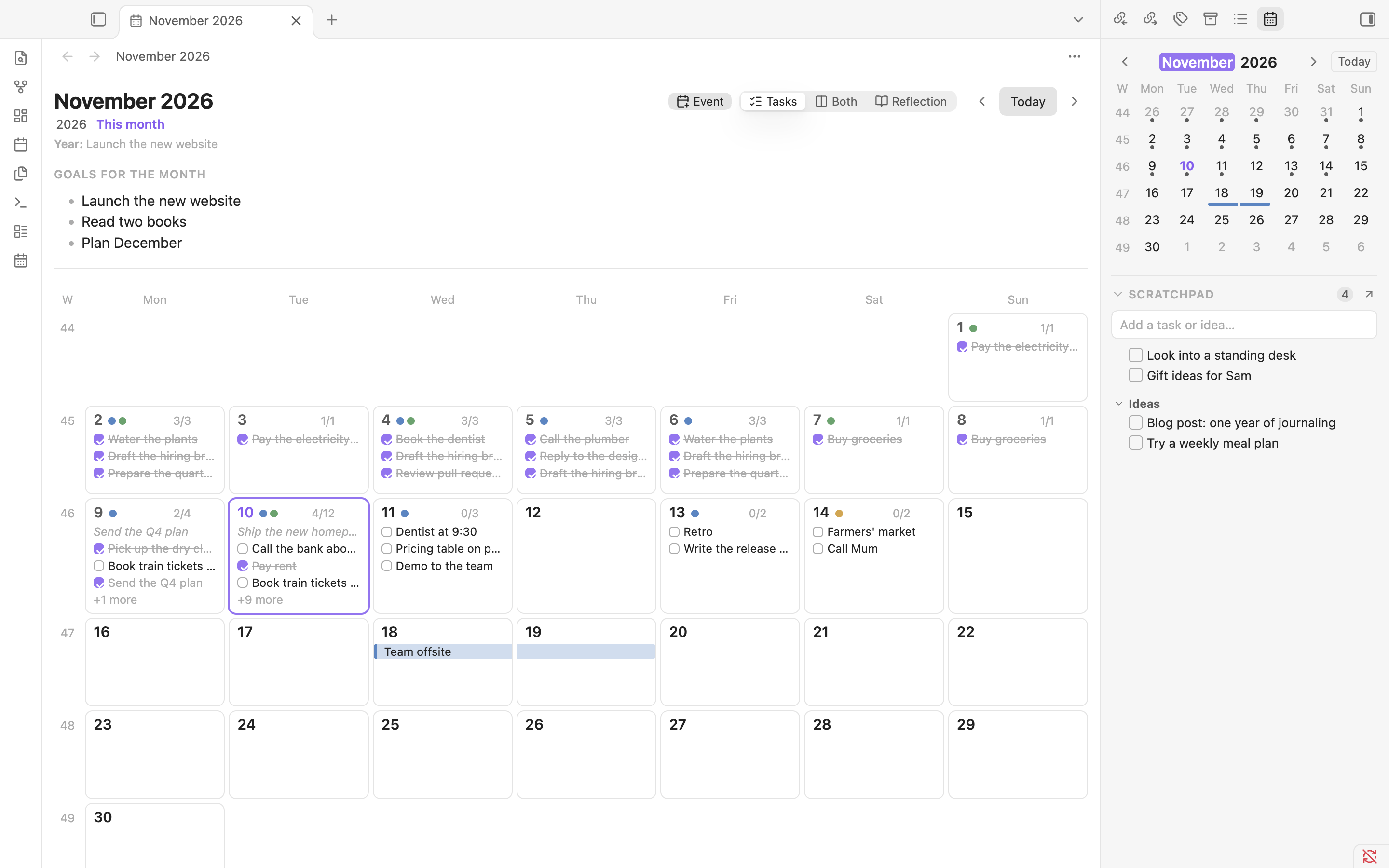
Month: every day with its first tasks, and events across the days.
Year: every day coloured by category. Pick a category, an event or a habit to highlight its days.
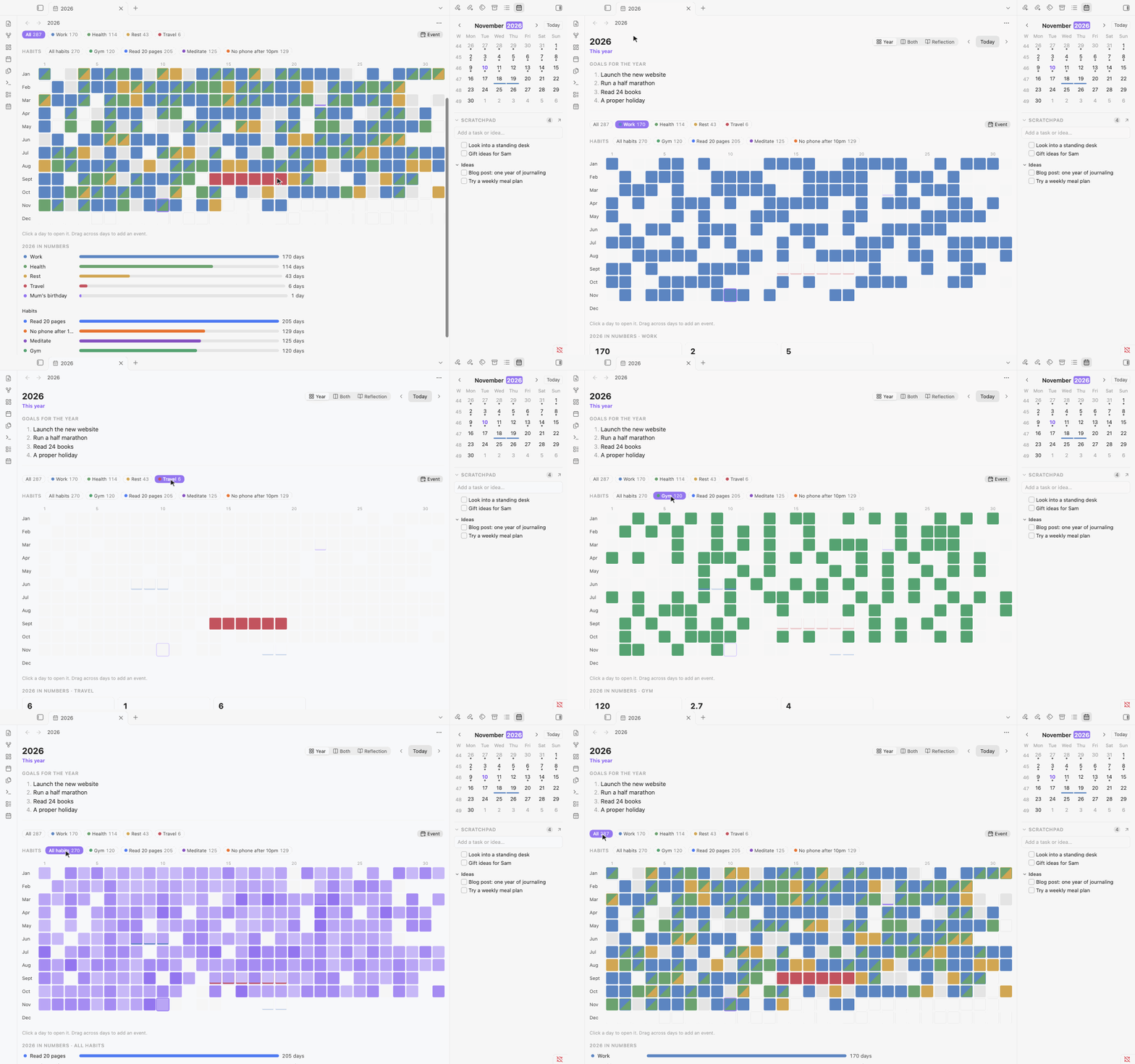
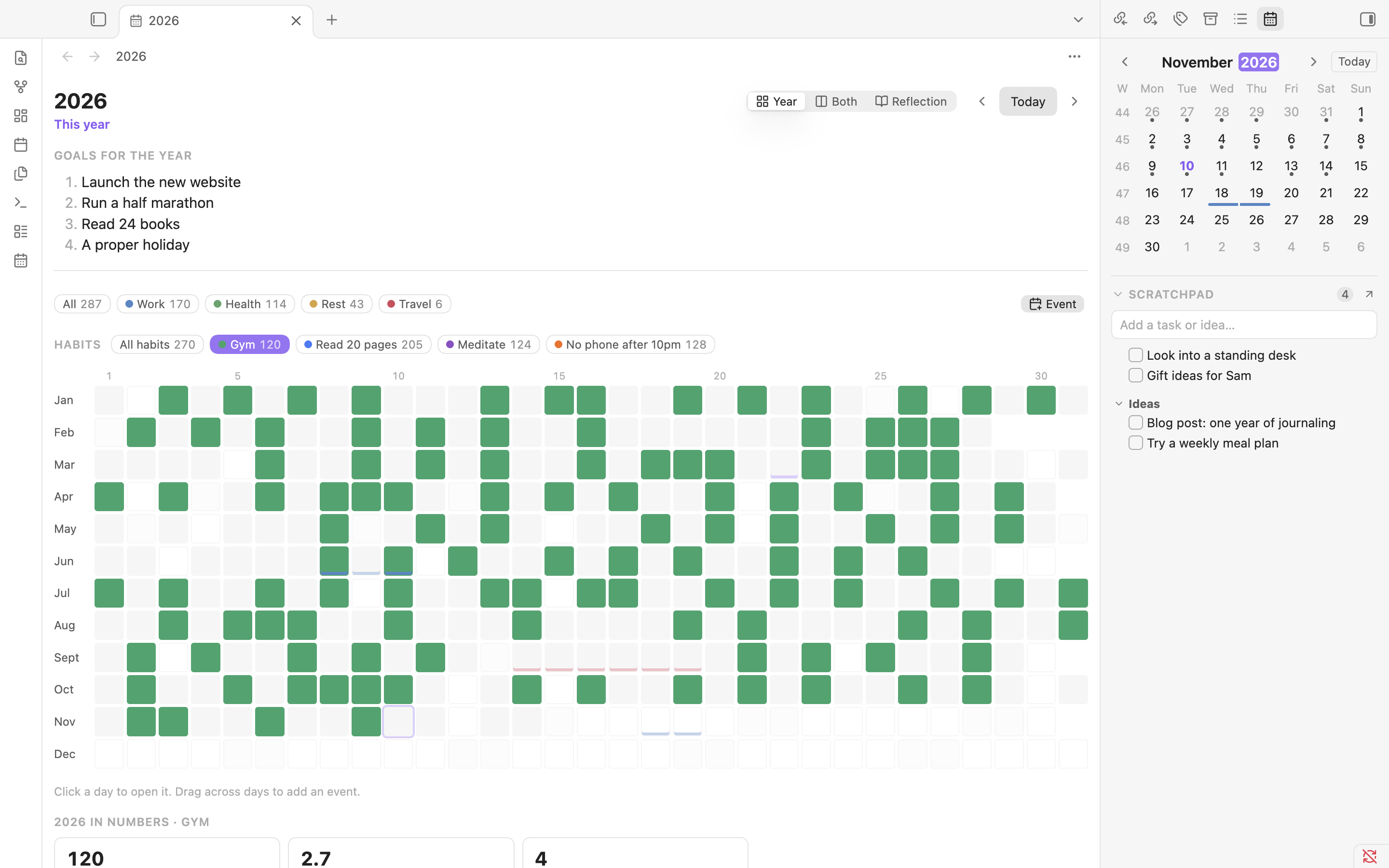
It follows your Obsidian theme, light or dark.
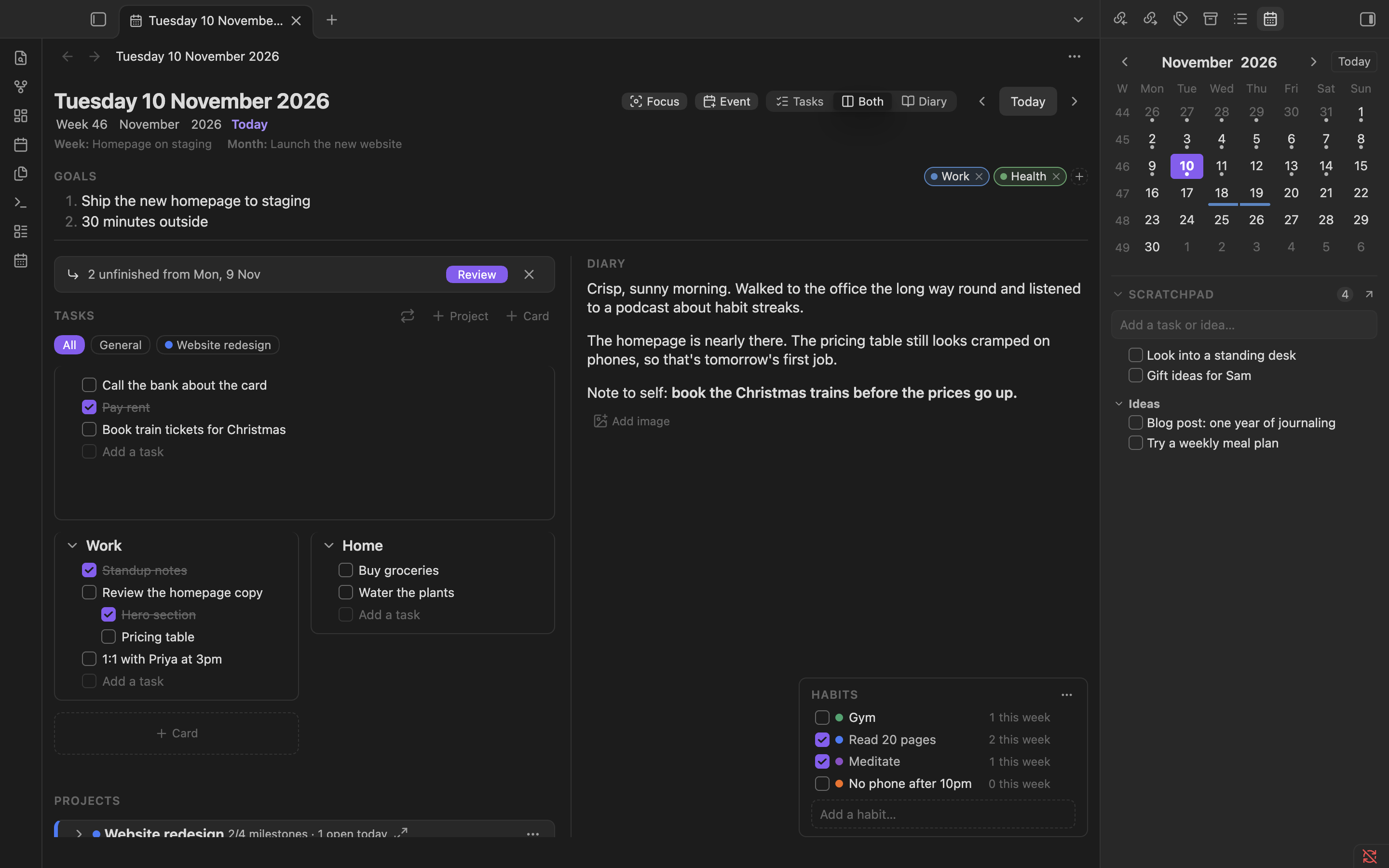
The screenshots use made-up demo data.
How it's stored
Everything is plain Markdown in a Daybook folder in your vault (you can change the folder in settings):
Daybook/
├── 2026/
│   ├── 2026.md                 year: goals, reflection
│   ├── 11/
│   │   ├── 2026-11.md          month: goals, reflection
│   │   └── 2026-11-09.md       day: tags, goals, tasks, diary, notes
│   └── Weeks/
│       └── 2026-W46.md         week: goals, reflection
├── Projects/
│   └── Website.md              project: status, dates, milestones
├── Events/
│   └── Germany.md              event: start, end, category, repeats
├── Habits.md                   your habits, one per line (ticks go in each day's "habits" property)
├── Recurring.md                recurring tasks, one per line
└── Scratchpad.md               tasks and notes that belong to no day
A day note looks like this:
---
tags:
  - work
habits:
  - gym
---

## Goals

1. Finish the report

## Tasks

- [ ] Call the bank

### Work

- [x] Draft the report
- [ ] Send it to Sam

## Diary

A good day.

## Notes

Ask Sam about the slides.
Notes are only created when you first type something, never just by opening a day. Daybook only changes the parts it manages (the tags, habits, habits-extra and recurring properties and its own sections). Anything else you write in a note is left as it is.
Install
From Obsidian. Open Settings → Community plugins → Browse, search for Daybook, then select Install and Enable. Open it with the calendar icon in the left ribbon, or run Daybook: Open today from the command palette.
By hand. Download main.js, manifest.json and styles.css from the latest release and put them in <your vault>/.obsidian/plugins/daybook/. Then reload Obsidian and enable Daybook under Settings → Community plugins.
Run Daybook: How to use from the command palette for a short guide.
How it differs from Calendar, Periodic Notes and similar plugins
Calendar and Periodic Notes open and create daily, weekly and monthly notes from your own templates, and leave what goes inside them to you. That's flexible, and it works with any note layout. Daybook is more opinionated. It keeps its own simple note format and gives you pages built for it: task cards, goals at every level, week, month and year overviews you can edit in place, events, recurring tasks and carry-over. The trade-off is that it works with its own folder and notes, not your existing daily-note templates, and it isn't a task manager for your whole vault. It only sees tasks in its own day notes, unlike plugins such as Tasks.
Privacy
Daybook makes no network requests and collects no data. Everything stays in your vault as Markdown: day, week, month and year notes, projects, events and recurring tasks. Images you paste go wherever Obsidian's attachment setting says. The plugin's own settings are stored in its data.json file.
Development
npm install
npm run dev     # rebuild main.js on every change
npm run build   # type-check and production build
npm test        # tests for the planner logic in src/core
npm run lint
scripts/install-to-vault.sh "/path/to/Test Vault"
The planner logic in src/core has no Obsidian imports and is covered by the tests. Vault reading and writing is in src/obsidian, and the views are in src/ui.
Licence
MIT