
README file from
GithubDate Helpers



An Obsidian plugin that centralizes date-related tools with keyboard-first interaction, natural language parsing, and full internationalization support.
Pre-1.0 notice: The settings API may still evolve before reaching 1.0. See CHANGELOG.md for what changed between releases.
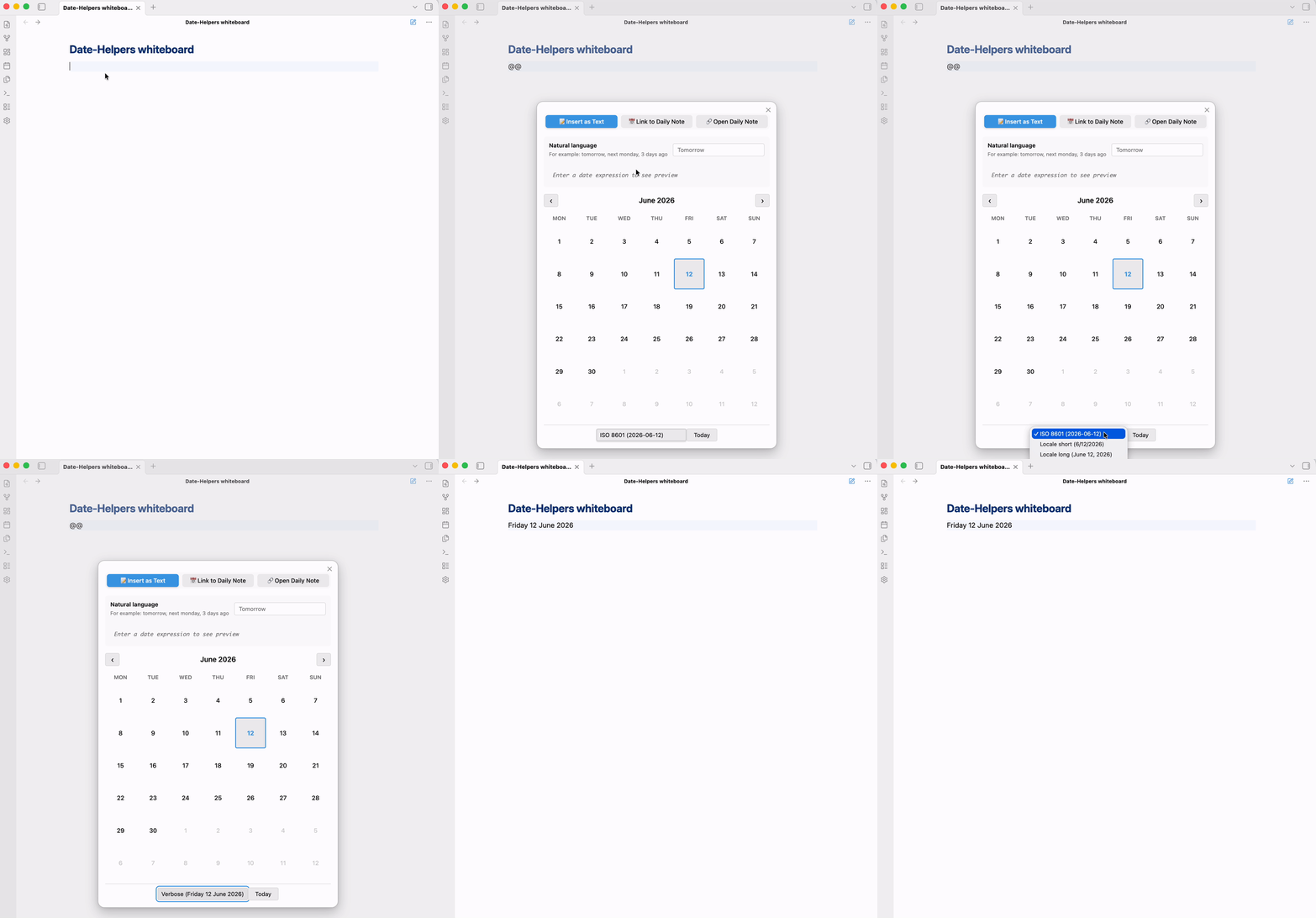
Type @@ in a note, pick a date — by calendar or in plain language — and insert it in the format you want.
Requirements
Obsidian 1.13.0 or later, since the settings tab is rendered through Obsidian's declarative settings API. Earlier versions are served 0.1.2 by the community store.
Installation
Open Settings → Community Plugins → Browse, search for Date Helpers, install and enable.
BRAT and manual installation are covered in the User Guide.
What it does
Three actions, chosen from tabs in the picker:
| Action | Output example |
|---|---|
| Insert date as text | 2025-11-11, or November 11, 2025 |
| Insert daily note link | [[Journal/2025-11-11|November 11, 2025]] |
| Open daily note | Opens the note, creating it if you asked for that |
Plus Convert selection to date, which turns selected text such as next monday or demain into a formatted date, and one command per format preset that inserts straight away without opening anything.
Natural language
The picker's text field understands relative expressions, weekdays and times, and previews the result as you type.
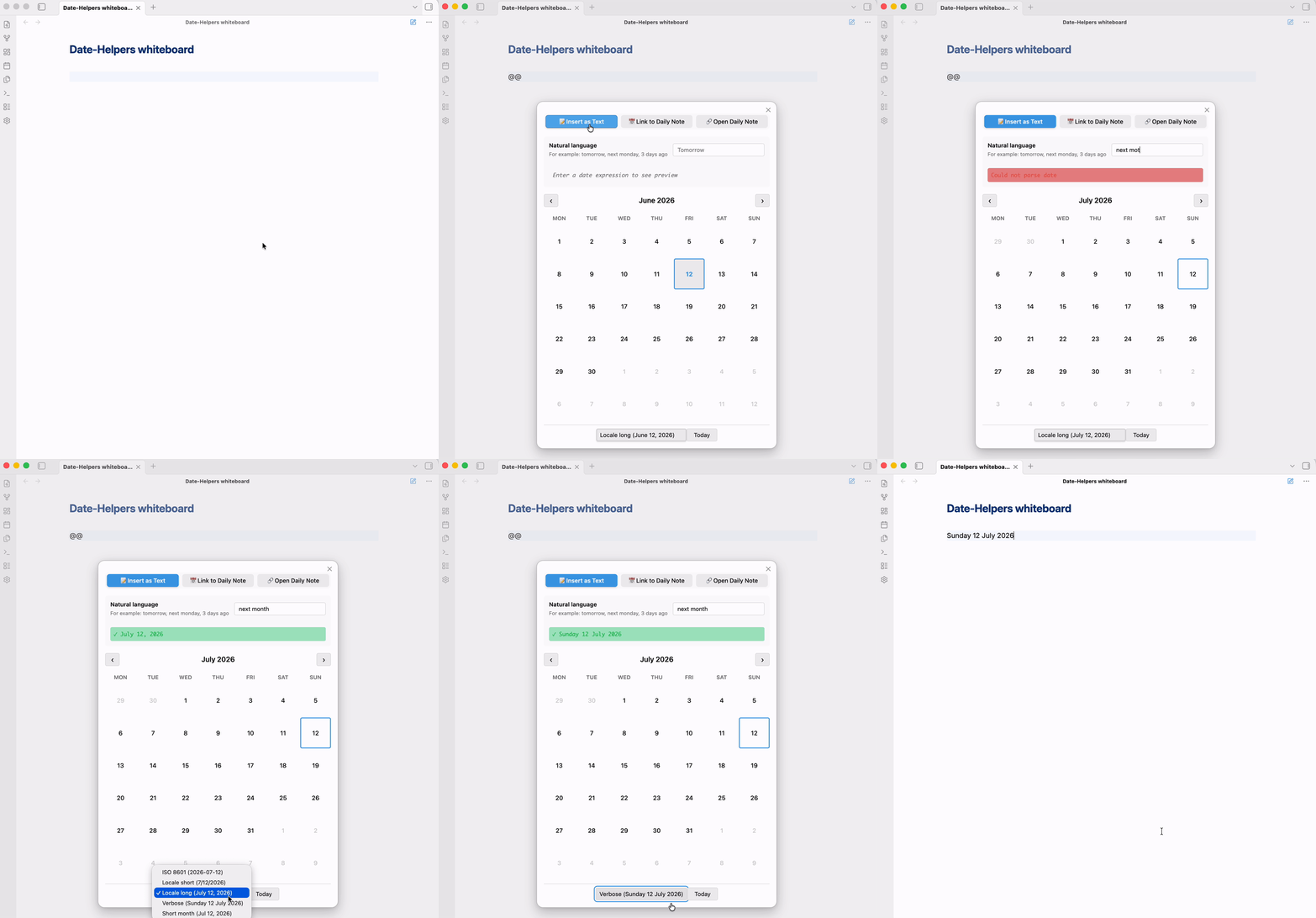
Six languages are parsed — English, French, German, Japanese, Portuguese and Dutch — through chrono-node. Auto-detect language extends your locale to the other five, which matters when a vault mixes languages. Text the plugin cannot parse is never replaced.
Formats
Eleven built-in presets cover ISO, locale-aware and verbose renderings of dates, times and datetimes. Everything is locale-driven through Luxon: month and weekday names, component order, and the first day of the week. The format you choose is remembered for the next insertion.
The User Guide lists every preset with a rendered example.
Keyboard first
The plugin registers no default shortcuts — Obsidian's community plugin policy leaves that choice to you. Assign your own in Settings → Hotkeys, and drive the calendar with arrows, PageUp/PageDown, Home and t. The full key matrix is in the guide.
Settings
Locale and week start, feature toggles for the picker and for parsing, default presets, Daily Note alias formats, and the list of trigger characters. Every setting is reachable from Obsidian's settings search.
The settings reference documents each one.
Documentation
- User Guide — workflows, the full command and key reference, every setting, troubleshooting
- Architecture Overview — technical design for contributors
Support
- Issues: GitHub Issues
- Discussions: GitHub Discussions
- Community Portal: date-helpers on community.obsidian.md
Contributing
See CONTRIBUTING.md for development setup and guidelines, and the Code of Conduct.
License
Changelog
See CHANGELOG.md for version history.