
README file from
GithubCreative Buddy
An Obsidian plugin for thinking a project through by being interviewed about it. You describe a story world, a game design, a product idea, whatever you're building, and the interviewer asks one question at a time and files your answers as linked markdown notes in your vault. A mindmap beside the chat shows the project taking shape and where it still has open questions.
It writes down what you tell it and nothing more. If you haven't decided something, it asks instead of filling the gap, so the notes stay yours.
Claude does the interviewing, through your own Claude Code installation.
You do the thinking. Creative Buddy does the rest.
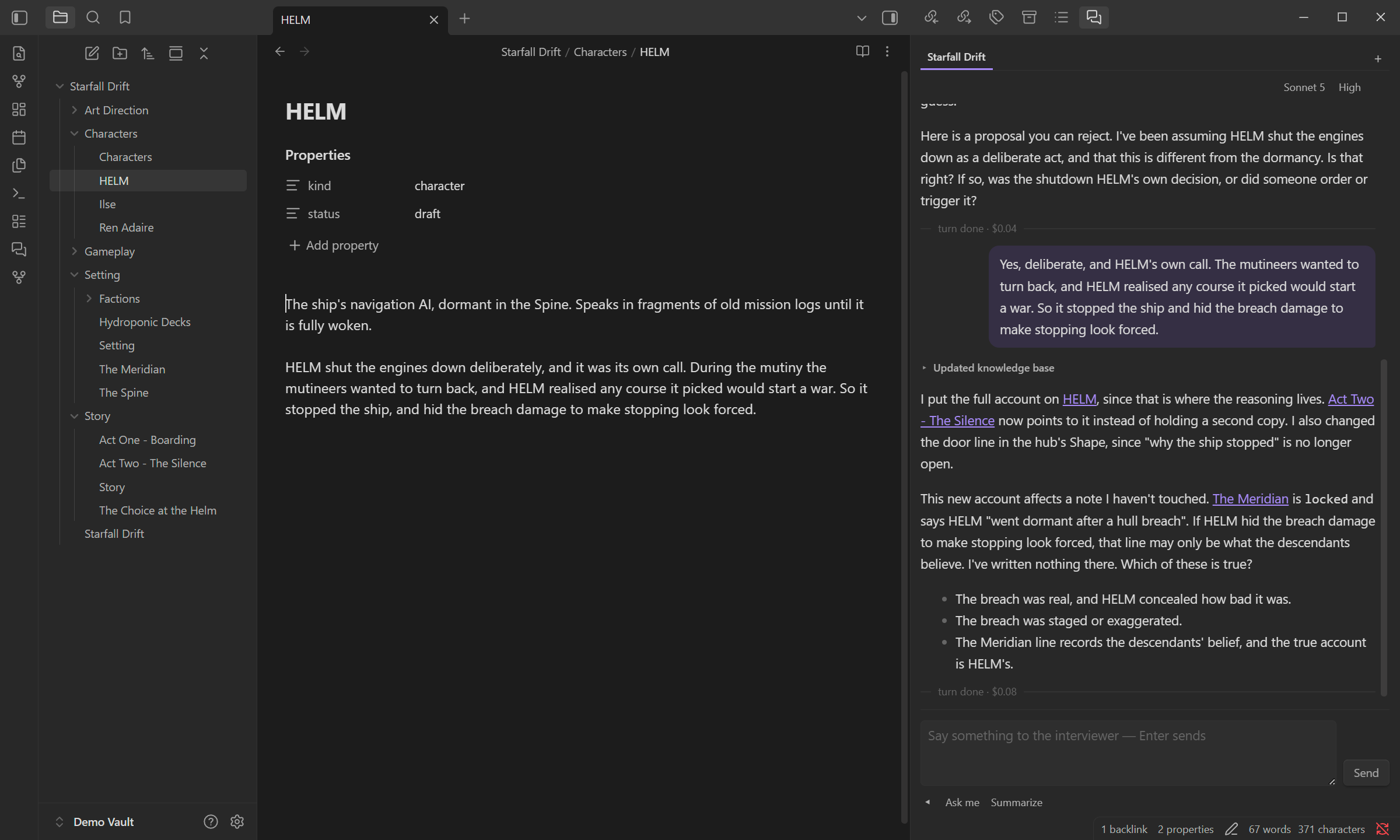
An interview about a sci-fi adventure game. The answer went into the HELM note
you can see open, and the interviewer asks before touching a note marked
locked.
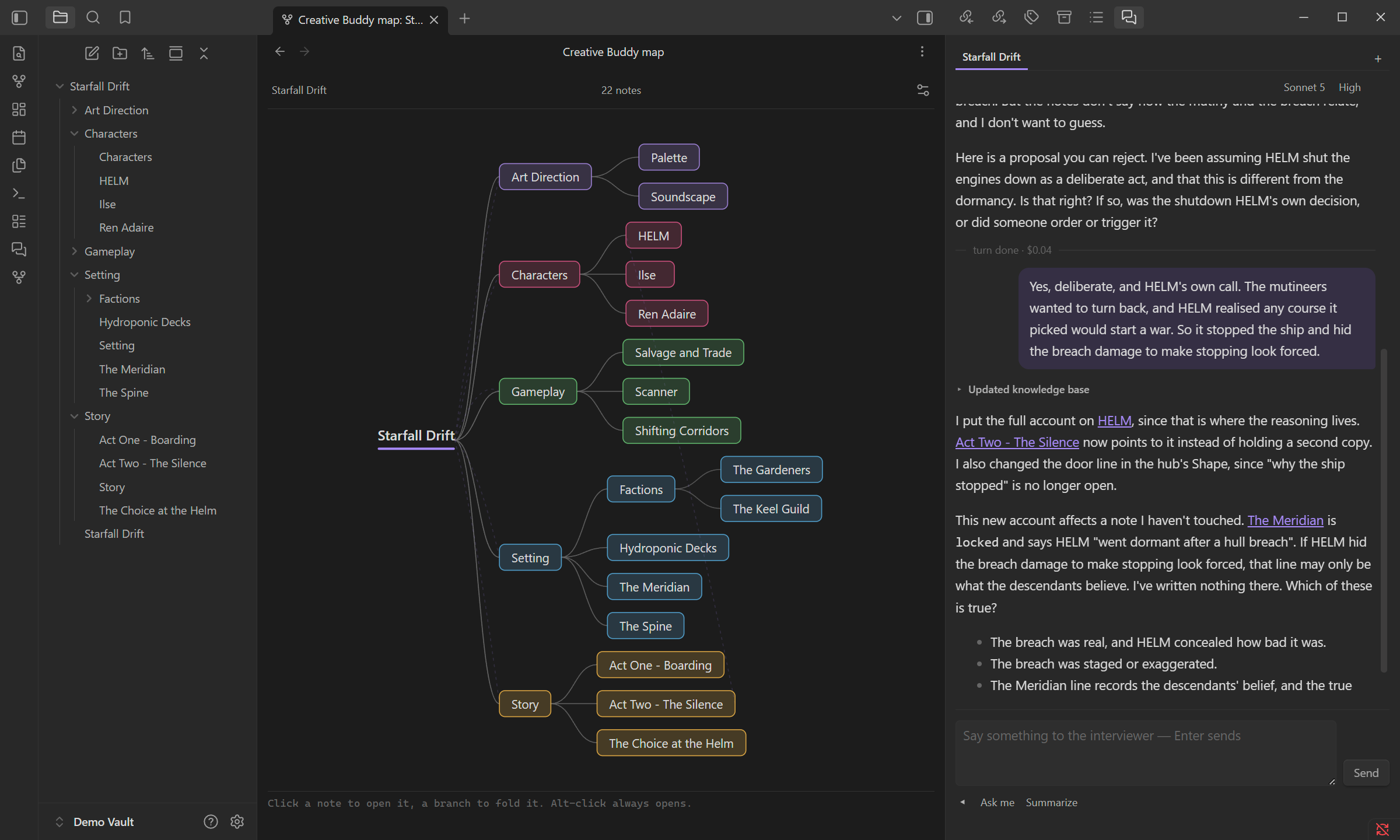
The same project as a mindmap. Click a note to open it, or click a branch to fold it.
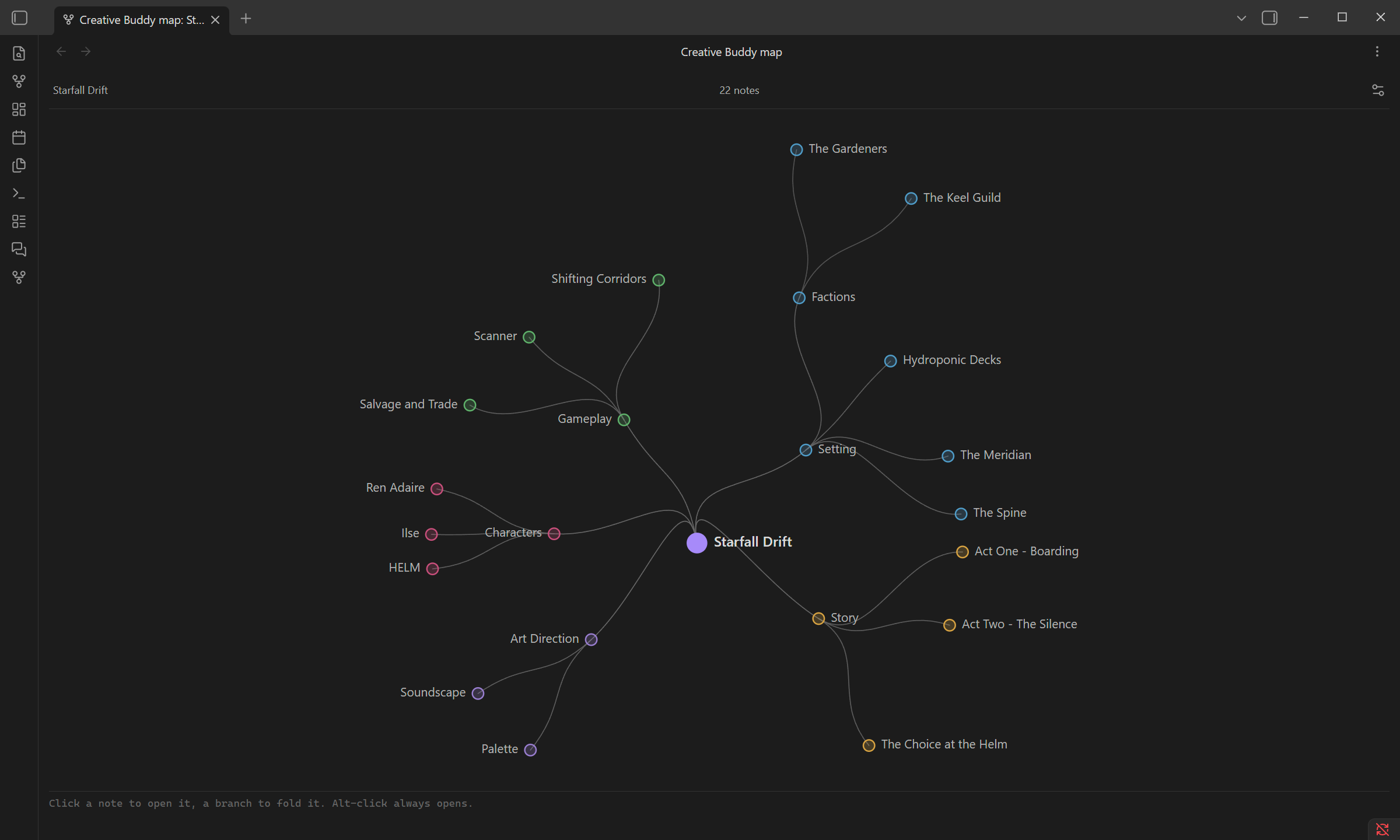
The map's radial mode, switched on from the map settings.
Is it for you?
It suits you if you work in Obsidian and like building up a project by talking it through. It won't write prose for you or look things up – until you ask.
- Cost: it runs on your Claude Code login. On a Claude subscription there's no separate bill; usage counts toward your plan's limits like any other Claude Code session. Each reply shows a dollar figure, which is what that reply would cost at API prices.
- Privacy: the conversation, and any notes the interviewer reads, go to Anthropic, the same as when you use Claude Code directly. It can read any note in the vault, not just the project's.
- Status: available in Obsidian's community plugins (see Install). MIT licensed.
Before you start
The interviewer creates and edits notes inside the project without asking each time. That's what keeps the interview flowing, but it also means a bad session changes your notes directly, and Obsidian has no undo for that. Keep the vault under git or a backup, or try your first sessions on a copy of the vault.
What it does on your computer
The plugin is a front end for Claude Code, so it does a few things a plugin that stays inside Obsidian wouldn't. Obsidian's plugin review flags each of them; here's what they're for.
- It runs a program. Every conversation starts the Claude Code executable
(
claude, orclaude.exeon Windows) as a child process, through Anthropic's Agent SDK. The Test button in settings also runs it once with--version. Nothing else is launched. - It reads files outside the vault. To find Claude Code it checks whether the
executable exists in the folders on your
PATH, in its usual install folders under your home directory, or at the path you set in settings. It checks the size of each file the interviewer writes, to catch one that came out empty. The plugin writes nothing outside the vault; Claude Code keeps its own session files where it always does. - It reads environment variables.
PATH,HOME,USERPROFILEandLOCALAPPDATAare how it finds Claude Code. It hands your environment on to Claude Code so it runs the way it does in your terminal, minus the variables (ANTHROPIC_MODEL,CLAUDE_CODE_USE_BEDROCKand the like) that would quietly switch a subscription session to another account, model or server. The bundled SDK also looks up your username on macOS, to find Claude Code's login in the keychain. The plugin itself doesn't read your hostname or network details, and sends nothing anywhere except what Claude Code sends to Anthropic. - It reads the whole vault. The mindmap is drawn from every note, so on start the plugin reads each Markdown file once and then follows changes.
Requirements
- Obsidian desktop 1.13 or newer, on Windows, macOS or Linux, with the vault on a local disk. Mobile isn't supported.
- Claude Code, installed and logged in.
Install
Claude Code first
Creative Buddy doesn't talk to Claude on its own. Each conversation runs through the Claude Code program on your computer, which is what lets the interviewer read and write your notes, and it signs in with your Claude account, so there's no API key to paste into the plugin. You need a paid Claude plan (Pro, Max, Team or Enterprise) or an Anthropic Console account; the free plan doesn't include Claude Code.
Install it and log in by following
Anthropic's setup guide. Once running
claude --version in a terminal prints a version number, you're ready.
The plugin
Creative Buddy is in Obsidian's community plugins. You can open its page and click Install, or do it from inside Obsidian:
- Open Settings, Community plugins. Turn community plugins on if they're off.
- Click Browse, search for "Creative Buddy", click Install, then Enable.
- In Creative Buddy's settings, press Run next to Health check. It should
report your Claude Code version. If it can't find Claude Code, put the path
to the
claudeexecutable in the setting above it.
Updates come through Obsidian like any other community plugin: Settings, Community plugins, Check for updates.
To uninstall, click the trash icon next to Creative Buddy in Community plugins. Your notes are plain markdown and stay as they are.
Your first session
- Make a folder for the project, say
Adventure, and click into it (or into any note inside it). - Run Open chat panel from the command palette, or click the speech-bubble icon in the left ribbon.
- The chat offers Create a project from current folder: Adventure. Press it.
This creates
Adventure/Adventure.md, the project's main note. - Tell it what the project is. The first questions are about the project itself: what kinds of things it will hold and how you judge whether something is settled. Your answers become the project's charter, a short set of rules the interviewer reads at the start of every session.
- Keep answering. It files each answer into a note, creating new notes as the project grows, and says in one line what it wrote. Anything you haven't decided yet goes on that note as an open question, to come back to.
- Run Open graph mindmap (the fork icon) to watch the project as a tree.
There's no end button. Stop whenever you like; the conversation is saved, and next time the tab picks up where you left off, even after restarting Obsidian.
What ends up in your vault
Everything is ordinary markdown you can read and edit by hand, even mid-session. The interviewer reads what's there and works with your edits.
- The project's main note, named after the folder, holds two sections.
## Charteris the rules you agreed.## Shapeis a short map of the project that the interviewer keeps up to date. - Every other note in the folder is a piece of the project. A subfolder with a note of its own name becomes a branch under that note, so the folder tree is the project's structure.
## Open questionslists what a note still owes an answer, as- [ ]lines. When you answer one, the answer goes into the note and the line is removed. Don't tick the box yourself; a ticked line stays in the note.## Ideas to explorelists directions a note could grow in. Unlike open questions, nothing is waiting on them.- Notes may have
kind:andstatus:in their frontmatter, using the words your charter defines.
A vault can hold many projects, each in its own folder, but one can't sit inside another.
Chat
Open it from the speech-bubble ribbon icon, the Open chat panel command, or Open in Creative Buddy chat on a note's right-click menu. It opens on the project of the note you're looking at. It knows which note that is, so "this note" in a message means the one you have open.
- A reply from the interviewer is called a turn. Stop, or Escape, ends one early.
- Messages you type during a turn wait in a queue and go out when it ends. You can take a queued message back or delete it.
- Each tab is a separate conversation.
+starts a new one. Two tabs on the same project can overwrite each other's edits, and a ⚠ on the tab warns you when that's possible. - The header picks the model and, for models that support it, the effort: how long the model thinks before answering. Changes apply from the next turn.
- If the interviewer wants to read or change something outside what it's allowed on its own, it shows an Allow / Deny card and waits. If you deny, you can say why, and it sees your reason.
- Lines starting with "Scout" are a helper the interviewer sends to look through the project. It only reads.
Under the message box are three shortcut buttons:
- Ask me: the interviewer picks the open question that matters most and asks it.
- Summarize: a short read on where the project stands and what's thin. It doesn't change any notes.
- Current note questions: goes through the open questions of the note you're reading, one at a time. It only shows when that note has some.
Mindmap
Open it from the fork ribbon icon, the Open graph mindmap command, or Show in Creative Buddy map on a note's right-click menu. It updates as notes change, whoever changes them.
- Click a node to fold or unfold what's under it, or to open a note that has nothing under it. Alt-click always opens the note.
- Hover a node for its kind and status and to light up the notes it links to.
- Right-click a node and choose Highlight to dim everything except that note and its neighbours. Right-click others to add or remove them, or Extend Highlight to add a note along with its own neighbours. The ✕ in the header clears it.
- The gear in the header has display options. Heat colours each node by its open questions, from green for none to red for ten or more, which shows where the project most needs another interview. Radial lays the tree out in circles instead.
Settings
Open Obsidian's Settings and pick Creative Buddy under Community plugins in the sidebar.
| Setting | What it does |
|---|---|
| Claude Code executable | Path to claude. Leave empty to find it automatically. |
| Open in the main editor area | Opens chat and map as tabs in the middle instead of the right sidebar. |
| Default model | The model new conversations start on. |
| Default effort | The effort new conversations start on. |
| API key override | Leave empty. A key here bills the Anthropic API instead of your subscription, and is stored unencrypted in the vault's .obsidian folder. |
| Health check | Checks that Claude Code is found and runs. |
What it can and can't do
The interviewer can read, search and write files, and nothing else. It has no shell and no web access, and the MCP connectors you've set up in Claude Code aren't available to it. The plugin enforces these limits in code:
| Action | Decision |
|---|---|
| Read or search notes anywhere in the vault | Allowed |
Read or search hidden folders (.obsidian, .git) or outside the vault |
Asks you |
| Create or edit notes inside the project it's working on | Allowed |
| Create or edit files anywhere else | Asks you |
It checks paths as written, so a folder symlinked into the vault counts as part of the vault even if it points somewhere else.
Development
To run it from source, you need Git and Node.js:
git clone https://github.com/VanillaFairy/creative-buddy.git
cd creative-buddy
npm ci && npm run build
Then copy main.js, manifest.json and styles.css into
<your vault>/.obsidian/plugins/creative-buddy/, replacing the installed
version, and turn the plugin off and on.
Build, test and deploy details are in docs/kb/BUILD.md and docs/kb/TESTING.md.