
README file from
GithubCosmos Homepage
Your ideas have an orbit.
A calm, interactive Obsidian homepage for seeing what is alive in your vault—recent notes, unfinished work, creation activity, focus, and recurring themes.
Add to Obsidian · Community listing · Latest release
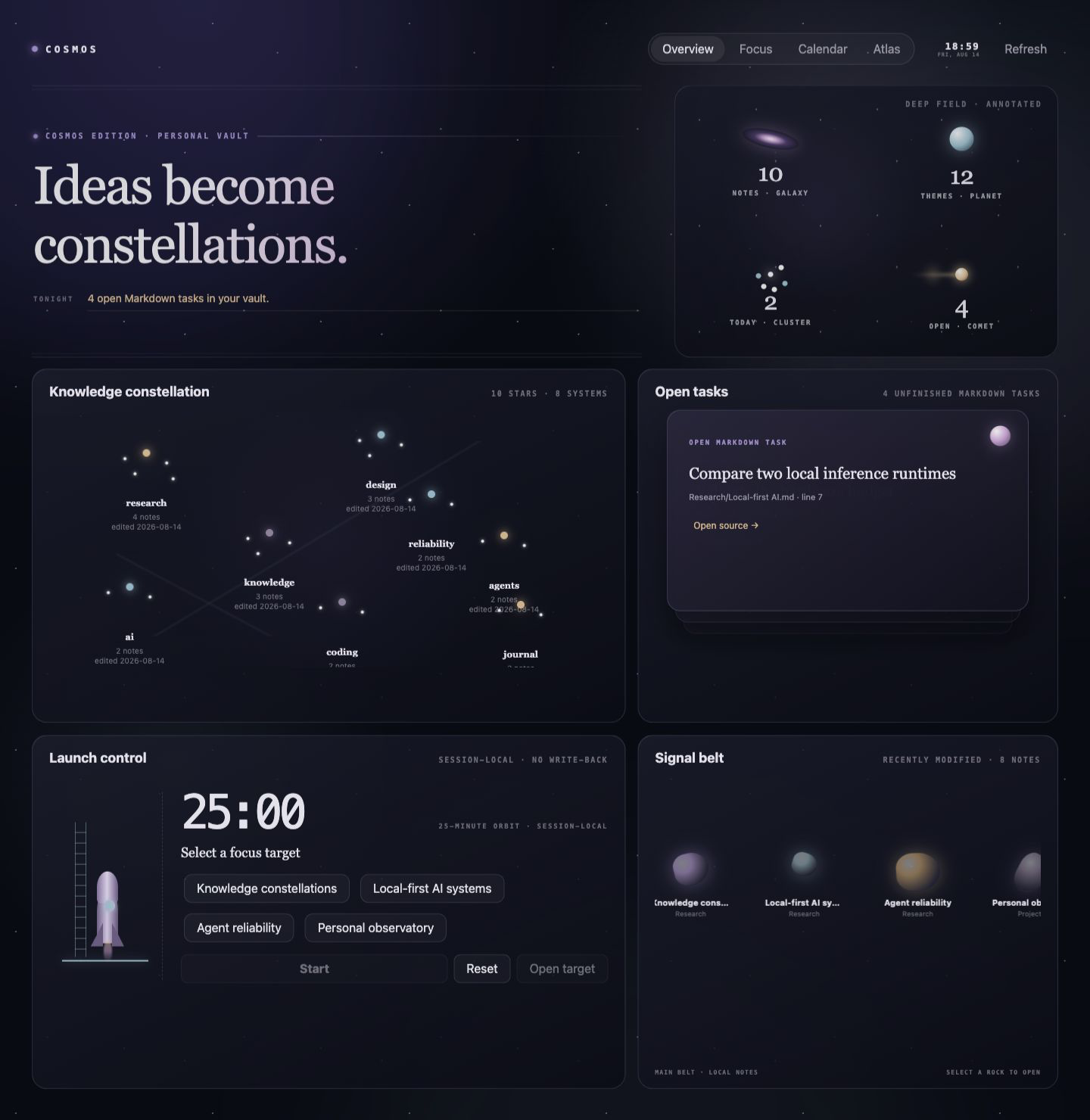
Cosmos Homepage turns an ordinary vault into a personal knowledge observatory. It does not ask you to reorganize your folders or adopt a new workflow. Open it and the structure already present in your notes becomes visible: what changed today, what still needs attention, when your vault was active, and which ideas keep returning.
It is local, read-only, and ready to use without Dataview, an account, an AI service, or a special folder structure.
The screenshots below use synthetic demo notes. Cosmos reads only your own local vault when installed.
One homepage, four ways to see your vault
Overview — a complete knowledge observatory
The Cosmos Edition overview combines five distinct instruments without creating a second database:
- Deep field shows honest note, theme, daily, and unfinished-task counts.
- Knowledge constellation turns your most-used tags into connected, breathing star systems. Stars show the tag name, the real note count, and when the theme was last edited—nothing more.
- Open tasks surfaces real unfinished Markdown tasks from Obsidian's metadata cache and opens the exact source line.
- Launch control is a session-local focus launcher: pick a recent note as the target, see the orbit duration, start, pause, or reset, and open the target document. Nothing is written back to your Markdown.
- Signal belt keeps recently modified notes moving through a selectable debris field.
The pointer carries a soft light source across the homepage; stars breathe together, meteors cross the task deck, the rocket follows real focus events (target selected, running, paused, complete), and the signal belt pauses when you inspect it. Motion can be disabled without losing information.
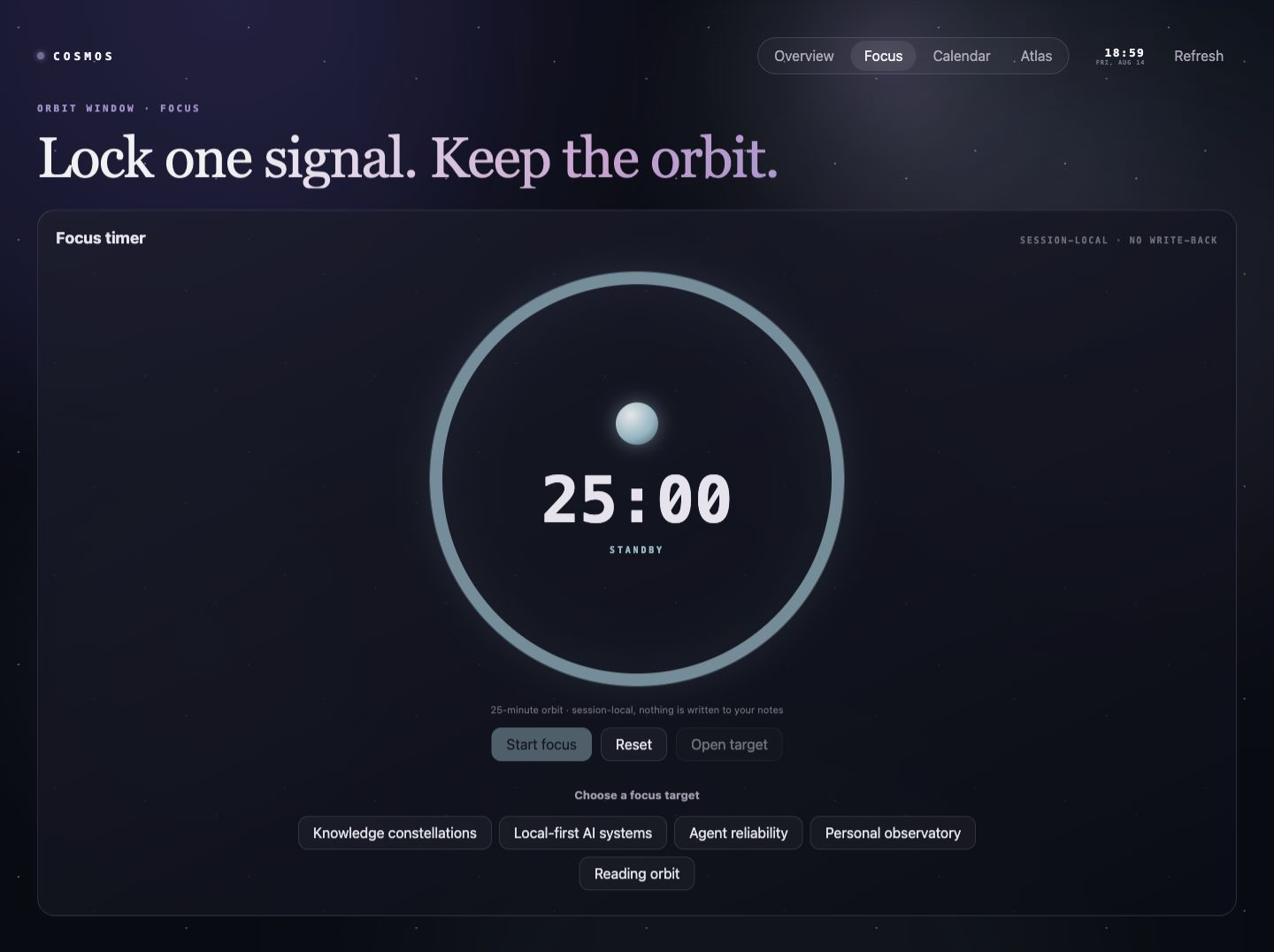
Focus orbit — give one idea uninterrupted time
Choose a focus target from your recent notes, then start a configurable local session beside it. You can pause, reset, or open the target document at any time. The timer stays session-local: no tracking account, no telemetry, and no writes added to your notes.
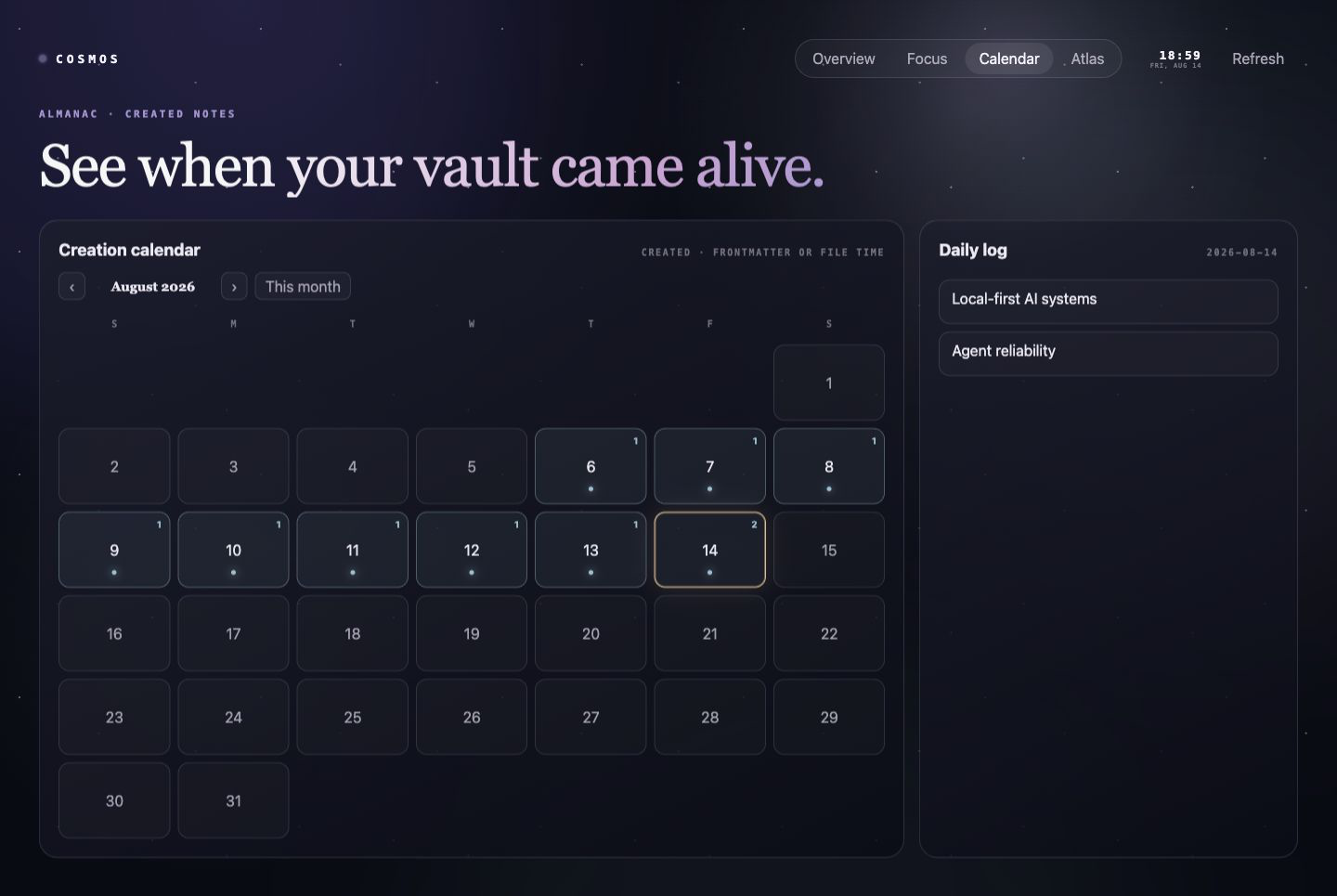
Creation calendar — see when your vault came alive
Move between months, or jump back to the current one. Glowing dates show how many notes were created that day; select a date to see its daily log, then open the real Markdown file. created, created_at, or date frontmatter is respected when present; otherwise Cosmos uses the file creation time provided by Obsidian. Modification, tasks, and other events are never presented as creation.
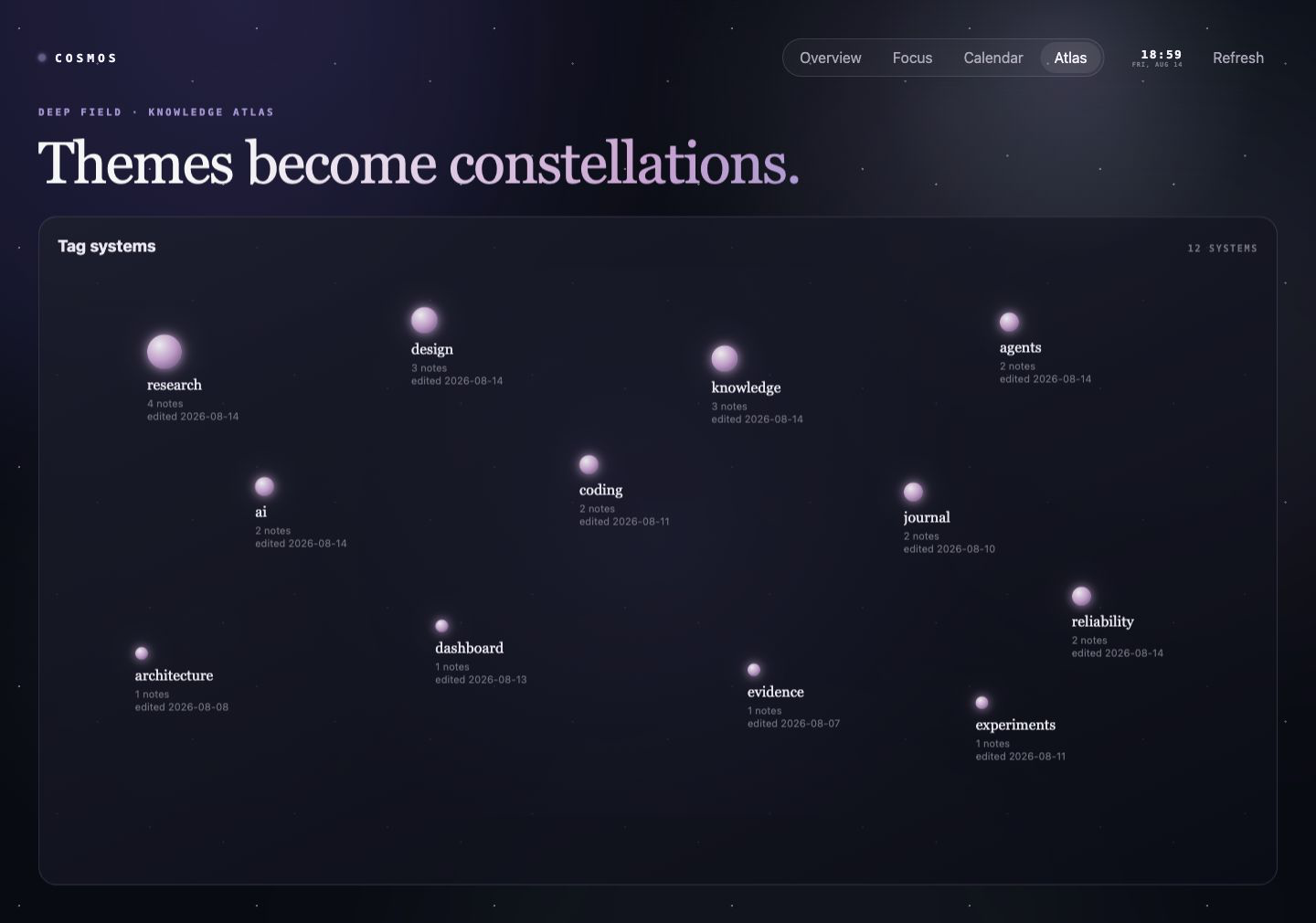
Knowledge atlas — recurring themes become constellations
Your most-used tags become an interactive star system. Brighter systems represent themes with more notes. Select a star to open the Cosmos theme panel: the tag's real notes, sorted by last edit, each one a keyboard-accessible link that opens the source document in a reusable tab.
Why Cosmos feels different
- Zero reorganization. It works with the folders, notes, tags, frontmatter, and Markdown tasks you already have.
- A view, not another database. Every useful item leads back to a real note in your vault.
- Calm by design. The starfield has atmosphere without obscuring the information you came to see.
- Local by default. No network requests, accounts, telemetry, advertisements, or AI calls.
- Read-only by design. Cosmos does not edit notes, create files, or rewrite metadata.
- Accessible motion. Keyboard navigation, visible focus states, responsive layouts, honest empty states, and reduced-motion support are built in.
Start in under a minute
- Install Cosmos Homepage from Obsidian's Community plugins.
- Select the sparkle icon in the ribbon, or run Cosmos Homepage: Open homepage from the command palette.
- Move between Overview, Focus, Calendar, and Atlas.
- Open Settings → Cosmos Homepage to choose your headline, focus duration, excluded folders, startup behavior, and motion preference.
Cosmos does not take over your workspace after installation. Enable Open on startup only if you want it to open automatically after Obsidian restores your workspace.
What Cosmos reads
Cosmos never opens note bodies. It works from metadata Obsidian has already indexed:
- file names, paths, and creation/modification timestamps;
- tags;
created,created_at, ordatefrontmatter;- unfinished Markdown task entries, including the task text and the source position needed to open the exact line.
Task text is content-derived information taken from Obsidian's metadata cache—Cosmos does not open files to parse them, and it never treats an unfinished Markdown task as anything other than an open task. Excluded folders are never included in its projection; the defaults exclude .trash and Templates. Settings are stored through Obsidian's plugin data API.
Opening a document from any surface keeps the homepage in its own tab and reuses one adjacent tab for source documents, so clicking through tasks, themes, or calendar entries never replaces Cosmos and never multiplies tabs.
A new or sparse vault shows a short first-run explanation instead of pretending to have data: add tags to form constellations, leave Markdown tasks unfinished to fill Open tasks, create notes to light up the creation calendar, edit notes to feed the signal belt, and adjust excluded folders in settings. Cosmos never injects demo content into your vault.
Honest limits
- Atlas stars represent shared tags, not semantic similarity, and carry no maturity or completion judgement.
- Calendar accuracy depends on available frontmatter or the file creation time reported by Obsidian.
- The focus timer is intentionally session-local and is not a time-tracking system.
- Version 1 has no network or AI integration. Future adapters, if added, will remain optional rather than silently changing the local-first baseline.
Manual installation
- Download
main.js,manifest.json, andstyles.cssfrom the latest release. - Put them in
<your-vault>/.obsidian/plugins/cosmos-homepage/. - Reload Obsidian and enable Cosmos Homepage in Community plugins.
Development
npm install
npm run release:verify
The release bundle is main.js; manifest.json and styles.css ship alongside it.
npm run demo starts the screenshot/visual-regression harness. It instantiates the production CosmosHomepageView with a synthetic metadata projection; it is not a separately maintained mock interface.