
README file from
GithubColify
Colify is a visual column layout editor for Markdown notes.
It lets you create multi-column note blocks, edit each column directly in Live Preview, resize columns by dragging dividers, and keep the underlying content stored as plain Markdown. The same layout is rendered in Reading view, so column blocks remain useful both while writing and while reviewing notes.
Colify is designed for notes that need side-by-side structure without leaving Markdown, such as comparisons, study notes, dashboards, image-and-text layouts, card-style summaries, and reference pages.
Screenshots
Column Layout in Live Preview
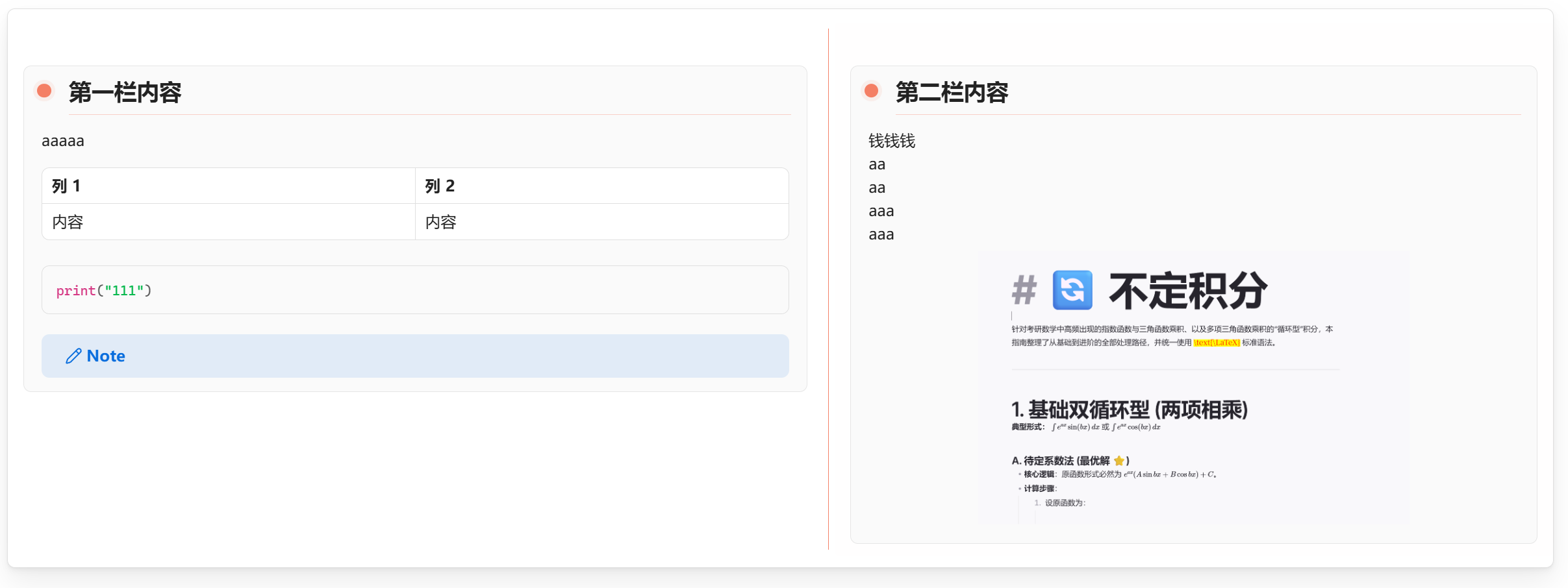
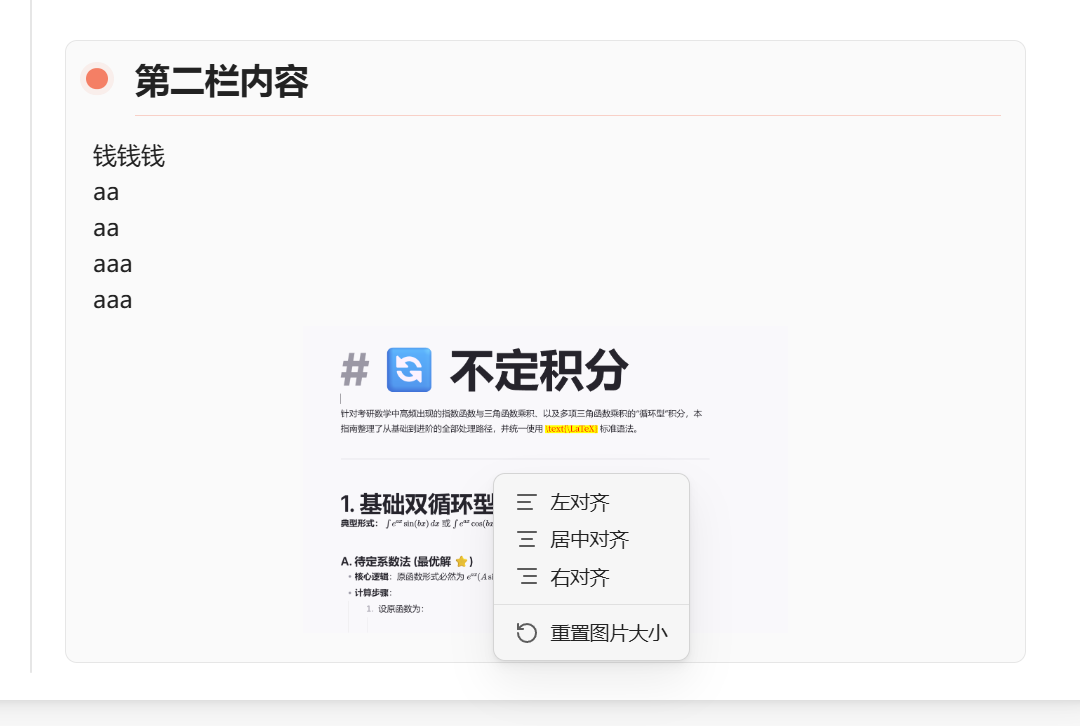
Image Alignment Menu
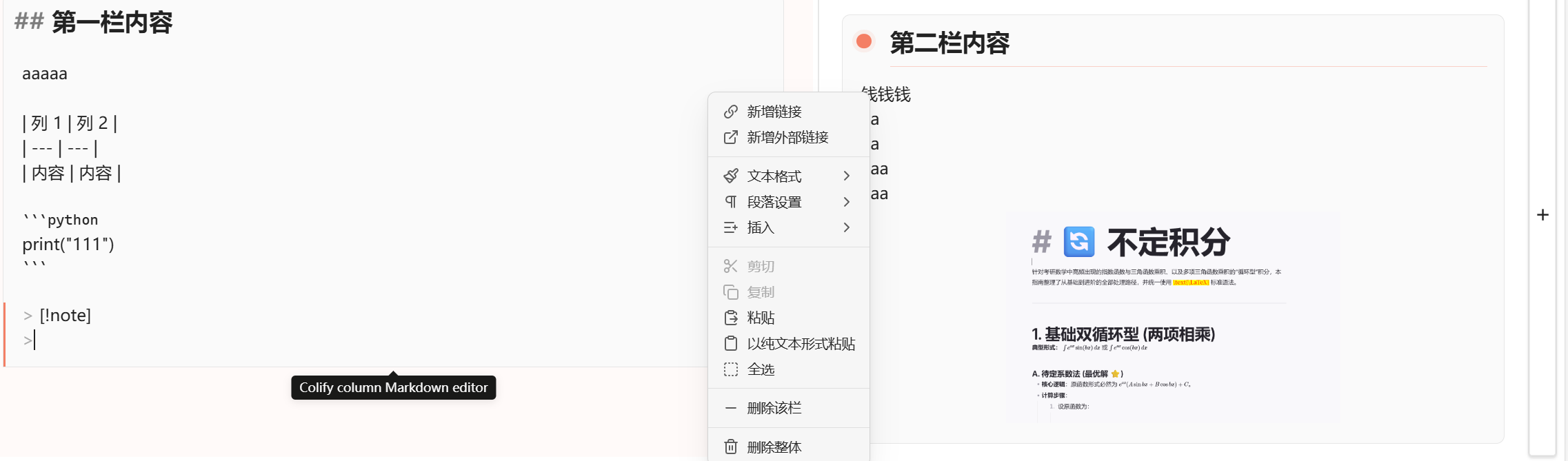
Inline Column Editing
Features
- Insert a visual column block from the editor context menu.
- Bind a custom hotkey to
Colify: Insert columns. - Edit each column inline in Live Preview.
- Render Markdown syntax inside columns, including headings, tables, links, embeds, images, lists, code blocks, math, and callouts.
- Drag files into a column to create attachment links or embeds.
- Resize columns by dragging the divider in Live Preview or Reading view; Colify saves the new ratios to Markdown.
- Reorder columns with the top drag handle.
- Add a new column from the last column.
- Right-click a column to delete that column or remove the whole Colify block.
- Resize images by dragging their handle.
- Right-click images to set left, center, or right alignment.
- Render the same layout in Reading view.
For usage details, release files, and development instructions, see the sections below and the GitHub release history.
Usage
In a Markdown note, right-click in the editor and choose Insert columns.
You can also open Settings -> Hotkeys, search for Colify, and bind a shortcut to Insert columns.
Colify stores each block as Markdown comments around normal Markdown content:
<!-- colify:start {"version":1,"columns":2,"widths":[1,1],"background":"transparent"} -->
<!-- colify:column -->
First column content
<!-- colify:column -->
Second column content
<!-- colify:end -->
Because the content stays in Markdown, your notes remain readable even if the plugin is disabled.
Editing Columns
- Click a column preview to edit that column.
- Press
Ctrl+EnterorCmd+Enterto save the column editor. - Press
Escto cancel the current edit. - Click outside the column editor to save.
Reading View
- Drag the divider between adjacent columns to change their relative widths.
- Colify saves the new ratios automatically when you release the divider.
Images and Attachments
- Drag image files or vault files into a column to insert them into that column.
- Drag the image resize handle to change image size.
- Right-click an image to choose left, center, or right alignment.
Plain Markdown Storage
Colify does not store your note content in a separate database. Each column block is saved directly inside the note as a small Markdown comment structure plus normal Markdown content. This makes the format portable, easy to inspect, and recoverable if the plugin is disabled.
Installing Manually
- Download
main.js,manifest.json, andstyles.cssfrom the latest release. - Create this folder in your vault:
.obsidian/plugins/colify. - Copy those three files into the folder.
- Reload the app.
- Enable
ColifyinSettings -> Community plugins.
Development
npm install
npm run build
This repository is the canonical source. The installed .obsidian/plugins/colify/ directory contains runtime files and local plugin state only.
npm run deploy:local -- --target="/path/to/your-vault/.obsidian/plugins/colify"
The deployment target must be an external folder named colify. You can pass it with --target or set the COLIFY_PLUGIN_DIR environment variable. deploy:local runs the production build, copies only main.js, manifest.json, and styles.css, verifies each deployed SHA-256 hash, and preserves data.json.
The production build outputs main.js; do not edit the deployed bundle directly.
Release Files
Attach these files to each GitHub release:
main.jsmanifest.jsonstyles.css
Author
Qismet