
README file from
GithubEnglish | 简体中文
Code Block Parameter Fold
Fold a long name[options] inside a code block into one clickable tag — expand it when you need the
details, or switch to a hover popup that lists every option together with its comment.
It is built for anything shaped like a name plus a long list of accepted values: shader properties,
engine settings, CLI flags, enum values — as long as you can write it as name[content].
Repository: https://github.com/zhongxiaguchen/code-block-context-fold · Latest: 3.4.2
Features
- Plain fold —
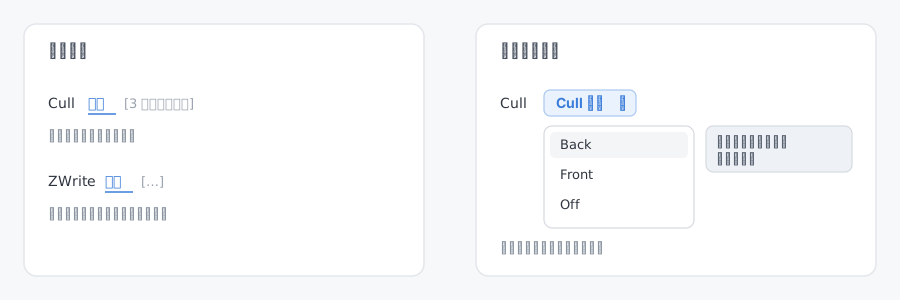
Cull 选项[back/Front/Off]collapses to an underlinedCull 选项; click to expand, click again to collapse. - Options popup — collapses to a
Cull 选项 ▾pill; hover to list the options, hover an option to see its comment. - Context menu — right-click a tag to edit its options, switch display mode, expand/collapse, or remove the fold.
- Command palette — fold the current selection, remove the fold at the cursor, open the fold overview.
- Editing view and reading view — folds survive switching to reading view and exporting to PDF; tags stay clickable there.
- Positions stick — folds are restored when a note is reopened, and they follow the note when you rename it.
- Settings and an overview — pick the default display mode, turn reading-view folding on/off, and browse a searchable list of every fold in the vault.
- English and Chinese UI — follows Obsidian's language setting; other languages fall back to English.
Install
Manual (works in any vault)
- Download
manifest.json,main.jsandstyles.cssfrom Releases (or grabcode-block-context-fold-3.4.2.zipand unzip it). - Create the folder
<your vault>/.obsidian/plugins/code-block-context-fold/. - Put the three files directly inside it — do not nest them in another folder.
- Obsidian → Settings → Community plugins → turn off Safe mode → reload → enable the plugin.
The plugin is not tied to any vault: each vault keeps its own fold data.
Development install
node scripts/deploy.mjs --vault "/path/to/vault"
Copies the three build outputs only; your vault's data.json is left untouched.
Usage
Fold something you already wrote
Select a complete name[content] inside a code block — multi-line selections and nested brackets both
work — then right-click → the fold command, or use the command palette.
Insert options with a form
- Put the cursor inside a code block (outside one is fine too — the plugin wraps it in a code fence tagged
text). - Command palette or context menu → the insert command.
- Name the parameter, add each option with an optional comment, save.
The generated text looks like this:
混合模式[
  Normal//正常混合
  Add//相加,越高越亮
]
- One option per line; everything after
//is a comment. - Parameter names and option values cannot contain brackets or newlines. Underscores,
=,+and so on are all fine. - Comments are single-line: line breaks in the form are flattened, because a newline now separates options.
Two display modes
Right-click a tag → switch between plain fold and options popup. Switching only changes the rendering; your note text is never modified.
Settings and overview
Settings → Community plugins → this plugin:
- Default display mode — which form new folds take. Existing folds can still be switched individually via right-click.
- Fold in reading view — turn it off to keep reading view and PDF export showing the original text.
- Fold overview — every fold in the vault, grouped by note. Click a note to jump there, delete a single fold, or clean up records pointing at deleted notes. The search box filters by tag, option text, or note name.
The overview is also available from the ribbon icon and from the command palette.
Data and privacy
No network access, no telemetry, no analytics. The plugin does exactly two things: it reads notes from your vault, and it writes fold positions to a local JSON file.
Fold records live in .obsidian/plugins/code-block-context-fold/data.json:
- They store vault-relative paths plus anchors used to relocate a fold (code block language, block index, line hint, 64 characters of surrounding context).
- Because those anchors contain fragments of your note text, the file is listed in
.gitignore. Do not commit or share it. - Installing into another vault starts from scratch; nothing leaks between vaults.
Known limitations
- Expanding inside reading view is one-off — it only affects the current render and is not written back to the editor.
- Reading view uses the same anchor matching as the editor — it no longer requires an exact match, so edited content is still found. The cost is that each render reads the note source once (cached per file, invalidated on change). Two code blocks with identical content are matched by order of appearance.
- Brackets
[ ]are structural and cannot appear in parameter names, option values, or comments. - When the same text appears several times and the anchors cannot tell the occurrences apart, the plugin gives up rather than guessing a position.
- Desktop only for now. The plugin does not use desktop-specific APIs, but it has not been tested on mobile, so the manifest declares
isDesktopOnly: true.
Development
Requires Node.js ≥ 22.8.
npm run build          # zero-dependency bundle: src/ → main.js
npm run build:esbuild  # bundle with esbuild (after npm i)
npm test               # unit tests (Node's built-in runner)
npm run release        # validate + build + test + zip
npm run build uses scripts/build.mjs, a small bundler that only inlines relative require calls,
so a fresh clone builds without installing anything. obsidian and @codemirror/* always stay
external and are provided by the Obsidian runtime.
Layout
src/
  main.js                 lifecycle, context menus, commands, data IO
  state.js                shared plugin instance and right-click context
  editor/blocks.js        code fence scanning
  editor/selection.js     selection → fold region
  editor/anchor.js        anchor capture
  editor/recover.js       relocating folds after edits
  editor/decorations.js   CodeMirror StateField, decorations, mouse handling
  editor/text-range.js    range lookup across text nodes (reading view)
  reading/source.js       source snapshot and anchor projection for reading view
  reading/render.js       fold rendering in reading view / export
  format/parameters.js    parse and serialize parameter expressions
  settings/defaults.js    default settings and normalization
  settings/overview.js    data projection for the overview
  ui/options-dom.js       pill and hover panel DOM (shared by editor and reading view)
  ui/options-widget.js    CodeMirror widget wrapper
  ui/setup-modal.js       option editor form
  ui/settings-tab.js      settings page
  ui/overview-modal.js    fold overview
  util/{id,text}.js       small helpers
scripts/
  build.mjs               zero-dependency bundler
  deploy.mjs              install into any vault
  migrate-legacy-format.mjs  one-off migration from the 2.x format
  release.mjs             validation + zip
test/                     unit tests
docs/                     README images and recording guide
.github/workflows/        builds and publishes on tag push
main.js                   build output (committed for direct install)
Releasing
See RELEASING.md. The short version:
- Bump
versioninmanifest.jsonandpackage.json, and add an entry toversions.json. npm run release.git tag <version>(novprefix) and push.- Publish a release with
manifest.json,main.js,styles.cssand the zip attached.
Pushing the tag makes .github/workflows/release.yml build and publish the release automatically.
License
GPL-3.0-or-later — see LICENSE.
Copyright (C) 2026 Zonvon