
README file from
GithubClinical Workspace for Obsidian




Turn personal patient follow-up, episode tasks, and surgical logbook entries into one focused, mobile-first Obsidian workspace. Clinical Workspace keeps each record as plain Markdown with YAML properties and stable internal links inside your vault.
AI-generated abstract project artwork; not a product screenshot.
Install
Open Clinical Workspace in Obsidian Community plugins
Or open Settings → Community plugins → Browse, search for Clinical Workspace, then select Install and Enable.
Community-directory availability is not a claim of clinical validation, security certification, endorsement, or manual review by Obsidian staff.
[!IMPORTANT] Clinical Workspace is a personal workflow aid. It is not an EHR/EMR, prescribing system, diagnostic system, or autonomous clinical decision-support tool. Confirm institutional approval for the device, vault, sync, retention, and backup route before storing identifiable information. The plugin does not provide encryption, access control, backup verification, or a compliance certification. Read the security and privacy boundaries before use.
See the workflow
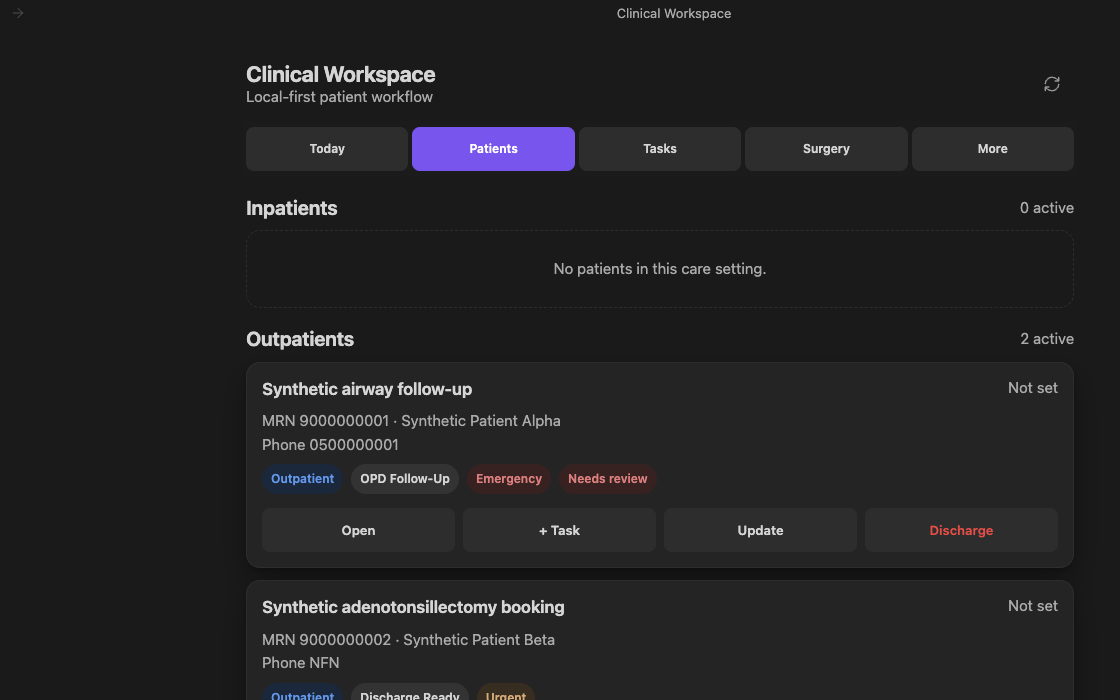
Real Clinical Workspace 0.3.6 UI in Obsidian using demonstration-only records:
Synthetic Patient Alpha and Synthetic Patient Beta with 9000-series
MRNs and the reserved demonstration phone value 0500000001. No real patient
data. Later releases changed parts of the header and card layout.
| View | What it keeps in reach |
|---|---|
| Today | A ward-round list of inpatients, overdue work with its age, due-today, the next 7 days, and undated work. |
| Patients | Inpatient and outpatient cards with pathway, priority, next action, task templates, and per-episode history. Filter by pathway and priority, then export the list. |
| Tasks | Open, complete, cancel, reschedule, and add episode work, filtered by priority and type. Tasks can repeat on completion. |
| Surgery | OR booking queue, completed-procedure logbook, and portfolio counts by procedure and role. |
| More | Native Obsidian Bases, per-patient drill-down, identity correction and merge, archive/restore, patient-list export, ward handover notes, and integrity checking. |
A header search box (also Clinical Workspace: Search clinical records) finds patients, MRNs, cases, tasks, and procedures from one field.
The workspace follows the width of its own Obsidian pane. In split layouts and stacked tabs it shifts between wide, compact, and narrow presentations without requiring the desktop window to be resized. Narrow panes keep the five workspace tabs visible at ordinary text sizes, allow them to scroll rather than clip under enlarged text, and arrange summaries and record actions in compact, touch-safe grids. On mobile, Add patient is a labelled action inside the Patients view instead of a floating control over clinical content.
The command palette now includes a Quick entry hub plus separate actions for a new patient/Episode, task or follow-up, procedure, and today's pending work. Procedure Quick Entry offers active OR-booking Episodes and Episodes that already have a logged procedure (Add another procedure). Assign your own desktop hotkeys or add any Quick Entry command through Settings → Mobile → Manage toolbar options → Add global command; no default shortcuts are imposed. The ribbon action appears in the desktop ribbon and mobile Open menu, while toolbar placement is configured separately. Task and procedure actions always require a visible Episode choice before their blank form opens. See Quick Entry, hotkeys, mobile toolbar, and safe local links. Obsidian may vary the exact setting labels by version.
The native iPhone capture inbox accepts patient, task, procedure, and OR-booking drafts saved before the vault loads. Review them through Capture inbox before submitting a clinical form. Quick entry → Book OR also opens a planned booking directly. Native capture needs the supported iOS/Obsidian version; physical iPhone widget testing remains outstanding, so begin with synthetic data in a disposable vault.
Everyday use
The everyday-use guide has short, step-by-step recipes that match the current screens:
- Ward round on iPhone
- Add a patient, including what the Check the MRN and Possible duplicate patient questions mean
- Add, complete, undo, or reschedule a task and recurring tasks
- Update an episode and discharge a patient
- Handover note, find a patient, and log a procedure
- Task templates
- Every command and when it appears
If the workspace says read-only: nothing is lost. Let Sync finish, then tap Recheck now in the banner or run Clinical Workspace: Recheck records and unlock editing. If a message names a note that is not a valid record, run Clinical Workspace: Run clinical data integrity check and open the note it lists. See The workspace says read-only — what do I do?
Extract a list of patients of any type
Use Patients → Export list, More → Export patient list, or the Clinical Workspace: Export patient list command.
- Choose any combination of Care setting (inpatient/outpatient), Pathway (for example OR Booking or OPD Follow-Up), Priority, and Episodes (open, active, on hold, ready to close, archived, cancelled, or every status). The form shows how many episodes and patients match before anything is written.
- Choose the Format: a note that opens in Obsidian with a table, or a
.csvspreadsheet file for Excel, Numbers, or Google Sheets. - Select Create patient list. The file is saved in the clinical
Documentsfolder, named after the filter (for examplePatient list 2026-09-23 Inpatient), never after a patient.
Each row is one episode with MRN, name, phone, case, setting, pathway, priority, status, next action, due date, opened date, and open/overdue task counts. Starting from Patients → Export list pre-selects the pathway and priority chips you are viewing. The list contains identifiers: share it only through an approved route and delete it after use. Export is unavailable while editing is paused. See Patient lists for details.
Five-minute synthetic quick start
- Install the Community plugin in a new disposable test vault. Keep the vault unsynced while learning the workflow.
- Run Clinical Workspace: Open workspace. Review the initialization prompt and initialize the genuinely new, empty workspace.
- Run Clinical Workspace: Quick entry: new patient / episode and enter unmistakably
synthetic details—for example,
Synthetic Patient Alphawith MRN9000000001. - Open the episode, add a task, update its pathway or priority, then complete or cancel the task.
- Create a second synthetic Episode with the OR Booking pathway, then use Surgery → Complete surgery to see the logbook flow.
- Run Clinical Workspace: Run clinical data integrity check. When nothing is found it shows "Configured checks passed" with the number of check families and records examined.
Release builds do not contain the repository's development-only synthetic data generator. Add test records through the normal interface so the exercise matches the released plugin.
Privacy at a glance
- Runtime clinical records are Markdown notes beneath the configured clinical
folder (
Clinical Workspaceby default). - The installed plugin makes no HTTP requests and contains no telemetry, analytics, crash reporting, or update checks.
- Runtime record and integrity scans recurse through the configured clinical folder. Recovery also checks the bounded list of retired clinical roots for late Sync deliveries; unrelated vault folders are not scanned. Other Obsidian plugins may still have access to the entire vault; install only the minimum institutionally approved set.
- Plugin settings (
data.json, synced with the vault) contain the visible configuration, including the clinical folder name, plus yes/no recovery flags, aggregate per-entity counts, and a SHA-256 commitment over sorted opaque Patient, Episode, Task, and Procedure IDs. They also retain up to 64 prior clinical-folder names after successful moves, so a late old-folder Sync delivery remains visible to recovery; the source and destination folder names while a move is in progress; and the version the What's new window last showed. The audit Event log is intentionally outside this recovery commitment. A one-entry device-local recovery journal additionally stores those aggregates, a SHA-256 binding to the configured root, and one-way fingerprints of the retired-folder list. Neither store contains a raw MRN, patient name, phone number, raw record ID, clinical-note path, or clinical text; only synced settings contain folder names. The local journal also preserves a device-specific manual-review latch for integrity failures. If it cannot be saved reliably, shared settings retain a conservative confirmation requirement rather than silently dropping it. - When the record set cannot be proven complete (for example while Sync is still delivering notes), editing pauses: the workspace opens read-only with a banner (or stays closed during an unfinished folder move), and every write, including patient lists and handover notes, is refused until the records are rechecked.
- Notes are plain text. Confidentiality depends on device encryption, screen lock, vault access, the chosen sync route, and organizational controls.
- Records added on different devices merge automatically once Sync delivers them: writes reopen when every record this device trusted is still present. Duplicate prevention is per device, so after a Sync conflict or concurrent edits on different devices, run the integrity check.
- Audit notes are best-effort and multi-file operations are not transactional. A reported failure may leave earlier writes in place.
- Optional Quick Entry Obsidian links contain a fixed action only. Any query parameter is rejected, and a link can open only the hub, an explicit Episode chooser, a blank form, or the Today view; it cannot submit clinical data.
For the complete threat model and non-goals, read Security and privacy.
How records fit together
Patient ──< Episode ──< Task
                 ├──< Procedure
                 └──< Event
- A Patient identity is reused by normalized MRN; leading zeroes do not create a second identity, while the entered display value is preserved. If the MRN is already recorded under a different name, Add patient stops and asks (Check the MRN) before filing anything; a blank name on either side is simply filled in. A name without an MRN that matches an existing patient prompts Possible duplicate patient.
- The Episode is the unit of care: setting, pathway, priority, next action, due date, and status. The next action and due date always mirror the soonest open Task.
- An Episode cannot be archived while it has an open Task. Discharge lists the
open Tasks and archives only after they are closed, or after you tick the
option that cancels them at discharge. Completing the last Task moves the
Episode to
ready-to-close; cancelled Tasks do not keep it stuck. - Archive is a status, not a file move. Restore returns the Episode to its prior pathway while retaining the discharge outcome.
- Patient identities can be corrected or merged after explicit confirmation.
A merge repoints linked records and retires the source as
entered-in-error; it does not delete it. - Stable IDs keep records connected when their note filenames change.
- Each workflow write is reread to confirm persistence, and workflow actions create Event notes.
Records created outside the plugin are not validated on entry. Run the
integrity check after any external import or edit; it detects unreadable notes,
unrecognised values, duplicate MRNs, missing relationships, records filed
under a different Patient from their Episode, and MRNs or phone numbers typed
without quotes (quote them, for example mrn: "0090000077", so leading zeros
survive). See the data model reference.
Requirements and installation options
The installed plugin runtime requires Obsidian 1.13.0 or later and supports Obsidian desktop and mobile. Test the complete workflow with synthetic records on every device and Obsidian version you plan to use.
Node.js is not required for the installed plugin. Node.js 22.13 or later on the 22 line, or Node.js 24 or later, is required only for repository development and the separate desktop logbook-export command.
Community installation is the recommended stable route. Alternatives:
- BRAT beta: install BRAT, run BRAT: Add a beta plugin for testing, enter
drbinsaad/obsidian-clinical-workspace, then enable Clinical Workspace. Open the BRAT installer. - Manual: download
main.js,manifest.json, andstyles.cssfrom the same GitHub release, place them in<vault>/.obsidian/plugins/clinical-workspace/, restart Obsidian, and enable the plugin. Never install a development build in a vault containing real patient information.
Removing the plugin removes its installed code and settings, not the configured clinical folder or its records. Back up and verify those notes before moving or deleting them yourself.
Settings and operational safety
Open Settings → Community plugins → Clinical Workspace.
| Setting | Purpose |
|---|---|
| Your name or initials | Actor recorded in Event notes; blank is stored as local-user. |
| Care setting, pathway, priority | Defaults for Add patient; each remains editable per Episode. |
| Confirm before discharge | Requires typing DISCHARGE before archiving an Episode. |
| Run integrity check on first open | Surfaces integrity problems automatically, stays silent when none are found, and does not repeat an unchanged report in the same session. |
| Refresh delay | Coalesces vault changes before redrawing the workspace. |
| Clinical folder | Moves the complete managed workspace; this is a migration, not a toggle. |
Folder changes deliberately fail closed when Sync evidence is incomplete or ambiguous. A bounded history of retired clinical folders is synced so a late delivery into an old root re-arms recovery on another Mac. Perform a move on one fully synced device at a time and read Moving the clinical folder safely before changing the setting.
Normal Sync recovery is automatic once the required record evidence is verified. A stale shared manual-review flag also clears automatically when a previously clean, complete device-local journal exactly matches the synced commitment and both record scans pass. Update Clinical Workspace on each device. If editing stays paused after Sync has finished, use Recheck records and unlock editing (formerly Retry pending folder move recovery; the command id is unchanged). Confirm current records as the recovery baseline appears only while editing is paused, and repeating it should not be part of normal Sync use.
Manual confirmation is still reserved for a real unresolved recovery problem, such as missing/replaced records, an interrupted or damaged journal, or unverifiable safety metadata. The legacy-flag upgrade uses independently committed evidence; it cannot reconstruct the origin of a flag older versions stored without provenance. See the 0.6.9 recovery compatibility notes.
Surgery logbook exports
The repository includes a separate Node.js command that joins completed Procedure notes to their Episode context. It is desktop-only, is not bundled in the plugin, and cannot be run from an installed Community, BRAT, or manual plugin.
Its default CSV is pseudonymized, not anonymous or de-identified, and remains
confidential. Direct identifier columns require --identifiers; free text,
dates, rare-case context, and stable references can still identify a person in
the default export. Output must be outside both the source vault and source
repository. Without --root, the command reads the clinical folder name from
the vault's Clinical Workspace settings file
(.obsidian/plugins/clinical-workspace/data.json) and refuses while a folder
move is unfinished. --from, --to, and --role narrow the export by date
and role.
Read Exporting the surgery logbook before running the command.
Development
Development and repository utilities need Node.js 22.13 or later on the 22 line, or Node.js 24 or later:
npm ci
npm run check
npm run check runs strict TypeScript checking, linting, a production build,
and the test suite. The build writes only to local dist/ unless an explicit
vault installation path is supplied.
To install a production build into a test vault:
npm run build
npm run install:vault -- "/path/to/test-vault"
Development-only synthetic fixtures require CLINICAL_DEV_TOOLS=1. They are
compiled out of release builds, and release verification fails if they remain
in dist/. See Contributing for the development workflow.
Project links
- Everyday use
- Changelog
- Contributing
- Data model reference
- Moving the clinical folder safely
- Exporting the surgery logbook
- Security and private vulnerability reporting
- Quick Entry, hotkeys, mobile toolbar, and safe local links
- Support
- Code of conduct
- Issue tracker
- MIT license
Clinical Workspace is independent from Knowledge Base Command Center. A vault containing identifiable clinical records should contain only the minimum set of plugins approved for that vault.