
README file from
GithubChess Repertoire
A chess repertoire helper, PGN viewer/editor and opening trainer for Obsidian.
Chess Repertoire is a fork of Obsidian Chess Study by @chrislicodes.
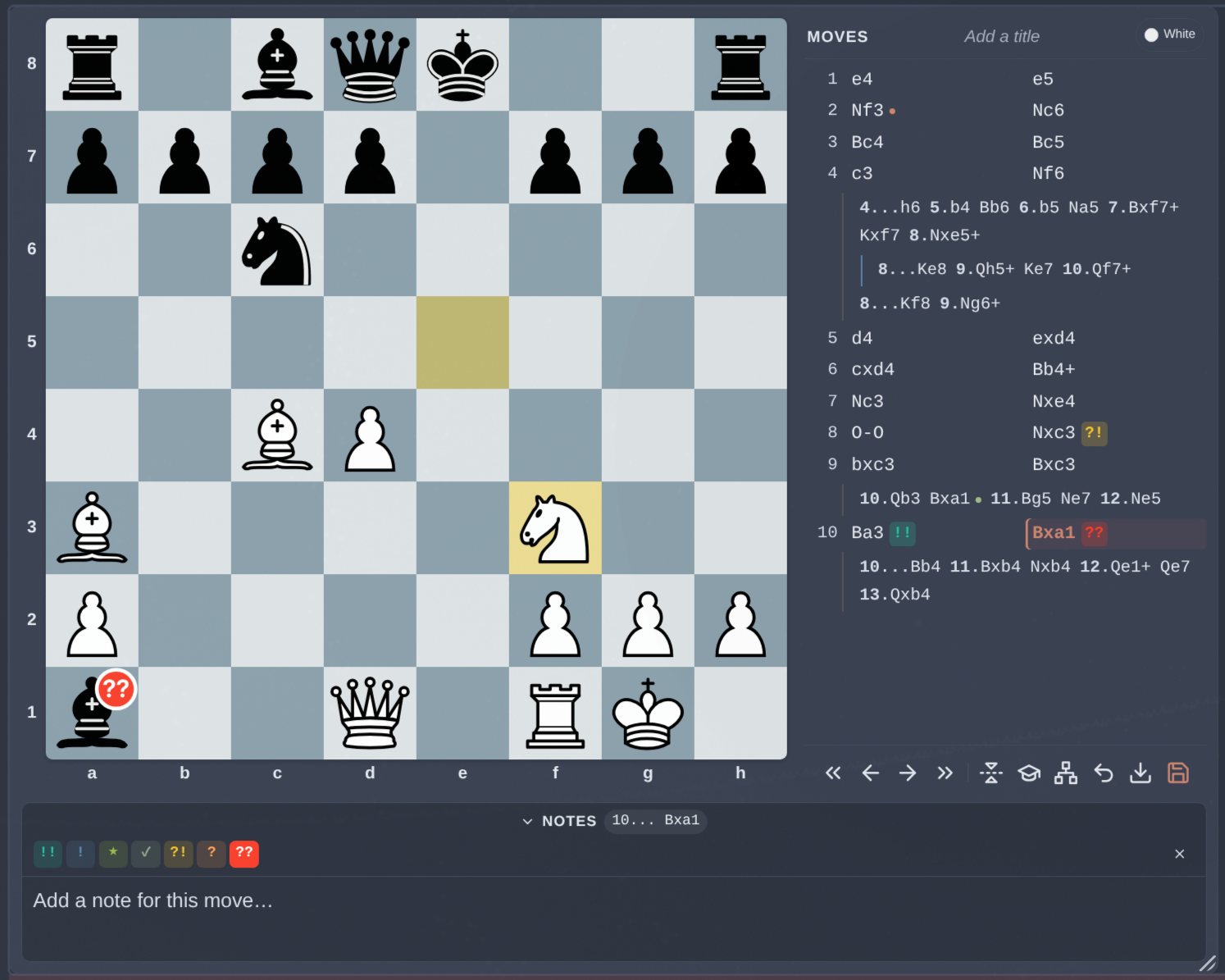
Table of contents
- Trainer
- The map
- Export
- Minor features
- Installation
- Usage
- Settings
- Keyboard shortcuts
- Known limitations
- Credits
- License
Trainer
The graduation-cap button starts a drill. Pick a colour, and the board rewinds to the repertoire's starting position: you play your side, the repertoire plays the other. A move the repertoire doesn't know is refused and drawn as a red arrow.
Your opponent's replies are drawn from everything the repertoire records for that position, weighted toward lines you've gotten wrong before and lines you've never drilled. So if you have any variations, the opponent might play any variations or the mainline.
Your own moves are picked the same way, in the rare position where you've prepared more than one. Since the board can't show which of them the drill is after, it says so above the hint button - "3 moves prepared here (Nf3, Bc4, d4) - this line plays Bc4" - and that move is then given rather than asked for: it doesn't count for or against you, and playing one of the others rewinds the board without being marked wrong. What's being drilled there is the line underneath.
A line you'd rather keep than rehearse can be excluded from drills without deleting it, from any move's right-click menu.
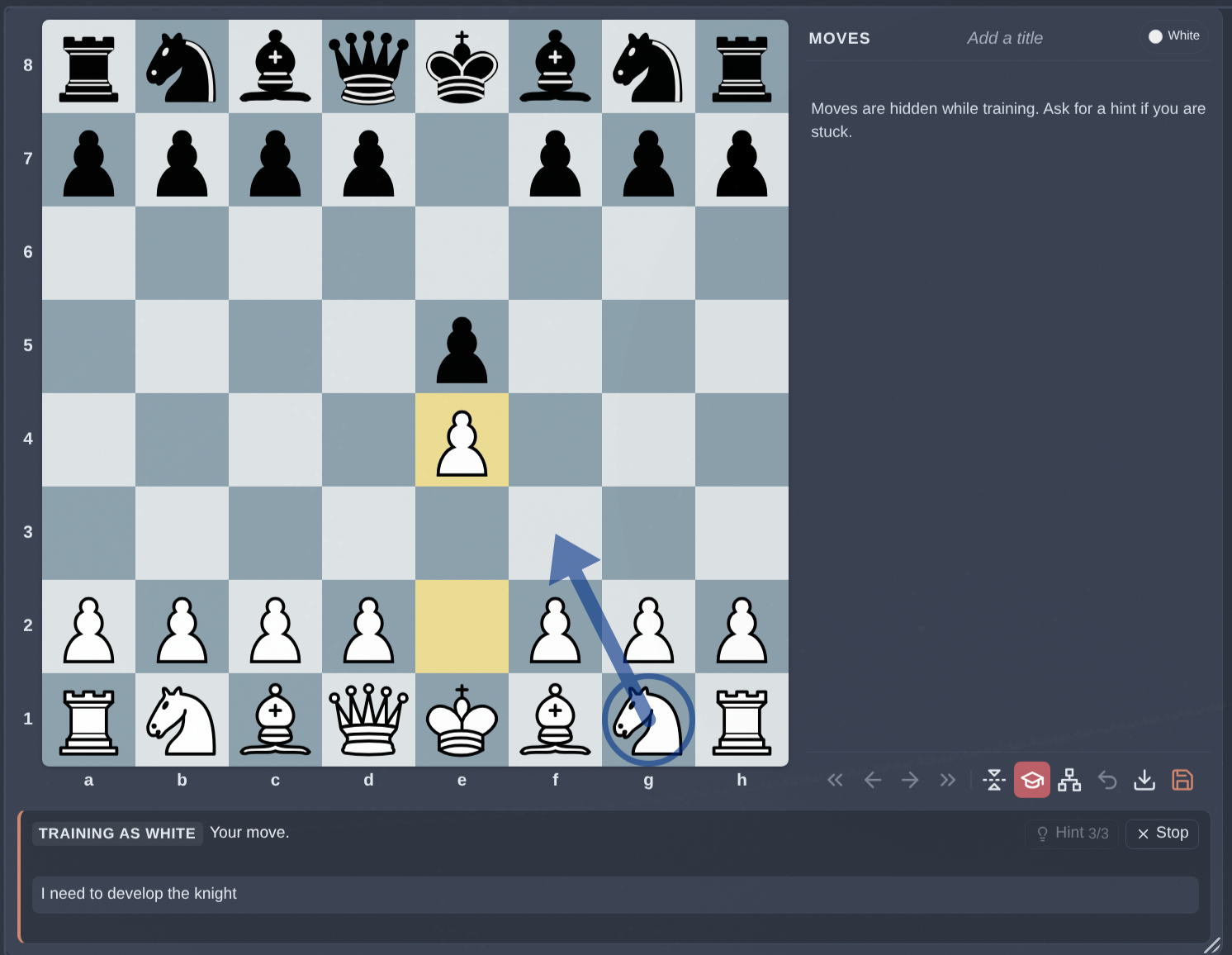
Stuck? Hints escalate one press at a time: your note on the move, then the piece to move, then the arrow to play. Nothing a hint shows, and nothing a session does, ever touches your repertoire - it plays out on a side history that only tracks how you're doing.
You can do as many arrows as you like during a repertoire, they will not be saved in the original board.
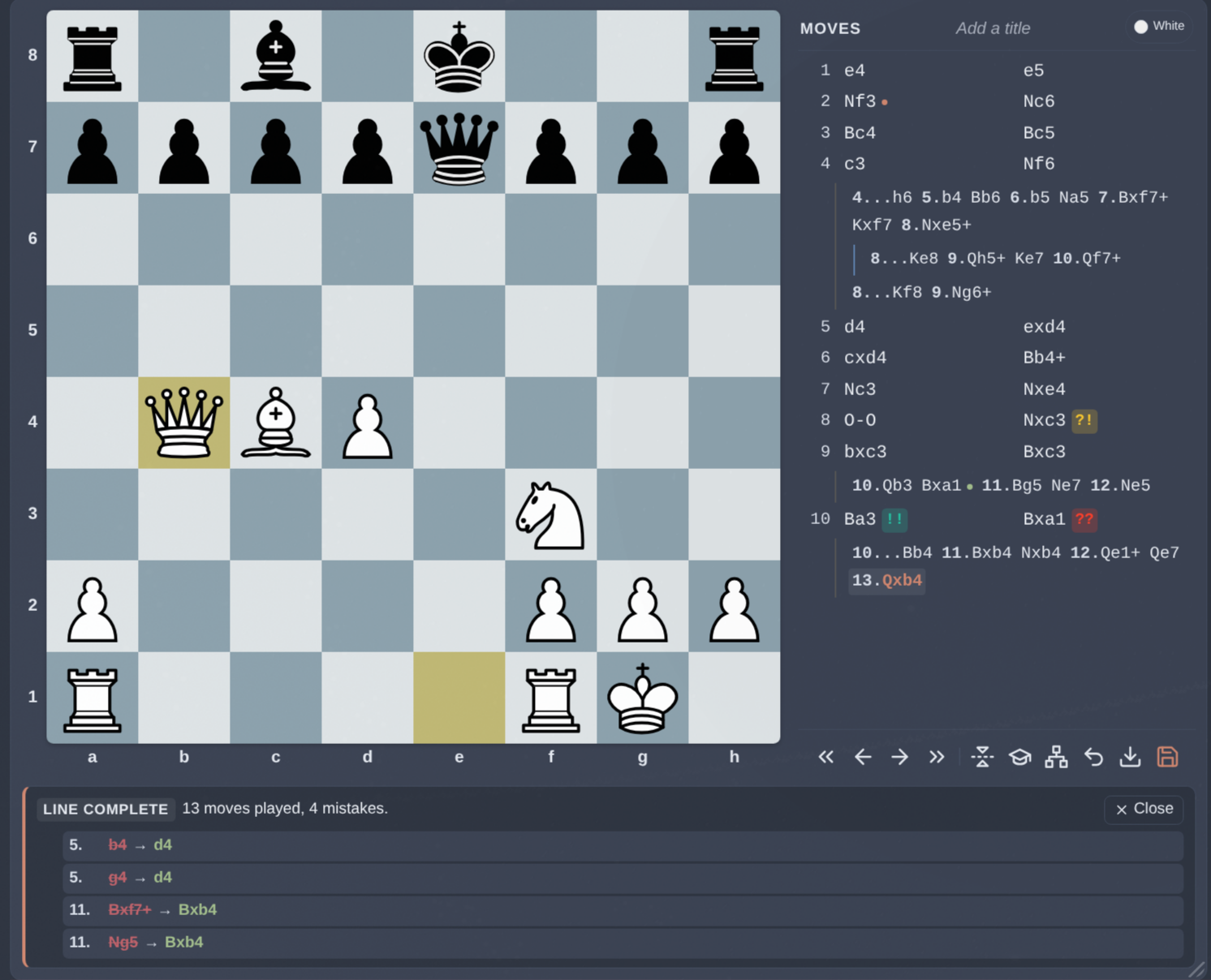
When the line runs out, you get a report: moves played, mistakes made, and where each mistake was.
The map
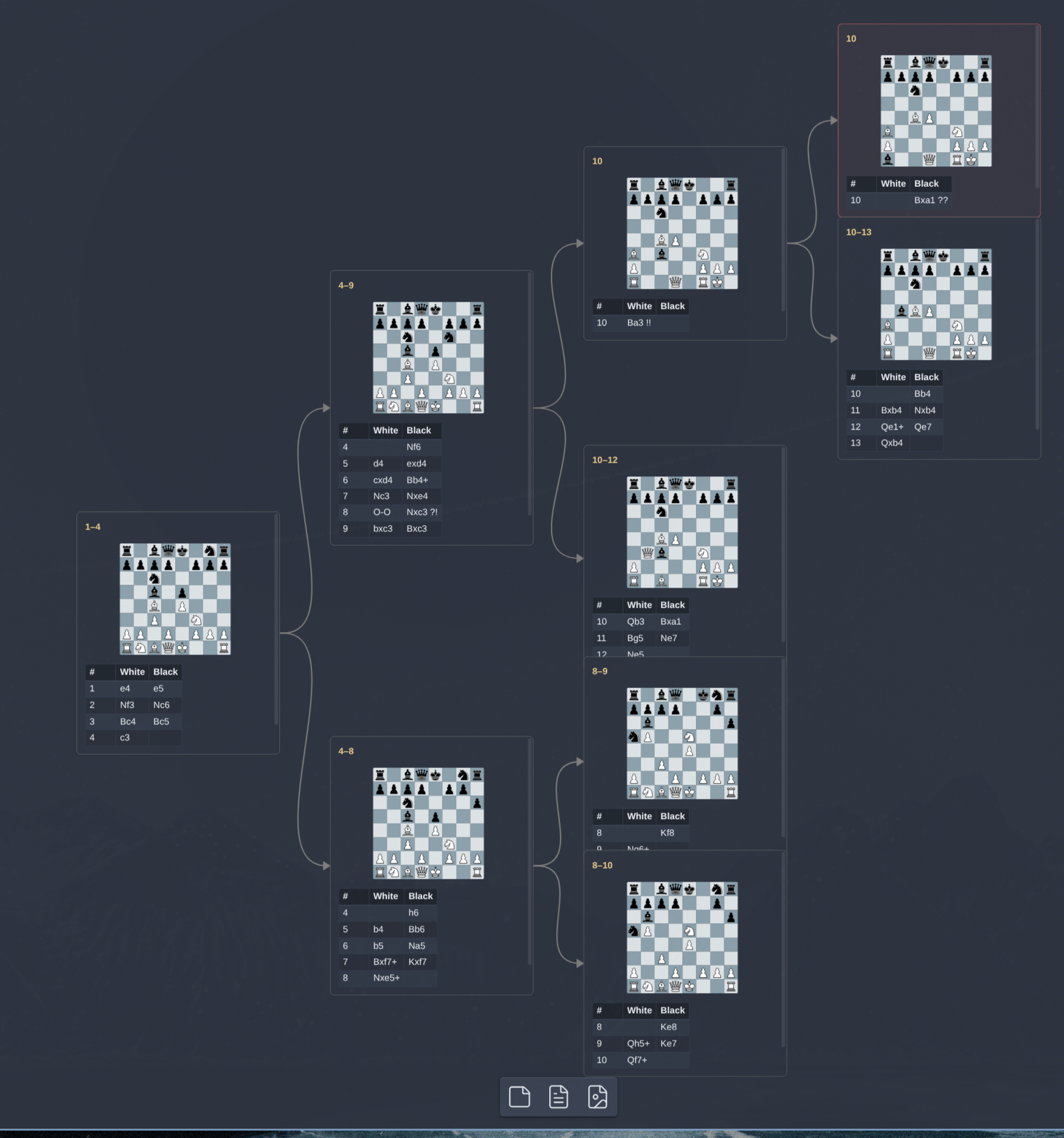
The network button opens the repertoire as a diagram - a trunk, and a card at every point your opponent gets to choose. It's the shape of a repertoire made visible, instead of a move list you have to scroll to make sense of.
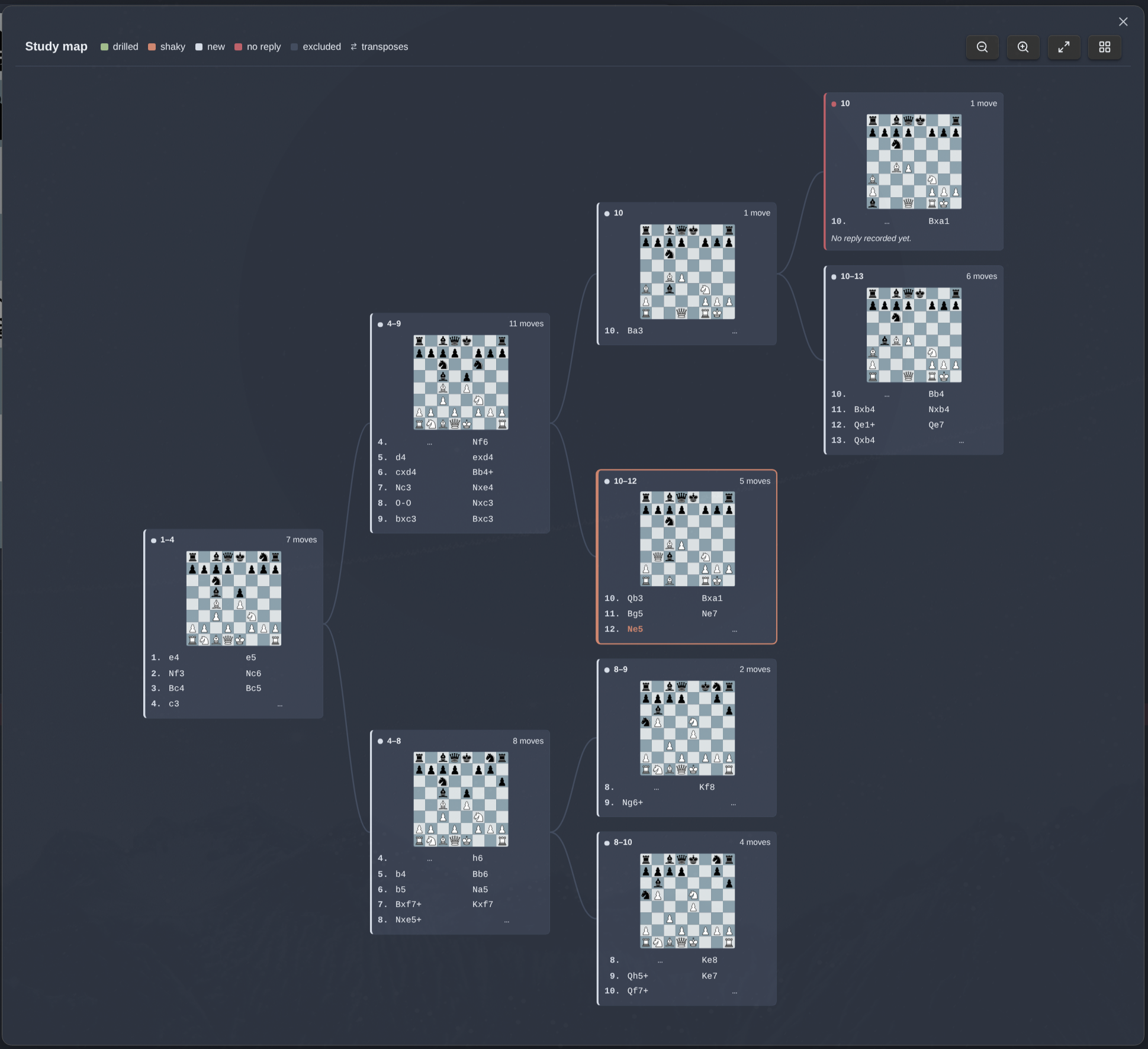
Each card shows its moves, their labels, and a coloured edge for how well the line is holding up - drilled clean, shaky, never drilled, excluded, or missing a reply entirely. That last one is the useful one: it's a hole in the repertoire, sitting right next to lines that run fifteen moves deep.
Lines that transpose into each other are marked with a small ⇄ that jumps you between them, so a repertoire built on move orders doesn't hide its overlaps.
Drag to pan, scroll to zoom, click a move to jump the board there and close the map.
The map can also be exported as an Obsidian canvas: the same cards, laid out the same way, that you can rearrange and scribble over freely.
Export
The download button opens the repertoire as text, in either of two formats, with a button to copy whichever is showing to the clipboard.
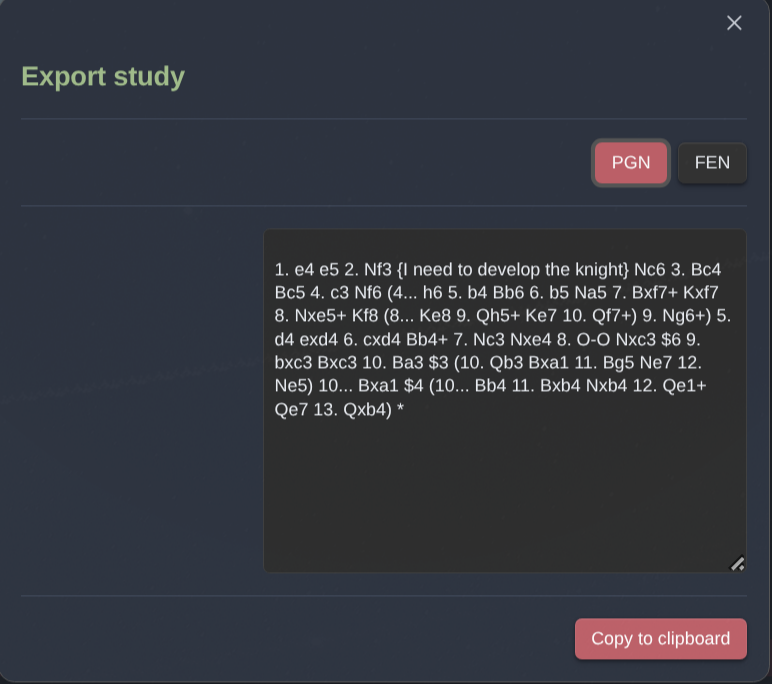
PGN is the whole repertoire, not just the line you are standing on: variations come out nested in brackets, your notes as {} comments, and your classifications as the standard glyphs - $1, $3, $4 and so on. It is the exact counterpart of the importer, so a repertoire exported and pasted back in comes out the same repertoire. A repertoire that starts from a position rather than the standard array carries a [FEN] header, so it opens where it should.
FEN is the position on the board right now, for pasting into an engine or another board.
Two labels are chess.com's own invention rather than standard notation - Excellent and Good - and have no glyph to be written as, so they are left off the move rather than guessed at.
Minor features
- Variations at any depth, promoted, reordered, or deleted from a right-click menu - including alternatives to the repertoire's very first move, which matters most for a repertoire opened from a mid-game position, where that move is a real choice rather than an opening.
- Move classifications - seven chess.com-style labels, set with
1-7, shown as a badge on the move and the board. - Drawn positions marked with a ½ - stalemate, insufficient material, the fifty-move rule and repetition, worked out from the board rather than set by hand, so nothing has to be remembered and nothing goes stale.
- Board flip from the control strip.
- Notes and drawings on any move - Markdown notes plus arrows and circles on the board.
- Annotations visible from the move list - a dot for notes, a dot for arrows, without stepping through the game to find them. The orange dot indicate the presence of a comment, a green dot represents the presence of an annotation.
- PGN import that keeps your annotations - comments become notes, glyphs become classifications, and variations import nested, straight from a chess.com or Lichess game.
- Merge several repertoires in a note into one combined tree.
- A cleanup button for the repertoire files nothing refers to - the boards made and thought better of, the notes since deleted, the merges kept for their result. It reads your notes before it offers to delete anything, lists what would go, and moves it to the trash rather than erasing it.
- A board with no repertoire behind it, for showing a bare position in a note.
- Autosave, with a visible indicator whenever there's something unsaved.
- A resizable, theme-aware widget that fills the note's width.
Installation
Chess Repertoire is not in the community plugin store yet, so install it by hand:
- Download
main.js,styles.cssandmanifest.jsonfrom the latest release. - Create a folder named
chess-repertoirein<vault>/.obsidian/plugins/. - Drop the three files into it.
- Reload Obsidian and enable Chess Repertoire under Settings → Community plugins.
Upgrading from the original Chess Study? Copy your old plugin's
storagefolder into<vault>/.obsidian/plugins/chess-repertoire/before enabling it, or your existing repertoires won't be found. Chess Repertoire moves what it finds there into the vault the first time it loads - see Where repertoires are stored.
Usage
Put your cursor where you want the board and run Chess Repertoire: Insert FEN/PGN-Editor at cursor position (Use the Command palette (Ctrl+P)) A modal lets you paste a PGN, paste a FEN, or start a fresh game.
To combine several repertoires in the same note into one, run Chess Repertoire: Merge every chess repertoire in this note into one with your cursor where you want the result. The first repertoire becomes the trunk; the others' lines are added as variations off it, and their notes fill in gaps rather than overwrite anything. This is done because I like to have the mainline first and the subvariations separated, but I also like to have a single board with all the variations together.
Settings
Every setting has a default in Settings → Community plugins → Chess Repertoire, and can be overridden per repertoire by adding a line to the code block:
```chessRepertoire
chessRepertoireId: V1StGXR8_Z5jdHi6B-myT
boardColor: green
boardOrientation: black
showCoordinates: false
```
| Setting | Values | Description |
|---|---|---|
chessRepertoireId |
valid nanoid | Which stored repertoire to render. Inserted by the command. |
boardOrientation |
white | black |
Which way round the board starts |
boardColor |
blue | blue-soft | green | brown |
Board theme |
showCoordinates |
true | false |
Show the a-h / 1-8 labels |
coordinateColor |
hex colour, e.g. "#d08770" |
Colour of those labels. Leave unset to follow the theme. |
boardSize |
number of pixels | Widget width. Written automatically when you drag to resize. |
viewComments |
true | false |
Whether the notes panel starts open |
Where repertoires are stored
Repertoires and their drill history are .json files in your vault, one per repertoire, named by the id in the code block. Repertoire folder in the plugin settings decides which folder; leave it empty for Chess Repertoires in the root of the vault. It is the one setting that cannot be overridden per repertoire.
Changing it moves the files already written into the new folder. A file whose name is already taken in the destination is left where it is rather than overwritten, and anything that could not be moved stays readable in the old folder.
A repertoire's file is written the moment you make the board, before its code block reaches the note, and deleting the block or the note only takes the block away - the file stays where it is, under a name that says nothing about what is in it. Merging leaves the originals behind too, on purpose.
Find unused files, under Unused repertoire files in the settings, clears those away. It reads your notes first and treats an id mentioned anywhere - in a block, a template, a canvas card, a line of prose - as a repertoire still in use. What is left is counted, listed file by file if you open the list, and moved to the trash rather than erased. A file in the folder that the plugin did not write is never touched.
Notes folder decides how much is read. Leave it empty and the whole vault is searched, which is the only answer that cannot be wrong; name a folder and only the notes under it are read, which is quicker on a large vault. The catch is the reason it defaults to empty: a note outside that folder is not seen, so the repertoire it uses looks like one nothing refers to. The confirmation always says which folder was searched, and the search stops rather than offering anything up if the folder it was pointed at holds no notes at all.
Two things worth knowing:
- Obsidian Sync counts
.jsonas an unsupported extension, so these files only sync with Settings → Sync → All other file types turned on. Without it they are still covered by version history and file recovery, but they will not reach your other machines. - The filenames are ids and mean nothing to read. If they clutter your search results and graph, add the folder to Settings → Files & links → Excluded files; the plugin keeps reading it normally.
Keyboard shortcuts
Click a repertoire to give it the keys; click away to give them back. Works in both Reading view and Live Preview, Vim mode included.
| Key | Action |
|---|---|
← / → |
Previous / next move |
↑ / ↓ |
First / last move |
1-7 |
Classify the current move |
0 |
Clear the classification |
Known limitations
- Desktop only - the widget isn't adapted for touch.
- The map draws a tree, not a graph: transposing lines are two linked cards, not one shared card.
Credits
Chess Repertoire is a fork of chrislicodes/obsidian-chess-study, with thanks to @chrislicodes for the original and to @latenitecoding for the FEN support it inherited.
- Chess visuals are powered by Chessground
- Chess logic is powered by Chess.js
- The notes editor is powered by TipTap
- Icons are provided by Lucide
- Everything is tied together by React
License
Chess Repertoire is licensed under GPL-3.0-or-later, the same licence as the original. See LICENSE.