
README file from
GithubCheckSorted
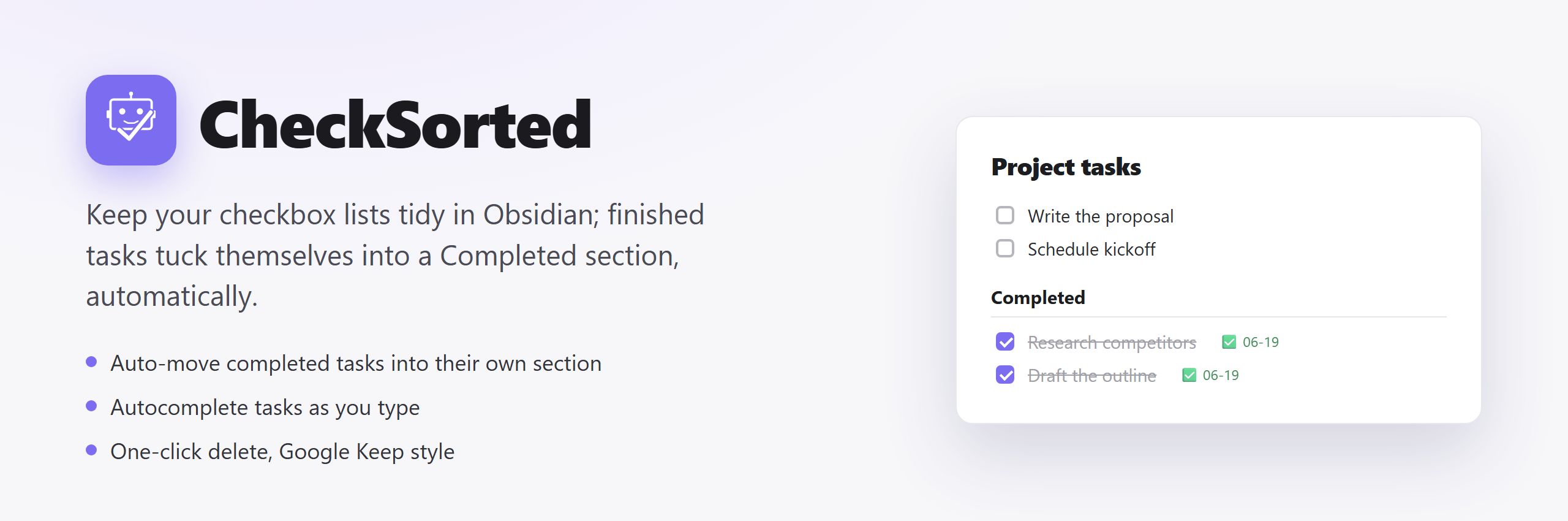
An Obsidian plugin that keeps your checkbox lists tidy; completed items move into a dedicated section at the bottom of your note, and typing, completing, and deleting tasks all get out of your way.
Features
Move tasks where they belong
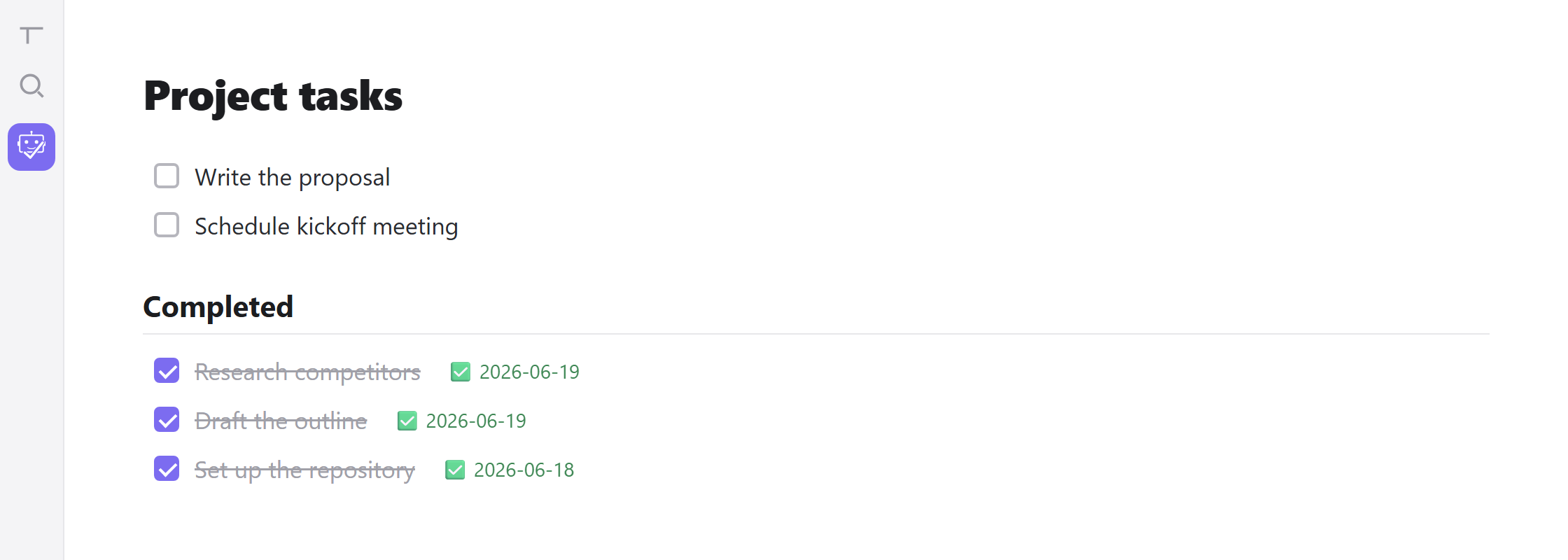
Check a task and it slips into a Completed section at the foot of your note. Do it on demand from the command palette or ribbon, or turn on auto-move and watch each task leave the instant you tick it. Uncheck something by mistake? It quietly returns to your active list on its own.
Keep sub-tasks with their parent
Turn on Keep sub-tasks with their parent and a task travels with everything indented under it: sub-tasks, notes, links and images. Check a parent and its whole group moves down, sub-tasks marked done too; uncheck it and the group comes back, reopened. Check a single sub-task while its parent is still open and just that sub-task moves.
- [ ] Buy milk
- [x] Groceries
    Shop closes at 8
    - [ ] eggs
    - [ ] bread
becomes
- [ ] Buy milk

## Completed
- [x] Groceries
    Shop closes at 8
    - [x] eggs
    - [x] bread
Works in Reading view too
Turn on Auto-move in Reading view and ticking a box while reading a note sorts it just like in the editor.
Sync both ways in one click
The sidebar ribbon runs a full pass: completed tasks move down, anything you un-ticked moves back up, and leftover empty checkboxes are swept away; so neither list ever drifts out of sync.
Autocomplete tasks as you type
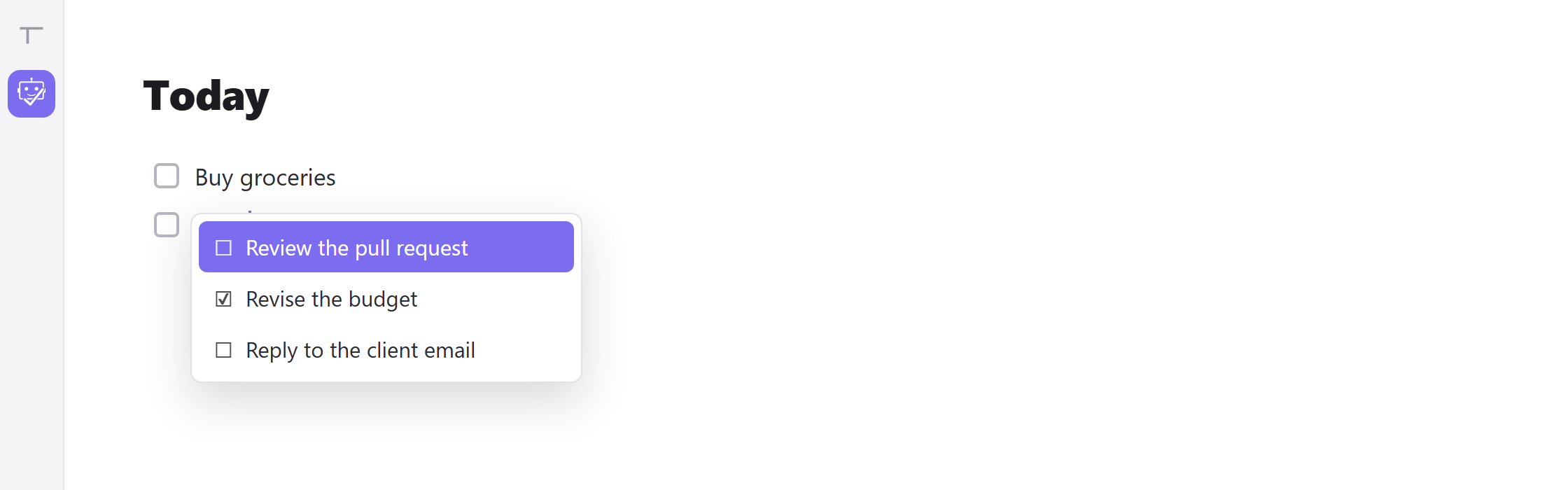
Start typing in a checkbox and CheckSorted suggests matching tasks from anywhere in the note, done or not. Pick one and that task hops onto the line you're typing, with its original copy removed, so duplicates collapse into a single entry. The task lands in the state of the line you're typing: type into an unchecked box and an archived task comes back active; type into a checked box and an open task is marked done; all in one keystroke.
Delete a task in one click
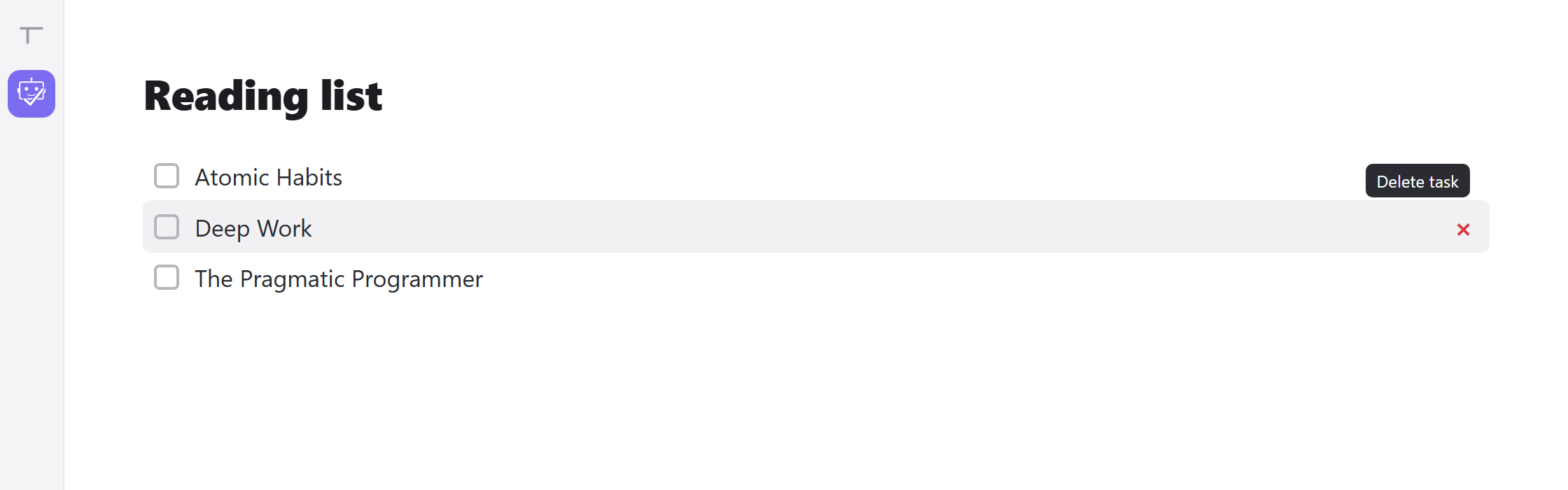
Hover a checkbox line in the editor and a × appears on the right, just like Google Keep. Click it to remove that task; no selecting, no backspacing. Phones and tablets have no hover, so turn on Show delete button on touch screens to keep the × visible there.
Tidy up in bulk
- Restore all — pull every archived task back into the active list at once
- Clear — delete the completed section and everything in it in a single step
Shape it to your workflow
- Custom heading — name the archive section and pick its level, H1 through H6
- Completion dates — stamp each finished task with a date like
✅ 2026-06-19, in any Moment.js format - Newest first or last add completed items to the top or bottom of the archive
- Status bar toggle — flip auto-move on or off and read its state (
✓/✗) at a glance
Usage
Commands
All commands are available via the Command Palette (Ctrl/Cmd + P):
| Command | Description |
|---|---|
| Move completed items to completed area | Moves all - [x] items from your note body into the completed section |
| Restore all items from completed area | Unchecks all items and moves them back to the note body |
| Clear completed area | Deletes the completed section and all items in it |
You can assign custom hotkeys to any of these in Settings → Hotkeys.
Ribbon icon
Clicking the CheckSorted ribbon icon in the left sidebar runs a full sync in one step:
- Any unchecked
- [ ]items left in the completed area are returned to the main list (and stray empty checkboxes are cleared). - All checked
- [x]items in the note body are moved into the completed area.
Example
Before running Move:
- [ ] Write proposal
- [x] Research topic
- [ ] Schedule meeting
- [x] Review notes
After running Move:
- [ ] Write proposal
- [ ] Schedule meeting

## Completed
- [x] Research topic
- [x] Review notes
Unchecking an item in the completed area automatically returns it to the main list.
Settings
| Setting | Default | Description |
|---|---|---|
| Header level | H2 | Heading level for the completed section |
| Header name | Completed |
Text of the completed section heading |
| Show ribbon icon | On | Display the trigger icon in the left sidebar |
| Show status bar toggle | On | Show CheckSorted ✓ / ✗ in the bottom status bar — click to toggle auto-move |
| Keep sub-tasks with their parent | Off | Move a task together with its sub-tasks and indented notes; checking a parent completes its sub-tasks, unchecking brings the group back |
| Auto-move on complete | On | Automatically move items to the completed area when checked |
| Auto-move in Reading view | Off | Also move items when a checkbox is ticked in Reading view |
| Show delete button | On | Show a × on the right of each checkbox line in the editor; click it to delete that task |
| Show delete button on touch screens | Off | Keep the × visible on phones and tablets, which have no hover |
| Task autocomplete | On | Suggest matching tasks while typing in a checkbox; selecting one moves it to the line you're typing |
| Date stamp | Off | Append ✅ <date> when items are moved |
| Date format | YYYY-MM-DD |
Moment.js format for the stamp |
| New items order | Append | Add new completed items at the bottom or top of the section |
Installation
From Community Plugins
Once approved, CheckSorted will be installable directly from Obsidian:
- Open Settings → Community Plugins and click Browse
- Search for CheckSorted
- Click Install, then Enable
Using BRAT
BRAT lets you install plugins directly from GitHub before community store approval.
- Install BRAT from the Obsidian community plugins
- Open BRAT settings and click Add Beta Plugin
- Paste this URL:
https://github.com/Esmaeelpour/obsidian-checksorted - Enable CheckSorted in Settings → Community Plugins
BRAT will also handle updates automatically.
Manual
- Download
main.js,manifest.json, andstyles.cssfrom the latest release - Copy all three files into your vault at
.obsidian/plugins/checksorted/ - Reload Obsidian and enable CheckSorted in Settings → Community Plugins
Credits
Inspired by obsidian-completed-area by DahaWong.
License
MIT