
README file from
GithubCedar for Obsidian
Syntax highlighting for the Cedar policy language in Obsidian notes.
Fenced code blocks tagged cedar (policies) or cedarschema (schemas, in the human-readable schema format)
are highlighted in Live Preview, Source mode and Reading view, using your theme's code colours.
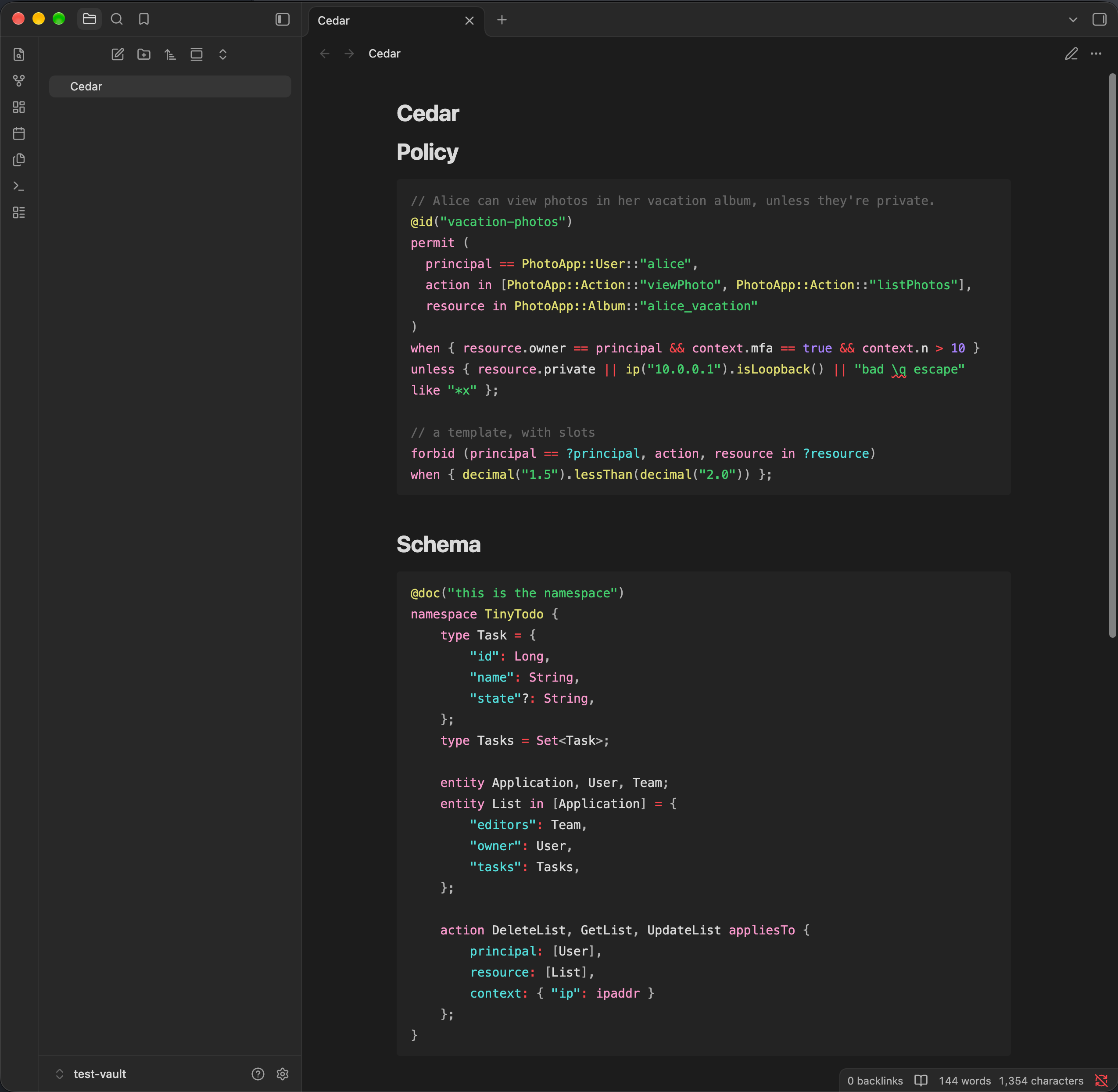
```cedar
permit (
  principal == PhotoApp::User::"alice",
  action == PhotoApp::Action::"viewPhoto",
  resource in PhotoApp::Album::"vacation"
)
when { context.mfa == true };
```

```cedarschema
namespace PhotoApp {
  entity User;
  entity Album;
  entity Photo in [Album] = { "private": Bool };
  action viewPhoto appliesTo { principal: [User], resource: [Photo] };
}
```
Like Obsidian's built-in languages, code blocks inside blockquotes and callouts are highlighted in Reading view only, not in the editor.
How it works
The highlighting comes from the TextMate grammars in the official
Cedar extension for Visual Studio Code (cedar-policy/vscode-cedar),
which are bundled unmodified. Notes are highlighted exactly the way VS Code and the
Cedar plugin for JetBrains IDEs highlight them.
- The grammars run in a pure-JavaScript TextMate engine
(
@shikijs/vscode-textmatewith Shiki's JavaScript regex engine), with no WebAssembly and no network access, on desktop and mobile. - Live Preview and Source mode: the plugin registers
cedarandcedarschemaeditor modes, which Obsidian uses for fenced code blocks with those languages. - Reading view: the plugin registers
cedarandcedarschemawith Obsidian's Prism highlighter. This also covers embeds, hover previews and PDF export.
TextMate scopes are mapped to Obsidian's code colours (--code-keyword, --code-string, --code-comment, …) in
the same way the JetBrains plugin maps them to IDE colours. Every highlighted token also gets a cedar-<kind>
class, so you can restyle it with a CSS snippet:
/* e.g. make principal/action/resource/context stand out */
.cedar-variable { font-weight: bold; }
The kinds are: keyword, variable, slot, entity-type, namespace, builtin-type, property,
function, method, annotation, string, string-escape, invalid-escape, number, boolean,
operator, punctuation and bracket.
Installing
From Obsidian: Settings → Community plugins → Browse, search for Cedar, then install and enable it.
To install by hand, download main.js, manifest.json and styles.css from the
latest release into
<vault>/.obsidian/plugins/cedar/, then enable Cedar under Settings → Community plugins.
Development
Tools are pinned in mise.toml (Node 22).
npm install
npm run lint                # Obsidian's official ESLint rules (what the directory's review runs)
npm test                    # tokenizer, editor mode and Prism tests
npm run build               # type-check and bundle main.js
scripts/dev-vault.sh        # build and link the plugin into test-vault/ (or a vault given as $1)
Open test-vault/ as a vault in Obsidian, enable community plugins and Cedar, and open Cedar.md.
Releases: run npm version <x.y.z> (bumps package.json, manifest.json and versions.json), then
git push --follow-tags. The Release workflow builds the plugin and creates a draft GitHub release with
main.js, manifest.json and styles.css. Review the draft, then publish it.
License
Apache License 2.0. See LICENSE and NOTICE. Cedar grammars © Cedar Contributors.