
README file from
GithubBookmarks Sync for Obsidian
Import Safari, Chrome or Firefox bookmarks as individual Markdown notes into your Obsidian vault, using your own customizable template.
Features
- Multi-browser support: Automatically discover installed Chrome, Chromium, Edge, Brave, Vivaldi, Arc, Firefox, Firefox Developer Edition, and Safari (macOS) profiles.
- Customizable templates: A template is a markdown file in the plugin's
templatesfolder, bundled into the build with its file name as the template name. Editing a template in settings switches the selection to Custom and leaves the built-in file untouched. Templates use placeholders like{{title}},{{url}},{{date}},{{folder_path}},{{domain}}, and more. - Frontmatter ready: Use filters like
{{title|yaml}}to safely format text for YAML frontmatter. - Hierarchy preservation: Mirror your browser folder tree into vault subfolders, or save all bookmarks into a flat folder.
- Selective folder sync: Filter by a specific root browser folder (e.g.
Bookmarks Bar/Work) to sync only what you want. - Safe duplicate handling: URL-based indexing ensures each URL produces a single note, even if filed in multiple folders.
- Flexible automation: Sync manually on demand, automatically on startup, or at periodic intervals.
- Conflict-free updates: Uses atomic vault updates so notes are modified safely without race conditions.
Installation
Community plugins (Recommended)
Install directly from the Obsidian community plugins store:
- Open Obsidian Settings → Community plugins.
- Select Browse and search for Bookmarks Sync.
- Select Install, then select Enable.
- Open Settings → Bookmarks Sync to configure the plugin.
Manual installation
- Download the latest release (
main.js,manifest.json,styles.css) from the Releases page. - Create a folder named
bookmarks-syncin your vault's plugin directory:<vault>/.obsidian/plugins/bookmarks-sync/. - Copy
main.js,manifest.json, andstyles.cssinto that folder. - Reload Obsidian and enable the plugin under Settings → Community plugins.
Build from source
git clone https://github.com/chadidi/obsidian-bookmarks-sync.git
cd obsidian-bookmarks-sync
npm install
npm run build
Copy main.js, manifest.json, and styles.css into <vault>/.obsidian/plugins/bookmarks-sync/.
First run
- Go to Settings → Bookmarks Sync.
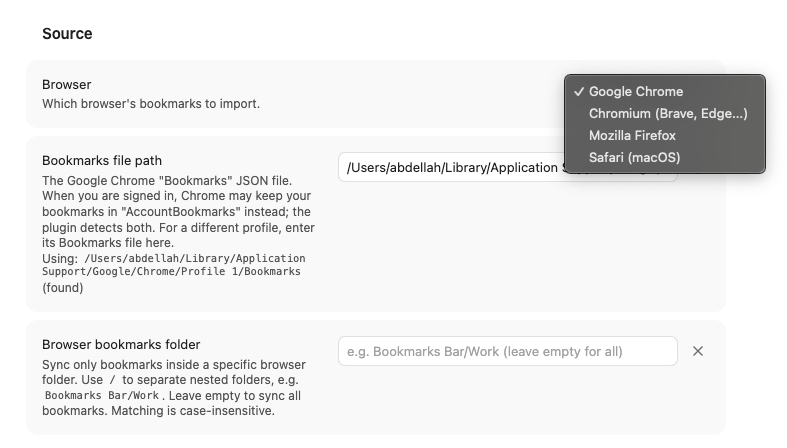
- Select your browser under Source. On first use, the plugin selects your system default browser; you can switch to any detected browser at any time.
- Choose your target vault folder and template.
- Click Sync bookmarks (or click the bookmark ribbon icon, or run the command
Sync bookmarks now). - Automatic syncs (on startup or periodic) are kept disabled until one manual sync has completed successfully to prevent accidental imports.
Supported browsers
| Browser | Default file location | Notes |
|---|---|---|
| Chromium-based browsers | Google Chrome, Chromium, Microsoft Edge, Brave, Vivaldi, and Arc profiles are discovered automatically. | JSON file. Both Bookmarks and AccountBookmarks are supported. |
| Safari | ~/Library/Safari/Bookmarks.plist (macOS) |
Binary plist, parsed directly in-process. Because macOS protects ~/Library/Safari/, either use Choose Bookmarks.plist in settings to grant read access to just that file for the session (no Full Disk Access needed), or grant Obsidian Full Disk Access in macOS System Settings → Privacy & Security. Reading List items are excluded. Safari stores no creation dates, so {{date}} uses the sync date. |
| Firefox | Auto-detected places.sqlite or bookmarkbackups/*.jsonlz4 |
Reads live bookmarks from places.sqlite with the SQLite module built into Obsidian, on a temporary copy taken together with its -wal file so uncheckpointed changes are included. Alternatively, point to a bookmarkbackups/*.jsonlz4 file or directory for native decompression. |
Template placeholders
| Placeholder | Description |
|---|---|
{{title}} |
Bookmark title (falls back to host/path if title is empty). |
{{url}} |
Full URL of the bookmark. |
{{date}} |
Date the bookmark was added (supports moment.js format, e.g. {{date:YYYY-MM-DD}}). |
{{synced}} |
Date the current sync occurred (e.g. {{synced:YYYY-MM-DD HH:mm}}). |
{{folder_path}} |
Full browser folder path separated by / (e.g. Bookmarks Bar/Dev/Obsidian). |
{{folder}} |
Immediate parent folder name (e.g. Obsidian). |
{{folder_links}} |
Folder path as wiki links separated by / (e.g. [[Bookmarks Bar]] / [[Dev]] / [[Obsidian]]). Pass a custom separator after a colon, e.g. {{folder_links: > }} gives [[Bookmarks Bar]] > [[Dev]] > [[Obsidian]]. |
{{folder_links_yaml}} |
Folder path as a quoted list of wiki links for front matter (e.g. ["[[Bookmarks Bar]]", "[[Dev]]", "[[Obsidian]]"]). |
{{folder_tags}} |
Folder path as quoted, comma-separated tag names for a front matter tag list, sanitized to valid Obsidian tags (whitespace becomes -, characters like ( ) . & are removed, emoji are kept), e.g. tags: [bookmark, {{folder_tags}}] gives tags: [bookmark, "Bookmarks-Bar", "Dev", "Obsidian"]. |
{{folder_hashtags}} |
Folder path as inline hashtags, sanitized to valid Obsidian tags (whitespace becomes -, characters like ( ) . & are removed, emoji are kept), e.g. #Bookmarks-Bar #Dev #Obsidian. |
{{domain}} |
Clean domain name without www. (e.g. obsidian.md). |
{{browser}} |
Browser name (e.g. Google Chrome, Chromium, Safari, Firefox). |
Filters
You can apply pipe filters to any placeholder:
|yaml: Safely quotes and escapes values for YAML frontmatter (e.g.title: {{title|yaml}}).|lower: Converts value to lowercase.|upper: Converts value to uppercase.|slug: Converts value to a URL-friendly slug (e.g.{{title|slug}}). Folder paths keep their/separators, soMusic Stuff/Sax Songsbecomesmusic-stuff/sax-songs.
Sync behavior
- Only sync new bookmarks (default): Existing notes corresponding to a bookmark are never modified.
- Apply templates to existing bookmarks: Existing bookmark notes will be updated if the rendered template output has changed.
- Renaming and moving notes: The plugin tracks notes by their URL mapping in
data.json. Renaming or moving notes inside Obsidian will preserve the association. - Deleting notes: If you delete a bookmark's note in Obsidian, it will be treated as new on the next sync and recreated.
- Removing deleted bookmarks: If you delete a bookmark in your browser, its note is permanently deleted from the vault on the next sync. Only notes the plugin created (tracked in
data.json) are removed; notes for bookmarks that still exist in the browser but fall outside the configured Browser bookmarks folder are left untouched.
Disclosures & privacy
- Desktop only: This plugin requires Obsidian's desktop application (macOS, Windows, or Linux) because it uses local filesystem access to read browser databases.
- Filesystem access outside vault: This plugin reads local browser bookmarks files stored on your computer (such as
Bookmarks.plistfor Safari,Bookmarksfor Chrome, orplaces.sqlitefor Firefox). These files are read strictly to import your bookmarks. When you pick a SafariBookmarks.plistthrough the native file dialog, its contents are held in memory for the current session only and are never written to disk or persisted in settings. - 100% offline & private: No network requests are made. No analytics or telemetry are collected. All bookmark processing and note generation happens completely locally on your device.