
README file from
GithubBook Search + Covers
An Obsidian Plugin to search books and create a book note from your own template, complete with a high-resolution cover.
Built for anyone who keeps a book library in their vault. Metadata comes from Google Books or Open Library (your choice; Google Books needs a free API key, see below). Cover art is pulled from Apple Books and Google Books, so you can pick the best image. Works best with gallery views like Obsidian Bases, where new notes get a full-size cover.
What you get
- Live search. Results appear while you type, with cover, title, author, year, and description. No multi-step dialogs; just type, see, pick.
- High-resolution covers. Go with 800x800 pixels or beyond, instead of the small thumbnails most book plugins settle for.
- Covers as links or files. Reference a cover by URL, or download it into your vault for a fully portable, offline library.
- Your template, your note. Notes are built from a template you customize with variables, from the frontmatter properties down to the file name.
- Backfill your existing library. Give any book note a better cover, including notes you wrote by hand or created with another plugin.
- Works on desktop and mobile.
Adding a new book
Find a new book and add it to your Obsidian library.
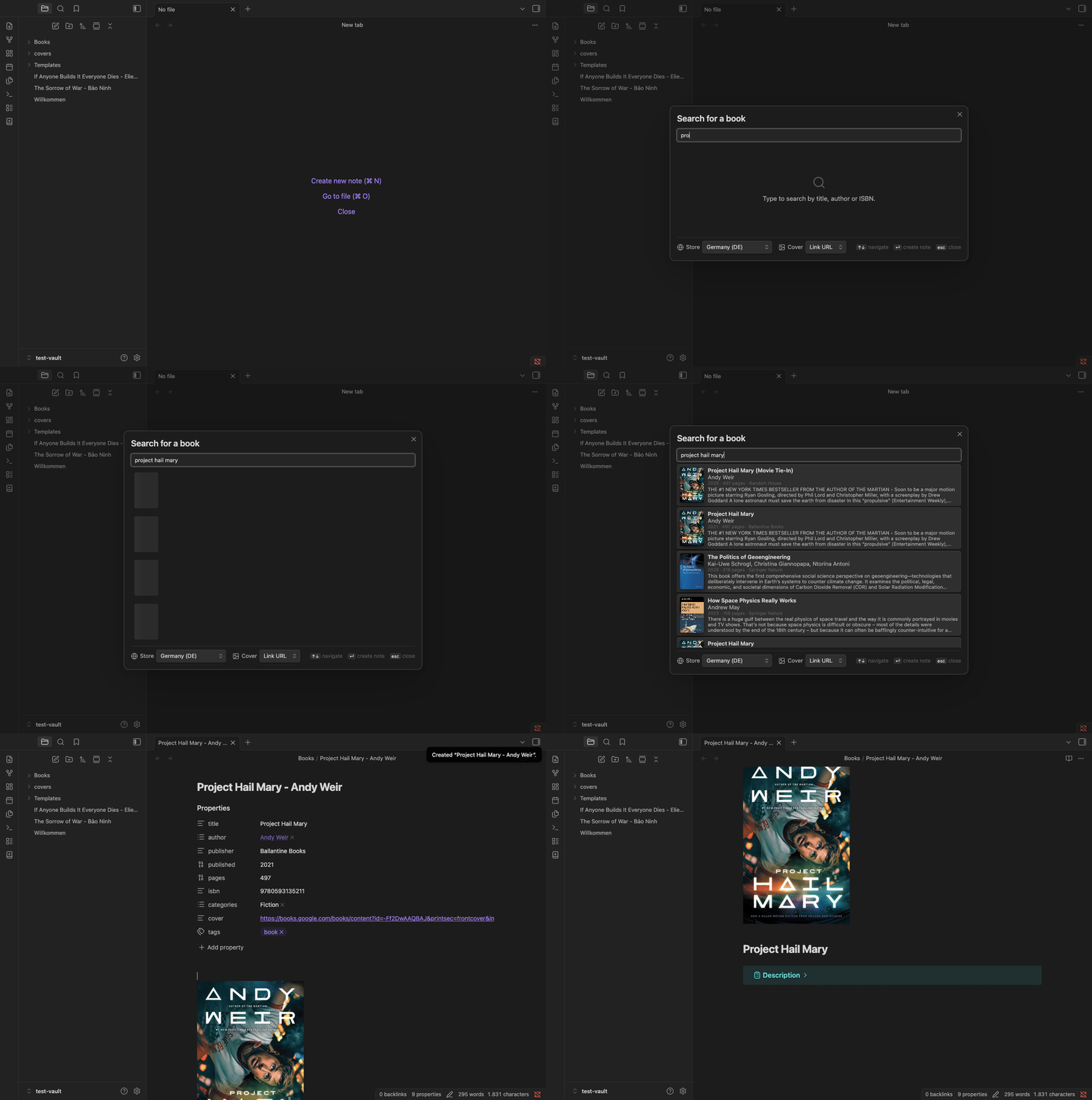
- Click the book ribbon icon or run the New book note command.
- Type a title, an author, or both. Results appear live. You can also paste an ISBN to jump straight to one exact edition.
- Pick the edition you want. The note is created from your template in your note folder and opens right away.
- No duplicates: If a note for the book already exists, you are asked first instead of ending up with a duplicate.
Giving a better cover to an existing note
Already have a library? Open any book note and run the command Fetch or replace cover for current note.
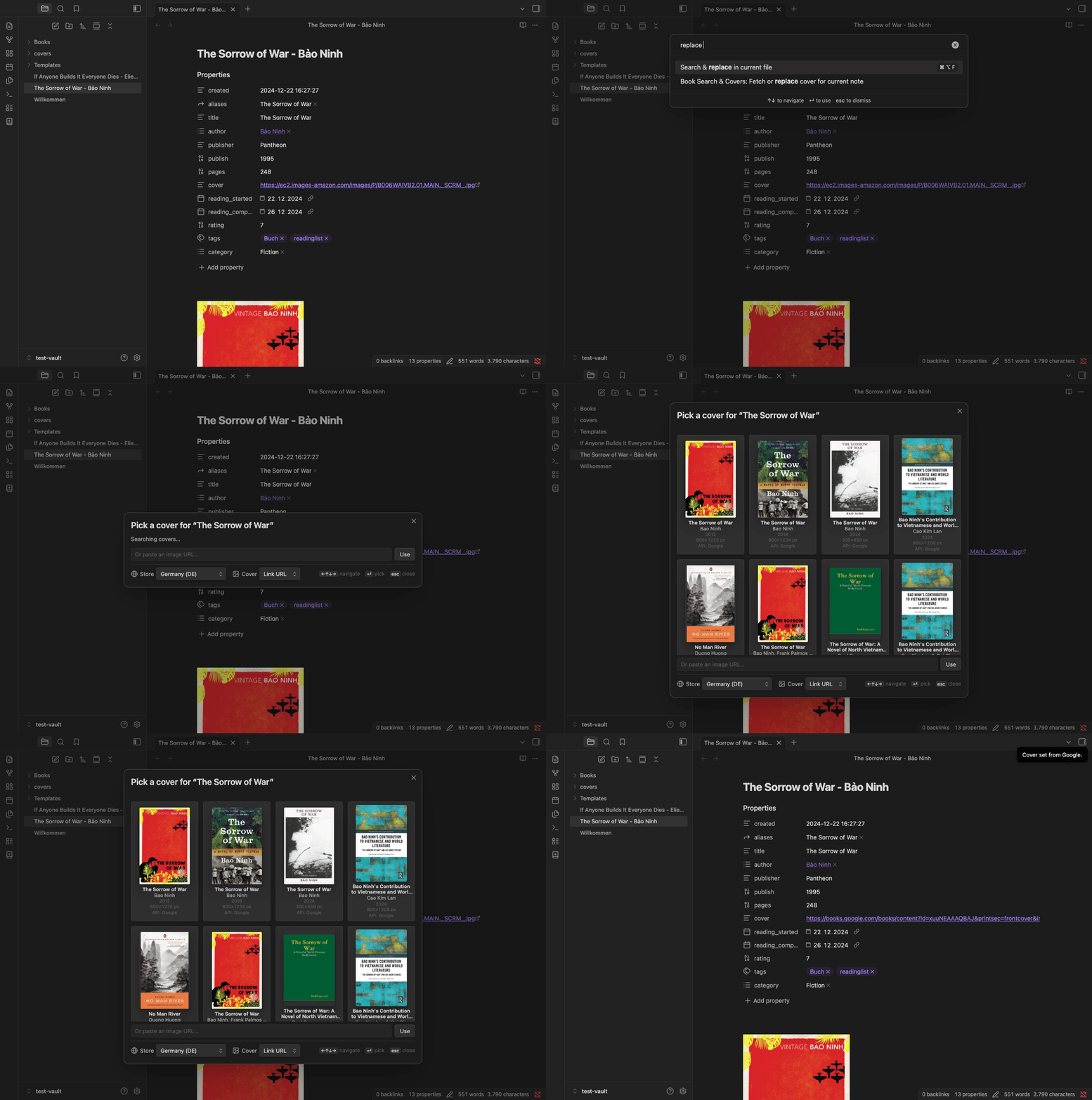
The plugin reads the note's title and author (from frontmatter, or the file name if there is none) and shows candidates from Google Books and Apple side by side.
- Each card lists title, author, year, source, and the cover's pixel size, so you can pick the best one at a glance.
- Found a better image elsewhere? Paste its URL into the field at the bottom to use that instead.
- The cover is written into the note's cover property (configurable), as a link or a downloaded file.
- Works on notes from other plugins too, so you can upgrade an existing library one note at a time.
Storing covers: link or download
- Link (default). The remote URL goes into the note. Nothing is added to your vault, but rendering needs an internet connection.
- Download. The image is saved into a folder you pick and referenced locally. Portable, offline, future-proof; about 140 KB per cover at 800x800.
You set the default in settings and easily override your decision for specific searches.
Customize new book notes
The built-in Note template works out of the box and is editable right in the settings. Prefer managing templates as notes (for example with Templater)? Point the Template file setting at any note in your vault instead; a button next to the setting turns your current inline template into such a file, so nothing is lost when you switch. If you enabled Templater's "Trigger Templater on new file creation" setting, your commands in the template run on the new note as usual.
Templates use simple {{variable}} placeholders in the frontmatter, body, or title.
| Variable | What you get |
|---|---|
{{title}} |
Book title |
{{subtitle}} |
Subtitle, if any |
{{author}} |
First author |
{{authors}} |
All authors, comma-separated |
{{authorsYamlLinks}} |
Authors as a YAML list of [[wikilinks]] |
{{description}} |
Publisher's description (body only, too long for frontmatter) |
{{descriptionCallout}} |
Description as a collapsed callout; custom title via {{descriptionCallout:My title}} |
{{publisher}} |
Publisher name |
{{publishedDate}} |
Raw publish date, e.g. 2021-05-04 |
{{year}} |
4-digit publish year |
{{pageCount}} |
Number of pages |
{{isbn}} |
ISBN-13, falling back to ISBN-10 |
{{isbn13}} |
ISBN-13 only |
{{isbn10}} |
ISBN-10 only |
{{categories}} |
Categories, comma-separated |
{{categoriesYamlList}} |
Categories as a YAML list |
{{language}} |
Language code, e.g. en, de |
{{seriesName}} |
Series name, if known |
{{seriesNumber}} |
Number within the series, if known |
{{source}} |
Search provider: google or openlibrary |
{{cover}} |
Cover URL or vault path, per the cover storage mode |
{{date}} |
Note creation date, YYYY-MM-DD |
{{datetime}} |
Note creation date and time, YYYY-MM-DD HH:mm:ss |
Getting started
- Install Book Search + Covers from Obsidian's Community plugins and enable it.
- Optional but recommended: add a free Google Books API key for the richest metadata. The step-by-step guide takes about 5 minutes and needs no billing. Without a key, search uses Open Library, which works fine but has a smaller catalog and returns less metadata.
- Open the settings: pick your note folder, your store region, and how covers are stored.
Network use and privacy
The plugin talks to googleapis.com (with your API key), itunes.apple.com, and openlibrary.org to fetch book data and covers. Your API key is stored locally in the plugin's data.json and is never sent anywhere except Google. No telemetry, no tracking.
Thanks
- Templater, the gold standard for templating in Obsidian.
- Book Search, the plugin that inspired this one. I used it for a while, but it is not actively maintained and I wanted a state-of-the-art user experience with high-quality book covers in my notes.
Development
npm install
npm run dev     # watch build -> main.js
npm run build   # typecheck + production build
npm run lint    # eslint-plugin-obsidianmd
npm test        # vitest
Built with the standard Obsidian + esbuild toolchain.
License
MIT