
README file from
GithubBook Desk
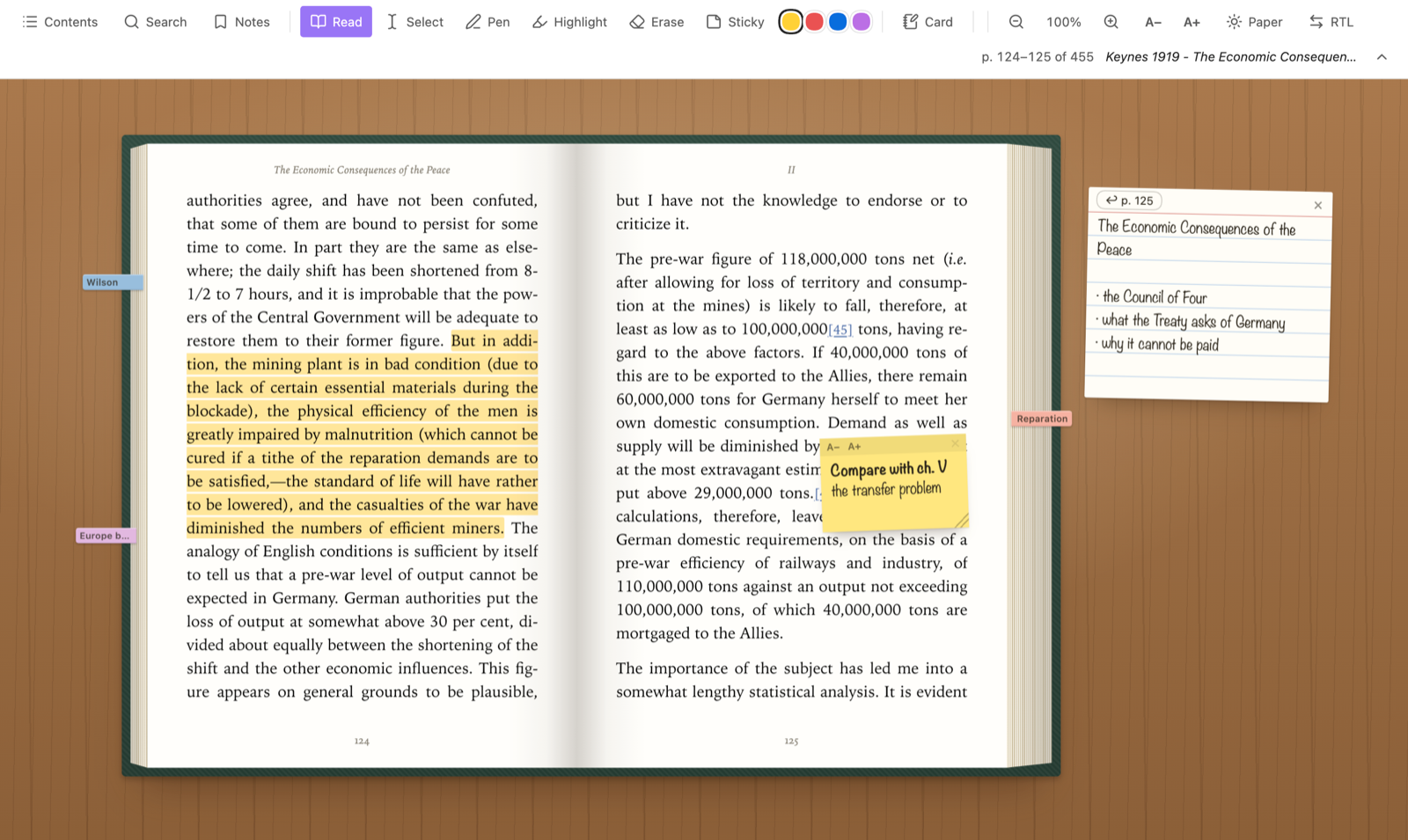
Read PDF and EPUB books in Obsidian the way you read a paper book: a book that lies open on a desk, with pages that turn, edges that show how far you are, a pen, a highlighter, sticky notes and index cards.
What you can do
- Turn pages by dragging a corner, tapping the outer edge, or with the arrow keys. The page edges show the book's thickness: point at them to see a page number, click to open there.
- Write on the page with the pen, draw with the highlighter, rub things out with the eraser.
- Highlight text. A highlight is saved as a link in a note of yours, with the quoted words. The book file is never changed. The links use the format of PDF++, so both plugins show the same highlights. Click a highlight to open the note it lives in. A highlight you only copy, into no note, stays on the desk.
- Stick notes on pages. Each sticky note leaves a small flag on the page edge, so you can find the page again.
- Keep index cards beside the book. Each card remembers the page it was written on.
- Search the book, open its contents, and see everything you have marked in one notes panel.
- Select text to copy it, or to copy it as a quote with a link back to the page. On a PDF the selection follows the order the page is read in, also where the file itself stores a right-to-left line backwards (as many Persian and Arabic PDFs do), so the words you copy, search for and quote come out right.
- Read EPUBs as pages too, with the text size you like. Your place survives a change of text size.
- Right-to-left books (Persian, Arabic, Hebrew) open with the spine on the right.
- Paper, sepia and night page colours. The desk keeps its own light look under a dark Obsidian theme; Night makes it dark.
How to start
- Open a PDF, or a note that links to one, and run Open this book on the desk (also in the file menu and the ribbon). EPUB files open on the desk by themselves.
- A card on the desk explains the tools the first time. Press T to hide the toolbar, S to select text, / to search.
The book's note
A book's note is the note that keeps the book's highlights. It is a note whose properties link to the book, for example:
---
book: "[[My Book.pdf]]"
---
If you keep a note for every book in one folder, name that folder in the settings: then any note in it that links to the book is its note, wherever the link is.
The first time you highlight a book that has no note, the desk asks whether to make one (named after the book, in the
book notes folder or wherever Obsidian puts new notes), to use a note you choose (it gets a book property linking to
the book), or only to copy the highlight.
New highlights go under a heading of the book's note (Highlights unless you choose another). A language (or lang) property such
as fa, ar or he opens the book right to left; without one, the desk looks at the book's text.
Where your work is kept
| What | Where |
|---|---|
| The page you are on, pen marks, sticky notes, cards, zoom | A small .desk file per book (JSON), in the desk folder you choose in the settings. It syncs with your vault. With Obsidian Sync, turn on Sync all other types in its settings, or desks stay on the device they were made on (EPUB files need it too). |
| Text highlights | Links in your own notes. Delete the link and the highlight is gone. A highlight no note holds (you only copied it) is kept in the .desk file until its link is in a note. |
| Settings | The plugin's own data file. |
The book files themselves are only ever read. If a PDF is replaced by a shorter file (another edition, or a small placeholder), its desk keeps your place until you turn a page.
Privacy and safety
- No network use. The plugin never connects to anything. There is no telemetry, no account and nothing to pay for.
- Nothing outside your vault is read or written.
- The clipboard is written when you copy text, copy a quote, or make a highlight.
- Books are treated as untrusted. An EPUB is a set of web pages written by someone else, so before a chapter is shown, everything that could run (scripts, event handlers, forms, frames, plug-ins) is removed, and nothing in it can load anything from the web: every picture and font must be inside the book file. The book's styles are confined to its own pages. A link in a book opens in your browser only if it is a plain web or mail address. Text copied from a book into a note is written as plain text, so it cannot turn into an embed, a web picture or a script there.
- Other plugins. If PDF++ is installed, its colours and its copy format are read (never changed), so highlights look the same in both. If Excalidraw is installed, its scripting interface is used to put a desk on a drawing. Both are optional.
Limits
- Copy-protected (DRM) EPUBs cannot be opened.
- EPUBs with a fixed page layout (comics, some picture books) are shown as flowing text and may look wrong.
- Sound, video and scripts inside EPUBs are left out.
- Pen marks on an EPUB page belong to that page: after a change of text size the words move, the ink does not.
- Scanned PDFs have no text to select, highlight or search.
- In a PDF that does not store its right-to-left lines in reading order, a highlight that starts or ends in the middle of a line is written as several links (the format holds one unbroken stretch of the file per link); the first carries the words.
- Needs Obsidian 1.13 or later. EPUBs on iPhone and iPad need iOS 16.4 or later.
Development
npm install
npm run build   # bundles src/ into main.js
npm test        # unit tests (Node)
npm run lint    # the rules of Obsidian's own plugin review
tests/app/ holds tests that run inside a running Obsidian, among them a hostile EPUB that tries every way to run
script, fetch from the web, or leave its page; see tests/app/README.md.
See CONTRIBUTING.md for how the code is laid out, the rules it keeps and how to release, and SECURITY.md for how to report a security problem.
Credits
- PDF++ by Ryota Ushio, for the highlight link format and the geometry of highlights. See THIRD-PARTY-NOTICES.md.
- PDF pages are drawn by the PDF.js that ships with Obsidian.