
README file from
Github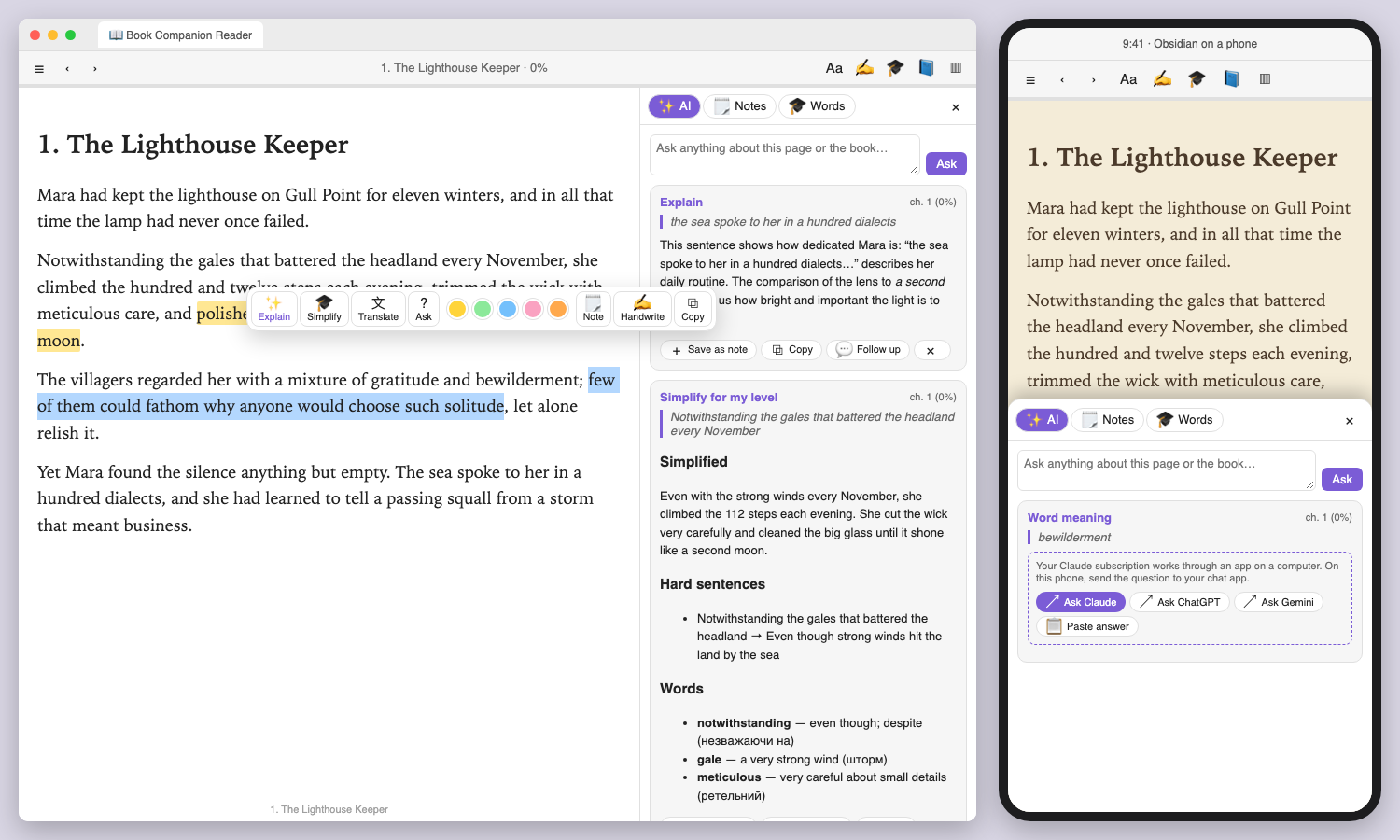
Why
E-readers let you tap a word to see what it means. This plugin brings that into Obsidian and goes further. It explains whole passages in context, rewrites hard sentences at your language level, and turns what you read into notes connected to the book, so every book grows a small knowledge system in your vault.
Features
📖 One reader for PDF and EPUB
- EPUB: page turning like an e-reader (tap the edges, swipe or use the arrow keys) or scrolling. Choose text size, a serif, sans or theme font, and like-Obsidian, sepia, light or dark paper. Images and in-book links work.
- PDF: crisp pages from Obsidian's own PDF engine, real text selection, zoom, the outline (table of contents) and Go to page. Dark paper darkens PDFs too.
- Your place is remembered per book, and reading progress shows in the toolbar and the library.
- Library (📚 ribbon icon): every PDF and EPUB in the vault on one shelf, with generated covers, progress, highlight and word counts, and search.
✨ AI on whatever you select
A toolbar appears over any selection:
| Button | What you get |
|---|---|
| Explain | what the passage means in its context: references, idioms, why it matters |
| Simplify | the passage rewritten for your level, hard sentences paired with easier versions, and a word list |
| Word | for one to four words: meaning in this sentence, part of speech, translation, an example and easier synonyms |
| Translate | into your native language, with a note on phrases that don't translate literally |
| Ask | your own question, with the passage and its surroundings as context |
You can also Study this page (summary, hard sentences and up to 12 words from what's on screen), ask anything about the book in the panel, and ask follow-up questions in the same thread. Answers render as Markdown and can be saved as notes with one tap.
🎓 Language learning
- Set your native language, the language you're learning and your level (A1 to C2, or native).
- More than one language? Add each with its own level, for example English C1 and German B1. A book's language is read from the EPUB, or you pick it in the reader's panel, and every explanation, simplification and word list then uses that language's level.
- Explanations come in simple words of the language you're learning (more practice) or in your native language. You choose.
📚 Your library and the librarian cat
The 📚 ribbon icon opens a library with shelves, and everything you set there is written to each book's page, so it stays in your vault (and in Typed Graph) as plain notes.
- Shelves: Reading now, Up next, Wishlist, Finished and Set aside, with progress bars, a Continue reading button and a status chip on every book (tap it to move the book).
- Books without a file too: Add book puts a paper book, an audiobook or a title a friend mentioned on the shelves, with author, genres and why you want to read it. Later you can link a PDF or EPUB to it, and it stays one book. Book files you drop into the vault show up by themselves.
- Rate and date: rate finished books with stars; start and finish dates are filled in for you. Opening a book from Up next or the wishlist starts it.
- Reading goal: set how many books you want to finish this year in the settings and watch the bar fill.
- Suggested to read: ask the librarian cat for books. It looks at what you finished (best rated first), what you're reading and what you want, skips what you waved away, and can focus on something shorter, more by authors I like, easier to read for my level (it knows your language level) or anything you type. Put a suggestion on Up next or the Wishlist, or say Not for me and it won't come back.
- Library pages: Library pages creates Library, Currently reading, Up next, Wishlist, Suggested reading, Finished and Reading log notes in
Books/Library/. They are made of livebook-shelfblocks, so they update by themselves, and you can put the same blocks in any note:
```book-shelf
shelf: reading
```
Options: shelf: (reading, to-read, wishlist, finished, abandoned, suggested, all), view: (cards, list, stats), limit:, sort: (recent, title, rating, finished, author), year: and author:. Each author also gets a note listing their books.
- With Typed Graph: books are
Booknotes withstatus,rating,started,finished,written_byandhas_genre, so you can ask your library anything, for example which authors you've read most; the Reading log page includes ready-made queries.
🐱 Chat with the cat
Open the Cat tab in the reader panel and talk about the book with the little reading cat, like a book-club friend who is reading along.
- Ask anything: What is happening on this page? Summarise what I've read so far. Quiz me on this chapter. What does the author mean here?
- Select a passage and tap Cat to point it at that passage. The passage goes with your next message.
- The cat sees the page you're on and the whole conversation so far, answers at your language level, and doesn't spoil what comes later.
- Want to practise? Ask the cat to chat with you in the language you're learning; it will gently correct mistakes.
- Every discussion is kept as a note in the book's
Chats/folder, linked from the book page under Discussions, with your questions and the cat's answers as callouts and links back to the page. The transcript is updated as you talk, and anything you write below it is kept. Pick an earlier discussion from the list to continue it. - On a phone, when your subscription can't be reached, the question goes to your chat app and you paste the answer back, as with the other AI features.
🃏 Flashcards and decks
- Card (on any selected word) makes a flashcard in one tap: the word in its dictionary form (with the article for German nouns), the translation, a short meaning at your level, an example, and the sentence from the book with the word marked. The card links back to the exact page.
- Words from Simplify and Study this page can be saved as cards too.
- Decks: every book gets its own deck, and you can make topic decks (Sailing words, Legal German…) and move cards between them. Choose where new cards go from the Words tab.
- Practise with a built-in spaced-repetition trainer: see the word in its sentence, show the answer, then Again, Good or Easy. Cards come back after 1, 3, 7, 14 and 30 days. Keys: Space to reveal, 1 2 3 to answer. Works the same on phones.
- The Flashcards view (ribbon icon 🗂) lists decks with how many cards are due, lets you browse, edit, search and delete cards, and add your own.
- Book decks also keep a flashcard note (
word :: meaning, tagged#flashcards) in the book's folder, and any deck can be saved as a note for the Spaced Repetition plugin.
🗂️ A small system around every book
Each book gets a folder (default Books/<Title>/) containing:
- a book page with title, author, status, progress, start and last-read dates, and sections for Highlights, Notes, Handwriting, Vocabulary, AI explanations, Discussions and your reading status, rating and dates
Chats/: your discussions with the cat, one note eachNotes/: one note per thought, with the quote and a link back to the exact spotHandwriting/: your handwritten pages as SVGVocabulary – <Title>.md: your flashcards
Every entry links back into the book through obsidian://book-reader?file=…&loc=p12, and opening the link jumps to that page.
✍️ Handwriting
- Write on PDF pages with a pen, highlighter and eraser, five colours, and undo/redo. Strokes stay on their page.
- Handwritten notes on lined, dotted or blank paper, about the page or a selection. Saved as SVG and embedded in a note. Edit handwriting from the file menu reopens them for more writing.
- Pen pressure for Apple Pencil, S Pen and other styluses. With pen only on, the stylus draws and your finger scrolls, so a resting palm makes no marks.
📱 Same on phone and desktop
Built for Obsidian mobile from the start: big touch targets, swipe page turns, and the companion panel as a bottom sheet. Nothing needs a desktop except the optional subscription apps described below.
AI: use what you already have
Pick it in Settings → Book Companion Reader → AI service.
| Option | Where | What you need |
|---|---|---|
| My Claude subscription (default) | computer | Claude Code installed; run claude once to sign in with your Claude Pro/Max account |
| My ChatGPT subscription | computer | Codex CLI; run codex once to sign in with ChatGPT Plus/Pro |
| My Google account (Gemini) | computer | Gemini CLI, signed in. Since mid-2026 Google allows this only for work plans (Gemini Code Assist Standard/Enterprise); with a personal plan, use the chat app or a free Gemini API key |
| My chat app | any device | nothing: the question opens in the Claude, ChatGPT or Gemini app, and you paste the answer back |
| Shortcut (iPhone & iPad) | iPhone, iPad | a one-time Apple Shortcut using the Claude app's Ask Claude or iOS 26's Use Model → ChatGPT; answers come back by themselves (see below) |
| Anthropic / OpenAI / OpenRouter | any device | an API key |
| Ollama / OpenAI-compatible | computer or your network | a running local server |
On a phone, the subscription options switch to chat-app hand-off automatically: tap Ask Claude, Ask ChatGPT or Ask Gemini, then Paste answer.
iPhone and iPad: answers through a Shortcut
On iOS and iPadOS the reader can skip the copy and paste. It sends the question to an Apple Shortcut, the Shortcut asks your Claude or ChatGPT app, which uses your own subscription, and the answer comes back into the reader by itself.
- In the Shortcuts app, make a new Shortcut called Book Companion AI. In its details, turn on Receive input for Text.
- Add the AI step:
- Claude: add Ask Claude (from the Claude app) with Shortcut Input as the prompt.
- ChatGPT: add Use Model (iOS 26), choose ChatGPT, with Shortcut Input as the request.
- Add Stop and Output with the AI's response.
- In Settings → Book Companion Reader, turn on Use a Shortcut on iPhone and iPad, then press Test on the phone.
This applies to the subscription options and to My chat app. If the Shortcut is missing, cancelled or fails, the usual Ask Claude / ChatGPT / Gemini buttons appear instead. Gemini's app can't return answers to Shortcuts yet, so it stays copy and paste.
🔗 Install it together with Typed Graph (recommended)
Typed Graph turns your notes into a typed property graph that you can query with openCypher and explore in a graph view. The two plugins are designed to work as a pair:
- With Typed Graph enabled, Typed notes switches on by itself (Settings → Typed Graph → When Typed Graph is on).
- The book page becomes a
Bookfrom Typed Graph's library ontology (status, format and dates as properties), withwritten_by:: [[Author]] {role: "author"}. - Notes from a selection become
ReadingNote+Quote, withnote_on:: [[Book]] {loc: "p12"},quoted_from:: [[Book]]and the page number. - Saved AI answers become
Explanationwithexplains:: [[Book]] {loc, action}. Handwritten notes becomeHandwriting, and word lists becomeVocabularywithvocabulary_of. - The schema notes are added for you:
Types/Book Companion.md, plus Typed Graph'sLibrary.mdif your vault has noBooktype yet (it is never declared twice). - Show in graph (Notes tab or command) opens the book page in Typed Graph's graph view.
For example:
```graph-query
MATCH (n)-[r:note_on|explains]->(b:Book)
RETURN b.title AS book, count(n) AS notes
ORDER BY notes DESC
```
```graph-query
MATCH (q:Quote)-[:quoted_from]->(b:Book)-[:written_by]->(a:Author)
RETURN a.title AS author, b.title AS book, q.title AS quote, q.page AS page
```
These notes are checked against Typed Graph's own engine: the test vault reads back as Books, Quotes, ReadingNotes, Explanations, Handwriting and Vocabulary with every edge in place.
Install
- Community plugins: Settings → Community plugins → Browse, search for Book Companion Reader, then install and enable it. Or open it in Obsidian.
- Also install Typed Graph for typed, queryable reading notes.
- BRAT (beta builds): Add a beta plugin →
Volland/book-companion-reader. - Manually: copy
main.js,manifest.jsonandstyles.cssfrom the latest release to<vault>/.obsidian/plugins/book-companion-reader/, then reload Obsidian. From a clone:npm install && npm run build && cargo run -- --install "/path/to/vault".
Use
- Open any
.epub. For PDFs, use the file menu → Open in Book Reader, or turn on Open PDFs in this reader. - Select text and pick an action from the toolbar. Tap a highlight to explain it, add a note, recolour or remove it.
- Toolbar: contents · previous/next · position · text and layout (EPUB) or zoom and ✏️ write on the page (PDF) · handwritten note · study this page · book page · companion panel.
- Commands (assign your own hotkeys): explain, simplify or define the selection, continue reading, add a book, ask the librarian, open the library pages, chat with the cat, discuss the selection with the cat, make a flashcard, open flashcard decks, study flashcards that are due, highlight, new note, handwritten note, write on page, study this page, toggle panel, book page, show in Typed Graph, add book types to Typed Graph schema, next/previous page, contents, open library.
Disclosures
- Network: text is sent only when you press an AI button, and only to the service you chose in settings: the selection, a little surrounding text, and your language and level settings. With the subscription options, it goes through that app on your computer. With My chat app, it opens in that app's website or app. With the iPhone/iPad Shortcut option, it goes to the Shortcuts app and the AI app your Shortcut uses, and the answer comes back through an
obsidian://book-reader-answerlink. - Accounts and payments: the plugin is free. AI features need an account with an AI service you choose (or a local model), and that service's own terms and prices apply.
- Local programs (desktop only): the subscription options start the Claude Code, Codex or Gemini command line on your computer to ask your question. Nothing else is run.
- Your files: the plugin writes only inside its books folder (default
Books/) and, with typed notes on, two schema notes in your Typed Graph schema folder. Reading positions, highlights and page handwriting are kept in the plugin's own data. API keys are stored in plain text in the plugin's settings in your vault. - Internal API: Open PDFs in this reader uses an unofficial part of Obsidian to replace the built-in PDF viewer. It is off by default.
Development
src/            the plugin (TypeScript): reader view, PDF and EPUB renderers, AI client, notes, handwriting, Typed Graph schema
src/main.rs     a small launcher: preview, --screenshot, --self-test, --install <vault>
test/           a stand-in Obsidian API, a sample book and the self-test
preview/        the real reader running in a browser with the sample book (EPUB and PDF)
website/        the landing page (GitHub Pages)
npm install
npm run build                 # plugin + preview + self-test bundles
npm run selftest              # drives the reader through its core flows
cargo run                     # opens the preview in your browser
cargo run -- --install <vault>
npm run version:bump -- 0.2.0 # then commit and push a tag named 0.2.0 → the release workflow publishes it
License
MIT © Volodymyr Pavlyshyn. Not affiliated with Obsidian, Anthropic, OpenAI or Google.