
README file from
GithubBoardline
English · 한국어
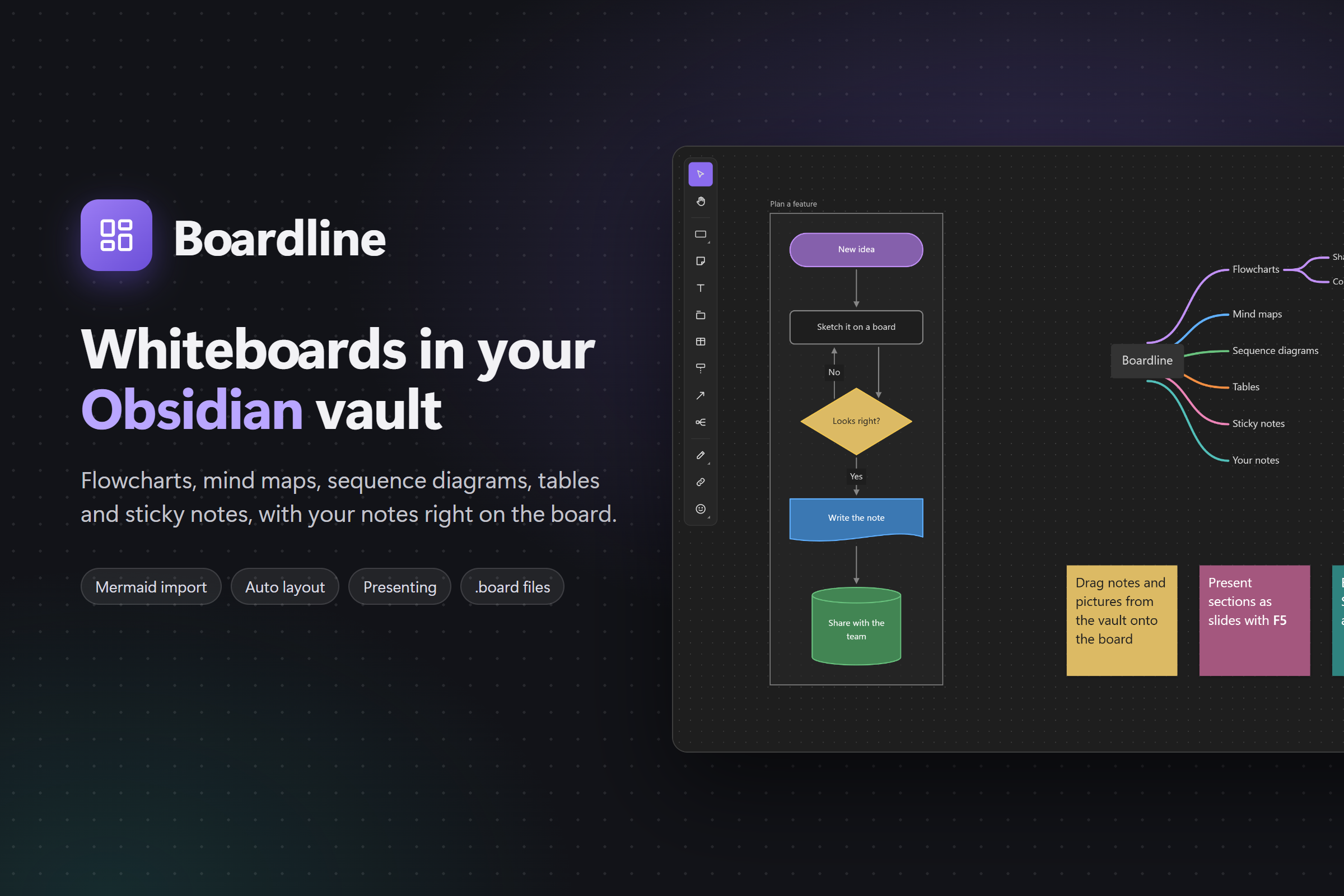
Whiteboards inside your Obsidian vault. Draw flowcharts, mind maps, sequence diagrams, tables and sticky notes, and put your notes, pictures and other boards right on the board. Each board is one .board file in your vault: no server, no account. Works on desktop, phones and tablets.
Features
- Flowcharts: rectangles, pills, circles, diamonds, parallelograms, trapezoids, triangles, hexagons, cylinders, flowchart symbols (document, multiple documents, predefined process, manual input, delay, display), braces, clouds and stars. Twelve colors, four styles, and your own colors.
- Connectors that route themselves around shapes: elbow, straight or curved, with labels, arrowheads and dashes. Attach an end anywhere along a shape's border, drag any segment, or loop a line back to the same shape.
- Mind maps:
Tabadds a child,Entera sibling. Layout and branch colors are automatic; drop a node next to another to make it a child, and/folds a branch. - Sequence diagrams: actors with lifelines, messages that follow their actors, reordering by dragging.
- Tables with header rows, Markdown in cells and resizable columns.
- Sticky notes, text, sections, groups and locking. Sections are frames that carry what's inside them. Select several objects and drag a corner or an edge of their box to resize them together; Shift keeps proportions and Alt resizes from the middle, for one object too.
- Drawing: pen, highlighter, eraser and lasso.
- Icons: 1,500+ Phosphor icons in three styles.
- Your vault on the board: notes as live cards with rendered Markdown, pictures, other boards and canvases, and web links with previews. Moving or renaming a file updates every board that shows it.
- Markdown text: bold, italic, strikethrough, highlight, code, headings, lists and tasks, the same syntax as your notes.
- Mermaid: paste a flowchart, sequence diagram or mind map to turn it into board objects; copy a selection back as Mermaid.
- Auto layout of flowcharts (
Shift+Alt+Vtop to bottom,Shift+Alt+Hleft to right). - Find and replace, version history, and presenting sections as slides with a laser pointer (on desktop).
- Export to PNG, SVG, a Markdown note or an Obsidian canvas, and embed a board in a note with
![[My board.board]]. - Follows Obsidian's light or dark theme, accent color and interface font.
Getting started
- New board: the ribbon's board icon, Boardline: New board in the command palette, or right-click a folder in the file explorer.
- Open a board: click any
.boardfile. - Every shortcut is in the board's help: press
?(Shift+/) or the help button at the right edge. - Commands: presenting, find and replace, version history, zoom, auto layout, export and Mermaid import are also commands (Boardline: … in the command palette). They have no hotkeys of their own; give them any in Settings → Hotkeys.
| Key | Tool | Key | Tool |
|---|---|---|---|
R |
Rectangle | N |
Sticky note |
T |
Text | . |
Section |
C |
Connector | M |
Mind map |
Q |
Sequence actor | E |
Table |
H / Shift+H |
Pen / highlighter | X |
Icon |
K |
Link | I |
Picture |
F5 |
Present | Esc |
Back to select |
Ctrl shortcuts also work with Cmd on macOS. Single-letter shortcuts follow the key, so they work with Korean, Japanese and other input modes.
The board's own shortcuts work while a board has focus, like Obsidian's canvas, so they aren't listed in Settings → Hotkeys. While a board has focus, it uses a few keys that Obsidian also uses (Ctrl+B/I/E/F/H/G/D/L/0/=/-, Ctrl+Enter, Alt+Enter) for the same kind of action on the board: bold, italic, find, group and so on. Outside the board they work as usual.
Where your data lives
- Boards:
Name.boardfiles in your vault. They're JSON with a header on the first line and one object per line, so a change shows up as a one-line diff in Git and syncs like any other file. - Pictures you paste, preview images of web links, and PNG and SVG exports go to your attachment folder (Obsidian's setting), named by their content so each is stored once.
- Version history:
.boardline/history/<board id>/in your vault, up to 100 versions per board. Obsidian's Vault API doesn't list hidden folders, so Boardline reads and writes this one folder with the Adapter API. Hidden folders aren't synced by Obsidian Sync, so history stays on the device where it was made. - Per-device preferences (each board's view, snapping, read-only mode, recent colors and icons): Obsidian's local storage for this vault, not in your files.
- Optional pictures: with Keep a picture file next to each board on,
Name.board.pngis redrawn next to the board for apps that can't show boards.
Network use
Only link objects use the network. When you add a web address, Boardline reads that page and its images with Obsidian's requestUrl to show the title, description, site icon and preview image, and saves the images to your attachment folder. Boardline makes no other network requests, and has no accounts, ads or telemetry.
Phones and tablets
Boardline runs on Obsidian mobile: one finger works like the mouse, two fingers pan and zoom, and on narrow screens the toolbar moves to the bottom. Presenting is left out there, since it ends with Esc. Mobile support is new, so please report anything that doesn't work.
Languages
English, 한국어, 日本語, 简体中文, Español, Deutsch and Français, following Obsidian's language setting. Other languages show English. Translations and corrections are welcome: each language is one file in src/core/i18n/.
Installation
Boardline needs Obsidian 1.8.7 or later.
- Community plugins (once listed): Settings → Community plugins → Browse, search for "Boardline", then install and enable it.
- Manually: download
main.js,manifest.jsonandstyles.cssfrom the latest release into<vault>/.obsidian/plugins/boardline/, reload Obsidian, and enable Boardline under Settings → Community plugins. - Beta versions: add
kjs104901/obsidian-boardlinein BRAT.
Development
Requires Node 22 or later.
npm install
npm run dev -- --vault /path/to/test/vault
npm run dev rebuilds on every change and copies the plugin into the vault; reload Obsidian to pick it up.
| Command | Does |
|---|---|
npm run build |
Production build: main.js and styles.css in the repository root |
npm run typecheck |
TypeScript |
npm run lint |
Obsidian's review rules (eslint-plugin-obsidianmd) |
npm test |
Unit tests (Vitest) |
npm run screenshot |
Takes a picture of the demo board: npm run screenshot -- out.png (needs Edge or Chrome) |
npm run listing |
Redraws the README's and the community directory's pictures in docs/listing/ |
npm version patch |
Bumps package.json, manifest.json and versions.json, commits and tags |
Pushing a tag (git push --follow-tags) runs the release workflow, which checks, builds and drafts a GitHub release with main.js, manifest.json and styles.css.
The code has three layers: the board engine (src/core, no React or Obsidian), the board UI (src/board-ui, React) and the Obsidian plugin (src/*.ts). See docs/architecture.md (in Korean).
License
MIT © 2026 kjs104901
Boardline bundles elkjs (EPL-2.0) for auto layout, React (MIT) and Phosphor Icons (MIT). Their license texts are in the plugin's settings under Open source licenses.