
README file from
GithubBetter Link Display
Turn a plain web link in your note into a bookmark with the site's real title and icon.
把笔记里的网址一键变成带网站标题和图标的书签。
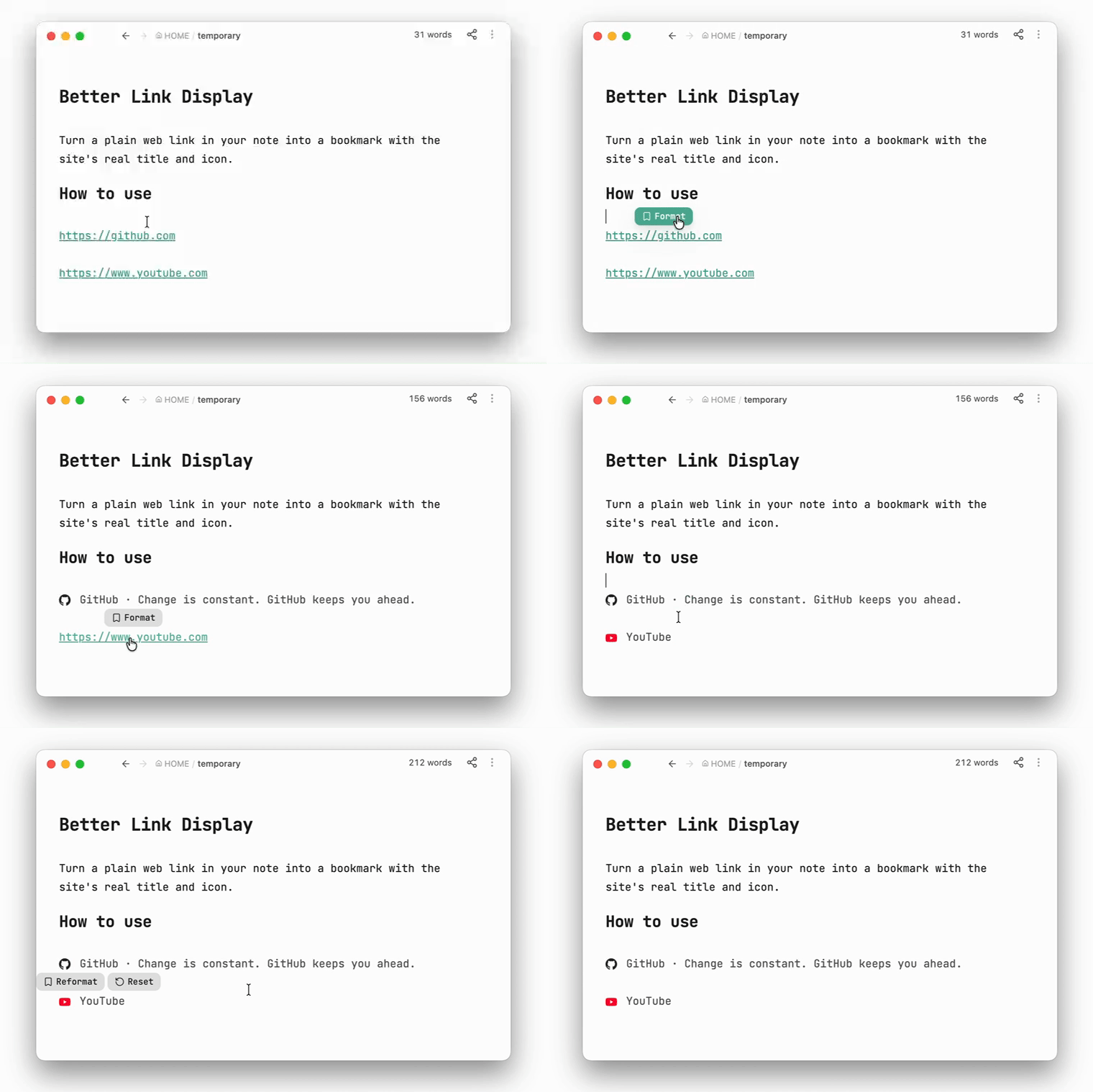
It's still an ordinary Markdown link — the icon is inlined as text, so the bookmark keeps working with the plugin disabled, in another vault, or in any other Markdown app.
它依然是普通的 Markdown 链接——图标以文本形式内嵌,所以即使停用插件、换个库或换个 Markdown 应用,书签照样正常显示。
Install
Community plugins → Browse → search Better Link Display → Install → Enable.
Requires Obsidian 1.13+, desktop and mobile.
Setup
Titles come from a small online service, Bookmarkify, so you need a free token once:
- Sign in at bookmarkify.cc and create a token.
- Paste it into Settings → Better Link Display → Access token.
- Click Test.
The token is read-only — it can only look up a page's title and icon.
Use
In editing mode, hover a link and click Format. Works with all three forms:
https://example.com
[Example](https://example.com)
<https://example.com>
No mouse (or on mobile)? Put the cursor in the link and run Format link under cursor from the command palette.
Hovering an already-formatted link gives Reformat (look it up again) and Reset (strip the icon, leaving [Title](url) — instant and offline).
If a lookup fails, a notice explains why and your note is left untouched.
Settings
| Setting | |
|---|---|
| Language | English / 中文, following Obsidian by default. |
| Preview | Live sample of the two options below. |
| Background | Soft grey card behind formatted links. Off by default. |
| Border | Light outline around formatted links. Off by default. |
| Access token | Your lookup key, with a Test button. |
Background and Border are purely visual and change nothing in your notes.
Notes
- No Format button appears in Reading view, inside code blocks or frontmatter, or on image embeds.
- A bare URL containing brackets —
https://en.wikipedia.org/wiki/Foo_(bar)— is skipped, since Markdown can't tell where it ends. Wrap it in<…>or write it as[text](url). - Because the icon is inlined, formatted lines look long in Source mode (~1,300–4,800 characters per icon). Live Preview and Reading view show only the icon and title.
- Nothing is sent anywhere until you click Format: one lookup request, one icon download (
httpsimages only). - The Format link under cursor command name only changes language after a restart.
License
MIT