
README file from
GithubBest Annotate
English | 简体中文

An Obsidian plugin for annotating your notes with styled text groups, underlines and phonetic marks.
Features
- Annotate blocks: create an annotate block from the editor context menu (Create annotate), and click an existing block to edit it in place.
- Text groups: select any range inside an annotate block and style it independently:
- Text color and background color
- Underline with configurable color, thickness and offset
- Phonetic annotation (ruby-style marks above or below the text) with color, font size, position and spacing control
- Block appearance: per-block font size, text color, background, max width, line height, margins, padding, border and text/paragraph alignment.
- Fast group presets: save reusable group styles as one-click buttons with custom title, icon and colors; manage them in the settings tab.
- Final preview: preview the generated output in render or HTML mode, with temporary highlights showing added / changed / deleted HTML (colors and duration are configurable).
Installation
From the community plugin list
Not available yet.
Manual installation
- Download
main.js,manifest.jsonandstyles.cssfrom the latest release. - Copy them into
<Vault>/.obsidian/plugins/best-annotate/. - Reload Obsidian and enable Best Annotate in Settings → Community plugins.
Usage
Quick start
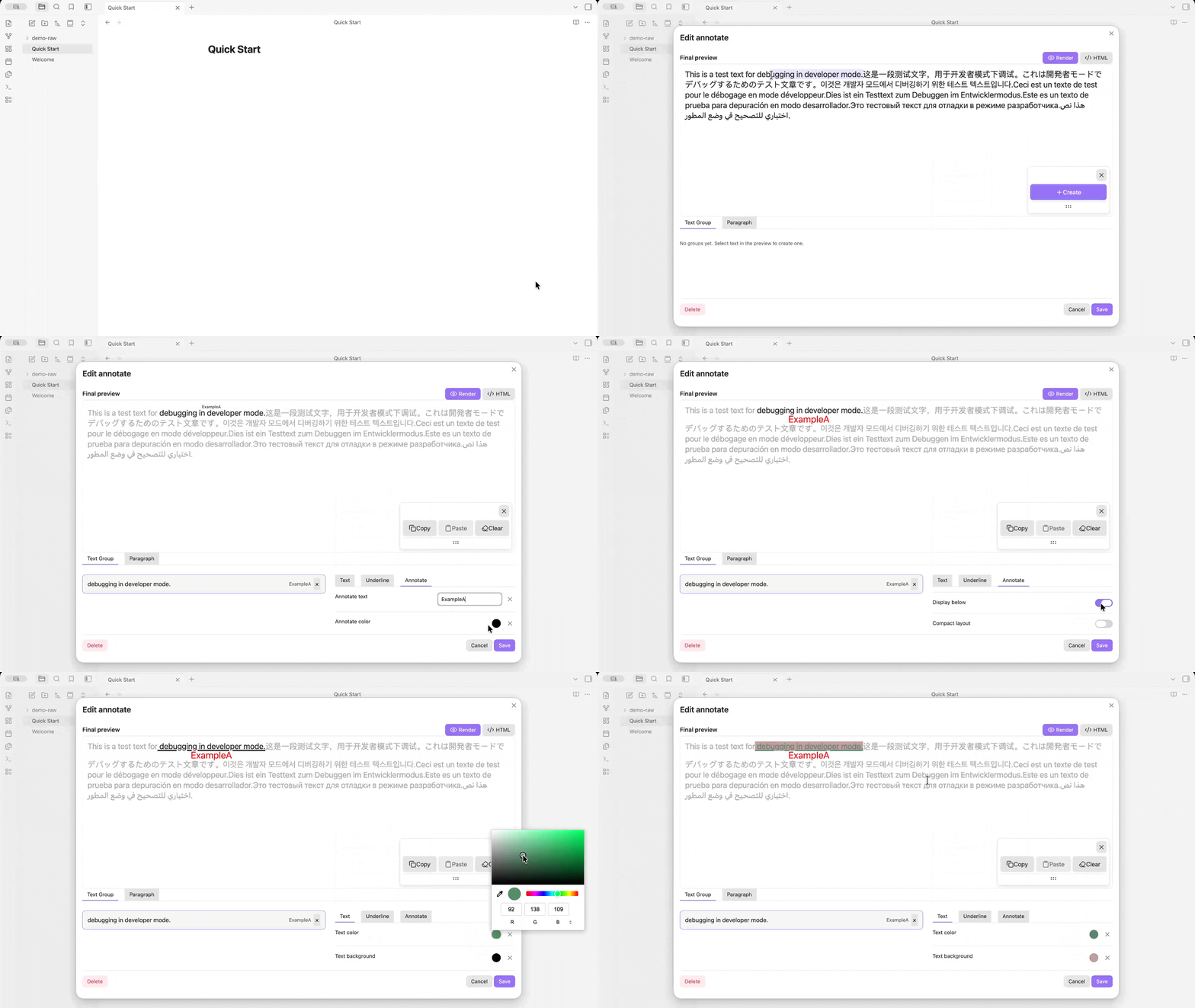
- Open a note, right-click in the editor and choose Create annotate.
- Enter the text and save — an annotate block is inserted at the cursor.
- Click the block to open the editor: select text to create groups, apply underlines or phonetic marks, and adjust the block appearance.
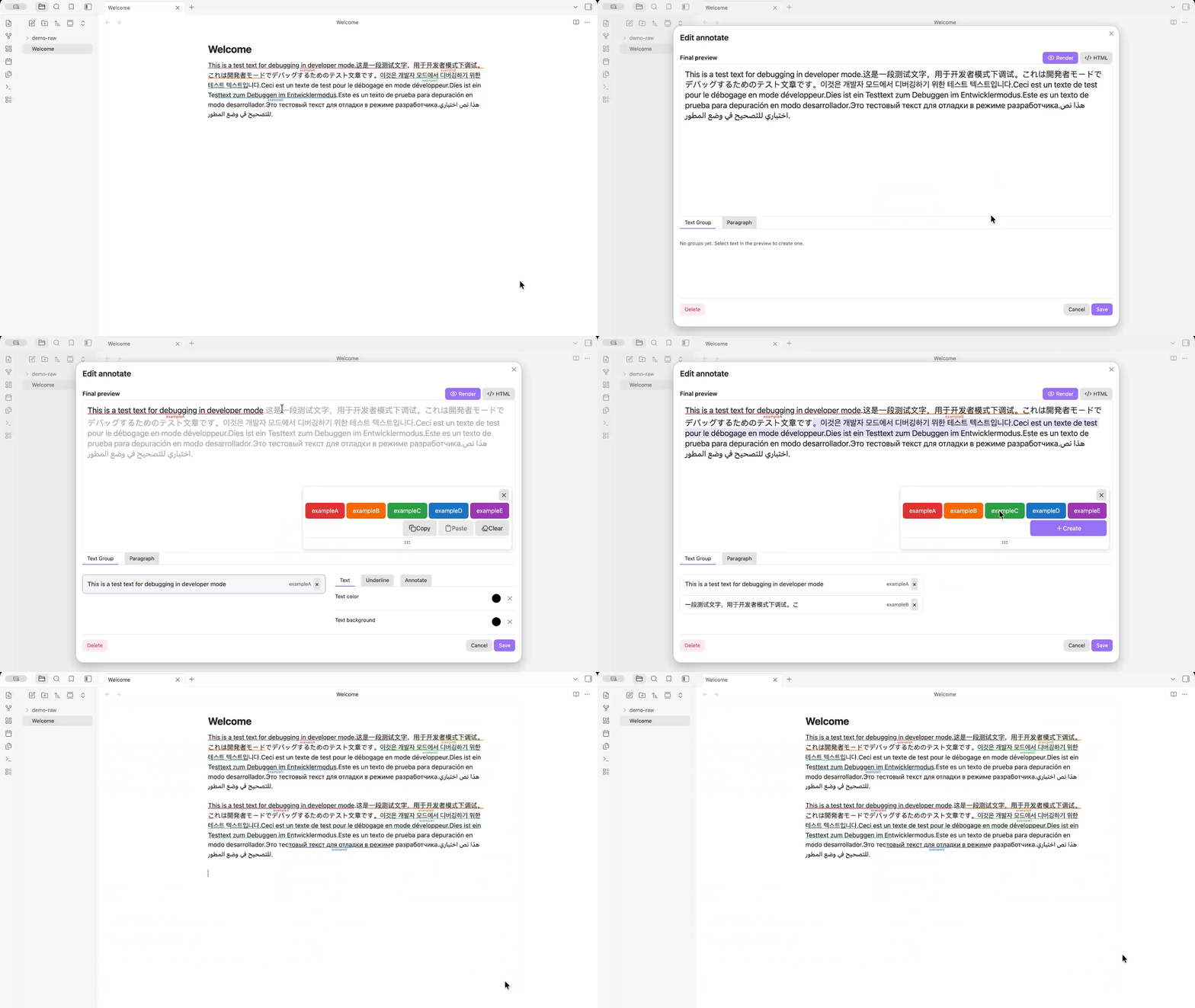
- Use the fast group preset buttons to apply saved styles with one click.
Create an annotate block
Style text groups
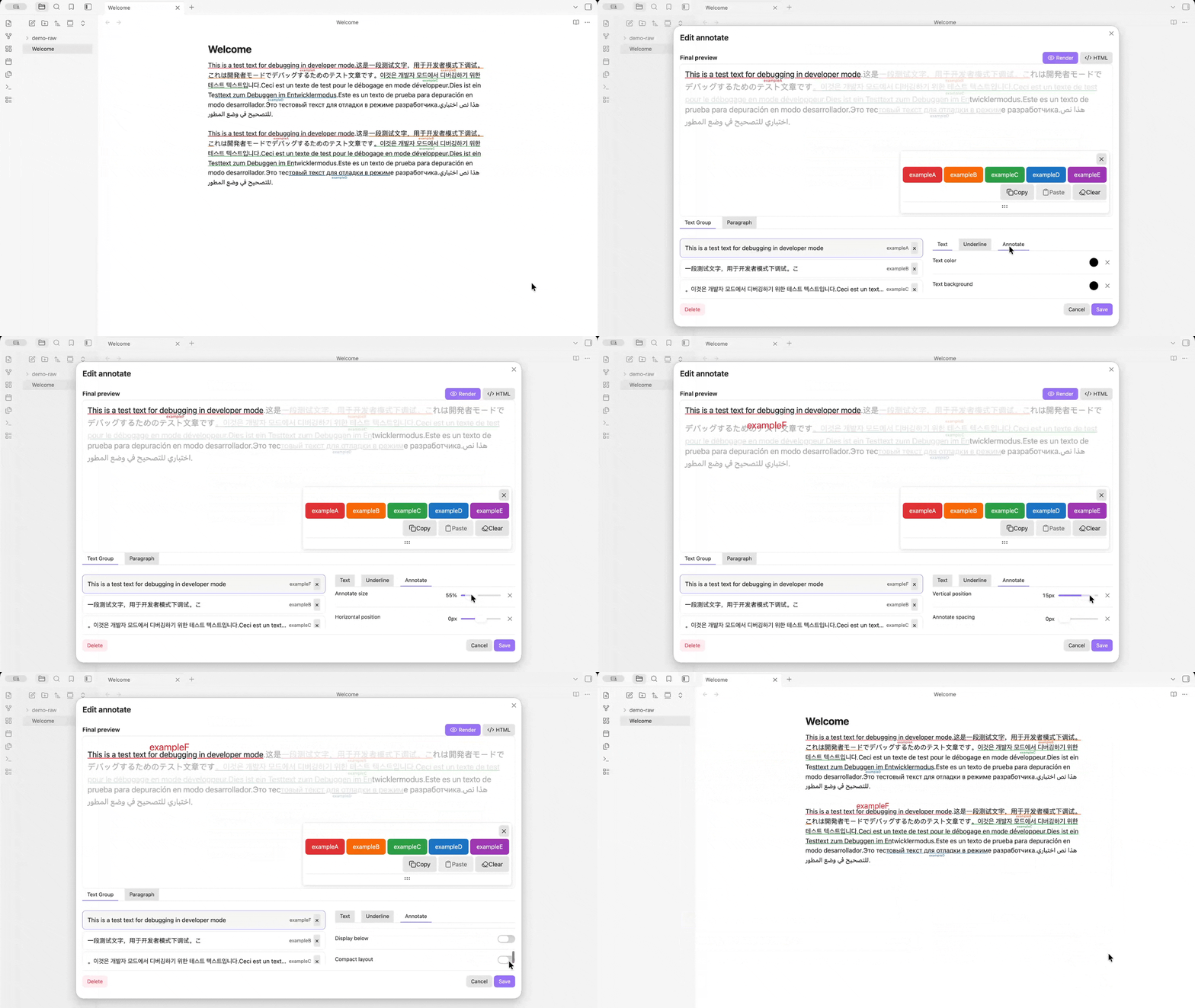
Fine-tune each group in the Text Group tab: annotate size, horizontal/vertical position, spacing, underline and colors.
Adjust the paragraph
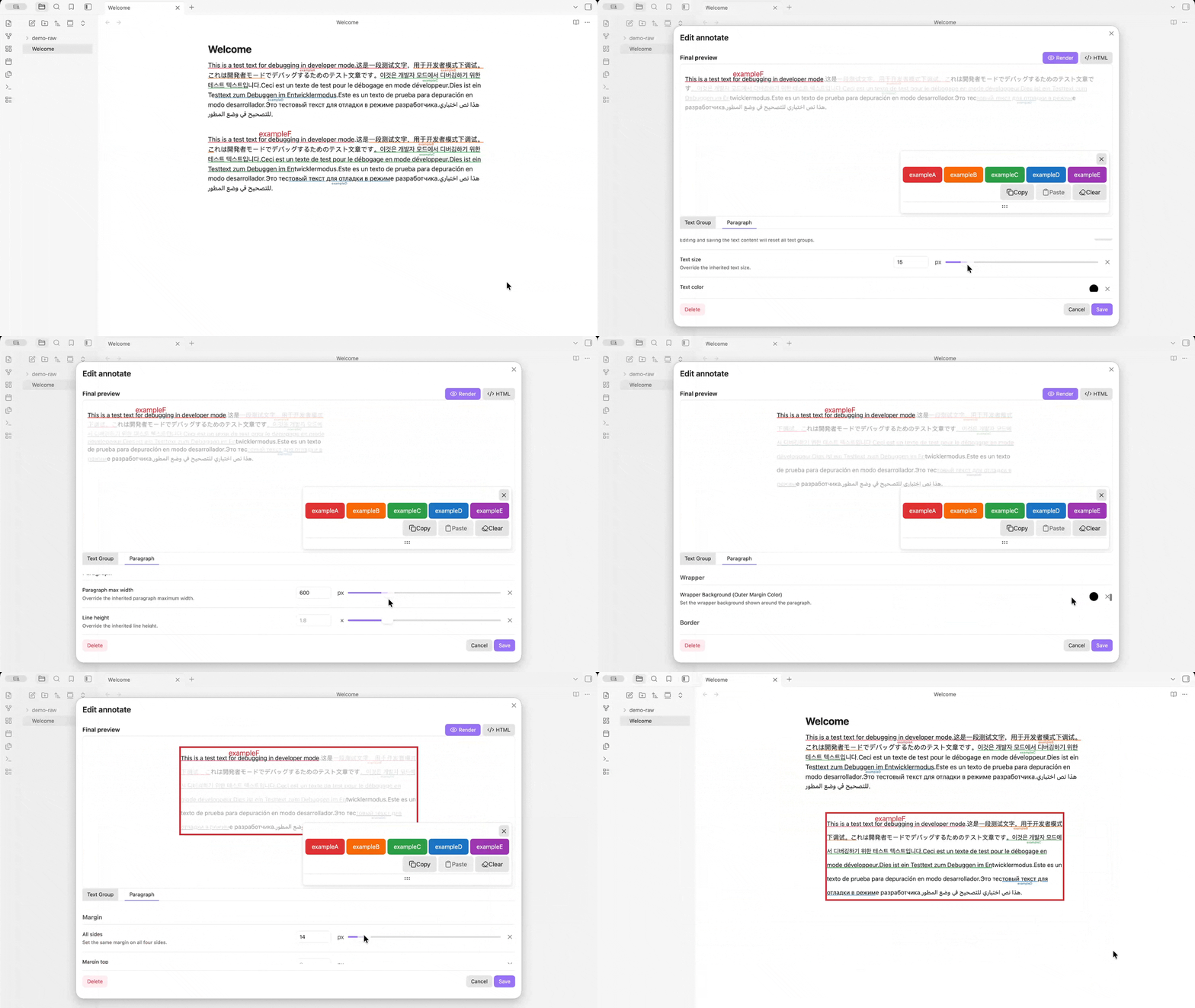
Adjust the block appearance in the Paragraph tab: text size, max width, line height, border and more.
Configure preset buttons
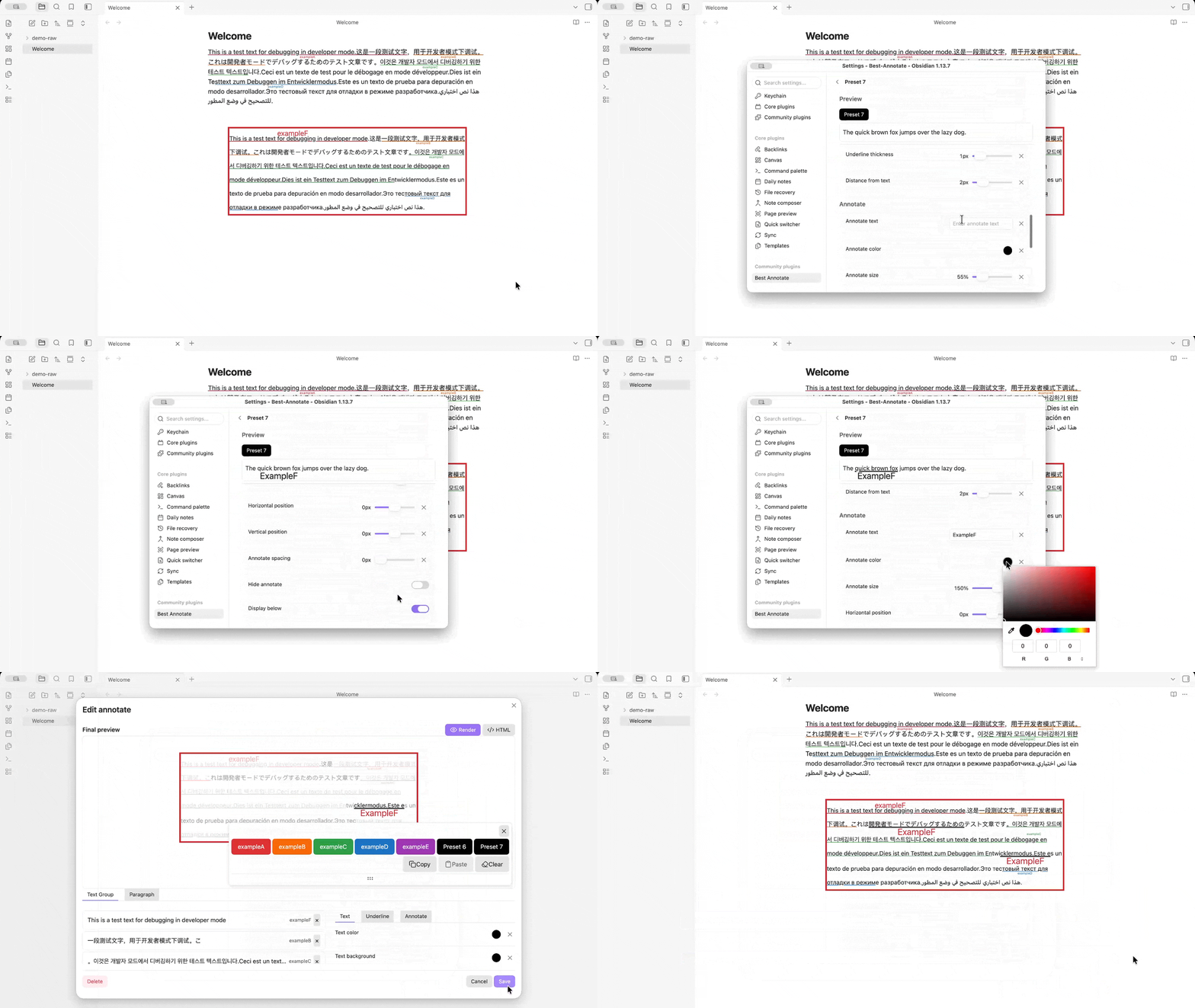
Each preset button has its own settings page with a live preview: button title, icon, colors, and the full group appearance (annotate text, color, size, position and more).
Settings
Open Settings → Best Annotate to configure:
- Group preset: the default appearance applied to newly created annotate blocks (Default group preset).
- Final preview settings: default preview mode (render / HTML), highlight colors for added / changed / deleted HTML, and highlight duration.
- Fast group button presets: add, reorder, edit or delete preset buttons, or edit them directly as JSON.
- Developer: dev-only options (Dev mode, Use default text content) to prefill new annotates with sample text.
Fast group preset examples
Ready-made preset files live in src/presets/:
syntax-presets-grammer-en.json— English grammar annotation (Subject, Predicate, Object, Complement, Adverbial), each underlined and labeled in a distinct color.syntax-presets-grammer-cn.json— the same set with Chinese titles and labels (主语、谓语、宾语、补语、状语).
To use one:
- Open Settings → Best Annotate → Fast group button presets.
- Click Edit presets as JSON.
- Paste the file contents and save.
Saving replaces all current presets. To merge instead of replace, paste the new entries into the existing JSON array.
A minimal preset looks like this:
[
  {
    "title": "Subject",
    "description": "The person or thing performing the action",
    "icon": "",
    "buttonColor": "#e03131",
    "buttonTextColor": "#ffffff",
    "appearance": {
      "underline": true,
      "underlineColor": "#e03131",
      "annotate": "Subject",
      "annotateColor": "#e03131",
      "annotatePosition": "under"
    }
  }
]
Any omitted field falls back to the default appearance, so you only need to list what you want to override.
Privacy
The plugin works entirely offline. It makes no network requests and collects no data. Annotations are stored as HTML inside your notes.
Development
npm install
npm run dev    # watch mode
npm run build  # production build
npm run lint