
README file from
GithubAutomatic Paragraph Review
Automatic Paragraph Review for desktop Obsidian.
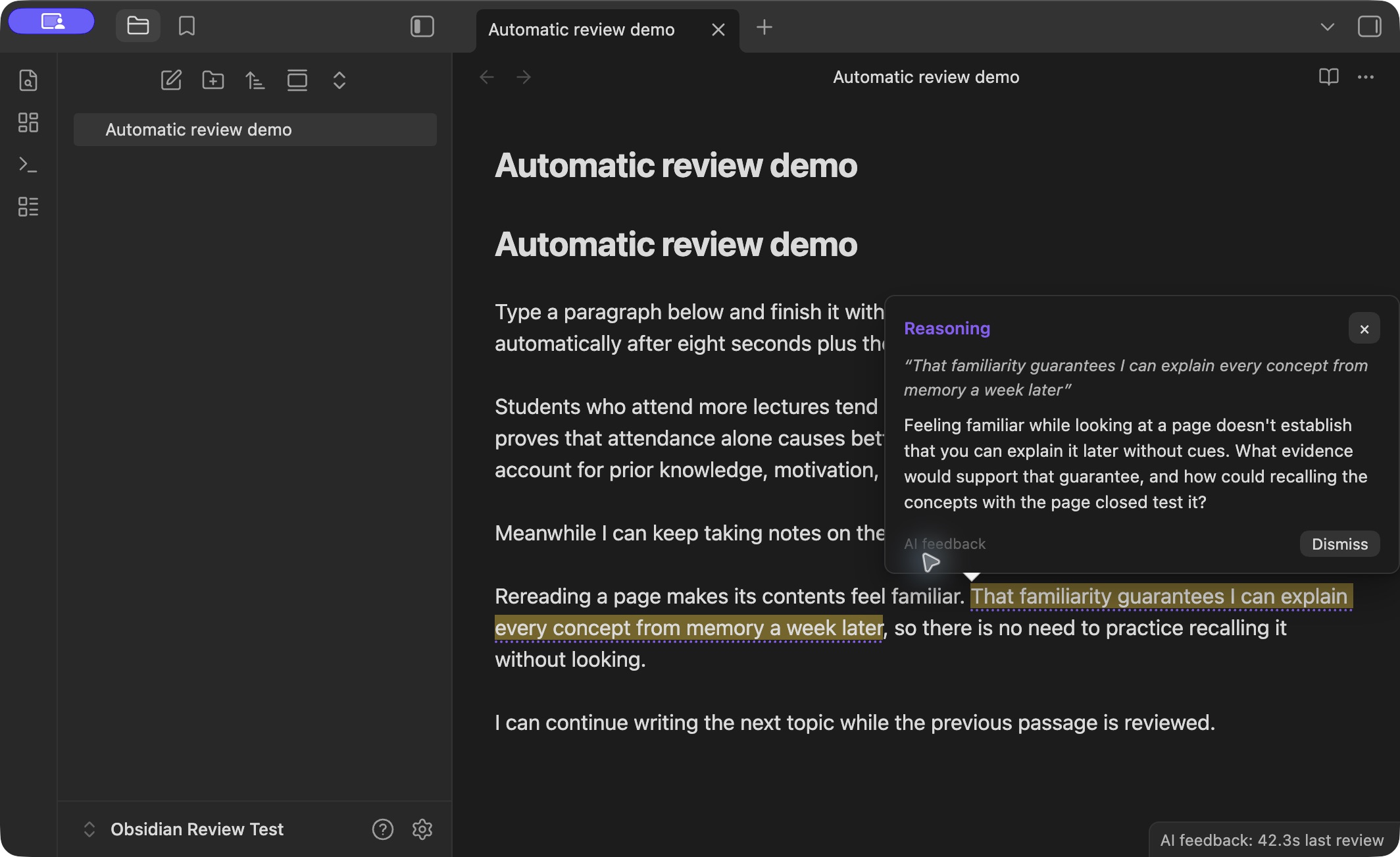
Automatic study feedback inside desktop Obsidian, using your existing local Codex sign-in. Write normally. Relevant passages receive a subtle dotted underline. Hover, click the underline, or move your text cursor into it to read the feedback. No recurring prompt or chat panel is required.
The default focus is context and deeper understanding. Hover comments add useful background, explain terms and mechanisms, connect ideas, and give concrete examples. They can enrich an already-correct note without requiring a mistake. Feedback uses 2–5 concise note-style bullets when several distinct points fit, or a short paragraph when a connected explanation is clearer. Feedback explains reasoning issues directly and does not ask study questions. It preserves shorthand and your voice. Uncertain factual details are flagged for verification, not presented as sourced fact checks.
Release: 1.0.6. Available in the Obsidian Community directory. Select Add to Obsidian on the listing to install it. Newly published entries can take up to 24 hours to reach in-app search; the manual ZIP is available immediately. The GitHub release also includes a manual-install ZIP.
What is included
- Hover popovers with individual dismissal and keyboard access.
- Explanatory context and examples as 2–5 note-style bullets or a short paragraph; no study questions.
- Add to note for a paragraph, Add for an individual bullet, or Add all to note for the group. Additions go below the source passage and support ordinary Undo.
- Earlier saved question-style comments are hidden while their history and dismissals remain intact.
- Run AI assistant button for the whole note, changing to Review selection when text is highlighted.
- Ask about this note speech-bubble button for a specific question, with selected text or whole-note context.
- Progress and a Stop button; whole-note review also works while automatic reviews are paused.
- Automatic review of new or changed prose and list items while you continue writing.
- Review of the current passage after its own idle period, without requiring a blank line.
- Up to three ready passages batched into one request; one request at a time.
- Saved feedback and dismissal state across plugin reloads.
- Rejection of feedback for passages that changed during the request.
- Note rename/deletion handling and folder exclusions.
- Configurable timing, batching, focus, optional standing preferences, and note restriction.
- Pause/resume from the status bar, settings, or command palette.
- Reported token totals and timing, plus timeouts and bounded retries for connection failures.
- AI-generated text is inserted only when you choose an Add button.
Review a selection or ask a question
Highlight text in the editor. The main button changes to Review selection and reviews only the highlighted portion, even when the selection starts or ends within a paragraph. You can also right-click and choose Review selection with AI, or run Automatic Paragraph Review: Review selected text with AI from the command palette. Selection-review requests send only eligible selected text and preceding selected passages as context. They do not automatically include the rest of the note. Automatic background reviews continue according to your existing settings.
Click the speech-bubble Ask about this note action, right-click Ask AI about this note, or use the matching command. Enter a specific question. The dialog defaults to Selected text when a selection exists; otherwise it uses Whole note. You can choose the scope in the dialog. It shows the amount of context before you ask. Whole-note question context is limited to 60,000 characters; larger notes require a smaller selection rather than silent truncation. Frontmatter, fenced code, and hidden comments are omitted.
Answers appear in the dialog as a paragraph or 2–5 bullets, with the existing Add controls. Add inserts below the last passage in the chosen context; it preserves source text and supports normal Undo. If the source changed, ask again before adding the answer. Closing the dialog stops its pending request. Up to ten latest answers, one per note, are kept in memory for the current plugin session when the captured context still matches; questions and answers are not saved to plugin history. Add an answer to your note to keep it across app restarts.
Questions use the captured note context and established general knowledge, without web research or invented source citations. Insufficient context and uncertainty should be identified in the answer. This is model-generated explanation, not verified research. Questions use Codex allowance and share the same one-request-at-a-time queue. They work while automatic reviews are paused and leave automatic settings unchanged. The Run AI assistant on the whole note command always reviews the whole note, even with a selection active.
Selection feedback is tied to its unchanged source paragraph. It can follow that paragraph when other text moves, but changing the source paragraph removes the old feedback. Ambiguous identical paragraphs are handled conservatively after edits.
Add useful feedback to your notes
Open a hover card. Feedback may be a short paragraph or 2–5 concise bullet points, chosen to suit the material. Use Add to note for a paragraph, Add beside a specific bullet, or Add all to note for the remaining group. Each action inserts real Markdown below the source passage in the current editor; it never replaces the source text. Additions beneath a list item are indented within that item. The plugin supplies Markdown structure and treats the generated content as plain text.
Ordinary Obsidian Undo reverses an insertion. Feedback already present is disabled to prevent adding the same text again; undoing or removing it makes it available again. Stale or dismissed feedback cannot be inserted, and read-only notes disable Add controls. Added AI text is baselined locally so it does not automatically trigger another review of itself. Older saved paragraph feedback remains addable; use Run AI assistant for fresh suggestions in the new formats.
Review the whole note on demand
Click Run AI assistant in the note header, or use Automatic Paragraph Review: Run AI assistant on the whole note in the command palette. It reviews existing text again, including headings, short bullets, blockquotes, and tables. Long passages are split into smaller sections; repeated identical passages share one review. Frontmatter, fenced code, and hidden comments are excluded. Feedback appears in the same hover cards. Your note changes only when you choose an Add button.
The button shows progress and becomes Stop AI assistant during a run. Completed feedback appears as each batch returns. Changed passages are skipped, and stopping keeps feedback already received. A failed batch stops the run; click Run again to retry. This action uses Codex allowance and explicitly reviews the current note even if its folder or filename is excluded from automatic reviews. It leaves those restrictions and automatic pause/resume settings unchanged.
Whole-note review starts as soon as the current request finishes and processes one batch at a time. It bypasses automatic idle delays and the minimum automatic interval for this explicit run. A long note takes several requests; automatic work waits until the run finishes. The button is available in editing and Reading view, with hover feedback visible in editing / Live Preview.
Automatic defaults
| Setting | Default |
|---|---|
| Completed passage eligibility | 8 seconds |
| Passage you are still writing | 30 seconds without changes to that passage |
| Minimum between request starts | 30 seconds |
| Passages per request | Up to 3 from the same note |
| Feedback per passage | Up to 2 useful comments, including zero when appropriate |
| Eligible passage length | 40–5,000 characters |
| Context | Up to 8,000 preceding characters of eligible same-note prose |
| Excluded folders | Templates, Attachments |
The timing is tied to individual passages. You do not have to stop writing the rest of the note. The local watcher does not use AI allowance. AI requests use your Codex account allowance. The default request interval caps starts at two per minute; idle, unchanged notes do not generate new reviews.
If several passages are queued, their total wait includes the request interval and previous work. The rate limit can be adjusted in settings. Reported token counts are not a conversion to a subscription percentage or a dollar charge.
Try it
Install the plugin using the instructions below. Write a paragraph or list item, finish it with a blank line, and continue taking notes. A useful comment appears as a dotted underline; a final unfinished passage is reviewed after its idle period. Opening an existing note does not automatically review all its text.
Hover over an underline, click it, or move the text cursor into it to read feedback. Escape closes a keyboard-opened popover. The command Automatic Paragraph Review: Show AI feedback at cursor is also available. Dismiss removes an individual comment and saves that choice until the passage changes. Dismiss feedback in current note removes that note's visible comments.
Installation and one-time setup
Install from the Community listing using Add to Obsidian, then install and enable the plugin in Obsidian. If you use this method, skip manual-copy steps 2 and 3 below. Codex installation and one-time connection setup are still required.
- Install the official Codex CLI and sign in with
codex login. The plugin does not install Codex for you. - Download the manual-install ZIP from the latest GitHub release and extract its
automatic-paragraph-reviewfolder into<vault>/.obsidian/plugins/. Alternatively, create that folder and copy the release assets main.js, manifest.json, and styles.css into it. These are the only three runtime files. - Enable Automatic Paragraph Review in Obsidian's Community plugins settings.
- Open the plugin's settings. Automatic reviews start disabled. Codex detection checks executable support and sign-in. If needed, enter the full executable path and select Check connection.
- Set any note restriction or excluded folders, then select Connect and enable. This is a one-time opt-in to sending eligible text to Codex, not a prompt for each review.
- Write normally. Click the status bar to pause or resume.
Feedback is available in editing / Live Preview mode. Requires desktop Obsidian 1.13.7 or later. Live-tested on macOS with Obsidian 1.13.7 and Codex CLI 0.163.0. Linux automated tests cover the engine and editor integration; other desktop operating systems have not been live-tested. Windows users may need a native codex.exe path. Mobile and Reading view are not supported.
If setup reports signed out, run codex login in your terminal and check again. If it reports missing options, update the CLI from its official installation instructions. The plugin requires support for exec --output-schema, --ignore-user-config, and --ephemeral. A subscription or other account access that supports Codex is required; service limits apply. The plugin does not require you to configure a separate API key.
Startup and iCloud vaults
Plugin startup does not wait for Codex discovery or sign-in checks. When automatic reviews are enabled and consent is already granted, connection checking starts in the background one second after the workspace layout is ready. When automatic reviews are paused, Codex is checked only when you explicitly use an AI action, resume reviews, or click Check connection. Concurrent requests share an ongoing connection check. Unloading the plugin cancels a deferred check and ignores late results.
For vaults in iCloud Drive, keep the plugin folder downloaded locally. In Finder, locate <vault>/.obsidian/plugins/automatic-paragraph-review, Control-click it and select Keep Downloaded. This prevents startup from having to fetch its runtime or saved data from iCloud. See Apple's instructions. Downloading the files once restores them now; the persistent Finder setting is needed to prevent future eviction. This release does not change your system-wide iCloud storage preferences.
Data and operation
Each review sends selected passage text and nearby preceding prose from the same note to Codex. Frontmatter, fenced code, and hidden comments are excluded. Automatic extraction also excludes quoted/table blocks; explicitly running the whole-note assistant includes them. Eligible changes are reviewed once automatically; opening existing text is a baseline. The whole-note button explicitly reviews existing text again.
Local feedback, source passage text, dismissals, settings, and aggregate usage metrics are stored in the vault's .obsidian/plugins/automatic-paragraph-review/data.json. They may travel with any service you use to sync plugin data. The plugin does not store an API key or copy your Codex credentials. Codex's existing authentication, account limits, and data handling apply.
The plugin launches the installed Codex executable outside the vault and writes a schema-only temporary file in the operating system temporary directory, removing it after each completed or failed review. Note text is passed through the process input, not a temporary note file. The CLI uses its own authentication and runtime storage outside the vault (normally ~/.codex); CLI-managed storage and network activity follow Codex settings and service behavior. The plugin adds no telemetry or direct network client.
Requests use an ephemeral codex exec process, the CLI's default model and low reasoning, without user configuration. Shell execution, unified execution, connected apps, and web search are disabled for the review process; the sandbox is read-only. This version reviews the supplied text rather than researching sources or browsing your other notes. Clicking Add uses the saved feedback and makes no additional AI request. Timeout: 150 seconds. Automatic connection failures retry up to twice with increasing cooldown. Pausing automatic reviews cancels automatic work and clears its queue. Use Stop AI assistant to cancel a whole-note run.
Stored history is bounded to 300 passage results and 4,000 reviewed passage identifiers. Automatic reviews skip very short fragments, ambiguous identical passages, and prose blocks above the configured maximum. Whole-note reviews include short fragments, share feedback across identical passages, and split long blocks. Feedback for notes beyond the history limit may replace earlier results. Persistent results are tied to the exact source passage; editing it removes outdated feedback and makes the changed passage eligible for a new review.
Development
Runtime files are already built. Source and tests are included for inspection:
main-source.js: Obsidian interface, hover annotations, preferences, persistence.review-core.js: Markdown extraction, review queue, Codex client, validation.build.js: Bundles the core intomain.js, avoiding stale module caches on plugin reload.review-core.test.js: Behavioral checks for the review engine.tests/editor-integration.test.js: Tests using real CodeMirror in a test DOM and the note-header button.tests/whole-note.test.js: Whole-note batching, rereview, cancellation, edits, renames, and automatic queue coordination.benchmark.js: Makes one real Codex request containing three synthetic passages.whole-note-benchmark.js: Optional live check of explicit whole-note review while automatic reviews stay paused.addable-feedback-benchmark.js: Optional live schema check of both bullet and paragraph feedback.tests/note-additions.test.js: Source placement, list indentation, stale-source checks, and duplicate prevention.tests/selection-question.test.js: Selection boundaries, privacy of request scope, question queuing, cancellation, usage, and context limits.selection-question-benchmark.js: Optional live checks of a selected passage and a specific question using synthetic note text.
For development, use Node.js 24.15 or later and pnpm 11.25.0:
pnpm install --frozen-lockfile --ignore-scripts
pnpm run build
pnpm test
pnpm run release
# Optional: makes one real AI request
pnpm run benchmark
The benchmark consumes Codex allowance and overwrites benchmark-results.json. Build and unit tests do not call AI. See verification.md for observed validation and timing limits.
Releases and support
Source is licensed under MIT, copyright 2026 williambooth0803-ui. Report reproducible issues in GitHub Issues, with plugin, Obsidian, operating system, and Codex versions. Remove personal note content and credentials from reports.
Pushing a new manifest/package version to main runs the checks and publishes a matching GitHub release only when they pass. Existing releases are left unchanged. See PUBLISHING.md for the directory submission procedure.
Version 1.0.2 changes the old Understanding focus to Context and deeper understanding automatically. Existing Clarity and Both selections remain available, with direct explanations in every mode. The screenshots from the original release illustrate the hover interface; the new default supplies explanatory context instead of study questions.