
README file from
GithubAttachment Location Manager
This plugin is a further development of trganda/obsidian-attachment-management, which is released under the MIT License (Copyright (c) 2023 Trganda). Original copyright is retained; see LICENSE.
This plugin supports more flexibly setting your attachment location with variables like ${notepath}, ${notename}, ${date} and ${md5}. Global settings can be overridden for a file or a folder, and a special case can give one extension its own values.
Read the Original Name section before using the
${originalname}variable. Read the FAQ section if you have any questions about how to use this plugin.
英文说明
一、Installation
- Install from Obsidian community plugins.
- Clone this repo
pnpm ito install dependenciespnpm run buildto start compilation in watch mode.- Copy the
main.js,manifest.jsonandstyles.cssfiles to your vaultVaultFolder.obsidian/plugins/attachment-location-manager
- Download the release file and unarchive the file to your vault
VaultFolder.obsidian/plugins/attachment-location-manager
二、Usage
Install and enable the plugin, after configuration you can paste or drop attachment file as usually and it will be auto renamed.
This plugin supports a command Rearrange linked attachments/Rearrange all linked attachments. If you run this command, it will rename every attachment linked in the markdown or canvas file as you configured. An attachment is any file that is not a note (md/canvas excepted) and whose extension is not listed under Excluded from attachments; this is the same range the paste/drop pipeline handles.
When several notes link to the same attachment but resolve it to different paths, the command gives each note its own file instead of dragging one file around — see Q4.

Notice: The Rearrange linked attachments/Rearrange all linked attachments is currently an experimental feature; if you want to try it out, it's best to back up your files first.
2.1 Override Global Attachment Settings
You can override the global attachment settings for a file or a folder. The resolution order is:
file override > nearest ancestor folder override > global default
An override carries the same four settings as the global default — root path, attachment folder, attachment name and date format — plus its own special cases. It applies as a whole: an overridden file or folder does not inherit individual fields from the layer it replaces.
The layers are never compared with each other. Resolution stops at the first layer that matches, so once a file override exists, the global default and its special cases take no part at all. The settings page and the override dialog show this order with the layer currently in effect highlighted.
To remove the override of a file or folder, use the command Remove this override: <path> or the Remove this override button in the override dialog. This removes the override stored for that exact file or folder — a note governed by a folder override has no override of its own and is left untouched. The Overrides list on the settings page lets you remove any of them from a single place.
2.2 Original Name
The ${originalname} variable represents the filename (without extension) of the attachment at the moment it was first added to the vault. You can use it on its own (e.g. ${originalname}) or combine it with other text and variables (e.g. IMG-${originalname}-${date}).
The plugin persists the original name in data.json under originalNameStorage, keyed by the file's MD5 hash. This means that even after the attachment has been renamed by the plugin or by a subsequent Rearrange linked attachments run, ${originalname} will still resolve to the truly-original basename.
Note on duplicate content: the storage is keyed by MD5, so two attachments with identical bytes share a single record. If you paste/drop two distinct files that happen to have the same content, only one original name will be retained for that md5; both files will resolve
${originalname}to that same value.
Use the command Clear unused original name storage to prune entries whose file is no longer linked in the vault.
三、Roadmap of Features
This plugin currently supports:
- Setting the attachment location with
${notepath},${notename},${date}and${parent} - Auto-rename the attachment when pasting to
markdownorcanvas - Auto-rename the attachment file or folder while you rename the article (
markdownorcanvas) file - Auto-rename the attachment when dropping to
markdownorcanvas - Re-Arrange the attachment file that is linked by
markdownorcanvasto the corresponding path as you configured (experimental) - Processing duplicate attachment
- Processing duplicate attachment on create (the first time, you paste or drop an attachment in notes)
- Processing duplicate attachment on rename
- Override the global attachment settings for a specified file or folder
- Give a single extension its own values with a special case
- Leave note folders unmanaged so this plugin skips them
- Add an unmanaged folder from the file menu
四、Settings
The path of attachment is composed of three parts :
{root path}/{attachment folder}/{attachment name}.extension
And you can use the variables below to config:
${notepath}: The directory of themarkdownorcanvasfile under the vault root.${notename}: The filename of themarkdownorcanvasfile (without file extension).${parent}: The parent folder name of themarkdownorcanvasfile.${originalname}: The filename of the attachment file when it was first created in Obsidian.${date}: Date time format by Moment format options
Notice before using
${originalname}: see the Original Name section for how the original filename is persisted and how duplicate-content files are handled.
4.1 Root Path to Save Attachment
You must select a root folder to save the attachment associated with a markdown or canvas file.

It can follow Obsidian's config in Files & Links, or be set here with the options below.
- Copy Obsidian settings: use the Obsidian setting in the
Files & Linkssection. - In the folder specified below: set a fixed folder.
- Next to note in folder specified below: in the subfolder of the current
markdownorcanvasfile.
4.2 Attachment Folder
A sub-folder to place attachment under the {root path}, available variables:
${notepath}: The directory of themarkdownorcanvasfile under the vault root.${notename}: The filename of themarkdownorcanvasfile (without file extension).${parent}: The parent folder name of themarkdownorcanvasfile.
Default value ${notepath}/${notename}.
4.3 Attachment Name
Set how to rename the attachment and available variables:
${notename}: The filename of themarkdownorcanvasfile (without file extension).${originalname}: The filename of the attachment file when first time it created.${date}: Date time format by Moment format options${md5}: MD5 hash of the attachment file (calculated when the attachment file was first created in the vault).
default value IMG-{date}.
4.4 Date Format
Use Moment format options to set the ${date}, default value YYYYMMDDHHmmssSSS. You should always use the ${date} variable to prevent the same file name.
4.4.1 Excluded from Attachments
Extensions listed here are not treated as attachments. The pattern is a regular expression matched against the extension without the leading dot, case-insensitively. Left empty, every non-note file is treated as an attachment.

4.5 Automatically Rename Attachment
Automatically rename the attachment folder/filename when you rename the folder/filename where the corresponding md/canvas file is placed.
4.6 Special Cases
A special case gives one extension its own values instead of the ones set above. It waives nothing: it only rewrites the fields you customize, and the rest follow the values set above. The extension is a regular expression matched case-insensitively, and the first match in the list wins.
Special cases appear as cards directly under the four settings they belong to — on the settings page for the global default, and in the override dialog for a file or a folder.
A special case is rejected when:
- its extension is empty;
- its extension is
mdorcanvas— notes are never attachments; - its extension is matched by the pattern in Excluded from attachments;
- another card already uses the same extension. Extensions are compared case-insensitively throughout, so
PDFandpdfcount as the same extension.
While any card is invalid, the settings cannot be saved, and the offending card is pointed out so you can correct or remove it.

4.7 Unmanaged note folders
If you want some paths to be skipped by this plugin, add them to the text area. If you have multiple paths, split them with a semicolon ';'.
By default, the "Unmanaged note folders" will only work on the folder you added, and that folder contains at least one markdown file; you can toggle "Include subfolders" to cover subfolders also.
The path is case-sensitive and should not have a leading slash '/' at the beginning.
4.8 Overrides
Every file and folder you have overridden is listed here with its type and its four settings, so a cross-layer override is visible from the settings page and not only through the right-click menu.
An override is only used while it can still match: the path must still exist, and the type it was stored as must still fit what is at that path. A row whose target is gone, or whose type no longer fits, is flagged in red — that override is dead and its target falls back to the global default. Use Remove this override on a row to delete it.
4.9 Known Issues
No support for processing duplicated file names right now (in development). In backup, you could use the data variablexto use Unix timestamp with millisecond as filename (it will prevent duplicated filename).- When pasting or dropping a file in
canvasandmarkdown, it will delay showing the updated link/filename. The reason is that Obsidian's API has nopasteordropevent support forcanvas, so I have implemented it in another way, and this caused the delay in renaming the attachment.
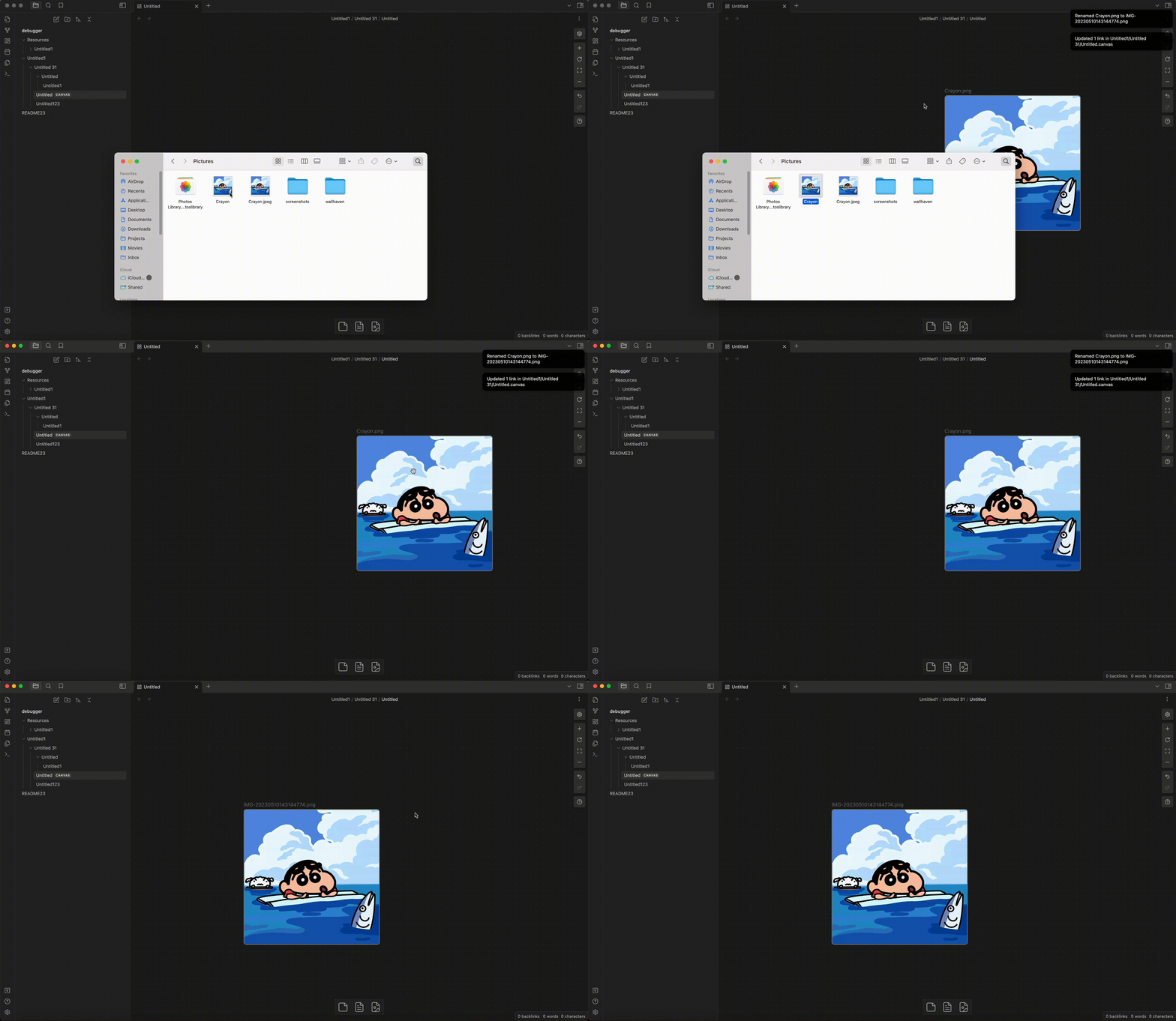
- Suppose you have a structure below with default configuration:
- Attachment directory, "assets/notes/hello/1.png"
- Note directory, "notes/Hello.md"
- Running the
Rearrangecommand may lead to an error since the folder already exists but has a lowercase name.
五、FAQ
Q1: What if I add '/' to Unmanaged note folders?
A1: It will leave the whole vault unmanaged.
Q2: Is this plugin support auto rename pdf file?
A2: Yes. Every non-note file (md/canvas excepted) is handled, whatever its type. To leave a type alone, add its extension to Excluded from attachments; to give a type its own path or name, add a special case for it.
Q3: The link of the attachment in markdown file is not updated after I directly rename the attachment file, why?
A3: Make sure you have enabled the "Automatically rename attachment" option in the plugin setting, and "Files and links -> Automatically update internal links" in Obsidian setting.
Q4: What happens if several notes link to the same attachment?
A4: The rearrange commands first work out, for each linked note, the full target path the attachment would have under that note's own settings (including any per-file or per-folder override and extension special case).
- One note links to it: the file is moved, as before.
- Several notes, all resolving to the same path: one file stays and every note links to it.
- Several notes resolving to different paths: each distinct path gets its own file. The original goes to the note you ran the command from — or, for
Rearrange all linked attachments, to the first path in alphabetical order — and every other distinct path gets a copy. Each note's link is then pointed at its own file.
Because the outcome is decided from the whole set of links before anything is moved, running the command twice is safe: the second run finds every file already in place and changes nothing.
中文说明
本插件是在 trganda/obsidian-attachment-management 基础上进一步开发的版本,原项目以 MIT 许可发布(Copyright (c) 2023 Trganda)。原版权予以保留,详见 LICENSE。
本插件支持用 ${notepath}、${notename}、${date}、${md5} 等变量更灵活地设置附件位置。全局设置可对某个文件或某个文件夹整层覆盖;层内的「特例」可让某一类扩展名取自己的一套值。
一、安装
- 从 Obsidian 社区插件市场安装。
- 克隆本仓库
pnpm i安装依赖pnpm run build以观察模式启动编译- 将
main.js、manifest.json、styles.css复制到你的库VaultFolder.obsidian/plugins/attachment-location-manager
- 下载发布包,解压到你的库
VaultFolder.obsidian/plugins/attachment-location-manager
二、使用
安装并启用插件,完成配置后即可像往常一样粘贴或拖入附件,插件会自动重命名。
本插件提供「重新整理链接的附件/重新整理所有链接的附件」命令。执行后,它会按你的配置重命名 markdown 或 canvas 文件中链接到的每一个附件。附件的范围是:一切非笔记文件(md/canvas 除外),且扩展名不在「不计为附件的扩展名」之列;这与粘贴/拖入流程处理的范围一致。
当多篇笔记链接同一个附件、但各自解析出的存放位置不一致时,该命令会给每篇笔记各留一份文件,而不是把那一个文件拖来拖去——详见常见问题中的 Q4。
提示:「重新整理链接的附件/重新整理所有链接的附件」目前是实验性功能,使用前最好先备份你的文件。
2.1 覆盖全局附件设置
你可以为某个文件或某个文件夹覆盖全局附件设置。适用顺序为:
本文件覆盖 > 最近上层文件夹覆盖 > 全局默认
一个覆盖项携带与全局默认相同的四项设置——附件保存根路径、附件文件夹、附件名称、日期格式——外加它自己的特例。它整体生效:被覆盖的文件或文件夹不会从它所取代的那一层继承个别字段。
各层之间从不互相比较。解析在第一层命中处即停止,因此一旦存在本文件覆盖,全局默认及其特例完全不参与。设置页与覆盖弹窗会展示这条顺序,并高亮当前生效的那一层。
若要移除某个文件或文件夹的覆盖,使用命令「移除本条目覆盖:<路径>」,或覆盖弹窗中的「移除本条目覆盖」按钮。这只移除存储在该确切文件或文件夹上的覆盖项——受文件夹覆盖支配的笔记没有自己的覆盖项,不会被改动。设置页的覆盖清单可在一处移除其中任意一条。
2.2 原文件名
${originalname} 变量代表该附件首次被加入库时那一刻的文件名(不含扩展名)。你可以单独使用它(如 ${originalname}),也可以与其它文本和变量组合(如 IMG-${originalname}-${date})。
插件把原文件名以文件的 MD5 哈希为键,持久化在 data.json 的 originalNameStorage 中。这意味着即使该附件后来被插件重命名、或经历了一次「重新整理链接的附件」,${originalname} 仍会解析到真正的原始主名。
关于内容重复的说明:该存储以 MD5 为键,因此两个字节完全相同的附件共用一条记录。若你粘贴/拖入两个内容恰好相同的不同文件,该 md5 只会保留一个原文件名;两个文件都会把
${originalname}解析为同一个值。
使用「清理未使用的原始文件名存储」命令,可清除那些在库中已不再被链接的文件所对应的记录。
三、功能清单
本插件目前支持:
- 用
${notepath}、${notename}、${date}、${parent}设置附件位置 - 粘贴到
markdown或canvas时自动重命名附件 - 重命名文章(
markdown或canvas)文件时,自动重命名附件文件或文件夹 - 拖入
markdown或canvas时自动重命名附件 - 把
markdown或canvas链接的附件重新整理到你配置的对应路径(实验性) - 处理重复附件
- 创建时处理重复附件(你首次把附件粘贴或拖入笔记时)
- 重命名时处理重复附件
- 为指定文件或文件夹覆盖全局附件设置
- 用特例让单个扩展名取自己的一套值
- 让笔记目录不被管理,从而被本插件跳过
- 从文件菜单添加不管理的目录
四、设置
附件的路径由三部分构成:
{根路径}/{附件文件夹}/{附件名称}.扩展名
可用以下变量进行配置:
${notepath}:markdown或canvas文件在库根之下的目录。${notename}:markdown或canvas文件的文件名(不含扩展名)。${parent}:markdown或canvas文件所在的父文件夹名。${originalname}:附件文件在 Obsidian 中首次创建时的文件名。${date}:按 Moment 格式选项 的日期时间格式
使用
${originalname}前的提示:参见原文件名一节,了解原文件名如何持久化、以及内容重复的文件如何处理。
4.1 附件保存根路径
你必须为关联到 markdown 或 canvas 文件的附件选择一个根文件夹。
它可以跟随 Obsidian 在「文件与链接」中的配置,也可以在下方选项中自行设置。
- 复制 Obsidian 设置:使用 Obsidian 在「文件与链接」一节的设置。
- 在下方指定的文件夹中:指定一个固定文件夹。
- 在笔记旁边的指定文件夹中:当前
markdown或canvas文件的子文件夹内。
4.2 附件文件夹
位于 {根路径} 之下、用于放置附件的子文件夹,可用变量:
${notepath}:markdown或canvas文件在库根之下的目录。${notename}:markdown或canvas文件的文件名(不含扩展名)。${parent}:markdown或canvas文件所在的父文件夹名。
默认值为 ${notepath}/${notename}。
4.3 附件名称
设置如何重命名附件,可用变量:
${notename}:markdown或canvas文件的文件名(不含扩展名)。${originalname}:附件文件首次创建时的文件名。${date}:按 Moment 格式选项 的日期时间格式${md5}:附件文件的 MD5 哈希(在附件文件首次于库中创建时算出)。
默认值为 IMG-{date}。
4.4 日期格式
使用 Moment 格式选项 设置 ${date},默认值 YYYYMMDDHHmmssSSS。你应始终使用 ${date} 变量,以免出现同名文件。
4.4.1 不计为附件的扩展名
此处列出的扩展名不被当作附件。该值是正则表达式,匹配不带点的扩展名,不区分大小写。留空时,所有非笔记文件都被当作附件。
4.5 自动重命名附件
当你重命名对应 md/canvas 文件所在的文件夹/文件名时,自动重命名附件文件夹/文件名。
4.6 特例
特例让某一个扩展名取它自己的一套值,而不适用上面的值。特例不豁免任何规则:它只改写你自定义的字段,其余跟随上面的值。扩展名是正则表达式,不区分大小写,列表自上而下首个命中生效。
特例以卡片形式直接呈现在它所属的那四项设置之下——全局默认在设置页,文件或文件夹则在覆盖弹窗中。
以下情形会被拒绝:
- 扩展名为空——「特例的扩展名不能为空。」
- 扩展名为
md或canvas——笔记永远不算附件,会提示「不支持把 Markdown/Canvas 作为特例。」 - 扩展名被「不计为附件的扩展名」中的正则匹配到——「该扩展名已被「不计为附件的扩展名」排除,不能作为特例。」
- 已有另一张卡片使用了同一扩展名——「已存在同扩展名的特例。」扩展名的比较处处不区分大小写,因此
PDF与pdf视为同一扩展名。
只要有卡片不合法,设置就无法保存,并会指出有问题的那张卡片,供你改正或删除。
4.7 不管理的笔记目录
若希望某些路径被本插件跳过,把它们加入文本框。多个路径之间用分号 ; 分隔。
默认情况下,「不管理的笔记目录」只作用于你填写的那个目录,且该目录下至少有一个 markdown 文件;你可以打开「子目录同此」来让子目录一并适用。
路径区分大小写,且开头不带斜杠
/。
4.8 覆盖清单
你覆盖过的每个文件与文件夹都会在此列出,含其类型与那四项设置,因此跨层覆盖在设置页即可看到,而不必只靠右键菜单。
覆盖项只在其仍能匹配时才被使用:路径必须仍然存在,且存储时的类型必须仍与那个路径上的对象相符。目标已消失、或类型已不相符的行会以红色标出——该覆盖已失效,其目标回落到全局默认。点击某行的「移除该覆盖」即可删除它。
4.9 已知问题
目前不支持处理重名文件(开发中)。作为变通,你可以使用数据变量x以毫秒级 Unix 时间戳作为文件名(可避免重名)。- 在
canvas与markdown中粘贴或拖入文件时,更新后的链接/文件名会延迟显示。原因是 Obsidian 的 API 对canvas没有paste或drop事件支持,我用另一种方式实现,因而造成了重命名附件的延迟。
- 假设你在默认配置下有如下结构:
- 附件目录 "assets/notes/hello/1.png"
- 笔记目录 "notes/Hello.md"
- 执行「重新整理」命令可能报错,因为该文件夹已存在、但名称是小写。
五、常见问题
Q1:如果我在「不管理的笔记目录」里填了 / 会怎样?
A1:整个库都会不被管理。
Q2:本插件支持自动重命名 pdf 文件吗?
A2:支持。一切非笔记文件(md/canvas 除外)都会被处理,无论其类型。若想放过某类文件,把它的扩展名加入「不计为附件的扩展名」;若想让某类文件有自己的路径或命名,为它添加一个特例。
Q3:我直接重命名了附件文件后,markdown 文件中的附件链接为什么没有更新?
A3:请确认你在插件设置中启用了「自动重命名附件」,并在 Obsidian 设置中启用了**「文件与链接 → 自动更新内部链接」**。
Q4:若多篇笔记链接同一个附件,会发生什么?
A4:重新整理命令会先为每一篇被链接的笔记算出:在该笔记自己的设置下(含任何文件级或文件夹级覆盖、以及扩展名特例),该附件应有的完整目标路径。
- 只有一篇笔记链接它:文件被移动,与以往一致。
- 多篇笔记都解析到同一路径:保留一个文件,所有笔记都链接到它。
- 多篇笔记解析到不同路径:每个不同的路径各得到一份文件。原来那个文件留在你执行命令时所在的那篇笔记处——若是「重新整理所有链接的附件」,则留在按字母排序最靠前的那个路径;其余每个不同的路径各得到一份副本。随后每篇笔记的链接都被改指到属于它自己的那一份。
因为结果是在移动任何东西之前、依据全部链接一并算出的,所以重复执行该命令是安全的:第二次执行会发现每个文件都已在位,不做任何改动。