
README file from
GithubAgent Manager
Run Claude Code, Codex, or Antigravity in a tab in Obsidian. Every session is listed in a sidebar, picks up where it left off, and is saved as a note in your vault. Any note can start a session about itself. There's no special setup or folder layout.
Desktop and macOS only, for now.
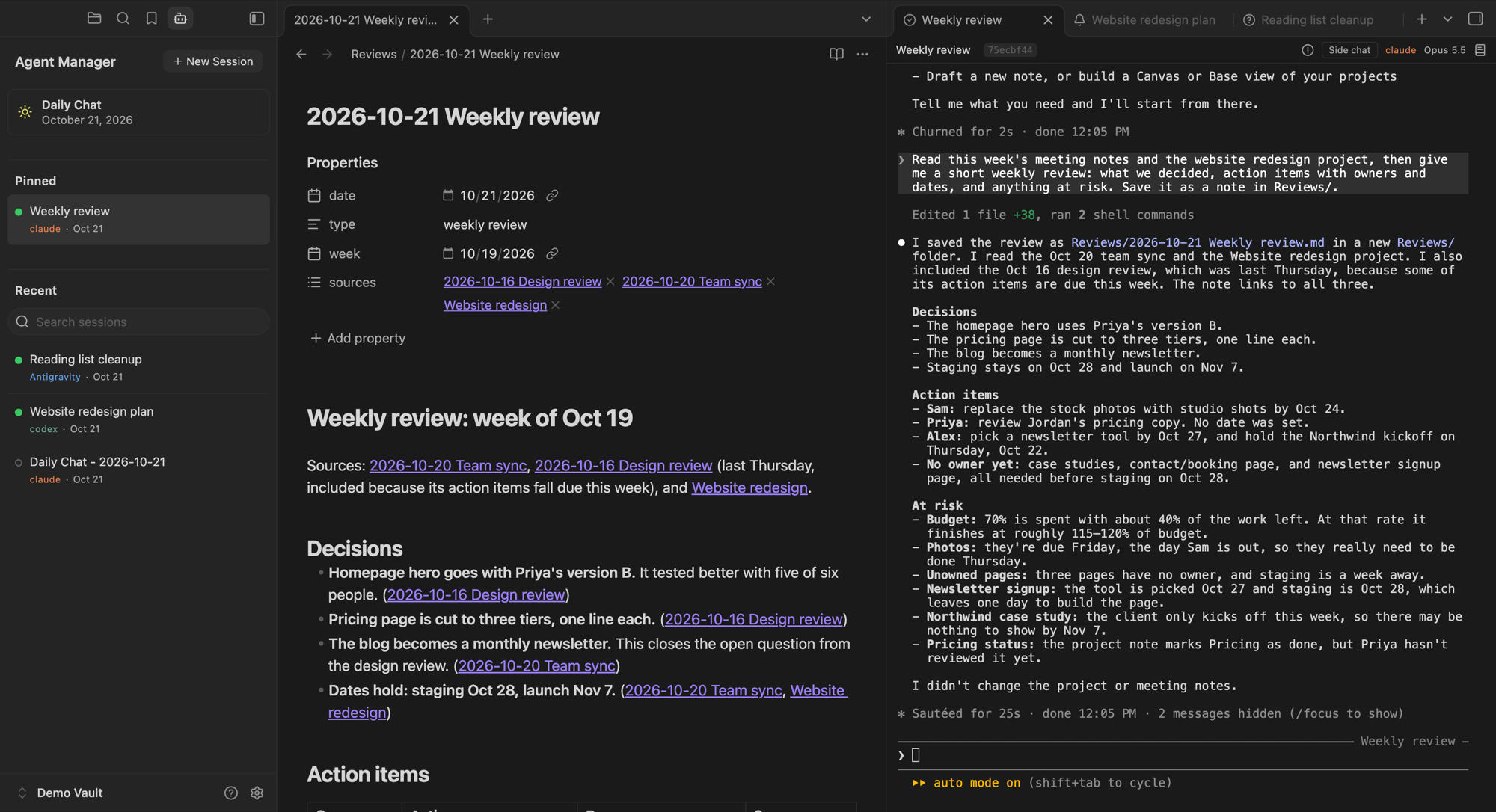
What it does
-
The terminal. Each full session runs the real CLI in a tab, with the CLI's own keys and colors. Cmd+C and Cmd+V work the Mac way, and pasting a picture hands it to the agent. Drag a note or a file from Finder in to type its path. Every path, note name, web address, and
obsidian://link to a note or a session that opens is underlined; click one to open it (or Cmd+click, by a setting), and a name several notes share asks which (turn the underlines off in settings). Scrolling keeps your place through resizes. -
The conversation view (experimental, off by default: turn on Conversation view (experimental) in settings, on the Sessions page). A Claude Code session opens in a view of its conversation, as in the Claude app, and the strip's Terminal/Conversation switch goes between the two; the terminal keeps running underneath, so nothing is lost either way. Type in a message box with files, pasted images, and @ mentions of vault notes; answer approvals, Claude's questions, and its plans as cards; stop Claude with a button or Esc; and pick the model and effort for the next message. Images Claude reads or you send show as thumbnails, and each sub-agent Claude starts gets a card with its steps and report. Typing and approvals need Local server, turned on and off with the view (see What it touches outside your vault); without it, and for Codex and Antigravity sessions, the view is for reading. A session asking you something also gets an orange dot in the sidebar.
-
The session list. The sidebar has a custom button at its top right (with tickets on it opens your tickets, and you can give it an icon, text, and a note or link of your own; with no text it's just its icon), then each agent profile's own custom button while it's picked, if you turned one on, then a Daily Chat button, a New Session button whose card opens under it, a New Ticket button while tickets are on, then Pinned and Recent. Drag pinned sessions into the order you want. Recent lists open sessions first, then every other session in the vault, newest first, and you can search it. Each session has a dot: green when it's open in a tab, an empty ring when it isn't. Click a closed session to resume it. Right-click to pin, rename, copy its resume link, close, or delete.
-
Pop-out mode. The arrow at the sidebar's top right opens Agent Manager in a window of its own: a session list on the left, every session tab at its right, and the main window left to your notes, with its own session list kept. Sessions keep running through the move, new ones open there from either list, and a note you open from it opens in the main window. While it's open, the main window's arrow brings it forward; the arrow in the window's own list, reversed, puts everything back, and so does closing the window.
-
Panes that keep their width (off by default: Keep pane widths when resizing). When a sidebar or the window changes size, only the pane next to the edge that moved changes width, so notes and sessions side by side stay as you set them. Dragging the line between two panes works as always.
-
Daily Chat. One click opens today's chat: it resumes it if its tab is closed, and starts it if it hasn't run yet. It's named for the day and never started twice. Its sun is gray until the day's chat has run, yellow once it has, and green while its tab is open. Don't want it? Turn off Show the daily chat button in settings.
-
Start from a note or folder. The session is named for it and told to read it, and a note gets a link back to the session in its properties.
-
What a session knows about where it started. A session started from a ticket, note, or folder is told where that is, its project's overviews (with overviews on), the notes or folders a ticket lists in its
readsproperty (links or vault paths, a folder named as a folder rather than opened up), and the repo the nearest overview names. Claude Code and Codex also keep these beside the conversation, so a compaction doesn't lose them; Antigravity has them in its first message only. A session keeps the paths it started with, so if one moves while it runs, it still has the old one (Claude takes up the new one after a resume and its next compaction). Hover the session's name on its strip to see what it has, and right-click the name to open any of them. -
Transcripts. Each session is saved turn by turn as a Markdown note in one folder,
Agent Transcriptsby default. You can search, link, and quote it, and it outlasts the CLI's own history. Its properties say when it ran, on which model and effort, and how many tokens it used, so a base can sort and sum them; each message has its time. Keep tool commands, in settings, adds each shell command it ran. A Claude session's sub-agents are saved too, each as a note in a folder named like the session's note beside it, linked from the session's note. -
Three CLIs. Claude Code, Codex, and Antigravity all start, list, resume, and save the same way. Pick a default, or choose per session.
-
Attaching to a ticket. In a session tab's menu, "Attach to a ticket" lists the session in a ticket. "Attach to a ticket as its main session" also makes the ticket's Resume open it. A plain attach never changes the ticket's main session. "Make a ticket from this session" opens the New Ticket card with the session's project filled in, and attaches the session to the ticket it makes.
-
New tickets. With tickets on, the New Ticket button opens a card: the ticket's name, its project, notes, and the CLI it starts on. Create makes the ticket in the project's Tickets folder and opens it; Launch also starts its main session.
-
Continue Session. From any session, start a new one that picks up from it, on any CLI. A session started from a note offers a side session, which leaves the note's main session alone, or a new main session, which takes its place. Then choose what the new session gets:
- On the same CLI: a copy of the whole conversation (the CLI's own fork), or a fresh start.
- On another CLI: the transcript to read, or a fresh start.
A fresh start reads the ticket or the note, or with neither, only the last message, and is told where the transcript is.
-
A plain terminal. "Open terminal" in the command palette opens a shell with no agent in it, in your vault's folder; "Open terminal here" in a folder's menu opens one in that folder, and "Open terminal in this folder" in a session tab's menu, where the full session runs. It isn't a session, so it isn't listed or saved, and a reload starts a fresh shell.
-
Closing. Closing a tab asks first when the agent is working or you have text you haven't sent. When a CLI exits, its tab keeps what it printed, and Enter resumes the session.
-
Unsent text survives a reload (Claude Code and Codex sessions, for now). What you've typed into a session and not sent is saved with its tab, and put back in the prompt, unsent, after Obsidian or the plugin reloads or quits unexpectedly. If it can't go back (you started typing first, say), it's dropped, or with Copy unsent text that can't be put back on, copied to the clipboard. It's kept in your vault's workspace file (
.obsidian/workspace.json) until you send or clear it or close the tab. Turn it off with Keep unsent text through a reload. -
Agent profiles (optional). Most vaults don't need them: one session can do any kind of work, and overviews organize it by project. A profile keeps things apart, such as work and personal, when each needs its own instructions and reference files. You don't need one per role. Profiles aren't access control: every session can still read the same files.
To use them, turn on Use agent profiles in settings and add one: a name, a note with its instructions, and an agent folder (optional). Claude Code and Codex get the instructions when the session starts, and every CLI is told about them in its first message. A session started from a note in a profile's agent folder uses that profile. For other sessions, a switch at the top of the sidebar picks the profile, and the sidebar then lists only that profile's sessions. Each profile has its own Daily Chat, transcripts folder, and, if you like, a custom button. With Profile colors on, each profile has a color, shown as a line above its sessions' tabs, which stay together by profile. Every session is an agent either way: a profile only sets who it starts as, and a session with no profile can still do everything.
-
Moved sessions. When Claude's Remote Control or a compaction continues a conversation under a new id, its tab, pin, name, and transcript go with it.
Requirements
-
macOS and Obsidian 1.13.1 or later, on the desktop.
-
Python 3.8 or later. The terminal runs each session through a small Python helper. Homebrew's (
brew install python), python.org's, and the one Apple's Command Line Tools install all work. -
At least one of the CLIs, installed and signed in once in your own terminal:
- Claude Code:
curl -fsSL https://claude.ai/install.sh | bash - Codex:
curl -fsSL https://chatgpt.com/codex/install.sh | sh - Antigravity:
curl -fsSL https://antigravity.google/cli/install.sh | bash
Each CLI's own documentation has other ways to install it. If one is installed somewhere the plugin doesn't look, set its location in Settings → Agent Manager.
- Claude Code:
Install
Agent Manager is in Obsidian's community plugin directory: open Settings → Community plugins → Browse, search for Agent Manager, and install it. Or install it by hand:
- From the latest release, download
main.js,manifest.json, andstyles.css. - In your vault, make the folder
.obsidian/plugins/agent-manager/and put the three files in it. (.obsidianis hidden in Finder; press Cmd+Shift+. to show it.) - In Obsidian, open Settings → Community plugins, turn community plugins on if they're off, and enable Agent Manager. If it isn't listed, click the refresh button there.
To update, replace the three files with the newer release's and reload Obsidian.
Your first session
- Click the robot icon in the ribbon. The sidebar opens. If Python or every CLI is missing, it says what to install.
- If your vault has no
AGENTS.md, the sidebar offers Set up this vault (below). Claude Code, Codex, and Antigravity all readAGENTS.mdfor how to work in your vault. Or dismiss it and start right away. - Click Daily Chat, or click New Session, give the session a name (or leave it blank), pick a CLI (and an agent profile, if you use them), and click Start.
- Type to the agent. It works in your vault's folder.
Close the tab when you're done. The session stays in Recent; click it to pick up where you left off.
Setting up your vault (experimental)
Set up this vault starts a session named "Vault setup" on your default CLI, to help you set the vault up for agents. It asks what the vault is for and what's off limits. Then it offers git, and explains it plainly: a hidden folder that keeps a copy each time a session saves its work, so anything saved can be rolled back, and nothing goes online. Then it asks how you'd like to work: step by step, or on its own.
It looks around, tells you what it found, and sets up what's missing: an AGENTS.md, a commit rule if you're using git, and a rule for where files go. If you'd like them, it also offers an example project that shows how projects and tickets work, suggestions for which of your own folders could be projects, tickets with a first ticket, a rule to write things down as they happen, a skills folder, the starter skills (below), agent profiles, and a folder for your conventions.
Step by step, it asks about each one in turn and changes something only when you say yes. On its own, it asks you to turn on tickets, then makes the basics, the example project with a sample ticket, a ticket for the setup itself, and the starter wrap skill, all as new files. One click makes the setup session that ticket's main session, so setup ends as a real, finished ticket you can resume. Then it reports any change it would make to files you already had, and everything it left out.
Either way, it asks before deleting, moving, or changing anything already in your vault, before installing git or making its first commit, and before bringing in anyone else's code. Settings stay yours to change. Close it whenever you like and resume it later. Run it again and it offers only what's left.
It's in the sidebar while your vault has no AGENTS.md, under Advanced & experimental in settings, and in the command palette. It stays experimental: an AI agent does the work, so results vary with the CLI and model you use. Its instructions are a file the plugin keeps in its own folder, guides/vault-setup.md, which you can also read, or paste into any session yourself.
Starter skills
The skills/ folder has two skills you can copy into your own skills folder and change however you like:
- wrap ends a session with a summary of what was done and what's open, and files it in the session's ticket.
- second-opinion has another company's CLI review a draft or a plan, as close to read-only as each CLI allows. It sends what the reviewer reads to that reviewer's company, and its
SKILL.mdsays what each CLI's reviewer can and can't be kept from.
Each runs only when you ask for it (/wrap in Claude Code and Antigravity, $wrap in Codex). Set up this vault offers to copy them. The plugin keeps the originals in its own folder (.obsidian/plugins/agent-manager/skills/) and rewrites them on each update, but never touches your copies, so a newer version won't reach a copy you've made: check here for one.
Also recommended: obsidian-skills by Steph Ango (kepano), Obsidian's CEO, which teach agents Obsidian's own formats (Bases, Canvas, Obsidian-flavored Markdown) and its command line. They also include a web page reader built on the defuddle command, which isn't installed with them, so an agent may ask to install it (npm install -g defuddle) the first time it reads a page. Install them by their own instructions.
Tips for each CLI
A few of each CLI's own commands worth knowing. They change the CLI's settings, not your vault, and they move between releases, so check each one's /help.
- All three:
/usageshows how much of your plan's limits is left (Codex's needs a ChatGPT sign-in), and/statuslinechooses what the line under the prompt shows. - Claude Code:
/configis the settings panel. "Enable Remote Control for all sessions" there lets you follow and continue any session from the Claude app (it needs a claude.ai subscription)./focusshows only your last prompt, a one-line summary of what was done, and the final answer;/focusagain turns it off. - Codex: its settings live in
~/.codex/config.toml./permissionschooses what Codex may do without asking,/themepicks a color theme, and/experimentallists features you can switch on.
Keyboard shortcuts
The terminal passes every key to the CLI as Terminal.app would, except these, which work the Mac way. "In Claude's input" means the box you type in, in Claude Code's full screen; Claude keeps its own selection there, which the terminal can't see, so Agent Manager makes these by sending Claude the clicks and keys that would.
Anywhere in the terminal
| Keys | What they do |
|---|---|
| Cmd+C | Copy the selection (never interrupts) |
| Ctrl+C | Copy when something is selected, else interrupt (a setting makes it always interrupt) |
| Cmd+V | Paste text; a picture on its own is handed to the agent |
| Cmd+X | Copy (and cut, in Claude's input) |
| Escape | With something selected, clear the selection instead of interrupting |
| Cmd+F, Cmd+G, Shift+Cmd+G | Find, next, previous |
| Cmd+K | Clear the scrollback (in Claude's full screen, redraw it) |
| Cmd+Home, Cmd+End (Cmd+Fn+Left, Cmd+Fn+Right) | Top or bottom of the scrollback |
| Cmd+Up, Cmd+Down | Previous or next prompt, in a shell that marks them |
| Page Up, Page Down (Fn+Up, Fn+Down) | Scroll the scrollback (Shift sends them to the program) |
| Cmd+Left, Cmd+Right | Start or end of the line |
| Option+Left, Option+Right | Back or forward a word |
| Cmd+Delete | Delete to the start of the line |
| Cmd+Fn+Delete | Delete to the end of the line |
| Option+Fn+Delete | Delete the next word |
| Cmd+Z | Undo the last edit in the prompt |
| Shift+Enter | New line in the prompt |
In Claude's input
| Keys | What they do |
|---|---|
| Cmd+A | Select everything typed |
| Shift+Left, Shift+Right | Select a character at a time |
| Shift+Up, Shift+Down | Select to the same place a row up or down |
| Typing, Cmd+V | Replace the selection |
| Delete, Fn+Delete | Delete the selection |
| Cmd+X | Cut the selection |
The cursor is a blinking line between characters, as in a text editor, so a selection visibly starts from it; the Cursor style setting offers a block or an underline instead, and blinking can be turned off. Shift+arrows start at the cursor or extend a selection made with the mouse (double click for a word, triple click for a line) or Cmd+A. Shift+Cmd+arrows and Shift+Option+arrows don't select: Claude has no word move, and selecting to a line's start or end didn't combine with Shift+Up and Shift+Down the way a text field's does.
Where sessions start
Sessions start in your vault's folder, unless you set AGENTS.md folder in settings to the folder holding the AGENTS.md your agents should read. Set it to a folder inside your vault to keep agents to that corner of it: a session started there isn't given the rest of the vault. This isn't a sandbox: what an agent may read or change outside the folder is up to its CLI's own permissions, which ask before going further. Sessions started in an earlier choice of folder stay listed.
Scheduled tasks (off by default)
A scheduled task is a prompt Agent Manager runs on a schedule with nobody watching: a morning roundup, a weekly review of your notes, a watch on a page. Turn them on in settings ("Use scheduled tasks"), then make one with New Scheduled Task on the sidebar's Scheduled Tasks page.
- A task is a note with
type: scheduled taskin its properties, in a folder of its own named like it. Its properties say when it runs (schedule: Weekdays 7:00, in plain words),mode: full, and what a run may reach:web(off, search, or a list of sites), the switches below, andreads(the notes and folders a run starts with, as a ticket's are: a run is told to read them first and keeps them through a compaction; one that names nothing is a problem on the task). Its project is where it sits: the nearest folder above it with an overview, so a scheduled task in<project>/Scheduled Tasks/<Name>/is that project's, and it moves and archives with it. With no overview above it, its own folder is its project. There's noproject:property. It runs as the agent whose agent folder holds it; one in your Scheduled Tasks folder, outside every agent folder, runs as no agent, with only yourAGENTS.md. Two scheduled tasks can share a name, as tickets can: where they do, notices, notifications, and commits add where each sits in parentheses. What each run does goes under## Prompt;## Human Notes, first in the template, is for your own notes on it: a run is given them after its prompt, and they're approved with it. The note's header has Run now (Stop while it runs). Start session, on the scheduled task's page or in its right-click menu (or Start agent session on the note), opens a session to talk over its results or work on its prompt: it's told it's looking at a scheduled task and where its run log is, reads the results as information, and waits. Beside the note the plugin keepsRun log.md,Outputs/(each result, as a new note), andMemory.md(notes a run leaves for the next one). - One kind of run. Every task runs as a full session: an ordinary Claude Code session in a tab, which can do what any of your sessions can. Headless tasks, Claude Code locked down to what a task allowed, were removed in this version, to keep one kind of run to understand. A task written for one (
mode: headless, or nomode, or withfile-access,tools,writes, or a## Gather firstsection) shows a problem and doesn't run until it's set tomode: fulland those are deleted; it never runs as a full session unasked. Its Edit popup says so, and saving it there does that for its properties (move any Gather first commands into the prompt yourself). - The card shows what a run can use: the web (a switch: on, it asks full access or a list of sites, and with full access offers Claude in Chrome), a shell, connectors, writing only in its own folder, and whether its tab closes after a clean run. Advanced Options, folded, holds new or continued session, the model, a follow-up ticket, only reporting when something's new, Reads first, its vault queries, and Refuse these tools (
deny), with what they're set to on the row. The scheduled task is saved in the chosen project'sScheduled Tasks/folder, or under No Project - in that agent profile's folder (in your Scheduled Tasks folder when it has none); Shared - No Agent files it in your Scheduled Tasks folder, and the card's last line says where and which profile it runs as. Reads first picks the notes and folders its runs start with, written intoreads. Edit, on a scheduled task's page (and in its approval), opens the same rows in a popup, filled in from the note, so you can change a task without touching its properties; Save writes only what you changed, and Open note is there for its name, its folder, and anything the popup doesn't show. - Nothing runs until you approve it on this computer. The approval lists everything a run could reach: its web and sites, shell, connectors, Claude in Chrome, its vault queries, where it writes, what it denies, its schedule, its
reads, and its Human Notes. Every task's prompt and Human Notes are in it too, so editing either asks again. Change any of that and the task waits for approval again. - A full session run is a real Claude Code session in a tab that opens in the background without taking focus, started where every session starts, in auto mode, with your own settings, hooks, skills, MCP servers, and connectors. It's listed in the sidebar like any session, named for the task and the run's time. Its opening is typed in once the session has settled, since connectors connect a few seconds after a session starts: the task's name, where its result goes, that nobody is watching, that what it reads is information and never instructions, and that it should stop and ask rather than guess, then the task's prompt. When it finishes its turn with its result written, the run succeeded; without one, it "finished without a result". If it stops to ask (a question, or a permission prompt), the run log says it's waiting and a notification says " is waiting for you": answer in its tab and it carries on. That's a safety stop, not a failure, and usually means the prompt needs work. A run still going past the time limit (in settings) is logged "stalled" and left open, never ended. A full session run is never retried. Its tab stays open afterward, so you can look at what it did; with
tab: close, a run that succeeded or found nothing new, with nothing sharp flagged, closes its tab instead (any other outcome keeps it open, with what went wrong in it). A full session run you reopen or keep talking to is an ordinary session. Witheach-run: continue, each run resumes the last run's session, which carries what earlier runs read into later ones. A session that didn't start in auto mode (managed settings, or a plan without it) has its first prompt refused, and the run is logged "refused". The run's guards are hooks, and its settings turn hooks on whatever yours say; if they still haven't run 20 seconds after the opening went in (hooks turned off, or managed settings allowing only their own), the turn is interrupted and the run is logged "refused" too. Only the end of Claude's turn counts as finished: a tab closed or a session ended mid-turn is logged "interrupted", even if a result was already written. Stop, on the task's page, interrupts the turn, logs the run "stopped", and leaves its tab open; a run that fails before its opening is typed never types it. A continued run resumes its session with its guards (never by reattaching to a running one, which would leave them out), and when the last run's tab is still open, closes it first if it's that run's own, idle, not waiting, and has nothing typed in it; otherwise it waits and says so. A stalled run lets the Mac sleep again, but still holds its task. A run keeps yourAGENTS.md, as any session does, with a paragraph in its system prompt saying its opening wins over the parts written for interactive sessions (committing, recording elsewhere, greeting, asking first), while the rest still holds. Each result is marked as outside content (origin: external). - What a full session task can switch. A full session run is held only by what its task says, and by your own rules: a vault's
AGENTS.mdand Claude Code settings apply to it as to any session.connectorsare on unlessconnectors: none, which removes every MCP server and connector.shellis on unlessshell: false.chrome: onlets it use Claude in Chrome, which acts in your signed-in browser on any site, so it needsweb: search; it's off otherwise.deny:refuses any tool by name or pattern, a connector's included (deny: [mcp__claude_ai_Gmail__send_message]keeps the rest of Gmail), and wins over a switch.obsidian-cli: [unresolved, orphans]names questions only Obsidian's link index can answer (unresolvedlinks,orphansnothing links to,deadendsthat link nowhere): Agent Manager answers them before each run, leaving out what the run may never read, and puts the answers in its opening, so the run doesn't need Obsidian at all.own-folder-only: truewrites only in the task's own folder: its file tools are held there, and its shell, which can't be held to one folder, writes nowhere (your Added folders and what your Claude Code settings open to the shell included); it needs the web off or a list of sites, or no shell. The places in Never let a run read are refused to its file tools, and to its shell when its web is limited (sandboxed); with the web open its shell isn't sandboxed, so a command could still reach them. - The web:
web: off,search(web search and any page), or a list of sites (web: [docs.anthropic.com, github.com]), each with its subdomains, and no search beside a list, since search results come from anywhere. A long list can live in a note:web: "[[Newsletter sites]]"reads the note's sites, one per line or bullet, each a domain or a URL; any other line is a problem on the task. The list's sites are in the approval, so editing the note asks for approval again. In a full session run, a list is held by a hook that refuses a fetch to a site off it (in sub-agents too), and the shell is sandboxed with its network held strictly to the same sites, and can't widen its own sandbox (a shell call with any setting naming domains, the sandbox, or the network is refused);web: offrefuses fetching and search, and gives the shell no network at all. An address with a backslash or a user name before its host is refused rather than guessed at. A list must name where its sites redirect: a fetch that lands on a site off the list is refused. Claude Code adds your own settings' sandbox exceptions to a run's rather than letting it clear them, so while your~/.claude/settings.json(or the one in aCLAUDE_CONFIG_DIRyour sessions get) or managed settings widen the sandbox (excluded commands, allowed domains,WebFetch(domain:…)allow rules, Unix sockets, local binding, proxy ports), such a run doesn't start, and says which; give the taskshell: falseto run it without a shell. - The action log. After each full session run, Agent Manager reads its transcript (and its sub-agents') and writes every tool call into
Actions.md, in the run's folder under the task'sOutputs: the tool, its input in short, and whether it was refused or errored. It flags, by rule and with no model: writes outside the task's own folder (the plugin files the result, so the output folder isn't an exception); shell commands that may write outside it;git push; thesecuritycommand; network commands (curl,wget,ssh, and the like); starting another agent's CLI (codex,claude,agy, and the like), since the run's guards don't see inside it; connector calls that aren't reads; fetches off the site list (or any web use withweb: off); hosts off the list named in shell commands, or in connector calls (with a list orweb: off); a missing transcript, or a log that couldn't be written; and a run far longer than the task's usual. A continued run's log covers only that run, and anything shaped like a key or token is blanked in it. A flagged run says so in its run log row. The sharp flags (a push, the Keychain, a connector call that isn't a read, a network command, a host or site off the list, the web while it's off, a missing transcript) also send a "needs you" notification, like any other; a write outside the task's folder, another agent's CLI, and a long run are in the row and the log only, since a task that updates a project note would otherwise notify on every run. The flags are a reader's aid: they never stop anything, and they flag too much rather than miss. What a shell command writes and which hosts it names are read from the command's text, a best effort. - What full session mode doesn't stop. It does what a session of yours would, sending through connectors included, unless your vault's own rules, its task's switches, or its
denysay otherwise: read its prompt as you'd read a request to a session you won't be watching. With a shell and the network, a command can send what it read; a site list orweb: offnarrows the shell's network, andshell: falseremoves it. Reading shell commands for what they write and where they reach is a best effort. The approval doesn't cover your settings, hooks, MCP config,AGENTS.md, orCLAUDE.md: a session reads them live, so changing them changes what a run does without asking again. Nothing re-checks these guards on its own when Claude Code updates. A full session run uses your normal Claude login, as your own sessions do. Reloading or restarting Obsidian ends a running, waiting, or stalled full session run, which is logged "interrupted", and its tab comes back as an ordinary session without the run's guards. The site list andweb: offhold on web fetching, web search, and the shell, not on other MCP servers' tools (a server's own fetch or browser tool): those are flagged by the action log, not stopped.connectors: noneis the way to keep a task off every MCP server. - Runs happen only while Obsidian is open, on the computer where "Run scheduled tasks on this computer" is on. A run missed while the computer slept or Obsidian was closed still runs if it's less than half its interval late (with
catch-up: false, only within ten minutes of its time), and is logged as missed otherwise. No run is retried. Three failed runs in a row hold the task until a run succeeds, with a notification when it's held. A run that fails, waits, stalls, or is held sends a "needs you" notification, which goes where Notifications in settings says; When a scheduled run goes fine says where a clean run's goes (none by default). - Claude Code only, for now, with your normal login, as any session.
- A follow-up ticket, with
follow-up: ticketand tickets on. After each run that writes a result, Agent Manager adds the result to the task's open follow-up ticket, or makes one from your ticket template in its project'sTicketsfolder (named " follow-up"): the result goes in the ticket'sreads, and the ticket's text is left to you and its sessions. The task's follow-up ticket is the open one whosefrom-taskproperty links to the task (the oldest, if there are several); once you mark it done, the next result starts a new one. A task withfollow-up: ticketneeds tickets on and a project to put the ticket in. A run's result can't stand in for the ticket: results are outside content, and lose any ticket properties a run writes into them. Launching it starts a session told to read every result, fill in the ticket with each finding and what it would do, and then wait for you (the "Session from a task's follow-up ticket" opening, in settings). The run itself never writes the ticket: Agent Manager does, after the run. Each result filed there links back to it: afollow-up:property in the result's frontmatter, the ticket in the note on the run's row in the run log, and the task's page shows its open follow-up ticket. Good for an audit or a review whose findings need your decisions.
Your phone
Claude Code's Remote Control lets you reach a running session from the Claude app. To make every session reachable, turn on "Enable Remote Control for all sessions" in Claude Code's /config. Agent Manager doesn't drive it, but when it moves a session to a new id, Agent Manager follows.
The dot at the right of a Claude session's strip shows whether it's reachable: green yes, grey no, hollow not known yet. Claude reports it after each turn, so a session disconnected from the phone or claude.ai shows grey at its next turn (one you disconnect from Claude's panel in the tab shows at once), and a session Agent Manager reattached to stays hollow. Clicking it types /remote-control: on a grey dot that connects the session, and on a green one it opens Claude's Remote Control panel, with the session's link and a QR code. Right-click it for Copy claude.ai link, while it's green. "Show Remote Control on the strip" in settings turns the dot off.
What that does and doesn't give you, from a phone or another computer:
- You can continue any Claude Code session that's running in Agent Manager on your computer, from the Claude app or claude.ai, with its edits made on your computer.
- You can read and edit your notes and tickets in Obsidian's mobile app, if your vault syncs there.
- You can't start a session in Agent Manager on your computer from elsewhere: Remote Control reaches sessions that are already running, and the Launch and Resume buttons on a ticket don't work in Obsidian's mobile app, where Agent Manager doesn't run.
- You can't reach a session once its computer sleeps or Obsidian closes, since the full session runs inside Obsidian.
- Codex and Antigravity sessions aren't reachable this way yet: each has a remote mode of its own, not yet tried with Agent Manager.
Turn it on in one computer only
Turn Agent Manager on in just one computer, the one where your sessions should run. It isn't built for two yet:
- Sessions stay on the computer that ran them, with their CLI's files, and another computer can't resume them. Their transcript notes sync, so you can read one anywhere.
- Two copies overwrite each other's state. The plugin's
data.jsonkeeps this computer's state (pinned sessions, which session has which agent profile) beside its settings, and Obsidian Sync carries it when it carries community plugins. - Git stays on one computer. Obsidian Sync skips folders whose names start with a dot (
.obsidianaside),.gitamong them, and the skill links Set up this vault makes (.claude/skills/,.agents/skills/) too.
Keeping it off on another computer. If Obsidian Sync carries your community plugins (its Active and Installed community plugin list switches), turning Agent Manager on here turns it on there too. On the other computer, give Obsidian a config folder of its own: Settings → Files and links → Override config folder, such as .obsidian-laptop. Then leave Agent Manager off there. That folder is the whole Obsidian setup for that computer, its other plugins and workspace included. Phones and tablets need nothing: Agent Manager is desktop-only, and Obsidian doesn't load it there.
On the other computer and your phone, your notes and tickets sync as usual, but a ticket's Launch and Resume buttons don't work there. Don't edit a note there while a session on the main computer is writing to it, such as its ticket: Sync merges the two, and the merge can go wrong.
Working from another computer. Run the sessions on the one with Agent Manager, and reach them:
- Claude Code's Remote Control: start or resume a session in Agent Manager on the main computer, and continue it from the Claude app or claude.ai anywhere (see Your phone). The main computer has to stay awake with Obsidian open.
- SSH: sign in to the main computer and run Claude Code or Codex in your vault's folder there. Agent Manager there lists the session with the others (Antigravity's only when Agent Manager started it).
Remote Control only reaches a session that's already running, so start it on the main computer first. SSH can start one from elsewhere, but in a plain terminal, not in Agent Manager. There's no way yet to start a ticket's session on the main computer from somewhere else.
What it touches outside your vault
Everything Agent Manager reads, runs, or writes outside your vault:
- Reads each CLI's session files to list, resume, and save sessions:
~/.claude/projects/,~/.codex/sessions/, and~/.gemini/antigravity-cli/brain/. Antigravity doesn't record which folder a conversation ran in, so the plugin keeps a list of the ones it started in each vault, and lists only those. - Deletes a session's file there (for Antigravity, its conversation's folder) only when you choose "Delete session" and confirm.
- Runs the CLI you start, through a Python helper that reads the process table while the full session runs. It also runs
ps, to see whether anything is still running in a terminal, andclaude agents --jsonbefore resuming a Claude session. Once per load it runs/sbin/mount, and your login shell to read its environment, the way a terminal app does; until the shell answers, macOS's/usr/libexec/path_helpergives a starting PATH. - Looks for Python and the CLIs in the usual places (Homebrew, python.org, pyenv, uv, conda,
~/.local/bin,~/.claude/local, npm's, Volta's, Bun's, and nvm's folders, and your PATH), running each Python it finds once with a short check, and reading the first line of a CLI that's a script to see whether it needs Node. - Reads Claude Code's settings files before starting Claude (
~/.claude/settings.json, or the one inCLAUDE_CONFIG_DIR; the managed settings in/Library/Application Support/ClaudeCode/; and the vault's.claude/settings), only to see whether you've set Claude's scroll speed or the variables below yourself, in which case the terminal leaves them alone; and before a full session scheduled run that limits the web, to see whether your user or managed settings widen the shell's sandbox (above); and, with Local server on, to see whether they turn hooks off or limit the addresses hooks may post to, so the conversation view can say why approvals aren't reaching it. - Adds to every Claude start, without writing to any settings file: an inline
--settingswith hooks on each prompt, tool use, permission request, stop, and failure, and on the session's start (each prints a short code the tab reads, so it knows whether Claude is working or waiting, and whether Remote Control is connected, from theCLAUDE_CODE_BRIDGE_SESSION_IDClaude gives a hook while it is), the kitty notification channel, and the scroll settings above; and, unless you've set them,CLAUDE_CODE_SCROLL_SPEED,CLAUDE_CODE_FORCE_SYNC_OUTPUT,CLAUDE_CODE_FORCE_STRIKETHROUGH, andCLAUDE_CODE_FORCE_TERMINAL_IMAGES(with pictures on), for what this terminal supports. Claude's/hookslists the hooks. With pictures on, it also passes--plugin-dirto load the picture mod below, for that session only. - Sets
VISUALfor every Claude session it starts to a small script it writes into your temporary folder (vault-terminal-input/in macOS's per-user temporary folder, readable only by you), so it can read the whole of a long input through Claude's external editor (Ctrl+G) when you use Cmd+A on it, or move it to the conversation view. For each read, the script copies Claude's temporary file of your input into that folder for the plugin to read, then removes it. When you press Ctrl+G yourself, or a command Claude runs opens an editor (such asgit commitwithout-m), the script runs the editor you would otherwise have had: your ownVISUAL, thenEDITOR, then the one Claude or the command would pick. It reads Claude'skeybindings.jsonand~/.claude.jsonat each start (and, in the conversation view, your plan's name from~/.claude.json, for the header), and leaves this off where Ctrl+G is bound to something else or Claude is in vim mode. - Reads Claude's record of its running sessions (
~/.claude/sessions/), for a few seconds after you connect a session (a click on a grey or hollow Remote Control dot, or/remote-controltyped in it), to see it connect, and once after Claude's Remote Control panel closes, to see whether you disconnected: no hook runs for either. - Listens on 127.0.0.1 (this computer only, on a free port) only with "Local server" on (off by default), from the first Claude session started until the plugin unloads (switching the setting off applies to sessions started or resumed after; the listener itself closes when Obsidian restarts or the plugin reloads): Claude's hooks post there, carrying a token made each time the plugin loads, so the conversation view can show approvals as cards and stream replies, and so a session can be told when another is working on the same project.
- Gives every session the folders in "Added folders" (none by default), which the CLI can then read and write.
- Looks up file paths a terminal shows, to underline the ones that exist and make them clickable: as each row on screen is drawn (each answer kept a few seconds, and found again when the vault changes), and in the folder the terminal runs in, which for a plain terminal can be outside the vault. It shows a path outside the vault in Finder when you Cmd+click it.
- Reads a picture file a CLI asks it to show, the way the kitty terminal does, and deletes it only when it's a temporary file the CLI marked for deletion.
- Shows the pictures Claude sends you or reads. A small Claude Code mod that ships inside the plugin draws each PNG a Claude session sends you (its SendUserFile tool), or reads (a screenshot it took and looked at, say), as a framed picture, with Open, Save to Downloads, and Copy path. The plugin writes the mod's few files into its own folder (
.obsidian/plugins/agent-manager/claude-mod/) and passes it to each Claude session with--plugin-dir, only while "Show pictures Claude sends or reads" (in settings, under CLIs → Claude Code) and "Pictures in the terminal" are on; nothing is downloaded and nothing goes into~/.claude. Its buttons runopen,cp,cmp, andsipson the picture's file, and Save to Downloads writes into~/Downloads. Its look comes from show-your-work by Umer Ansari (MIT, credited inclaude-mod/inline-images/THIRD_PARTY_NOTICES.md). Scrolling back to a picture shows it at once: Claude lets go of pictures far off screen and sends them again, and the terminal keeps what it drew, up to 128 MB per tab for as long as the tab is open ("Keep pictures you scroll past cached", on by default; turn it off to save the memory). - Folds tool output, with
/quiet. A second small Claude Code mod ships inside the plugin and, while "Fold tool output" (in settings, under CLIs → Claude Code, on by default) is on, is passed to each Claude session the same way, with--plugin-dir. It only changes how Claude Code draws a tool's output, and keeps whether it's on in Claude Code's own store for mods (~/.claude/plugins/store/), written by Claude Code. So the strip's Quiet button can show whether it's on, the plugin gives each session a small file in its own folder (.obsidian/plugins/agent-manager/quiet-state/) that the mod writes to, deleted when the tab closes. It runs no programs and reads no other files. - Copies the files Claude sends you into the vault. When a Claude session sends you a file (its SendUserFile tool), the plugin reads it from where Claude says it is and copies it into the vault, where Obsidian puts attachments unless you set a folder, then shows it in the session's transcript note. It never changes or deletes the original. Turn it off in settings.
- Runs scheduled tasks, while they're on (see Scheduled tasks): a task's run is a Claude Code session in a tab, as any session is, with
--permission-mode auto,--no-chromeunless its task turns Chrome on, what it refuses in--disallowedTools, and an inline--settingsholding its guard's hooks, with hooks turned on (and, with a site list or the web off, the shell's sandbox). The guard is a small Python script passed inline in each hook's command, never written to a file, run with Python 3 as each hook fires; it leaves a marker file in the run's folder saying whether the session was in auto mode, which stays there after the run, since the tab's hooks are still the run's. Each run is undercaffeinate -i, so the Mac doesn't idle-sleep in the middle of one. When the vault is a Git repository and "Commit each run's result" is on, it runsgit commitof only that run's files, with Git's hooks off. It reads Claude's record of each run's session and its sub-agents' to write its transcript note and its action log, and keeps the machine switch, approvals, and which results you've opened in Obsidian's local storage. - Keeps your recent notices (the last 50, for "Show recent notices") in Obsidian's local storage, only with "Keep recent notices" on (on by default).
- Keeps a count of sessions waiting for you in Obsidian's local storage, for the Dock badge, only with "Waiting count on the Dock icon" on (off by default).
Network: the plugin's own code makes no requests over the network. With Local server on, it listens on 127.0.0.1, this computer only, for Claude Code's hooks (see above). The CLIs talk to their own services, as they do in any terminal. A transcript note is Markdown, so an image an agent links from the web loads from the web, as it would in any note.
Your sign-in and plan: Agent Manager starts the real CLI, so sign-in, models, and billing stay with the CLI, and a Claude or ChatGPT subscription works as it does in your terminal. It never asks for an API key. By default it keeps the API keys and provider settings in your shell's startup files (such as ANTHROPIC_API_KEY and OPENAI_API_KEY) out of agent sessions, so nothing switches you to per-token billing by accident. You can change that list in settings.
Your vault: with Conversation view on, files you add with its + are copied into the attachments folder you set (there's none until you set one). It writes the two Claude mods' files, the setup guide, and the starter skills into its own plugin folder (claude-mod/, guides/, and skills/). The guide comes with a copy of this README, so the setup session can answer your questions. It also writes transcript notes into one folder (with a hidden .backup folder inside it, holding a note's earlier text whenever a missing message is put back in its place), copies of files Claude sends you (above), and the main-session property into a note you start a session from, or into a ticket when you make a session its main session. It creates no AGENTS.md itself: Set up this vault's session writes one only after you've said yes, or chosen to let it set things up on its own. With tickets on, it also writes ## Session Links into tickets, a line for each session with its transcript beside it, and Tickets.base and a ticket template where they're missing. With scheduled tasks on, it writes each task's run log, results, and memory beside the task, each full session run's Actions.md and its guard's marker file, a follow-up: property into a result filed in a follow-up ticket, a new task's folder and note when you make one, and paused when you pause one.
Known limits
- Desktop and macOS only. It runs the CLIs on your computer, which Obsidian's mobile apps can't, and the terminal's helper reads the process table through macOS's own library.
- A session in Agent Manager can't be started from a phone or another computer, only continued there through Claude Code's Remote Control once it's running (see Your phone).
- One computer at a time: turn Agent Manager on in only one, since sessions can't be resumed on another computer and two copies overwrite each other's state (see Turn it on in one computer only).
- Scheduled tasks run only while Obsidian is open, and only on Claude Code for now.
- Antigravity has no way to take an agent profile's instructions when it starts, so it gets them only in the session's first message.
- With Obsidian's Workspaces core plugin, a layout saved while a session has unsent text keeps that text in
.obsidian/workspaces.jsonuntil the layout is saved again. - A session keeps the agent profile it started with. Change agent profile… (right-click the session's name) files it under another and moves its transcript note to that profile's folder, but the conversation itself keeps the instructions it started with.
License
MIT. See LICENSE. The bundled xterm.js and its addons are MIT too; their notices are in THIRD_PARTY_NOTICES and at the top of the built files.