
README file from
GithubAgent Change Review
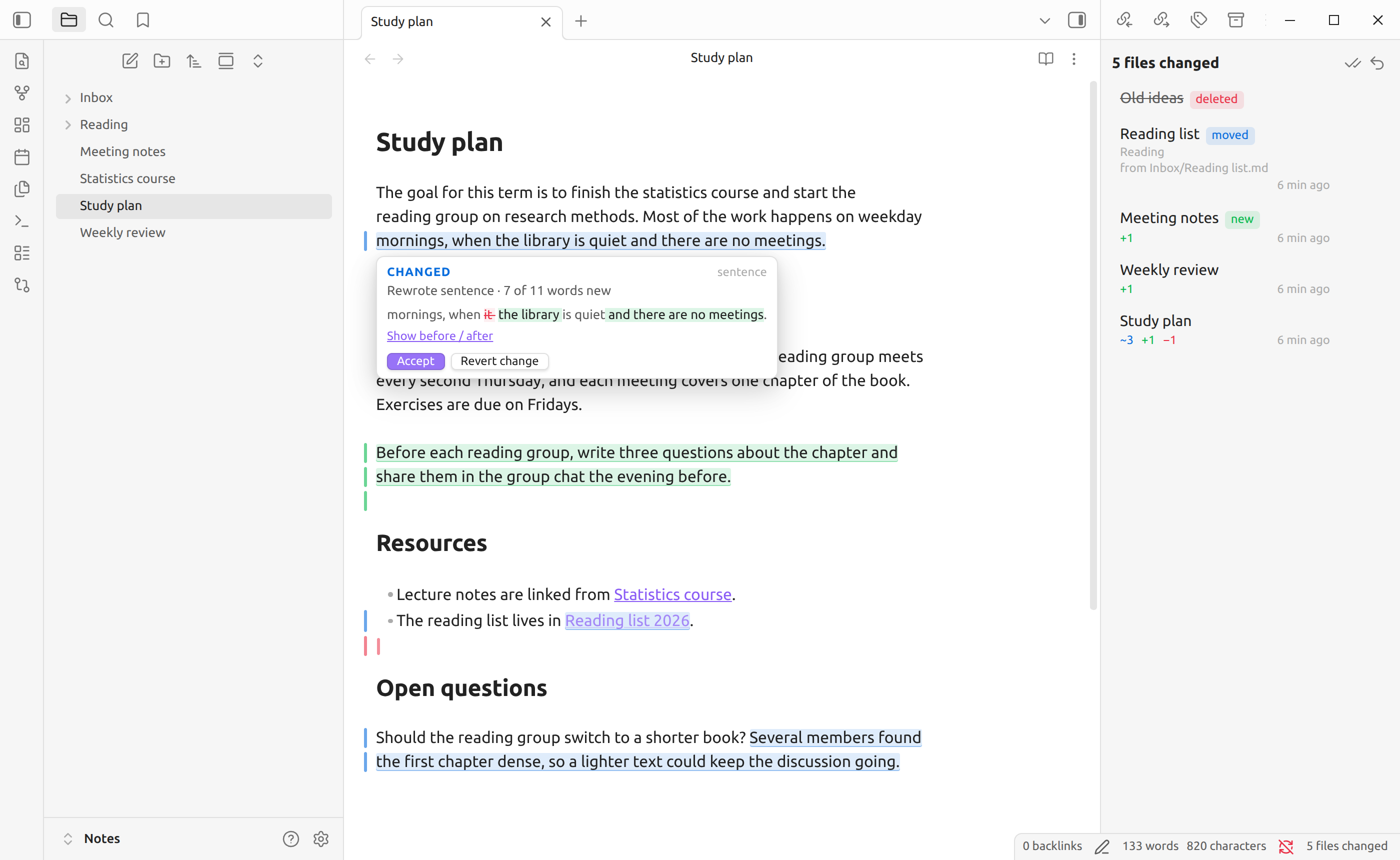
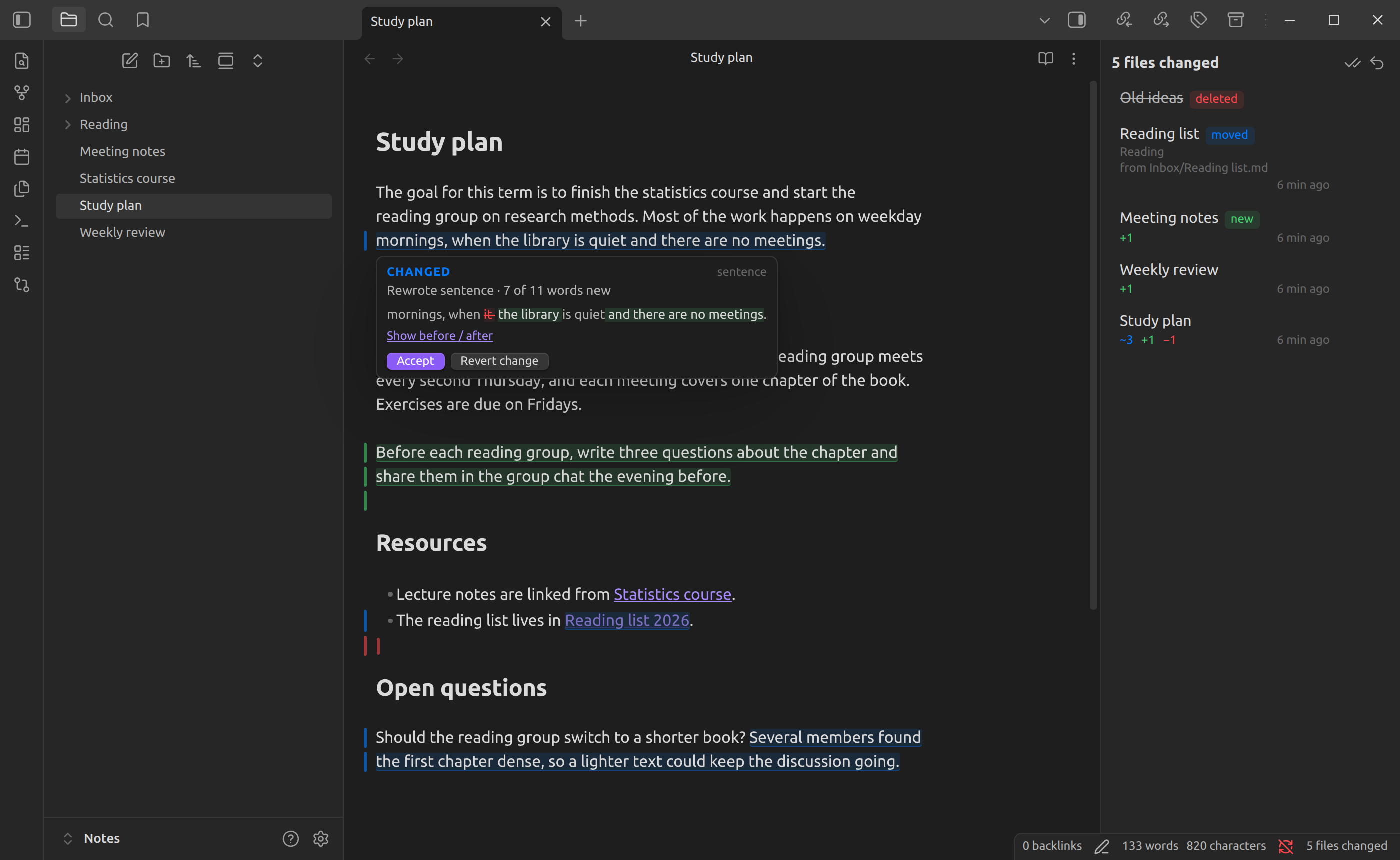
See exactly what an AI agent changed in your notes, right where it changed, and accept or undo each edit.
When something outside Obsidian edits your vault (Claude Code, Codex, Cursor,
a script, a git pull), Agent Change Review highlights the changes inside the
note itself:
- blue for changed text
- green for added text
- red for removed text
Hover a highlight to see what it said before, then Accept or Revert it. Edits you type yourself are never highlighted.
Why
Agents are good at editing Markdown, but reviewing their work is awkward: a split diff in a terminal or git client takes you out of your writing, and re-reading the whole note to spot what changed is slow. This plugin keeps you in the note, shows each change in context, and lets you keep or undo it one change at a time.
The plugin never writes content of its own and needs no AI service, account, or network access.
Install
From Obsidian: Settings → Community plugins → Browse → search for "Agent Change Review" → Install → Enable.
BRAT: install the BRAT
plugin, choose Add beta plugin, and paste
https://github.com/nkampel/agent-change-review. BRAT keeps it updated.
By hand: download main.js, manifest.json and styles.css from the
latest release,
put them in <your vault>/.obsidian/plugins/agent-change-review/, then reload
Obsidian and enable the plugin under Settings → Community plugins.
Desktop only (Windows, macOS, Linux). Requires Obsidian 1.8.7 or newer.
Quick start
- Enable the plugin. On first start it quietly records the current state of every note as "reviewed". Nothing is highlighted yet.
- Let an agent or tool edit your notes, with Obsidian open or closed. A notice tells you which notes changed; changes made while Obsidian was closed are picked up at the next start.
- Review. Open a changed note (or click the notice), hover a highlight, and choose Accept or Revert. The Agent changes panel lists every note that still has something to review.
Reviewing a change
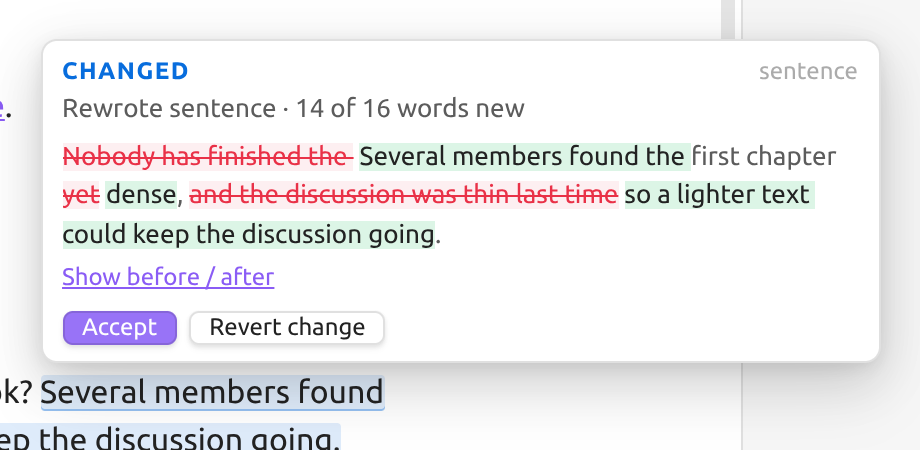
Hovering a highlight opens a small popup:
| Rewritten sentence | Changed link |
|---|---|
 |
 |
- A one-line summary, such as Replaced 2 words with 3 words, Added sentence (12 words) or Formatting only.
- Link and embed changes are called out, e.g. Changed link
[[Reading list]]→[[Reading list 2026]], since a changed target matters more than the prose around it. - For rewritten sentences and paragraphs, the word-level detail shows what was removed and what was added. Show before / after switches to the full old and new text.
- Accept keeps the change. Revert puts back the original text (for an addition it removes the text; for a removal it restores it). A revert can be undone with Ctrl/Cmd+Z.
Nearby edits are grouped into one reviewable change, and a sentence or paragraph that was mostly rewritten is reviewed as a whole. You can make this more or less eager under Review detail in the settings.
The Agent changes panel
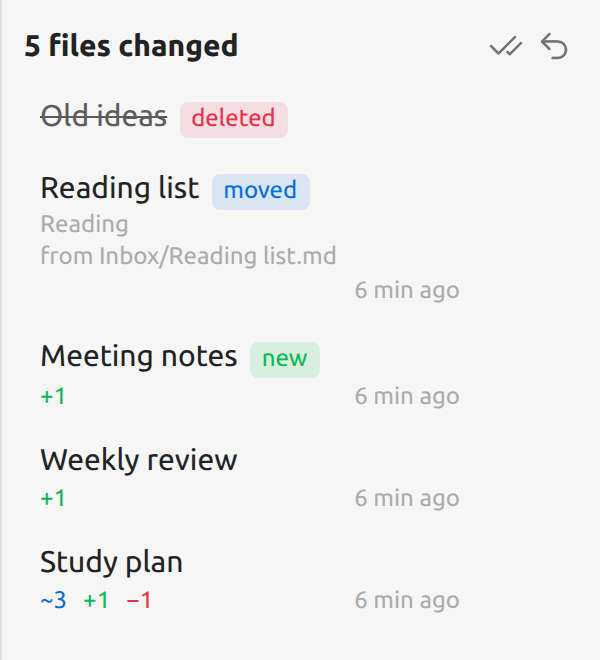
Open it from the ribbon icon, the status bar counter ("5 files changed"), or the command Show pending changes. It lists every note with unreviewed changes:
- modified notes, with counts of changed ~, added + and removed − parts;
- new notes an agent created: keep them, or move them to the trash;
- deleted notes: preview the deleted content, then accept the deletion or restore the file;
- moved notes: accept the new location, or move the note back.
Each row has accept-all and revert-all buttons, and the header has the same for every note at once (with a confirmation).
Reviewing with the keyboard
Bind Go to next change to a hotkey (Settings → Hotkeys, e.g. Alt+N). It
selects the next change and opens its popup. While a popup opened this way is
showing:
| Key | |
|---|---|
A |
Accept, then go to the next change |
R |
Revert, then go to the next change |
F |
Skip forward to the next change |
Esc |
Close the popup |
These single keys only work in that popup; a popup opened by hovering ignores them, so they never interfere with typing.
Commands
All commands are in the command palette. Assign hotkeys under Settings → Hotkeys.
| Command | What it does |
|---|---|
| Go to next change / Go to previous change | Selects the change and opens its popup |
| Accept change at cursor / Reject change at cursor | Acts on the change under the cursor |
| Accept all changes in this note / Reject all changes in this note | |
| Show pending changes | Opens the Agent changes panel |
Settings
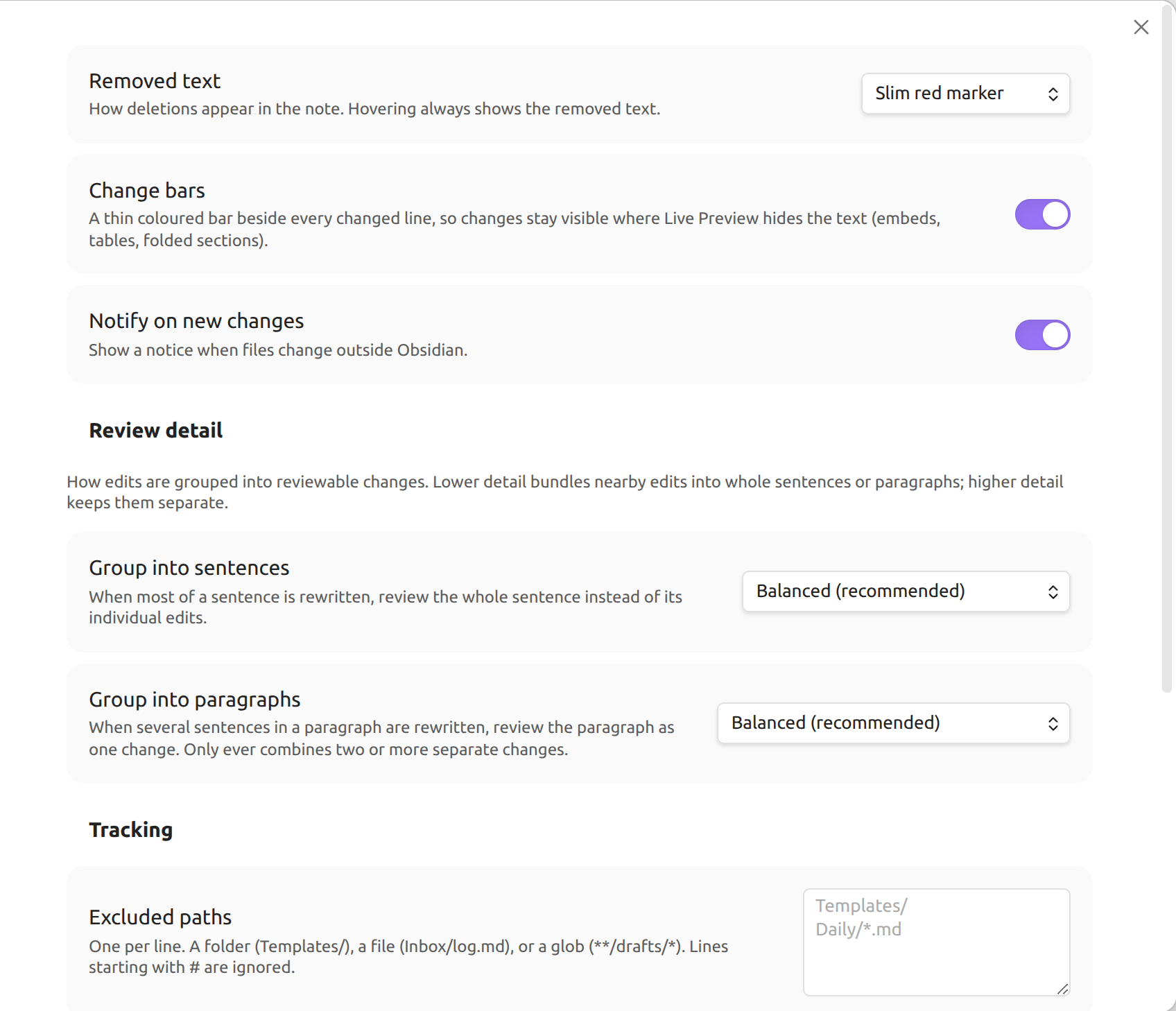
- Removed text: show deletions as a slim red marker (default) or as struck-through text.
- Change bars: a coloured bar beside each changed line, so changes stay visible where Live Preview renders text as a widget (embeds, tables, the properties block).
- Notify on new changes: show a notice when notes change outside Obsidian.
- Review detail: how eagerly edits are grouped into whole sentences and paragraphs.
- Excluded paths: folders, files, or glob patterns that are never tracked,
one per line, e.g.
Templates/,Inbox/log.md,**/drafts/*. - Maximum file size: larger notes are skipped (default 1 MB).
- Count other plugins' writes as agent changes (on by default): when off, notes written by other Obsidian plugins count as your own edits. Obsidian's own link updates after a rename and property edits never count.
- Reset all baselines: mark every note as reviewed.
How it works
For every Markdown note the plugin keeps a baseline: the version you last reviewed. Whatever differs between the baseline and the note as it is now is shown as a change, so several agent edits made before you look are reviewed together as one set of changes.
- Accept moves the baseline forward for that change.
- Revert edits the note back to the baseline for that change.
- Your own typing in Obsidian updates the baseline as you go, so it is never highlighted. If you edit inside a highlighted change, the change stays pending and shows your edited version.
It only reads and writes notes inside your vault, and only through Obsidian.
Privacy and storage
- Everything stays on your computer. The plugin makes no network requests.
- Baselines are stored as plain copies of your notes in
.obsidian/plugins/agent-change-review/snapshots/, plus anindex.json. This takes about as much space as the Markdown notes it tracks (use Excluded paths or Maximum file size to limit it). - If you sync or back up your
.obsidianfolder with another tool (git, Syncthing, cloud drives), those copies travel with it. Exclude thesnapshots/folder there if you don't want that. - Uninstalling the plugin removes its folder, including all snapshots.
Limitations
- Desktop only.
- Highlights appear in Live Preview and Source mode, not in Reading view.
- Inside content that Live Preview renders as a widget (embeds, tables, the properties block) changes are shown by the change bar and the panel, not by inline highlights.
- Accepting a change cannot be undone with Ctrl/Cmd+Z (reverting can).
- Sync tools that write files directly (Obsidian Sync, Syncthing, Dropbox, …) look like external edits, so changes synced from another device are shown for review too. Exclude the affected folders if that's noise for you.
Feedback and contributing
Bug reports and ideas are welcome in GitHub Issues. Please include your Obsidian version and OS, and what made the change (agent, script, git, another plugin).
To build from source or contribute, see CONTRIBUTING.md.
License
MIT © Niko Kampel