
README file from
GithubAdvanced New Tab
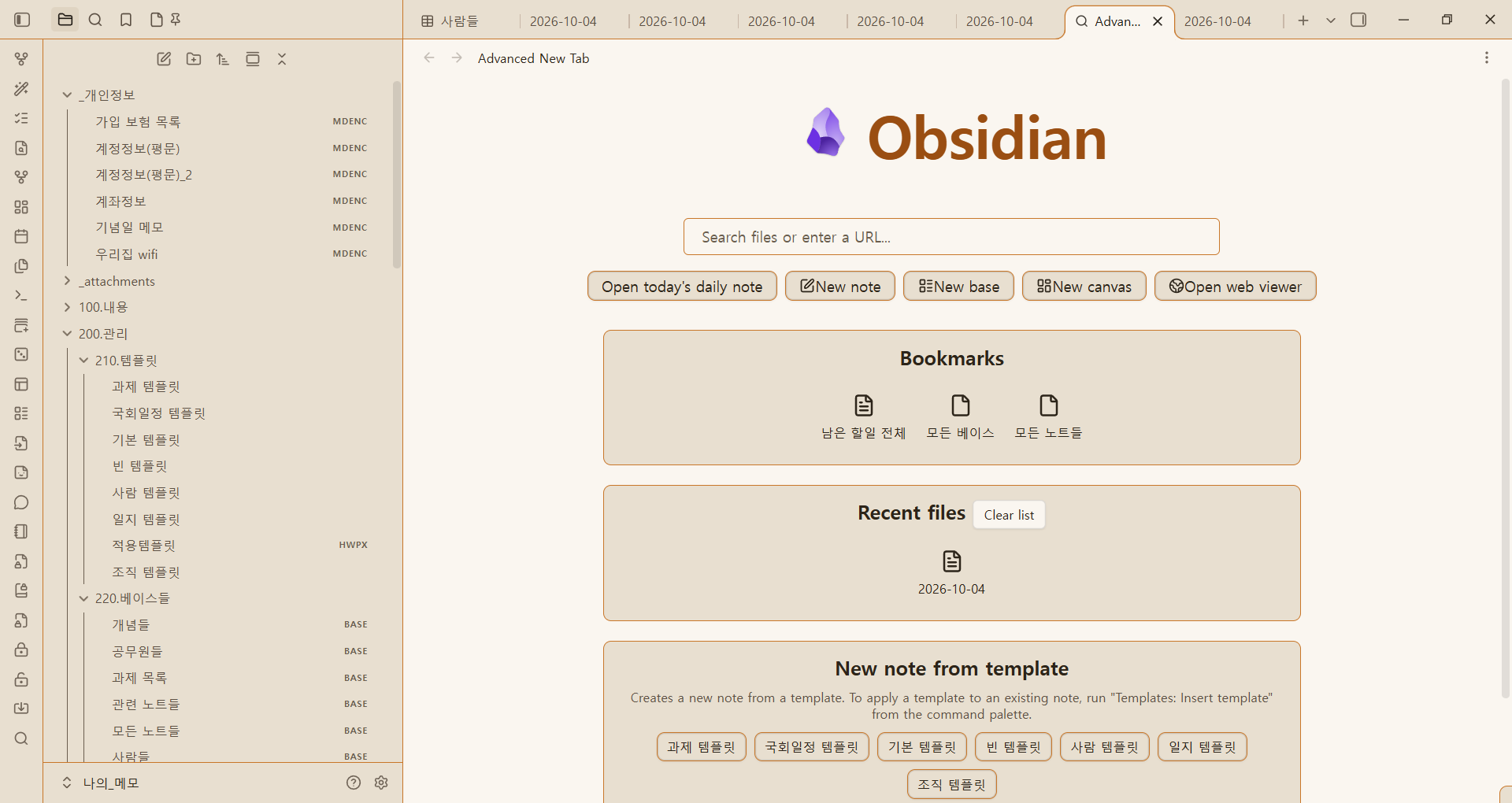
A start page for empty Obsidian tabs, with fuzzy file search, bookmarks, recent files, and notes created from templates.
Advanced New Tab is designed to help Obsidian beginners use the app with ease. It brings common actions together and introduces basic features and core plugins through short hints and tips.
This project was created by forking olrenso/obsidian-home-tab. It continues under the MIT License with the original copyright preserved.
Status and compatibility
Available from Obsidian's community plugins as Advanced New Tab, with installable assets also provided in GitHub Releases. Requires Obsidian 1.13.0 or later. The beginner tips were verified in the Windows Obsidian 1.14.4 runtime, in English and Korean, light and dark themes, and a 390 px emulated viewport. Testing on physical mobile devices and the minimum supported version remains pending.
The home page, settings, menus, and notices follow the Obsidian language, with English and Korean overrides. Settings use the searchable declarative API introduced in Obsidian 1.13.
Features
- Replace empty tabs automatically, or open the page from the command palette or ribbon.
- Fuzzy search over vault filenames and aliases, with file type and extension filters.
- Optional heading search with jumps in the host pane or a new tab.
- Optional unresolved-link suggestions that create the missing note.
- Bookmarks, recent files, and templates in separate sections.
- Quick actions to create a blank note or open today's daily note.
- New base, New canvas, and Open web viewer buttons appear when their respective core plugins are enabled.
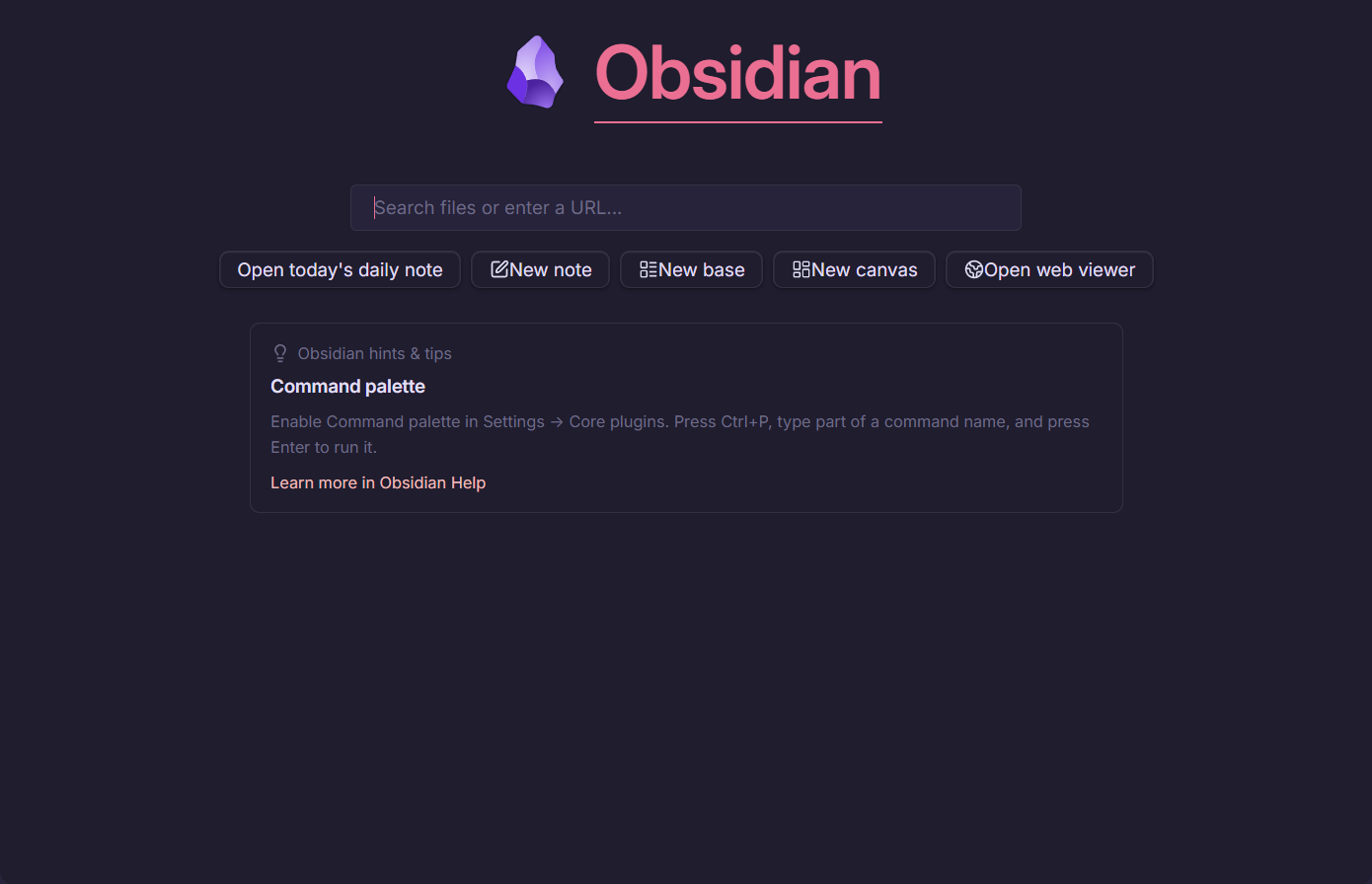
- A random beginner tip at the bottom of each new tab, covering Obsidian basics and core plugins.
- HTTP(S) links and domain names offer an Open link action in local search.
- Customize logo, title, font, search result count, and delay.
- Toggle bookmarks, recent files, templates, quick actions, beginner tips, and ribbon visibility.
- Optional Omnisearch and Surfing integrations remain supported.
- Embed search inside a Markdown note.
Search and keyboard controls
Type a filter key and press Tab. Press Backspace with an empty input to clear the filter.
| File type | Extensions |
|---|---|
| markdown | md |
| image | png, jpg, jpeg, svg, gif, bmp |
| video | mp4, webm, ogv, mov, mkv |
| audio | mp3, wav, m4a, ogg, 3gp, flac |
| canvas | canvas |
| base | base |
Use arrow keys to navigate, Enter to open, Ctrl/Cmd+Enter to open in a new tab, and Shift+Enter to create a note. No global hotkeys are assigned by default; bind commands in Obsidian settings if desired.
Enable Search headings to include markdown headings in local search. This option does not change Omnisearch results. Type template or tpl and press Tab to search configured templates; Enter creates a note and Ctrl/Cmd+Enter opens it in a new tab. Shift+Enter does not create blank notes in template mode.
An Open link suggestion opens the URL in the Web viewer core plugin, in the current tab or a new tab with Ctrl/Cmd+Enter. This applies to local, Omnisearch, and Surfing search modes. Enable Web viewer on desktop first; when unavailable, the plugin shows an activation notice. Bare filenames such as Note.md are treated as notes. Use an explicit https:// URL for ambiguous hostnames. Surfing remains an optional integration for web search queries.
Quick actions and layout
Keep the built-in new-note and daily-note buttons, and add custom commands or vault-file shortcuts in Custom quick actions. Choose the command with the search picker or select a vault file; set a button label, optional Obsidian icon ID, and whether file shortcuts open in a new tab. Unavailable commands or moved files show a notice. Drag actions to reorder them and use the list's delete button to remove them.
Additional action types reveal a vault folder in File explorer, open a URL through Web viewer, or create a note from a selected markdown template. Folder actions require the File explorer core plugin; URL actions require desktop Web viewer.
New note, New base, New canvas, and Open web viewer use the same core commands and click modifiers as Obsidian's default new tab. New note is always available; the other buttons appear only when their core plugin is enabled. File creation settings and the Web viewer homepage follow Obsidian's own settings.
Drag the entries in Section order to arrange bookmarks, recent files, and templates. Each section has its own visibility toggle. Nested core bookmark groups are included. The Focus search command is available while an Advanced New Tab is active.
Bookmark group can limit the section to one group and its descendants. Re-select the group after renaming it. Hover preview emits Page preview events for bookmark and recent-file cards; enable the Page preview core plugin and follow its modifier-key setting.
Recent files can use last-opened time or file modification time, display relative time and full parent folders, and exclude folders (one per line, including subfolders). Clear list removes list entries without deleting files. Hidden modification entries stay hidden for the session until modified again; modification history is rebuilt on restart. Last-opened history is saved only when Store recent files is enabled.
Beginner hints & tips
Each standalone new tab displays one of 36 tips at random below the file sections. Topics include the command palette, slash commands, Markdown, links, search, bookmarks, Daily notes, Templates, Canvas, and Bases. Consecutive new tabs avoid repeating the same tip during a session. The selected tip stays fixed while that tab is open, including when settings or the display language change.
Tips follow the plugin's English/Korean display language and use platform-appropriate default keyboard shortcuts. Each tip links to official Obsidian Help. Enable relevant core plugins in Settings → Core plugins; check Settings → Hotkeys if you have customized shortcuts. Core Search examples refer to Obsidian's Search sidebar.
Use Show beginner hints & tips to hide or show this area. It uses the existing guide visibility preference. Embedded search blocks do not display tips. Read the full English tip list or 한국어 힌트 & 팁 목록.
Templates
Enable Show templates and configure the core Templates plugin, or set Template folder override. Markdown files in the folder and subfolders are listed. Clicking creates a note; Ctrl/Cmd+click opens it in a new tab.
Template target folders assigns individual templates to existing vault folders. Empty uses Obsidian's default new note location; / uses the vault root. Update mappings and quick actions if you move a template or target folder.
Notes are created directly with the public Vault API. Variables supported are {{title}}, {{date}}, {{time}}, {{date:FORMAT}}, and {{time:FORMAT}}. Date/time defaults follow Templates settings when available, otherwise YYYY-MM-DD and HH:mm. Moment format tokens are supported. Unknown variables remain unchanged; Templater expressions are not evaluated.
The default naming rule is identical in every UI language: remove template / 템플릿 from the basename, then append 이름 (YYMMDD HHmm). For example, Person template creates Person 이름 (260414 1601).md. An empty base uses 노트. Name collisions receive numeric suffixes; {{title}} contains the final numbered title.
New note name format and Words to strip from template name can override this rule. Naming tokens include {{template}}, {{date:FORMAT}}, and {{time:FORMAT}}. An empty format preserves the existing rule. Invalid filename characters are replaced with hyphens.
Daily note capture
Daily note capture is off by default. Enable it, then use Alt+Enter to save the search input as one bullet in today's daily note. It uses the Daily notes core plugin's folder, date format, and template, including date-based subfolders. A Capture heading places the bullet at the end of that section; a missing heading is added. Empty appends to the note's end. Multiline input becomes one line. Daily templates support the same title/date/time variables described above, with YYYY-MM-DD and HH:mm defaults.
Existing notes are updated with the public Vault.process() API. Writes are queued to avoid overlapping captures. The input is cleared only after a successful write, and text entered during the write is kept. On failure, the original input remains for retry. This feature modifies the daily note only when you explicitly use Alt+Enter.
Embedded search
```advanced-new-tab
show bookmarked files
show recent files
```
only search bar hides the title/logo area. show starred files is accepted as a legacy alias for show bookmarked files.
The view type is advanced-new-tab-view, the block identifier is advanced-new-tab, and plugin CSS uses its own namespace. In existing notes, change the fence language from search-bar to advanced-new-tab. This plugin leaves the original block identifier available to upstream Home tab and Harbor Tab. Legacy home-tab-view layout entries are migrated only when neither of those plugins is enabled.
Installation and development
In Obsidian, open Settings → Community plugins → Browse, search for Advanced New Tab, and install and enable it. For manual installation, download main.js, manifest.json, and styles.css from the latest GitHub release and copy them into .obsidian/plugins/advanced-new-tab/.
Use the Node version in .nvmrc:
npm ci
npm run lint
npm test
npm run build
On Windows PowerShell, use npm.cmd if npm.ps1 is blocked by the execution policy. Production writes main.js and styles.css to the repository root. npm run dev writes those assets and manifest.json to the sibling developmentVault under the manifest ID. Build outputs are distributed as release attachments.
Use npm version <x.y.z> --no-git-tag-version to prepare compatibility metadata. Create the first release tag only after release QA.
npm run release:check verifies metadata and blocks tracked internal documents, local data, and generated release assets. CI runs clean installation, release checks, lint, tests, and build on Windows and Linux. Pushing a matching semver tag runs the same checks, attests the three installable assets, and creates a draft release. Review that draft after real-app QA before publication, then resolve any community-directory scan feedback.
The UI uses Svelte 5 with its legacy template syntax and the public mount/unmount API. Client DOM tests cover store bindings, translation changes, quick-action clicks, safe text highlighting, and touch selection. Official Obsidian lint rules run on TypeScript sources; Svelte lint and type checks run separately. Directory preview scan and real-app testing remain required before release.
Core plugin discovery, command execution, Omnisearch discovery, and Web viewer state identifiers have no public SDK contract; guarded compatibility helpers isolate those boundaries. Web viewer routing was checked against the locally installed Obsidian 1.14.4 implementation and mocked navigation tests; full testing on the minimum supported version is pending.
Privacy
There is no telemetry or built-in remote search service. Vault search and note creation run locally. Settings, recent-file paths, and bookmark icons are stored in the plugin's data.json inside the vault.
When daily capture is enabled, Alt+Enter explicitly adds your search input to today's daily note. No background note-content edits are performed.
A configured logo image URL causes an image request when the page is rendered. Opening a URL or using Surfing accesses the chosen website/search provider. Omnisearch and Surfing are separate plugins with their own behavior and privacy policies.
Beginner tips are bundled locally. A help link visits the official Obsidian website only when you open it.
Contributing and translations
Discuss substantial changes in an issue, or submit a pull request with an explanation and relevant verification. Run npm ci, npm run lint, npm test, and npm run build. Add focused regression coverage for note creation and integration changes. Release plans and agent instructions are local documents and are not part of this repository.
Locale dictionaries live in src/i18n/locales. English defines the keys; missing translations fall back to English. Tests check that English and Korean have matching keys. Do not translate persisted filter keys or block options.
Security reports
Use GitHub private vulnerability reporting when enabled on this repository. If no private reporting channel is available, request a private contact route from the maintainer without posting exploit details or private vault contents in a public issue.
Credits and license
Forked from olrenso/obsidian-home-tab, originally authored by Lorenzo. Copyright (c) 2023 Lorenzo; modifications Copyright (c) 2026 everydaymind. The MIT License applies. The original license notice is also available in plugin settings.