
README file from
GithubAdvanced Mermaid




Edit a Mermaid diagram and see it update in the same Obsidian note. Advanced Mermaid lets you match diagrams to the vault theme, reuse styles and presets across notes, export diagrams as SVG or PNG, and turn Flowchart and Agentflow diagrams into editable Obsidian Canvases.
```mermaid
flowchart TD
    A["Write Mermaid"] --> B["Preview diagram"]
    B --> C{"Ready to share?"}
    C -->|Not yet| D["Edit in place"]
    D -.-> B
    C -->|Yes| E["Export SVG or PNG"]
```
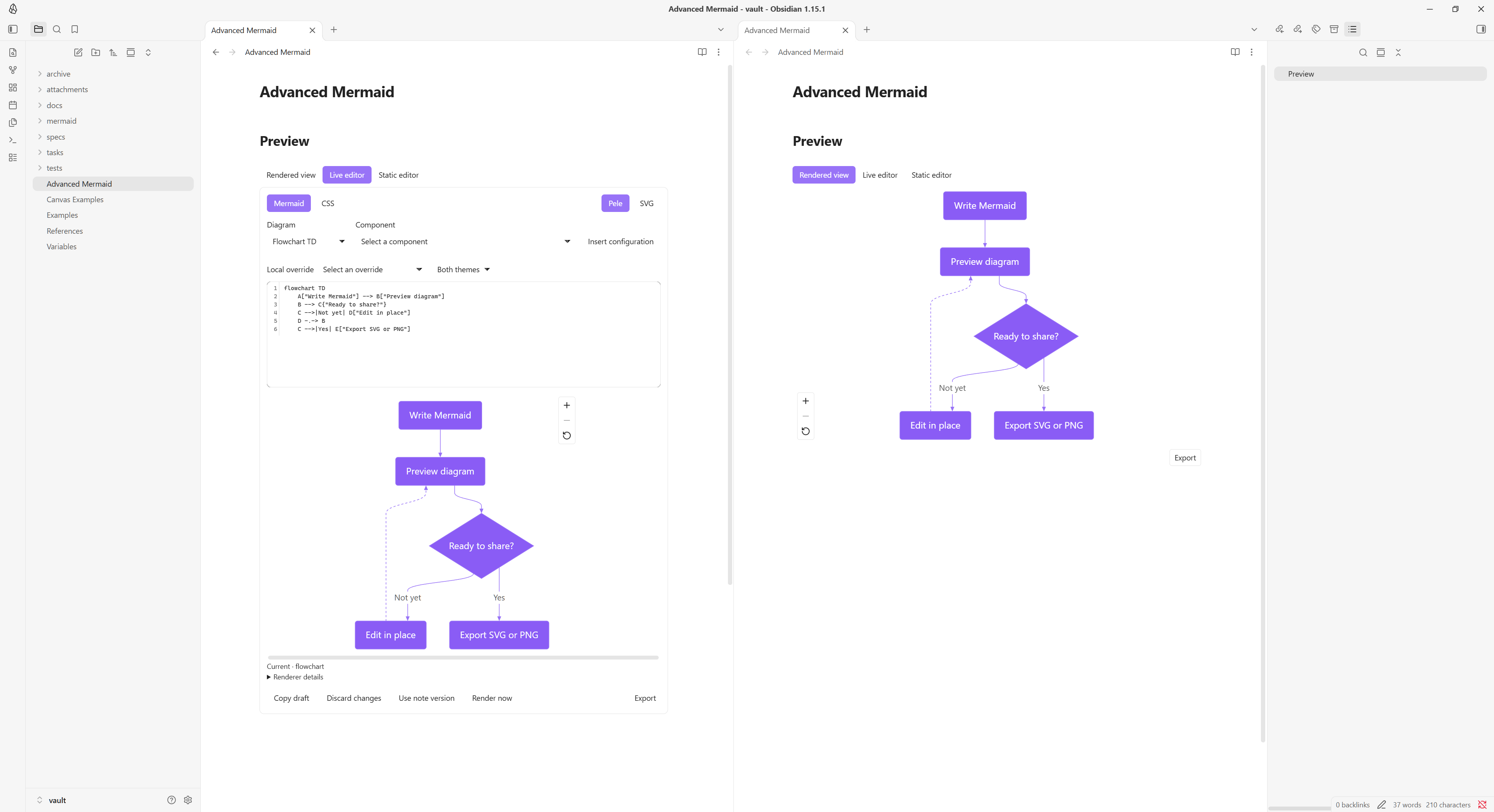
Requires Obsidian 1.14.5 or later on desktop.
Installation
- In Obsidian, open Settings → Community plugins. If prompted, select Turn on community plugins.
- Select Browse and search for Advanced Mermaid.
- Select Install, then Enable.
View the Obsidian plugin listing · Install manually from GitHub
Try a diagram
Copy this block, including the backticks, into a blank note.
```mermaid
flowchart LR
    A[Draft] --> B[Review]
    B --> C[Publish]
```
In Live Preview, add a blank line after the block and move the cursor there to see the flowchart. Select Live editor above the diagram and change Draft to Plan in the source. The preview updates as you type. You can also view the diagram in Reading view.
While the plugin is enabled, it renders both mermaid and pele code blocks using Pele, a Mermaid-compatible renderer. Some diagrams may look different because Pele handles layout and styling in its own way. Pele compatibility
Documentation
- User Guide for editing, styling, exporting, and troubleshooting.
- Technical reference for configuration syntax, rendering behavior, and development.
- Contributing for reporting issues, testing changes, and opening pull requests.
- Changelog for release notes.
License and credits
Advanced Mermaid and its bundled renderer, Pele, use the MIT license. Project license · Pele source
Support the project on Ko-fi or Buy Me a Coffee.